

Overview
Grandstream Home is a mobile application developed for managing Grandstream devices in home and small office environments. The app enables both local and remote access to device settings, to make network management and troubleshooting easier for non-technical users while offering advanced controls for more experienced administrators.
The application supports remote real-time monitoring and device configuration via Grandstream cloud services, while also allowing on-premise setup through direct Wi-Fi connections for router modules.
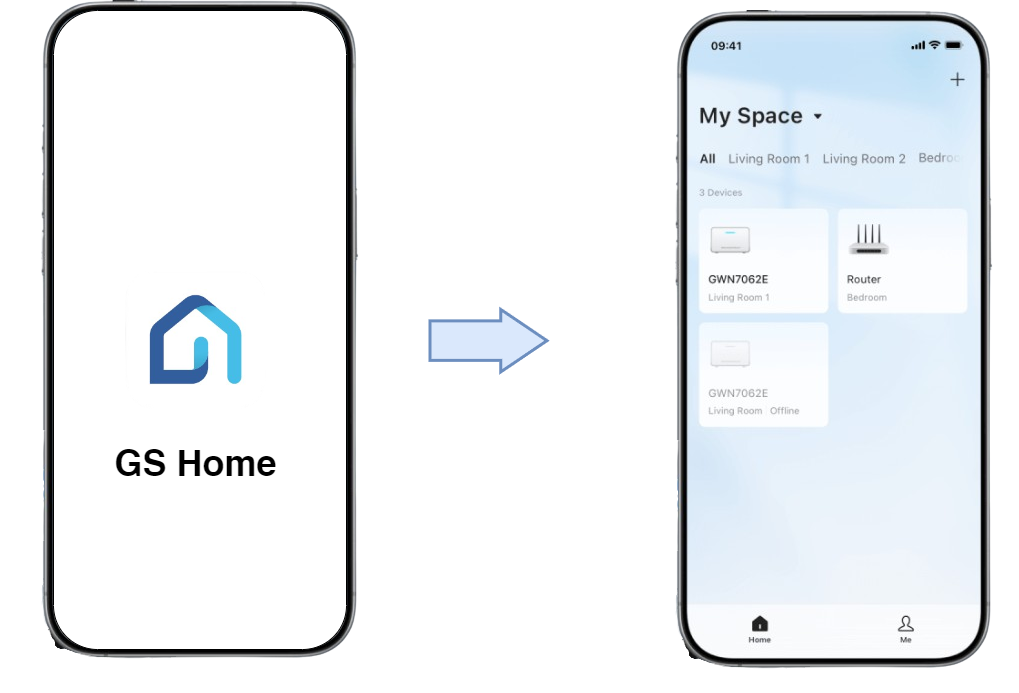
Getting Started
Installing the Application
To install the Grandstream Home application on your mobile device, follow these steps:
- Scan the QR code located on the SQIG of your purchased Grandstream device, or go directly to https://fw.gdms.cloud/homeapp/download/.
- Select the appropriate version of the application based on your device’s operating system (Android or iOS).
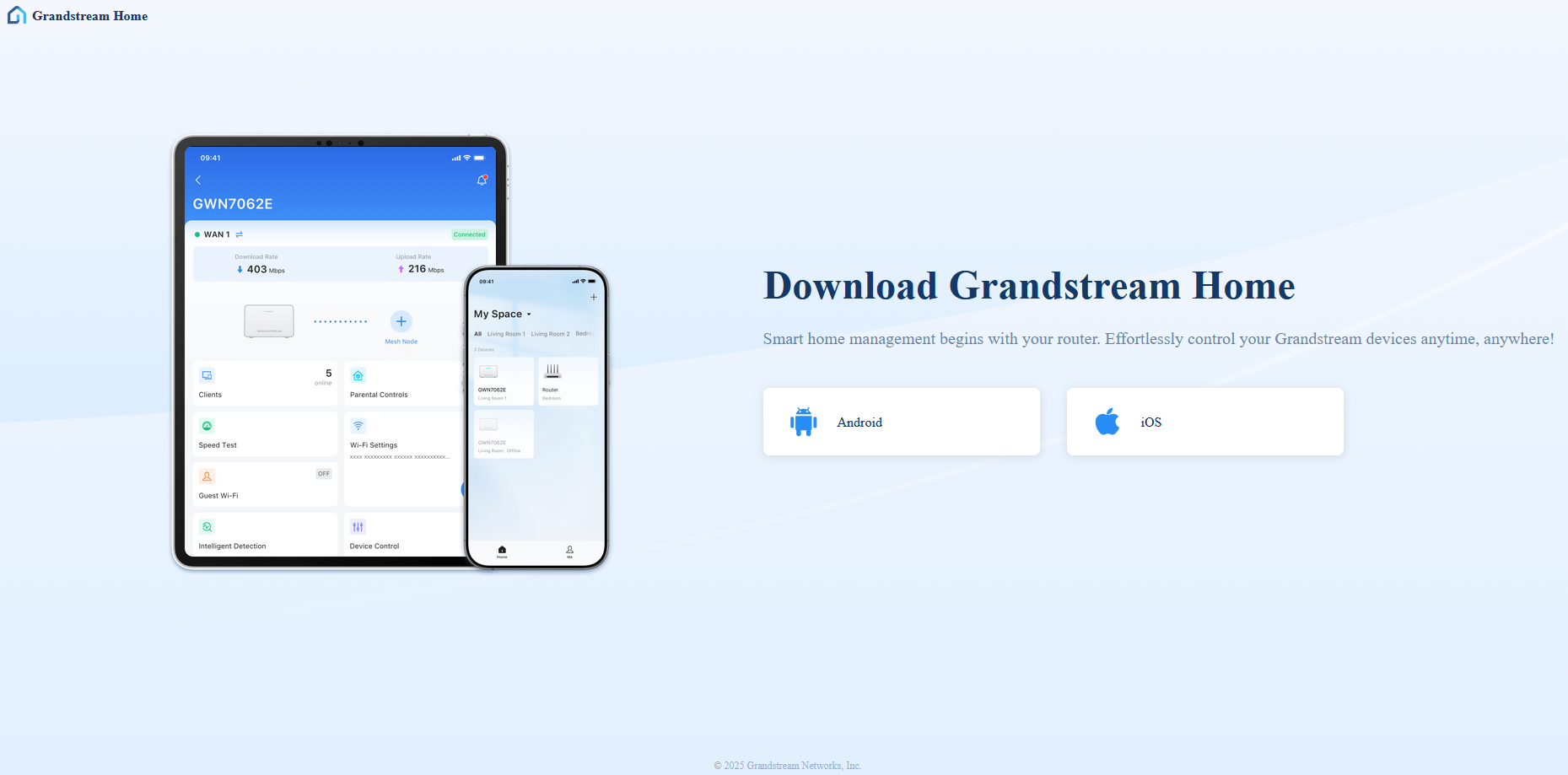
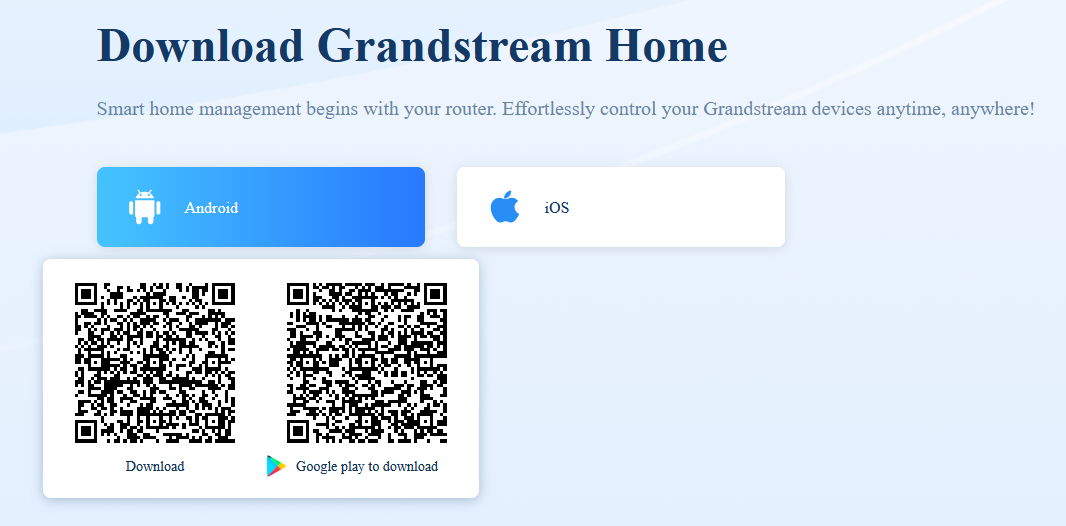
- Scan the QR code to be redirected to the corresponding app store (Google Play or Apple App Store) to initiate the download and installation.
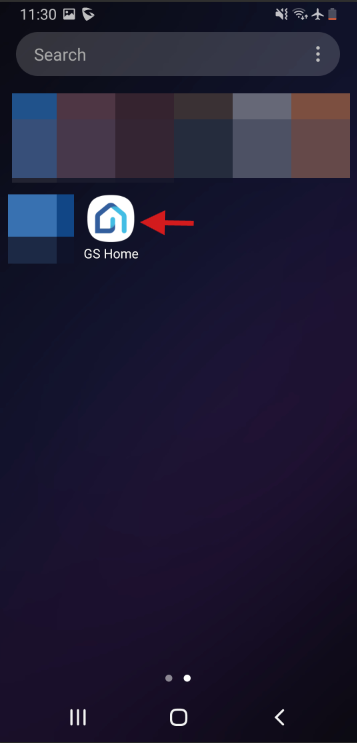
- Once the installation is complete, launch the Grandstream Home app from your mobile device to begin setup.
Sign-up and Sign-in
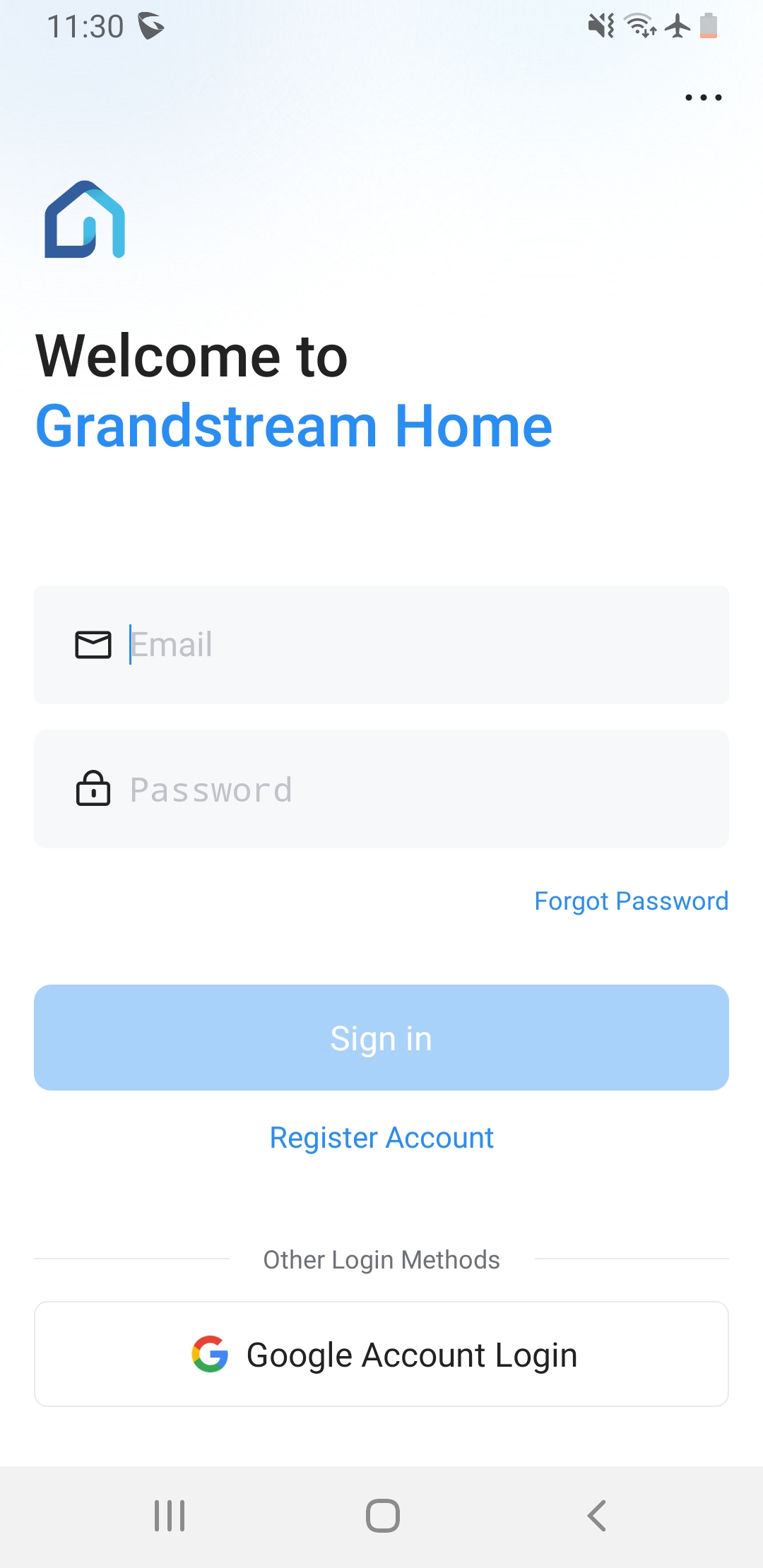
Grandstream Home uses a secure and flexible authentication system suitable for both inexperienced users and advanced network administrators.
- New User Registration:
Users can create a new account using a valid email and a secure password. The password must comply with minimum security policies, which are:- A minimum of 8 characters
- At least one uppercase letter
- At least one lowercase letter
- At least one number
- At least one letter
- At least one special character (e.g., @, #, !)
Email verification is required to activate the account. This step confirms the ownership of the email and helps to prevent unauthorized access or spam registrations.
- Enter your email, then enter the verification code shown in the image next to the text field.
- Read and acknowledge the terms of service and privacy policy. You cannot proceed unless you have read and agreed with the terms of service and privacy policy.
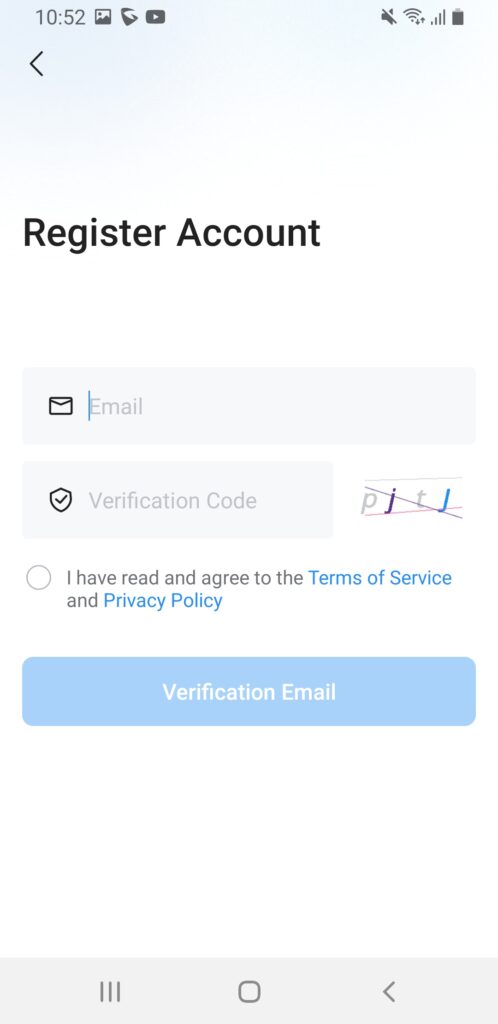
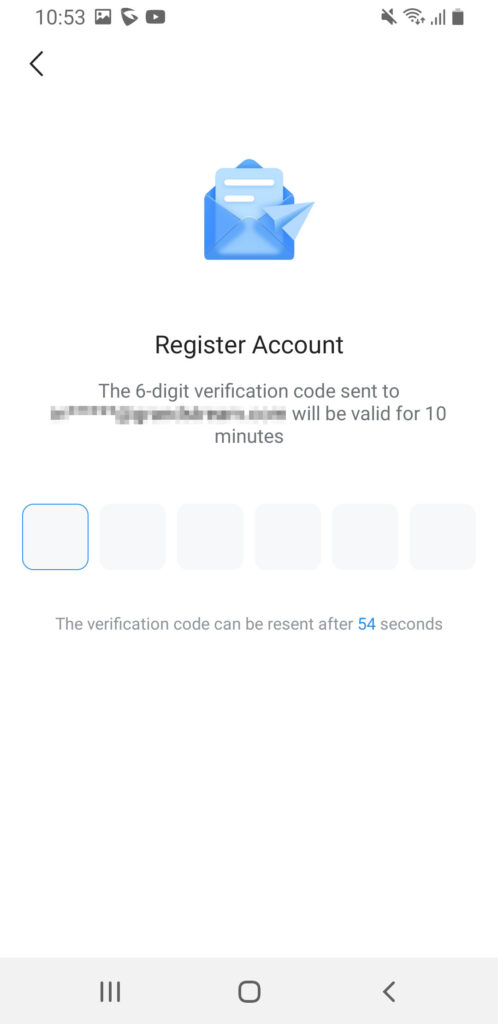
- Once that is done, you will receive a verfication code on your email inbox. Enter the code in the field to verify your email.
- Fill in the account registration information.
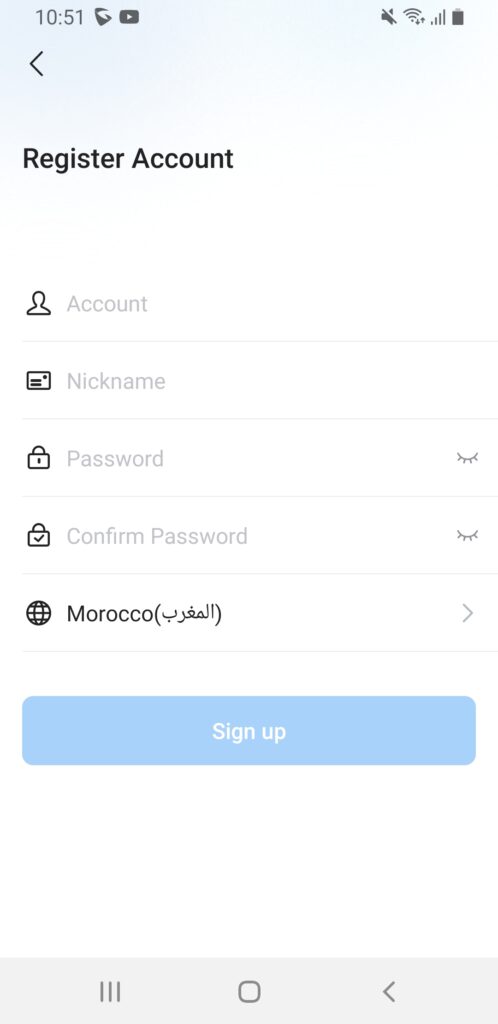
- Ensure that the account name has not been used previously. The account name is used to login to your account.
- Click “Sign Up” to create your Grandstream Home account
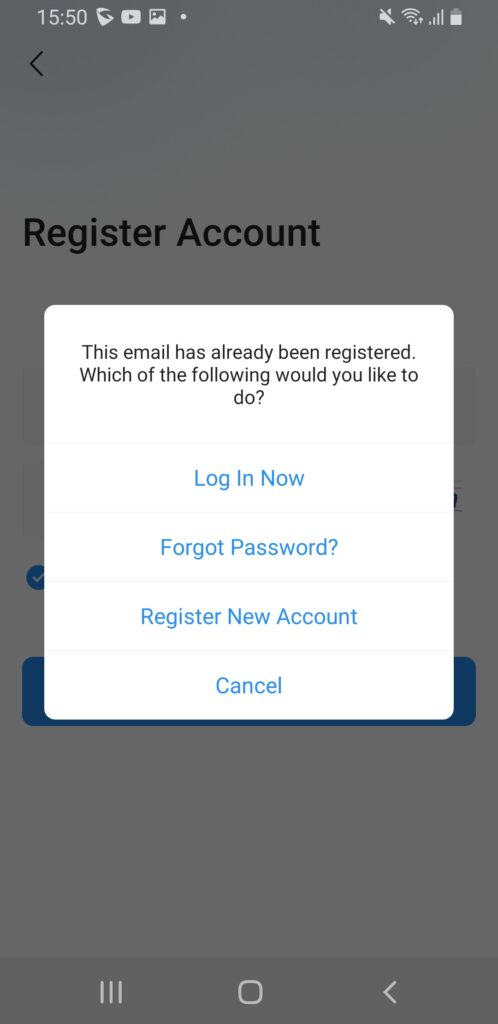
When the user tries to be register a new account with an email that has already been used to register another account, the user will see the following message.
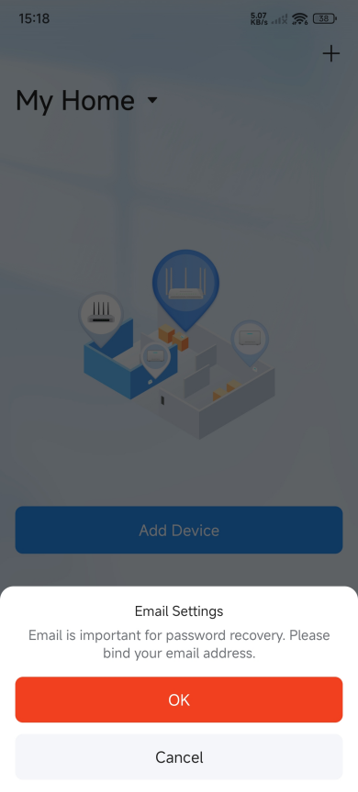
If the user logs-in for the first time and they don’t have a bound email address, they will be prompted to bind an email address to be able to recover access to the account in case they forget the password.
- When you received this prompt, click “OK”.
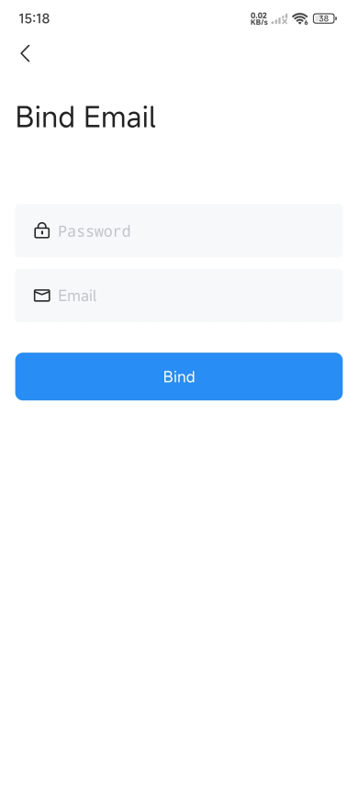
- Enter your password and your email then click “Bind”.
- Third-Party Login (OAuth):
Grandstream Home supports authentication via Google accounts for Android devices and Apple Account for Apple devices using OAuth 2.0. This method:- Reduces friction by eliminating password storage.
- Delegates authentication to a trusted provider.
- Enhances security via token-based access and platform-level 2FA.
- Password Recovery:
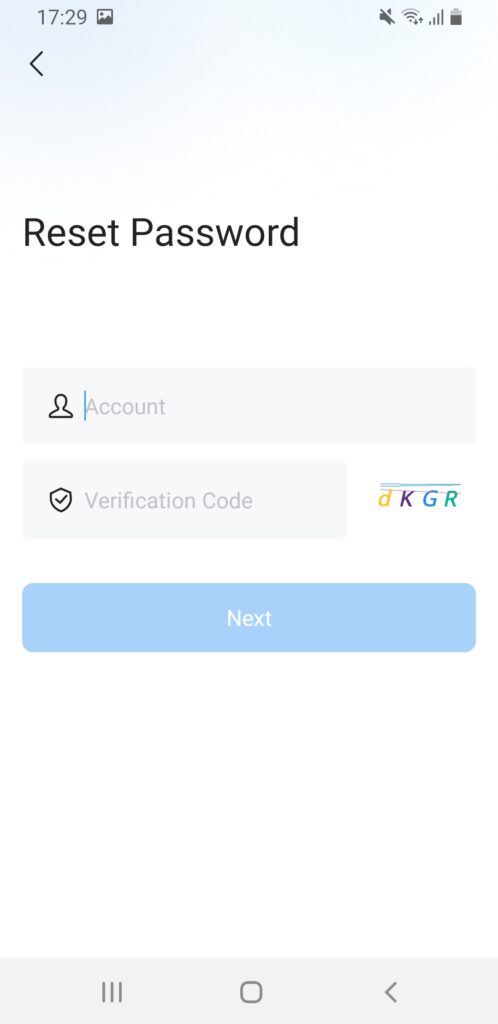
In the event of forgotten credentials, users can request a password reset. The app sends a time-limited, one-time-use reset password to the registered email address.
Account Configuration
After authentication, users can access account settings to manage their credentials and security preferences.
- Update Login Credentials:
Users can change their password or update their email address. Changing sensitive information may prompt the system to:- Verify the existing password
- Send a confirmation email
- Require session re-authentication
- Link/Unlink Third-Party Accounts:
Users can bind or unbind their Apple ID or Google account under the “Account” section. Binding enables a seamless login experience and can serve as a backup access method. During linking, the app validates the user via the third-party provider’s authentication flow.
Home and Room Management
Grandstream Home organizes routers and client devices through a hierarchical home-room-device structure. This modular layout enhances clarity and simplifies multi-site or multi-room deployments, particularly for power users managing several access points across distinct environments.
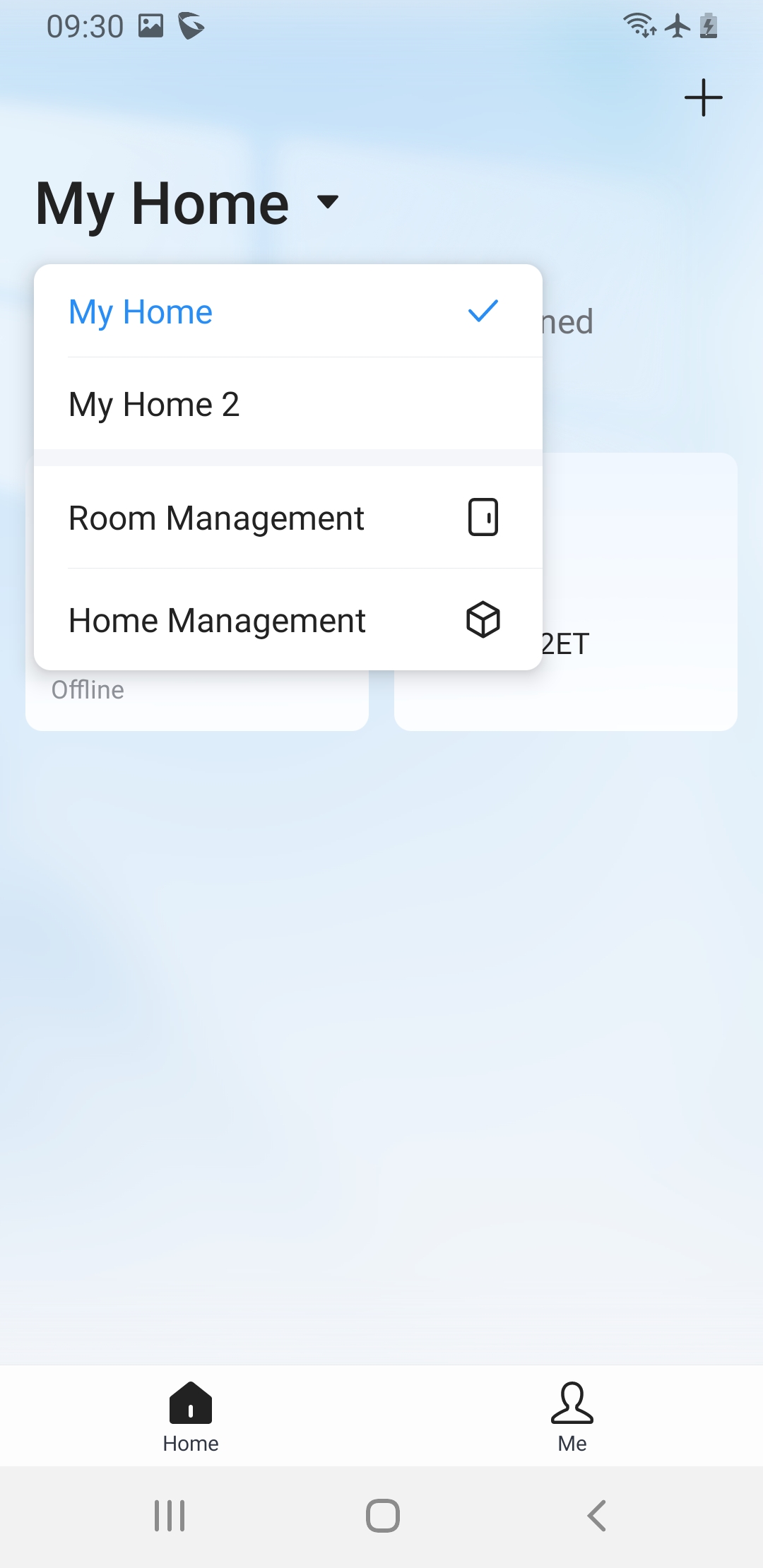
Homes
Homes function as top-level logical containers used to represent separate physical locations or organizational contexts (e.g., “House,” “Office,” “Warehouse A”).
- Default Home– “My Home”:
Upon initial login, Grandstream Home auto-generates a default home named “My Home.” All newly added devices are automatically assigned here unless otherwise specified. - Multi-Environment Support:
Users can create multiple homes to distinguish between different physical premises or network domains. This is particularly useful for:- Managing routers at different physical addresses
- Deploying and monitoring routers across multi-branch operations
- Storage and Sync:
Each home’s configuration is stored in the cloud (when remote mode is enabled) and synced across all devices linked to the same user account. This allows seamless access and management regardless of the device used to log in.
Rooms
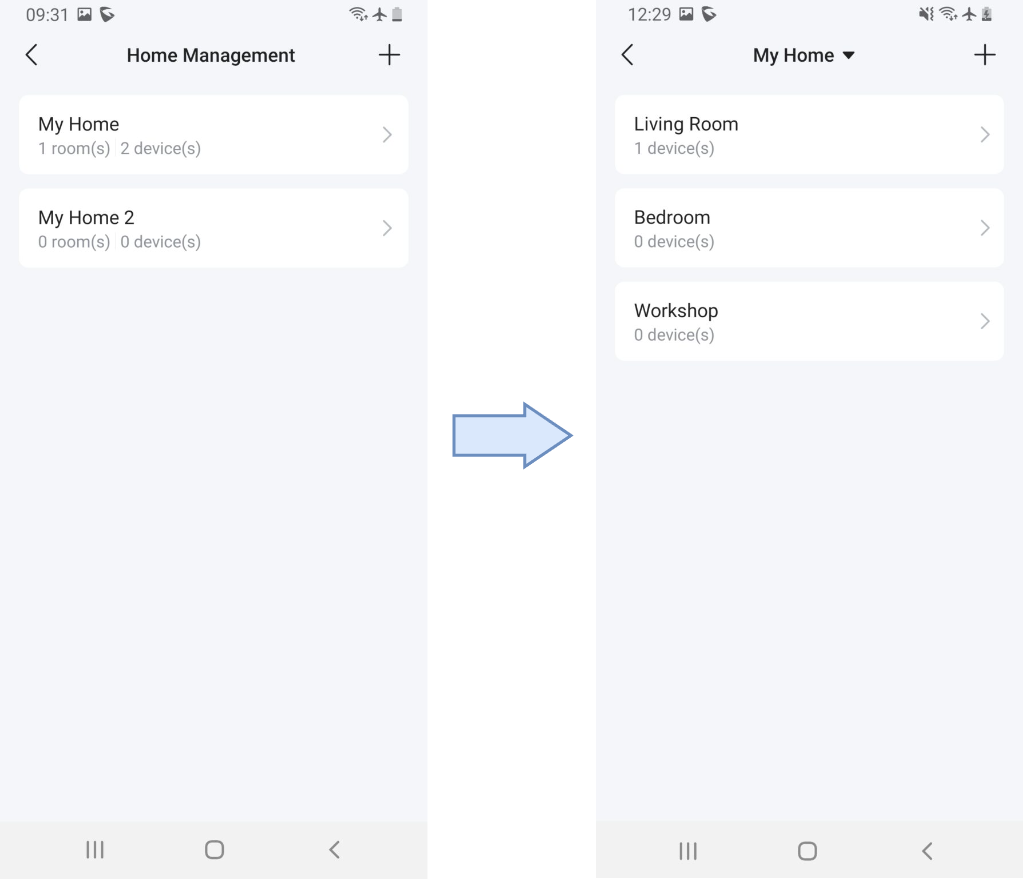
Rooms are secondary containers that exist within homes. They enable device-level segmentation and help admins map router deployments to actual physical zones within a home.
- Device Grouping:
Routers or client devices can be assigned to specific rooms, making it easier to identify and manage network topology and troubleshoot specific zones (e.g., “Living Room,” “Upstairs Office,” “Basement”). - Flexible Room Management:
Users can:- Create new rooms in any home.
- Rename rooms for clarity
- Delete empty rooms
- Dynamic Assignment:
Devices can be moved between rooms at any time via a long press or device edit options. This helps keep the room structure accurate as physical locations or network layouts evolve. - Hierarchical Context:
Each device is always linked to one room, which in turn belongs to one home. This prevents configuration conflicts or misclassification.
Device Management
The Grandstream Home app enables users to manage and configure a variety of devices, including Wi-Fi routers.
For specific use cases, please refer to the setup guide for each product category. Each guide contains tailored configuration instructions relevant to the type of device being added.
App Settings
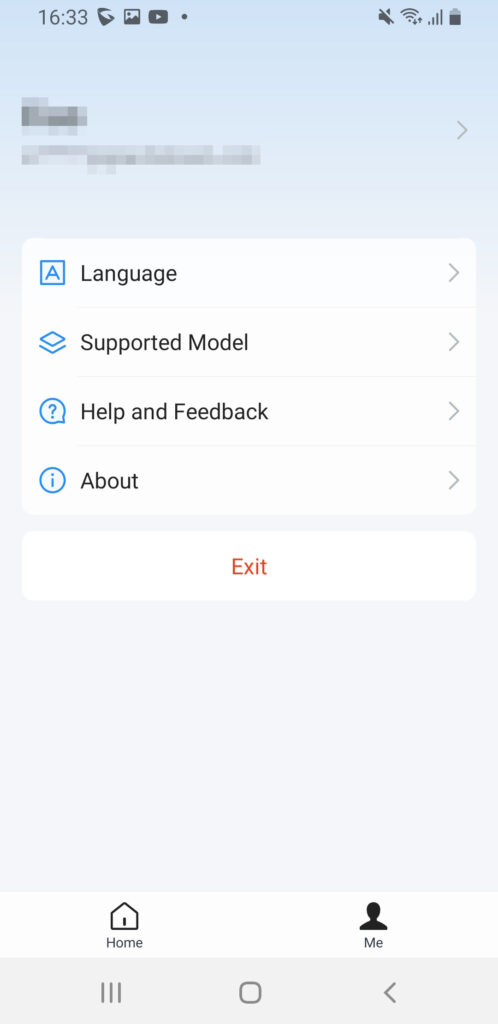
Language: Select your preferred language for the app interface to enhance usability and navigation.
Supported Model: Browse a list of Grandstream devices that are compatible with the app, which helps you confirm supported hardware.
Help and Feedback: Access helpful resources such as FAQs, and submit feedback or report issues directly from within the app.
About: View essential app information, including the current version, legal notices, and other relevant details.
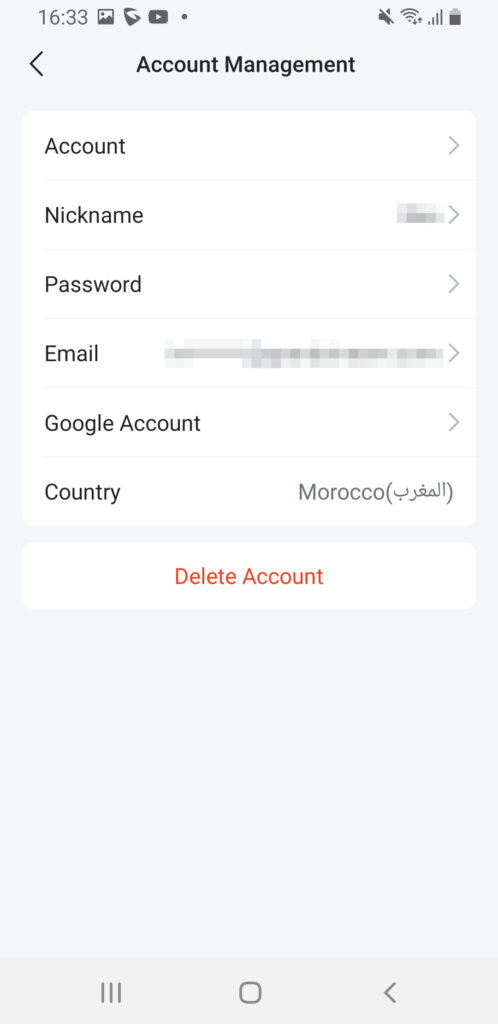
To access your information, go to Me tab, then click on your account name. You can edit your personal information directly from the application.
Supported Devices
Supported Devices | Firmware Version |
GWN7062E | 1.0.3.7+ |
GWN7062ET | 1.0.3.7+ |
GWN7062M | 1.0.1.98+ |
CHANGE LOG
This section documents significant changes from previous versions of the Grandstream Home application. Only major new features or major document updates are listed here. Minor updates for corrections or editing are not documented here.
Version 1.0.5.5 (Android) / 1.5.3 (iOS)
- The user can change their personal information through the app. [Sign-up and Sign-in]
- The application will prompt the user to bind their email if the account was created without an email. [Sign-up and Sign-in]
Version 1.0.3.12 (Android) / 1.3.12 (iOS)
- No major changes.
Version 1.0.1.8 (Android) / 1.1.8 (iOS)
- This is the initial release.