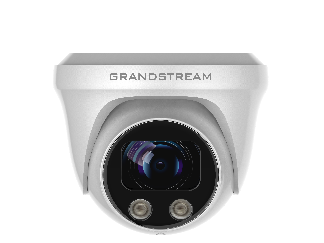
Thank you for purchasing Grand stream’s GSC3620 FHD IP Dome Camera, the innovative powerful weatherproof Vari-focal and Auto-Focus camera. The GSC3620 is a ceiling-mounted fixed dome IP camera with a 3.6mm lens – making it an ideal device for wide-angle monitoring of nearby subjects in environments such as banks, hotels, retail stores, offices, warehouses, and building entrances. GSC3620 supports motion detection and smart infrared technology for white balance and exposure to monitor activity at night in outdoor or dark enclosed spaces. The GSC3620 can be managed with GSURF Pro, Grandstream’s free video management software, along with other ONVIF-compliant video management systems. It pairs with Grandstream’s video phones and GSC3570 HD intercom and facility control station for active end-point monitoring and facility control. By adding weatherproof capabilities, this is an ideal device for increasing security and facility management in any indoor or outdoor area.
Designed for both indoor and outdoor environment, the GSC3620 IP Camera ensures ease of use, integration, and deployment, with multilingual graphical user interface, provides powerful solution to professional surveillance applications.
This manual will help you to learn how to operate and manage your GSC3620 FHD Infrared Weatherproof Vari-focal and Auto-Focus, Dome Camera, and make the best use of it.
PRODUCT OVERVIEW
Feature Highlights
The following table contains the major features of the GSC3620:
Table 1: GSC3620 Features in a Glance
GSC3620
Motion detection
Vari-focal and Auto-Focus
Smart infrared technology for optimal white balance and exposure
Built-in PoE to power the device and provide a network connection
Alert notifications via outbound voice or video call & email screenshot
IP67-level weatherproof capability
Primary stream 1920×1080 and Secondary stream 640×480
SIP/VoIP support for video and audio streaming to endpoints (external microphone required)
GSC3620 Technical Specifications
The following table resumes all the technical specifications including the protocols/standards supported, voice codecs, telephony features, languages, and upgrade/provisioning settings for GSC3620.
Table 2: GSC3620 Technical Specifications
Network Protocol
SIP RFC3261, TCP/IP/UDP, RTP/RTCP, HTTP/HTTPS, ARP, ICMP, DNS (A record, SRV, NAPTR), DHCP, SSH, TFTP, NTP, STUN, LLDP-MED, TLS, SRTP
Saturation, Brightness, Contrast, Sharpness, White Balance
Focal Length
2.8mm – 12mm Vari-Focal, Electronic Auto-Focus
Infrared LED
42μ x 2, up to 25M, Auto Control
Ethernet
One RJ-45 (10/100Base-T) Port with PoE
ONVIF
Yes, Profile S
Day/Night
Color/ Black &White (IR-CUT)
Motion Detection
Supported
Language Supported
Multi-Language
Privacy Mask
4 Rectangular Zones
Weatherproof Grade
Metal, IP67-level weatherproof capability
Power
DC12V±10%,1A (Power Adapter NOT Included)
PoE: Support IEEE 802.3af
Temperature / Humidity
-20 °C ~ 60 °C, RH95% Max
Weight and Dimensions
Unit: 714g, Dimension: 128 x 108 (LxH) mm;
Package Weigh: 900g
Compliance
FCC, CE, RCM, IC
GETTING STARTED
This chapter provides basic installation instructions including the list of the packaging contents and also information for obtaining the best performance with the GSC3620.
Equipment Packaging
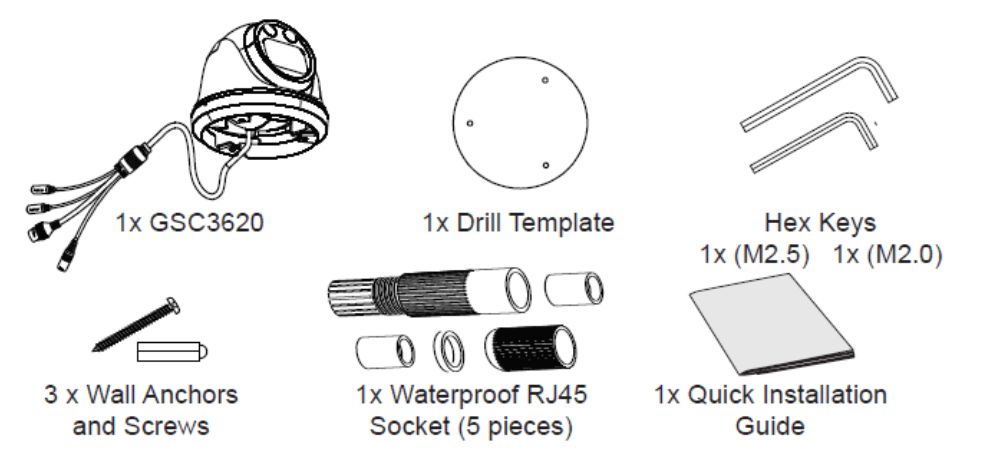
Table 3: Equipment Packaging – GSC3620
GSC3620
1x GSC3620 Main Case.
1x Drill Template
2x Hex Keys
1x Waterproof RJ45 Socket (5 pieces)
3x Wall Anchors and Screws
1x Quick Installation Guide.
Figure 1 GSC3620 Package Content
Note
Check the package before installation. If you find anything missing, contact your system administrator.
Powering and Connecting the GSC3620
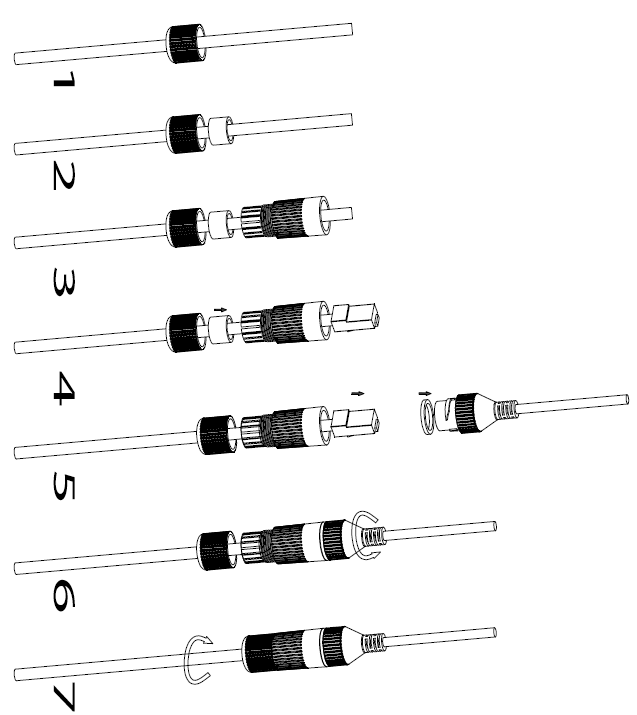
The GSC3620 can be powered either using the right PSU (DC12V, 1A) or using a PoE switch, please refer to illustration below to do the wiring and connect the waterproof RJ45 socket:
Option A (Recommended)
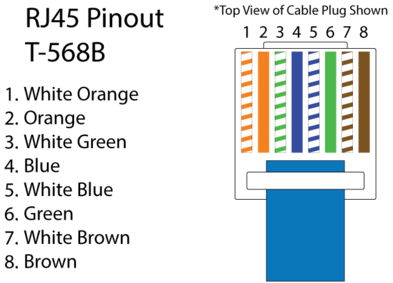
Based on T-568B (see diagram below) to install the RJ45 plug, tighten the connector using the provided waterproof socket.
2. Connect other end of the cable into a switch supporting Power over Ethernet.
Figure 2 RJ45 plug installation
Option B
Wire the cable and connect it to a network switch as in the figure above.
Connect a 12VDC, 1A (minimum) Power Adapter (not provided) to the power socket of the GSC3620 tail cable. Make sure the polarity “+” (center) and “-” (outside) are correctly connected.
HARDWARE INSTALLATION
Mounting GSC3620
Figure 3 Mounting GSC3620
GSC3620 APPLICATION SCENARIOS
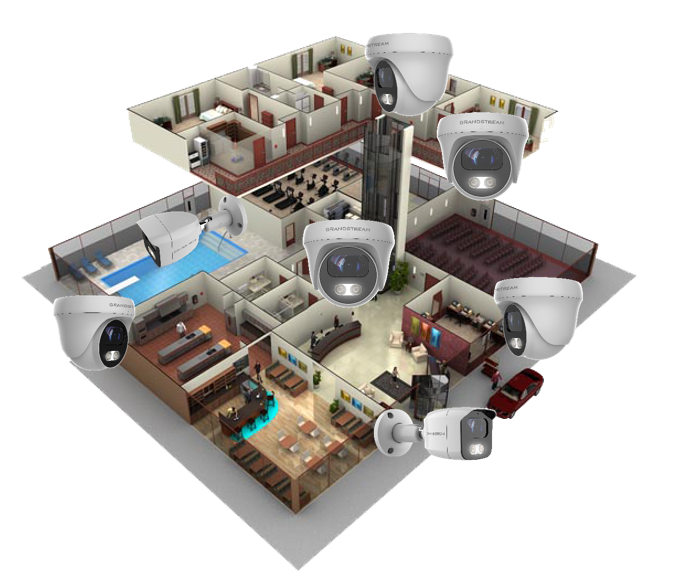
GSC3620 is very versatile infrared IP Camera, it can be used in a lot of scenarios.
LAN without Internet
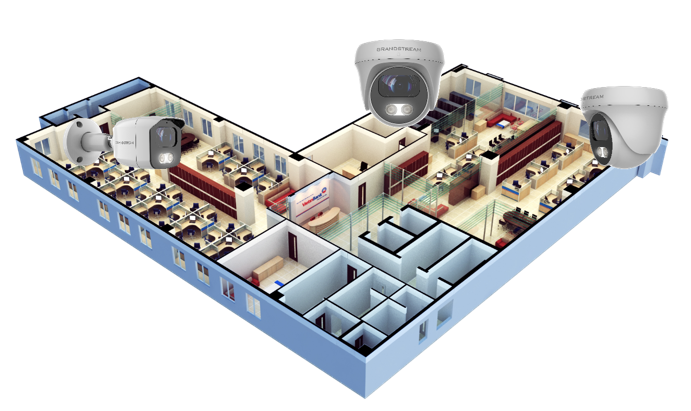
For multi-room or a bigger space, multiple GSC3620 might be required. User can establish a local area network using PoE switch.
If remote access required, a router with internet access may add in.
Equipment List:
Several GSC3620
Ethernet cables
Switch (Static IP required to configure to IP Cameras)
PoE Switch (Optional, better solution) Note: If remote access to the cameras required to view the LIVE video stream, then broadband Internet is required, and more equipment required:
Router (if DHCP configured than static IP is not required although still recommended)
iPhone or Android phone. (Application like “IP Cam Viewer”)
Figure 4 GSC3620 Working in LAN
LAN with Internet
For multi-room or a bigger space, with Internet access and local video recording required, following list is recommended:
Equipment List:
Several GSC3620
Ethernet cables
Switch (PoE Switch recommended)
Router
Broadband Internet Access (FiOS, Cable or DSL)
iPhone or Android phone. (Application like “IP Cam Viewer”)
VMS GSurf_Pro Remote Access (Optional)
Figure 5 GSC3620 working with Internet
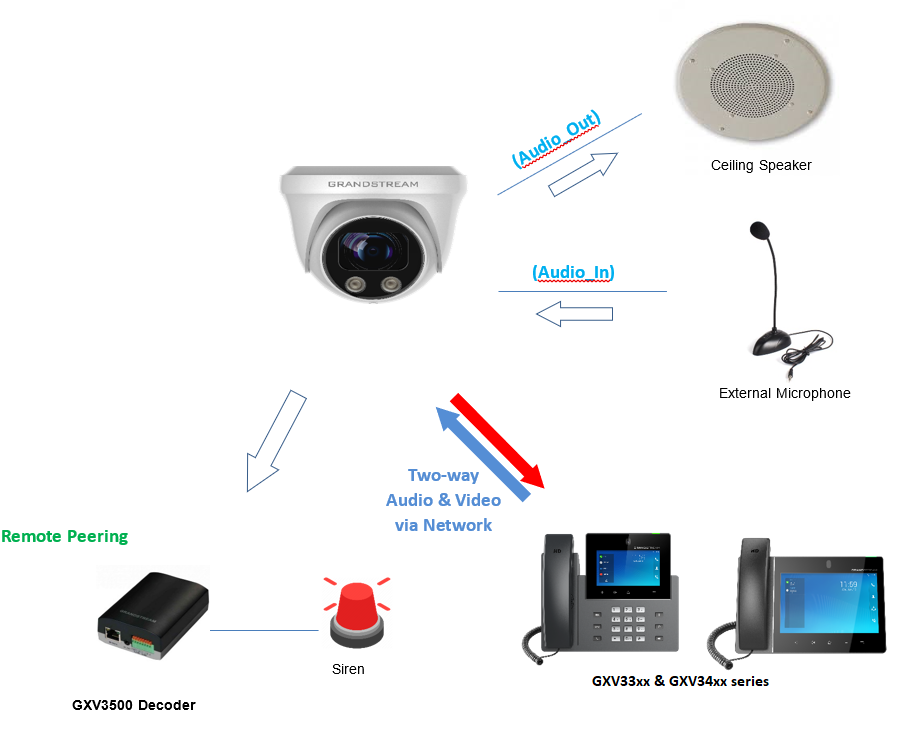
Application Peripheral Connection
Below is the illustration of GSC3620 peripheral connections for related application.
Figure 6 Application Peripheral Connection for GSC3620
Audio Output and Input using 3.5mm interface must match below parameters:
Audio Output
3.5mm Line-Out, 560Ω, 4.0Vpp
Audio Input
3.5mm Line-In, 1-50mVpp
Grandstream phones can work with GSC3620 (video stream video phones GXV33xx & GXV34xx only) via either Peer IP (LAN) or SIP extension (WAN). Peer to Peer (or Direct IP) works only at LAN using static IP; SIP extension requires related SIP server/proxy provided and configured.
GSC3620 WEB GUI
Note the below requirement to access/configure the GSC3620:
Internet Browser like Firefox, Chrome, Microsoft Internet Explorer.
DHCP server enabled on the network.
Two ways exist for Windows user to get access to the GSC3620:
UPnP
By default, the GSC3620 has the UPnP feature turned ON. For customers using Windows network with UPnP turned on (most SOHO routers support UPnP), it is easy to access the GSC3620:
Find the “Network” icon on the windows Desktop.
Click the icon to get into the “Network”, the GSC3620s will list as “Other Devices” shown. Refresh the pages if nothing displayed. Otherwise, the UPnP may not be active in the network.
Click on the displayed icon of related GSC3620, the default browser (e.g.: Internet Explorer, Firefox, or Chrome) will open and connect directly to the login webpage.
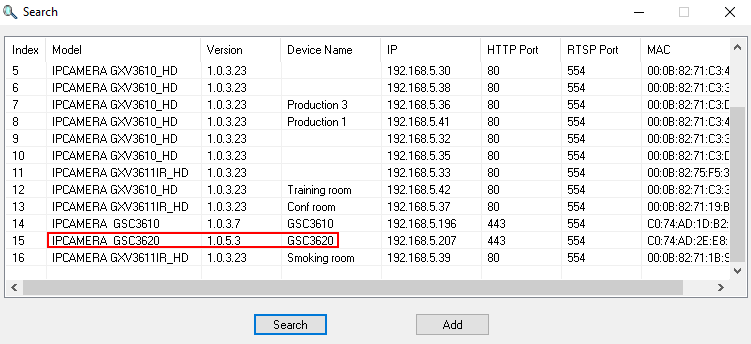
GS Search
Double check the requirements then follow the below steps to access the GSC3620 WEB configuration page:
The detected devices will appear in the output field as below.
Figure 7 GS Search tool
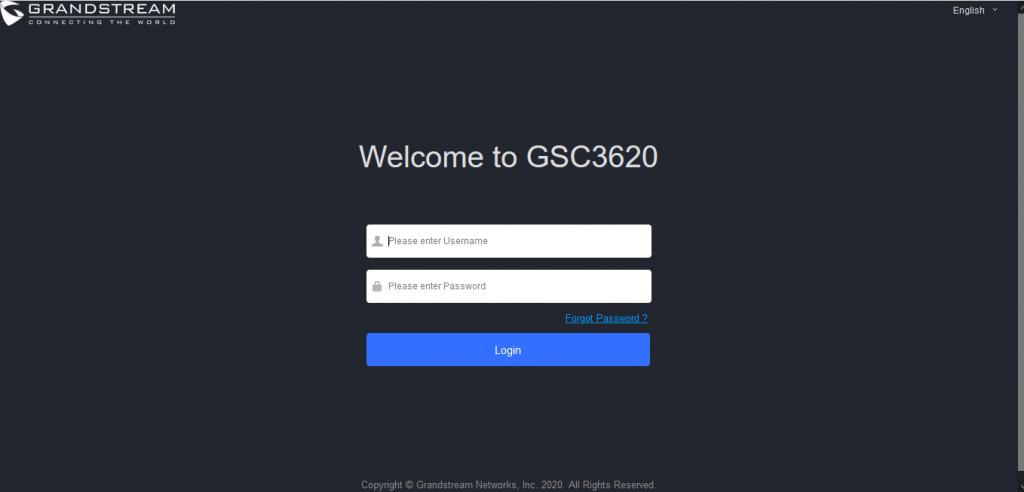
5. Double click on the detected device. The default browser (Chrome in this example) will open to display the camera’s login web interface.
Figure 8 GSC3620 Login Page
When clicking on the “Language” drop down, supported languages will be displayed. Click to select the related webpage display language. (Current firmware supports only English as default and simplified Chinese).
6. Username and password are required to login the camera to manage the device.
The default username is “admin”; the default password is a random password printed in a sticker which can be found on the camera body or cable.
The default connection is via HTTPS. Once input the correct username and password, the device configuration webpage will be available.
Web GUI Settings
The GSC3620 embedded Web server responds to HTTP/HTTPS GET/POST requests. Embedded HTML pages allow users to configure the application phone through a Web browser such as Microsoft’s IE, Mozilla, Firefox, Google Chrome and etc.
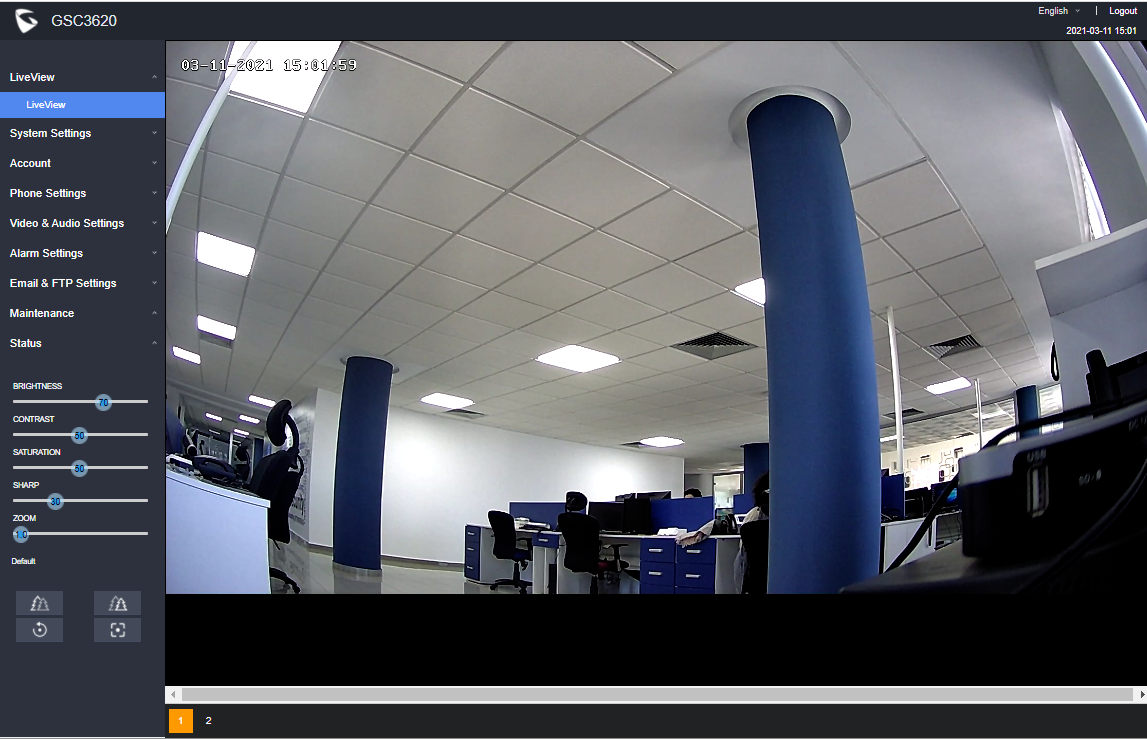
Once logged in successfully to the GSC3620, the browser will display the GUI as shown below:
Figure 9 GSC3620 Web GUI
Table 4: GSC3620 WEB GUI Sections
Fields
Description
LiveView
Access to live view stream page.
Play the primary stream.
Play the secondary stream.
System Settings
Access to “System Settings” page.
Account
Access to “Account” configuration page.
Phone Settings
Access to “Phone Settings” configuration page.
Video & Audio Settings
Access to “Video & Audio settings” page.
Alarm Settings
Access to “Alarm settings” page.
Email & FTP Settings
Access to “Email & FTP Settings” page.
Maintenance
Access to “Maintenance” page.
Status
Click to enter “Status” page.
GSC3620 SETTINGS
Live View Page
This page allows users to view the live video of the GSC3620.
Figure 10 Live View
Two streams are available:
Primary video stream: 1920*1080 resolution, recommended for continuous full HD recording
Secondary video stream: 640*480 resolution, recommended for SIP/VoIP video calls
Note
Make sure to download/Install the browser video plugin to have access to the Live View and video stream tools.
Vari-focal and Auto-Focus Settings
At the “LiveView” page, sliding the “ZOOM” bar left or right to zoom out/in the lens; click “Focus+/–“ to fine tune the focus; or click “One key focus” to let system auto-focus the scene; click “initialize lens” to go back to default.
After adjusting the focal length of the lens or click “One Key Focus”, the device will automatically adjust the image definition (no other lens operation allowed during the auto-focus process).
Due to the scene limitation, the effect of “one key focus” may not always be satisfied. When this happened, it is recommended manually click the “Focus+/-“ button to fine tune and complete the focus operation.
If after several round of zoom and focus, the image is still not clear, please click “Initialize lens” to reset the lens by removing the accumulated errors of the lens.
System Settings
This page allows users to configure date and time, network settings as well as access method to the GSC3620 and password for accessing the Web GUI.
Date & Time Settings
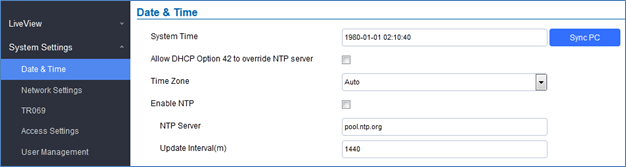
This page allows users to adjust system date and time.
Figure 13 Date Time Page
Table 5: Date & Time
System Time
Displays the current system time.
Allow DHCP Option 42 to override NTP server
Defines whether DHCP Option 42 should override NTP server or not. When
enabled, DHCP Option 42 will override the NTP server if it is set up on the
LAN. The default setting is “Yes”.
Sync PC
Clicks to synchronize current time with the computer.
Time Zone
Selects from drop down menu the preferred time zone. Default is “Auto”
Enable NTP
Enables NTP to synchronize device time.
NTP Server
Configures the domain name of NTP server. Default is “pool.ntp.org”
Update Interval
Configures the Interval (in minutes) to retrieve updates from the NTP server.
Network Settings
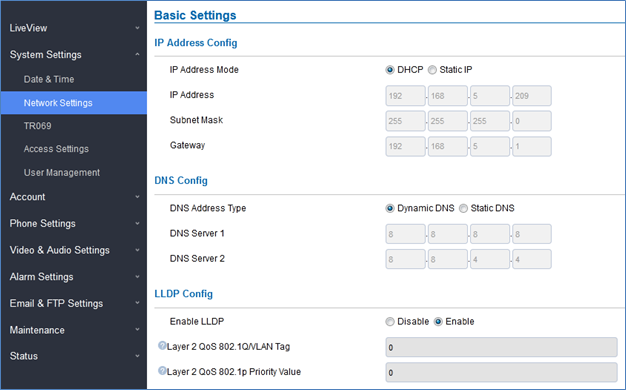
This page allows users to set either a static or DHCP IP address to access the unit.
Figure 14 Basic Settings Page
Table 6: Basic Settings
IP Address Mode
Selects DHCP or Static IP. Default DHCP. (Static recommended)
IP Address
Configures the Static IP of the GSC3620.
Subnet Mask
Configures the Associated Subnet Mask.
Gateway
Configures the Gateway IP address.
DNS Address Type
Specifies the DNS type used: Dynamic DNS or Static DNS.
DNS Server 1
Configures DNS Server 1 IP address.
DNS Server 2
Configures DNS Server 2 IP address.
Enable LLDP
Controls the LLDP (Link Layer Discovery Protocol) service. The default setting is “Enabled”.
Layer 2 QoS 802.1Q/VLAN Tag
Assigns the VLAN Tag of the Layer 2 QoS packets.
Default value is 0.
Layer 2 QoS 802.1p Priority Value
Assigns the priority value of the Layer2 QoS packets.
Default value is 0.
Notes
If the device is behind SOHO (Small Office Home Office) router with port forwarding configured for remote access, static IP should be used to avoid IP address changes after router reboot.
TCP port above 5000 is suggested to Port forward HTTP for remote access, due to some ISP would block port 80 for inbound traffic. For example, change the default HTTP port from 80 to 8088, to make sure the TCP port will not be blocked.
In addition to HTTP port, RTSP port is also required to configure via port forwarding, so that the remote party can view the video stream.
TR069
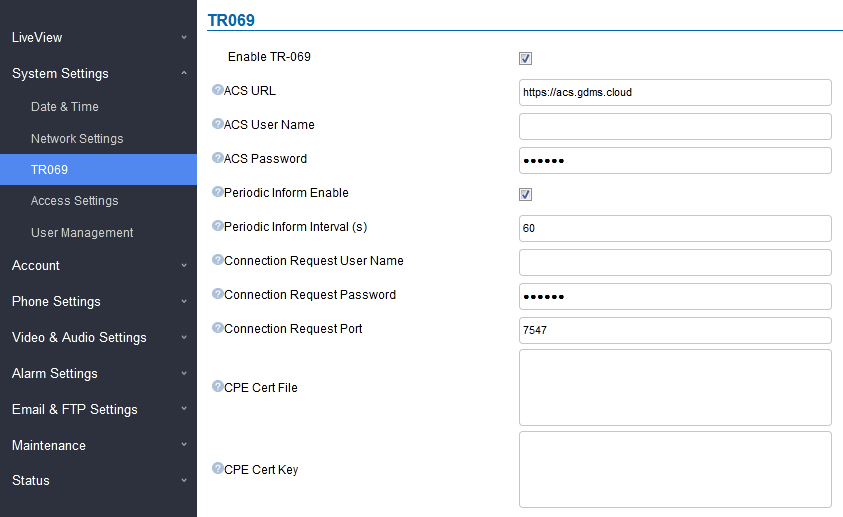
This page allows users to set TR-069.
Figure 15 TR069 Settings Page
This feature allows centralized management and provisioning of mass product operations. This is very useful for ITSP customers and enterprise solutions. With GDMS management, customers can manage, provision the GSC3620 from GDMS platform.
Specifies URL of TR-069 ACS (e.g.,http://acs.mycompany.com), or IP address. Default setting is “https://acs.gdms.cloud”
TR-069 Username
ACS username for TR-069.
TR-069 Password
ACS password for TR-069.
Periodic Inform Enable
Enables periodic inform. If set to “Yes”, device will send inform packets to the ACS.
Periodic Inform Interval
Sets up the periodic inform interval to send the inform packets to the ACS. The default value is “60”.
Connection Request Username
The username for the ACS to connect to the phone.
Connection Request Password
The password for the ACS to connect to the phone.
Connection Request Port
The port for the ACS to connect to the phone. The default value is “7547”.
CPE Cert File
The Cert File for the phone to connect to the ACS via SSL.
CPE Cert Key
The Cert Key for the phone to connect to the ACS via SSL.
Access Settings
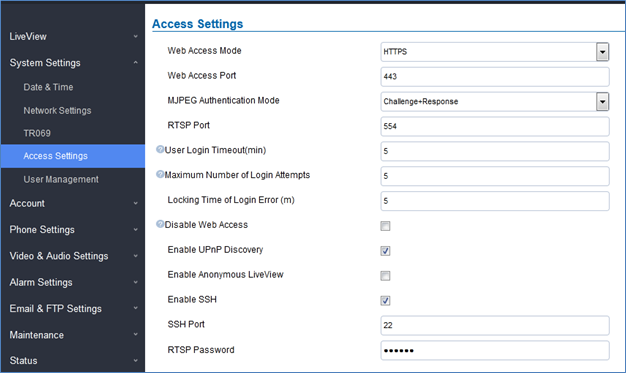
This page configures the GSC3620 access control parameters.
Figure 16 Access Settings Page
Table 7: Access Settings
Web Access Mode
Selects the access mode to the Web GUI either HTTP or HTTPS.
Web Access Port
Specifies the TCP port for Web Access, default 443.
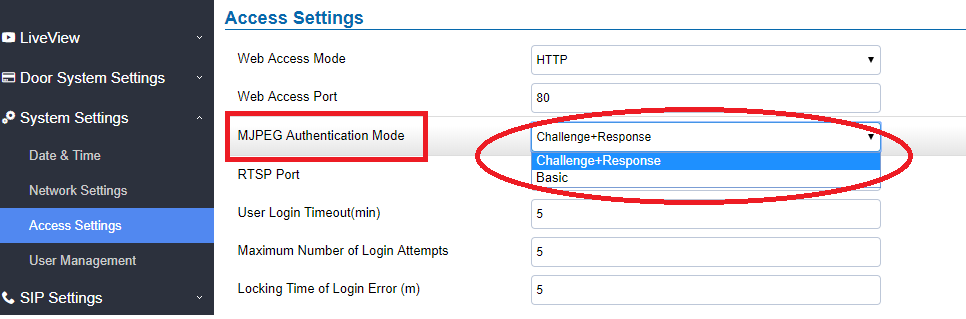
MJPEG Authentication Mode
Allows 3rd party system integrator or developers to implement related application for users. By default, this feature is disabled and use more secured “Challenge+Response” mode.
If enabled, user can send HTTP API with correct credentials to retrieve MJPEG video stream or JPEG snapshot from GSC.
Notes:
The MJPEG stream can be retrieved via the following URL
HTML based 🡺 http(s)://admin:password@IP_GSC3620:Port/jpeg/mjpeg.html
The MJPEG stream retrieved via the methods above is running on the background and cannot be tuned. If users want more flexibility, they can use the three configurable video streams as shown on [Retrieving Video Streams]
RTSP Port
Specifies RTSP port for media stream, default TCP port 554.
User Login Timeout(min)
If no action is made within this time the GSC3620 will logout from the Web GUI, range is between 3 and 60. Default is 5.
Maximum Number of Login Attempts
Specifies the allowed login times error limit, if the unsuccessful login attempts exceed this value, the GSC3620 webGUI will be locked for the time specified in Login Error Lock Time. Default is 5.
Locking Time of Login Error (m)
Specifies how long the GSC3620 is locked before a new login attempt is allowed. Default is 5.
Disable Web Access
Allow or deny the web access to the GSC3620. (HTTP API do not take effect when this option is enabled).
Note: If both WebUI and SSH are disabled, GSC3620 will get blocked and not be able to be accessed. Only two ways to get it back:
Re-provisioned by ITSP or Service Provider (by adjusting the related parameters)
Hard Reset (GSC3620 has to be offline and uninstalled to perform this hard reset).
Enable UPnP Discovery
UPnP (or mDNS) function for local discovery. Default setting is enabled.
Enable Anonymous LiveView
1. When enabled, user can display the camera stream from without admin credentials using the following URL scheme:
http(s)://GSC3620_IP:port/videoview.html
User can also retrieve a real-time snapshot without admin credentials using the following URL:
This password can be used for RTSP stream display.
Retrieving Video Streams
RTSP Stream
To retrieve video stream via RTSP, users can use the following format:
rtsp://admin:password@IP_GSC3620:Port/X where X=0,4 for 1st, 2nd streams respectively
MJPEG Stream
The GSC3620 supports MJPEG Stream live viewing via HTTP API commands, this can be used without installing the Live view browser plugin. Users can deploy two methods to retrieve MJPEG stream depending on MJPEG Authentication Mode, which can be set under following path:
Web UI 🡺 System Settings 🡺 Access Settings
Figure 17 MJPEG Authentication Mode
A. “Challenge+Response” MJPEG Authentication Mode:
In order to get live view stream using MJPEG stream over HTTP command on this mode, please fellow below steps:
In browser type in http(s)://IP_Address_GSC3620:Port/jpeg/mjpeg.html Example: https://192.168.5.146/jpeg/mjpeg.html
The browser will pop up the window above asking for credentials, user needs to enter admin credential.
The browser will show MJPEG stream (720p).
B. “Basic” MJPEG Authentication Mode:
Please follow below steps in order to take a snapshot via HTTP commands:
In browser type in: http(s)://admin:password@IP_Address_GSC:Port/jpeg/mjpeg.html Example: https://admin:admin@192.168.5.157:443/jpeg/mjpeg.html
The browser will show MJPEG stream (720p).
Note
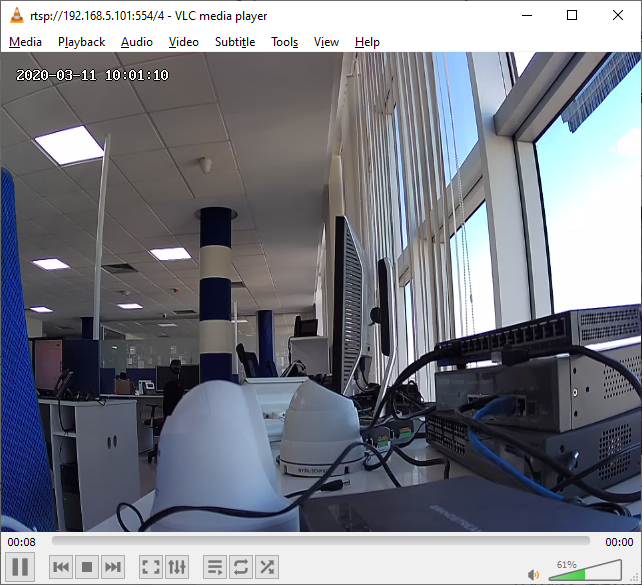
Similar command can be applied to open source application like VLC Media Player to retrieve H.264 video stream with better quality: rtsp://admin:password@IP_GSC3620:Port/X Where X=0,4 corresponded to 1st, 2ndvideo stream.
Figure 18 RTSP steam display using VLC
User Management
This page allows users to configure the password for administrator. Since this is a door system which must be a secure product, the use is only limited to administrator.
Figure 19 User Management Page
Table 8: User Management
Old Password
Old password must be entered to change new password.
New Password
Fill in the revised new password in this field.
Confirm User Password
Re-enter the new password for verification, must match.
Password Recovery Email Address
This option is highly recommended, as if the password is lost, you can recover it on the configured Email address.
Note: Make sure to configure SMTP Email Settings under “Email Settings”
Note
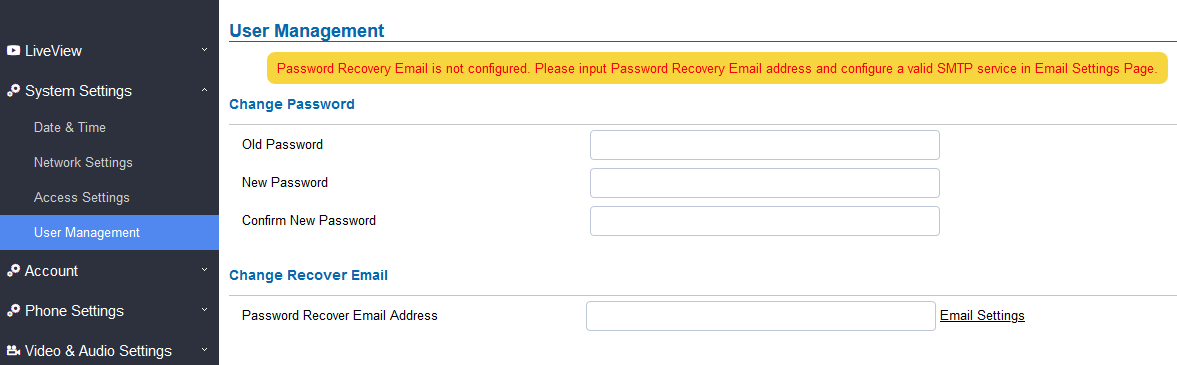
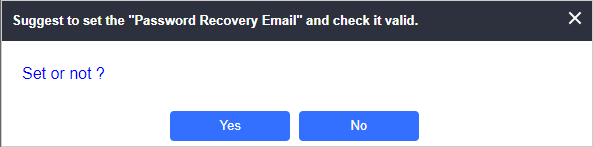
When trying to change the password, users need to set the “Password Recovery Email” which should be a valid Email account configurable under “Email&FTPSettings 🡪Email Settings” to retrieve the email before the new admin password take effect as displayed on the following screenshot.
Figure 20 Password Recovery Email
Account
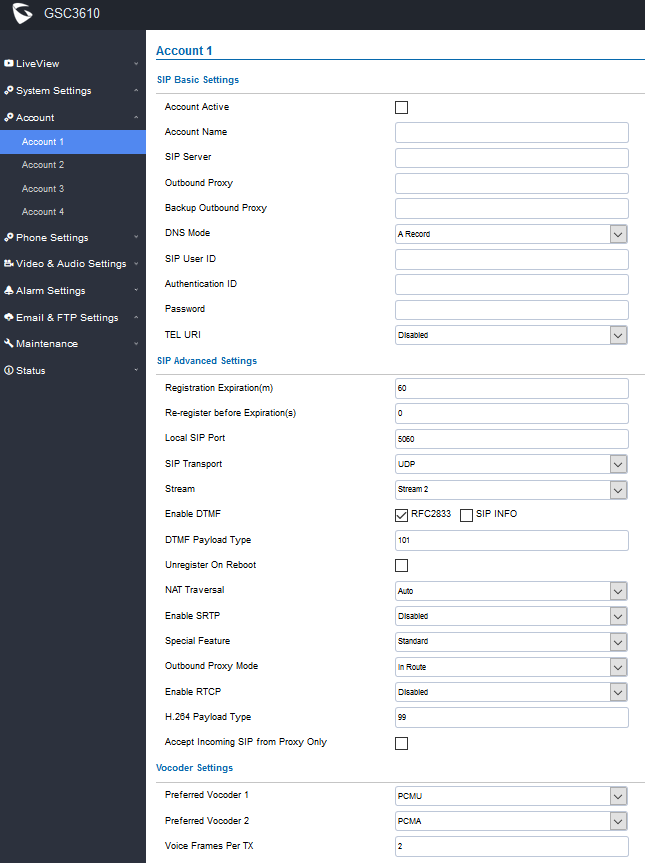
The GSC3620 supports 4 SIP accounts and 4 lines, this section covers the configuration of basic and advanced sip settings for each account.
Account 1 – 4
This page allows the administrator to configure the SIP account basic and advanced settings for each SIP account:
Figure 21 SIP Account Settings Page
Table 9: SIP Account Basic & Advanced Settings
SIP Basic Settings
Account Active
This field indicates whether the account is active.
Default setting is “Yes”.
Account Name
Configures the SIP account name used for identification.
SIP Server
Configures the FQDN or IP of the SIP server from VoIP service provider or local IPPBX.
Outbound Proxy
Configures the IP address or the domain name of the outbound proxy, media gateway, or session border controller. It is used by the GSC for firewall or NAT penetration in different network environments.
If a symmetric NAT is detected, STUN will not work and only an outbound proxy can provide a solution.
Backup Outbound Proxy
Configures the backup outbound proxy to be used when the “Outbound Proxy” registration fails. By default, this field is left empty.
DNS Mode
Configure which DNS mode will be used to translate the SIP Server FQDN (Default value is A Record):
A Record.
SRV.
NAPTR/SRV.
SIP User ID
Configures the SIP username or telephone number from ITSP.
Note: Letters, digits and special characters including @ are supported.
Authenticate ID
Configures the Authenticate ID used by SIP proxy.
Password
Sets the Authenticate password used by SIP proxy.
Note: For security reasons, the SIP password is invisible on the web UI.
TEL URI
Select “User=Phone” or “Enabled” from the dropdown list.
If the SIP account has an assigned PSTN telephone number, this field should be set to “User=Phone”. Then a “User=Phone” parameter will be attached to the Request-Line and “TO” header in the SIP request to indicate the E.164 number. If set to “Enable”, “Tel:” will be used instead of “SIP:” in the SIP request. The default setting is “Disable”.
SIP Advanced Settings
Registration Expiration (m)
Sets the registration expiration time.
Default setting is 60 minutes. Valid range is from 1 to 64800 minutes.
Re-register before Expiration (s)
Specifies the time frequency (in seconds) that the GSC3620 sends re-registration request before the Register Expiration. The default value is 0. Range is from 0-64800 seconds.
Local SIP Port
Sets the local SIP port. Default setting is 5060 for Account 1, 5062 for Account 2, 5064 for Account 3, 5066 for Account 4.
SIP Transport
Chooses the SIP transport protocol. UDP, TCP or TCP/TLS.
Default setting is UDP.
Stream
Select the Video stream to be used by the GSC3620 when call is made from this SIP Account.
Default is Stream 2.
Enable DTMF
Specifies the mechanism to transmit DTMF digits. There are 2 supported modes:
RFC2833 sends DTMF with RTP packet. Users can check the RTP packet to see the DTMFs sent as well as the number pressed.
SIP INFO uses SIP INFO to carry DTMF. Default setting is “RFC2833”
DTMF Payload Type
Configures the payload type for DTMF using RFC2833.
Default value is 101. Range: 96~127.
Unregister on Reboot
Allows the SIP user’s registration information to be cleared when the GSC reboots. The SIP REGISTER message will contain “Expires: 0” to unbind the connection.
NAT Traversal
This parameter configures whether the NAT traversal mechanism is
activated. Users could select the mechanism from No, STUN, Keep-alive,
UPnP, Auto. The default setting is “No”.
If set to “STUN” and STUN server is configured, the GSC will route according to the STUN server. If NAT type is Full Cone, Restricted Cone or
Port-Restricted Cone, the unit will try to use public IP addresses and port
number in all the SIP&SDP messages.
The GSC will send empty SDP packet to the SIP server periodically to keep the NAT port open if it is configured to be “Keep-alive”. Configure this to be “No” if an outbound proxy is used. “STUN” cannot be used if the detected NAT is symmetric NAT. If the firewall and the SIP device behind the firewall are both able to use UPNP, it can be set to “UPNP”. Both parties will negotiate to use which port to allow SIP through.
Enable SRTP
Enable SRTP mode based on your selection from the drop-down menu.
The default setting is “Disabled”, the two other modes are “Enabled but Not Forced” and “Enabled and Forced”.
Special Feature
Configures GSC settings to meet different vendors’ server requirements.
Users can choose from Standard, BroadSoft or Telefonica Spain.
The default setting is “Standard”.
Outbound Proxy Mode
In route: outbound proxy FQDN is placed in route header. This is used for the SIP Extension to notify the SIP server that the device is behind a NAT/Firewall.
Always sent to: SIP messages will always be sent to Outbound proxy.
Not in route: remove the Route header from SIP requests.
Enable RTCP
This option allows 3rd party Service Provider or Cloud Solution to monitor
the operation status of the GSC3620 by using related SIP Calls.
By default, it is disabled. Users can choose either RTCP or RTCP-XR.
H.264 Payload Type
The H.264 payload type can now be configured to be compatible with 3rd party video phones, as well as other advanced SIP settings, to easy system integration process. Default is 99.
Accept Incoming SIP from Proxy Only
When set to “Yes”, the SIP address of the Request URL in the incoming SIP message will be checked. If it does not match the SIP server address of the account, the call will be rejected. The default setting is disabled.
Vocoder Settings
Preferred Vocoder 1
Select audio codec to prioritize. Supported codecs are: PCMU and PCMA.
Preferred Vocoder 2
Select the second audio codec PCMU or PCMA.
Voice Frame Per TX
Configures the number of voice frames transmitted per packet. When
configuring this, it should be noted that the “ptime” value for the SDP will
change with different configurations here. This value is related to the codec
used and the actual frames transmitted during the in-payload call. For end
users, it is recommended to use the default setting, as incorrect settings may influence the audio quality. Range is from 1-64. The default setting is 2.
Phone Settings
The phone settings allow users to configure the GSC3620 phone settings and the White list for all the SIP accounts.
Phone Settings
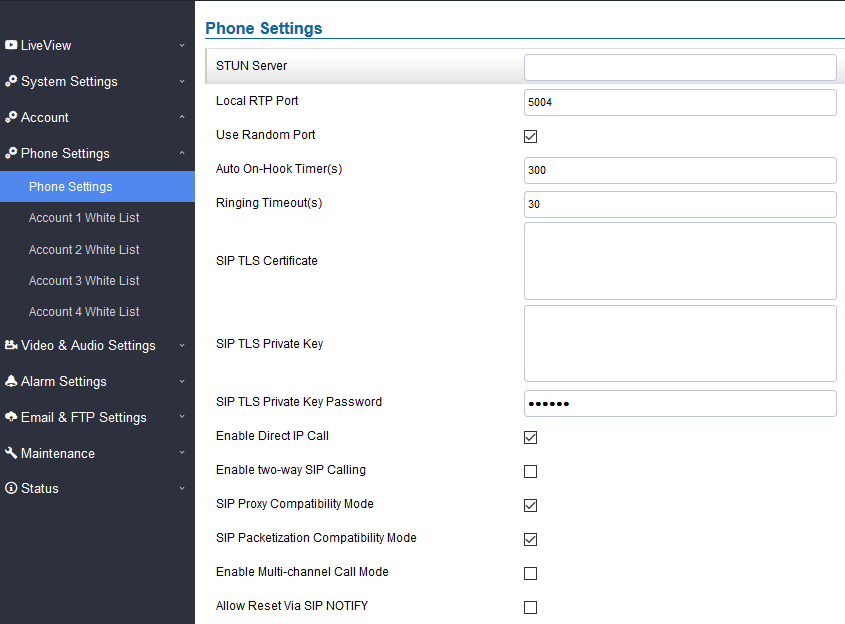
This page allows users to configure the GSC3620 phone settings.
Figure 22 Phone Settings Page
Table 10: Phone Settings
STUN Server
Configures the STUN server FQDN or IP. If the device is behind a non-symmetric router, STUN server can help to penetrate & resolve NAT issues.
Local RTP Port
Sets the local RTP port for media. Default setting is 5004. Range between 1024~65400.
Use Random Port
Forces the GSC3620 to use random ports for both SIP and RTP messages. This is usually necessary when multiple units are behind the same full cone NAT. The default setting is “Disabled”
Note: This parameter must be set to “Disabled” for Direct IP Calling to work.
Auto On-Hook Timer
Configures the auto on-hook timer (in seconds) for automatic disconnecting the SIP call. Default setting is 300. Range between 0~65535.
Ring Timeout(s)
Specifies the Ring timeout, when no reply is returned from the called party after exceeding this field, the GSC3620 will hang up the call. The value is in the range of 0s – 90s. By default, it is “30” seconds.
SIP TLS Certificate
Input the TLS certificate here for encryption.
SIP TLS Private Key
Input private key here for TLS security protection.
SIP TLS Private Key Password
Specifies the password for SIP TLS private Key.
Enable Direct IP Call
Accepts peer-to-peer IP call (over UDP only) without SIP server. Default is “Enabled”.
Enable two-way SIP Calling
Allows the user to enable/disable the alarm sound during a SIP call
triggered by doorbell pressing.
SIP Proxy Compatibility Mode
Enables more proxy compatibility with cost of bandwidth, the SIP call will send audio no matter what.
SIP Packetization Compatibility Mode
When enabled, the GSC3620 will have in SDP “packetization-mode = 0”. This is required when the device is interacting with legacy video phones that only accepts this value to decode the RTP.
Enable Multi-channel Call Mode
This feature allows the device to receive multiple calls at the same time,
with one active and others on hold (up to 4 calls maximum).
Allow Reset Via SIP NOTIFY
Allows to factory reset the devices directly through SIP Notify.
If “Allow Reset Via SIP NOTIFY” is “check”, then once the GSC3620 receives the SIP NOTIFY from the SIP server with Event: reset, the device will perform a factory reset after authentication.
This authentication can be either with:
The admin password if no SIP account is configured on the unit.
The SIP User ID and Password credentials of the SIP account if configured on the unit.
Default is unchecked (disabled).
Account [1-4] White List
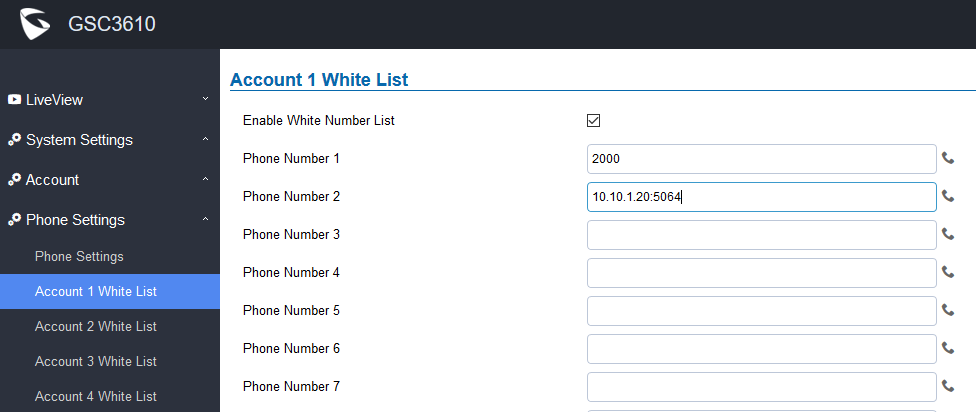
This page allows users to configure the white list per account, which is a phone number or extension list that can call the GSC3620. (The call will be automatically answered when calling from a phone set on the white list, and all other inbound calls will be blocked), the user can configure up to 30 white phone numbers per SIP account. Moreover, besides numbers associated to active cards, and numbers on the “Number Called When Doorbell Pressed” setting, all whitelisted numbers can open door remotely by using the respective PIN code.
Figure 23 White List Page
The table below gives a brief overview of the options:
Table 11: White List
Enable White Number List
Enables the White List feature.
Phone Number 1 -30
Adds a new phone number (or IP address) to the white list.
Notes:
When using IP addresses, the port number should be appended (default 5060).
Only the whitelisted numbers/IPs can open door remotely using PIN Code when calling GSC3620.
Video & Audio Settings
The audio and videos settings allow users to configure the video / audio codecs, videos resolution, CMOS settings and audio related settings.
Video Settings
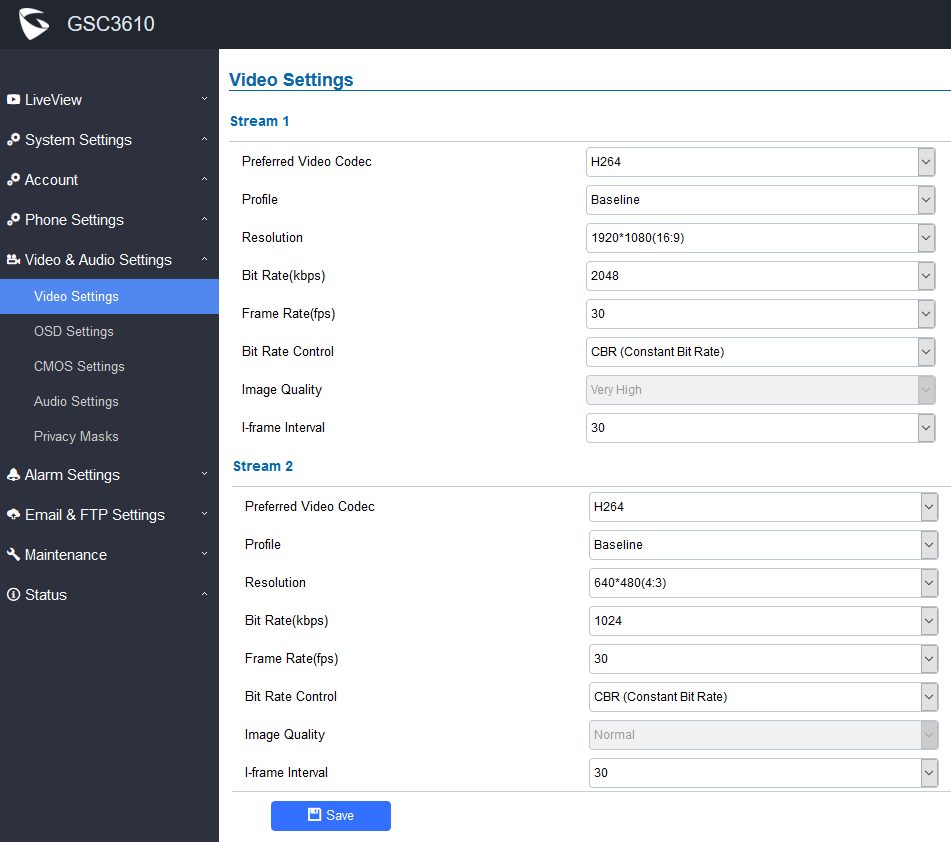
Figure 24 Video Settings Page
Table 12: Video Settings
Stream 1
Preferred Video Codec
Selects the videos codecs, the codecs supported are H.264 MJPEG. Default setting is H.264.
Profile
Selects the H.264 profile. Three profiles are available for H.264: Baseline, Main Profile and High Profile.
Resolution
Specifies the resolution in pixels used at video image.
Bit Rate(kbps)
Selects the video bitrate or bandwidth used.
Frame Rate(fps)
Selects the maximum frame rate used (more data if big frame used).
Bit Rate Control
Selects the constantly bit rate, or variable bit rate.
Image Quality
Selects the image quality used when Variable Bit Rate used.
I-frame Interval
Configures the I-frame interval (suggested 2~3 times of frame rate).
Stream 2
Preferred Video Codec
Selects the videos codecs, the codecs supported are H.264 and MJPEG. Default setting is H.264.
Profile
Selects the H.264 profile. Three profiles are available for H.264: Baseline, Main Profile and High Profile.
Resolution
Specifies the resolution in pixels used in the video image.
Bit Rate(kbps)
Selects the video bitrate or bandwidth used.
Frame Rate(fps)
Selects the maximum frame rate used (more data if big frame used).
Bit Rate Control
Selects the constant bit rate, or variable bit rate.
Image Quality
Selects the image quality used when Variable Bit Rate used.
I-frame Interval
Configures the I-frame interval (suggested 2~3 times of frame rate).
Notes
H.264 suggested if the GSC3620 needs to be viewed via Internet.
For definition of Baseline, Main Profile and High profile of H.264 please refer to: H.264 Profiles
If MJPEG is selected, reduce the frame rate to the minimal value to save bandwidth and get better image.
Grandstream GSC3620 provides two video streams, users can use them with flexibility. For example, the high-resolution stream for local recording, another low or high resolution for SIP video phone call or remote smartphone monitoring application, or vice versa depending on application scenarios.
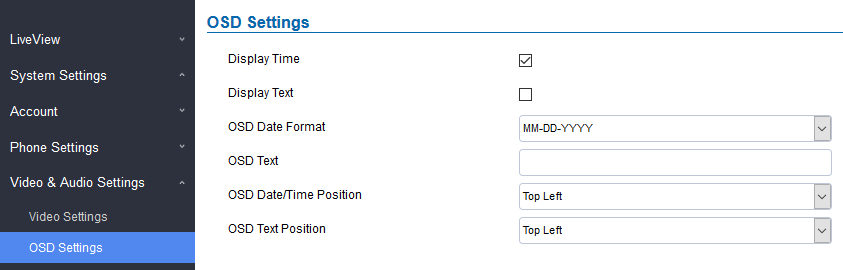
OSD Settings (On Screen Display) allow the users to Display timestamp and text on the video screen.
Figure 25 OSD Settings Page
Table 13: OSD Settings
Display Time
When checked, time will be displayed inside the video image.
Display Text
When checked, inputted text on “OSD Test” will be displayed on the video image.
OSD Date Format
Select the date format from drop down list.
OSD Text
Input a text (to identify the GSC3620) it will be shown on the screen.
OSD Date/Time Position
Show the Date/Time position on the screen.
OSD Text Position
Show the text position on the screen.
CMOS Settings
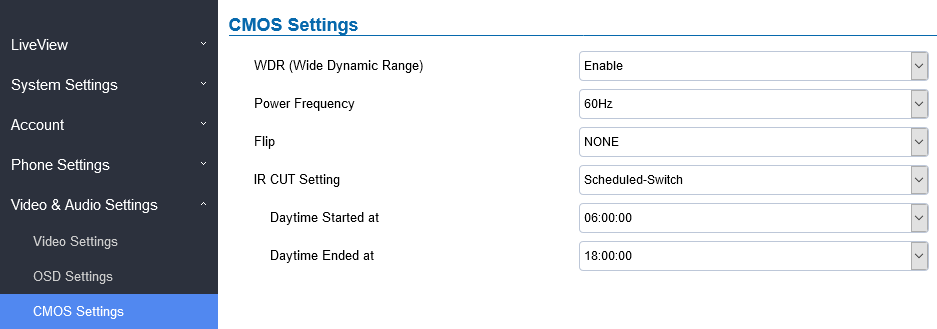
This page configures the CMOS parameters for different scenarios.
Figure 26 CMOS Settings Page
Table 14: CMOS Settings
WDR
(Wide Dynamic Range)
Enable or Disable the Wide Dynamic Range fature. Default “Enable”.
Power Frequency
Select correct light condition for the scene monitored: 50Hz power frequency (Europe, China, etc.) or 60Hz power frequency (US, Japan, etc.).
Flip
Pull down to choose to flip video either vertically, horizontal or both
IR CUT Setting
Manual: User can set manually The Daytime/Night Model to either Daytime or Night.
Automatic: The Camera will automatically switch to either Daytime or Night depending on light condition.
Scheduled-Switch: The user can configure Daytime schedule by editing both “Daytime Started at” and “Daytime Ended at” fields. Default is Automatic.
Audio Settings
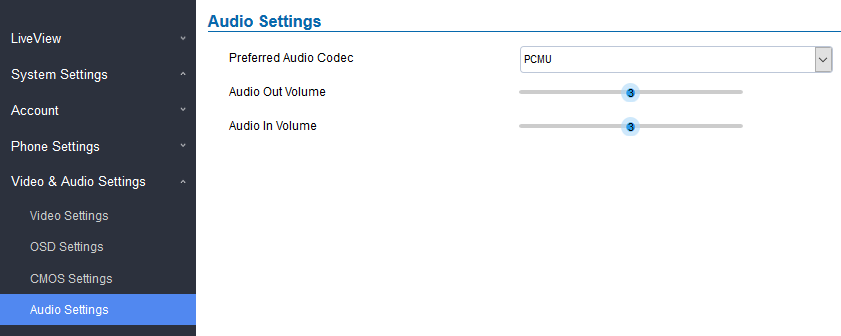
This page allows users to configure the audio settings.
Figure 27 Audio Settings Page
Table 15: Audio Settings
Preferred Audio Codec
Configures the audio codec.
Two codecs are available: PCMU and PCMA.
Audio Out Volume
Adjusts the speaker volume connected.
Audio In Volume
Adjusts the Mic volume.
Privacy Masks
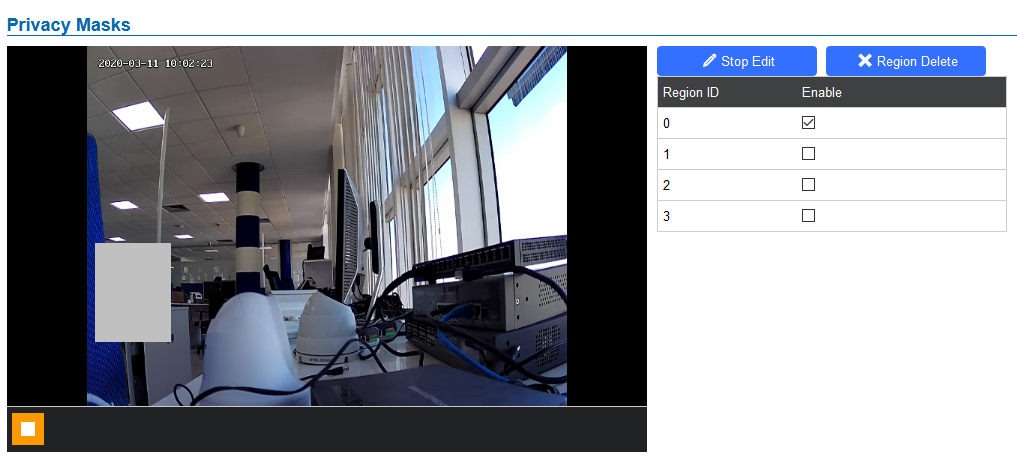
This page allows users to configure privacy masks up to 4 different regions by selecting different regions requiring privacy mask as displayed on the following figure. When privacy mask enabled, the video at related region will be masked by black color and no video displayed inside that mask.
Figure 28 Privacy Masks Configuration Page
Click “Start Edit” then long press and slide to identify a region
Select a preconfigured region then Click “Region Delete” to remove it.
Alarm Settings
This page allows users to configure alarm schedule and alarm actions.
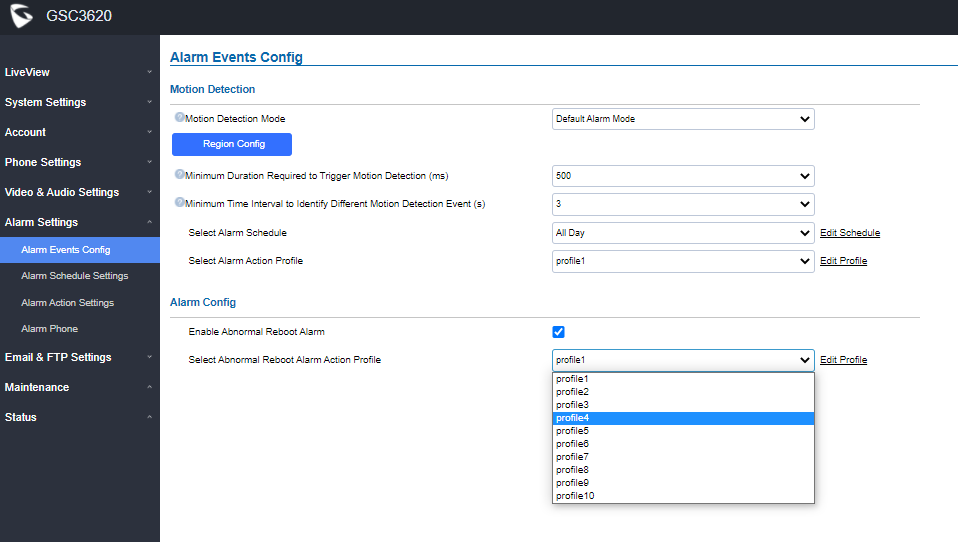
Alarm Events Config
This page allows users to configure GSC3620 events to trigger programmed actions within predefined schedule.
Figure 29 Alarm Events Config page
Table 16: Alarm Events Config Settings
Motion Detection Mode
Default Alarm Mode: Single zone independent alarm
Sequence Alarm Mode: Set the sequence of multi-zone alarms. Alarm will trigger if matched the configured zone sequence, otherwise alarm will not trigger.
Multi-zone Combined Alarm Mode: Alarm will trigger when number of combined alarming zones reaches the configured amount, otherwise alarm will not trigger.
Zone Trigger Ratio Alarm Mode: Configure the ratio of single small squares compared to the whole alarm zone, alarm will trigger when the ratio reached.
Maximum Time to Identify a Valid Multi-Zone Alarm Detection
If all preset zones have triggered an alarm within the configured time (in Seconds), this will be considered as a valid alarm/event, otherwise it will be an invalid alarm.
Minimum Number of Alarming Zones for a Valid Multi-Zone Alarm Detection
If set multi-zone alarm, when the number of detection zones where alarm triggered reaches the configured number, it is considered a valid alarm/event, otherwise it will be an invalid alarm. For example, the value is set 3 with total of 4 zones, when zones with triggered alarm get to 3, a valid alarm/event will be reported.
Minimum Number of Blocks Per Region to Trigger Detection
The threshold is the ratio of single small squares compared to the whole alarm zone, alarm will trigger when the ratio reached.
Minimum Duration Required to Trigger Motion Detection (ms)
The time when an object moving in the preset zone is longer than the configured duration, this is considered a valid alarm/event, otherwise it is invalid alarm/event.
Minimum Time Interval to Identify Different Motion Detection Event (s)
This minimum time interval is used to identify different motion detection events. If two consecutive motion detection alarm events occurred within this time interval, they will be considered as the same motion event. Otherwise they will be considered as two different motion events.
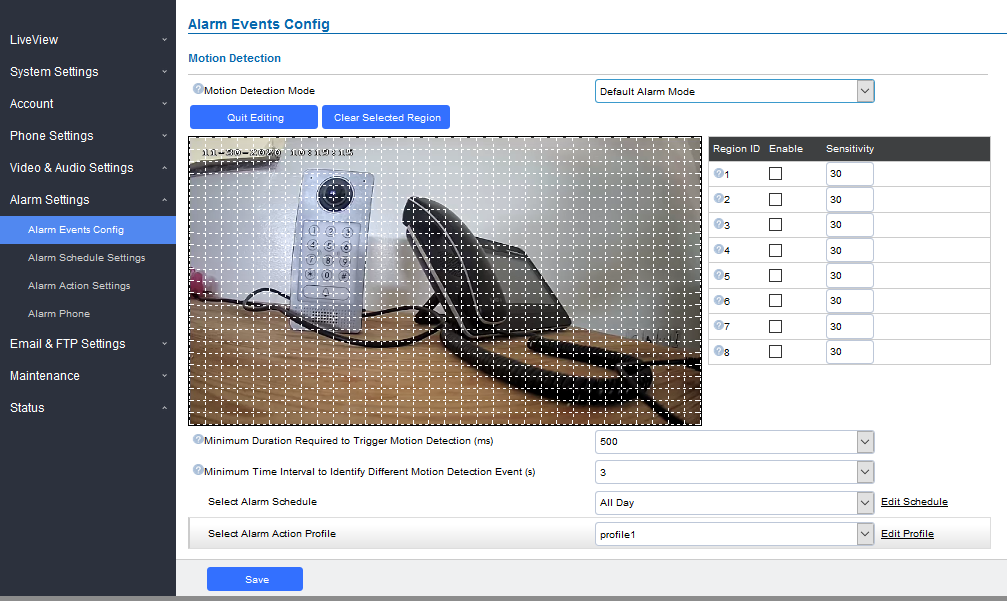
Motion Detection
Users can select a specific region to trigger the alarm using motion detection.
Figure 30 Region Config
Table 17: Motion Detection
Region Config
Configures the motion detection region. First click to access the Region Config menu and second click to quit.
Clear Selected Region
Selects a zone on the screen then click on “Clear” to delete the region.
Sensitivity
Specifies the region sensitivity (value between 0-100%).
Select Alarm Schedule
Selects the alarm schedule.
Select Alarm Action Profile
Selects the programmed Alarm Action profile.
Alarm Config
This page specifies the configuration of Abnormal Reboot Alarm Action.
Enable Abnormal Reboot Alarm
When checked, the IPC will sent an email if there is a power outage, which could affect the Auto-Focus as the AF might be affected after this power failure causing all the later on recording to become unclear. Thus the email will help the administrator to login and take corrective actions.
Select Abnormal Reboot Alarm Action Profile
If all preset zones have triggered an alarm within the configured time (in Seconds), this will be considered as a valid alarm/event, otherwise it will be an invalid alarm.
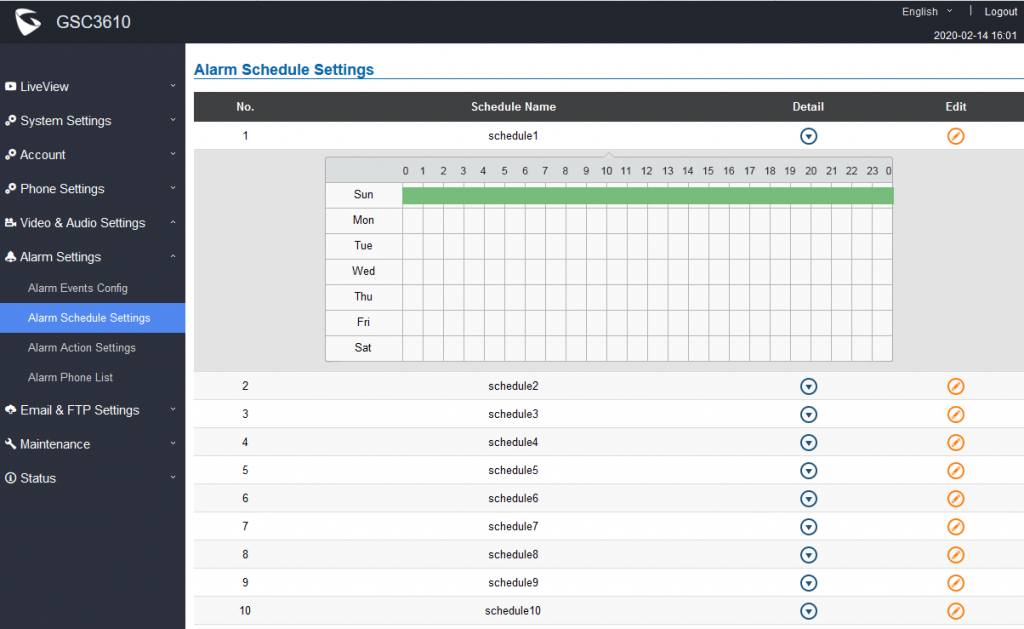
Alarm Schedule Settings
This page specifies the configuration of Alarm Schedule.
Note
Schedule must be configured first to allow the alarm to take the related action.
Figure 31 Alarm Schedule
GSC3620 supports up to 10 alarm schedules to be configured, with time span specified by users. Users can View the schedule details by clicking
or Edit the alarm schedule by clicking
button.
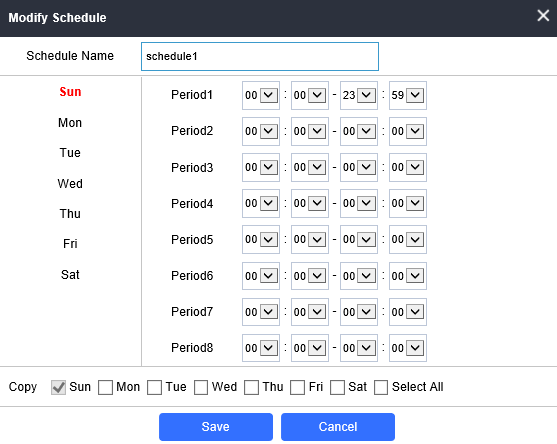
Usually the 24 hours’ span is 00:00 ~ 23:59, which is 24 hours’ format. Note that it is possible to copy the configuration to different date during the schedule programming using the banner at the bottom.
Figure 32 Edit Schedule
Alarm Action Settings
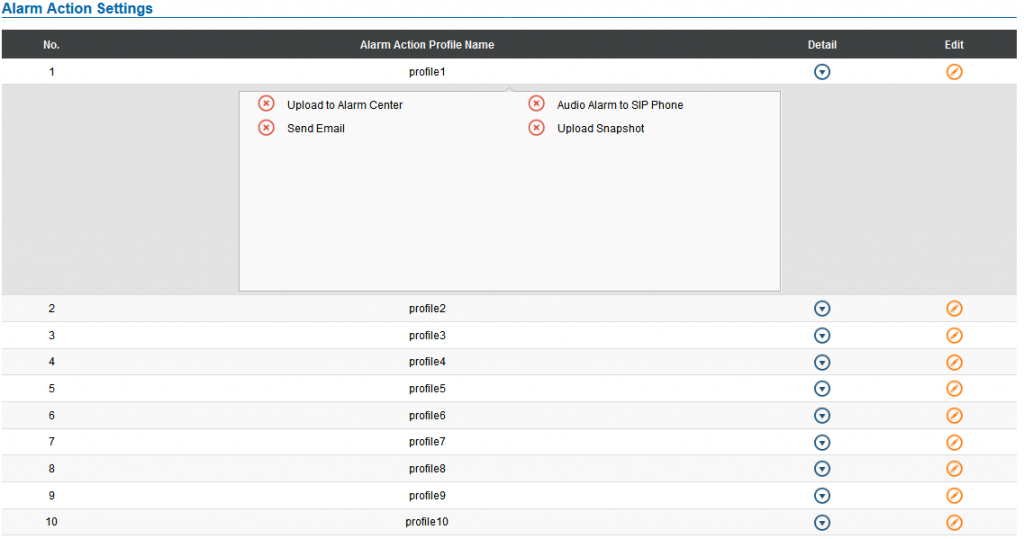
This page specifies the configuration of Profile used by the Alarm Actions. A Profile is required before the Alarm Action can take effect.
Figure 33 Alarm Action
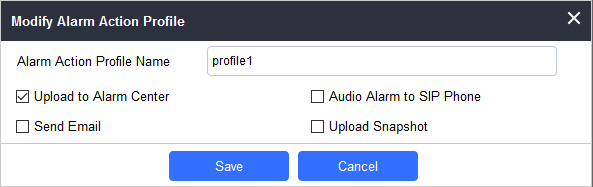
User can edit the alarm action by clicking
button, the following window will popup.
Figure 34 Edit Alarm Action
Table 18: Alarm Actions
Upload to Alarm Center
If selected, the GSurf will popup alarm window and sound alarm in the computer speaker.
Audio Alarm to SIP Phone
If selected, GSC3620 will call pre-configured (video or audio) phone and will play sound alarm.
Send Email
If selected, an email with snapshot will be sent to the pre-configured email destination.
Upload Snapshot
If selected, snapshots at the moment where the event is triggered will be sent to preconfigured destination (e.g.: FTP or email).
Alarm Phone List
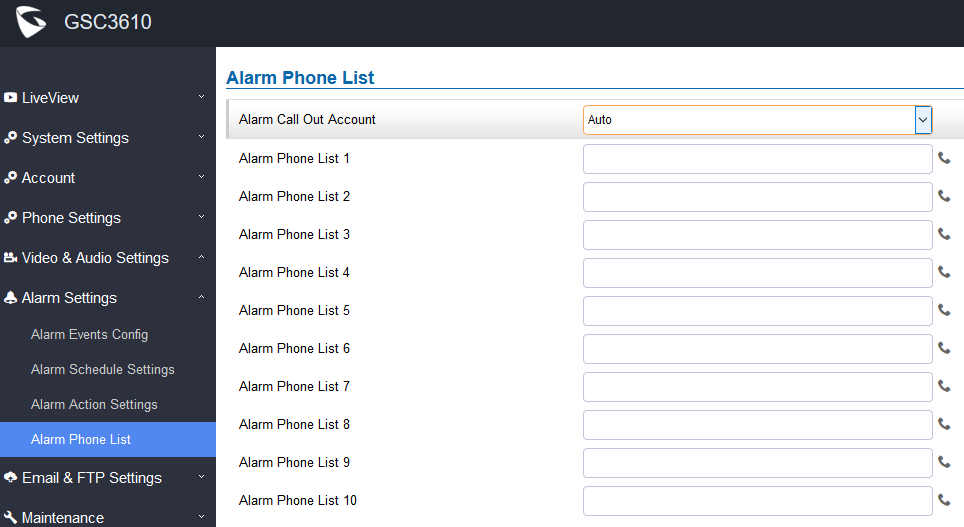
This page allows users to configure the Alarm Phone List, which are phone numbers or extensions list that the GSC3620 will call out when event is trigged.
Figure 35 Alarm Phone List
Table 19: Alarm Phone List
Alarm Call Out Account
Select the SIP Account to be used by the GSC3620 when alarm out is triggered.
Alarm Phone List 1-10
Add or delete number from the phone alarm list. (When IP address is used then the port needs to be appended, example: 192.168.1.12:5060).
Once the event is triggered the GSC3620 will call the first number, once time out is reached and no answer is returned from the first number, the GSC3620 will try the next number on the list and so on. Once the remote phone answers the call, an alarm will be played to notify users that an event is triggered.
Email & FTP Settings
This page contains Email and FTP Settings.
Email Settings
This page allows users to configure email client to send out an email when the alarm is trigged.
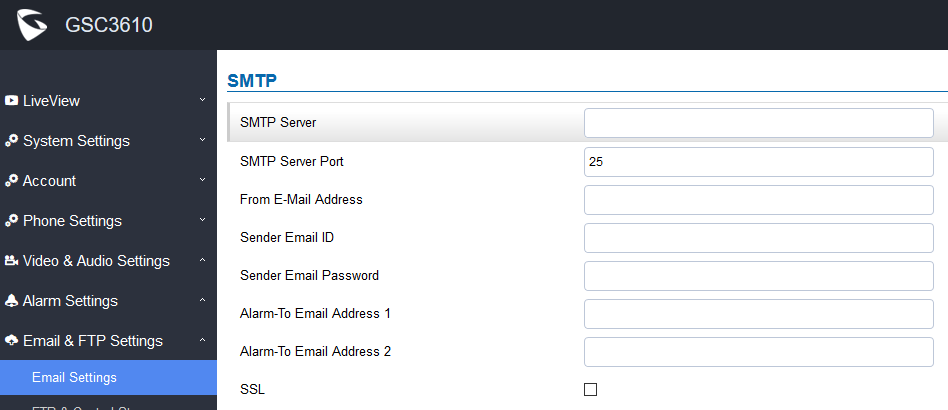
Figure 36 Email Settings SMTP Page
Table 20: Email Settings – SMTP
SMTP Server
Configures the SMTP Email Server IP or Domain Name.
SMTP Server Port
Specifies the Port number used by server to send email.
From E-mail address
Specifies email address of alarm email sending from, usually client email ID.
Sender Email ID
Specifies sender’s User ID or account ID in the email system used.
Sender Email
Password
Specifies sender’s password of the email account.
Alarm-To Email
Address 1
Specifies the 1st email address to receive the alarm email.
Alarm-To Email
Address 2
Specifies the 2nd email address to receive the alarm email.
SSL
Check if the SMTP email server requires SSL.
Notes:
Click “Save” to save the email configuration information.
Click “Email Test” after configuration, if settings are correct, a test email will send out and “E-mail test successfully” message on the top page will appear.
FTP & Center Storage
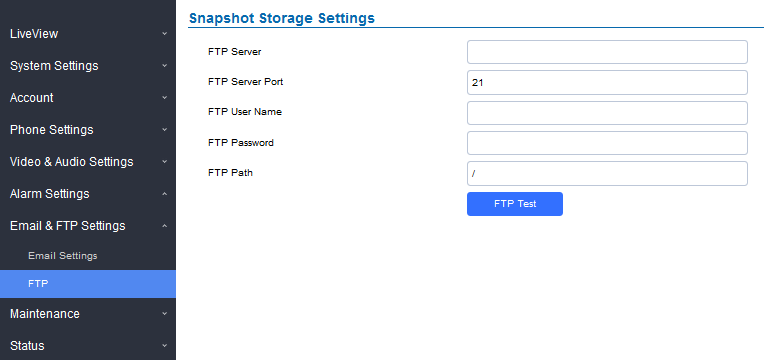
This page allows users to configure the FTP Settings in order to upload capture images.
Table 21: Picture Storage Settings
FTP Server
Configures the IP address of the FTP server when selected to upload images to.
FTP Server Port
Specifies the FTP address port.
FTP Username
Specifies the FTP server account name.
FTP Password
Specifies the FTP server password.
FTP Path
Specifies the storage path.
FTP Test
Click to test the connection with FTP server.
Figure 37 Picture Storage Settings
Note
If the connection to the FTP server is successful, a “.txt” file containing a success message will be uploaded to the FTP server. And the following message will pop up on the Web GUI
Central Storage will store screenshots locally.
Maintenance Settings
This page shows the GSC3620 Maintenance parameters.
Upgrade
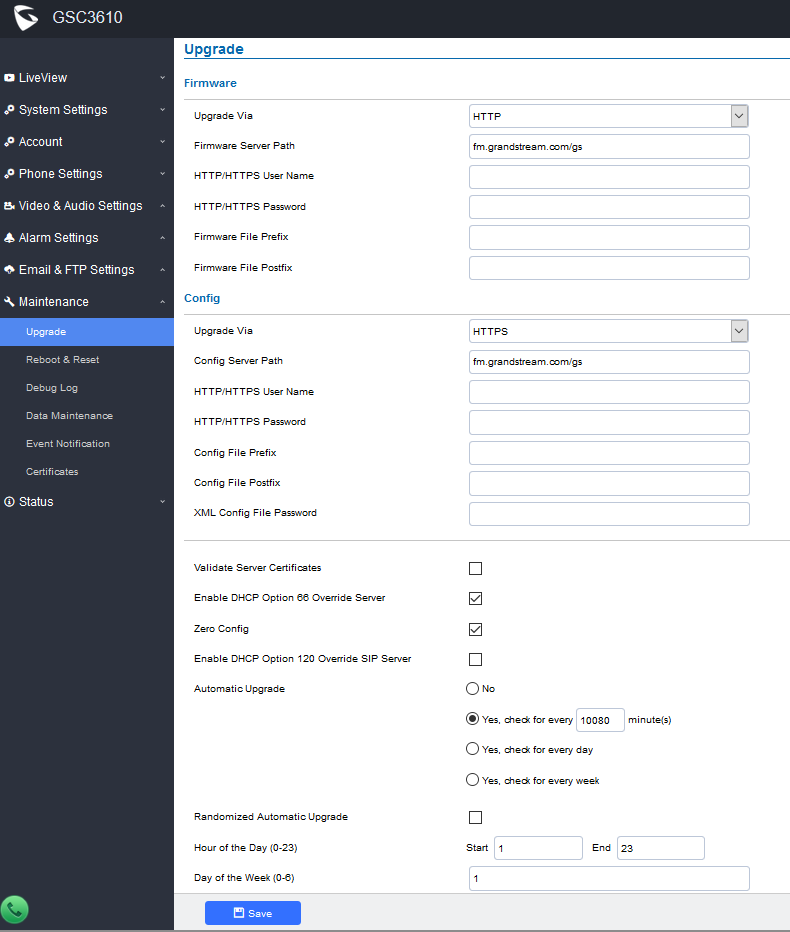
This page contains the upgrade and provisioning parameters of the GSC3620.
Figure 38 Upgrade Page
Table 22: Upgrade
Firmware
Upgrade Via
Selects the upgrade method
(TFTP, HTTP, or HTTPS).
Firmware Server Path
Configures the IP address or the FQDN of the upgrade server.
HTTP/HTTPS Username
The username for the HTTP/HTTPS server.
HTTP/HTTPS Password
The password for the HTTP/HTTPS server.
Firmware File Prefix
Enables your ITSP to lock configuration updates. If configured, only the
firmware file with the matching encrypted prefix will be downloaded and flashed into the phone.
Firmware File Postfix
Enables your ITSP to lock firmware updates. If configured, only the firmware with the matching encrypted postfix will be downloaded and flashed into the phone.
Config
Upgrade via
Selects the upgrade method (TFTP, HTTP, and HTTPS).
Config Server Path
Configures the IP address or the FQDN of the configuration server.
HTTP/HTTPS Username
The username for the HTTP/HTTPS server.
HTTP/HTTPS Password
The password for the HTTP/HTTPS server.
Config File Prefix
Enables your ITSP to lock configuration updates. If configured, only the
configuration file with the matching encrypted prefix will be downloaded and flashed into the phone.
Config File Postfix
Enables your ITSP to lock configuration updates. If configured, only the
configuration file with the matching encrypted postfix will be downloaded and flashed into the phone.
XML Config File Password
Specifies the password for the configuration file.
Validate Server Certificate
Enable this option in order to validate certificate with trusted ones during TLS connection.
Enable DHCP Option 66 Override Server
Activates DHCP option 66 to override upgrade/config servers.
Zero Config
Enables Zero Config feature for auto provisioning.
Enable DHCP Option 120 Override SIP Server
Enables DHCP Option 120 from local server to override the SIP Server on the phone. The default setting is enabled.
Automatic Upgrade
Enables automatic upgrade and provisioning.
Set schedule for provisioning for either every X minute, every day, or every week. Default is No.
Randomized Automatic Upgrade
Enable and define the start/End hours of the day and days of the week where the GSC3620 will randomly checking for update.
Reboot & Reset
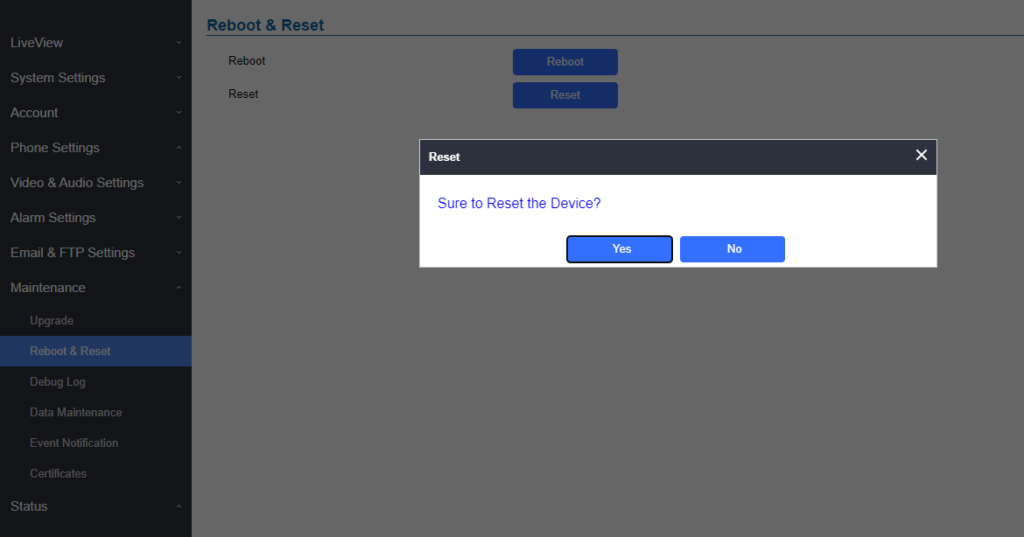
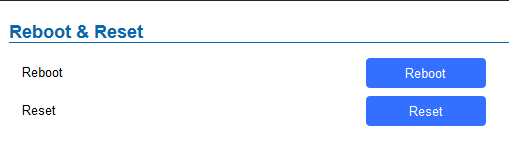
This page allows user to reboot and reset the GSC3620.
Figure 39 Reset Reboot Page
Table 23: Reset & Reboot
Reboot
When clicked, the GSC3620 will restart (soft reboot).
Reset
Restore Factory Default Settings
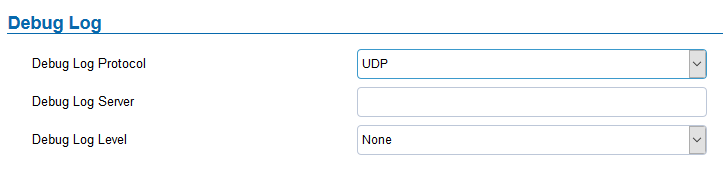
Debug Log
This page allows user to configure SYSLOG to collect information to help troubleshooting issues with GSC3620.
Figure 40 Debug Log Page
Users can choose to set Debug Log Protocol to UDP or SSL/TLS.
Five levels of Debugging are available, None, Debug, Info, Warning, Error.
Once the Syslog Server and the level entered, press “Save” and then Reboot the device to apply the settings.
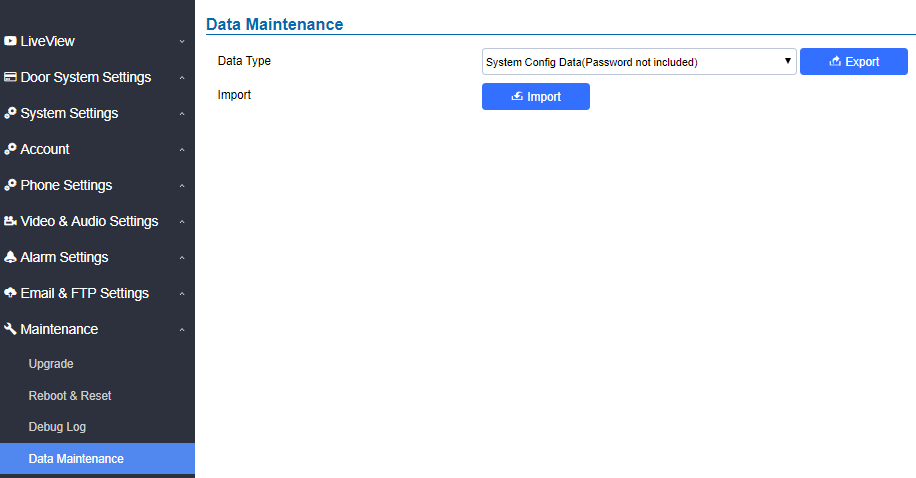
Data Maintenance
This page allows users to manage the GSC3620 configuration file by importing/exporting configuration files.
Figure 41 Data Maintenance Page
Notes
Click on to save the GSC3620 configuration in a predefined directory.
Users can either select to include all the passwords (SIP, FTP, Remotes access…) on the configuration files exported or not including the passwords as displayed on the previous figure.
Event Notification
This page allows users to configure the event notification details that will be used by GSC3620 to communicate to an HTTP server to log the events. When the feature is enabled and configured, all the event logs will be uploaded to server:
Figure 42 Log Manager Page
Table 24 : Log Manager Settings
Enable Event Notification
Enables Event Notification feature
Via Type
Choose which protocol will be used to connect to the logs server (HTTP or HTTPs).
HTTP/HTTPS Server
Enter the IP address of domain name for the logs server.
HTTP Server Username
Configure the username of your HTTP(s) server
HTTP Server Password
Configure the password of your HTTP(s) server
URL Template
Specify the template for the event log messages that will be sent to the server, users can use the following variables to customize the message:
${MAC}: MAC Address
${TYPE}: Event Type
${WARNING_MSG}: Event Message
${DATE}: Date & Time
${SIPNUM}: SIP Number
User can test the configuration by clicking on button at the bottom
Certificates
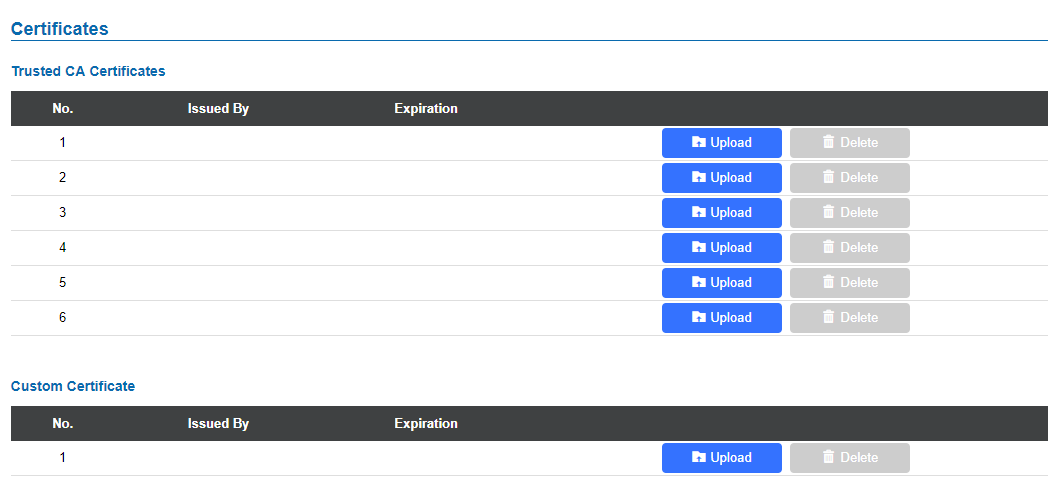
This page allows users to upload up to 6 Trusted CA certificate files which will be trusted by the GSC3620 during SSL exchange. Also, users are allowed to configure the device with custom certificate signed by custom CA certificate under the Custom Certificate section.
Figure 43 Upload Certificate files
In order to upload your Trusted CA certificate, you may proceed as follows:
Click on button to upload a file and some related information to the uploaded file will be displayed, such as “Issued by” and “Expiration date”.
Figure 44 Trusted CA Certificates
Users could press to delete one of the files.
In order to upload your Custom certificate, you may proceed as follows:
Click on button to upload a file and some related information to the uploaded file will be displayed, such as “Issued by” and “Expiration date”.
Figure 45 Custom certificate
Status
This page displays GSC3620 system and network information.
Account Status
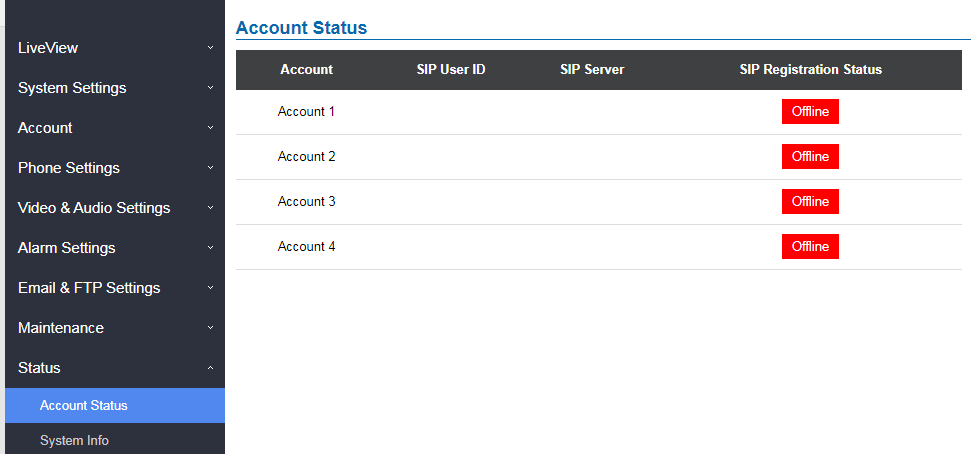
This page displays of configured accounts’ SIP user ID, SIP server as well as the SIP Registration status, from Account 1 to Account 4.
Notes
When the SIP account is registered, the SIP Registration status display will be Online
When SIP account is unregistered, the SIP Registration status display will be Offline
Figure 46 Account Status Page
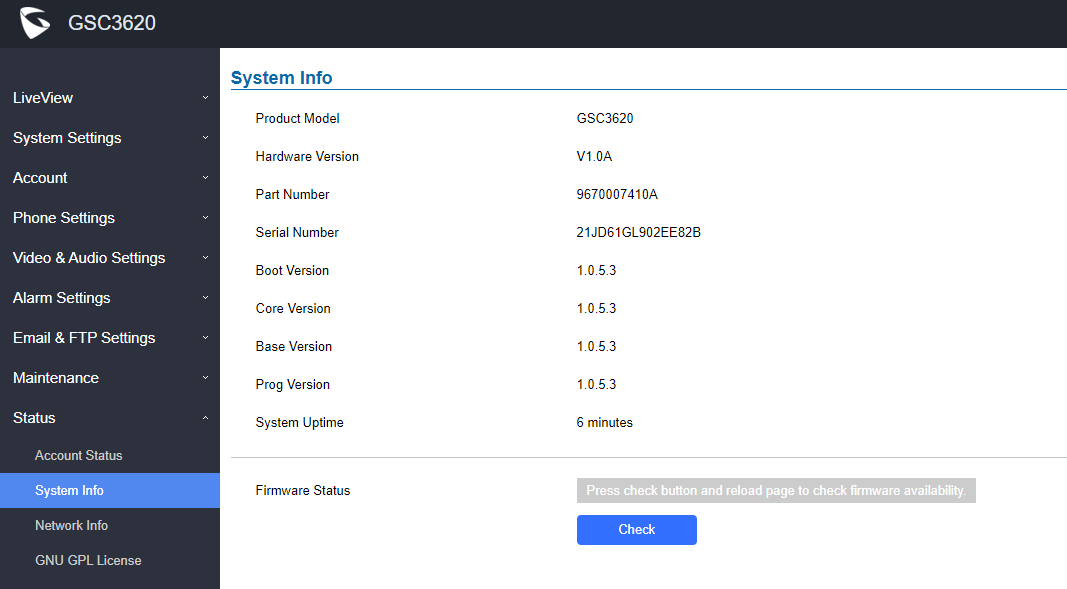
System Info
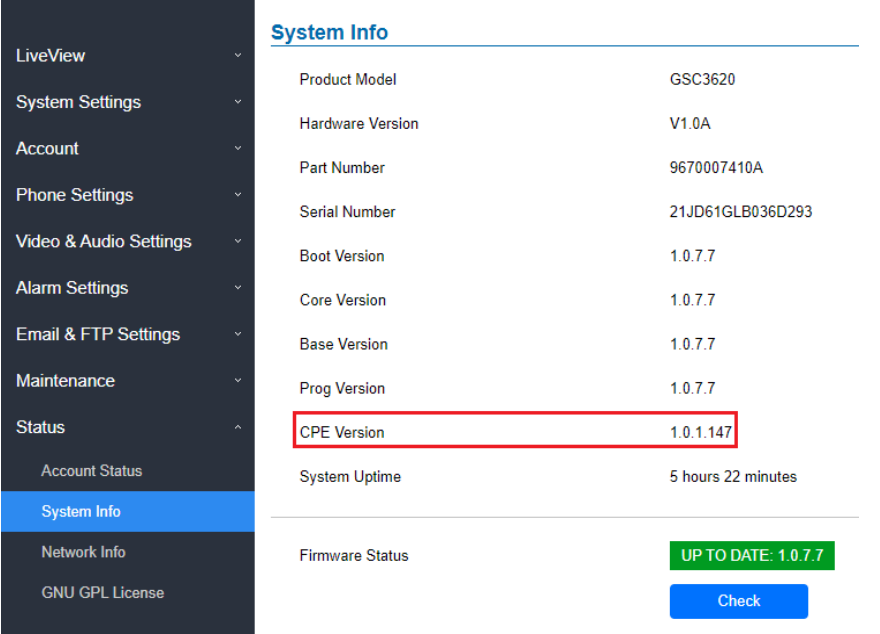
This page displays information such as the product model, the hardware version, firmware…
Figure 47 System Info Page
Note
The CPE feature enhancement will allow centralized management and provisioning of mass product operations. This is integrated with UCMRM or GDMS solutions. With GDMS management, customers can manage, provision the GSC36XX from GDMS platform.For detailed management and usage of this feature, please refer to Grandstream Device Management System (GDMS) product page: https://documentation.grandstream.com/article-categories/gdms/
Table 25: System Info
Product Model
Displays the Product Model.
Hardware Version
Displays the Hardware Version.
Part Number
Displays the Part Number.
Boot Version
Displays the Boot Version.
Core Version
Displays the Core Version.
Base Version
Displays the Base Version.
Prog Version
Displays the Prog Version.
CPE Version
Displays the CPE Version.
System Up Time
Displays the time since the first boot of the GSC3620.
Firmware Status
Click the
button to check whether the firmware in the firmware server has an updated version, if so, update immediately.
Network Info
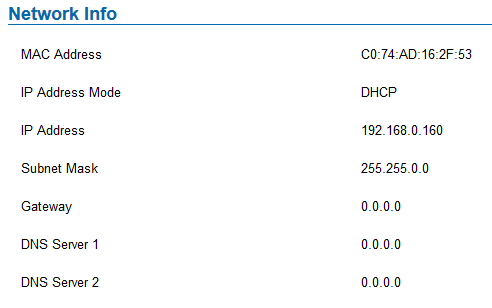
This page displays the network system information of GSC3620.
Figure 48 Network Info Page
Table 26: Network Info
MAC Address
Displays the GSC MAC Address.
IP Address Mode
Displays the IP address mode used.
IP Address
Displays the IP address of the GSC3620.
Subnet Mask
Displays the Subnet Mask used.
Gateway
Displays the GSC3620 Gateway.
DNS Server 1
Displays the Preferred DNS Server.
DNS Server 2
Displays the secondary DNS Server.
FACTORY RESET
Restore to Factory Default via Web GUI
To perform factory reset to the GSC361x via the Web GUI, please refer to following steps:
Access to GSC361x Web GUI using the using the shipped default password.
Navigate to Maintenance 🡪Reboot & Reset.
Select the reset type from Rest drop down menu and press reset button as displayed on the following screenshot.
Hard Factory Reset Using GS Search
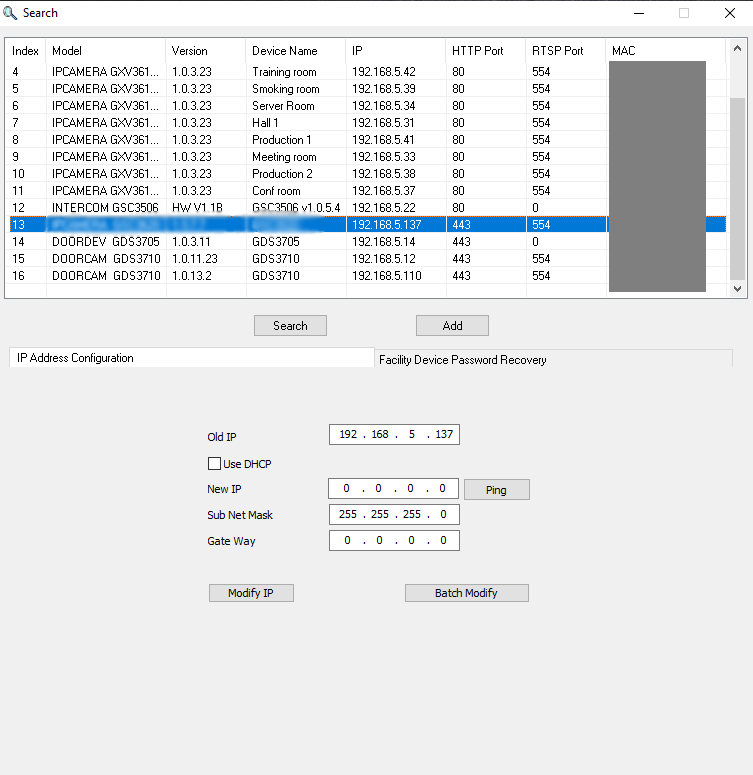
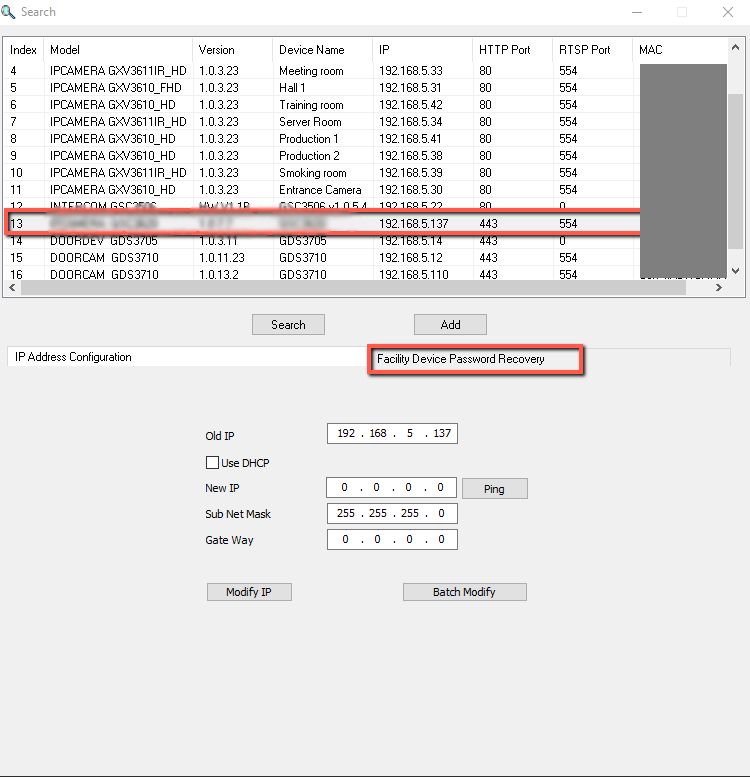
The GSC3620 can be reset using the GS Search tool by following these steps :
2. Select the device in question, in our example it is the GSC3620, and then select Facility Device Password Recovery.
GS Search Selecting the device to be reseted
3. Enter the Default password of the unit which can be found in the stick on the device body or in the package box.
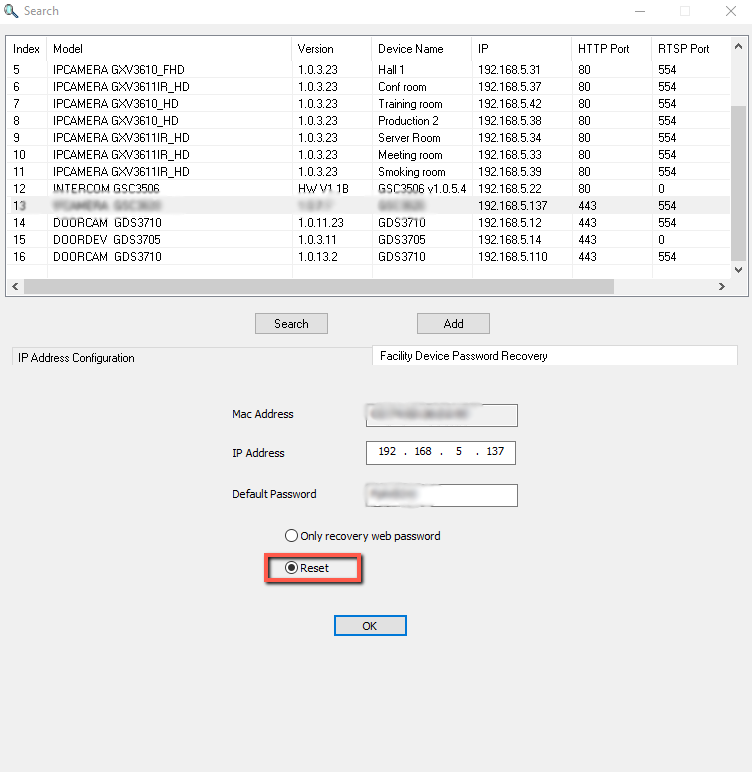
4. Perform the reset of the device by clicking the Reset button option.
GS Search Resetting the device
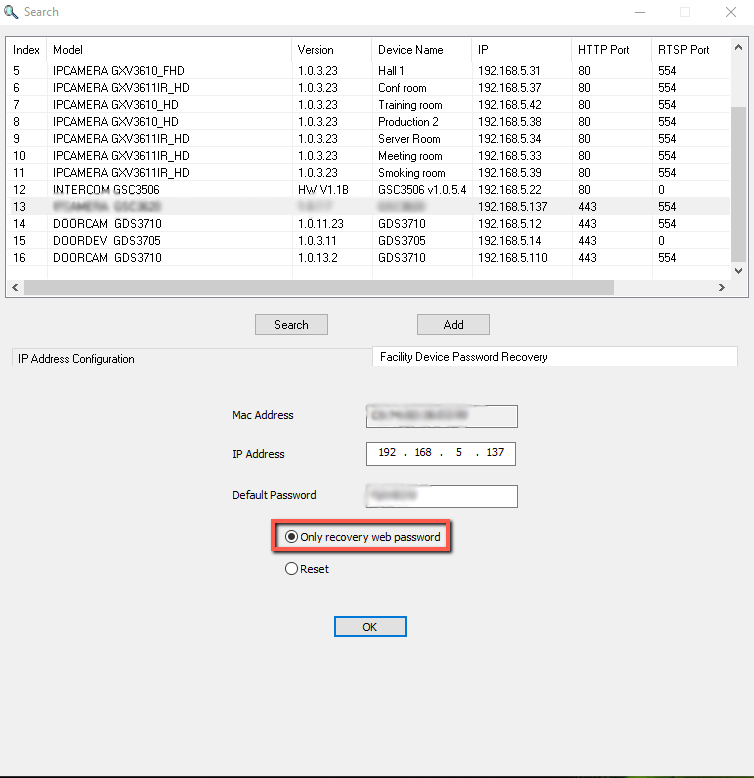
5. You have the possibility to recover the initial default web password as well by selecting the option “only recover web password”
GS Search Resetting the web password
Restore to Factory Default Via SIP NOTIFY
Access your GSC3620 UI by entering its IP address in your favorite browser.
Go to Phone Settings.
Enable “Allow Reset Via SIP NOTIFY” by checking this option. (Default is disabled)
Once a SIP NOTIFY with “event: reset” is received, the GSC3620 will perform factory reset after authentication phase.
Notes
Received SIP NOTIFY will be first challenged for authentication purpose before taking factory reset action.
The authentication can be done either using admin password (if no SIP account is configured) or via SIP account credentials (SIP User ID and Password).
CHANGELOG
This section documents significant changes from previous versions of the user manual for GSC3620 Series. Only major new features or major document updates are listed here. Minor updates for corrections or editing are not documented here.
Firmware Version 1.0.7.7
Added CPE version displayed in System Info under Status page. [System Info]
Firmware Version 1.0.7.5
Added support for GSC3620 new hardware versions: 1.0A, 1.0B.












 or Edit the alarm schedule by clicking
 button.
 button, the following window will popup.



 to save the GSC3620 configuration in a predefined directory.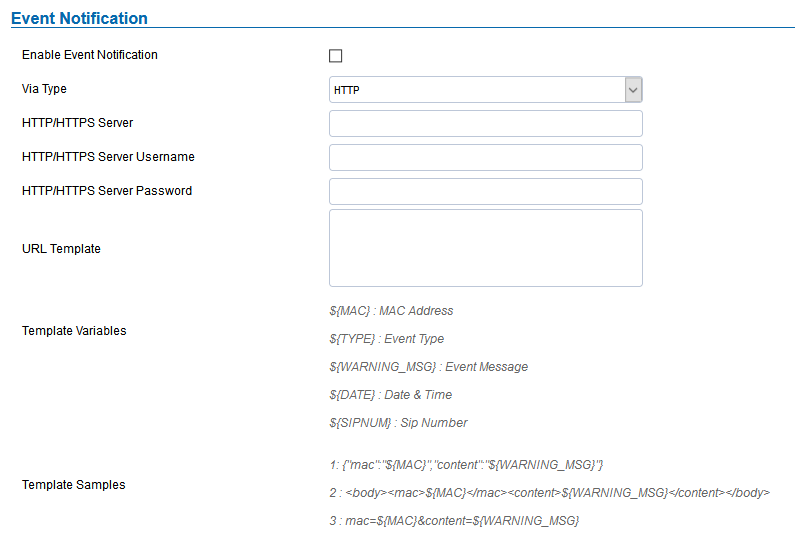








 button to check whether the firmware in the firmware server has an updated version, if so, update immediately.