This Frequently Asked Questions (FAQ) document provides concise answers and guidance for using the Grandstream IP video phones, the GXV33XX. This FAQ is intended to assist administrators and users in resolving common issues and understanding key features.
Product Overview & Specifications
GXV Series phones are the video smart IP phones designed by Grandstream as a solution for audio-video calls, with the possibility to establish calls through platforms like Zoom, Wave, etc…
Yes, all the GXV33XX models support PoE.
Wide-band Opus, wide-band G.722, G.711µ/a, G. 729A/B, G.726-32, iLBC, in-band and out-of-band DTMF (In audio, RFC2833, SIP INFO), VAD, CNG, AEC, PLC, AJB, AGC, ANS
H.264 BP/MP/HP, video resolution up to 720p, frame rate up to 30 fps, bit rate up to 2Mbps, 3-way video conference (720p@30fps), anti-flickering, auto focus, and auto exposure
- GXV3370/GXV3380: 7-way HD audio conferencing & 3-way video capability.
- GXV3350: 6-way HD audio conferencing & 3-way video capability.
Yes, the user can connect a headset using an Electronic Hook Switch (EHS) using an RJ9 connector. E.g., Plantronics, Jabra, and Sennheiser headsets. The IP phone also has a 3.5mm jack port to plug headsets in.
- GXV3350/GXV3370: 1 Megapixel with privacy shutter with 720p 30fps video capabilities.
- GXV3380: 2 Megapixel with privacy shutter with 1080p 30fps video capabilities.
Setup & Registration
All the GXV33XX models support 16 SIP accounts with 16 lines in total.
Yes, if activated, the user can make a direct IP call to another IP phone.
Yes, if the registration of the extension fails on the primary server. The IP phone will attempt to register to a secondary server using the same SIP extension number and authentication password.
Yes, GXV33XX IP phones can be connected and authenticated over PPPoE.
Provisioning can be done in various ways. It can be provisioned using our solutions, like our cloud management and provisioning solution, the GDMS Unified Communication. It can also be done using our provisioning solution embedded in the UCM6300/A Series, SoftwareUCM, and GCC Series, called Zero Config.
If the user intends or already has a provisioning service, they can provision the IP phones using XML file templates over TFTP, HTTP, HTTPS, FTP, FTPS.
Yes, the user can define the function of a soft key based on the context. For example, the user can set a soft key to perform a certain action depending on whether the phone is in the idle screen or in the call screen.
Yes, configuring the VLAN on the IP phone provides enhanced security by isolating the media traffic of the phone from the other traffic. This also makes management of the traffic, like quality of service, very easy.
GXV33XX IP phones support QoS on both Layer 2 and Layer 3. On Layer 2, it supports 802.1p. On Layer 3, it supports ToS, DiffServ, and MPLS.
Calling Features & Line Management
Do Not Disturb can be enabled in multiple ways.
- On the idle screen, drag down the menu from the top of the screen towards the bottom.
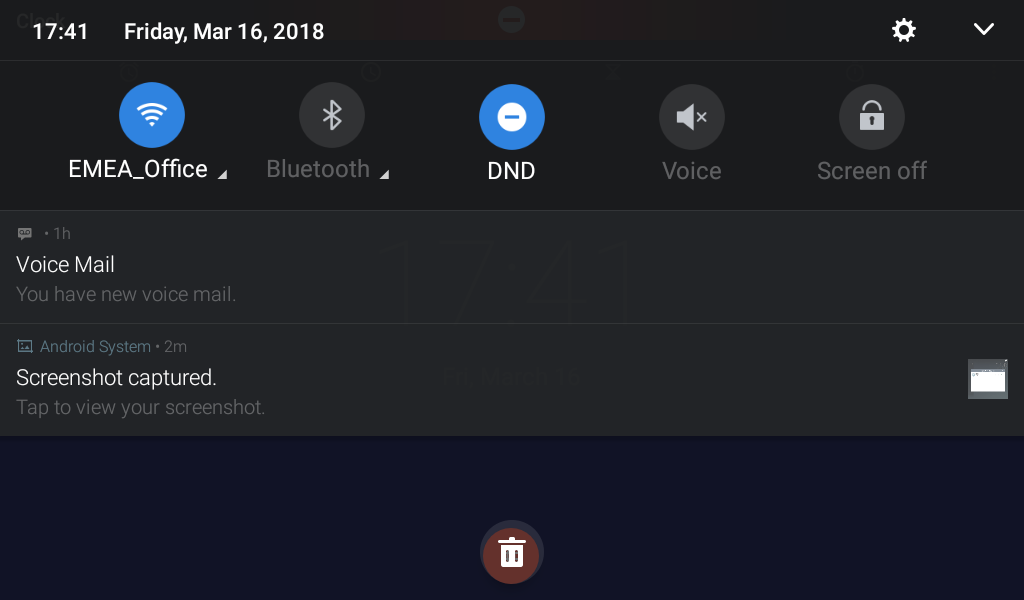
- Tap on DND, the button will turn blue, indicating that DND has been activated.
The GXV series phone supports the Alert-Info mapping to the 3 custom ringtone files. For example, if you configure the Matching Incoming Caller ID to “priority”, the ring tone will be used if we receive INVITE with Alert-Info header in the following format: Alert-Info:;info=priority
- GXV3350 & GXV3370: 1000 contacts
- GXV3380: 2000 contacts
Yes, integration with LDAP allows the administrator to manage the contacts on the LDAP server, and the user can search the LDAP contact directory from the GXV33XX IP phones.
Configuration, Provisioning, & Firmware
The device configuration interface can be accessed by following the steps below:
- Make sure that GXV33XX boots up and is connected to the network.
- On the app launcher, tap on Settings.
- Access “Network Status”, then take note of the IP address.
- Enter the IP address of the device in the browser.
- The default administrator username is “admin”, and the password can be found on the label at the bottom of the device.
The current firmware version of the device can be found on the web UI and LCD menu:
– Web UI: Status > System Info > System Version
– LCD: Settings > Advanced > System Info > System Version.
If the device has been added to the GDMS, the user can view the firmware version by clicking on the information of the device.
GXV33XX supports firmware upgrade via the following methods:
- Method 1: Manually upload the firmware file to the web UI to upgrade (for applicable firmware versions only).
- Method 2: Upgrade via HTTP, HTTPS, FTP, FTPS, or TFTP server.
- Method 3: Upgrade via Zero Config if the newer firmware is uploaded to the IPPBX.
- Method 4: Upgrade via GDMS Unified Communication. When a new firmware is released, the user is prompted to install the new firmware on the devices.
- Method 5: The provisioning can also be done using SD Card and USB flash drive.
To save a backup file of the configuration of the GXV33XX IP phone, please follow the steps mentioned below.
- Access the webUI and use the administrator’s credentials to log in.
- Navigate to Maintenance > Upgrade and Provisioning
- Click on “Download Device Configuration” to download the configuration file in .txt format. The user also downloads the config file in xml format.
Troubleshooting & Maintenance
A factory reset could be executed from the web UI or LCD menu.
– Web UI: Maintenance > Upgrade > Advanced settings > Factory Reset.
– LCD: Settings > Advanced > Factory Reset.
You should make sure that the phone is connected to the network and that it is able to obtain an IP address. Secondly, check if the account is set to active by setting the “Account Active” configuration in the Account page of the web interface to “Yes”. Additionally, check if the login information and the SIP server are correct. If the SIP server is wrong, the phone cannot contact the SIP server for registration. If the login information is wrong, the SIP server will reject the registration request of the phone.
If the number of concurrent registrations is restricted to 1 registration and there is already one registration, with no possibility to seize the registration. This means that another phone/SIP client is already registered to that extension.
If all of the above are correct, there may be a problem with NAT traversal. If the GXV33XX is on a LAN and needs to register to a SIP server on a public IP, please enable NAT traversal by selecting the NAT traversal method according to your network environment. If you are unsure, it is recommended to select “Auto” to enable the automatic NAT traversal configuration feature.
When this situation occurs, please check if the handset is securely connected. If it is not, please reconnect it. It could also be caused by the following:
- The other party may have pressed the “Mute” key, which will place the call on mute. Please tell the other party to check if Mute is on and unmute the call.
- If your phone is connected to the Internet through a router, this can be caused by the NAT traversal issue. If the GXV33XX is on a LAN and needs to register to a SIP server on a public IP, please enable NAT traversal by selecting the NAT traversal method according to your network environment. If you are unsure, it is recommended to select “Auto” to enable the automatic NAT traversal configuration feature.
If such behavior occurs, one of the possible reasons is that there is an encryption feature configuration mismatch. Either encryption is forced on one end but disabled on the other end, or the encryption protocols selected on either end are not selected on the other end.
Network & Security
Yes, the GXV33XX phones can be registered using SIP over TLS, and all the subsequent SIP messages will also be transported over TLS. E.g., REGISTER, SUBSCRIBE, NOTIFY, etc…
Yes, the media traffic can be encrypted on the GXV33XX IP phones. The encryption parameters on the phone must be in accordance with the encryption parameters on the IPPBX to ensure successful encryption and decryption.
Yes, the GXV33XX supports 802.1X protocol authentication.