Wave – FAQ

This Frequently Asked Questions (FAQ) document provides concise answers and guidance for using Wave Web, Wave desktop, and the Wave mobile app. It is intended to assist administrators and users in resolving common issues and understanding key features.


Product Overview & Specifications

Wave Desktop is a client application for Grandstream IP PBX users. It allows to make audio/video calls, participate in conferences, schedule and manage meetings, share screen or documents, and use instant messaging (single and group chat) with file sharing.

It features native integration with the UCM for contacts, call history, voicemail, and supports advanced functionalities like multi-factor authentication and Microsoft Single Sign-On (SSO).

Currently, Google Chrome v75+ and Mozilla Firefox v70+ are supported for using Wave Web client. For best performance and features, it is recommended to use the latest versions of these browsers.

It is recommended to use the latest UCM63xx firmware with the latest Wave application for best compatibility. For example, if UCM63xx firmware is 1.0.15.x, the recommended Wave client versions are 1.0.15.x/1.15.x.

If you prefer not to use the latest UCM63xx version, please see notes below for each Wave clients:

  • Wave Desktop does not force user to upgrade to latest version. Users can choose to download the desired vesrion from here.
  • Wave Android mobile app may be automatically upgraded to latest version from user’s mobile device. If necessary, users can uninstall it and download the desired version from here to install again.
  • For Wave iOS mobile app, once it’s upgraded, users cannot downgrade. The latest Wave iOS mobile app is compatible with the latest and previous UCM63xx firmware versions. If the users encounter issues on Wave iOS app due to mismatch UCM63xx version, please contact Grandstream support for help.

Starting from Wave desktop version 1.15.x, with the supported headsets, call control functions such as answer call, end call, mute/unmute and volume adjustment on the headset can work with Wave. There headsets must be connected to PC via USB connection (or USB dongle). The headsets include (but not limited to):

  • Grandstream GUV3000
  • Grandstream GUV3005
  • Poly Blackwire 3320-M USB A
  • Poly Blackwire 5210
  • Poly Blackwire 5220
  • Poly Voyager 5200 UC
  • Poly Voyager 6200 UC
  • Poly Voyager Focus UC-M
  • Jabra Evolve 30 II
  • Jabra Evolve 80 MS
  • Jabra Evolve2 40
  • Jabra Evolve2 65
  • Jabra Evolve2 85
  • Bose 700 UC
  • Logitech Zone Wireless

Wave Desktop requires Windows 10 or higher, or macOS High Sierra 10.13 or higher. A network connection above 3 Mbps is recommended, and your UCM must be connected to the network. You will also need audio equipment (speaker/microphone) and a webcam for video calls.


Setup & Initialization

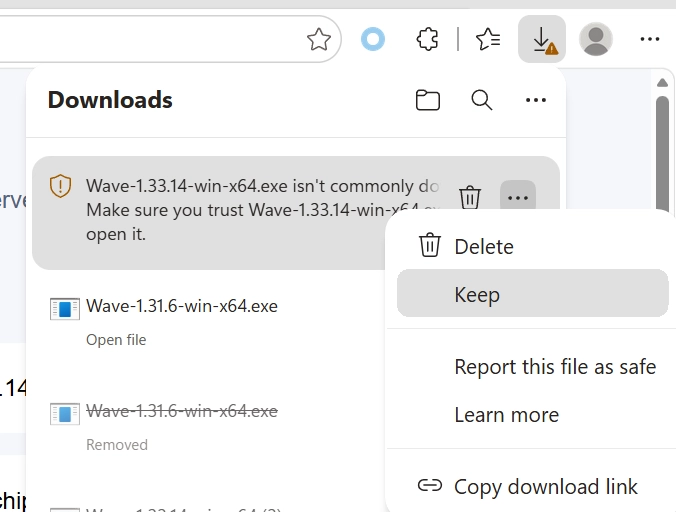
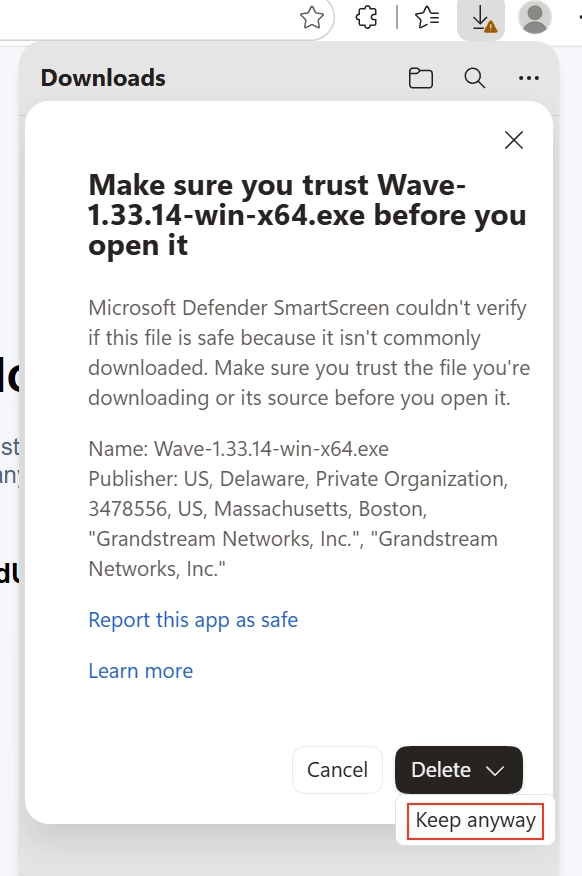
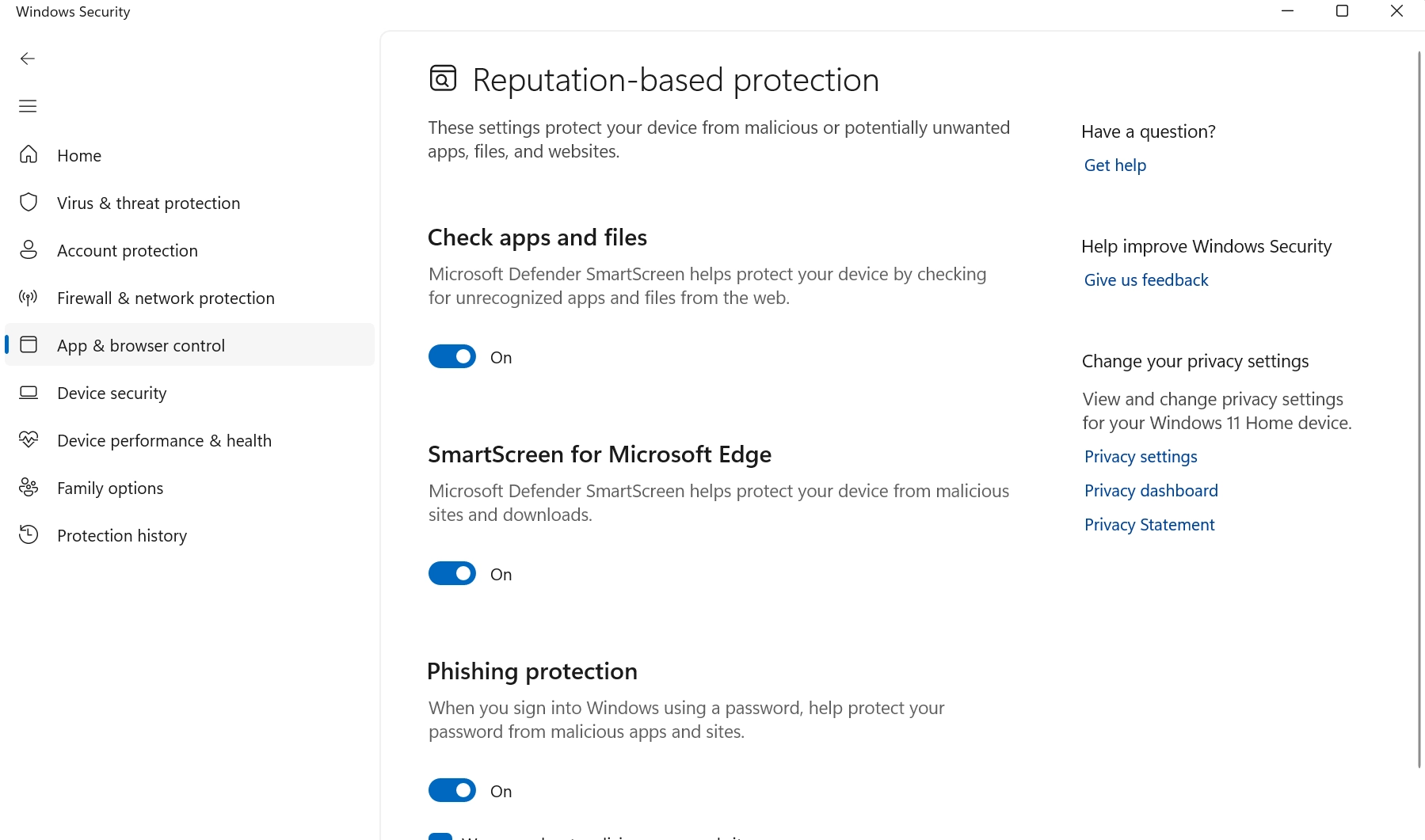
If the Windows user turns off the “Smart App Control” and turns on the option “Reputation-based protection – Check apps and files”, and download the Wave Desktop new version 1.33.14 from Download , the user will see an alert message by “SmartScreen”. To resolve this issue, the user can click to keep the installation file and allow it to execute. Please check the screenshots below:
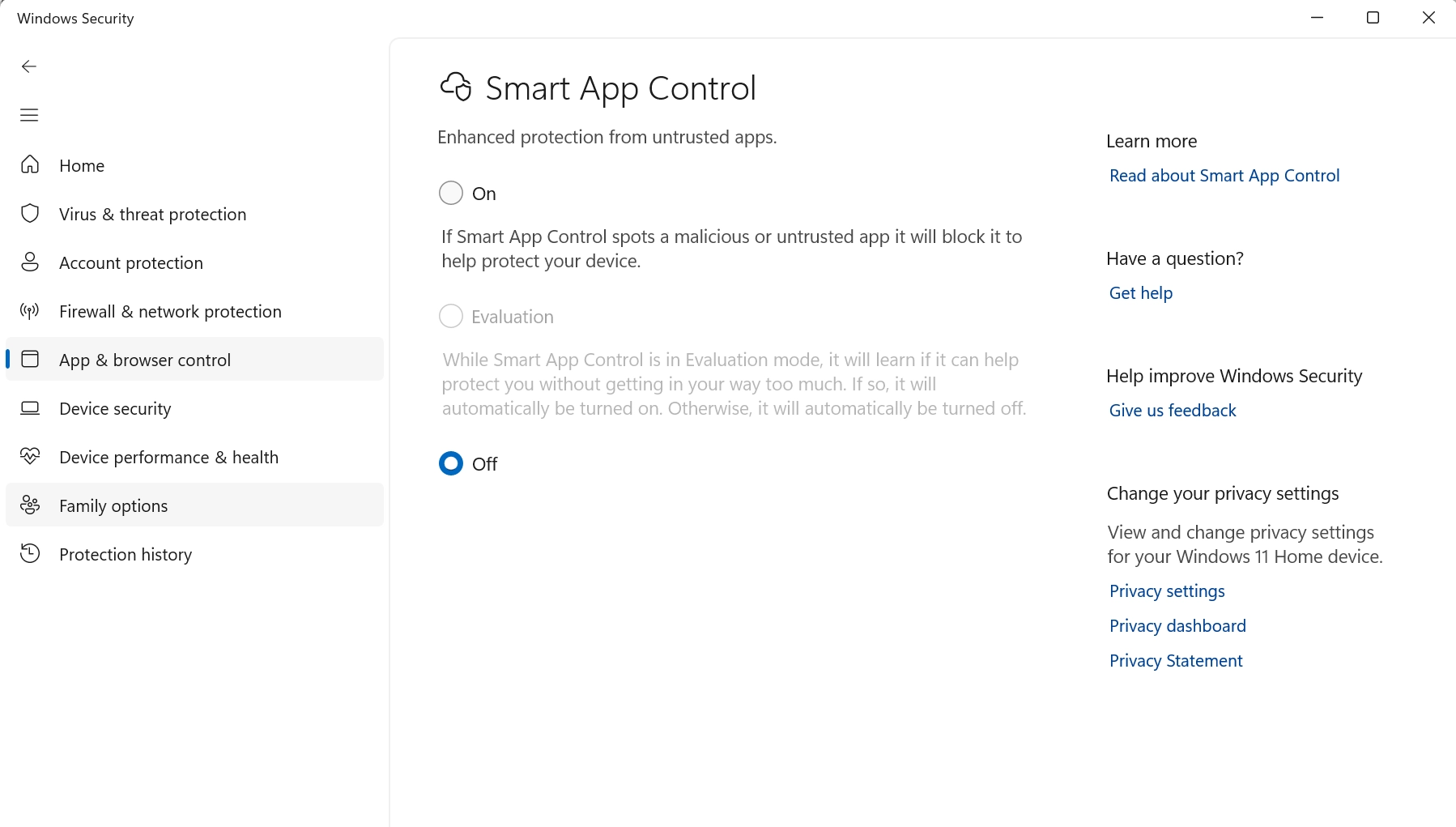
Windows Security: Smart App Control settings with On, Evaluation (disabled), and Off options visible on the left panel; Learn more and Help links on the right.
Windows Security settings: App & browser control pane with toggles for reputation-based protection and SmartScreen features on the right panel and a vertical left navigation menu shown beside it.
Downloads panel showing two Windows executables (Wave-1.33.14-win-x64.exe, Wave-1.31.6-win-x64.exe) and a context menu with Delete and Keep; Keep is highlighted.
Security warning dialog: Windows Defender SmartScreen asking if you trust Wave-1.33.14-win-x64.exe before opening; includes Name, Publisher, and options Cancel, Delete (Keep anyway).

The UCM63xx needs network penetration configuration for Wave service in public networks.

  1. Users could purchase UCMRC service which provides different plan options. Once the UCMRC plan is purchased and activated, the UCM63xx will be configured automatically with the necessary network penetration settings.
  2. If users prefer not to purchase UCMRC service, self-provided STUN/TURN servers and manual configurations are required.
    • Log in UCM63xx webUI and navigate to System Settings→HTTP Server page, configure External Host. Please consult your IT administrator for the proper external host address to be used on the UCM.
    • On UCM63xx webUI→PBX Settings→RTP Settings page, configure STUN Server and TURN Server. Please consult your IT administrator for the available STUN server and TURN server addresses to be used. Port forwarding rules are also required on the routers or firewall devices in the network where the UCM is.

It’s recommended to use UCMRC plan in method (1) for the simplicity of configuration and reliable service.

  1. If the UCM63xx does not have cloud IM enabled, please configure chat file storage path under UCM63xx webUI→PBX Settings→File Manager.
  2. If the deployment has multiple UCM63xx and users would like to chat with Wave users on different UCMs, please purchase UCMRC plan and enable cloud IM under UCM63xx webUI→System Settings→IM Settings. No UCMRC plan is required if only one UCM is used.

Yes. Users need to purchase a compatible UCMRC plan first. Then, log in to UCM63xx Web UI→ RemoteConnect→Enterprise UI customization page to configure the enterprise logo and name displayed on Wave. This configuration requires the UCMRC service plan and cannot be done directly in the Wave app.

  1. On UCM63xx webUI→Extension/Trunk→Extensions→Wave Client tab, ensure Enable Wave option is selected. 
  2. Navigate to Extension/Trunk→Extensions→Media tab, ensure “H.264” video codec is selected in the extension’s “Codec Preference” list. This codec is used for audio/video calls and presentation sharing. Please note, even if the user does not make any video calls, H.264 codec still needs to be enabled for the extension.
  3. The contacts enabled for the extension will be synchronized to Wave client by default. The privileges for contacts of this extension can be configured under Extension/Trunk→Extensions→Basic Settings.
  4. An email address must be configured for the extension so that Wave user can receive email notification for account information and password reset email. Email address for the extension can be configured under Extension/Trunk→Extensions→Basic Settings.
Note:

In order for the UCM to send emails, please ensure the UCM has email settings properly configured under System Settings→Email Settings.

To ensure the security of users’ privacy, the system assigns a random password to each extension for Wave login.  The UCM administrator can notify Wave account information to Wave users via email. To do so:

  1. Log in to the UCM63xx web UI.
  2. Navigate to the Extension/Trunk→Extensions page, and select the extension
  3. On the top menu bar select E-mail Notification option, and click on “Wave Welcome Mail” to send an email to the email configured for the extension.

The email includes the login information of the selected extension, such as internal/external access address, login username, user password, Wave application download address, and etc. 

As a UCM admin:

  1. Log in to UCM Web UI, and select an extension with a configured email configured.
  2. Click Email Notification→Extension Information Mail to send login info including UCM public URL, extension number, and password.
  3. The UCM public URL address can also be viewed from UCM web UI→RemoteConnect→Plan page.

As an end user:

  1. Please contact your UCM admin to obtain the login URL, extension number and user password. If you have received UCM account email notification, the email will include UCM public URL, extension number and user password for you to log in.
  2. If you have registered your UCM extension on GXV3350/3370/3380 with latest firmware, you can log in the GXV3350/3370/3380 web UI and navigate to Status→Account Status and click on “Enter” under “GS Wave” column for the registered account. This will redirect you to the Wave Web URL to log in this extension.

For public network usage, UCM63xx requires proper STUN/TURN and external host configurations. Navigate to System Settings → HTTP Server for “External Host” and PBX Settings → RTP Settings for STUN/TURN servers. Port forwarding rules must be configured on the network firewall/router. Using UCMRC service simplifies this configuration.

The participant limit for video conferences depends on your Grandstream IP PBX model. For example, a UCM6301 supports up to 20 video participants, while a UCM6308 supports up to 80.

Please refer to the specifications table in the user guide for your specific model.


Call Management & Advanced Features

Yes, a meeting can continue without a host. When the host leaves without ending the meeting, they will be prompted to designate a new host. If no new host is assigned, the original host retains host privileges when they rejoin the meeting.

When joining a meeting on Wave Desktop, Wave Web or Wave mobile app, the user can select the Host role and enter the meeting host code to become the host.

If you are already in a meeting and there is no host in the meeting yet, you can click on the “Host Meeting” option and enter the host code to become moderator.

During a meeting, the existing host can transfer host privileges to another meeting participant.

Only one host is allowed per meeting. If a host already exists, no other participant can become host unless the current host transfers the host privileges.

When Wave mobile app is running in background, incoming call notification is not supported if the call is from call queue due to the following reasons:

  • For call queue agents, it normally requires phone devices at a fixed location. Wave mobile devices are usually not used in call queue service scenario.
  • Call queue response times are time-sensitive, but mobile push notifications can be delayed due to network conditions. Therefore, call queue scenarios are not supported on the Wave mobile app.

During a call, click the “More” button (⋯) and then the transfer icon. You can perform:

  • Blind Transfer: Enter the number/name of the person you want to transfer to and click “Blind”. The call is transferred immediately.
  • Attended Transfer: Select the contact. This will put the first call on hold and call the transfer target. You can speak with them before completing the transfer by clicking “Transfer Now”.

Yes, call and meeting recording is supported on Wave.

  • One-to-One Calls: Click “More” → “Recording” during the call.
  • For Meetings: Click “More” → “Record” during the meeting. After the call or meeting ends, you can find the recordings in the Call History or Meeting Details section to play, download, or delete them.
Note:

For meetings, only the meeting host has the recording privilege.

Call Flip allows you to seamlessly switch an ongoing call from one device (e.g., Wave on your computer) to another (e.g., your Grandstream desk phone or Wave Web client) without hanging up. To use it, ensure the same account is configured on both devices. On the device you want to switch to, a green bar will notify you of the ongoing call. Click “Switch” to transfer the call to that device.


LDAP & Phonebook Management

Wave displays two main types of contacts:

  • Enterprise Contacts: This includes all UCM extensions, meeting room extensions, and contacts from the UCM LDAP server.
  • Personal Contacts: These are contacts you manually add to your Wave client for quick access.
Note:

The structure and visibility of the enterprise contacts are controlled by your UCM administrator.

You can disable LDAP contacts display from the UCM63xx Web UI. Navigate to System Settings→LDAP Server→LDAP Phonebook→LDAP Settings and uncheck the option “Display LDAP Contacts on Wave“.

To use the import feature, your UCM63xx must have a UCMRC Plus plan (or higher). Once the plan is active, open Wave mobile app→Personal contacts and tap the “Import” button on the upper right to import phone contacts into Wave.


Troubleshooting & Maintenance

This occurs if Firefox has not installed the OpenH264 codec automatically. Check “Add-ons” in Firefox to verify installation. Restart Firefox if necessary. Once OpenH264 is installed, you should be able to join the meeting normally.

The “Forgot Password” feature resets the User password for Wave login. The SIP password remains unchanged. Use the User password for logging in after the reset.

This issue may be due to the UCM6300 series PBX firmware or the Wave mobile app not being updated to the latest version. Please make sure both the UCM6300 series PBX and Wave app are up-to-date.

This occurs due to abnormal disconnections from the participant. By default, if no RTP packets are detected within 90 seconds, the participant is automatically removed. The RTP timeout value is configurable in UCM63xx→PBX Settings→SIP Settings→ToS.

Please check your network stability. Unstable or slow networks can cause a delay in the appearance of video feeds.

If needed, please contact UCM admin to check whether the UCM’s ICE and STUN/TURN server settings are configured properly.

Since network traffic from Wave is encrypted, packet capturing tools will not be able to view the details of communication.

  • For Wave Desktop and Wave Web:

Collecting logs option is automatically enabled on Wave Desktop and Wave Web. Users can download logs by clicking the settings icon on Wave→Help and Feedback→Export Logs option. The logs will be downloaded to the local PC.

Note:

As long as the user hasn’t cleared cache on the browser, the logs from Wave Web are available for export, even if the tab/browser has been closed or the PC has been restarted.

  • For Wave Mobile app:

On Wave mobile app login screen, users can enable log collection on Wave Mobile by tapping on the “Options” icon at the top right of the screen and toggling on the “Collect Logs” option. Tapping on “Export Logs” will show the saving path for the captured logs.

If the user is already logged in, the user can click on Settings icon→Help and Feedback, and toggle on “Collect Logs” option. Tapping on “Export Logs” will show the saving path of the captured logs.

Note:

UCM capturing may also be required for diagnosis purpose. Please contact Grandstream Support for troubleshooting.

If the participant is using Firefox web browser to share video or screen on Wave web and the participant’s PC currently has high CPU usage, Firefox browser will automatically reduce the resolution of the shared video or shared screen from this participant. Therefore, the other participants may see video resolution reduced or presentation become blurring during that period.

Please check with your UCM administrator for the “Meeting Voice Indicator Sensitivity” setting. They can log in to the UCM Web UI, navigate to PBX Settings→General Settings, and configure this option. Increasing the sensitivity will make the talking indicator appear more easily, even at lower audio volumes.

Note

This does not adjust audio input sensitivity itself. Lower volumes of sounds may still be heard even if the talking indicator does not show the source.

The possible reasons for this issue are:

  1. Incoming call or message notifications may not appear on the Wave mobile app because push notifications are disabled in the phone’s system settings. To fix this, go to System Settings→Applications→Wave and ensure all relevant notification settings are enabled.
  2. The mobile phone may fail to register with the push notification service due to network issues on the push notification server. To resolve this, stop and restart the Wave app.

By default, only one login per UCM extension is allowed for Wave Web or Wave Desktop. If the same extension logs in on another device or session, the previous session will be automatically logged out.

Users can enable concurrent logins for the same client type under User Management→User Portal/Wave Privileges by modifying the “Allow Simultaneous Logins from the Same Client Type” setting.

To support multi-device logins, ensure that the extension’s “Concurrent Registrations” value is set to greater than 1.


Was this article helpful?

Need Support?
Can’t find the answer you’re looking for? Don’t worry we’re here to help!
Contact Support