

OVERVIEW
WP810/WP822/WP825 are Cordless Wi-Fi IP Phones featuring dual-band 802.11a/b/g/n/ac Wi-Fi and supports Wi-Fi roaming. The combination of advanced telephony features and durability make them ideal for mobilizing your VoIP network in residences, warehouses, retail stores, hotels and many more environments. Due to a ruggedized design, these phones are safe for accidental drops and they are as well waterproof and dustproof, with large rechargeable batteries for long period of use, making them an ideal addition for homes and businesses alike.
PACKAGE CONTENTS
WP810/WP822/WP825 |
|
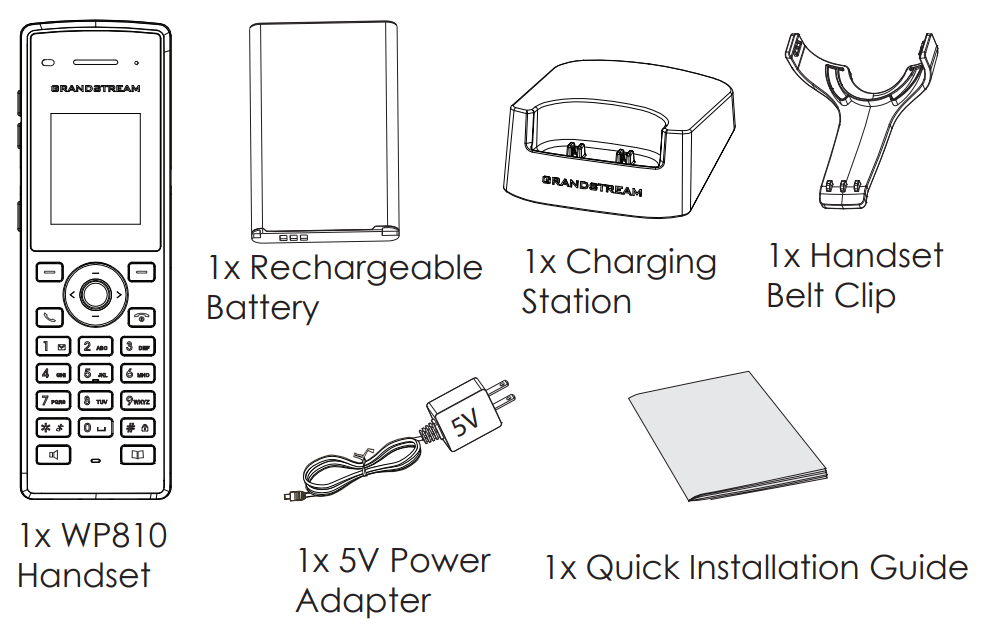
Equipment Packaging
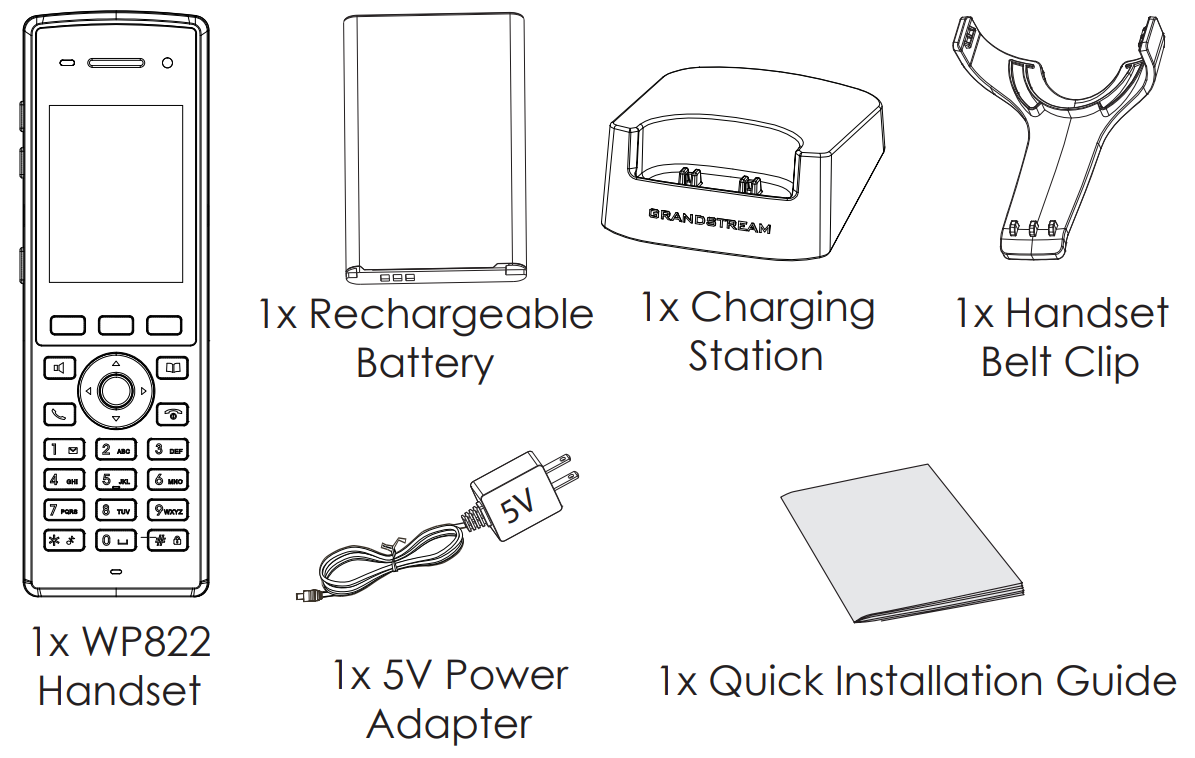
- WP822
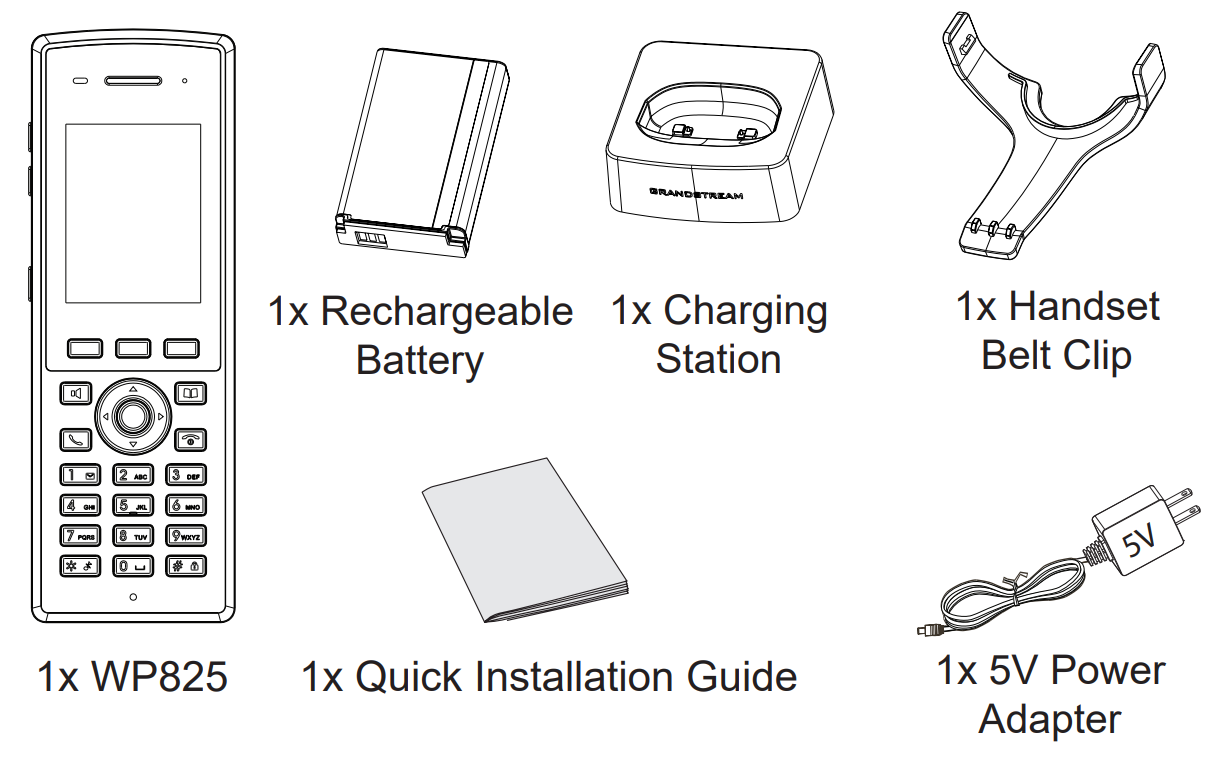
- WP825
SETTING UP THE HANDSET
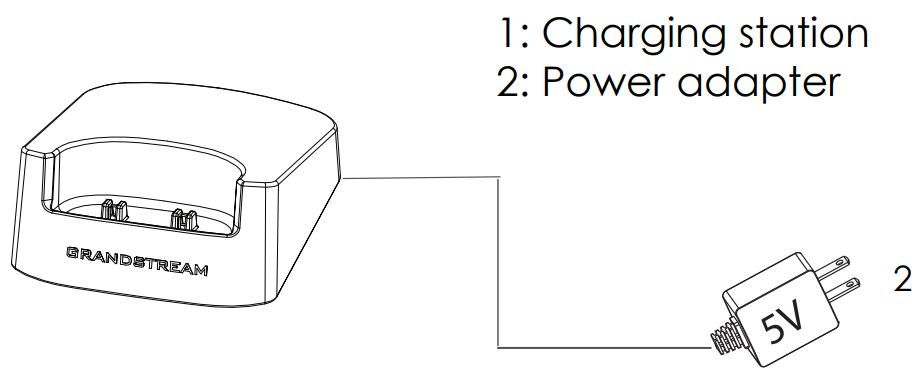
Charging Station
Plug the power adapter into a power source socket to start using the charging station.
Handset
Please refer to the following steps in order to setup your WP810/WP822/WP825 phone:
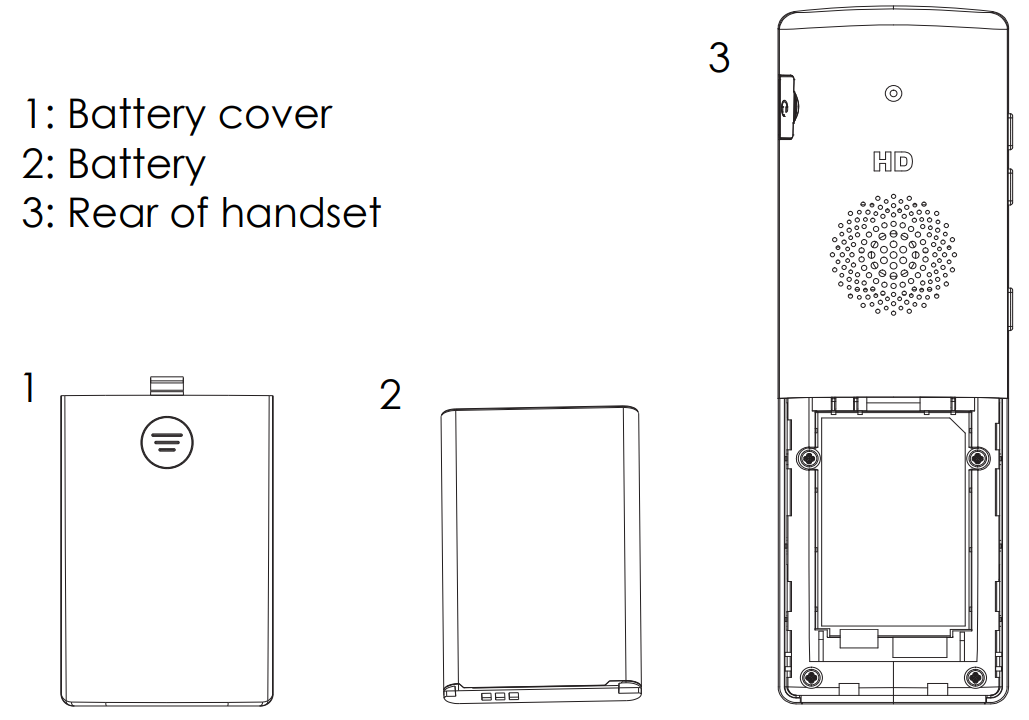
- Open the battery cover.
- Insert the battery with the electrodes in the bottom left corner.
- Close the battery cover.
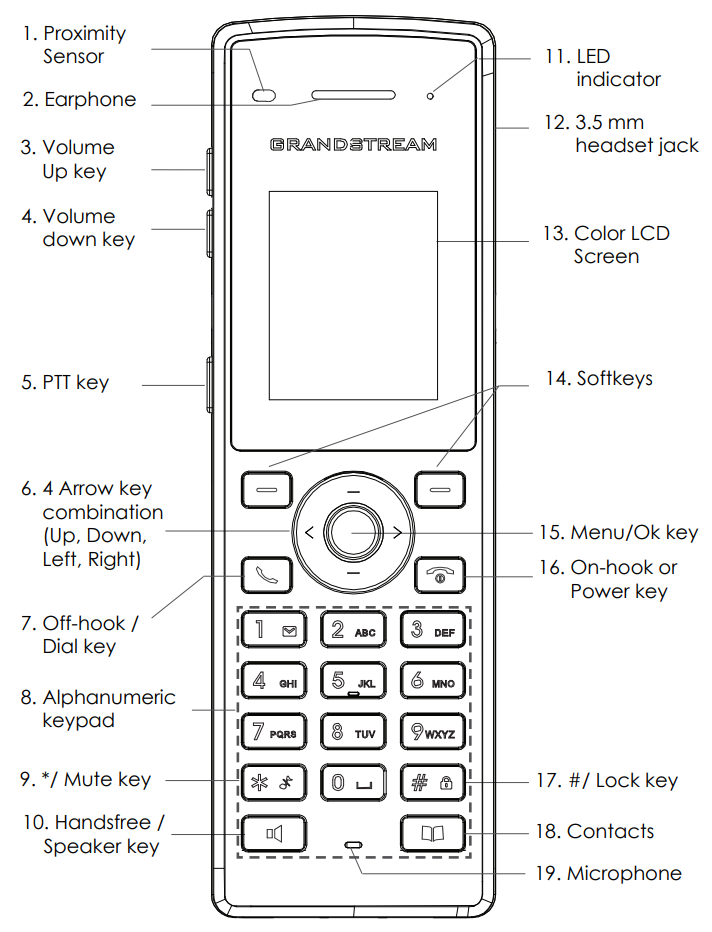
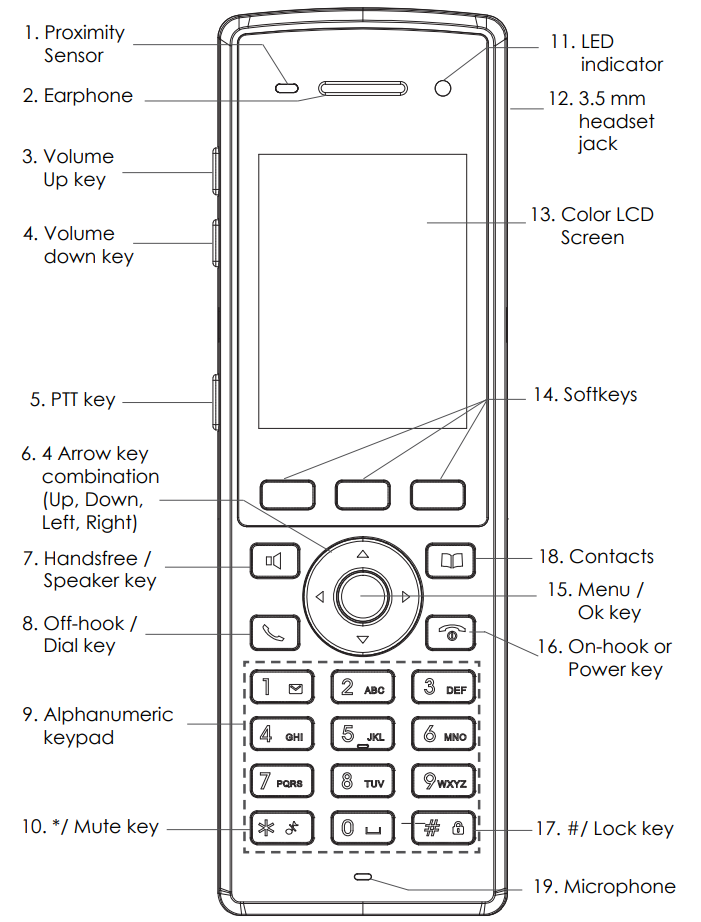
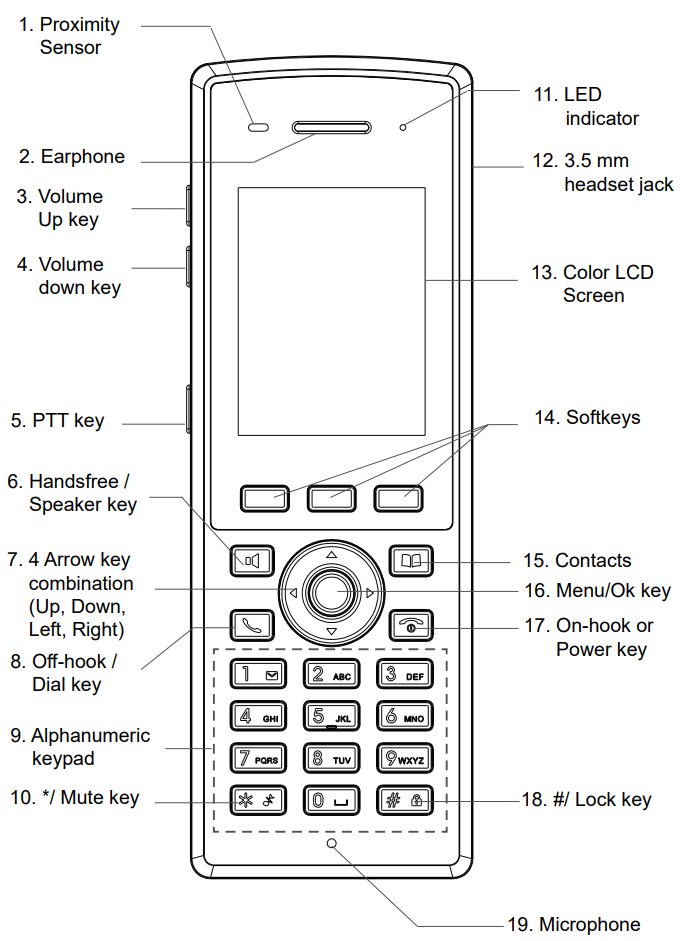
HANDSET KEYS DESCRIPTION
- WP810
- WP822
- WP825
CONNECTING TO WI-FI NETWORK
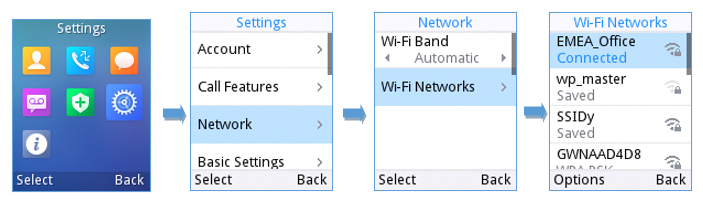
- On LCD menu, press Menu key and navigate to Settings → Network Settings → Wi-Fi.
- Set Wi-Fi to “On” and navigate to “Wi-Fi Settings”. A list of Wi-Fi networks will be displayed.
- Select the desired network to connect to. (Enter the correct password to connect if requested)
WP810/WP822/WP825 will display Wi-Fi icon on top of the main LCD menu if the connection to the Wi-Fi network is successful.
ACCESSING THE WEB UI
- Press the UP button to see the IP address.
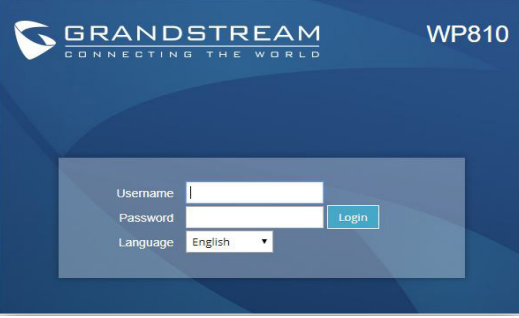
- Type the phone’s IP address in your PC browser.
Note: The computer needs to be on same network as WP810/WP822/WP825. - Enter admin’s username and password to access the configuration menu. (The factory default username is “admin” while the default random password can be found on the sticker at the back of the unit).

For Certification, Warranty and RMA information, please visit
www.grandstream.com