
Introduction
This tutorial explains how to modify an ICS (iCalendar) to control how calendar dates are displayed on the device, including Workdays, Special Workdays, Holidays, and Non-Workdays.
What Is an ICS File?
An ICS file is a standard calendar file format used to store event data. By editing specific fields, you can define how dates are categorized and displayed on supported devices.
Prerequisites
- Text editor: Any plain-text editor (Notepad, TextEdit). Editors like Notepad++ or VS Code are recommended.
- ICS file: Export from Google Calendar, Outlook, or download from a calendar provider.
Step 1: Obtain the ICS File
Export or download the ICS file and open it using a text editor.
Step 2: Display Style Configuration
The device supports a global custom field called X-GRANDSTREAM-STYLE, which controls how calendar categories are interpreted:
Available Styles
- Special Workdays & Holidays
X-GRANDSTREAM-STYLE:COMMON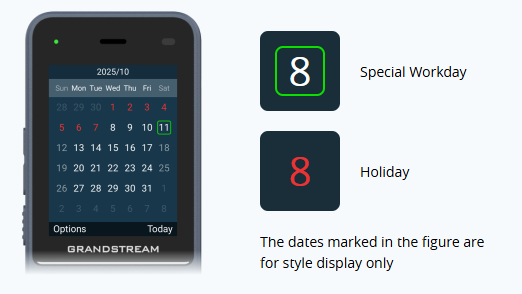
Workdays & Non-Workdays
X-GRANDSTREAM-STYLE:WORK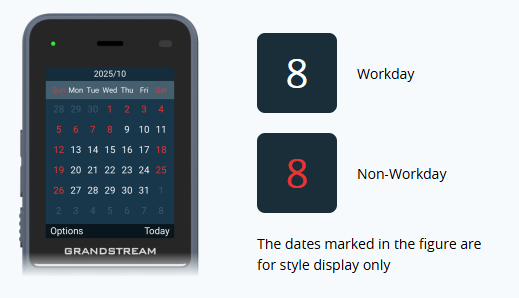
Style Behavior
- COMMON
CATEGORIES:WORKDAY→ Special WorkdayCATEGORIES:HOLIDAY→ Holiday
- WORK
- Weekends (Saturday & Sunday) are non-working days by default.
- If
WORKDAYorHOLIDAYmarkers exist in a month, they override the default behavior. - If no markers exist, weekends are automatically treated as holidays.
Step 3: Define Event Categories
Inside each VEVENT, add or edit the CATEGORIES field (place it before END:VEVENT):
Supported Values
- Holiday
CATEGORIES:HOLIDAY- Workday
CATEGORIES:WORKDAY- Non-Workday
Any other value, or leave CATEGORIES unset.
Example
BEGIN:VEVENT
DTSTART:20251225T000000
DTEND:20251225T235959
SUMMARY:Christmas
CATEGORIES:HOLIDAY
END:VEVENT
Conflict Resolution Rules
- When multiple ICS files define the same date, file priority determines which marker applies.
- When multiple ICS files define
X-GRANDSTREAM-STYLE, the style from the higher-priority file is used. - Within a single ICS file, if both
WORKDAYandHOLIDAYare assigned to the same date, WORKDAY takes precedence.