

Introduction
The GCC6000 series supports embedded anti-malware software that helps the firewall system detect, block, and scan the network for any potential security threats, it can be very similar to the functionalities found on an anti-virus software, with many more features narrowed for network security, including protection against various threats.
The anti-malware module is periodically updated to include the latest security patches to stay up to date with the evolving attack methods.
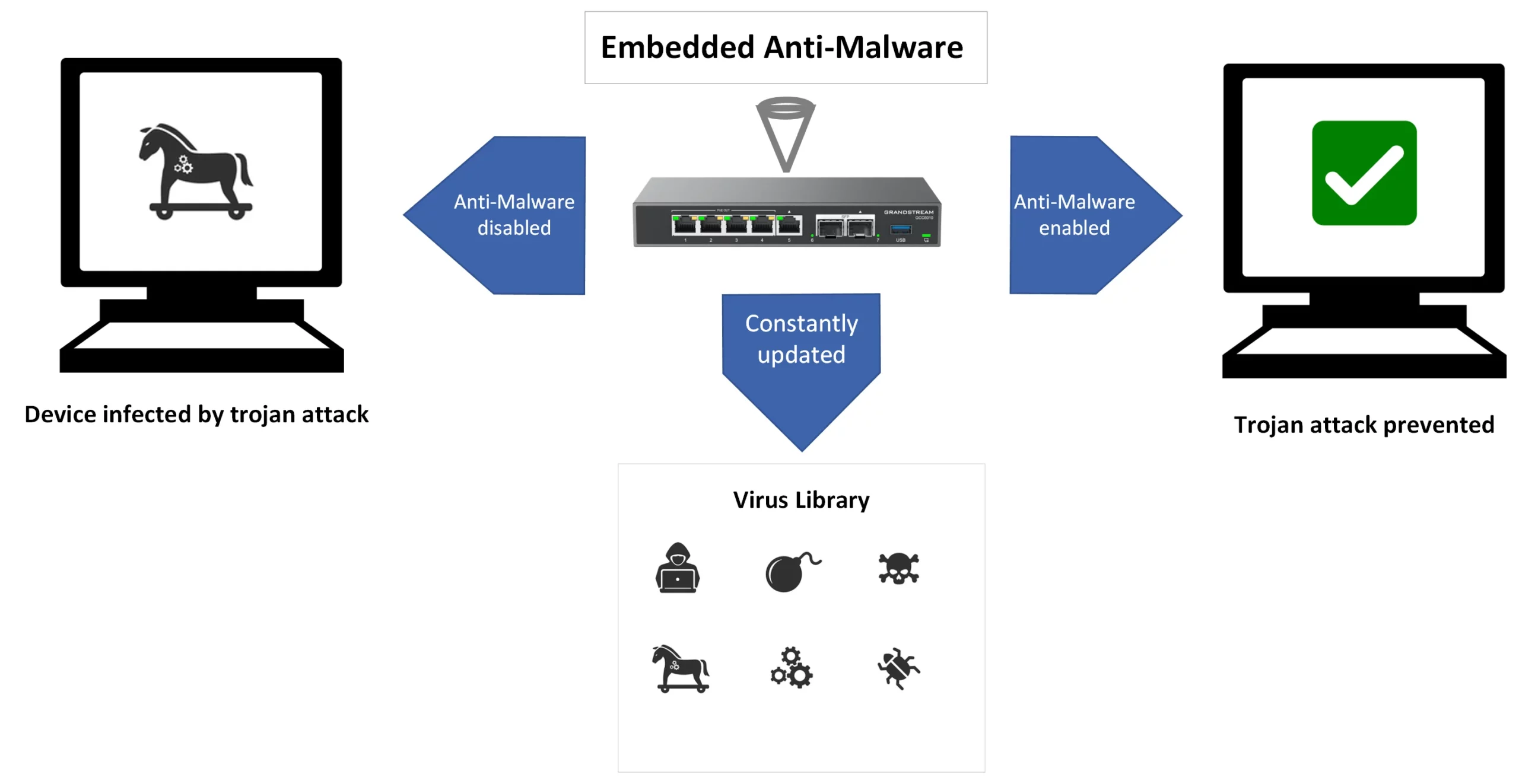
In this guide, we will walk through how to enable and configure the embedded anti-malware software in the GCC convergence device.
Enabling Anti-malware
To prevent a malware attack using the Grandstream GCC device, please follow the below steps:
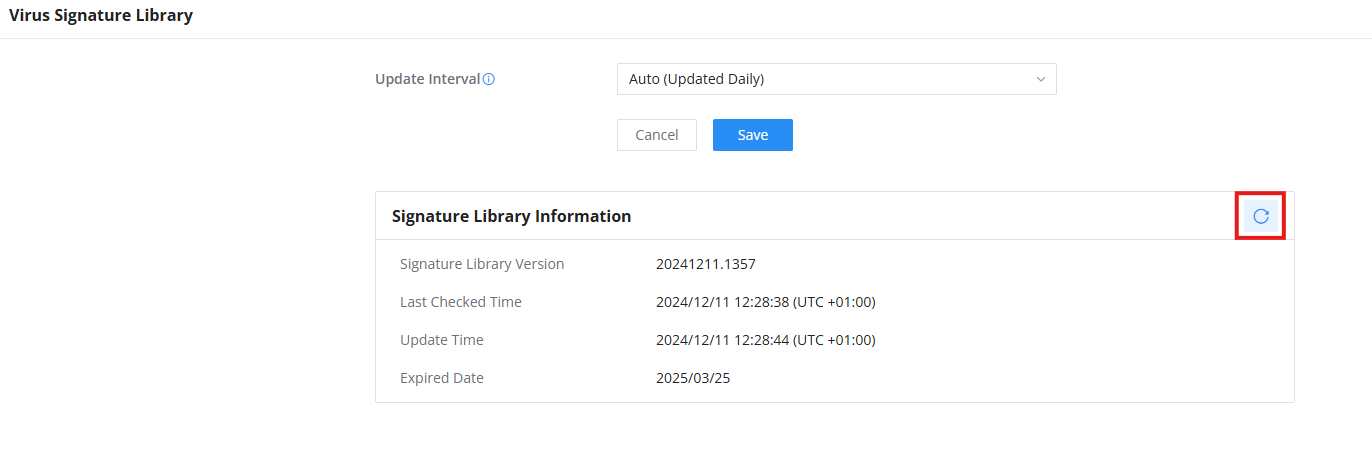
- First, navigate to Firewall Module → Anti-Malware → Virus Signature Library and update the signature library information, this will help the GCC device obtain the latest information about the virus threats.
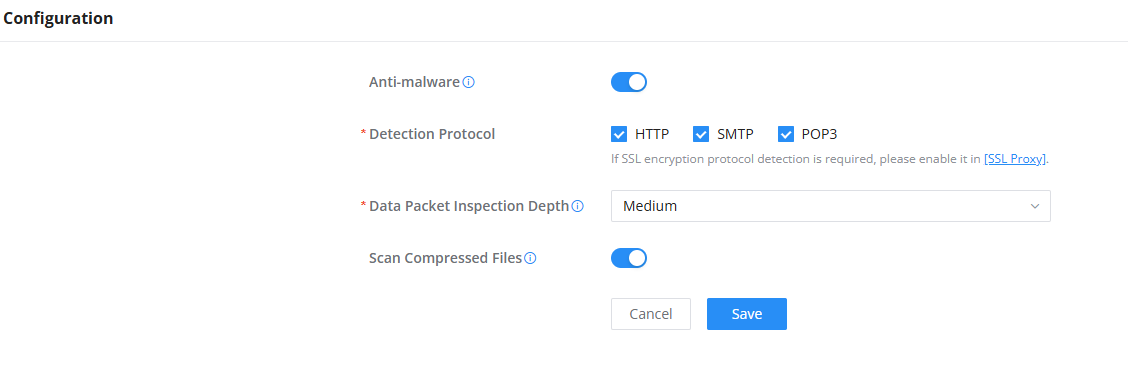
- Navigate to Firewall Module → Anti-Malware → Configuration, then enable Anti-Malware
- Check the detection protocol, for HTTP, SMTP, and POP3, all three protocols will be inspected.
- Set Data Packet Inspection Depth to “High“, The available options are:
- Low: Basic inspection with minimal checks, this option offers faster performance but less security.
- Medium: A balanced level of inspection with moderate security and performance.
- High: Thorough inspection with the highest security, but it may slightly slow down performance.
- Enable “Scan Compressed Files“, this will help scan any compressed attachments before download.
- Paste the anti-malware download test file link: https://secure.eicar.org/eicar_com.zip, this is a file containing a signature that has been added to the database of viruses and anti-malware to be detected for testing purposes, it is not a harmful file.
- Browse to the site using a browser of your choice (it’s recommended to use a Virtual Machine and private tab), then confirm that the site is blocked.
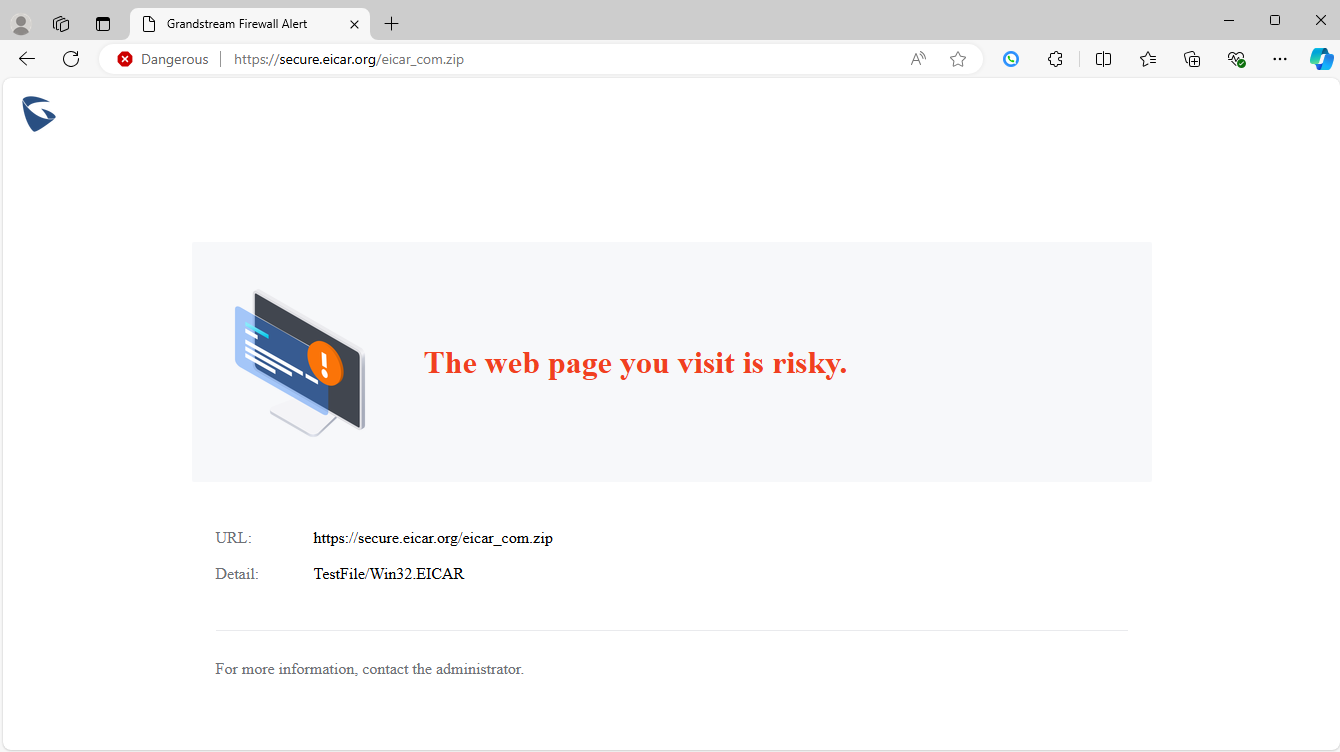
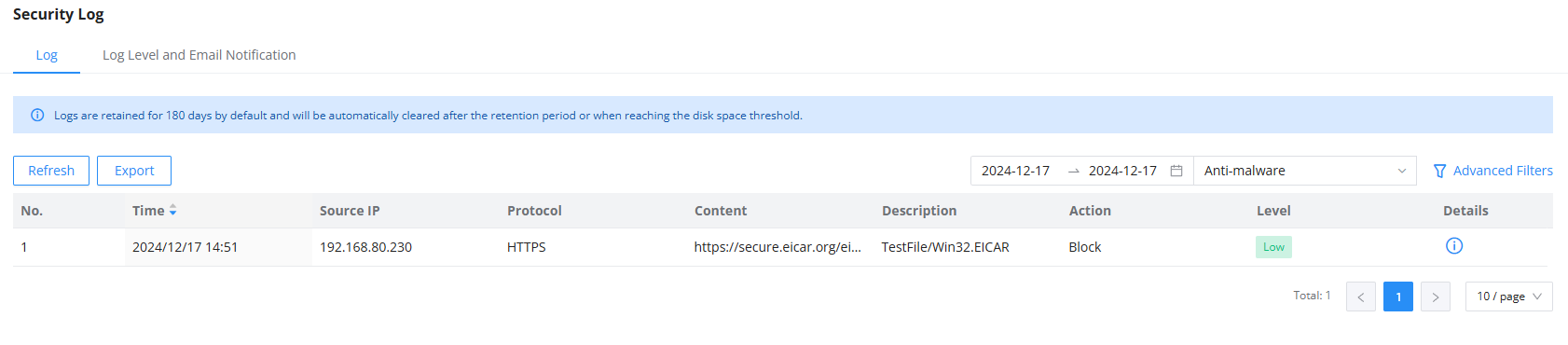
With this, we can confirm that the website access is blocked due to the anti-malware defense, we can view this on the security logs of the GCC device.
Supported Devices
Device Model | Firmware Required |
GCC601x | 1.0.1.7+ |
GCC602x | 1.0.7.32+ |