

Introduction
Content Filtering allows network administrators, to apply different rules on the users’ web access permissions, to increase team productivity, or prevent users from accessing unauthorized or unproductive websites, the way the web content filtering is configured can be divided into different layers when implemented together or individually, they can form a complete solution for monitoring the customers web access.
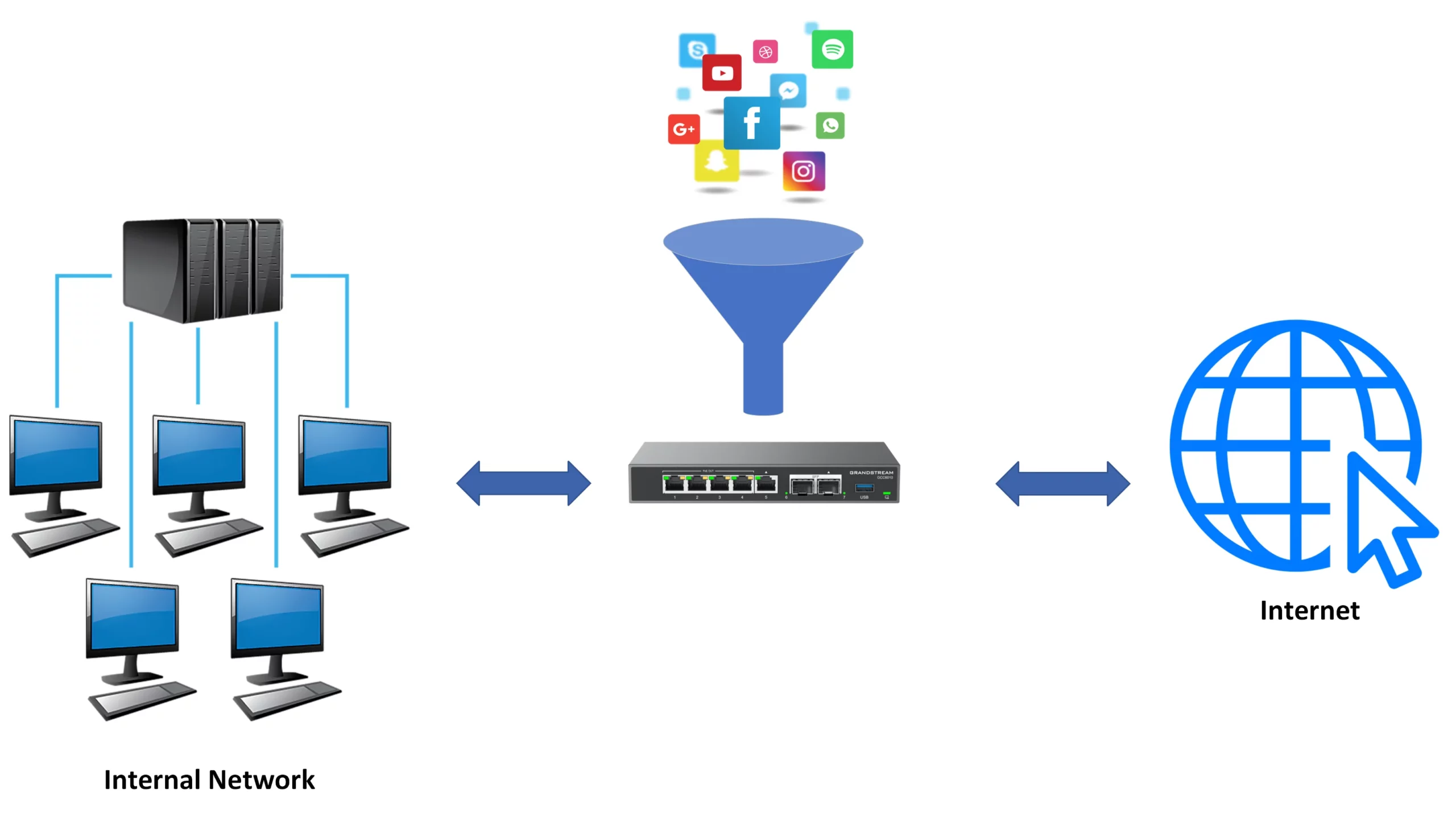
The GCC convergence device provides the following content control methods, Content control through:
We will go through the configuration of each method separately, please keep in mind that, in some situations, the filtering methods can be used with each other to form a complete security solution.
DNS Filtering Configuration
DNS filtering is the process of allowing or denying a specific set of domain names to be resolved, meaning that, if we set a specific domain name to be blocked, we need to set the DNS resolver to the LAN IP address of the GCC convergence device, since it will be the one used as our internal DNS server.
For this solution to work, this setup needs to be applied on all levels of the web access, starting from the operating system-defined DNS server, to the browser’s DNS server, they all have to match the local IP address of the GCC device to be able to block access through DNS filtering.
We will configure the below example for a better understanding, we will set the DNS filtering rule to block all DNS requests to the www.youtube.com website:
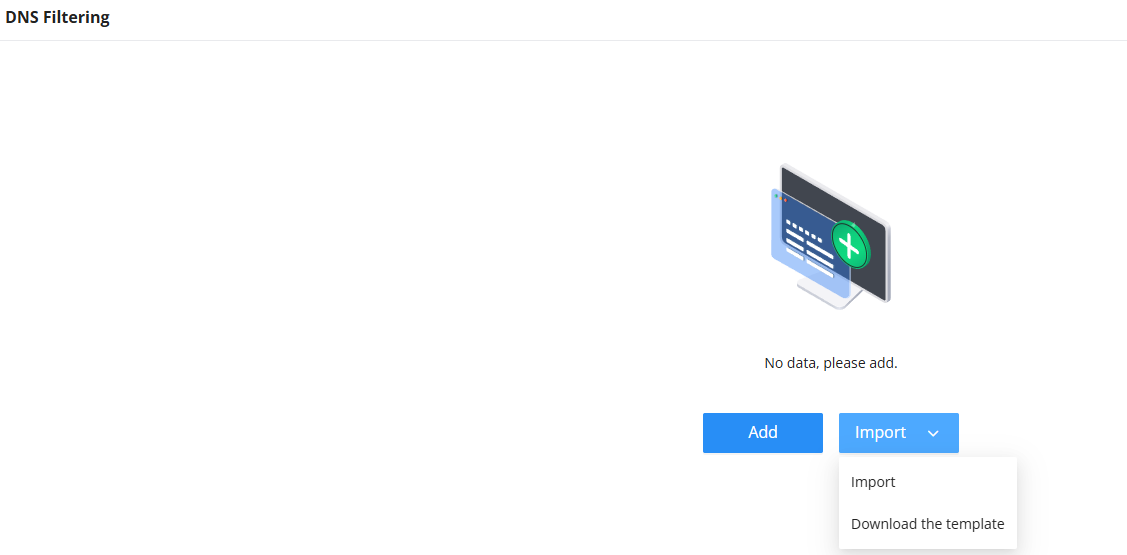
- Navigate to “Firewall Module → Content Control → DNS Filtering“, then click on the “Add” button to add a new DNS filter. Users also can import DNS filtering rules, by uploading an Excel template file as an example.
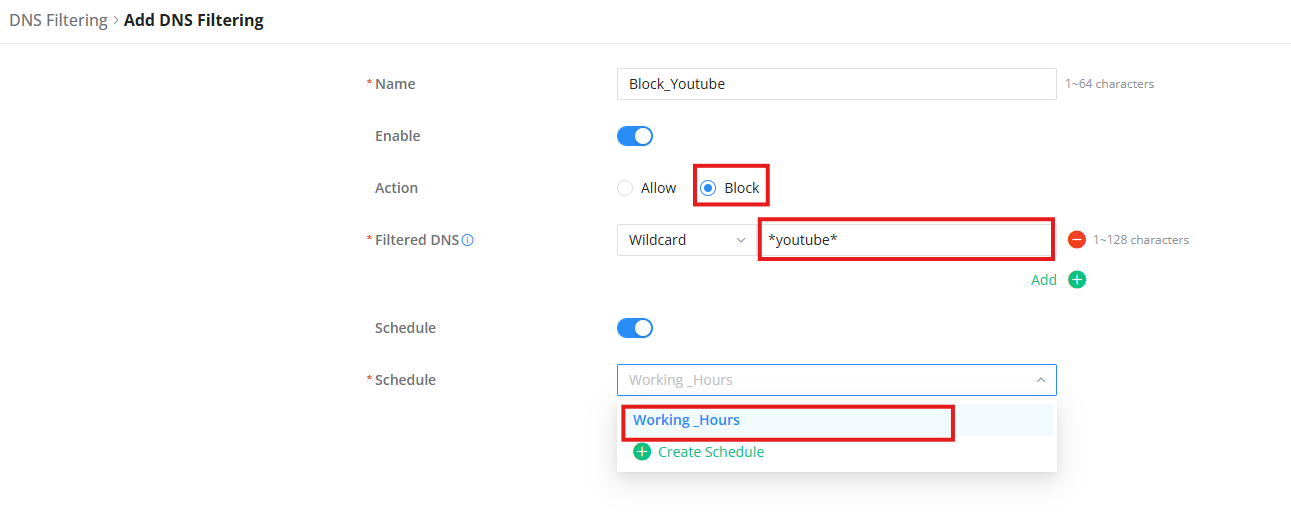
- Under Action, select Block.
- Under Filtered DNS, select Wildcard and specify the Wildcard with (*) before and after the keyword, our keyword is Youtube, when we define a wildcard such as *Youtube*, then every domain name that includes the string youtube will be blocked.
- You can choose the DNS rule to be applied on a specific defined schedule.
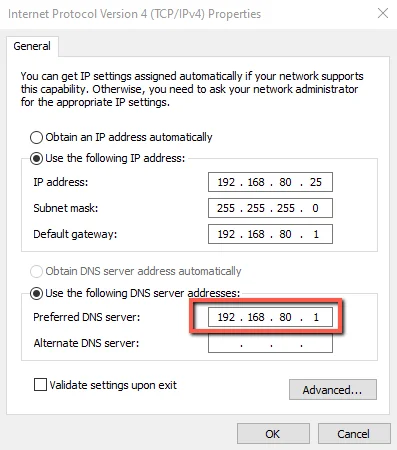
- Make sure the device (PC, smartphone …) is using the GCC gateway as the DNS in our case it’s the gateway: 192.168.80.1
- Open a web browser (private tab) and test the wildcard by using a URL that contains that wildcard: youtube.com
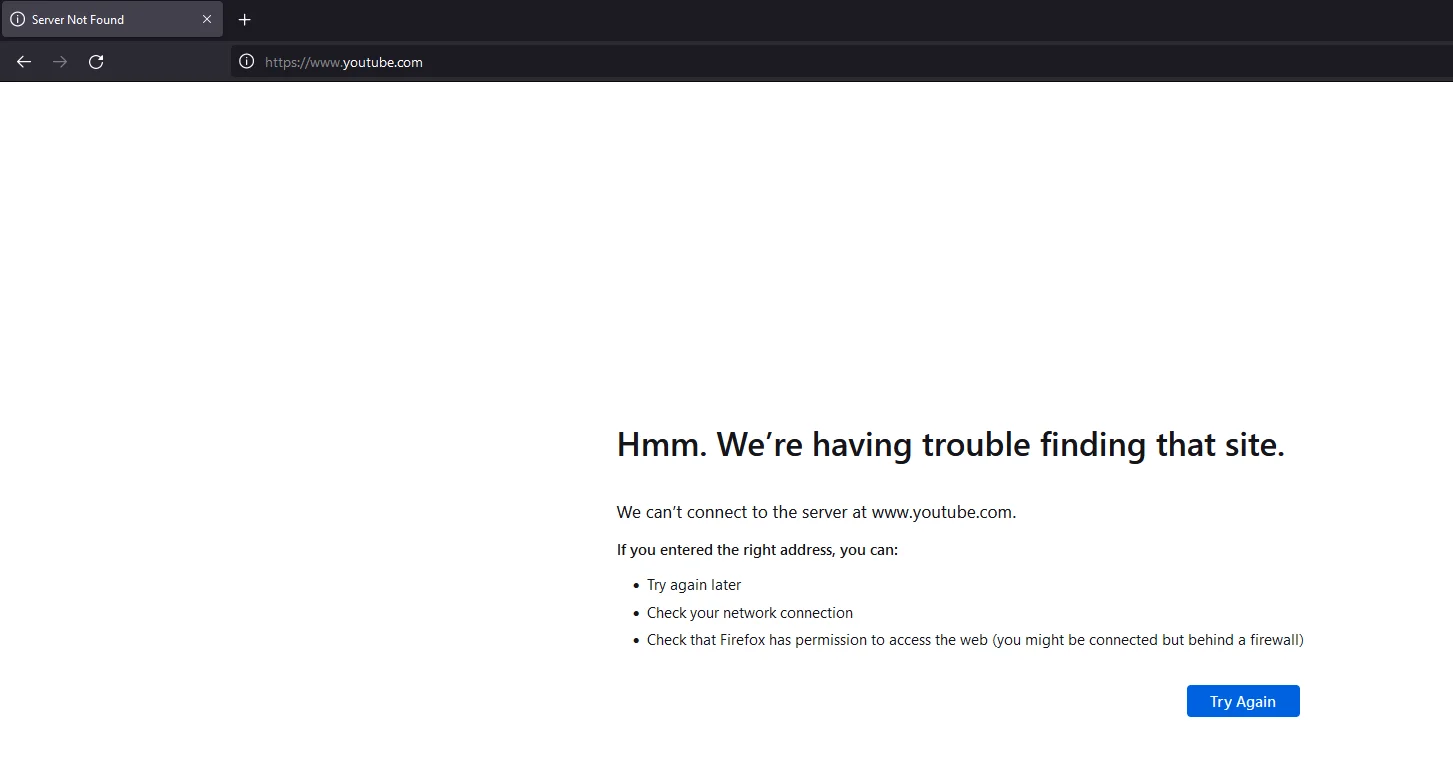
The access will be blocked, when initiating a DNS request to youtube.com, to confirm that, we can view the security logs and set them to DNS Filtering:
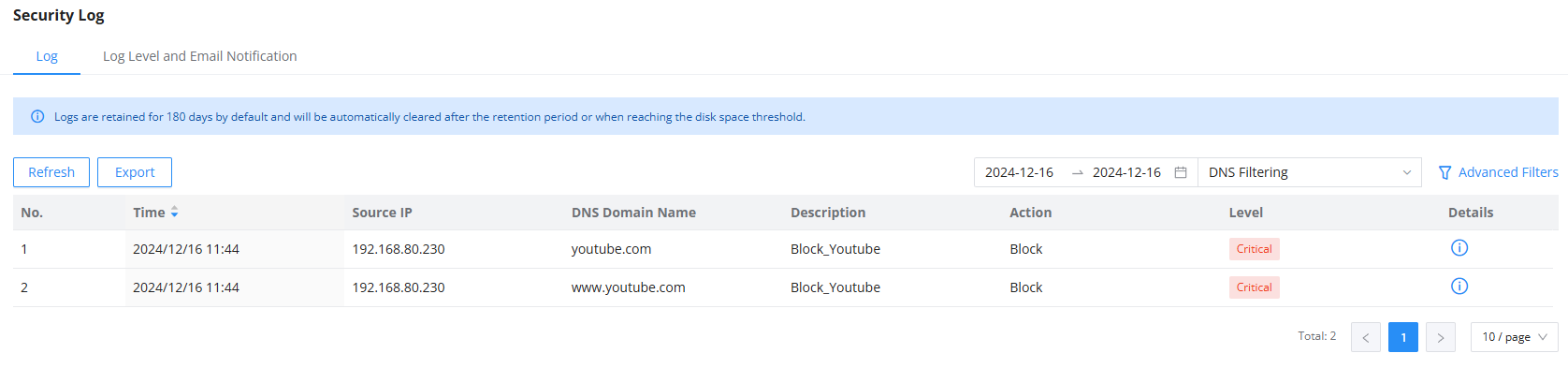
Web Filtering
Web Filtering is a security mechanism to filter web access using the GCC device as an SSL proxy, which allows the device to inspect HTTPS traffic going through the GCC device.
SSL proxy certification can add another layer of security to devices connected under the GCC network, the reason being that the connected endpoints will require a specific CA certificate to be uploaded when using the internet, without it, the devices will not be able to access the internet, and will only have access to unencrypted websites (HTTP websites), which forms less than 1% of current website access modes.
The SSL proxy can be useful when needing to allow internet access to only a limited number of endpoints deployed in your network, Please check the following SSL Proxy Guide to learn more about how to set it up.
We will look at the example below to define the configuration steps:
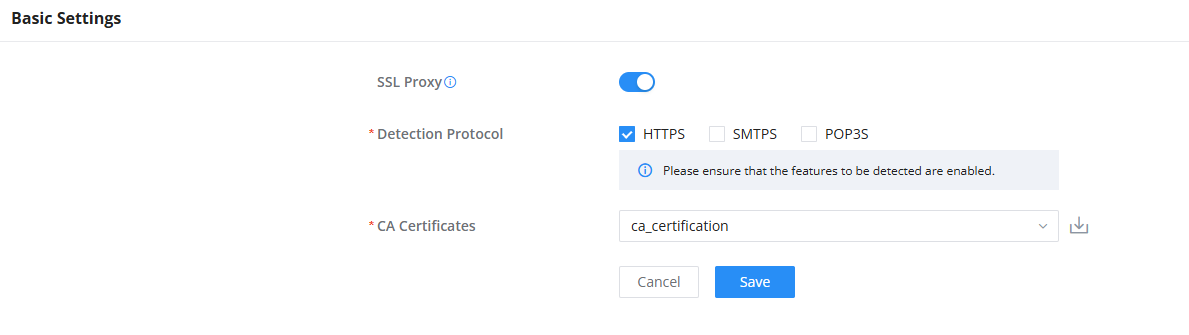
- Navigate to “Firewall Module → SSL Proxy → Basic Settings“, then enable SSL Proxy and select/add CA Certificate, and download the certificate to your local machine.
- Add the CA Certificate to your device (PC, Smartphone …).
- You can select the detection protocol, which will allow the SSL proxy to inspect packets that fall into one of the following categories: HTTPS packets, SMTPS packets, and POP3S packets, you can select many categories at once, for this example we will select the HTTPS detection protocol, this will allow us to inspect HTTPS traffic using the GCC SSL proxy.
- Under Content Control → Web Filtering, enable Web Filtering.
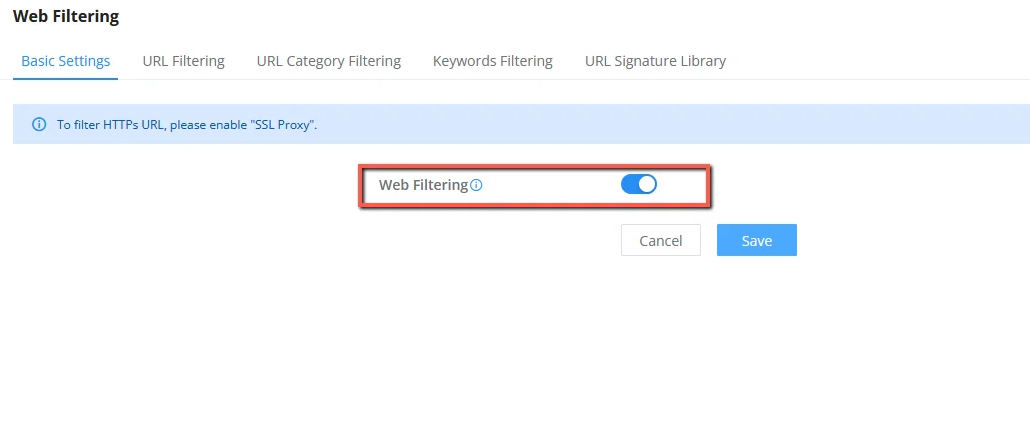
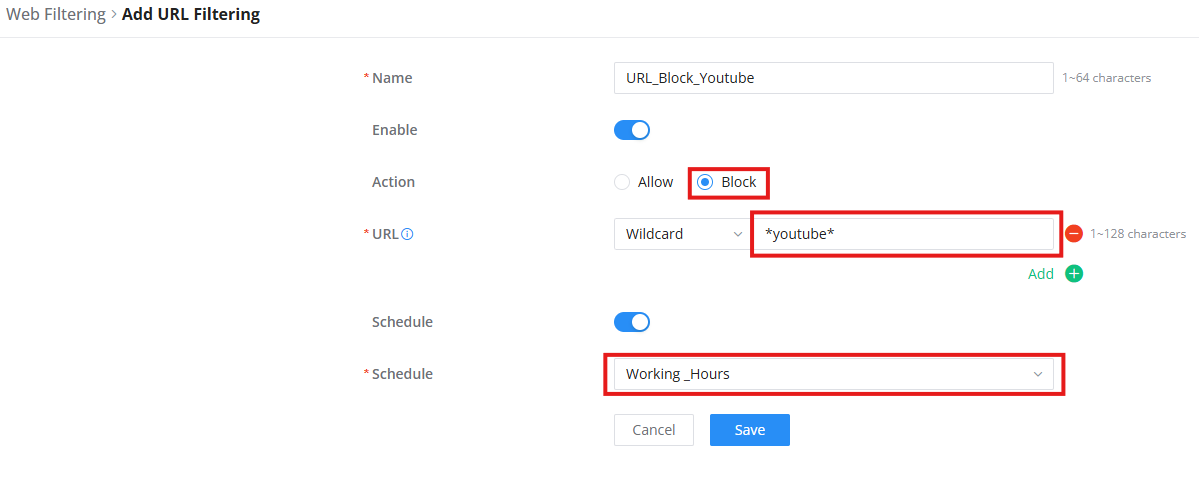
- Add a new URL Filtering with a wildcard (ex: *youtube*) and set the action to Block, in this case, the endpoints with the certificates uploaded will have access to the internet, but the access to the youtube website will be blocked through Web Filtering.
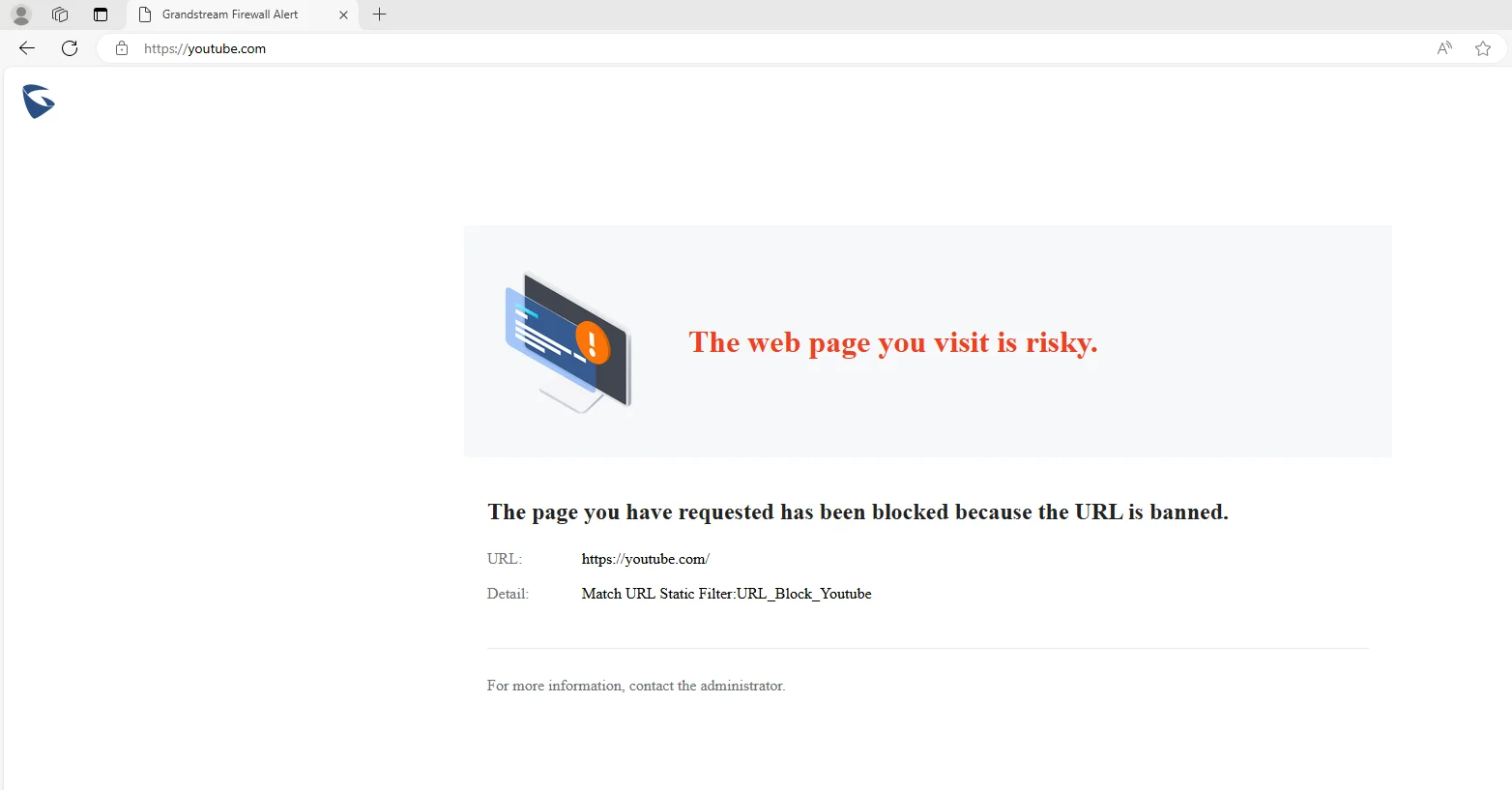
- Open a web browser (private tab) and test the wildcard by using a URL that contains that wildcard: youtube.com
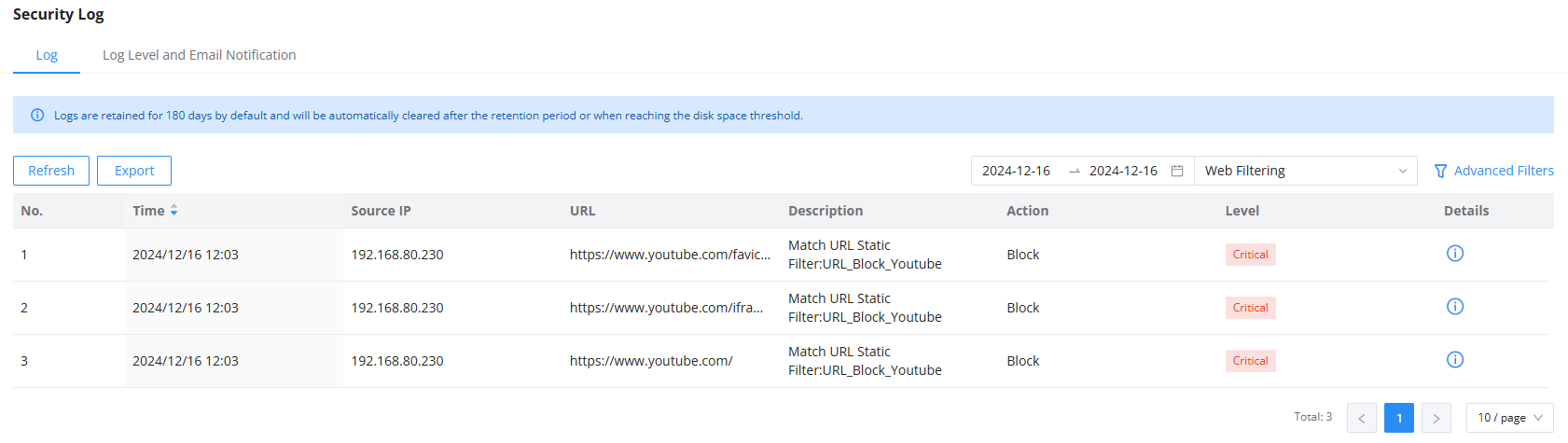
Navigate to Firewall Module → Security Log → Log and confirm the URLs that contain the wildcard are blocked
Application Filtering
Application Filtering is an intuitive and easy-to-use way to block access to specific websites, or specific niches directly, the way it works is that the GCC has a list of predefined web access categories, and each category contains a list of the most known websites within the category, you have the option to block access to the entire category, or to specific websites within the category.
We will configure the below example:
Say that you want to block access to all streaming services, except one single website, which will be the ESPN website, you can configure this through application filtering:
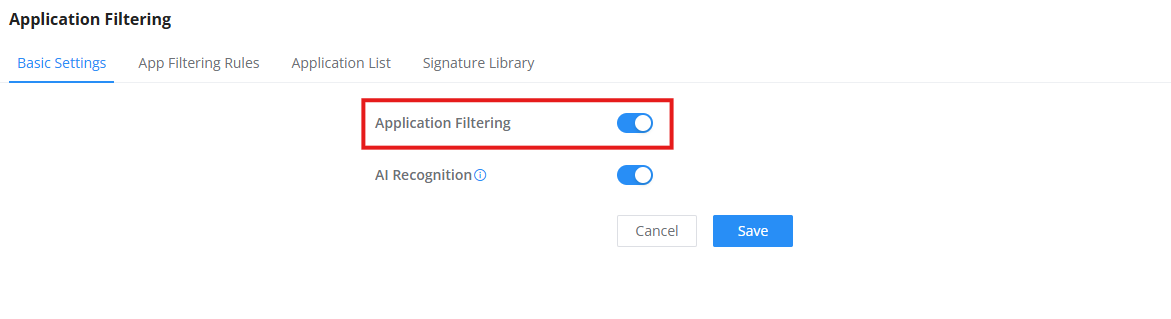
- Navigate to “Firewall Module → Content Control → Application Filtering → Basic Settings”, then enable Application Filtering.
- Under the Add application filter rule Tab, Search for YouTube application/category, then select all the related applications,
- Set the action to “Block“, to prevent access to youtube.
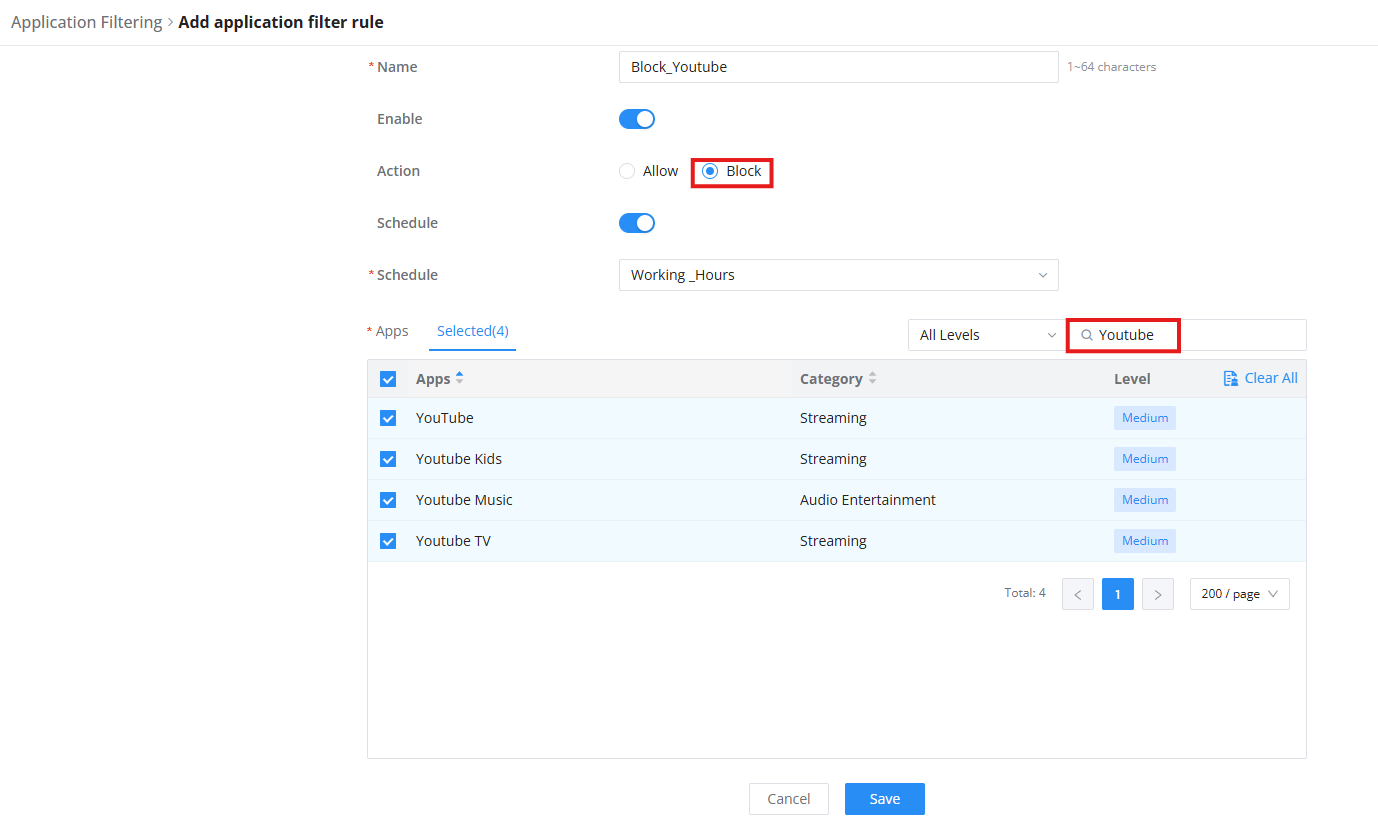
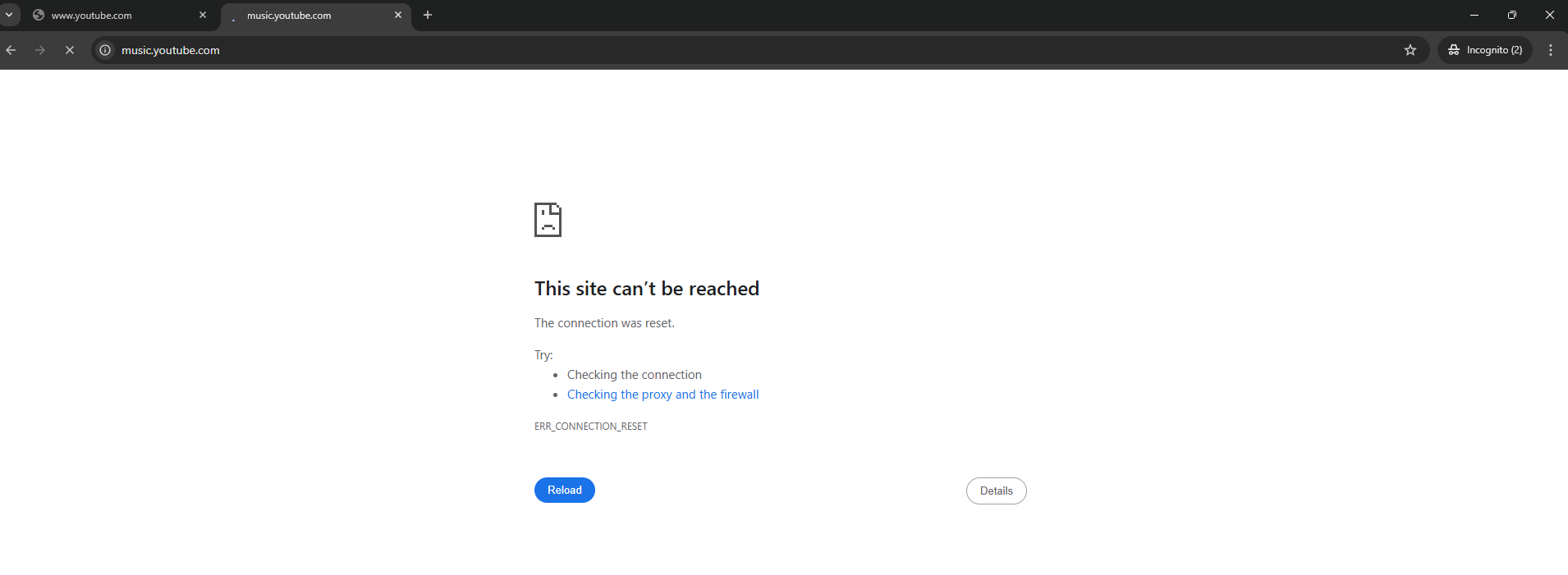
- Now, the whole YouTube application list is blocked. Open a web browser (private tab) and test the app by visiting for example: youtube.com and music.youtube.com, both websites should be inaccessible.
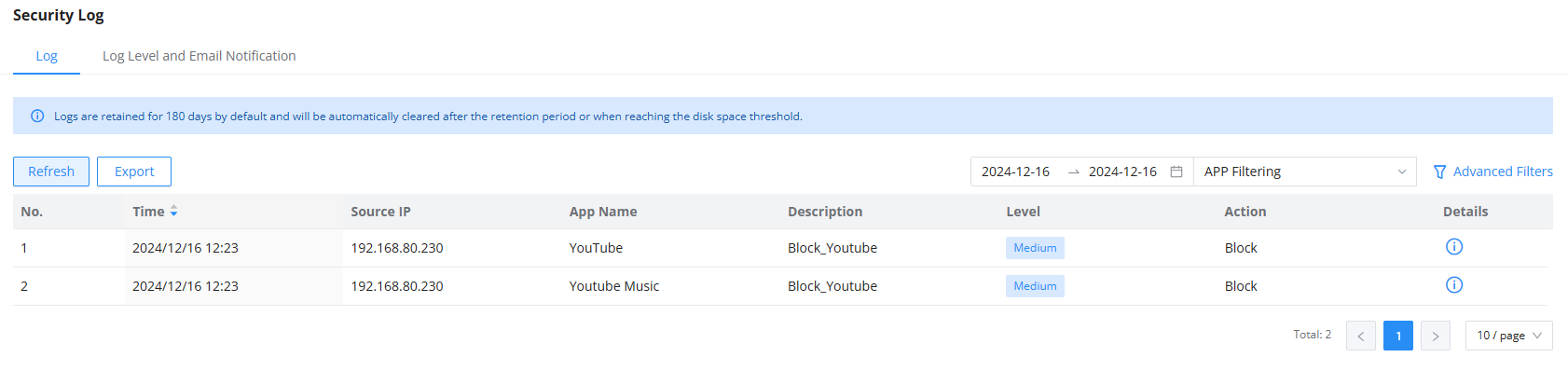
After that you can navigate to Firewall Module → Security Log → Log to check the blocked websites, please note that the allowed websites will not be displayed on the security logs.
Supported Devices
Device Model | Firmware Required |
GCC601x | 1.0.1.7+ |
GCC602x | 1.0.7.32+ |