

Introduction
The Firewall software embedded in the GCC device is a set of security rules and systems that monitor and control incoming and outgoing traffic, to eliminate all sorts of threats from the network.
One of the methods with which the firewall can control the network traffic is through setting up firewall policies.
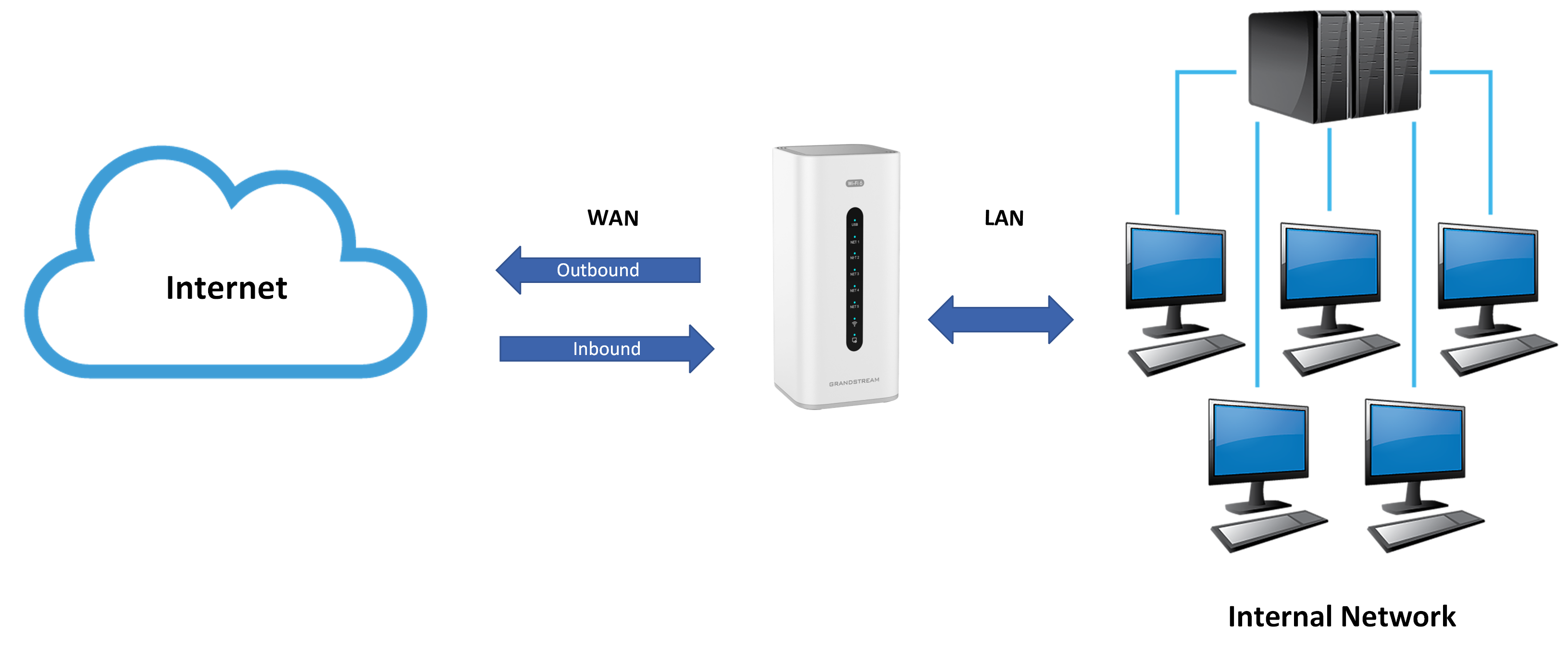
In this guide we will discover how firewall policies can be used to allow or block network traffic through a specific set of rules defined for the goal of protecting the internal network (LAN network) from external attacks (WAN side), the types of rules that can be defined are:
- Inbound Rules: These are rules that control the incoming traffic from the internet (WAN to LAN traffic)
- Outbound Rules: The outbound rules are used to govern traffic originating from internal devices to the internet, with the use of outbound rules administrators can control how internal servers and devices can access external resources or services.
- Forwarding Rules: these are a set of rules that can be defined to forward traffic from LAN to WAN (Outbound Rules), or from specific services inside the LAN network (From LAN to a specific DMZ for example), which allows the users to block or configure inter-vlan communication.
- Additional Rules Policies: In this section, you can enable additional rules for a specific WAN interface, the rule will apply on all the networks going through the specified interface, which can be a WAN port, VPN tunnel, VLAN…
Inbound Rules Configuration
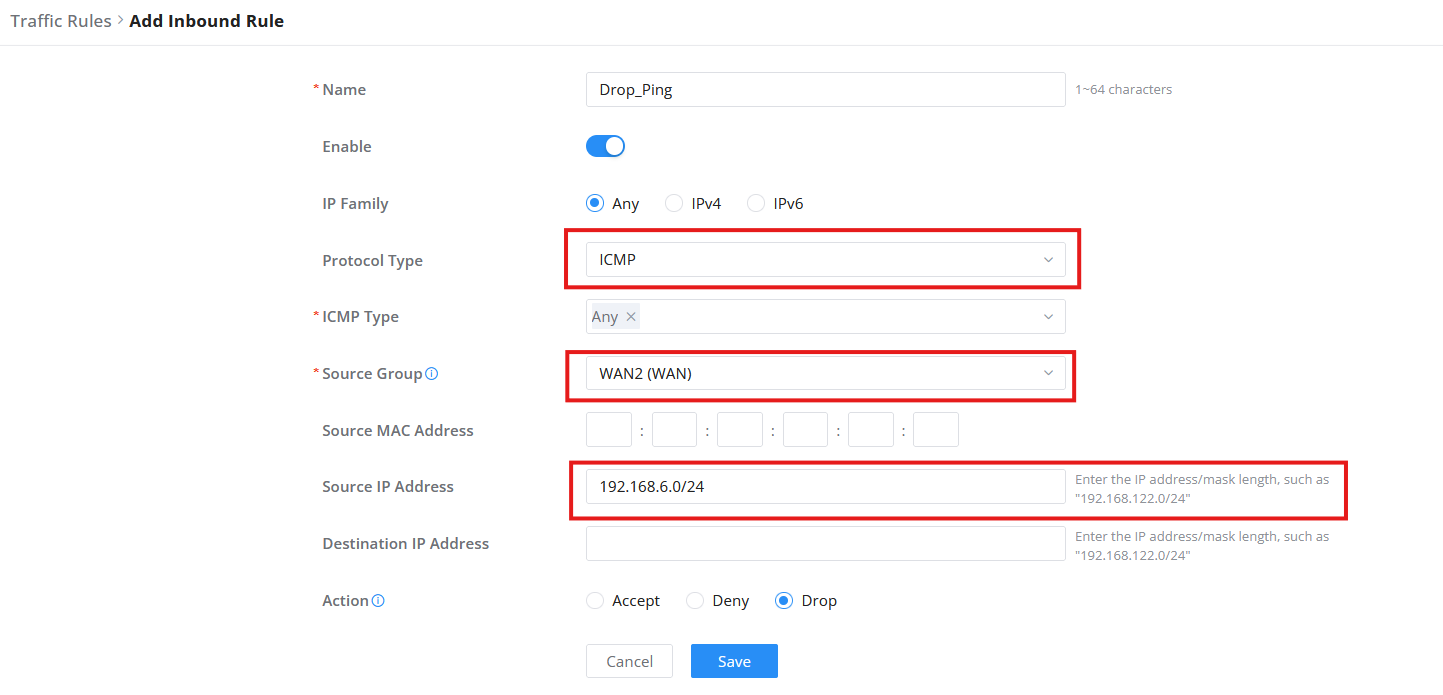
Inbound rules are firewall rules that manage and control incoming traffic from the WAN side to the LAN side. the following lab will show us how we can configure an inbound rule on the GCC convergence device, in the example, we will create a rule that drops ICMP traffic on the WAN network.
Please follow the below steps to configure the setup:
- Navigate to “Firewall Module → Firewall Policy → Traffic Rules → Inbound Rules“.
- Click on the “Add” button to create a new rule.
- Enable the Rule by toggling the Status option.
- Set the source group to WAN1
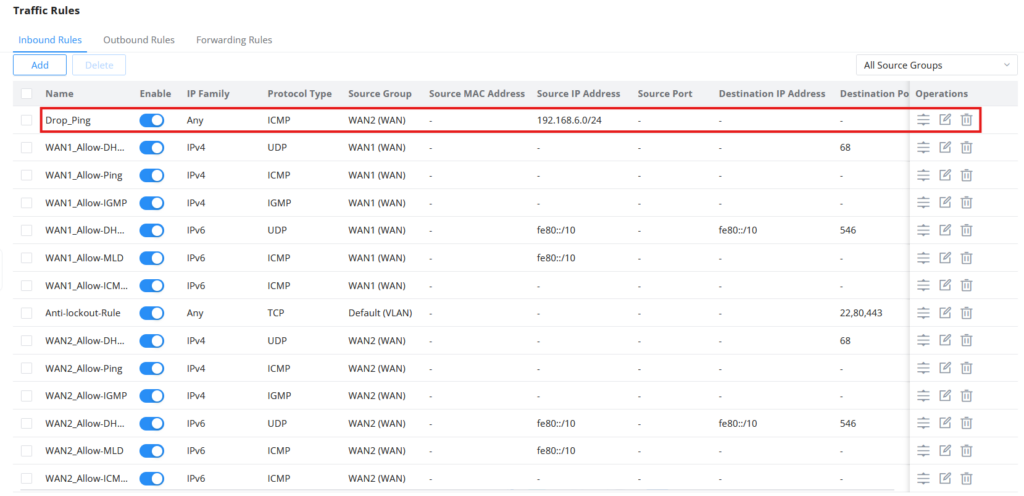
- Make sure to drag the rule to the top of the list to override the rules below it.
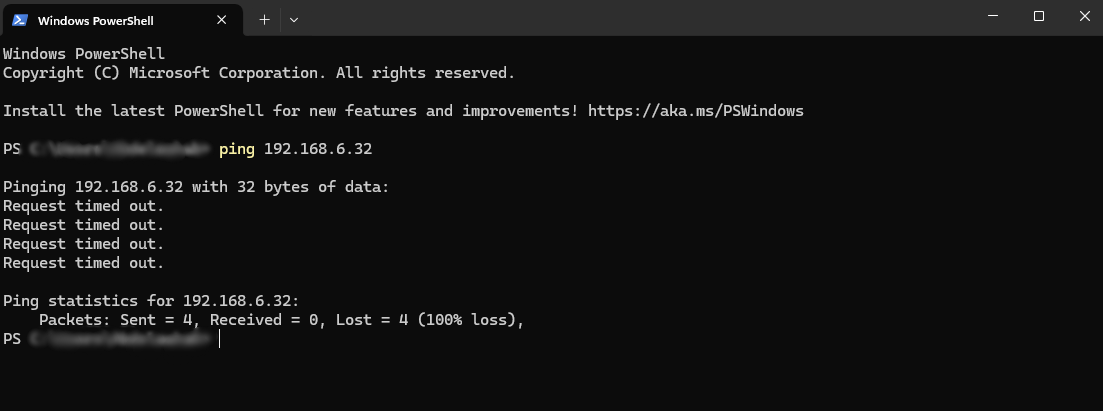
- To test if the rule is working, open the command prompt or terminal, then ping the WAN port IP address, which is the ISP public IP, since we set the rule to drop the packets, the ping will not be successful.
Outbound Rules Configuration
The outbound rules can help administrators limit access to some specific websites and services from the inside, by default, outbound access is open completely, and it is up to the administrator to set rules to block access to the desired destination based on the organization’s policies.
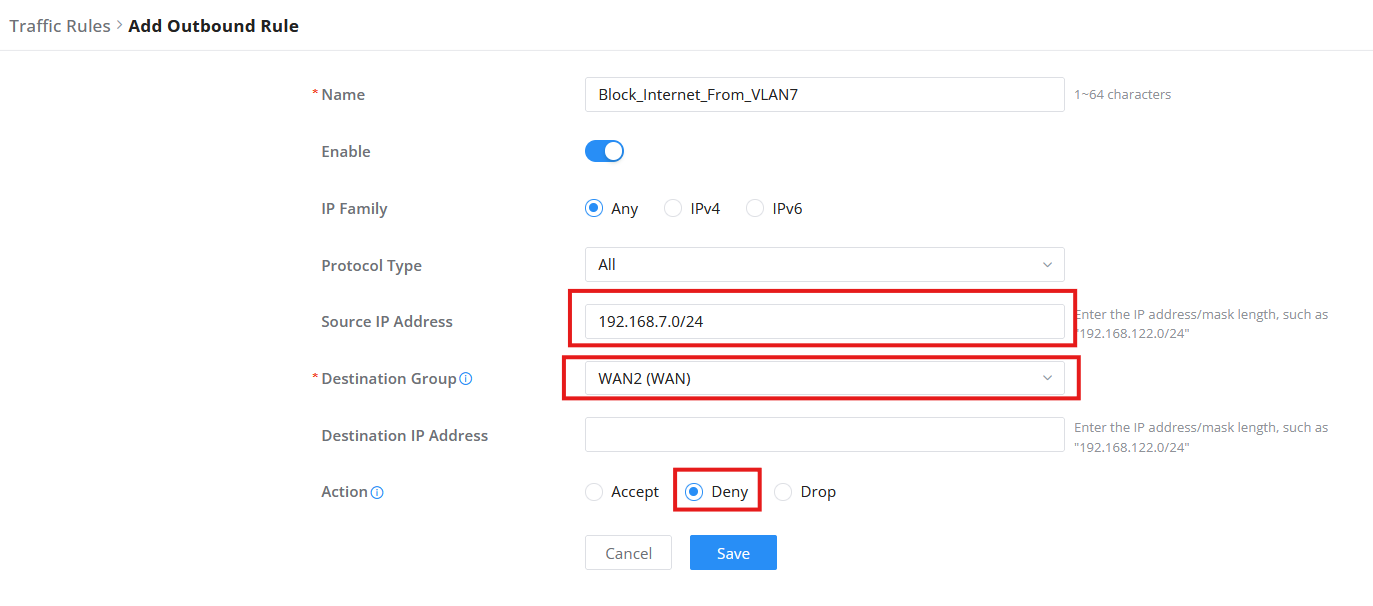
In this section, we will use an outbound rule to block internet access on VLAN 7: if a user sends a web access request, it will not be accepted, this is useful when needing to block internet access from a specific set of devices that will not require it, such as security facility access devices or security monitoring computers on a corporate environment.
Please follow the below configuration steps:
- Navigate to “ Firewall Module → Firewall Policy → Traffic Rules → Outbound Rules“.
- Click on the “Add” button to create a new rule.
- Enable the rule (Status ON)
- Set the Source IP address to the IP Range of VLAN 7, this indicates that requests will be coming from the VLAN 7 network.
- Set the protocol type to ALL.
- The destination group should be set to WAN2, this is the WAN interface that the GCC device will use to request the web page.
- Set the action to “Deny“.
- Drag the rule to the top of the list to override the rules below it.

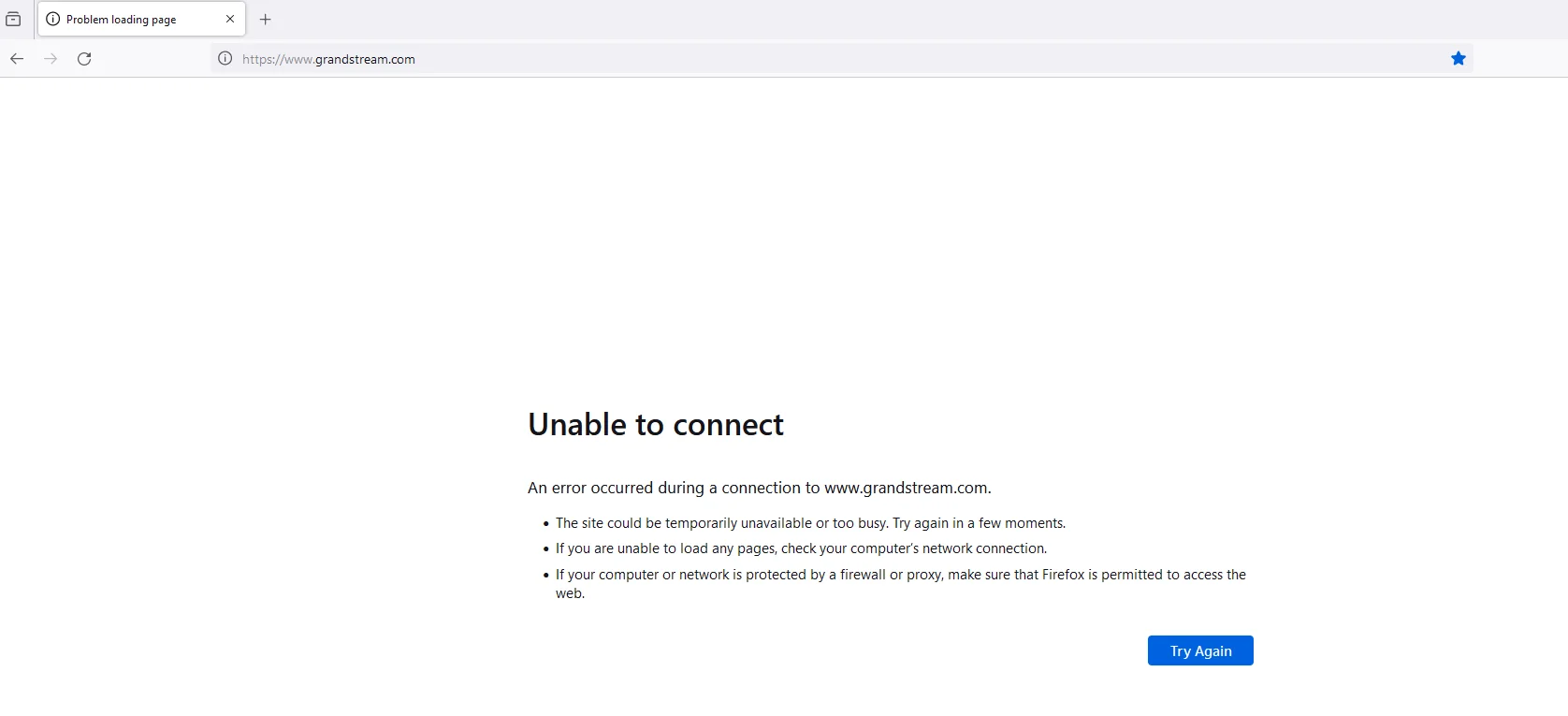
- To test if the rule created is working, make sure you are connected to the internet through the GCC device, then visit a web page for example: www.grandstream.com on a VLAN 7 computer, if the rule is applied correctly, the website will not be reachable.
Forwarding Rules Configuration
The Forwarding rules are used to route traffic between different network zones or interfaces, (e.g., LAN to WAN, LAN to DMZ), which can enforce additional policies, such as using NAT security…
We will configure the following example: forward traffic between two internal subnets (e.g., VLAN1 to DMZ) without involving the WAN. This will demonstrate how forwarding rules are distinct from outbound rules since they don’t govern internet access but instead control traffic between internal zones.
- Navigate to “Firewall Module → Firewall Policy → Traffic Rules → Forwarding Rules“.
- Click on the “Add” button to create a new rule.
- Name the rule LAN_to_DMZ_HTTP_BLOCK
- Define the destination group to VLAN 10, where the DMZ hostname IP is defined.
- Set the destination IP address to 192.168.10.10, this is the DMZ IP hostname,
- Set the action to “Deny“
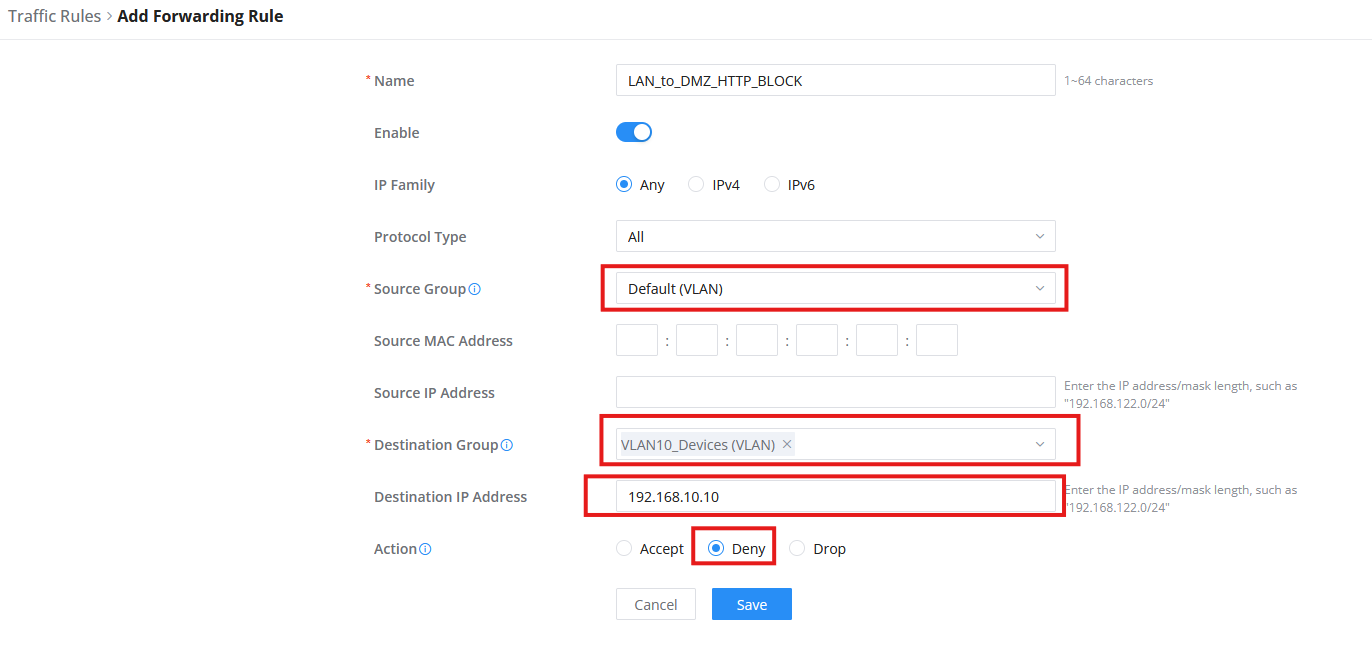
In this configuration scenario, even if inter-vlan communication between Default VLAN, and VLAN 10 is established, traffic between default VLAN and the specific 192.168.10.10 will not be possible.
Policy Rules
The rules policy will define how the GCC device will manage the incoming traffic on each WAN, ideally, you want to set all the inbound traffic to be blocked for security reasons, and only allow certain traffic through setting up inbound rules, to do that :
- Navigate to “Firewall Module → Firewall Policy → Rules Policy“. Select the used WAN and then click “Edit”.
- Under Inbound Policy select Reject, for this WAN1, All the inbound traffic will be rejected, except the rules defined on the Inbound rules.
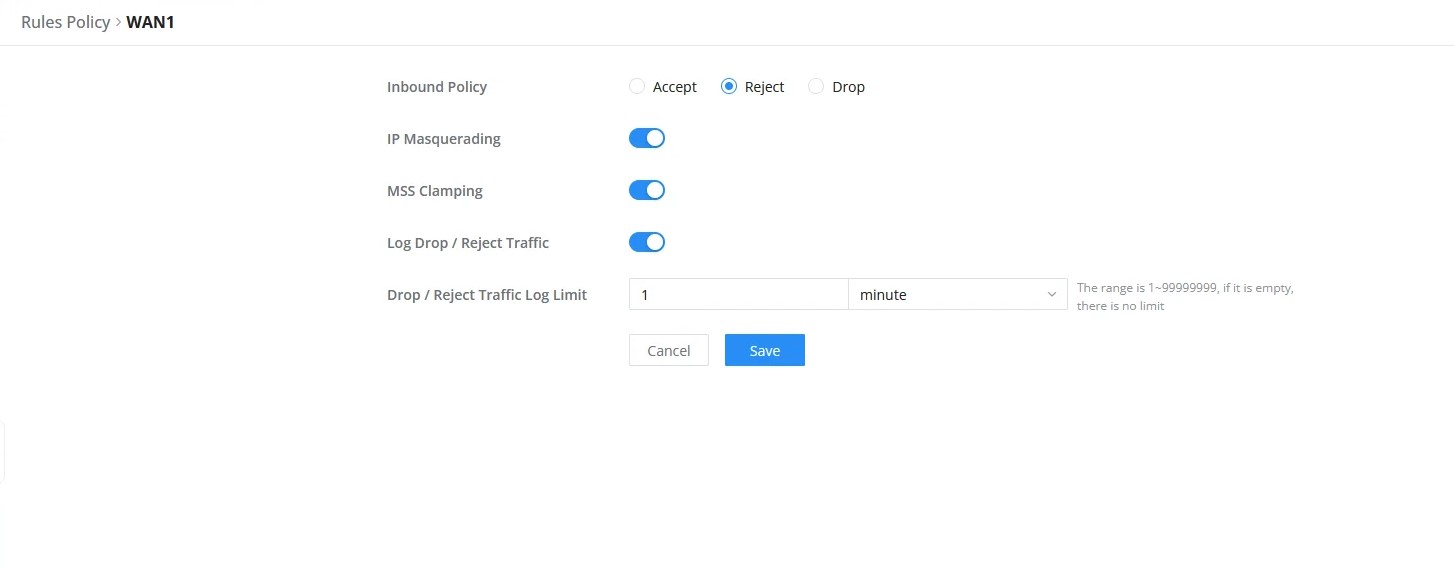
Some additional parameters can be configured for each WAN, below is a simplified explanation of what each option does:
- IP Masquerading: IP masquerading is a technique used to allow devices on a private network to communicate with devices on the public internet by translating the private IP addresses into a single public IP address. This is achieved by modifying the source IP address of outgoing network traffic with the IP address of the masquerading host. In other words, IP masquerading disguises the true identity of a device on a private network by making it appear as though it is communicating from a different IP address, thereby allowing it to communicate with devices on the internet while keeping its private IP address hidden. This technique is commonly used in network address translation (NAT) and firewall systems.
- MSS Clamping: When packets are transferred over a network with a smaller maximum transmission unit (MTU) size, MSS Clamping is a technique used to modify the maximum segment size (MSS) value in TCP packets. The MSS, which is the maximum amount of data that can be sent across a single TCP segment, is normally agreed upon by two endpoints during the initial handshake. A TCP segment must be divided into smaller pieces when it is greater than the network’s MTU size, which can affect performance and raise the possibility of packet loss or corruption, To make the segment size less than the network’s MTU size, MSS Clamping modifies the MSS value in the TCP header to a lower value than what is agreed upon during the handshake phase. This improves performance and lowers the chance of packet loss or corruption by enabling the TCP segment to be transmitted without fragmentation. Devices used in networks, like routers and firewalls, frequently employ MSS clamping.
- Log Drop / Reject Traffic: The term “traffic” refers to network communication that a firewall or other network device discards or blocks and records in a log file for analysis or troubleshooting. A device like a firewall receives network traffic, which is then inspected following a set of rules and policies. The device will discard the communication and prevent it from reaching its intended destination if it complies with any criteria that specify that it should be dropped or rejected. The device will also keep track of the dropped or rejected traffic’s source and destination addresses as well as the reason why in a log file at the same time, The log file can then be used to look into security incidents or troubleshoot network problems. For example, if a particular IP address is consistently being dropped or rejected by the firewall, it could indicate that the IP address is part of a known malicious network or that there is an issue with the configuration of the firewall. Network administrators can take appropriate actions to address security concerns or optimize network performance by analyzing log files.
- Drop / Reject Traffic Log Limit: Drop/Reject Traffic Log Limit refers to the maximum number of log entries that a network device, such as a firewall, can record when traffic is dropped or rejected. When a network device drops or rejects traffic, it logs the information in a log file, the GCC device has this configuration setting to restrict the amount of traffic that can be logged when it is dropped or rejected to avoid these problems. This limit is typically specified with how long the log entries will be recorded.
Supported Devices
Device Model | Firmware Required |
GCC601x | 1.0.1.7+ |
GCC602x | 1.0.7.32+ |