

Introduction
Grandstream’s Online Contacts feature allows Grandstream devices to retrieve contact details dynamically from an external HTTP/HTTPS server. This enables centralized contact management for large organizations, with real-time updates and remote access to staff directories.
In this this guide, we will cover how to configure a WP8X6 Wi-Fi Phone to retrieve and search contacts dynamically using:
- A PHP script for server-side logic.
- A static
all_contacts.xmlfile as your contact directory - A softkey or contact menu triggering this integration.
Please note that the example is going to cover the configuration on the WP8x6 device, the same configuration will be applied on other models that support the feature, under the online contacts webui configuration, refer to supported devices section to find out the devices that support the feature.
Objectives
- Display all contacts when accessing Online Contacts from the phone.
- Enable search by work number (
workNum) field. - Retrieve results in the required Grandstream XML response format on the phone.
Requirements
- A Grandstream device that supports the Online contacts feature.
- Local HTTP server with PHP support (e.g. XAMPP)
- Local (or remote) network access between server and phone.
Server Side Configuration
The first step is to set up an HTTP/HTTPS server, that will be the source where the phone is going to retrieve the contacts from, the server can be hosted locally , and use a private local ip address, or remotely, however, if set remotely, additional NAT configurations will need to be configured to reach the server, in our example we will set up a local http xampp server, where the device is going to retrieve the contacts stored in an XML file
On the Xampp server, place these two files:
/xampp/
├── all_contacts.xml
└── getUserInfoByNumber.php- all_contacts.xml: This is a static XML file that stores all predefined contact details including name, title, department, email, and work number.
- getUserInfoByNumber.php: A PHP script that reads
all_contacts.xmland returns either all contacts or a specific one based on theremoteNumbervalue received in the URL.
Static Contact Directory
In this file, we will populate an example of a list of contacts that will be stored on our server, with their corresponding information :
<?xml version="1.0" encoding="UTF-8"?>
<responce>
    <success>true</success>
    <directory>
        <item_list>
            <item>
                <fn>John Doe</fn>
                <lb>Manager</lb>
                <dp>Sales</dp>
                <em>john.doe@example.com</em>
                <workNum>1001</workNum>
            </item>
            <item>
                <fn>Jane Smith</fn>
                <lb>Engineer</lb>
                <dp>R&D</dp>
                <em>jane.smith@example.com</em>
                <workNum>1002</workNum>
            </item>
            <item>
                <fn>Ali Ben</fn>
                <lb>Technician</lb>
                <dp>Support</dp>
                <em>ali.ben@example.com</em>
                <workNum>1003</workNum>
            </item>
            <item>
                <fn>Sara Lim</fn>
                <lb>HR Manager</lb>
                <dp>HR</dp>
                <em>sara.lim@example.com</em>
                <workNum>1004</workNum>
            </item>
            <item>
                <fn>Youssef K.</fn>
                <lb>CTO</lb>
                <dp>IT</dp>
                <em>youssef.k@example.com</em>
                <workNum>1005</workNum>
            </item>
        </item_list>
    </directory>
</responce>
Dynamic Contact Lookup
The next step is to create a PHP script that reads the contacts lists in the “all_contacts.xml” file and:
- Returns all contacts when
{remoteNumber}is empty. - Returns only the matching contact if a specific
workNumis searched.
An example of script that allows the above conditions:
<?php
header('Content-Type: application/xml');

$contactsFile = 'all_contacts.xml';
$searchNumber = $_GET['remoteNumber'] ?? '';

if (!file_exists($contactsFile)) {
    echo "<responce><success>false</success><error>Contacts file missing</error></responce>";
    exit;
}

$xml = simplexml_load_file($contactsFile);
$response = new SimpleXMLElement('<responce></responce>');

// If no remoteNumber provided, return all contacts
if ($searchNumber === '') {
    $response->addChild('success', 'true');
    $directory = $response->addChild('directory');
    $itemList = $directory->addChild('item_list');
    foreach ($xml->directory->item_list->item as $contact) {
        $item = $itemList->addChild('item');
        $item->addChild('fn', $contact->fn);
        $item->addChild('lb', $contact->lb);
        $item->addChild('dp', $contact->dp);
        $item->addChild('em', $contact->em);
    }
} else {
    // Search for match by workNum
    foreach ($xml->directory->item_list->item as $contact) {
        if ((string)$contact->workNum === $searchNumber) {
            $response->addChild('success', 'true');
            $directory = $response->addChild('directory');
            $itemList = $directory->addChild('item_list');
            $item = $itemList->addChild('item');
            $item->addChild('fn', $contact->fn);
            $item->addChild('lb', $contact->lb);
            $item->addChild('dp', $contact->dp);
            $item->addChild('em', $contact->em);
            echo $response->asXML();
            exit;
        }
    }
    // No match found
    $response->addChild('success', 'false');
    $response->addChild('reason', 'Contact not found');
}

echo $response->asXML();
?>Device Configuration
In our example we will test with the WP8x6 device, login to the phone’s web interface, and follow the below steps:
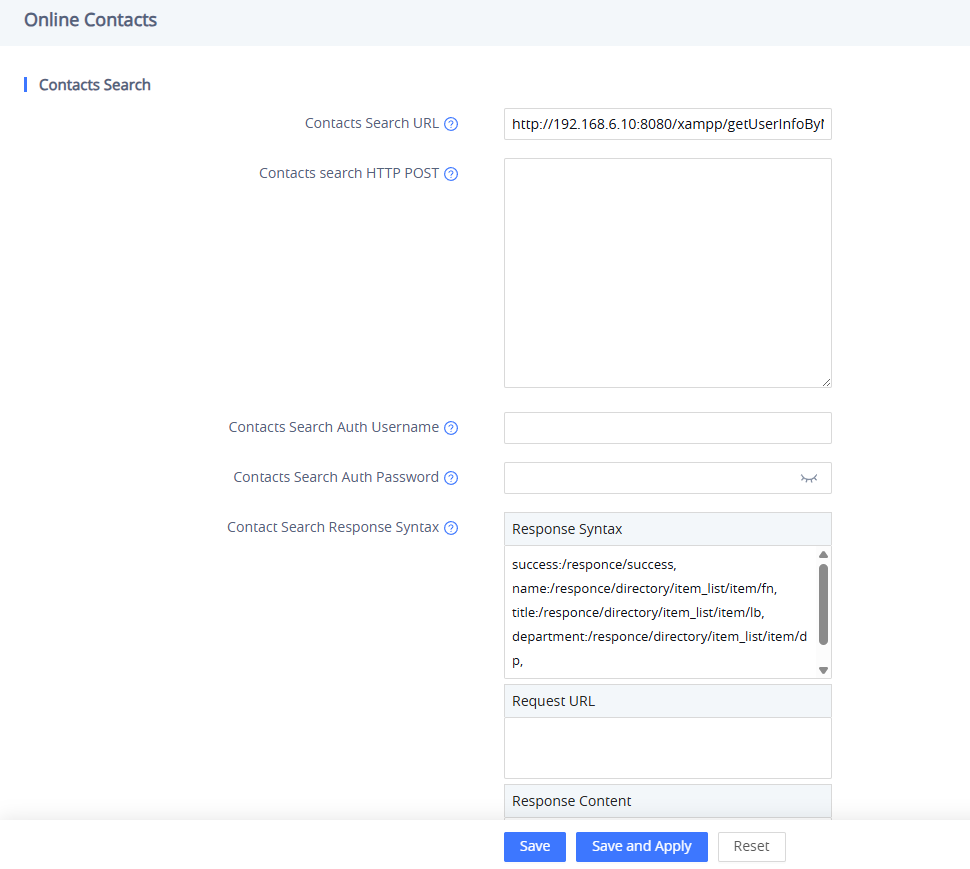
- Go to: Application→ Online Contacts
- Set the Contacts Search URL to “http://192.168.6.10:8080/xampp/getUserInfoByNumber.php?remoteNumber={remoteNumber}”: this URL is for GET request that retrieves full or filtered contacts, depending on the value of {remoteNumber}
- Leave the Contacts Search HTTP POST option empty, since we will be using GET method, which is sufficient for basic parameter passing.
- The Contact Search Response Syntax must be set as shown below, it ensures the phone parses fields correctly from the XML response:
success:/responce/success,
name:/responce/directory/item_list/item/fn,
title:/responce/directory/item_list/item/lb,
department:/responce/directory/item_list/item/dp,
email:/responce/directory/item_list/item/em- Additionally, If the server (Apache, Nginx, etc.) hosting your contact resources (like
getUserInfoByNumber.phporall_contacts.xml) is protected by HTTP Basic Authentication, the Grandstream phone must send valid credentials to access those files. the user then will need to provide the Contacts Search Auth Username and Password. - In case you want to test if the URL will return correct values, you can use the Request URL, to to check the response content of the query.
- Click Save and Apply to apply the settings
Results
To be able to retrieve the online contacts from the LCD settings of the WP8x6 phone, we will need to create a softkey that triggers the online contacts search, we can configure that through the navigate keys:
Softkey Configuration
- Login to the phone’s web interface.
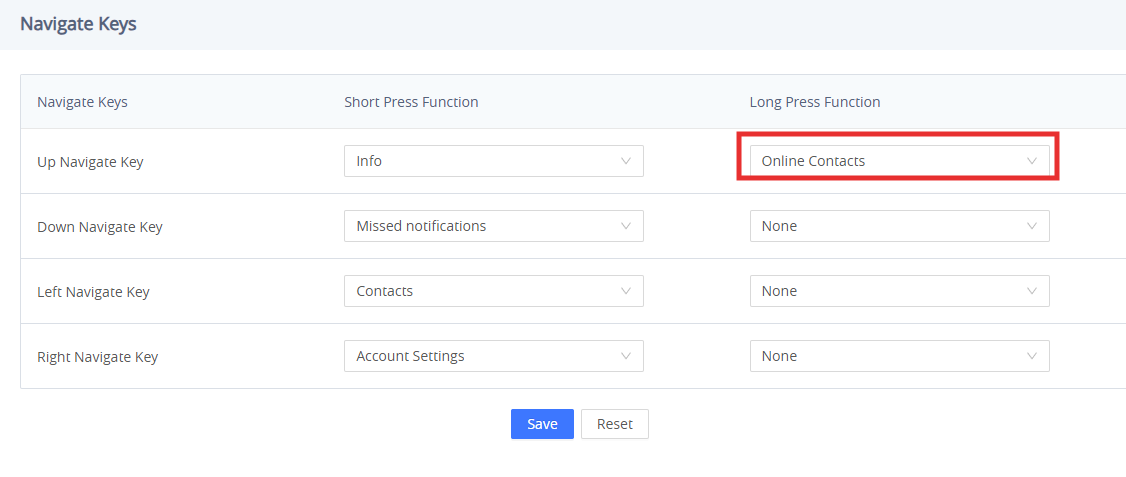
- Go to Programmable Keys→ Navigate Keys
- Set the Long Press Function to “Online Contacts“
Online Contacts Retrieval
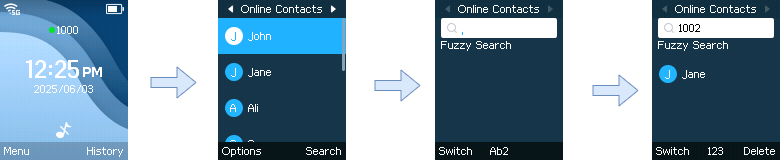
- Once the softkey is configured, on the LCD menu, Long press the UP navigate key.
- The online contacts list will display the lists of contacts stored in the “all_contacts.xml” configuration file.
- You can search for contacts using their work number, which is treated as the remote number in the search query. The phone then retrieves and displays the contact details that match that work number. (You can switch between Exact Search, and Fuzzy Search)
Optional Improvements
Use MySQL instead of static XML
- Dynamically store and manage contacts in a database instead of manually editing an XML file.
- Makes updates scalable, faster to manage, and easier to integrate with web-based admin panels.
Add search by name or department
- Extend the PHP script to allow searching by fields like contact name or department, not just work number.
- Useful when the caller doesn’t know the exact number but wants to browse based on a role or team.
Implement auth system for secure access
- Protect the contact endpoint with basic authentication or a token system (e.g., API key).
- Prevents unauthorized users or devices from accessing sensitive contact data.
Supported Devices
Supported Devices | Firmware Version |
WP816 | 1.0.1.9+ |
WP826 | 1.0.1.9+ |
WP836 | 1.0.1.9+ |
WP856 | 1.0.1.9+ |
GRP2601 (P/W) | 1.0.5.19+ |
GRP2602 (P/W/G) | 1.0.5.19+ |
GRP2603(P) | 1.0.5.19+ |
GRP2604(P) | 1.0.5.19+ |