

The Grandstream WP8x6 supports vCard phonebooks, allowing users to easily import and export contact information through the Web UI. This feature simplifies contact management by enabling bulk uploads, backups, and seamless transfer of phonebook entries between devices. This guide provides step-by-step instructions on how to upload and download vCard phonebooks using the WP8x6 Web UI.
What is a vCard Phonebook?
A vCard phonebook is a digital contact file stored in vCard .vcf file format, which is a standard format used to save and share contact information.
vCard Phonebook Properties
The vCard format can support a wide range of Properties, but for the purposes of this guide, focusing on the WP8x6, we will concentrate on the key Properties outlined below:
Property | Description | Format |
N | Last and first name separated by “;” | N:Doe;John |
FN | Full name | FN:John Doe |
TITLE | Job title | TITLE:Network Engineer |
ROLE | Contact’s work role | ROLE:Support Engineer |
TEL | Telephone numbers by type: HOME, WORK, CELL(MOBILE), FAX, OTHER, etc. | TEL;TYPE=CELL:1002 |
ORG | Organization name and department separated by “;” | ORG:Tech Corp;Technical Support |
vCard Phonebook Properties
Example of vCard Phonebook
Below is a standard vCard phonebook, presenting the structure of the format: the contact entry begins with BEGIN:VCARD, specifies the vCard version, lists the properties described above, and concludes with END:VCARD.
BEGIN:VCARD
VERSION:3.0
N:Doe;John
FN:John Doe
TITLE:Network Engineer
ROLE:Support Engineer
TEL;TYPE=WORK:1000
TEL;TYPE=HOME:1001
TEL;TYPE=CELL:1002
TEL:1003
ORG:Tech Corp;IT
END:VCARD
WP8x6 vCard Phonebook Support
Firmware
Before using the vCard phonebook feature, please make sure the firmware on the phone is upgraded to the latest version. Please refer to the following link for firmware upgrading information: https://www.grandstream.com/support/firmware
vCard Phonebook Properties on the WP8x6
When a vCard phonebook is imported into a WP8x6 device, the Wi-Fi phone processes the file and prioritizes the properties according to its internal handling rules, as described below:
- Naming Properties: The WP8x6 Wi-Fi phone handles vCard naming properties
NandFNaccording to the following rules:
- If the vCard contains only the
FN:John Doeproperty, The phone displays the name as “John Doe”, but internally interprets the entire string as the first name and automatically sets theNproperty asN:;John Doe - If the vCard contains only the
N:Doe;Johnproperty, The phone interpretsJohnas the first name andDoeas the last name, and displays the name as “John Doe”. - When both
N:Doe;JohnandFN:John Doeproperties are present in the vCard, The phone gives priority to theNproperty for display and internal processing.
- If the vCard contains only the
- Job Title Properties: The WP8x6 Wi-Fi phone handles vCard job title properties
TITLEandROLEaccording to the following rules:
- If the vCard contains only the
ROLE:Support Engineerproperty, The phone displays “Support Engineer” as the contact’s Job Title, but internally sets theTITLEproperty asTITLE:Support Engineer;. - If the vCard contains only the
TITLE:Network Engineerproperty, The phone displays “Network Engineer” as the contact’s Job Title. - If both
TITLE:Network EngineerandROLE:Support Engineerproperties are present in the vCard, The phone gives priority to theTITLEproperty for display and internal processing.
- If the vCard contains only the
- Phone Number Priority: The prioritized phone number is the one dialed by default when calling a contact. Supported types include
HOME,WORK, andCELLWORKbeing the highest priority by default.
- If the number type is
MOBILE, it is automatically set toCELL. - If no type is set, the phone defaults the number type to
WORK. - If a number type is set to a value other than
HOME,WORK,CELL(MOBILE), it is automatically set toWORK. - A contact supports up to 10 telephone numbers, and a number type may be assigned to multiple entries.
- When multiple
WORKnumbers exist, the order in the vCard file determines the default number.
- If the number type is
Based on these rules, the example vCard phonebook above will be interpreted by the WP8x6 as follows:
BEGIN:VCARD
VERSION:3.0
N:Doe;John
TITLE:Network Engineer
TEL;TYPE=Work:1000
TEL;TYPE=Home:1001
TEL;TYPE=Cell:1002
TEL;TYPE=Work:1003
ORG:Tech Corp;IT
END:VCARD
vCard Phonebook Management via Web UI
Access the WP8x6 web interface by entering the device’s IP address in a web browser, then navigate to Application → Contacts → Phonebook Management, as shown in the screenshot below.
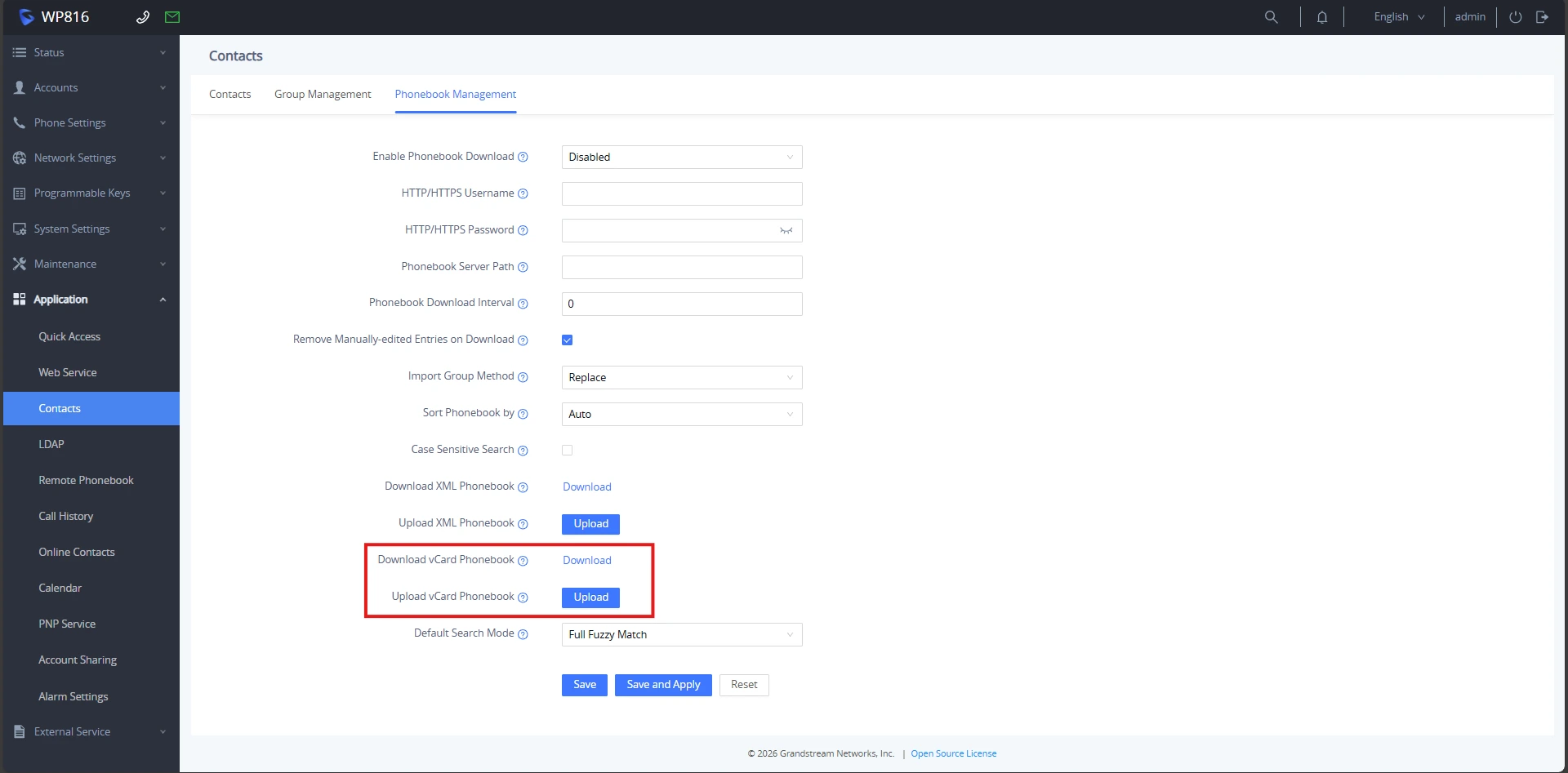
- Download vCard Phonebook: Exports the current phonebook as a vCard file.
The vCard downloaded from the Web UI can be imported into other phones, enabling a seamless transfer of phonebook entries between devices.
- Upload vCard Phonebook: Imports a vCard file into the phone.
After uploading the vCard phonebook to the WP8x6 device, navigate to Settings → Contacts. The local phonebook will display the contacts imported from the file.
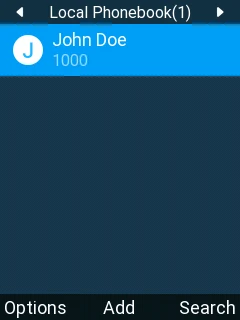
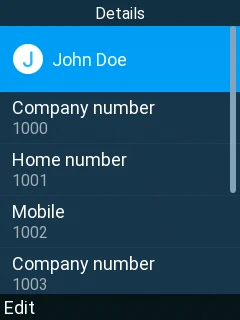
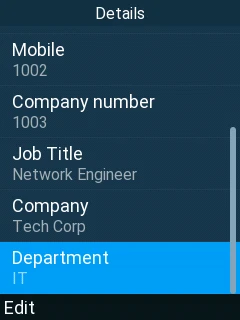
WP8x6 Local Phonebook
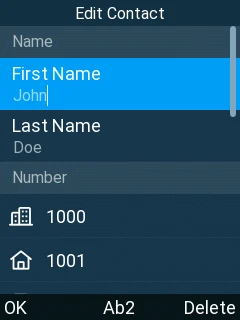
To update the information of an imported contact from the WP8x6 device, select the contact from the phonebook and press the “Edit” softkey.
In Edit Contact, the user can:
- Change the First and Last Name.
- Add numbers by pressing “+”.
- Select the Prefer Number.
- Choose the Account from the configured accounts on the phone or set it to Auto.
- Select a Ringtone.
- Add the contact to a Group.
- Alter the Job Title, Company, and Department.
Supported Devices
Supported Devices | WP816 |
WP826 | |
WP836 |