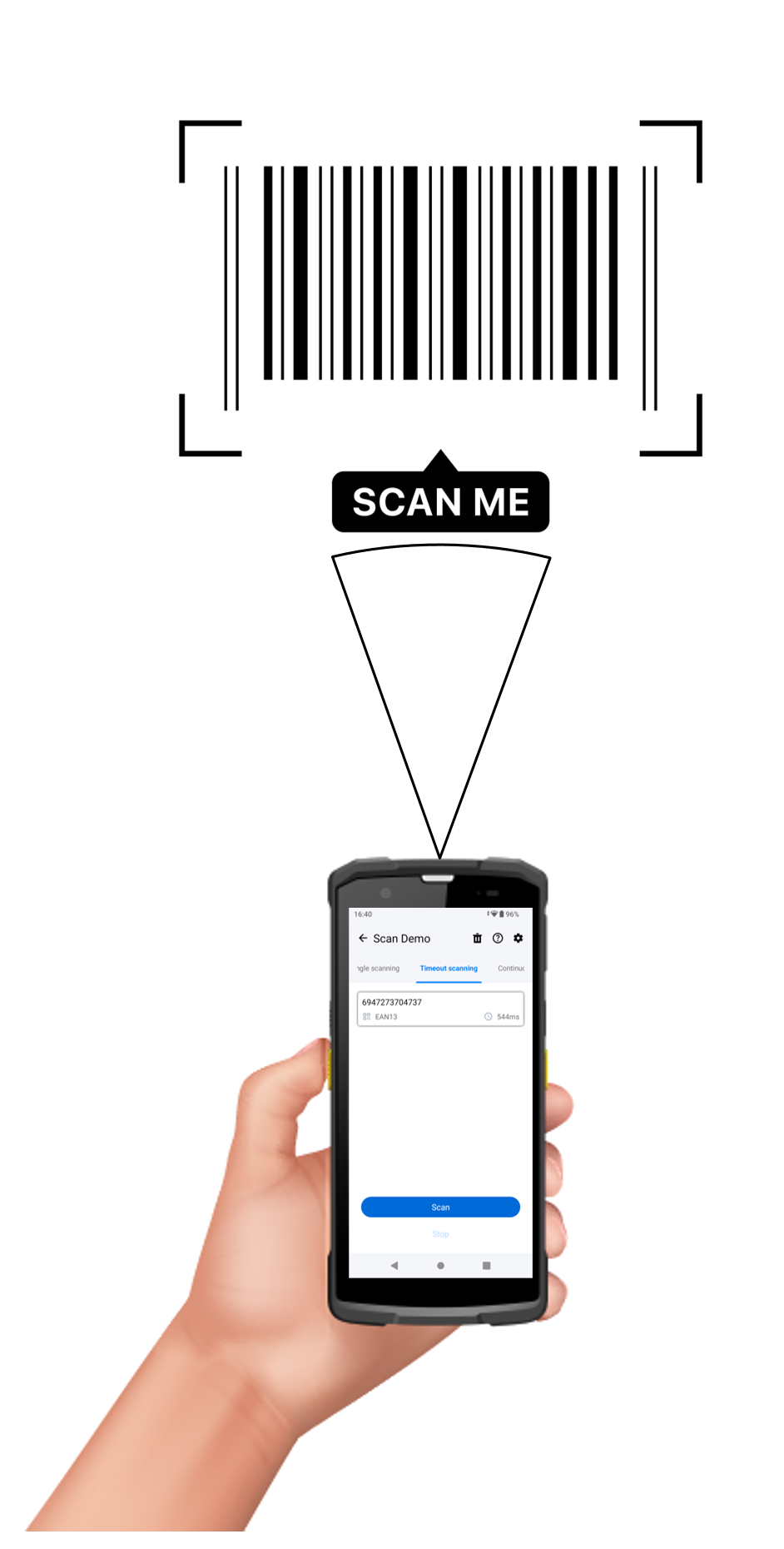
The WP856 is a Grandstream device designed for mobile computing purposes. Among its many functions is helping mobile users scan one-dimensional and two-dimensional barcodes to display information about the scanned products or verify their integrity. The WP856 device can play an important role in any organization’s infrastructure that relies on verifying the source and commercial validity of products.
In many scenarios, the WP856 device can be deployed as a standalone tool for both SIP communication—allowing integration into the organization’s VoIP system—and for security and commercial purposes, by helping the relevant personnel validate 1D and 2D product barcodes.
Some scenarios where the WP856 can be deployed are :
Retail Stores: Employees can scan product barcodes to check prices, verify stock, and ensure authenticity of products.
Warehouses: Workers use it to scan incoming and outgoing goods, tracking inventory levels and shipment accuracy.
Healthcare: Medical staff can scan medication barcodes to ensure patients receive the correct doses or to track supplies.
Logistics: Drivers and delivery personnel scan barcodes on packages to confirm deliveries and update tracking systems.
Manufacturing: Scanning barcodes on parts or products to monitor production stages or verify quality control.
In this guide we will go through the different methods that the WP856 device can be used to help its users scan barcodes.
Note
When scanning the barcodes, the WP856 device needs to be unlocked.
Code Reading Instructions
When scanning barcodes, the WP856 offers its users to choose from different methods and time intervals for scanning:
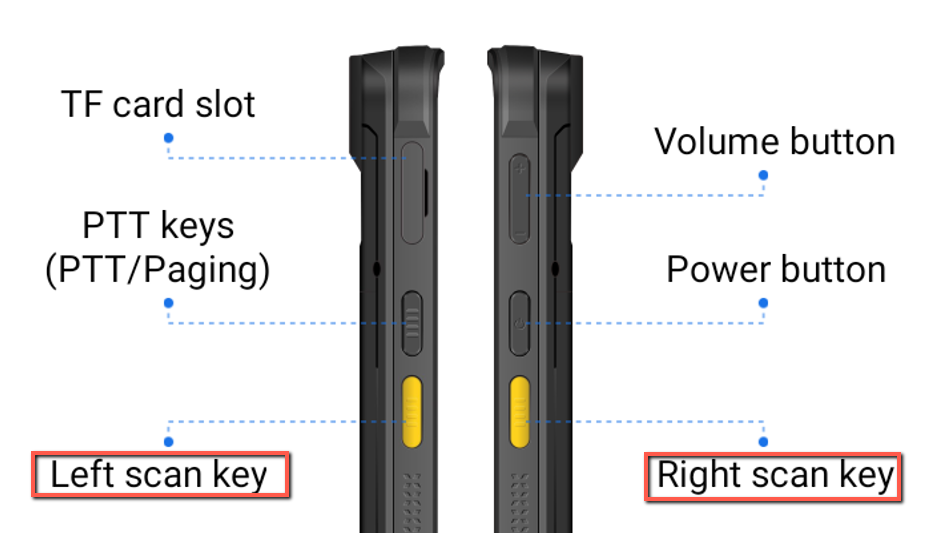
Single Scanning: works by holding the scan key. The device will scan the barcode and automatically stop once the code is successfully read or when the scan key is released.
Timeout Scanning: initiates a timed scan. The device will attempt to read a barcode during a 3-second countdown. If successful, the scan stops immediately; otherwise, it will stop when the countdown expires.
Continuous Scanning: allows for uninterrupted scanning. Once activated, the scanner continuously reads barcodes until the scan key is pressed again to stop the process.
Delayed Scanning: occurs when the scan key is held without immediately reading a barcode. The device waits until the key is released to process and read the code.
By default, the scanning method defined on both the right and left bar scanning buttons, is the timeout scanning.
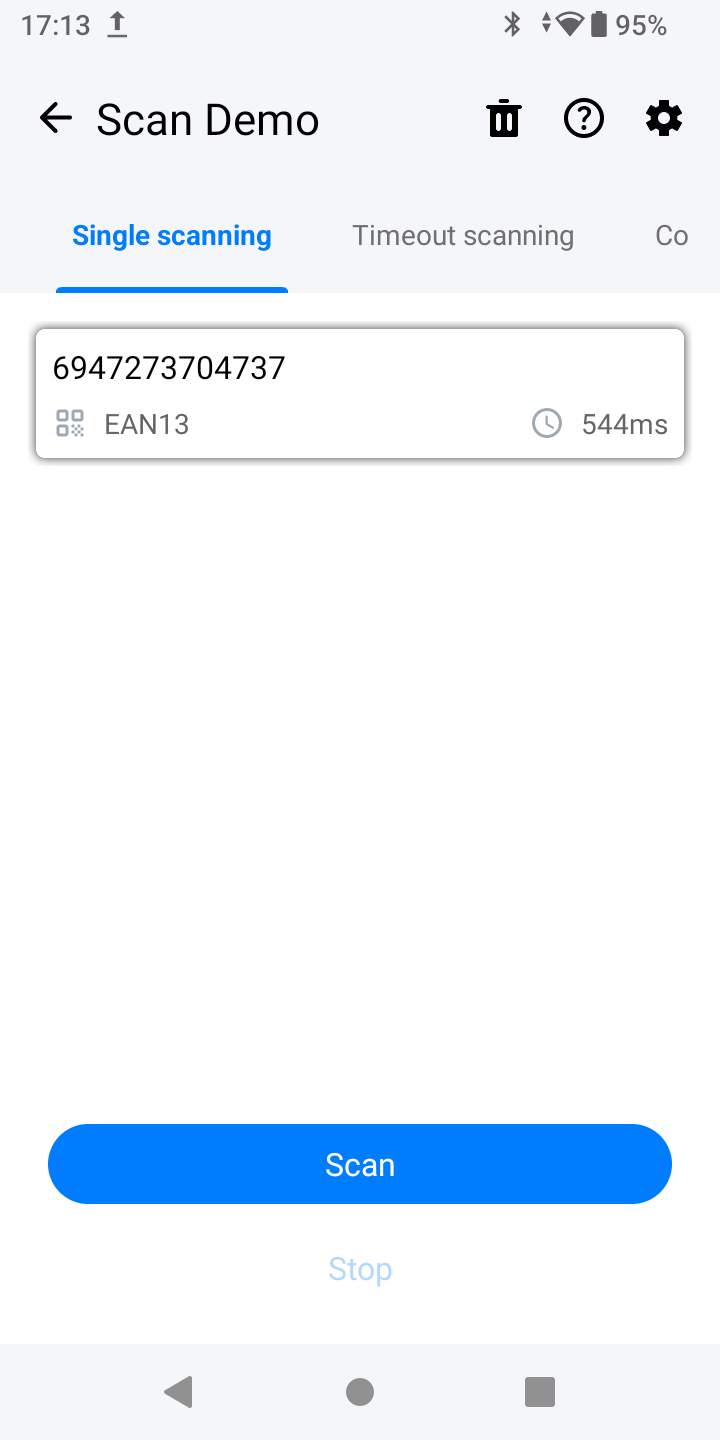
When needing to use a different scanning method, Please open the scan demo application, and select the desired scanning method to use, make sure to stay on the app while using the desired scanning method
Important Note
The Barcodes scanned will only be saved if scanned inside the scan demo app
Defining a Scan Profile
A scanning profile is how the WP856 device will interact with the scanned barcodes, users have the possibility to configure up to 10 Scan profiles, each profile can have its own settings to customize the data processing settings , such as the output mode, the encoding format, the prefix and suffix , the broadcast output configuration…
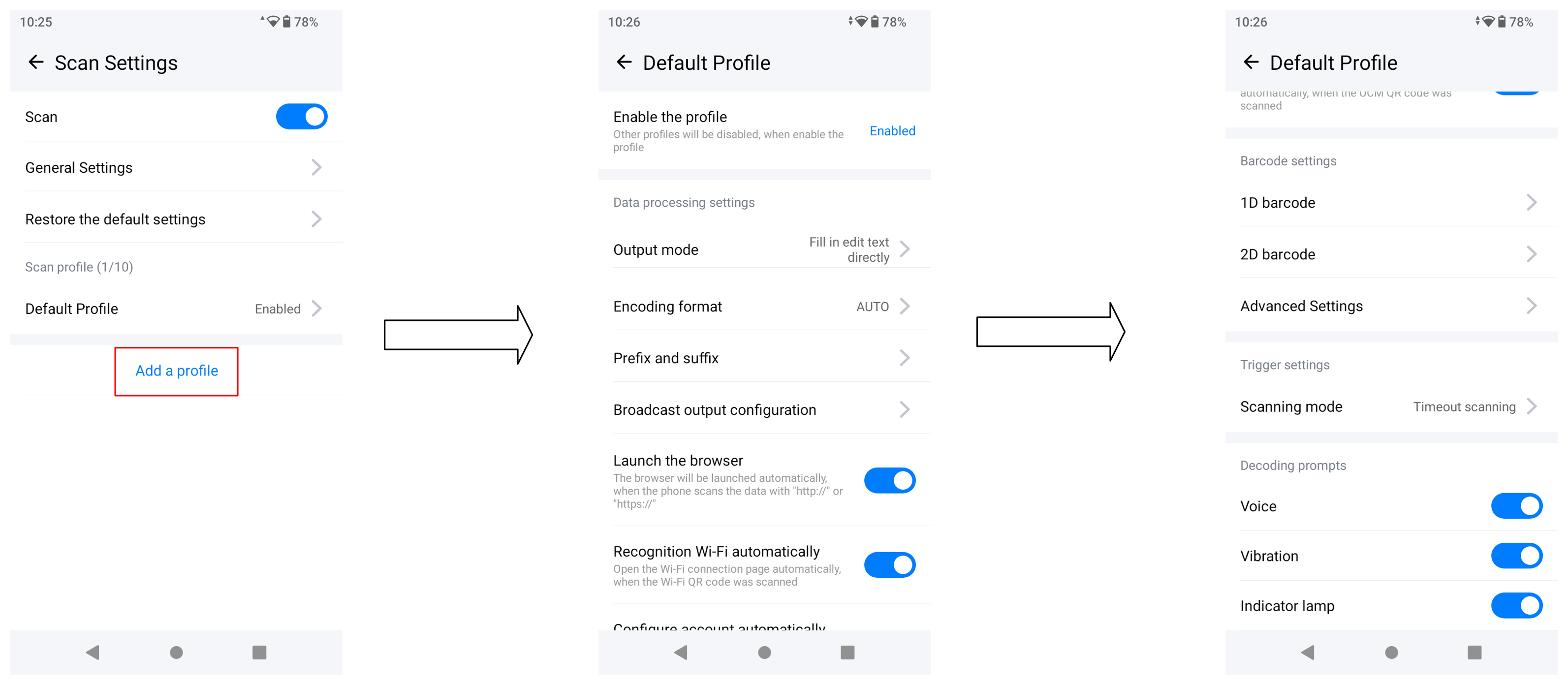
To define a scan profile, Please follow the below steps:
Open the scan demo app, by clicking the icon.
Tap the settings icon to access the scan settings
The default profile is the one enabled and used by default, you can create another scanning profile by clicking on the “Add profile”
Note
You can only enable one scanning Profile at a time.
Below is a table explaining what each data processing setting is responsible for :
Configuration Parameter
Description
Output mode
This refers to how the scanned data is sent to the device, here are the options defined under this field:
Emulate Key Output: The scanned barcode data is sent as if someone is typing it on a keyboard. This mode is used when inputting data into text fields, define the following parameter: Key Output Interval to set a time delay between each simulated keypress.
Always output to last field: Sends scanned data to the most recently active text field automatically.
Additional broadcast output: Also sends the scanned data as a system broadcast so other apps can receive it.
Overwrite output: Replaces existing text in the field instead of adding to it.
Emulate the Enter key: Acts like pressing Enter after a scan to confirm/submit the input.
Output key up event: Sends a key release signal after the Enter key event for better app compatibility.
Send soft keyboard action: Triggers the app’s keyboard action (like “Done” or “Search”) after scanning.
Fill in Edit Text Directly: Data is directly sent to the focused text field without emulating keyboard input. In order to do that , one of the following fields needs to be defined: Send ASCII characters 1-31 as KEY EVENT: Non-printable ASCII characters (like control commands) are treated as keyboard events, or Send ASCII characters 32-126 as KEY EVENT: Printable characters (like letters, numbers) are treated as keyboard events.
Broadcast Output: Data is sent to multiple devices or applications that are listening for the broadcast signal. Useful in networked environments, the following parameter can be defined: Send scan failure broadcast: When a scan fails, a broadcast message is sent, alerting systems or users of the failure.
USB HID Output: The scanner behaves like a USB Human Interface Device (HID) keyboard, sending data over USB to a connected device.
Encoding Format
This refers to how the data is encoded for transmission, ensuring compatibility with the receiving system’s language and characters.
AUTO: The scanner automatically detects and selects the best encoding format.
UTF-8: A widely used encoding for all characters, compatible with many languages.
GBK: Used for Simplified Chinese characters.
ISO-8859-1: Encoding for Western European languages.
Windows-1251: Used for Cyrillic-based languages like Russian.
Prefix and suffix
These are optional characters that can be added to the scanned data before (prefix) or after (suffix) the main barcode data.
Hexadecimal Definition: You can define prefix or suffix characters using their hexadecimal ASCII codes. For example, “0x0A” represents a line feed (new line).
Broadcast output configuration
This controls additional actions or information that can be sent along with the scanned data when using broadcast output.
Broadcast Output Action: Defines what action to take when broadcasting the scanned data.
Extra of Barcode 1/2: Additional information or metadata from barcode 1 or 2 can be included in the broadcast.
Extra of Symbology Type: Information about the type of barcode being scanned (e.g., Code 39, QR code).
Extra of Symbology Type’s Name: The name of the barcode symbology type is included in the broadcast.
Launch the Browser
When this option is enabled, the scanner automatically opens a web browser after scanning a specific barcode, with “http://” or “https://” Note: The feature is enabled by default
Recognition Wi-Fi automatically
The scanner is capable of automatically detecting and connecting to available WiFi networks.
Configure account automatically
The scanner can auto-fill or auto-configure user accounts based on the data it scans.
Barcode Settings
This defines the one-dimentional and two dimentional barcode supported by the scan profile, we will define them in details on the upcoming sections of the guide.
Scanning mode
This refers to how the scanner operates when outside a scanning app, and the scan button is pressed, by default, timeout scanning is selected.
Decoding Prompts
These are the indicators that signal a successful or failed scan.
Voice: The scanner provides audio feedback (like a beep) after scanning.
Vibration: The scanner vibrates to indicate scan completion.
Indicator Lamp: A light that shows the status of a scan.
Scan Profiles Parameters
Once the scanning profile is defined , then depending on the type of barcode scanned we can define the 1D or 2D barcode settings.
1D Barcode Scanning
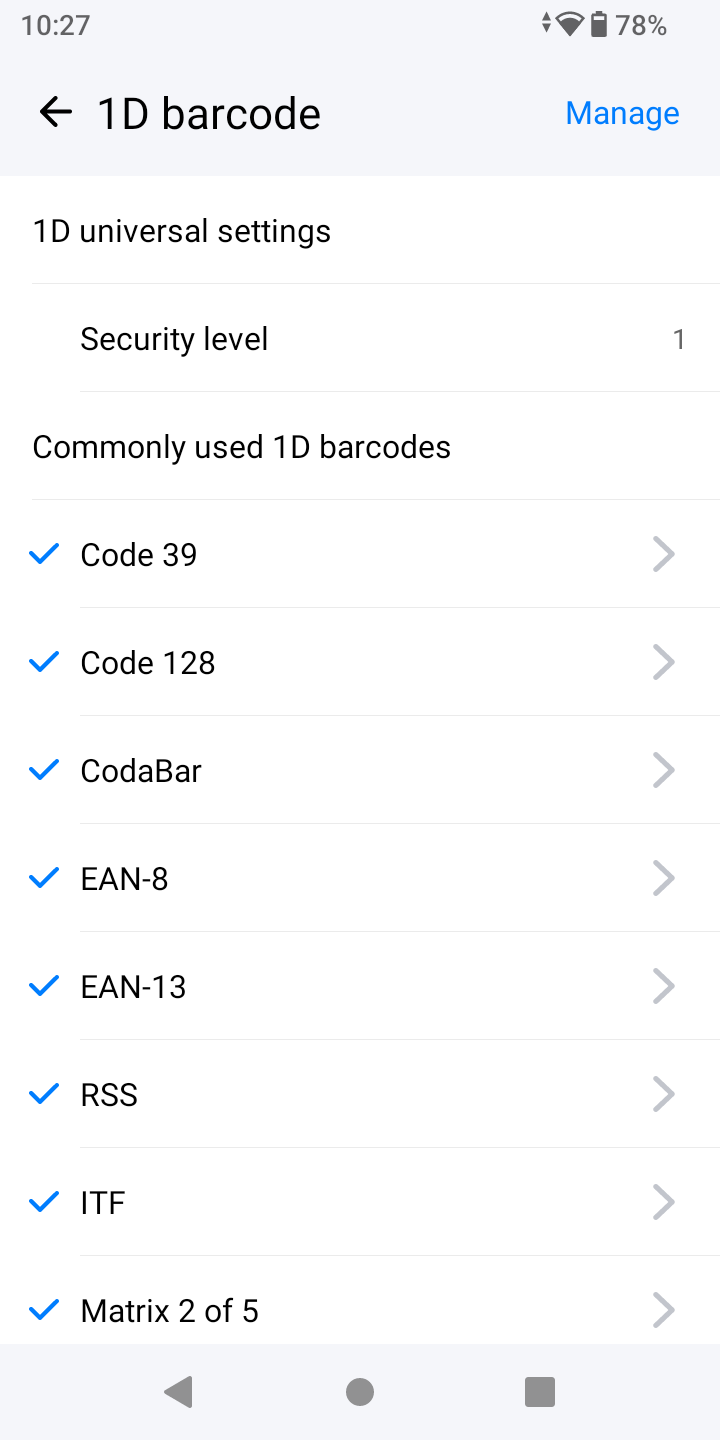
When the 1D Bar code scanning is enabled for a scanning profile, the user can define the types of 1D barcodes that will be supported for that specific profile, the list of 1D bar codes supported by the WP856 is displayed at the 1D Barcodes scanning glossary
1D Barcodes
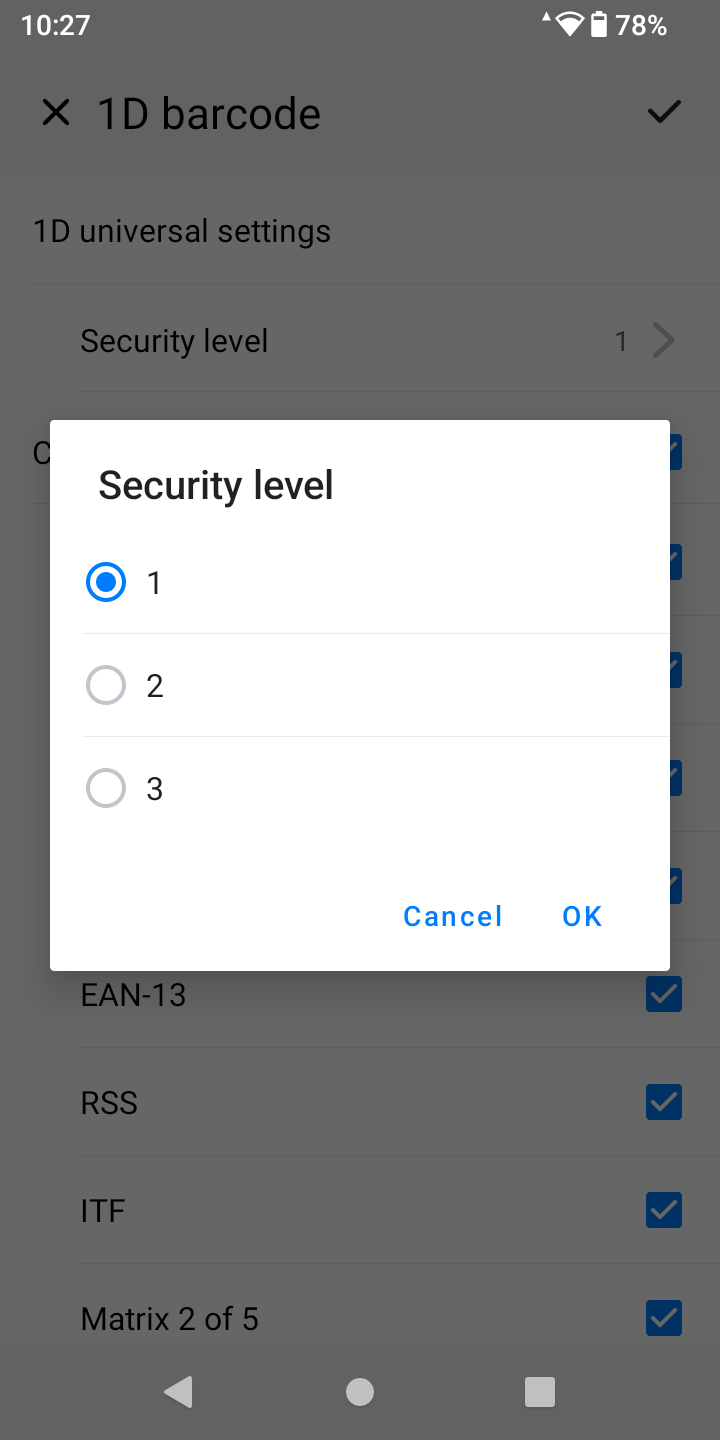
Users can define the Security level for each 1D barcode selection : the supported values are : 1 , being the least secure, 2 , and 3.
Security level
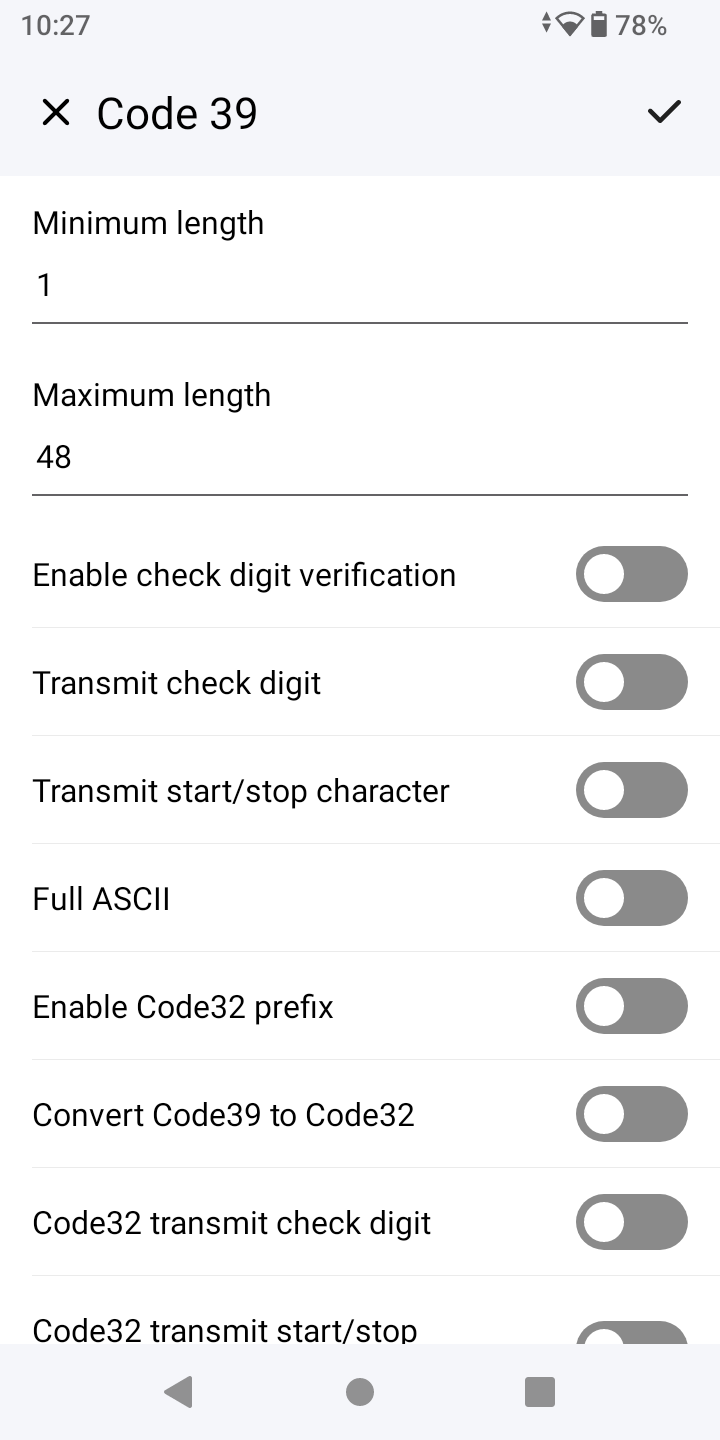
Each barcode, when selected will have its own set of settings related to the type of barcode , taking for example a very commonly used 1D barcode, that is found in commercial devices, the Code 39 barcode,
Code 39 Settings
When the user selects this code to be scanned, some additional adjustments can be added, depending on the manufacturer’s policy, some of these are:
Minimum Length: Barcodes shorter than the minimum length won’t be scanned. Code 39 can encode variable lengths, so this is useful for filtering shorter, invalid codes.
Maximum Length: Barcodes longer than this length won’t be accepted. This is used to ensure you’re only scanning expected data sizes.
Enable check digit verification: The check digit is an additional character in the barcode used to validate the rest of the data. When enabled, the scanner will check whether the check digit is correct, helping to prevent incorrect scans.
Transmit check digit: If enabled, the check digit is transmitted along with the barcode data; if disabled, only the main barcode data is sent, without the check digit.
Transmit start/stop character: The start () and stop () characters indicate the beginning and end of a Code 39 barcode. By default, they aren’t transmitted because they don’t carry data, but enabling this option can be useful in some specific use cases.
Full ASCII: Standard Code 39 only supports uppercase letters, digits, and a few symbols. Full ASCII mode expands this by using pairs of Code 39 characters to represent the full range of ASCII symbols (including lowercase letters and control characters). This can be helpful when you need to scan a wider range of characters.
Enable Code32 prefix: This is used in pharmaceutical applications, mainly in Italy. It adds the character “A” to the beginning of the code to identify it as a Code 32 barcode.
Convert Code39 to Code32: This option automatically changes Code 39 barcodes into Code 32 barcodes for applications where Code 32 is required. It’s mainly used in industries like healthcare where Code 32 is standard.
Code32 transmit check digit: Code 32 includes a check digit for verification, and this option controls whether that digit is sent with the rest of the data.
Code32 transmit start/stop character: Like in Code 39, this option allows the start/stop characters of Code 32 to be transmitted as part of the scanned data.
Please note that all Code 39 barcodes will be scanned without needing to configure any of the above mentioned options, these options are used to fine tune the scanning feature to match specific organization’s regulations.
2D Barcode scanning
The 2D Barcodes work in a similar manner as the 1D barcodes, they can be scanned using the physical buttons found on the WP856 device, and can be enabled to be used under a specific scanning profile,
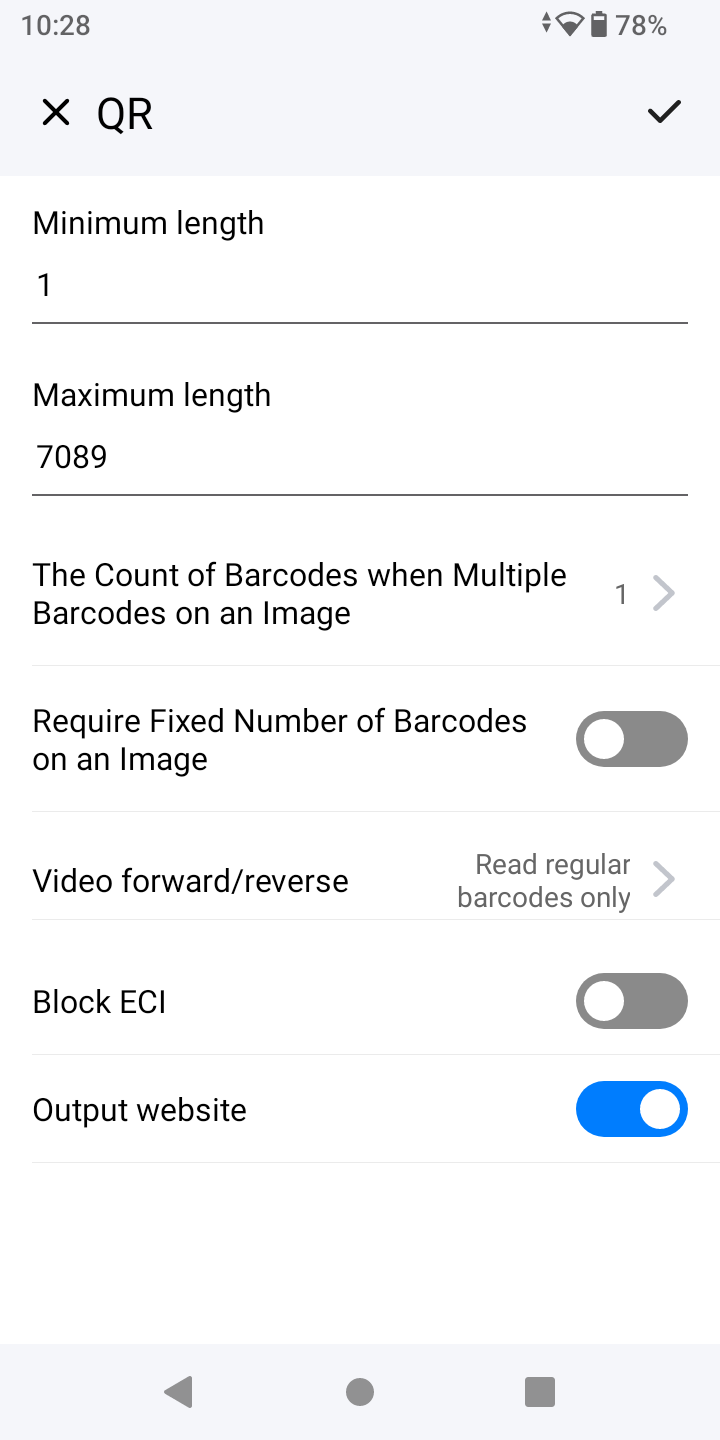
we will take a very common 2D Barcode as an example, which is the QR code, the settings that can be defined for the 2D QR code are:
Minimum length: This sets a lower limit for the length of the decoded data. If the data in the QR code is shorter than this, the scanner will reject it. It’s useful for filtering out incomplete or invalid scans.
Maximum length: This restricts the upper limit of characters in a scanned QR code. Barcodes longer than this won’t be accepted, which helps avoid scanning overly long or incorrect data.
the count of barcodes when multiple barcode on an image: In some cases, there may be more than one barcode (1D or 2D) in the same image or frame. This option lets you specify how many barcodes should be scanned at once. It’s useful in scenarios where multiple QR codes appear close to each other on the same label or document.
Video forward/reverse: This option allows the scanner to either process the video feed in a forward or reverse direction, which can optimize the scanning process for dynamic environments (like scanning from a video stream or moving objects). It’s typically used in devices capable of video-based scanning, where they continuously capture frames and scan for barcodes.
Close ECI: ECI allows a QR code to specify an alternative character encoding to handle special characters or languages. Disabling it means the scanner will only interpret the default encoding (like UTF-8). This is useful if you want to avoid potential issues with international characters or special symbols.
Output website: This option will trigger the device to launch a browser and navigate to the website encoded in the QR code after scanning. It’s especially helpful for QR codes that are designed to direct users to online resources, promotions, or applications.
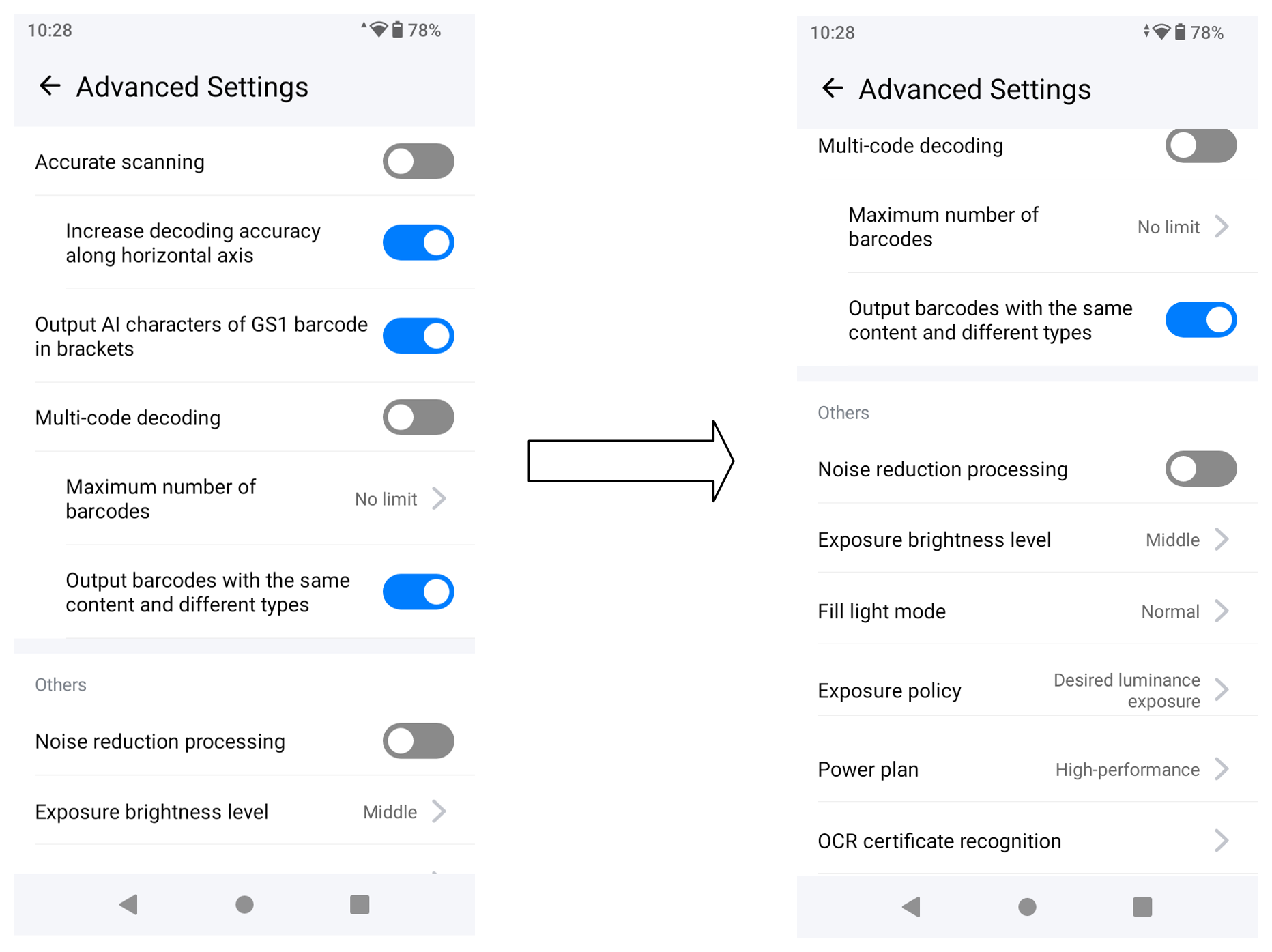
Advanced Scanning Settings
The advanced scanning settings defines some major scanning configurations that are applied for both the 1D and 2D Barcode scanning.
These options can be configured as follows:
Accurate scanning: Enabling this option ensures that the scanner takes additional steps to verify the correctness of the scan. This is useful in environments where accuracy is critical, such as reading small, damaged, or closely packed barcodes.
Increase Decoding Accuracy along horizontal axis: This setting improves the scanner’s performance in reading barcodes that are oriented horizontally, such as those printed across a surface or displayed on a wide screen. It can help in situations where barcodes might be slightly distorted along the horizontal axis.
Output AI characters of GS1 barcode in brackets: GS1 barcodes (used in retail, logistics, and healthcare) contain AIs that identify the type of data encoded (e.g., product number, expiration date). Enabling this option outputs the AI characters in brackets, making it easier to separate and recognize them in the data stream.
Multi-code decoding: If several barcodes are present within the same scanning field (such as on a single product label), the scanner will attempt to read and decode all of them simultaneously. This option is useful in logistics or inventory scenarios where multiple barcodes are placed close together.
Maximum number of barcodes: You can control how many barcodes the scanner should look for in an image. This is especially important when using multi-code decoding so that it doesn’t try to process too many barcodes, which could slow down performance.
Output barcodes with the same content and different types: If enabled, the scanner will output all scanned barcodes, even if they contain the same data, but are encoded using different barcode types. This is useful for environments where the same data might be presented in multiple formats.
Noise reduction processing: This feature helps the scanner process barcodes in environments with low image quality or noisy backgrounds. It’s useful for reading barcodes from surfaces that have texture, glare, or are printed with low contrast.
Exposure brightness level: Increasing or decreasing exposure brightness can help the scanner capture clearer images of barcodes, especially in challenging lighting conditions (e.g., too dark or too bright). This setting fine-tunes the light sensitivity for better scanning performance.
Mode of fill light: You can choose whether the fill light is always on, off, or automatic. This can be helpful in low-light environments to enhance the contrast of the barcode, making it easier to scan.
Exposure policy: This option lets you decide whether to prioritize brightness, contrast, or a balance between the two when the scanner captures an image. Different exposure policies can improve performance depending on lighting conditions and barcode quality.
The power plan: You can set the scanner to operate in low power (to conserve battery), balanced, or high-performance modes. Higher performance uses more power but improves scanning speed and accuracy, while lower power saves energy but may reduce responsiveness.
OCR certificate recognition: OCR allows the scanner to read and interpret printed text in addition to barcodes. Enabling certificate recognition is particularly useful for scanning and verifying official documents (e.g., certificates, IDs) that contain specific text information.
1D Barcodes scanning glossary
Barcode Name
Label Example
Description
Code 39
A widely used barcode that encodes alphanumeric characters (A-Z, 0-9). Commonly used in inventory, military, and healthcare systems due to its ability to encode basic information.
Code 128
A high-density barcode that encodes all 128 ASCII characters. It’s commonly used in logistics and shipping industries due to its flexibility and ability to store large amounts of data.
CodeBar
A self-checking barcode primarily used in blood banks, photo labs, and libraries. It supports numeric data and a few special characters.
EAN-8
A shorter version of the EAN-13 barcode, used on smaller products where space is limited. It encodes 8 digits and is commonly used in retail globally.
EAN-13
A globally recognized barcode used for retail products. It encodes 13 digits and is part of the Global Trade Item Number (GTIN) standard for identifying products in stores worldwide.
RSS
Now known as GS1 DataBar, this barcode type is used in retail and healthcare for marking small items, especially fresh produce, due to its compact size and ability to store more data.
ITF
Also called Interleaved 2 of 5, this barcode encodes numeric data and is commonly used in warehouse management and on product packaging, particularly for logistics and shipping.
Matrix 2 of 5
A self-checking barcode that encodes numeric data. It is used in industrial applications, including warehouse and airline baggage handling.
(GS1-128) UCC/EAN-128
Used in shipping and logistics, this barcode encodes product information such as batch numbers, weights, and expiration dates. It adheres to international GS1 standards.
UPC-E
A compressed version of the UPC-A barcode, used for small packages where space is limited. Commonly used in retail, it encodes only six digits.
UPC-A
The standard Universal Product Code, used mainly in North American retail. It encodes 12 digits and identifies products for point-of-sale systems.
Code 11
A barcode that encodes numeric data and dashes. It is primarily used in the telecommunications industry to label equipment and products.
Code 93
An enhanced version of Code 39 that provides higher density and data security. It’s used for compact labels in logistics, healthcare, and manufacturing.
Industrial 2 of 5
An older barcode symbology that encodes numeric data. It is used in warehousing and distribution, but has largely been replaced by more efficient barcodes like ITF and Code 128.
ITF-6
A variation of Interleaved 2 of 5, used mainly for small packaging. It’s most often found in logistics and shipping environments.
ITF-14
A larger, outer case barcode used to mark shipping cartons and pallets. It encodes numeric data and is compatible with global supply chain standards.
ISSN
This barcode is used to identify periodicals like magazines and newspapers. It encodes the International Standard Serial Number (ISSN) for cataloging and tracking publications.
ISBN
Used globally in publishing, the ISBN barcode encodes the International Standard Book Number, allowing for the identification and tracking of books in libraries and bookstores.
MSI Plessey
A numeric barcode often used for marking inventory, warehouse products, and store shelving. It’s a variant of the Plessey code and is mainly found in retail and library systems.
Plessey
Originally developed for retail use in the UK, this numeric barcode is used in libraries, inventory systems, and on store shelves for tracking and identification purposes.
Standard 2 of 5
A numeric barcode used in non-retail applications, including warehousing and airline ticketing. It has largely been replaced by more modern barcodes like ITF and Code 128.
AIM 128
A variant of Code 128, used for compact, high-density barcode labeling, particularly in logistics and warehouse applications.
CODE 49
A stacked barcode that can encode both numeric and alphanumeric data. It’s used for high-density labeling in industries where space is limited, such as manufacturing and healthcare.
CODE 16K
A multi-row stacked barcode capable of encoding alphanumeric and ASCII data. It’s used in logistics and inventory management where space efficiency is essential.
1D Barcodes scanning glossary
2D Barcodes scanning glossary
Barcode Name
Label Example
Description
Data Matrix
A compact 2D barcode that can encode large amounts of data in a small space. It’s widely used in industries like aerospace, electronics, and healthcare for part tracking and labeling.
Micro QR
A smaller version of the QR code, used when space is very limited. It’s often used in packaging and electronics where a full-size QR code would be too large.
PDF417
A stacked linear barcode format that can encode large amounts of text and binary data. It’s commonly used on driver’s licenses, airline boarding passes, and shipping labels.
QR Code
One of the most popular 2D barcodes, used globally in marketing, mobile payments, and product labeling. It can encode URLs, text, and other data, and is easily readable by smartphones.
AZTEC
A compact 2D barcode often used in transportation and ticketing systems due to its high reliability in low-contrast and small spaces. It doesn’t require a quiet zone around the code.
Composite
A barcode that combines a 1D and 2D barcode in one symbol, allowing more data to be stored and verified. It’s used in industries like healthcare and retail for encoding additional data.
Maxi Code
A circular 2D barcode developed by UPS for logistics and package tracking. It’s optimized for fast scanning in courier and shipping applications.
Micro PDF
A reduced version of the PDF417 barcode, used in situations where space is a constraint, such as inventory labels and ID cards.
DotCode
A 2D matrix barcode that consists of dots rather than squares. It’s used in industries like tobacco and pharmaceutical packaging due to its ability to mark high-speed printing lines.