

Overview
Call Flow Design provides a visual interface for creating and customizing call-handling workflows by adding and connecting components. It can be used to build flexible call-routing logic for different UC scenarios, allowing administrators to define how calls are handled based on caller input, time conditions, logical conditions, and other configured criteria.
A call flow can include prompts, IVR menus, user input, time conditions, language selection, call recording, dialing, transfers, conditions, loops, and call termination.
Call Flow Design is useful when a deployment requires multiple call-handling decisions to be combined into one workflow. For example:
Incoming Call → Welcome Prompt → Time Condition → IVR Menu → Condition → Destination
In summary: Call Flow Design allows administrators to visually define how a call should behave from the moment it enters the flow until it reaches its final destination.
Call Flow Number Range
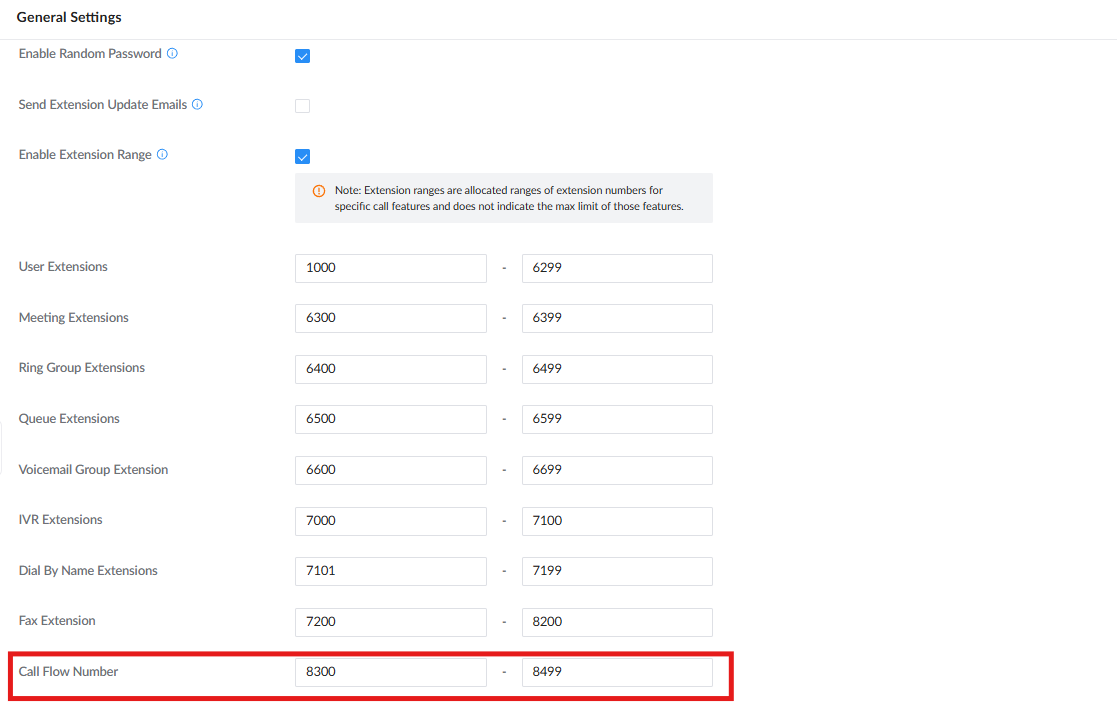
The UCM provides a dedicated Call Flow Number range, separate from other extension ranges.
The example configuration shown in the WebUI uses:
| Type | Range |
|---|---|
| User Extensions | 1000–6299 |
| Meeting Extensions | 6300–6399 |
| Ring Group Extensions | 6400–6499 |
| Queue Extensions | 6500–6599 |
| Voicemail Group Extensions | 6600–6699 |
| IVR Extensions | 7000–7100 |
| Dial By Name Extensions | 7101–7199 |
| Fax Extensions | 7200–8200 |
| Call Flow Numbers | 8300–8499 |
The WebUI identifies these as allocated ranges for specific call features and notes that the ranges do not represent the maximum number of objects supported by the feature.
The separate Call Flow range helps distinguish call-flow numbers from ordinary user and service extensions. For this reason, a Call Flow should be assigned a number from the configured Call Flow Number range.
For example, if the Call Flow range is 8300–8499, using 1005 as the Call Flow Number results in an “Extension already exists” message because that number is already within the User Extension range.
Creating a Call Flow
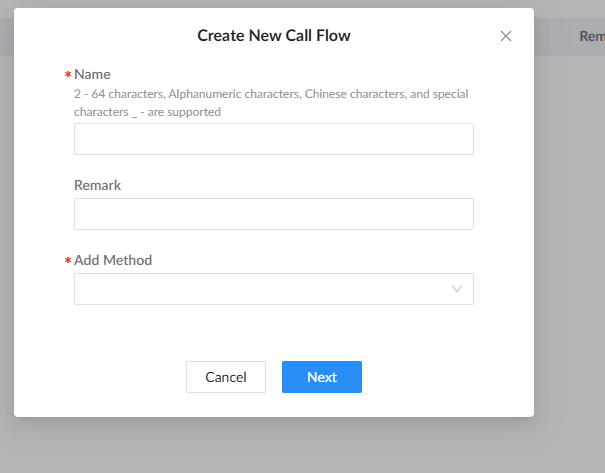
The UCM provides four methods for creating a call flow:
Templates cover common scenarios, including IVR key routing, time-based routing, and input-matching authentication.
Create from a Template
- Under Advanced Call Features, from the Call Flow Design page, click Add.

- In Create New Call Flow, enter the required information:
- Name: Enter a name for the call flow.
- Remark: Enter an optional description.
- Add Method: Select Based on Existing Template.
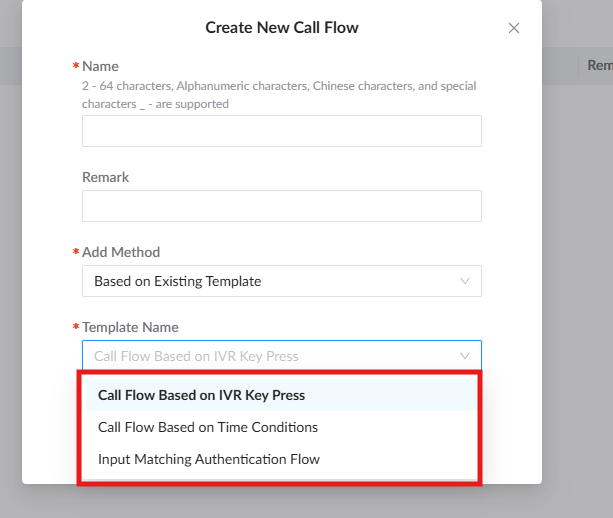
- Select the required template and save the configuration.
The available templates include:
Template | Description |
Call Flow Based on IVR Key Press | Provides a predefined IVR-based call flow that routes callers according to the key they press. It is suitable for menu-driven scenarios where different keypad selections lead to different destinations, such as Sales, Support, or other departments. |
Call Flow Based on Time Conditions | Provides a predefined call flow that routes incoming calls according to the configured time conditions. Different routing actions can be applied during office hours, outside office hours, or holidays, allowing the call-handling behavior to change automatically based on the organization’s schedule. |
Input Matching Authentication Flow | Provides a predefined call flow that collects input from the caller and checks it against predefined values. Based on whether the entered value matches the configured value, the call can be routed to the appropriate destination or handled as invalid input. |
After creation, click Edit Component. The call-flow editor opens in a new browser tab. Click the + icon to add additional nodes.
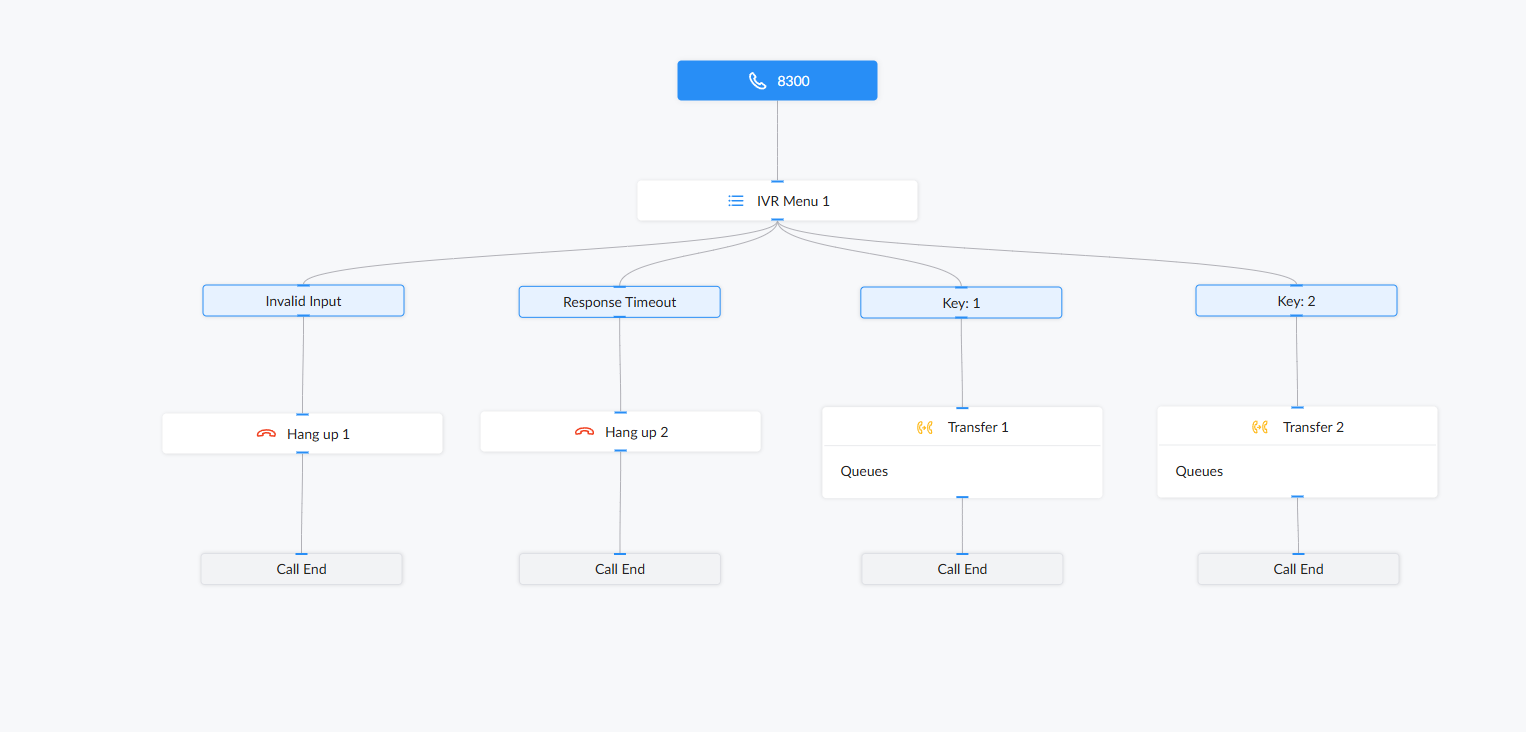
Call Flow Based on IVR Key Press
The Call Flow Based on IVR Key Press template provides a predefined call-routing structure based on the caller’s keypad input. When the template is selected, the UCM automatically creates an IVR-based flow with branches for Key 1 and Key 2, which can route the caller to different destinations, as well as Invalid Input and Response Timeout branches to handle unsuccessful or incomplete input. The generated flow provides a ready-to-use starting point for menu-based call routing and can be further customized in the Call Flow editor to match the required UC solution.
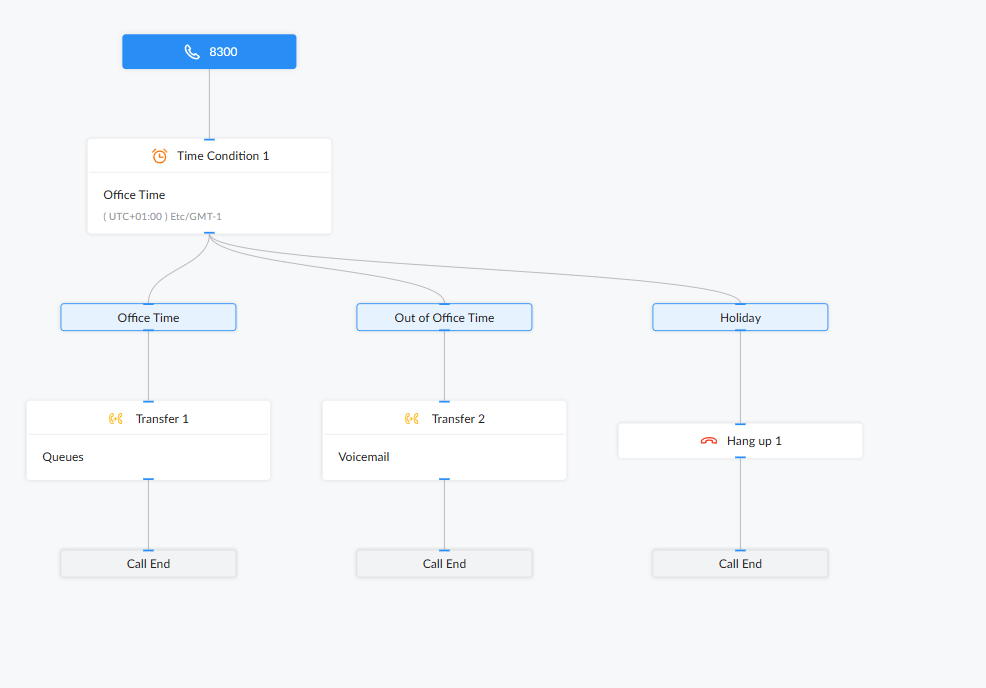
Call Flow Based on Time Conditions
The Call Flow Based on Time Conditions template provides a predefined structure for routing calls according to the configured time conditions. When the template is selected, the UCM automatically creates branches for different time states, such as Office Time, Out of Office Time, and Holiday. In the example shown, calls received during office hours are transferred to a Queue, calls received outside office hours are transferred to Voicemail, while calls received during a holiday are terminated. This template is therefore useful for automatically applying different call-handling rules depending on the organization’s operating schedule.
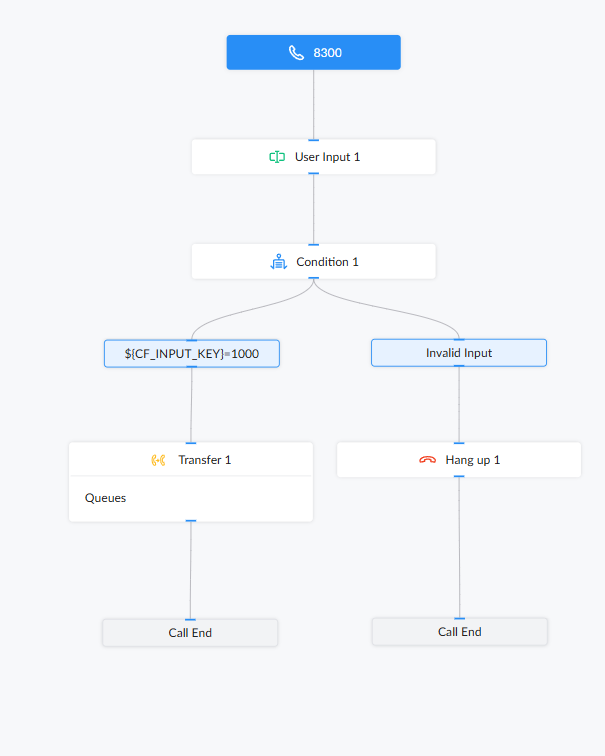
Input Matching Authentication Flow
The Input Matching Authentication Flow template provides a predefined structure for collecting input from the caller and checking it against a configured value. In the example shown, the caller enters information through the User Input component, after which the Condition component evaluates the entered value. If the input matches the configured value (1000), the call is transferred to the Queue; if the input is invalid, the call is routed to Hang Up. This template is useful for simple input-based validation and routing scenarios where access or call handling depends on information entered by the caller.
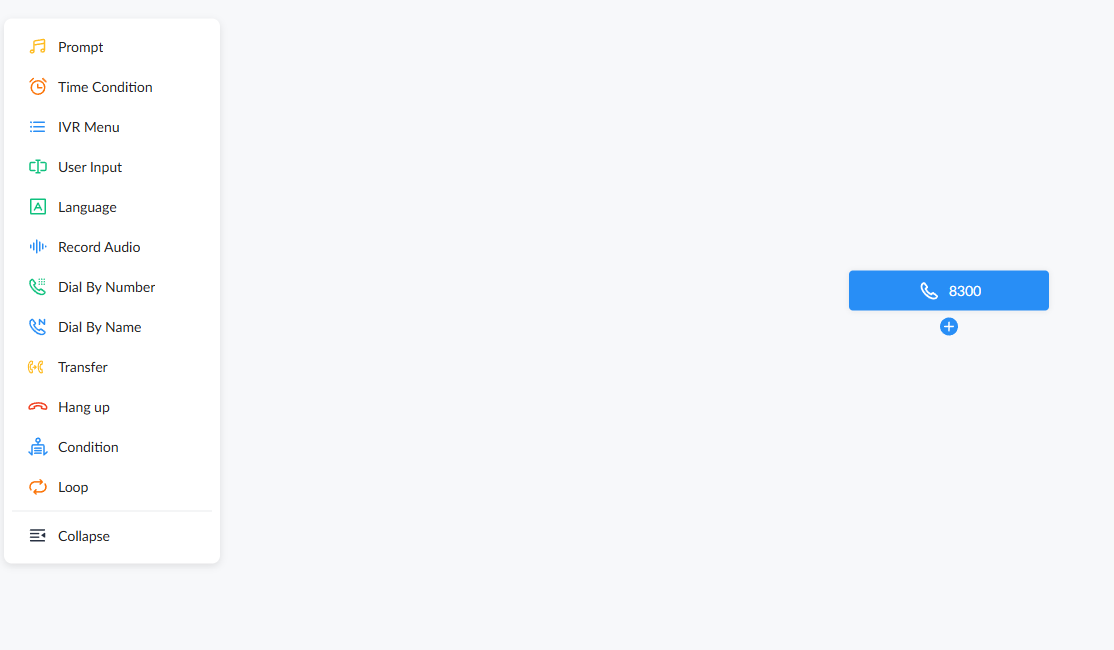
Create Manually
- Click Add and select Manual under Add Method.
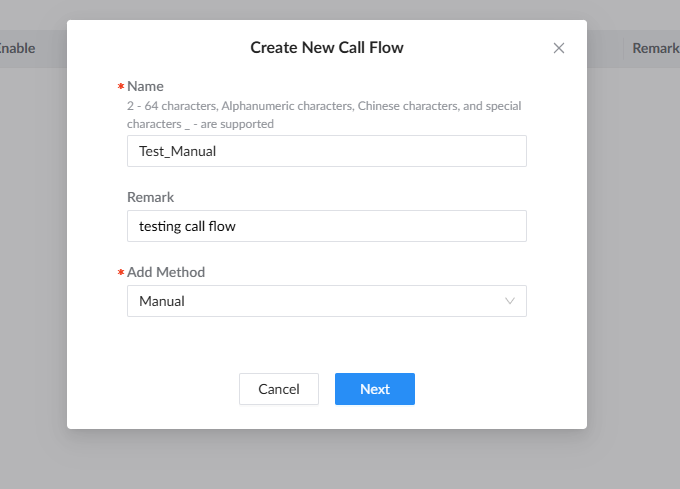
- After you create the flow, open the editor and add or drag the required components into the design area.
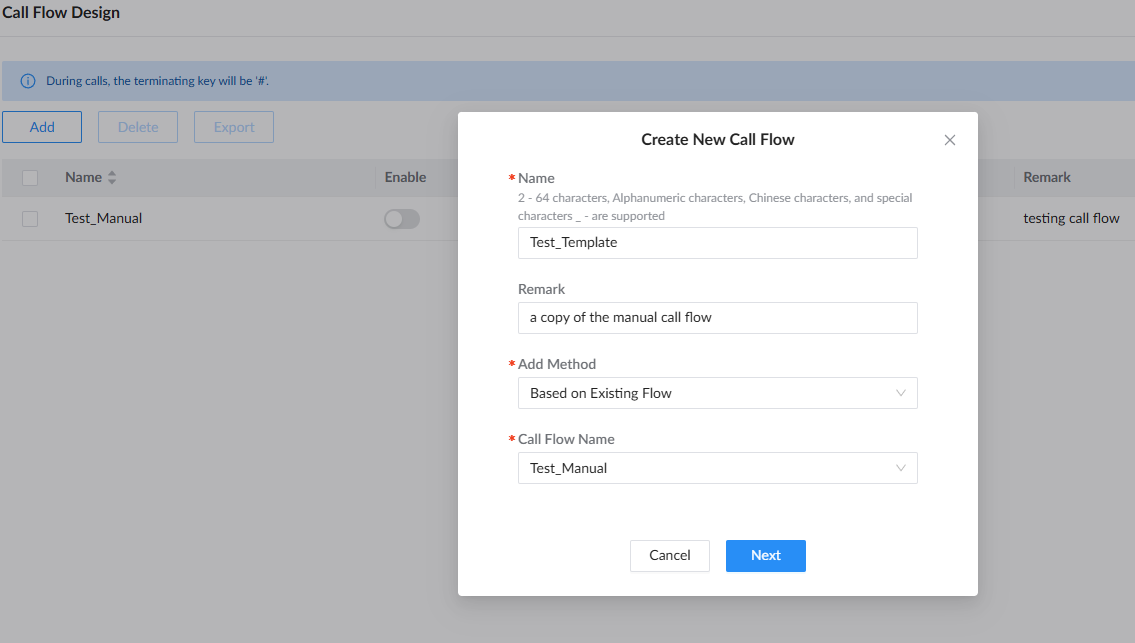
Copy an Existing Call Flow
Select Based on Existing Flow to reuse an existing call flow.
This method is useful when an existing configuration is similar to the new requirement and only a few components need to be modified.
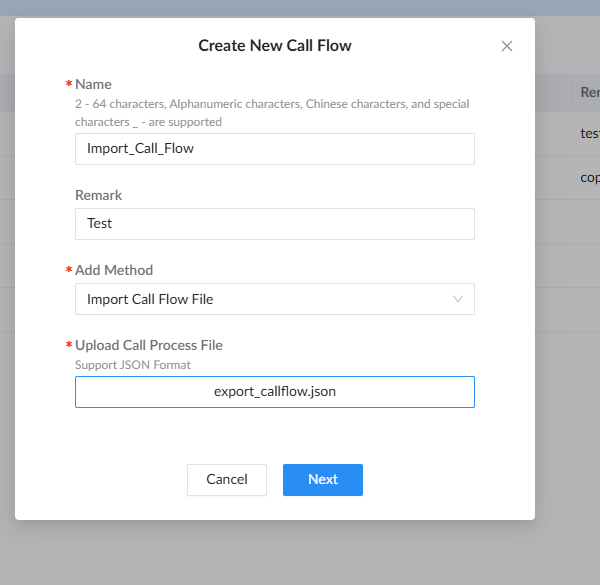
Import a Call Flow File
Select Import Call Flow File to import an existing call-flow configuration in JSON format.
Building the Call Flow
The call flow begins with the Initial Action and continues through the components added to the visual design.
The main components are:
| Component | Function |
|---|---|
| Prompt | Plays an audio file or text-to-speech prompt. |
| Time Condition | Routes calls according to time. |
| IVR Menu | Provides menu choices and routes calls according to DTMF input. |
| User Input | Collects DTMF input for further processing. |
| Language | Changes the language used by subsequent prompts. |
| Record Audio | Controls call recording. |
| Dial By Number | Allows callers to enter a number for dialing. |
| Dial By Name | Allows callers to search for a user by name. |
| Transfer | Transfers the call to a configured destination. |
| Hang Up | Terminates the call. |
| Condition | Routes the call according to an expression. |
| Loop | Repeats components according to a count or condition. |
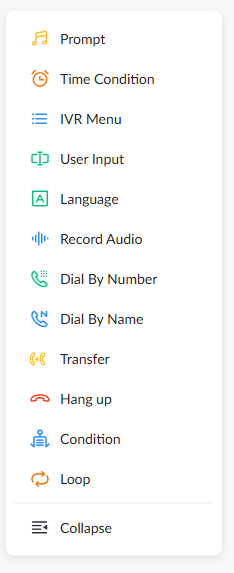
Initial Action
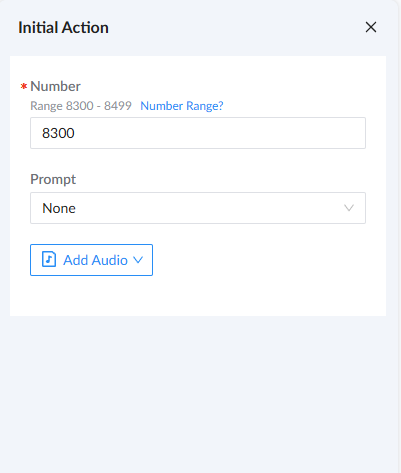
The Initial Action is the starting point of the call flow. It defines the number used to access the call flow and can also include a prompt for a welcome message or instructions. The configured number must belong to the Call Flow Number range.
Prompt
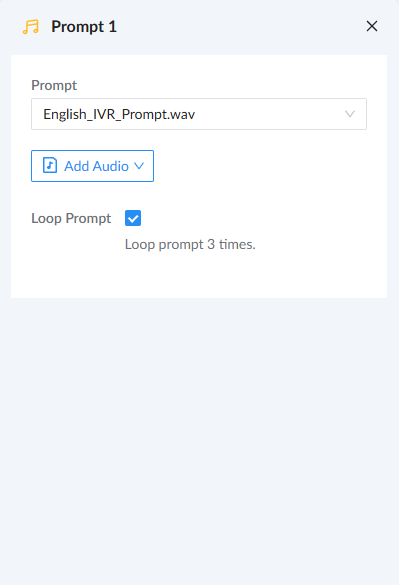
The Prompt component plays an audio file or converts text to speech. Custom audio can also be uploaded, and AI-generated prompts can be used when the applicable AI functionality is available.
Time Condition
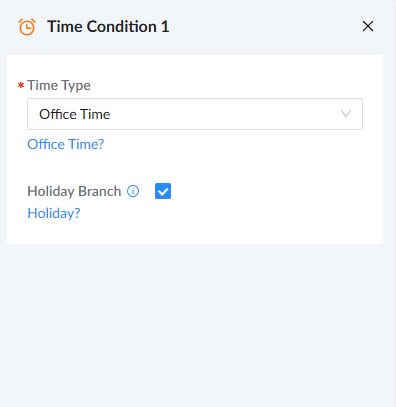
The Time Condition component routes calls according to time. It supports Office Time, Custom Time, and Custom Time Group.
IVR Menu
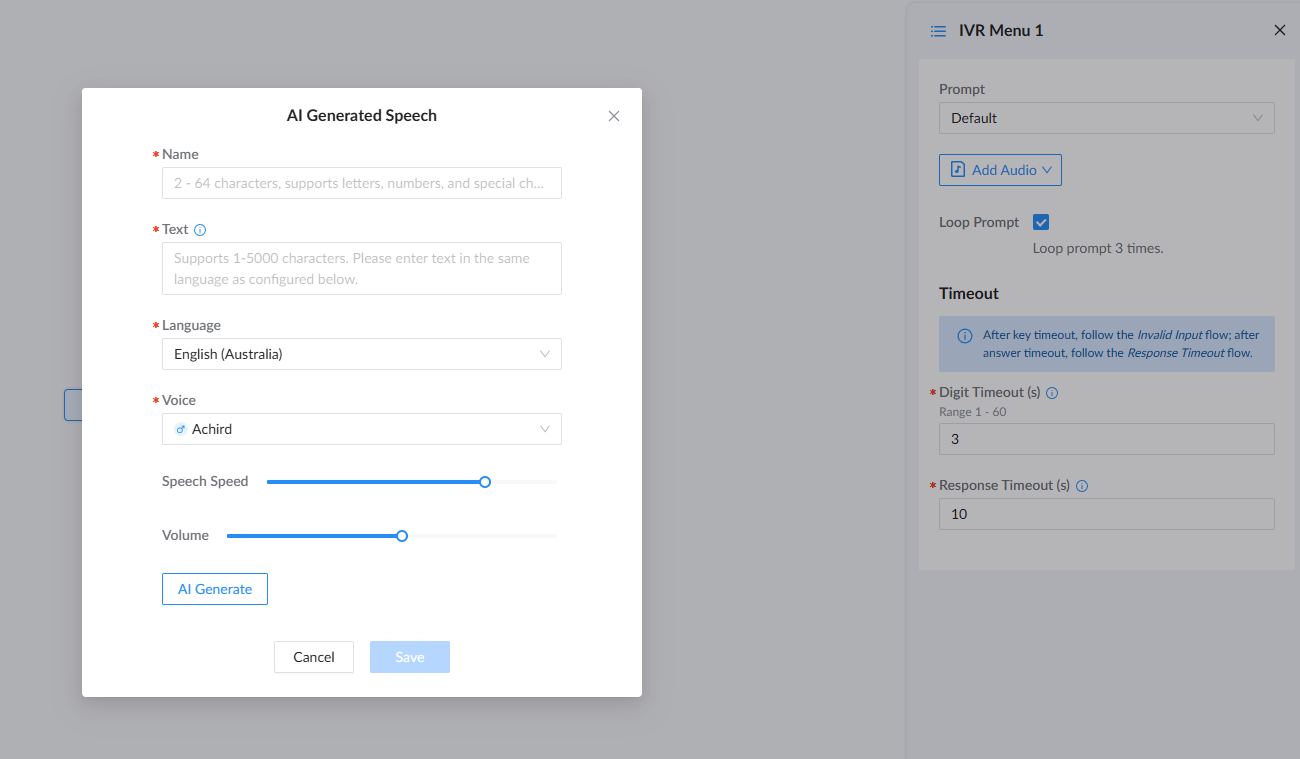
The IVR Menu component provides menu options and routes calls according to the caller’s DTMF input. A prompt can be configured using an existing audio file or AI-generated speech, with options to define the language, voice, speech speed, and volume. The menu can also be configured to repeat the prompt a specified number of times, as well as define Digit Timeout and Response Timeout values. When the configured timeout is reached, the call can follow the corresponding Invalid Input or Response Timeout branch.
User Input
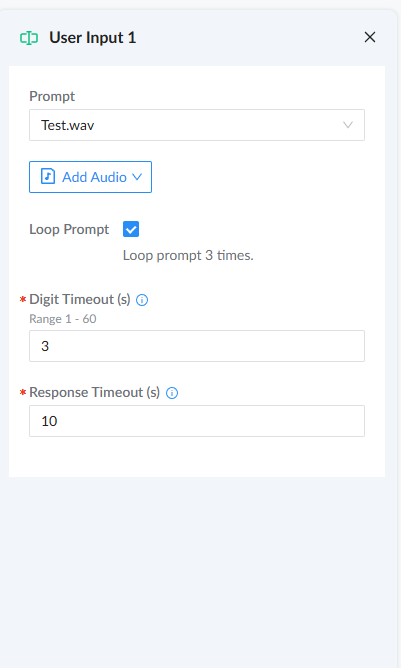
The User Input component collects DTMF input from the caller for further processing. The entered value can be stored in a variable and used with a Condition component to determine the next call-flow branch. A prompt can be configured to guide the caller’s input, using an existing audio file or AI-generated speech. The component also supports Digit Timeout, Response Timeout, and the configured terminating key to control when input collection ends.
Language
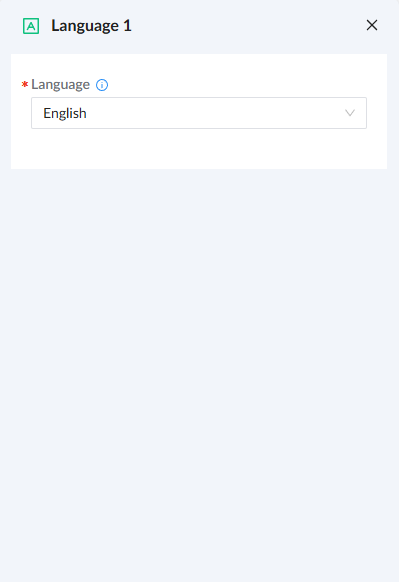
The Language component changes the language used by subsequent system prompts. Its priority is lower than the extension language setting; when the extension uses the default language, the language configured in this component is applied.
Record Audio
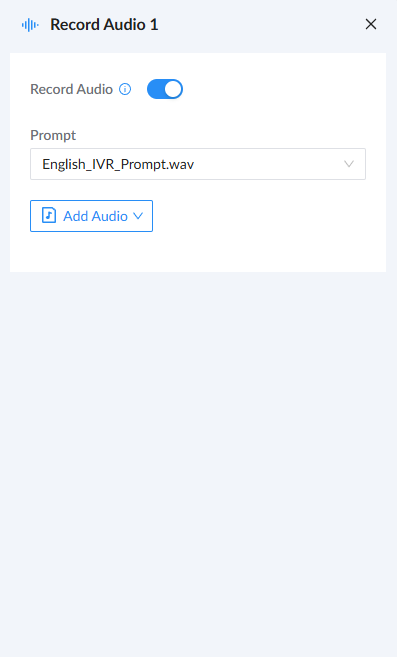
The Record Audio component controls call recording. A prompt can be played before or during recording to inform the parties that the call is being recorded. The component can also be used to disable recording for the call.
Dial By Number
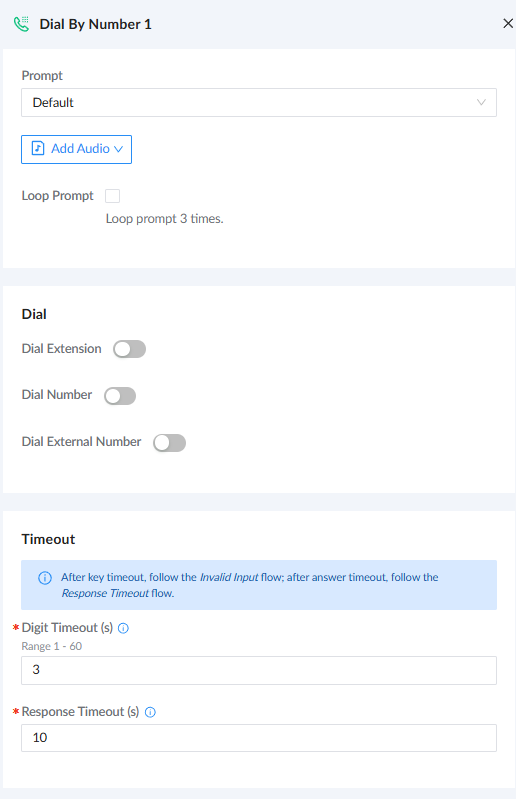
The Dial By Number component allows the caller to enter a number and be routed to an applicable destination. Extension dialing can be configured to allow all extensions, selected extensions, or all extensions except selected ones. Local service numbers and external numbers can also be configured.
Dial By Name
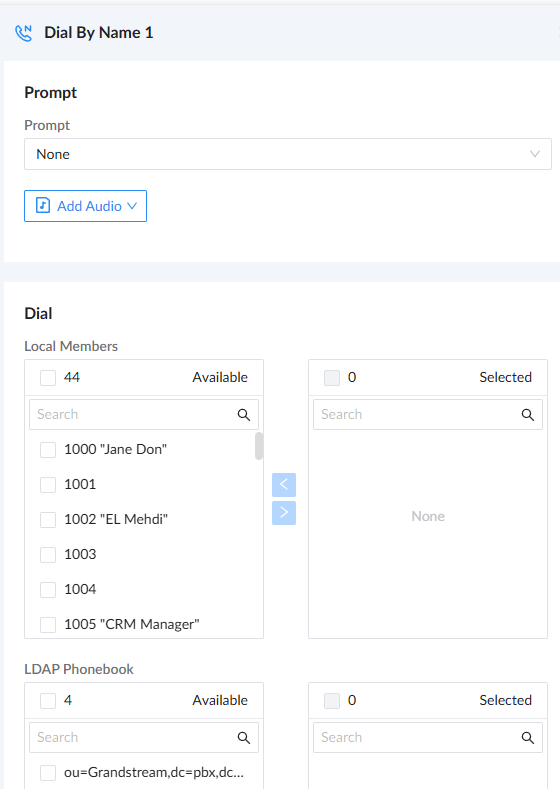
The Dial By Name component allows callers to search for and call a user by entering the first three letters of the user’s name. The component can be configured with a Prompt to guide the caller and supports dialing users from Local Members and configured LDAP Phonebooks. Administrators can select which local users or LDAP phonebook entries are available for dialing by moving them from the Available list to the Selected list.
Transfer
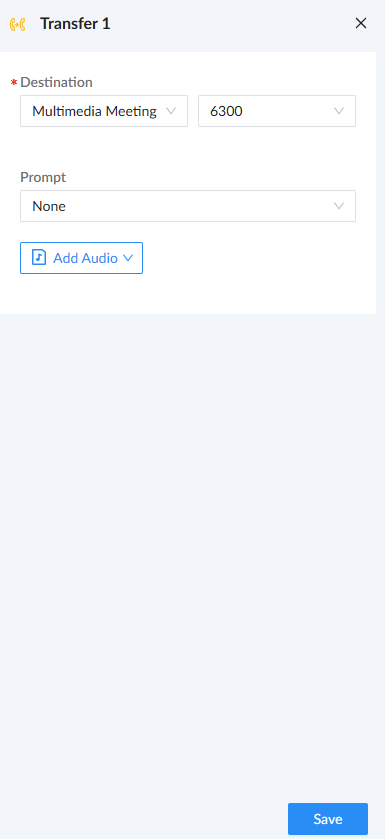
The Transfer component transfers the current call to a configured UCM destination. A prompt can be played before the transfer to notify the caller.
Hang Up
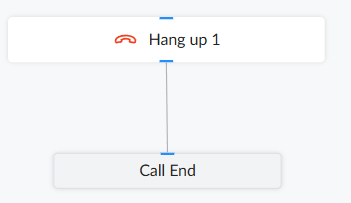
The Hang Up component terminates the current call when the caller reaches this point in the call flow. This component does not have any configuration options; simply add it to the flow wherever the call should be terminated
Condition
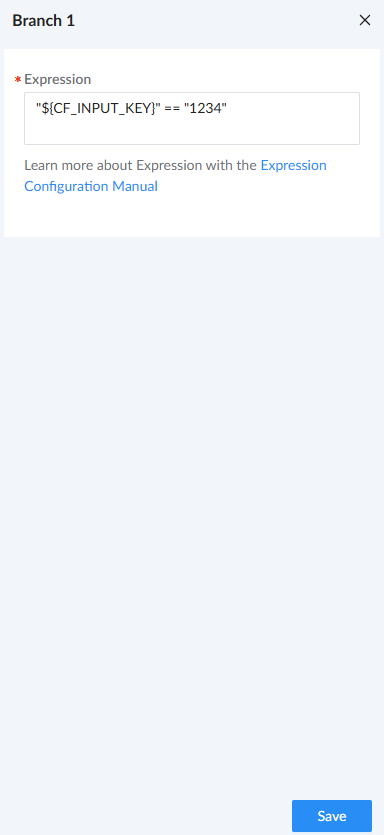
The Condition component evaluates expressions and routes the call through different branches according to the result. Multiple branches can be configured with different expressions.
Loop
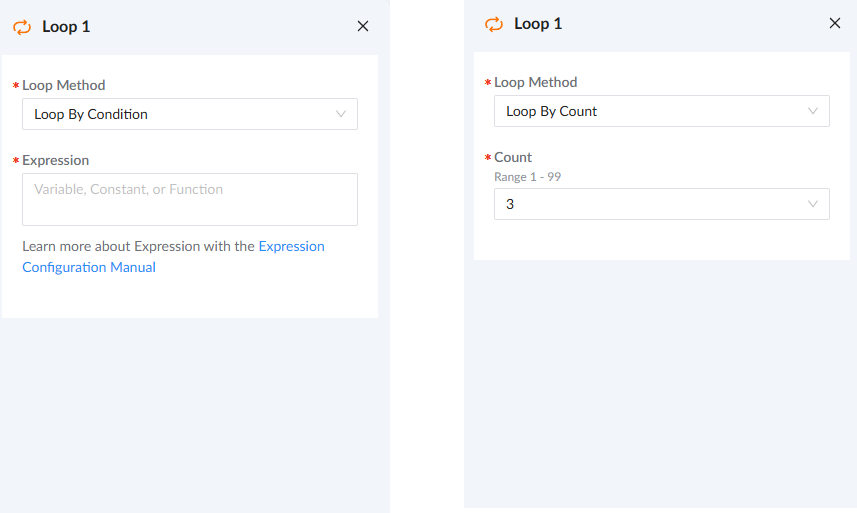
The Loop component repeats one or more components either for a fixed number of times or according to a configured condition. Components to be repeated can be added inside the Loop component.
Saving and Enabling the Call Flow
When the configuration is complete, click Save.
An incomplete configuration can be saved as a draft, but a draft cannot be enabled.
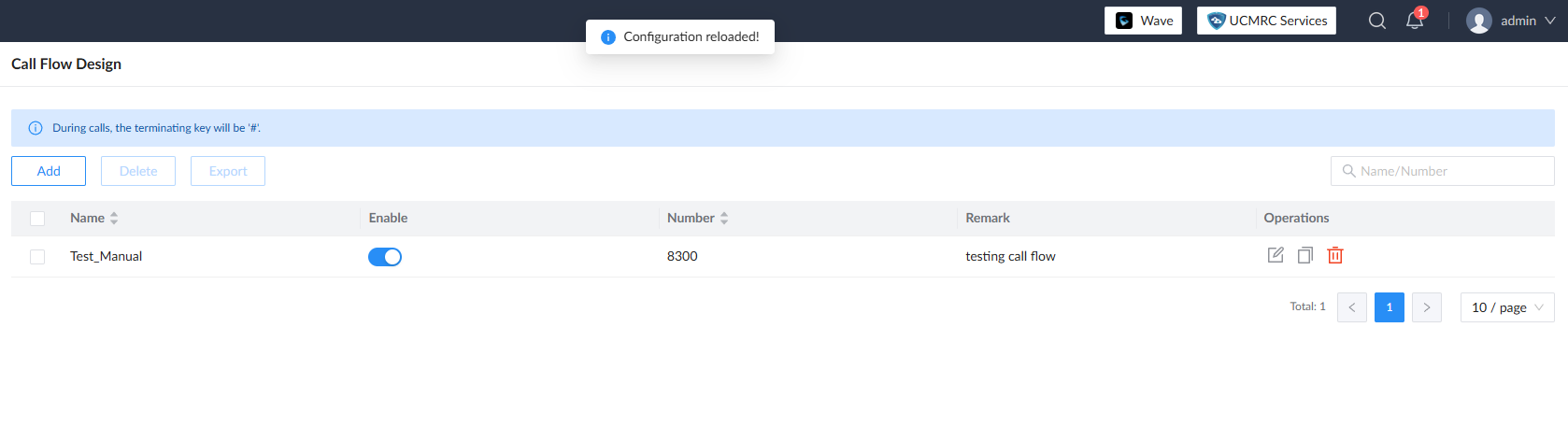
A completed call flow can be enabled from either:
- the Call Flow Design list; or
- the call-flow editing page.
When enabling from the editing page, click Enable and save the configuration.
Using a Call Flow with Other UCM Services
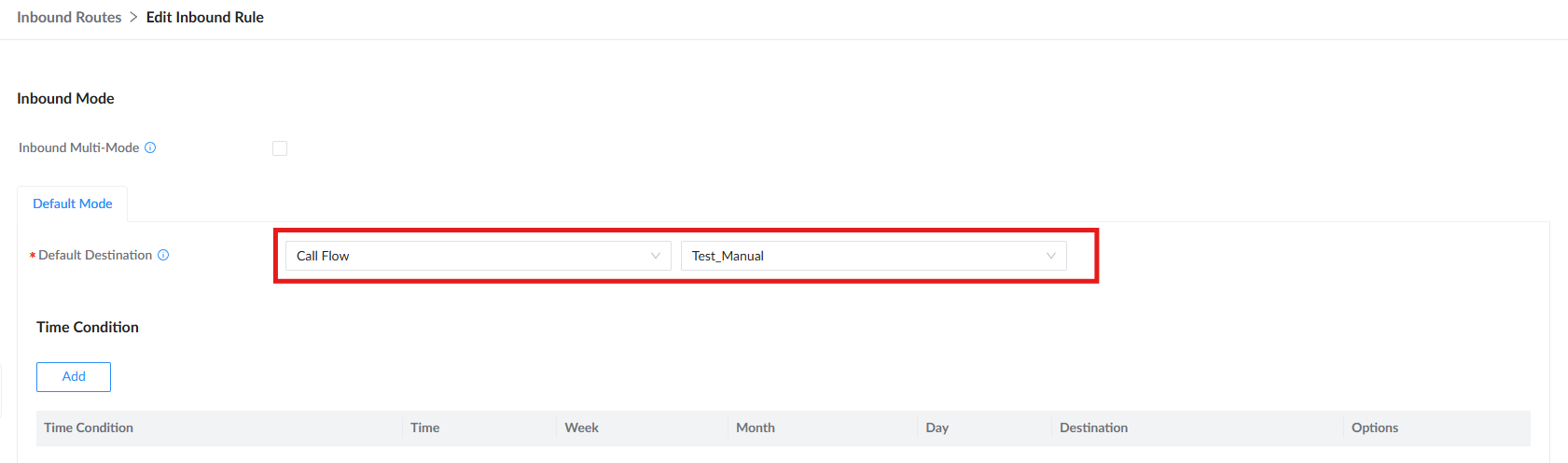
A call flow becomes part of the UC solution when it is assigned as the destination of another UCM service.
For example, in an Inbound Route, the Inbound Destination can be configured to use a Call Flow.
A typical deployment can therefore follow:
External Call → Inbound Route → Call Flow → IVR / Condition / Transfer → Final Destination
This approach allows administrators to use Call Flow Design as the logic layer between an incoming call and the final destination, making complex routing easier to organize and maintain.
Call Flow Management
Call flows can also be exported for reuse or backup.
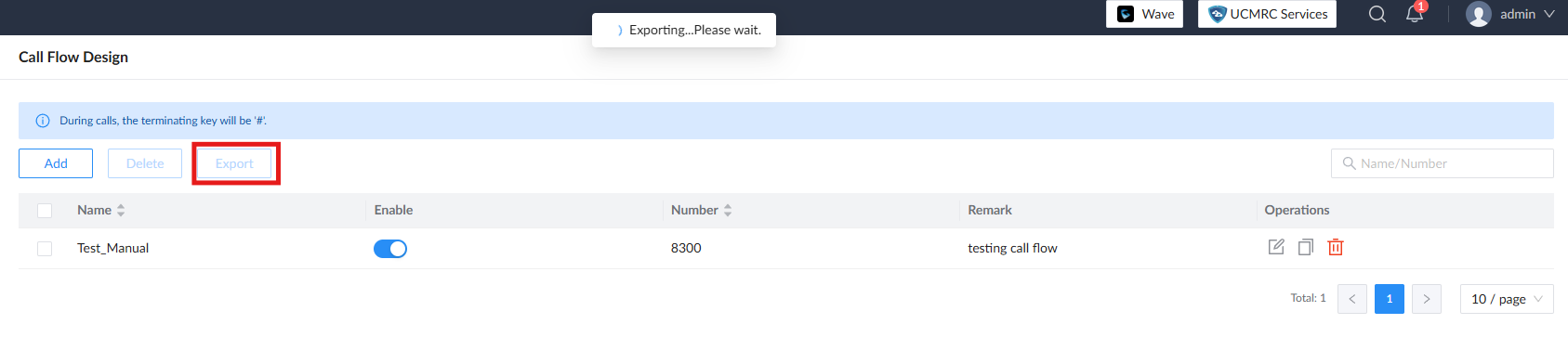
Select the required call flow(s) and click Export.
- Exporting one call flow produces a JSON file.
- Exporting multiple call flows produces a ZIP file containing the JSON files.
Appendix: Functions & Variables Reference
System & Call Flow Variables
These variables record channel attributes, user input, and state changes as callers progress through various components in the call flow:
| Variable | Description |
|---|---|
CALLFLOW_LANGUAGE | Language code configured for the current call flow (e.g., en, zh). |
CALLFLOW_NUMBER | Extension number assigned to the active call flow. |
CFRECORDING_PROMPT_FILE | Audio prompt file used for call recording notification. |
CFAUTORECORDING | Automatic call recording switch state (1 = enabled, 0 = disabled). |
CF_INPUT_KEY | DTMF digits entered by the caller during the preceding User Input component. |
CF_INPUT_STATUS | Status result of the preceding user input collection. |
CF_MENU_INPUT_KEY | DTMF key pressed by the caller during the preceding IVR Menu component. |
DIAL_NUMBERS_STATUS | Execution status of the preceding Dial By Number component. |
Examples:
"${CF_INPUT_KEY}" == "100"Checks whether the digits entered by the caller in the User Input component equal 100.
"${CF_MENU_INPUT_KEY}" == "1"Checks whether the key pressed during the IVR Menu prompt was 1.
"${CALLFLOW_LANGUAGE}" == "en"Checks whether the call flow’s current operating language is set to English.
Built-in Function Library
Caller ID, Blacklist & Call Screening
| Function | Syntax | Description |
|---|---|---|
| BLACKLIST | BLACKLIST() | Checks if the current caller’s number is on the global blacklist. Returns 1 (blacklisted) or 0 (not blacklisted). |
| CALLERID | CALLERID(datatype) | Retrieves Caller ID details on the channel. Supported datatypes: all, name, number, pres, ton. |
| CONNECTEDLINE | CONNECTEDLINE(datatype) | Retrieves connected party/destination line data. Supported datatypes: all, name, number, pres, ton, subaddr, tag. |
| INBOUND_BLACKLIST | INBOUND_BLACKLIST(pattern) | Checks if the specified number matches an inbound blacklist rule. Returns 1 or 0. |
| OUTBOUND_BLACKLIST | OUTBOUND_BLACKLIST(extension) | Checks if the specified extension/number is blocked on outbound routes. Returns 1 or 0. |
| BLACK_WHITE_LIST | BLACK_WHITE_LIST(context/extension) | Checks if an extension is listed in a specific black/white list context. Returns YES, NO, or OFF. |
| CODEBLUE_GROUP | CODEBLUE_GROUP(extension) | Checks if the specified extension belongs to a CodeBlue emergency group. Returns YES or NO. |
| STIR_SHAKEN | STIR_SHAKEN(index) | Retrieves STIR/SHAKEN caller identity attestation/verification data from channel headers. |
Examples:
"${BLACKLIST()}" == "1"Checks whether the incoming caller is listed in the global blacklist.
"${CALLERID(number)}" == "5003"Checks whether the caller ID number matches 5003.
"${CONNECTEDLINE(number)}" == "5004"Checks whether the connected destination extension is 5004.
"${INBOUND_BLACKLIST(${CALLERID(number)})}" == "1"Checks whether the current caller’s phone number matches the inbound blacklist rule.
"${OUTBOUND_BLACKLIST(${EXTEN})}" == "1"Checks whether the dialed destination number is blocked by outbound call restrictions.
"${BLACK_WHITE_LIST(pag-12450/2500)}" == "YES"Checks whether extension 2500 is authorized under the whitelist/blacklist context pag-12450.
"${CODEBLUE_GROUP(5001)}" == "YES"Checks whether extension 5001 is a member of the emergency CodeBlue broadcasting group.
"${STIR_SHAKEN(0)}" != ""Verifies whether the inbound call contains valid STIR/SHAKEN verification metadata.
Channels & Extension Status
| Function | Syntax | Description |
|---|---|---|
| CHANNEL | CHANNEL(item) | Retrieves channel metadata. Supported items: name, state, language, accountcode, context, exten, priority, channeltype, peername, callgroup, pickupgroup. |
| DEVICE_STATE | DEVICE_STATE(device) | Retrieves endpoint state. Returns NOT_INUSE, INUSE, BUSY, UNAVAILABLE, RINGING, or ONHOLD. |
| EXTENSION_STATE | EXTENSION_STATE(extension[@context]) | Gets extension status. Returns numeric state code: -1 (ERROR), 0 (NOT_INUSE), 1 (INUSE), 2 (BUSY), 4 (UNAVAILABLE), 8 (RINGING), 16 (RINGINUSE). |
| FEATURE | FEATURE(option_name) | Retrieves feature code settings applied to current channel (e.g., pickupexten). |
| PRESENCE_STATE | PRESENCE_STATE(provider[,field]) | Retrieves user presence state. Fields: state, subtype, message. |
| CDR | CDR(name) | Retrieves CDR variables (src, dst, billsec, disposition, userfield). Disposition returns NO ANSWER, ANSWERED, BUSY, or FAILED. |
Examples:
"${CHANNEL(state)}" == "Up"Checks whether the active call channel is currently answered and up.
"${DEVICE_STATE(PJSIP/5001)}" == "NOT_INUSE"Checks whether extension 5001 is currently available and idle.
"${EXTENSION_STATE(5001)}" == "0"Checks whether extension 5001 state code is 0 (NOT_INUSE).
"${FEATURE(pickupexten)}" == "*8"Checks whether the call pickup feature code assigned to this channel is *8.
"${PRESENCE_STATE(mystate,state)}" == "available"Checks whether the user presence state is reported as available.
"${CDR(disposition)}" == "ANSWERED"Evaluates whether the call disposition was recorded as answered.
Queues, Groups & Trunks
| Function | Syntax | Description |
|---|---|---|
| QUEUE_EXISTS | QUEUE_EXISTS([queue_extension]) | Checks if a queue exists on the PBX. Returns numeric integer 1 (exists) or 0 (does not exist). |
| QUEUE_WAITING_COUNT | QUEUE_WAITING_COUNT([ | Counts calls currently waiting in queue. Returns integer. |
| QUEUE_MEMBER | QUEUE_MEMBER( | Retrieves queue agent counts. Options: logged, free, count, penalty, paused. |
| QUEUE_MEMBER_COUNT | QUEUE_MEMBER_COUNT( | Returns total number of members configured in queue. Returns integer. |
| GROUP | GROUP([category]) | Retrieves group name assigned to current channel. |
| GROUP_COUNT | GROUP_COUNT([groupname][@category]) | Counts active concurrent calls assigned to group. Returns integer. |
| GROUP_MATCH_COUNT | GROUP_MATCH_COUNT(groupmatch[@category]) | Counts active channels across groups matching wildcard pattern. Returns integer. |
| GET_TRUNKS_STATE | GET_TRUNKS_STATE(id) | Retrieves registration state of trunk ID. Returns Registered, Unregistered, Rejected, Unreachable, or -1. |
| TRUNK_TIME_LIMITED | TRUNK_TIME_LIMITED(channel_name) | Checks whether trunk channel reached call duration limit. Returns 1 or 0. |
| OUTBOUND_TIME_LIMITED | OUTBOUND_TIME_LIMITED(outbound_index) | Checks whether outbound route reached configured call duration limit. Returns 1 or 0. |
Examples:
${QUEUE_EXISTS(6500)} == 1Checks whether queue extension 6500 is configured and exists on the PBX.
${QUEUE_WAITING_COUNT(6500)} < 3Checks whether fewer than 3 callers are currently waiting in queue 6500.
${QUEUE_MEMBER(6500,logged)} > 0Checks whether at least one agent is logged into queue 6500.
${QUEUE_MEMBER_COUNT(6500)} > 0Checks whether queue 6500 has members configured.
"${GROUP()}" == "sales"Checks whether the call channel belongs to the sales group.
${GROUP_COUNT(sales)} < 5Checks whether the sales call group has fewer than 5 active concurrent calls.
${GROUP_MATCH_COUNT(sales*)} > 0Checks whether any groups matching prefix sales* have active calls.
"${GET_TRUNKS_STATE(trunk-1)}" == "Registered"Checks whether SIP trunk trunk-1 registration status is Registered.
"${TRUNK_TIME_LIMITED(DAHDI/g6)}" == "1"Checks whether trunk channel DAHDI/g6 has reached its allowed call time limit.
"${OUTBOUND_TIME_LIMITED(1)}" == "1"Checks whether outbound route index 1 has reached its call duration threshold.
String Manipulation & Logic
| Function | Syntax | Description |
|---|---|---|
| LEN | LEN(string) | Returns total length of given string. Returns integer. |
| FILTER | FILTER(allowed-chars,string) | Filters string to include only allowed characters (supports ranges such as 0-9, a-z). |
| STRREPLACE | STRREPLACE(varname,find-string[,replace-string]) | Replaces instances of substring within string with replacement value (removes substring if omitted). |
| TOLOWER | TOLOWER(string) | Converts all letters in string to lowercase. |
| TOUPPER | TOUPPER(string) | Converts all letters in string to uppercase. |
| REGEX | REGEX("regular expression" string) | Evaluates string against regular expression. Returns 1 (matched) or 0 (not matched). |
| FIELDNUM | FIELDNUM(varname,delim,value) | Returns 1-based position of value in delimited list string (returns 0 if not found). |
| FIELDQTY | FIELDQTY(varname,delim) | Counts total number of fields in delimited list. Returns integer. |
| ISNULL | ISNULL(data) | Checks whether value or variable is NULL/empty. Returns 1 (empty/null) or 0 (not null). |
| RAND | RAND([min][,max]) | Generates random integer between minimum and maximum range (default min is 0). |
Examples:
${LEN(${CF_INPUT_KEY})} == 4Checks whether the DTMF input entered by the caller is exactly 4 digits long.
"${FILTER(0-9,${CF_INPUT_KEY})}" == "1234"Strips all non-digit characters from the input and checks if the result equals 1234.
"${STRREPLACE(CF_INPUT_KEY,*,)}" == "1001"Strips out any * character entered in user input and checks whether the remaining value equals 1001.
"${TOLOWER(${CF_INPUT_KEY})}" == "yes"Converts the variable value to lowercase and checks if it matches yes.
"${TOUPPER(${CF_INPUT_KEY})}" == "YES"Converts the variable value to uppercase and checks if it matches YES.
"${REGEX("^([0-9]{0,6})","${CALLERID(number)}")}" == "1"Uses regex to check whether caller ID number contains 0 to 6 numeric digits.
${FIELDNUM(CF_INPUT_KEY,-,99)} > 0Checks whether the entered input contains the code 99 in a hyphen-delimited sequence (for example, entering 10-99-45.
${FIELDQTY(CF_INPUT_KEY,*)} == 3Counts the number of segments in the caller’s entered input separated by an asterisk (for example, if a caller keys in 101*202*303, the function counts exactly 3 segments, evaluating to True).
"${ISNULL(${CF_INPUT_KEY})}" == "1"Checks whether caller input is empty or null.
${RAND(1,100)} < 50Generates a random number from 1 to 100 and checks if it is below 50.
Time Conditions (IFTIME)
| Function | Syntax | Description |
|---|---|---|
| IFTIME | IFTIME(timespec?true_value[:false_value]) | Evaluates time condition inline. Returns true_value when matched; otherwise returns false_value. |
| Field | Values | Description |
|---|---|---|
| Time Range | HH:MM-HH:MM or * | 24-hour format (e.g., 09:00-17:30; * = all day) |
| Day of Week | mon–sun or * | Days connected with hyphen (e.g., mon-fri; * = every day) |
| Day of Month | 1–31 or * | Dates connected with hyphen (e.g., 1-15; * = all dates) |
| Month | jan–dec or * | Months connected with hyphen (e.g., jan-mar; * = all year) |
Examples:
"${IFTIME(09:00-17:30|mon-fri|*|*?open:closed)}" == "open"Checks whether the call is received during standard office hours (Monday to Friday, 9:00 AM to 5:30 PM).
"${IFTIME(*|sat-sun|*|*?weekend:weekday)}" == "weekend"Checks whether the current call is occurring over the weekend.
"${IFTIME(18:00-08:59|*|*|*?night:day)}" == "night"Checks whether the call is received during after-hours night periods (6:00 PM to 8:59 AM).
"${IFTIME(*|*|*|dec?holiday:regular)}" == "holiday"Checks whether the call is occurring during the month of December.
Call Features & System Info
| Function | Syntax | Description & Return |
|---|---|---|
| CONFBRIDGE_INFO | CONFBRIDGE_INFO(type,conf) | Retrieves conference statistics. Types: parties, locked, marked, admins. |
| CONFBRIDGE_SFU_INFO | CONFBRIDGE_SFU_INFO(type,conf) | Gets user role in SFU video meetings. Returns admin or nonadmin. |
| CONFBRIDGE_IM_INFO | CONFBRIDGE_IM_INFO(type,conf) | Retrieves instant messaging group ID associated with conference room. |
| CONFBRIDGE_EARLY_JOIN | CONFBRIDGE_EARLY_JOIN(type[,datastr],conf) | Validates scheduled meeting early-join access. Types: password, bookid, earlyinfo. |
| CONFBRIDGE_SCHEDULE_CHECK_ROLE | CONFBRIDGE_SCHEDULE_CHECK_ROLE(type,dataval,conf) | Checks user role in scheduled meeting reservation. Returns admin, participant, or unknow. |
| CONFBRIDGE_USER_TERMINAL_TYPE | CONFBRIDGE_USER_TERMINAL_TYPE(type) | Checks conference participant terminal type. Returns waveapp, webrtc, or others. |
| MAILBOX_EXISTS | MAILBOX_EXISTS(mailbox[@context]) | Verifies whether specified voicemail box exists. Returns 1 (configured) or 0 (not configured). |
| VMCOUNT | VMCOUNT(vmbox[,folder]) | Counts voicemail messages in mailbox folder (default is INBOX). Returns integer. |
| PARK_GET_CHANNEL | PARK_GET_CHANNEL(parking_space,parking_lot) | Retrieves channel name parked at specified parking slot (returns empty string if vacant). |
| SYSINFO | SYSINFO(parameter) | Returns system metrics: loadavg, numcalls, uptime, totalram, freeram, bufferram, totalswap, freeswap, numprocs. |
| IAXPEER | IAXPEER(peername[,item]) | Retrieves IAX peer settings. Items: ip, status, mailbox. |
Examples:
${CONFBRIDGE_INFO(parties,myconf)} > 5Checks whether more than 5 participants are currently in conference room myconf.
"${CONFBRIDGE_SFU_INFO(role,myconf)}" == "admin"Checks whether the participant holds an admin role in the SFU video meeting.
"${CONFBRIDGE_IM_INFO(groupid,myconf)}" != ""Checks whether conference myconf has an associated instant messaging group configured.
"${CONFBRIDGE_EARLY_JOIN(password,1234,myconf)}" == "admin"Verifies whether PIN 1234 provides admin early-join access to the scheduled meeting.
"${CONFBRIDGE_SCHEDULE_CHECK_ROLE(role,,myconf)}" == "admin"Checks scheduled reservation data in PBX database to verify if user has admin privileges.
"${CONFBRIDGE_USER_TERMINAL_TYPE(terminal)}" == "waveapp"Checks whether the conference caller is dialing in via the Grandstream Wave app.
"${MAILBOX_EXISTS(5001@default)}" == "1"Checks whether voicemail box 5001 exists under the default context.
${VMCOUNT(5001)} > 0Checks whether mailbox 5001 has one or more unread voicemail messages.
"${PARK_GET_CHANNEL(701,default)}" != ""Checks whether parking slot 701 in the default parking lot currently holds a parked call.
${SYSINFO(numcalls)} < 10Checks whether active system call load is currently under 10 concurrent calls.
"${IAXPEER(iaxy,ip)}" == "192.168.1.100"Checks whether IAX trunk peer iaxy IP address matches 192.168.1.100.
Supported Devices
Models | Firmware Required |
UCM630x Series | 1.0.35.8+ |
UCM630xA Series | 1.0.35.8+ |