

Overview
GRP Click2Dial is a lightweight web browser extension which integrates with Grandstream GRP260x series seamlessly. It allows users to log in GRP260x via its IP address to click-to-dial, search for contacts, make calls and answer calls quickly. The GRP Click2Dial add-on helps reduce manual operations on the physical phone, improves work productivity and efficiency.
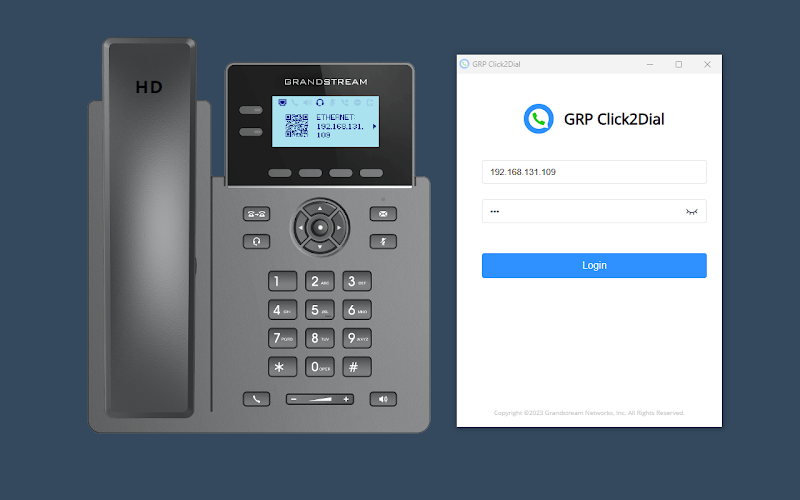
Some of the highlighted features are:
- Access GRP260x for click-to-dial from web browser.
- Click to call phone numbers from any web pages.
- Search contacts by name, phone number or email, view presence status and make calls.
- Incoming call pop-up notifications.
- Diverse call functions: call establishment, hangup, call hold and resume, line selection, etc.
Install Click2Dial Extension
Grandstream GRP260x IP phones support Click2Dial Add-in on various web browsers.
Here are the Add-in links for each web browser:
The steps to install Click2Dial Extension are shown below:
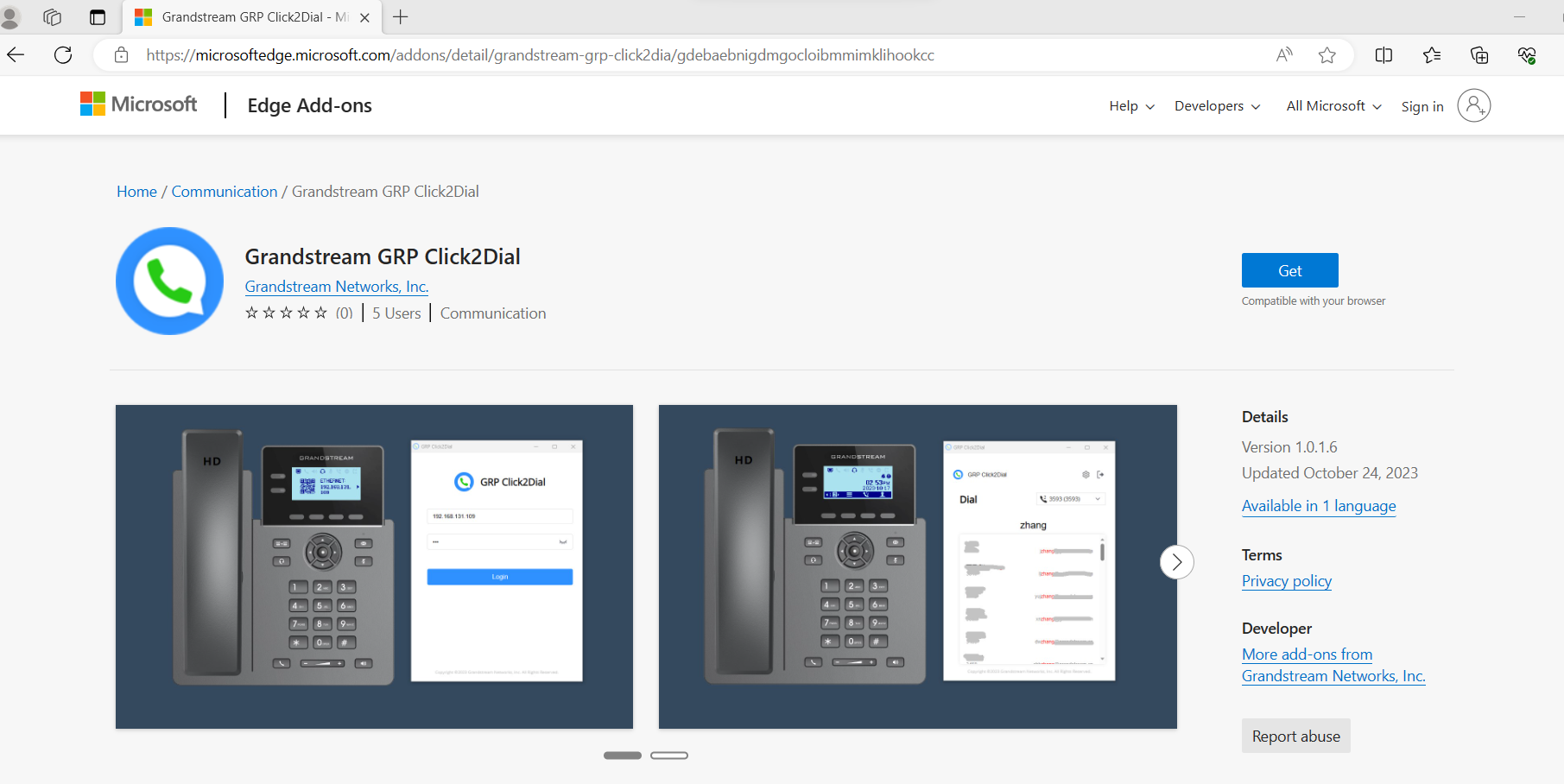
1. Click one of the link above for the Grandstream GRP Click2Dial Add-on for your browser.
(E.g.,Edge: https://microsoftedge.microsoft.com/addons/detail/grandstream-grp-click2dia/gdebaebnigdmgocloibmmimklihookcc)
2. Click the “Get” button on the web page.
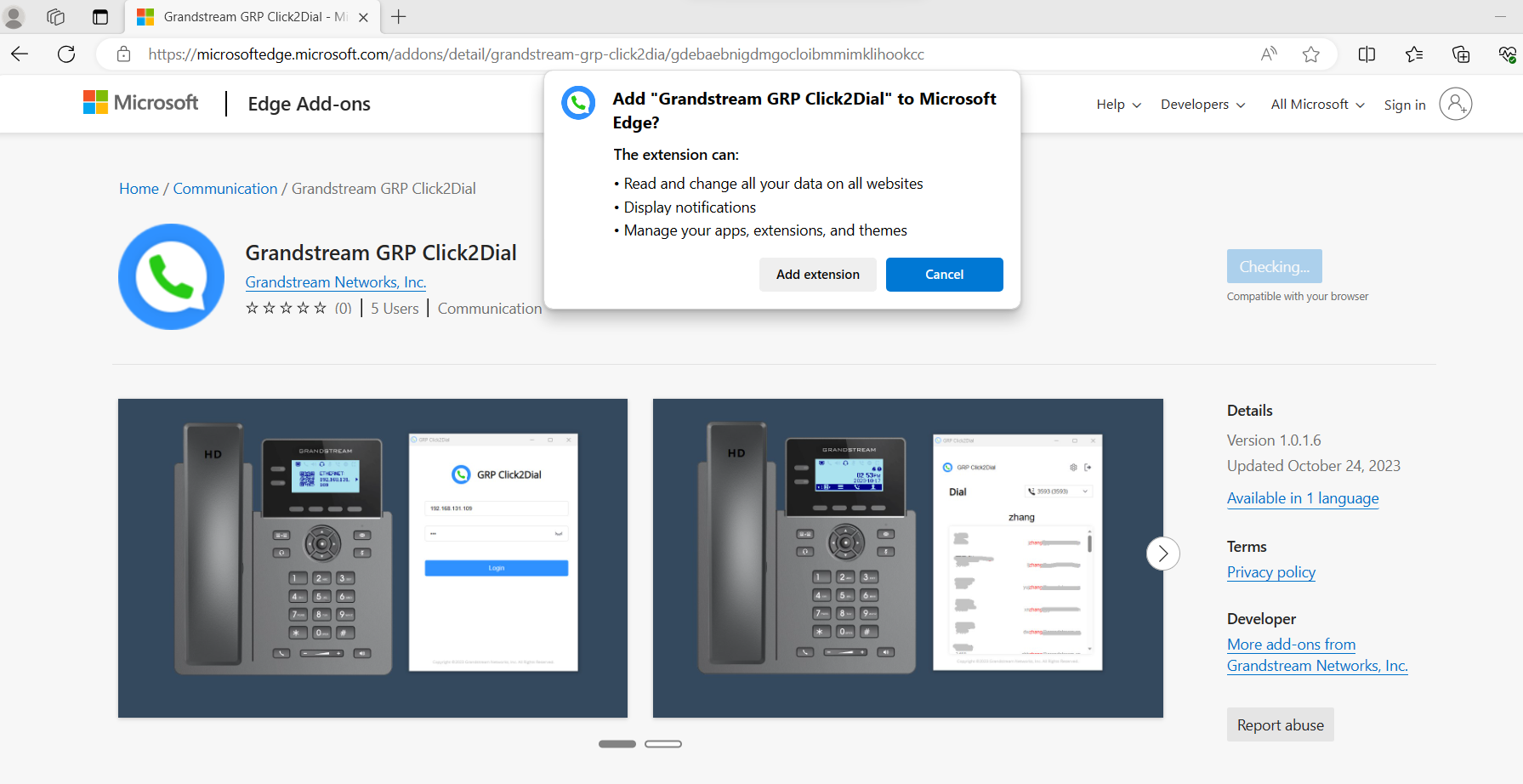
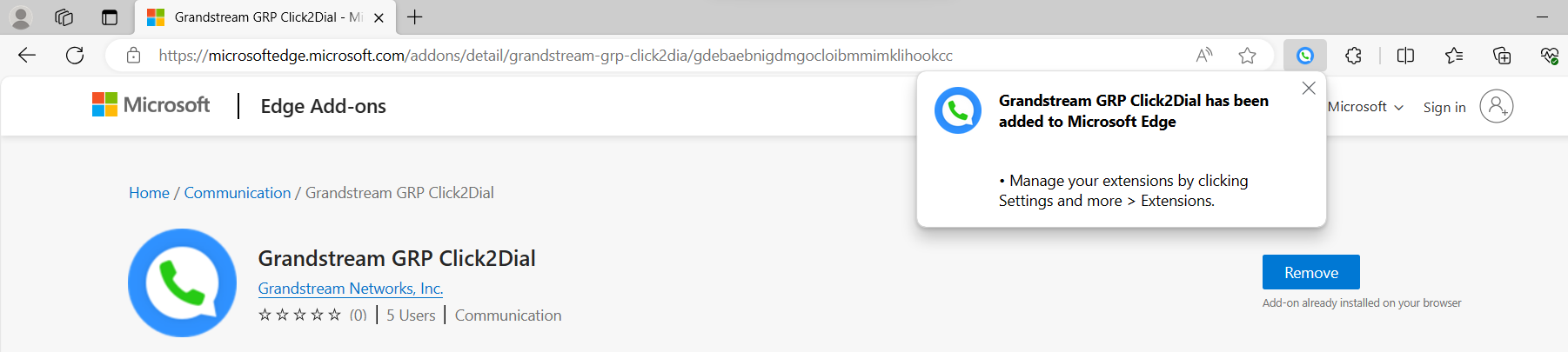
3. Click “Add extension” on the prompt to install the extension successfully.
Click2Dial Extension Usage
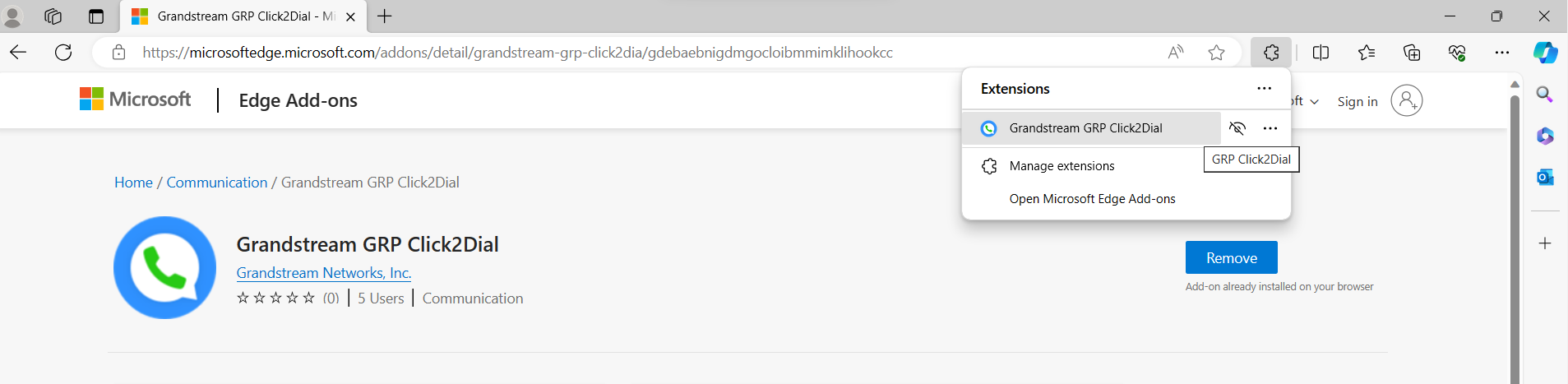
- Click the Click2Dial Add-on button on your web browser toolbar and select “Grandstream GRP Click2Dial”.
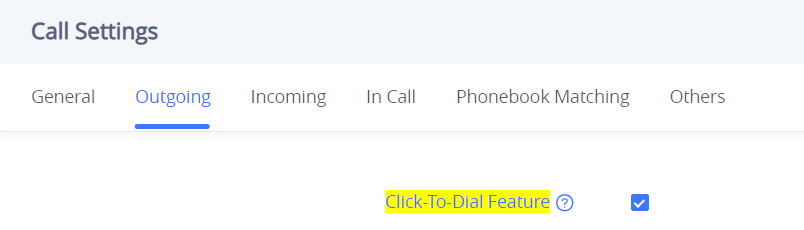
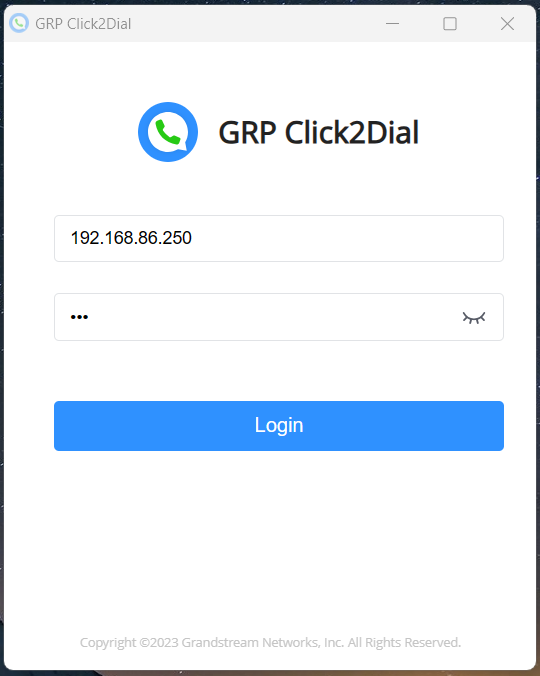
- On the prompt, fill out the GRP260x’s IP address and user password (Default user password is 123).
- After successfully logging in, users can use this app to dial. Just input the number and click “Call”.
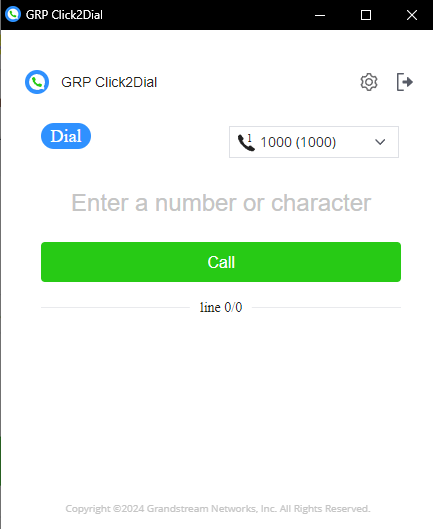
- After the call is established, users can hold/resume, and end the call from the app.
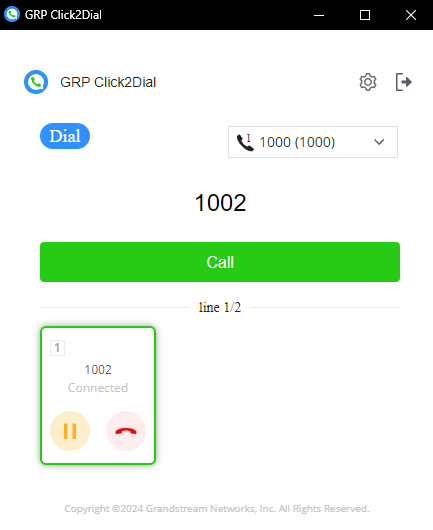
Available features
Outgoing calls
- Click to call phone numbers or contacts names from any web page.
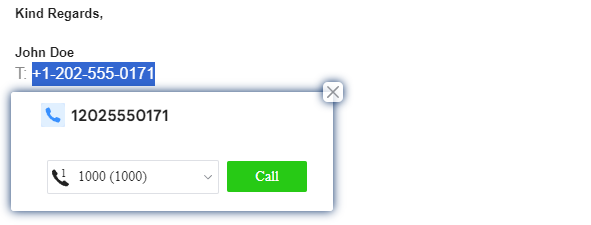
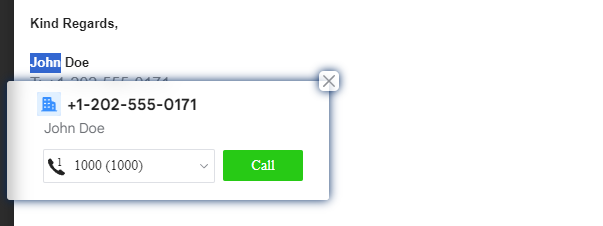
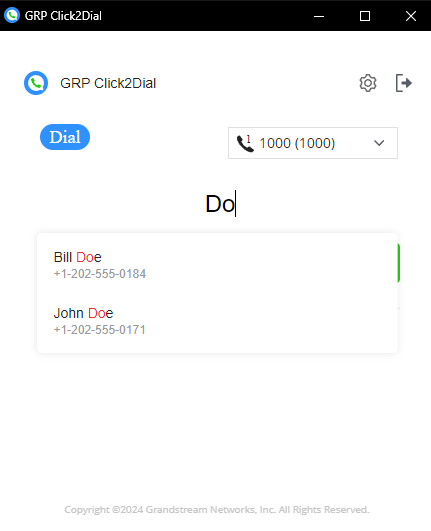
- If the name you select has multiple entries in your phonebook, the click2dial app window will display an arrow for you to select the desirable one.

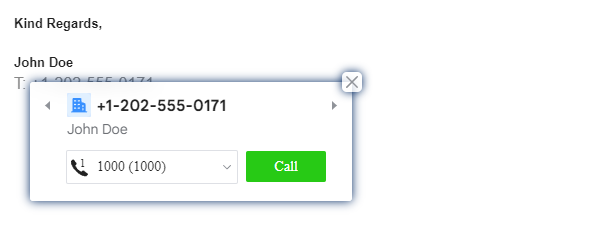
- Search contacts by name, phone number or email, view presence status and make calls.
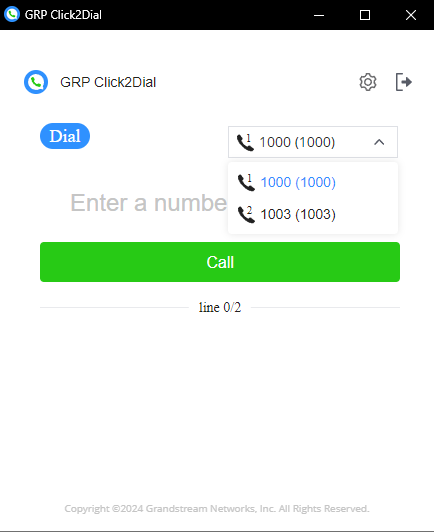
- If the GRP260x has multiple registered accounts, users can choose which account they want to use for the call directly from the app page.
- When there are multiple ongoing calls, the app page will be displayed as shown below:
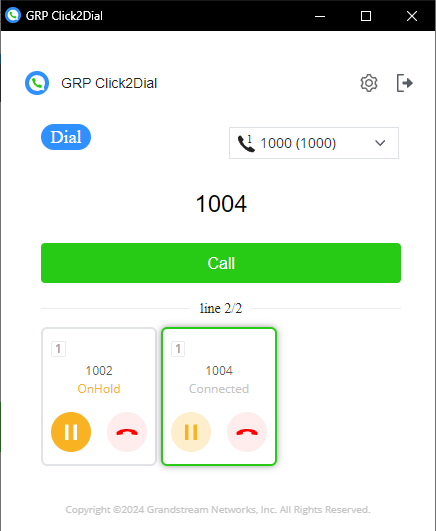
(Account 2 is on hold, Account 1 is connected.)
Incoming call
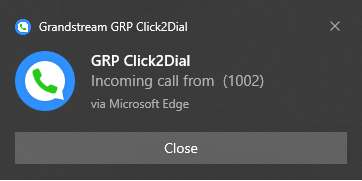
- Incoming call pop-up notifications.
When there is an incoming call, the web page will pops up a window to remind the user.
Meeting
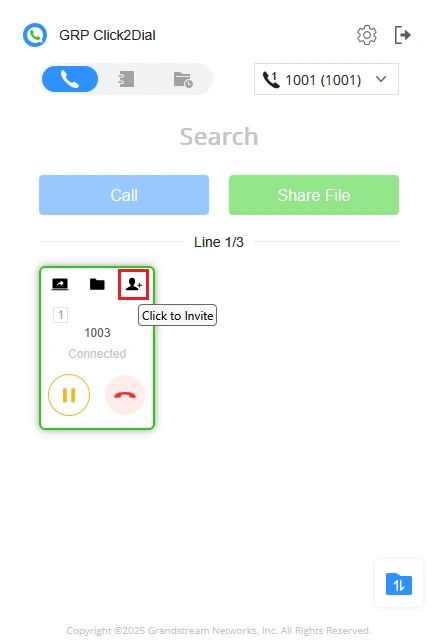
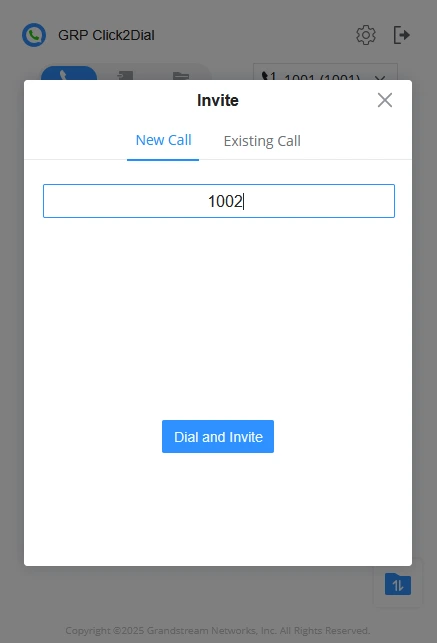
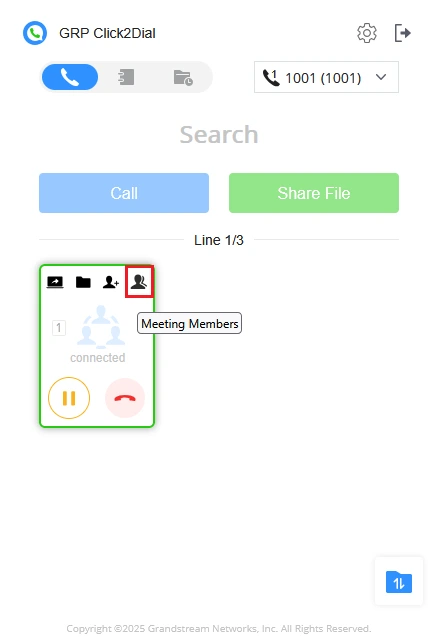
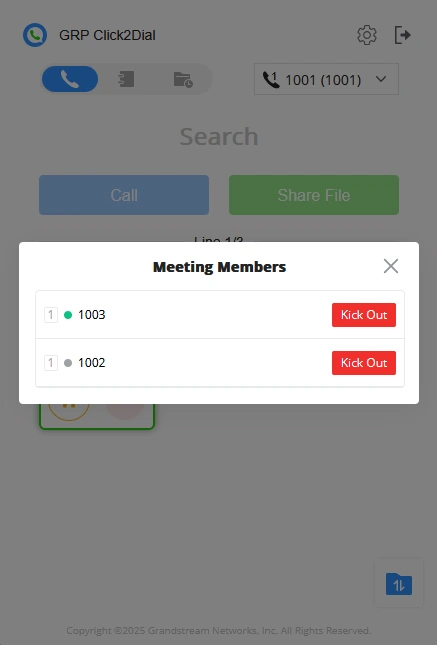
During active calls users can seamlessly invite additional participants using the Click2Dial extension to create a conference session with up to 5 total members (1 initiator + 4 additional participants).
- While in call, click on the invite icon shown below.
- Enter the target extension and select “Dial and Invite“.
- After establishing the conference, press on “Meeting Members” to view all participants and manage attendance by removing members as needed.
File Sharing
The Click2Dial extension enables seamless file transfer during calls which can be performed by following the steps below:
- During an active call, press the “Share File” button.
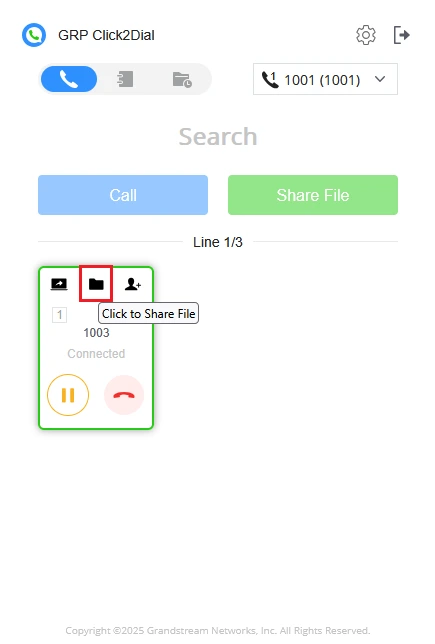
- After selecting your file, the recipient will be prompted to accept or decline the transfer. The file will only be sent upon their confirmation.
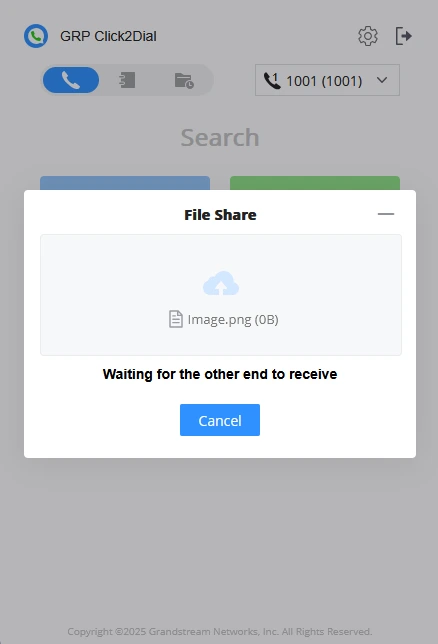
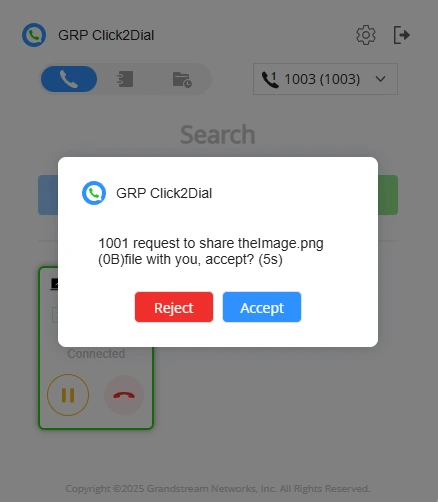
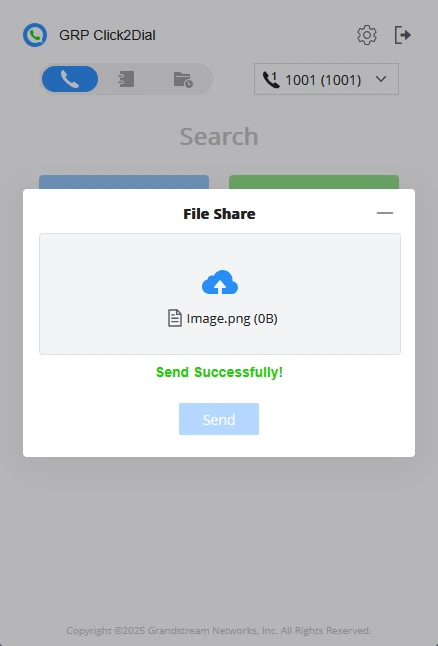
- Once the recipient approves the transfer, the sender will be notified that the file has been delivered.
Screen Sharing
Screen sharing can be initiated during active calls to enable visual collaboration. The feature is designed to support live presentation of a specific window or screen.
- The “Share Screen” option is selected from the interface during a call.
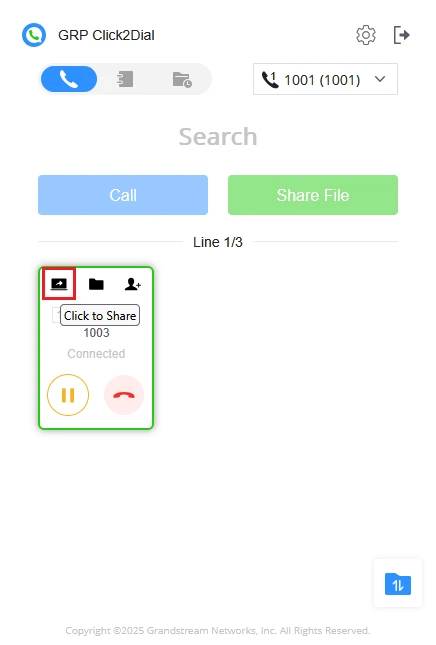
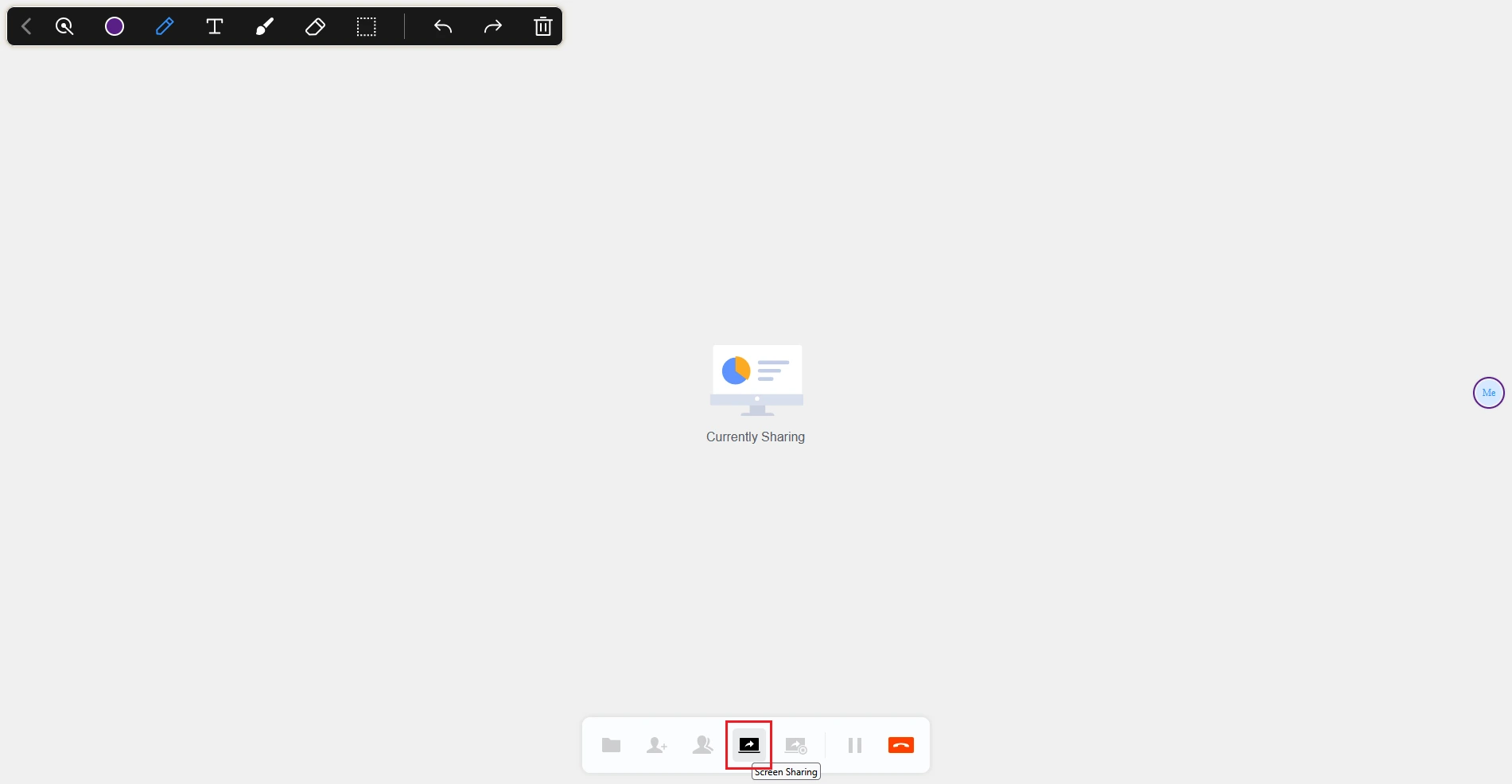
- Once the screen sharing button is selected, a sharing mode is chosen from the available options. (Window, Screen)
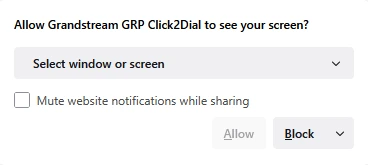
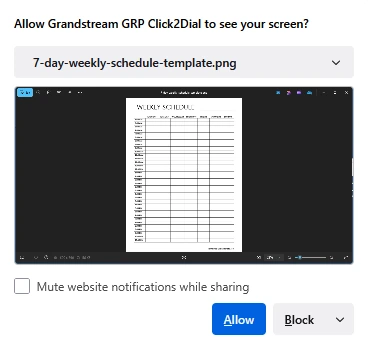
- The recipient is prompted to accept or decline the screen sharing invitation.
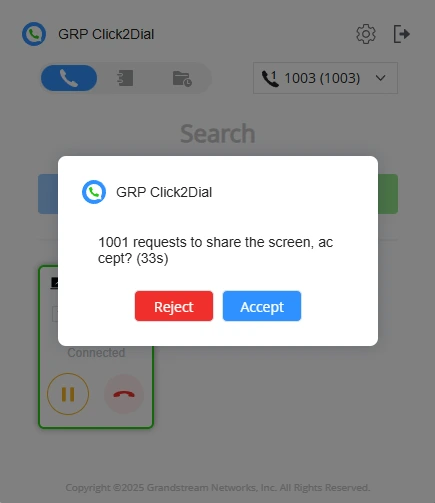
- During the sharing session, participants can use the provided tools to add annotations to the shared content. The presenter has the option to enable or restrict annotation permissions for other members, as well as choose whether to display the annotator’s name or identifier.

Supported Devices
Device Name | Click2Dial Support | Share Features Support |
GRP2601 | 1.0.5.25 or higher | 1.0.7.10 or higher |
GRP2601W | 1.0.5.25 or higher | 1.0.7.10 or higher |
GRP2601P | 1.0.5.25 or higher | 1.0.7.10 or higher |
GRP2602 | 1.0.5.25 or higher | 1.0.7.10 or higher |
GRP2602W | 1.0.5.25 or higher | 1.0.7.10 or higher |
GRP2602G | 1.0.5.25 or higher | 1.0.7.10 or higher |
GRP2602P | 1.0.5.25 or higher | 1.0.7.10 or higher |
GRP2603 | 1.0.5.25 or higher | 1.0.7.10 or higher |
GRP2603P | 1.0.5.25 or higher | 1.0.7.10 or higher |
GRP2604 | 1.0.5.25 or higher | 1.0.7.10 or higher |
GRP2604P | 1.0.5.25 or higher | 1.0.7.10 or higher |
Click2Dial Supported