


Introduction
The GSC35xx Zone Music system is a solution designed for seamless audio distribution across multiple devices within a local area network . This guide provides step-by-step instructions for configuring and managing zone-based music playback. It covers Zone Manager setup, device management, zone configuration, and playback settings. Follow these instructions to optimize your audio streaming experience using the GSC35xx system.
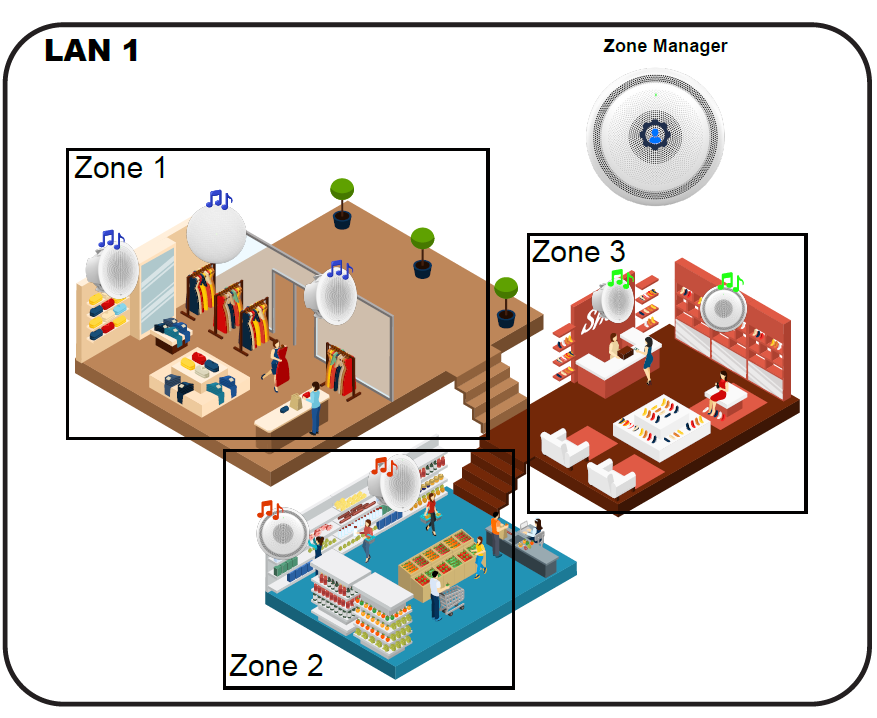
1. Setting Up the Zone Manager
Enable Zone Manager Mode
- Navigate to the GSC35xx Web UI.
- Go to Application > Zone Music > Zone Manager Setting.
- Select Zone Manager to enable the feature.
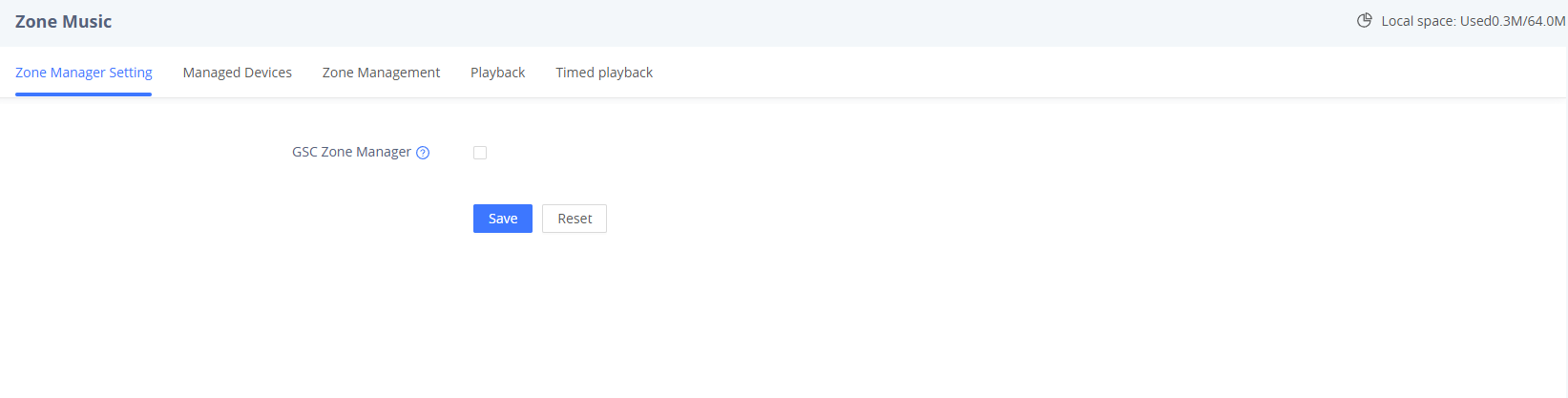
- A confirmation message will appear, indicating a successful setup.

2. Managing Devices
Add and Manage Devices
- Open the Managed Devices page.
- Add new devices or manage existing ones.
- The page will display all managed devices, including their status and details.
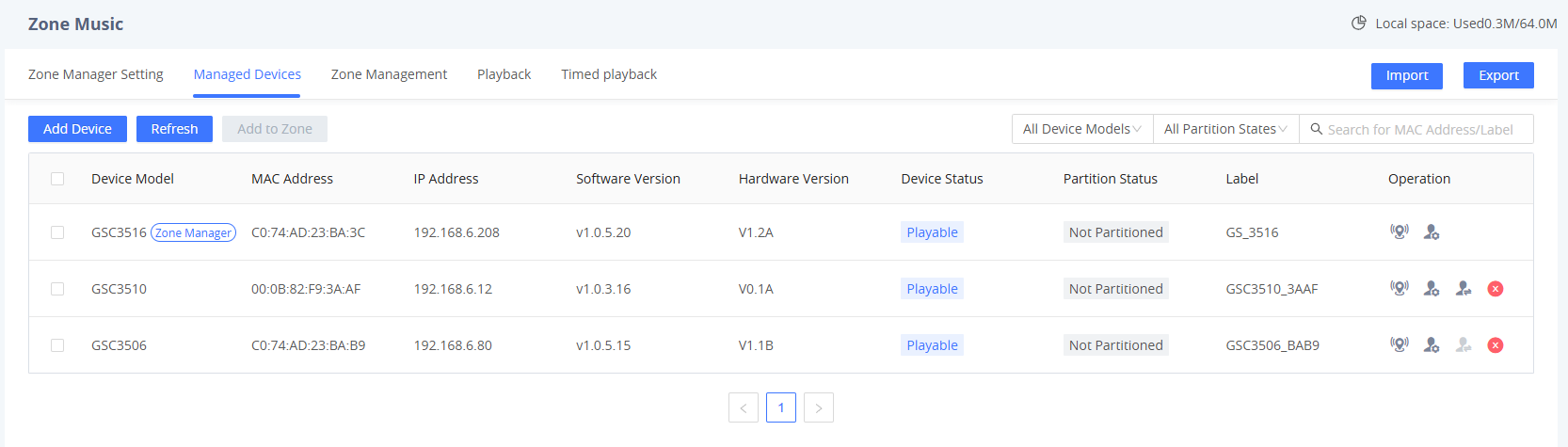
- To add a new device:
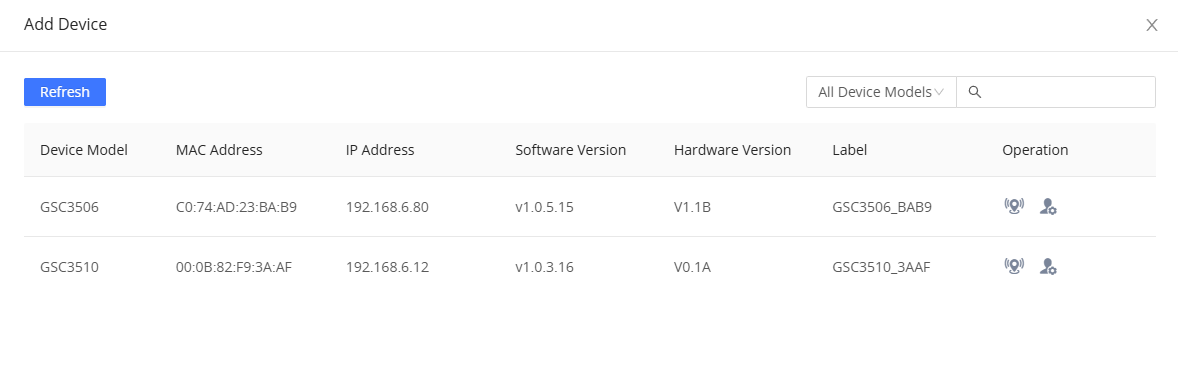
- Click Add Device.
- Select from the list of online, unmanaged devices in the LAN.
- Devices that are already managed or offline will not appear in this list.
Configuring Device Management
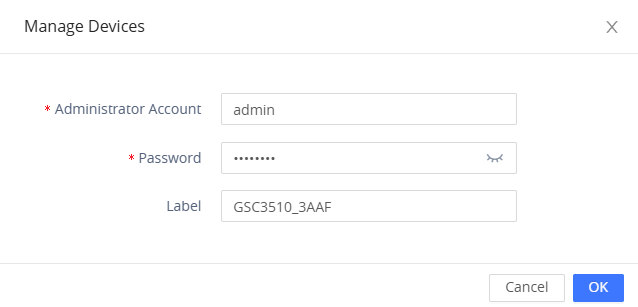
- Click Manage Devices to log in with the administrator credentials.
- Rename devices for easier identification.
- Use the Locate function
 to flash indicator lights and play location sounds.
 to flash indicator lights and play location sounds.
- Successfully managed devices will appear in the system table.
Device Status Indicators
- Playable – The device is online and ready for music playback.
- Not Found – The device is offline or unavailable.
Partition Status Indicators
- Partitioned – The device is assigned to a specific zone.
- Not Partitioned – The device has not been assigned to a zone.
Additional Device Management Options
- Modify Labels: Click Manage Devices
 to rename a device.
 to rename a device.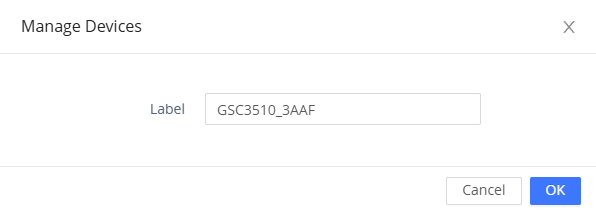
- Transfer Zone Manager: Click Transfer
 to assign Zone Manager privileges to another device.
 - Remove Device: Click Delete Device
 to unmanage a device (re-adding will be required for future management).
 to assign Zone Manager privileges to another device.
 to unmanage a device (re-adding will be required for future management).
3. Configuring Zones
Adding and Managing Zones
- Click Add to create a new zone.
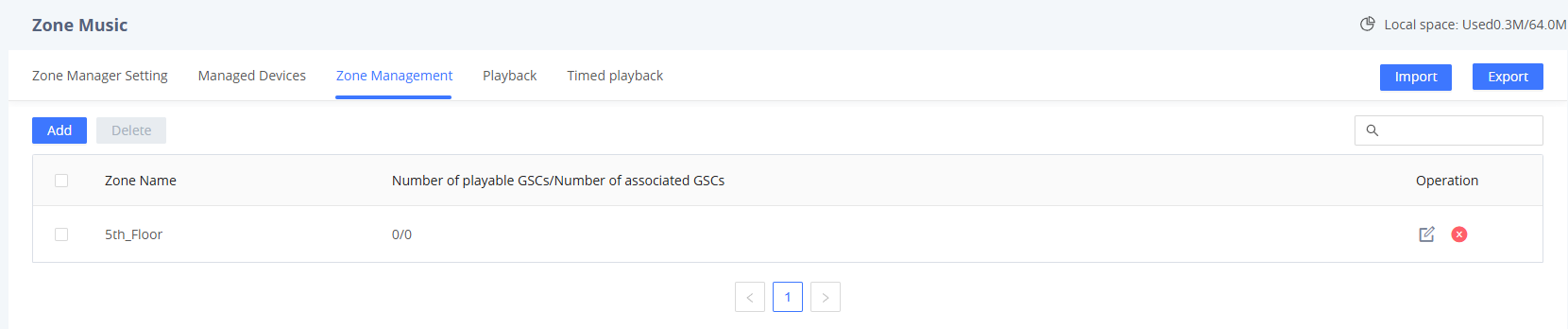
- Assign a Zone Name.
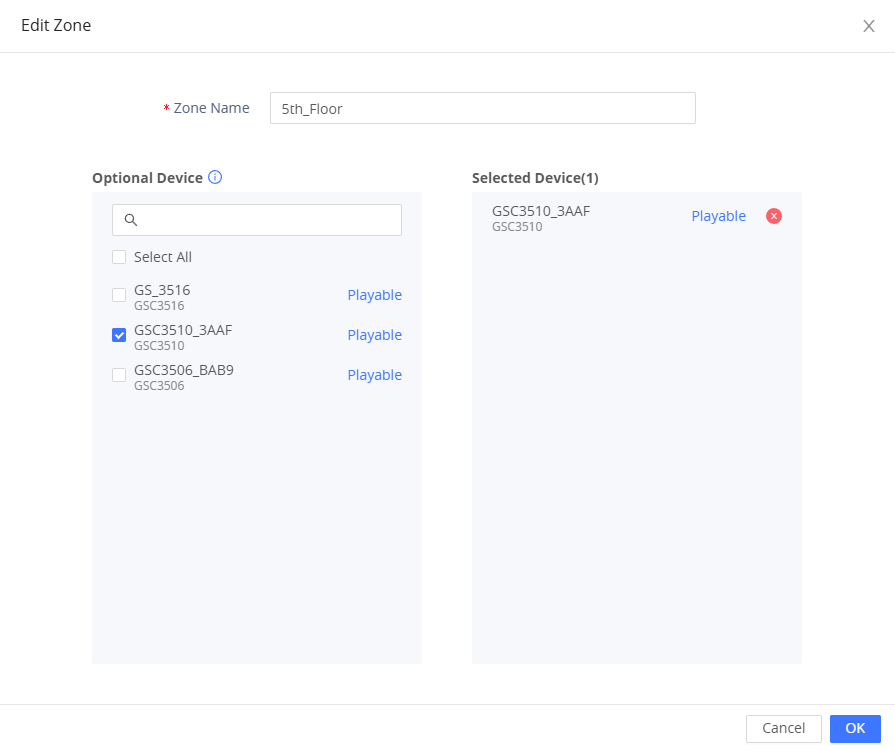
- Select from the Optional Devices list (only managed and unpartitioned devices will be available).
- Once added, the zone will appear in the management table.
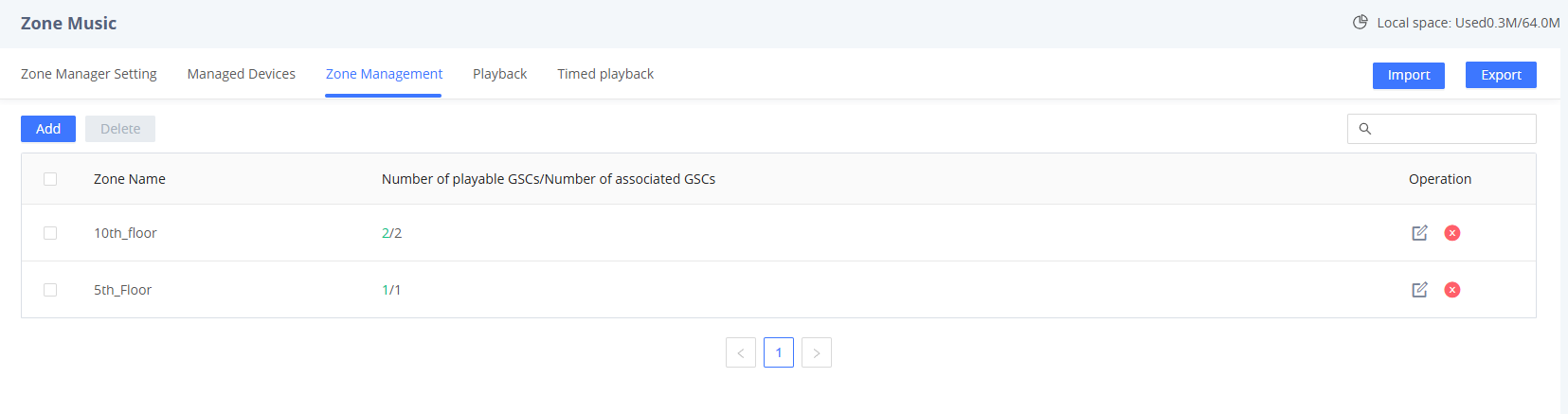
Key Zone Attributes
- Number of Playable GSCs: Indicates the count of online and playable devices within the zone.
- Number of Associated GSCs: Reflects the total number of devices assigned to the zone.
Zone Management Options
- Edit Zone: Modify zone names and device assignments.
- Delete Zone: Removes the zone, but does not unmanage the devices.
4. Music Playback Configuration
Selecting Zones/Devices for Playback
Music playback can be performed in real-time or scheduled at predefined intervals.
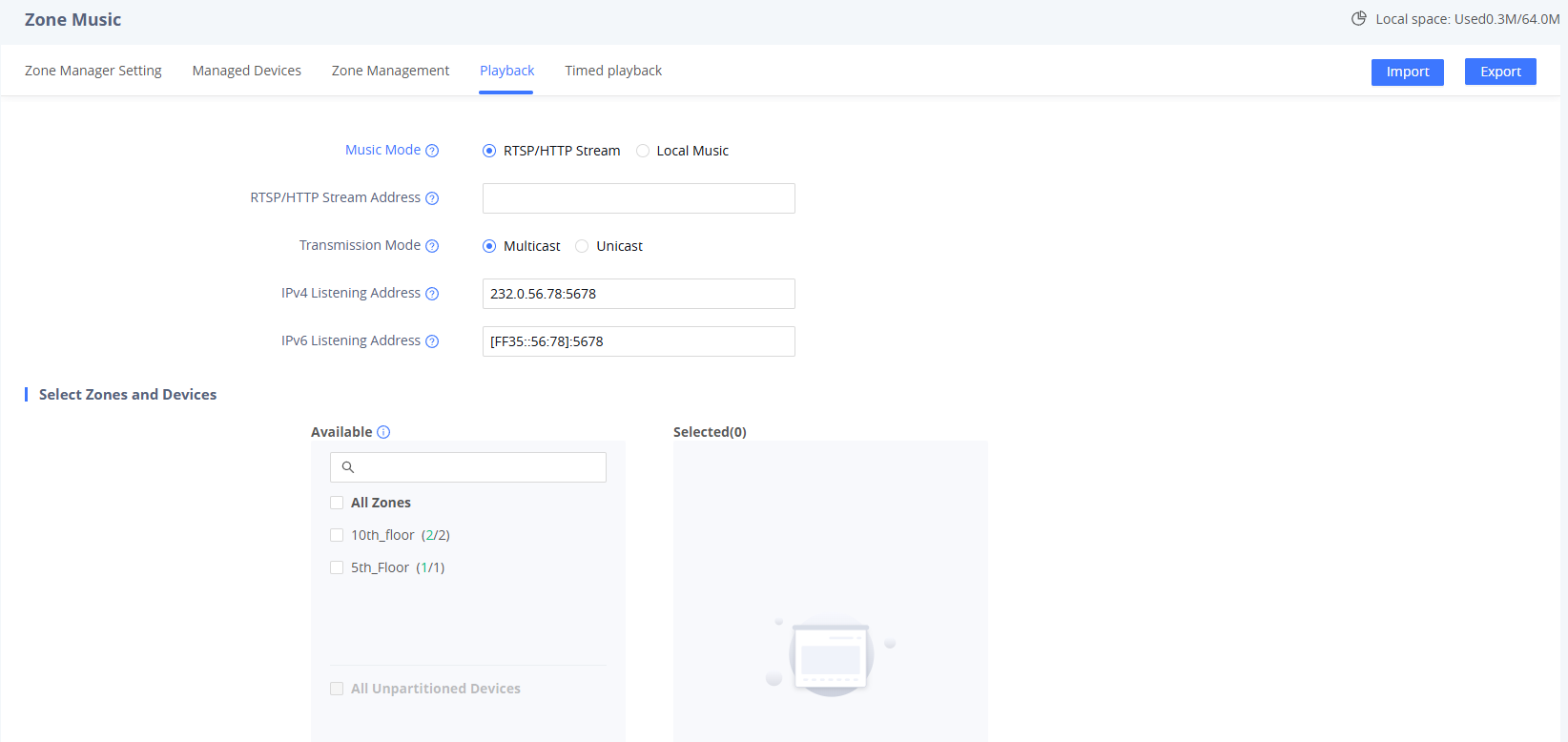
Playback Options
Choose a Music Source:
- RTSP/HTTP Stream: Use an external streaming source.

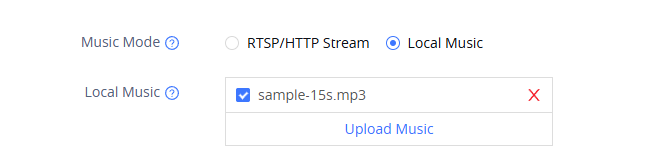
- Local Music: Upload audio files based on available device memory.
- Select an Audio Transmission Mode:
- Multicast (UDP): Requires IPv4/IPv6 addresses for network streaming.
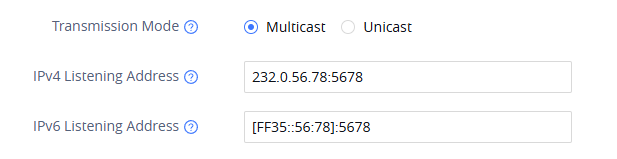
- Unicast (TCP): Recommended when multicast performance is insufficient (supports up to 20 devices).

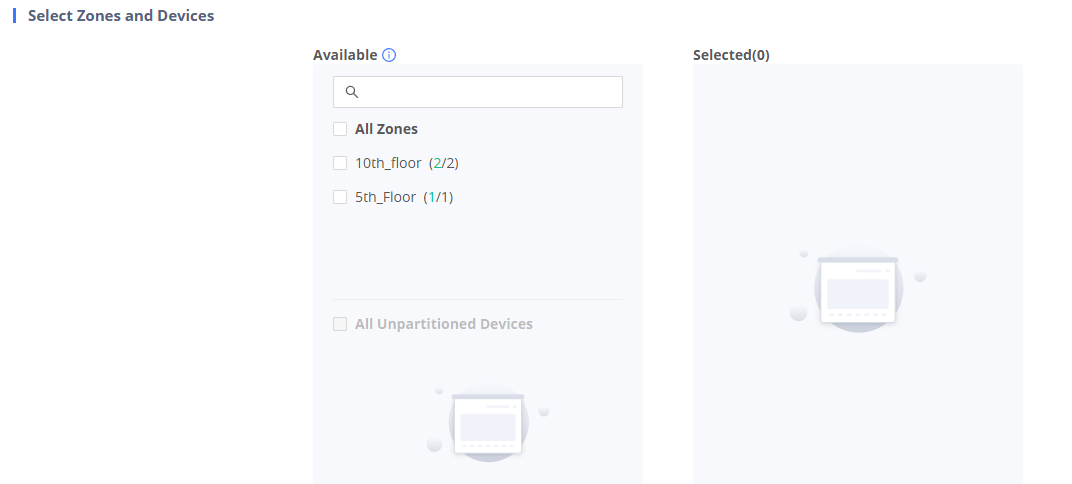
- Select Target Zones/Devices:
- Multiple zones and standalone devices can be selected simultaneously.
- Devices in Not Found status will not play audio, even if selected.
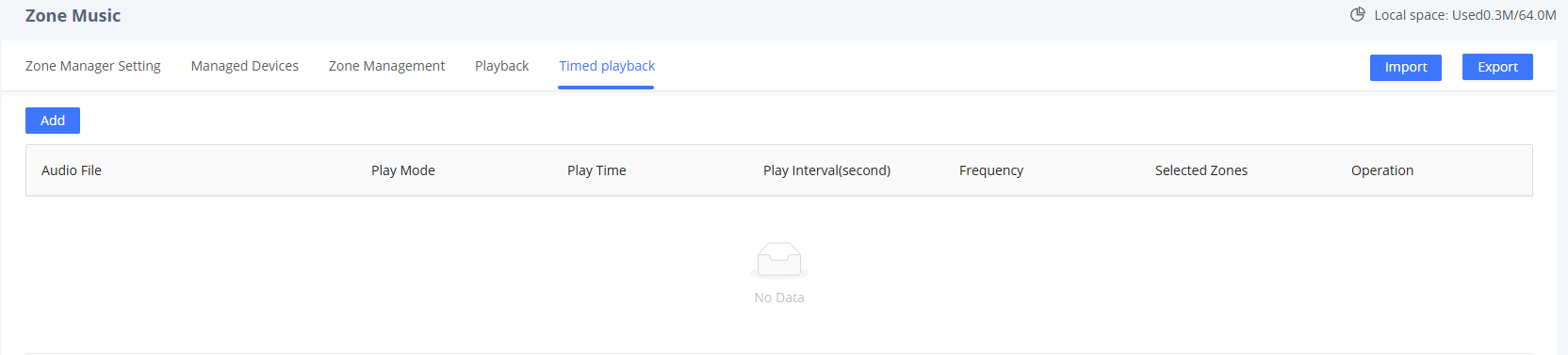
Timed Playback Configuration
- Click Add to create a scheduled playback rule.
- Select the Music Mode and Transmission Mode.
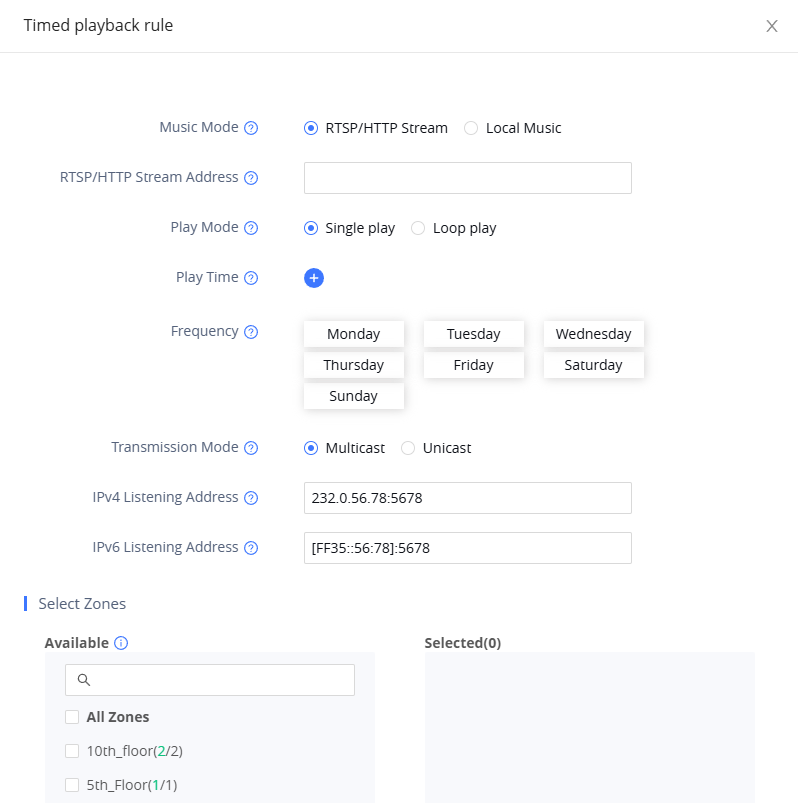
- Define the Playback Rules:
- Play Mode:
- Single Play: Plays the audio once.
- Play Mode:
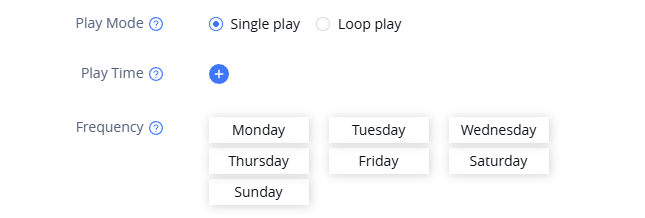
- Loop Play: Repeats the audio based on the configured interval.

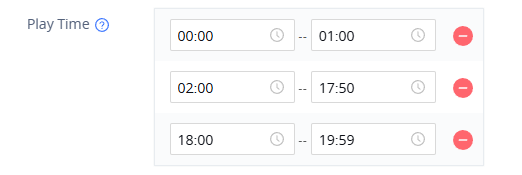
- Play Time:
- Up to three non-overlapping time slots can be set within a day.
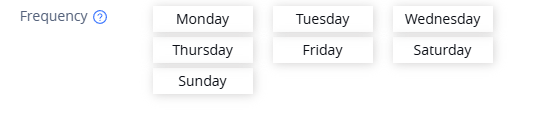
- Frequency:
- Choose specific days of the week for playback or enable daily playback.
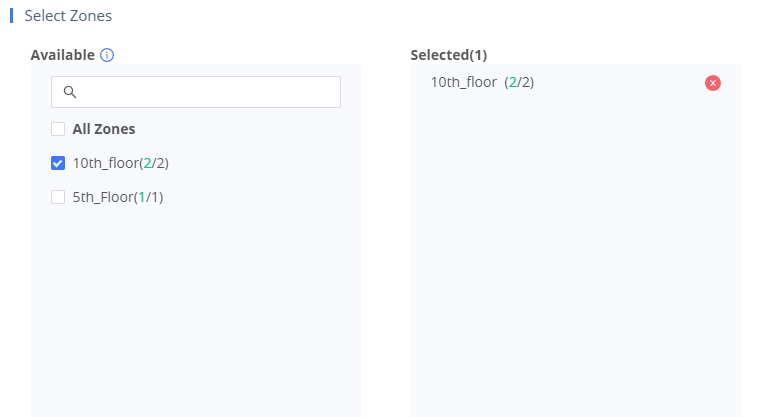
- Assign the playback rule to a specific Playback Zone.
- Note: Timed playback is only available for partitioned devices.
Supported Devices
Model | Supported | Zone Manager Support | Firmware Required |
GSC3505 | Yes | Yes | 1.0.3.16+ |
GSC3510 | Yes | Yes | 1.0.3.16+ |
GSC3506 | Yes | No | 1.0.5.20+ |
GSC3506 V2 | Yes | Yes | 1.0.5.20+ |
GSC3516 | Yes | Yes | 1.0.5.20+ |