Introduction
The SoftwareUCM on-premise solutions allow users to manage their telephony systems internally, without the need to use any cloud-based service, this offers great flexibility for users to have integrations with other third-party vendors, and also to have more granular control on the security protocols that apply internally on the management software, on the other hand, the SoftwareUCM can have its storage expanded, and depending on the hypervisor used, the process will be different, in this guide, we will be configuring disk expansion for the HyperV hypervisor.
Hyper-V is a virtualization platform developed by Microsoft that allows users to run multiple virtual machines on a single physical machine, typically used for testing, development, and server virtualization. It’s widely used in enterprise environments for creating and managing virtualized infrastructure. To expand a virtual disk in Hyper-V, users can increase the size of the virtual hard disk (VHD) through Hyper-V Manager and then extend the partition within the guest OS to utilize the added space.
Configuring Disk Expansion
Through HyperV Settings
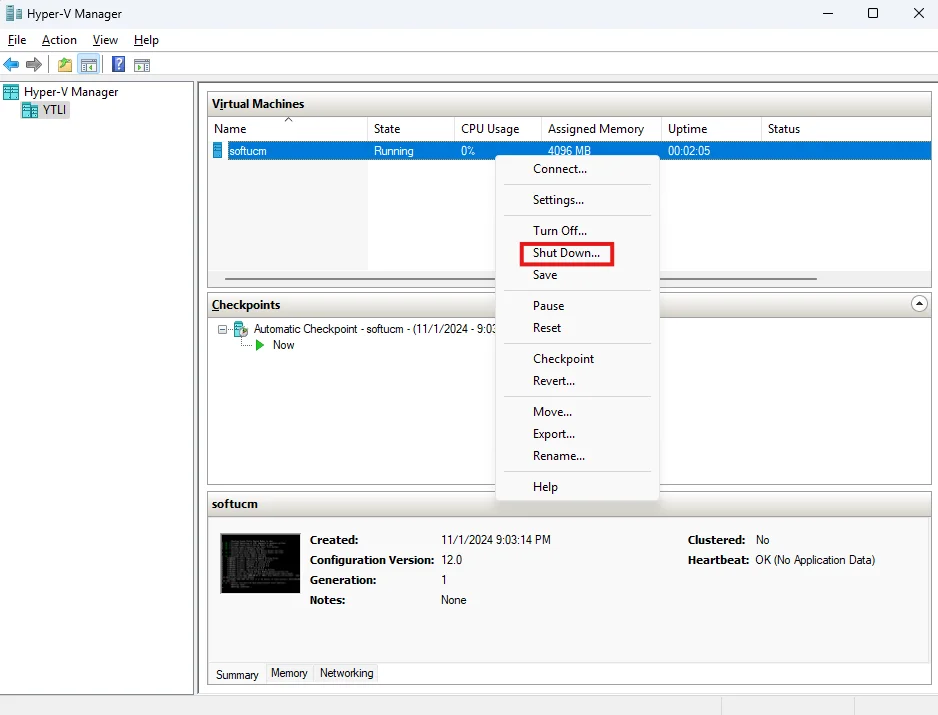
- On your HyperV Manager, Right-click the SoftwareUCM virtual machine, and click Shut Down to shut down the virtual machine.
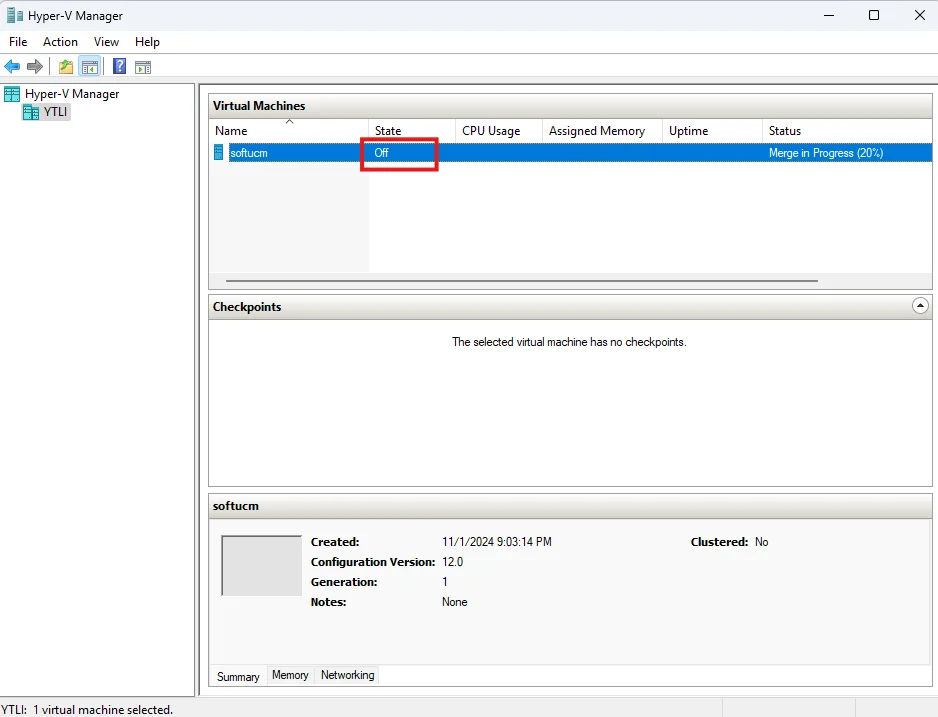
- Wait until the virtual machine status changes to off.
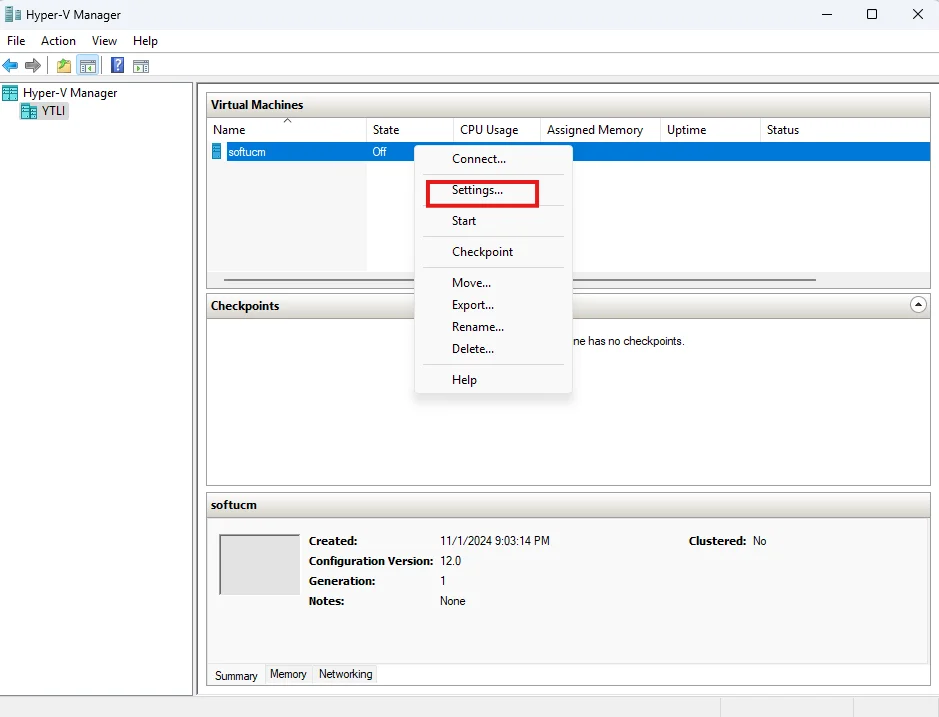
- Right-click the virtual machine, then click on Settings.
- Select Hard Drive from the hardware component settings, then click Edit
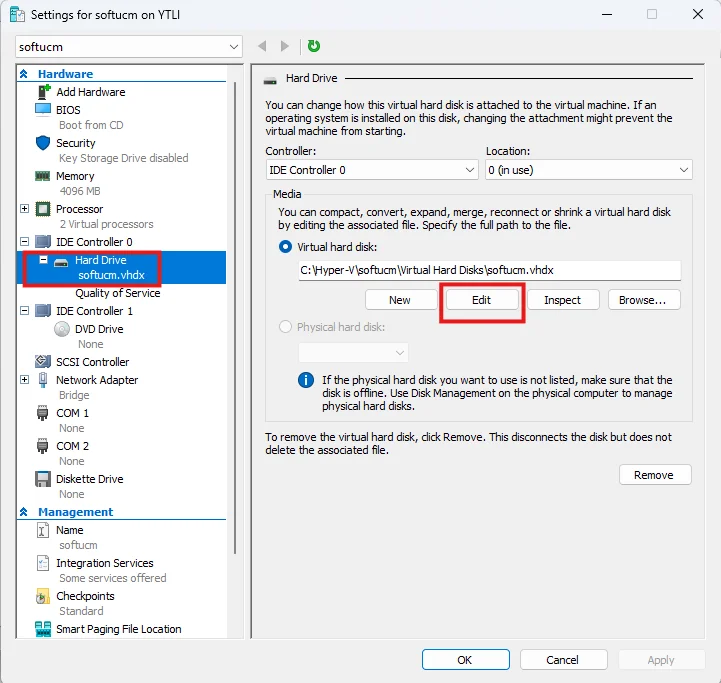
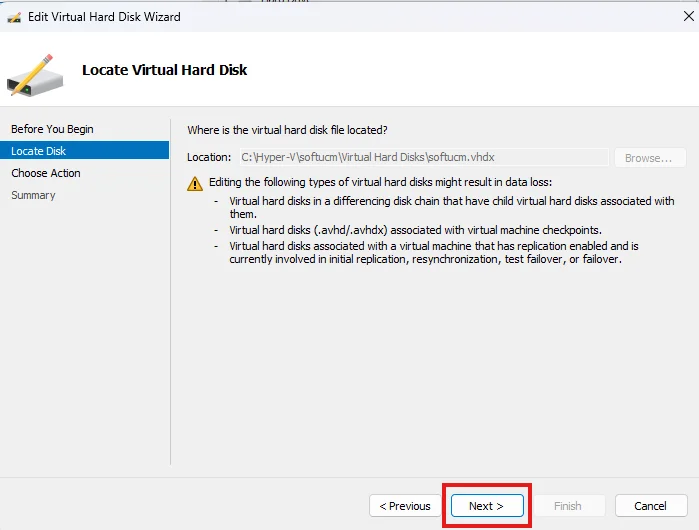
- Review the Locate Disk content and click Next.
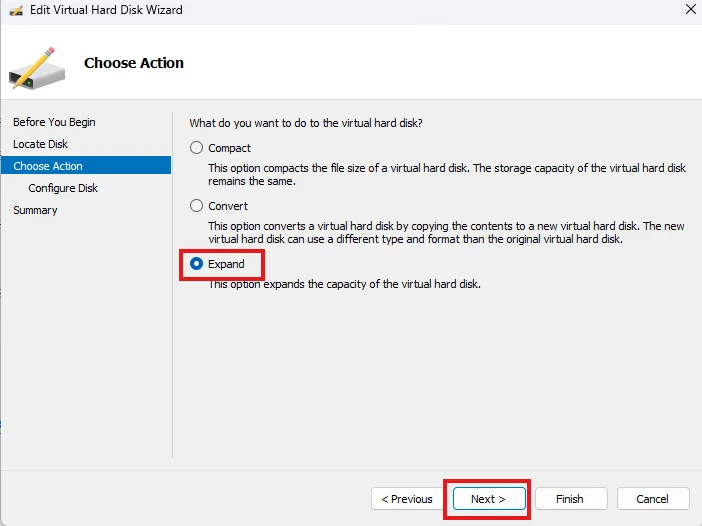
- Select Expand, and click Next.
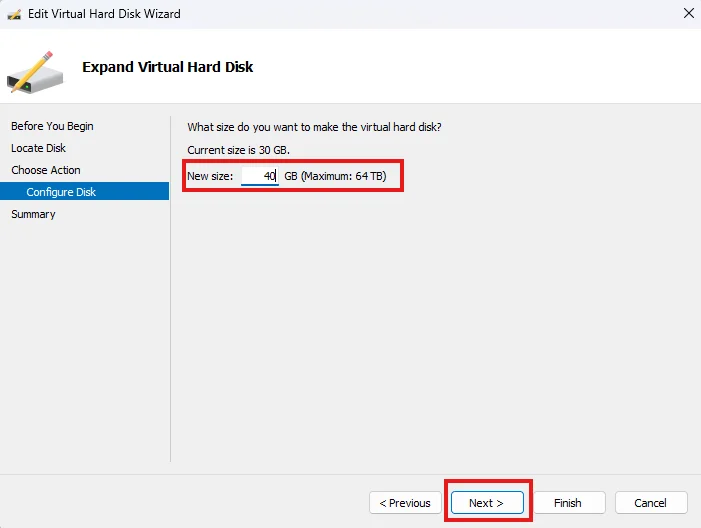
- Set the disk size you would like to configure, then click Finish
- Click OK to close the settings page.
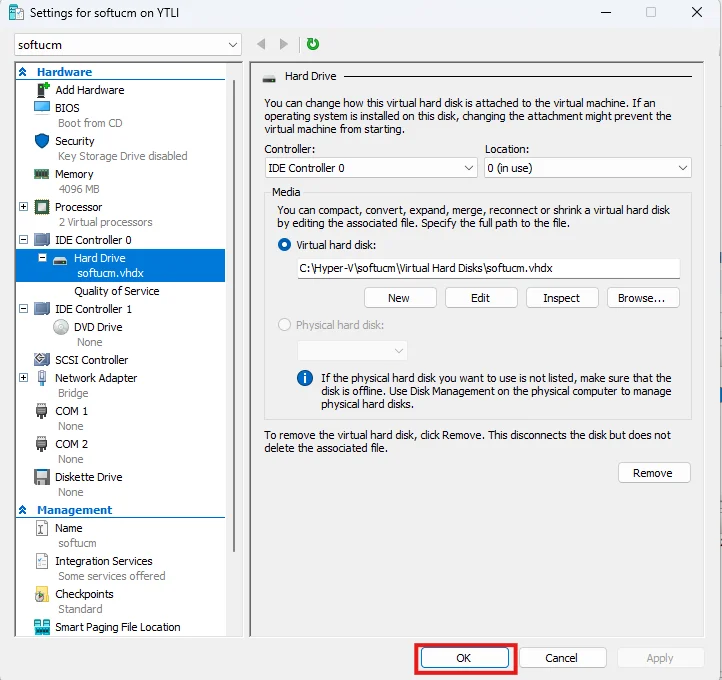
Expand the Partition in The Virtual Machine
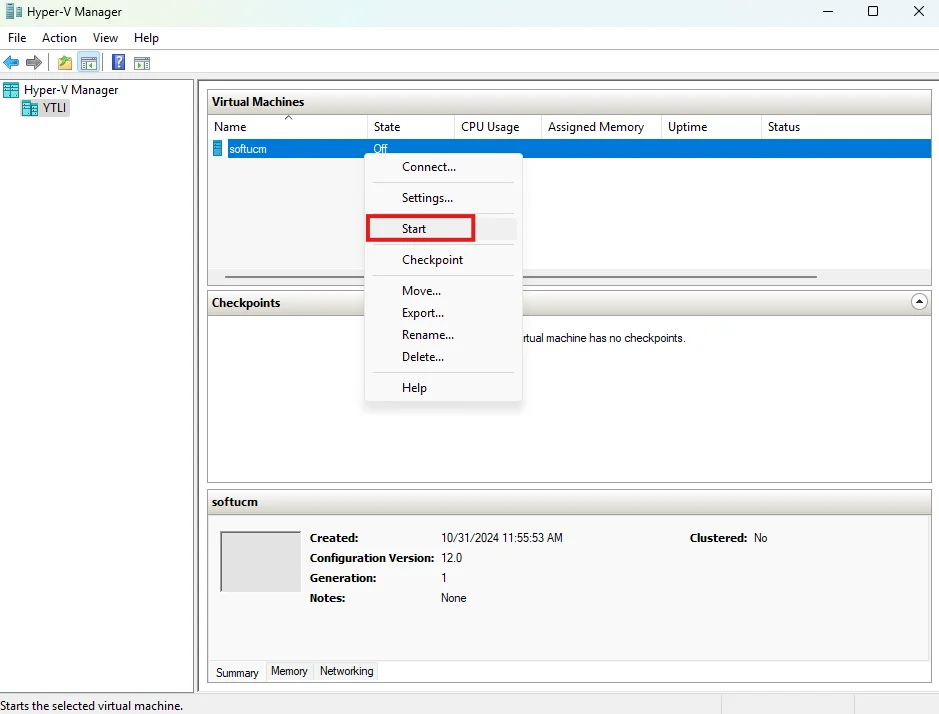
- Right-click the SoftwareUCM virtual machine, and click Start to start the virtual machine.
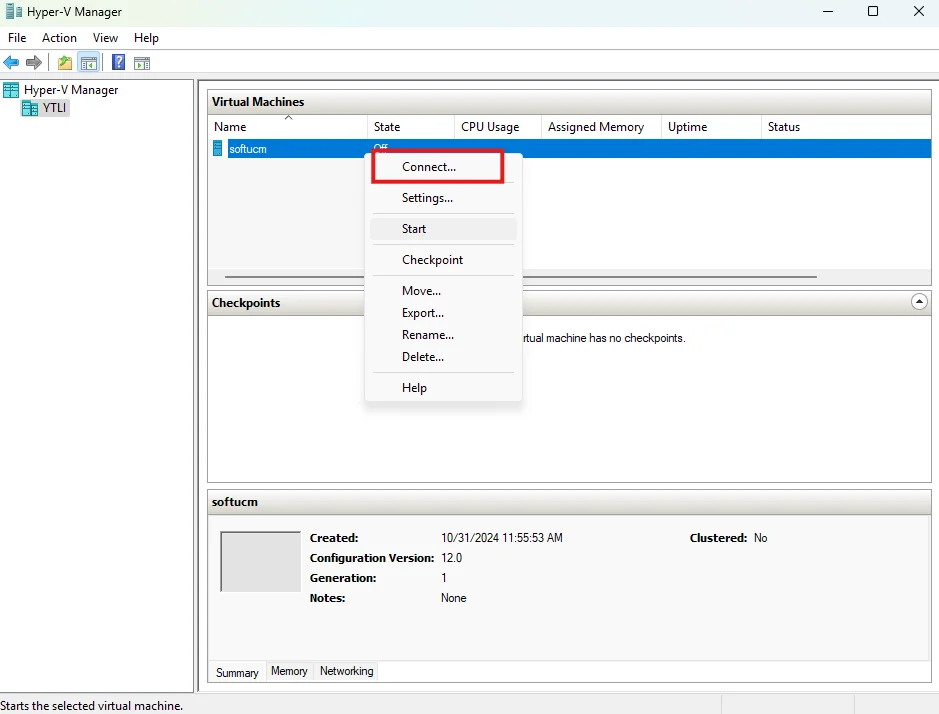
- Right click the virtual machine, click Connect to connect to the virtual machine.
- Log in with the credentials of the user “support”
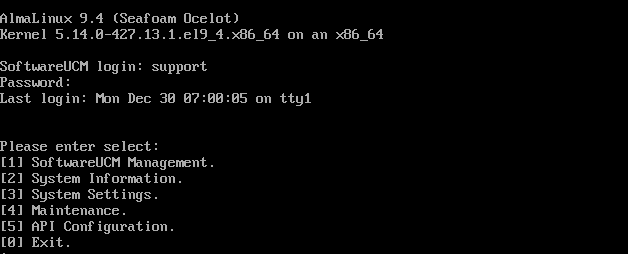
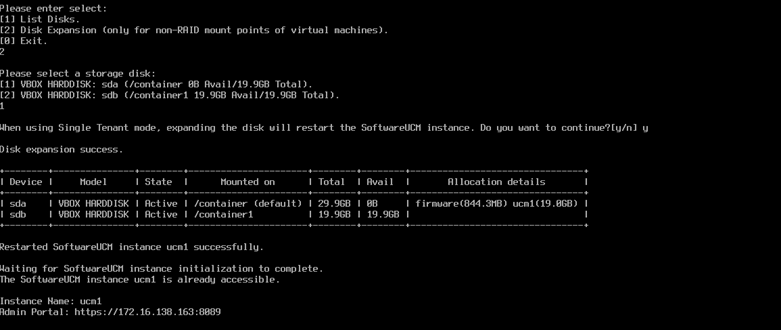
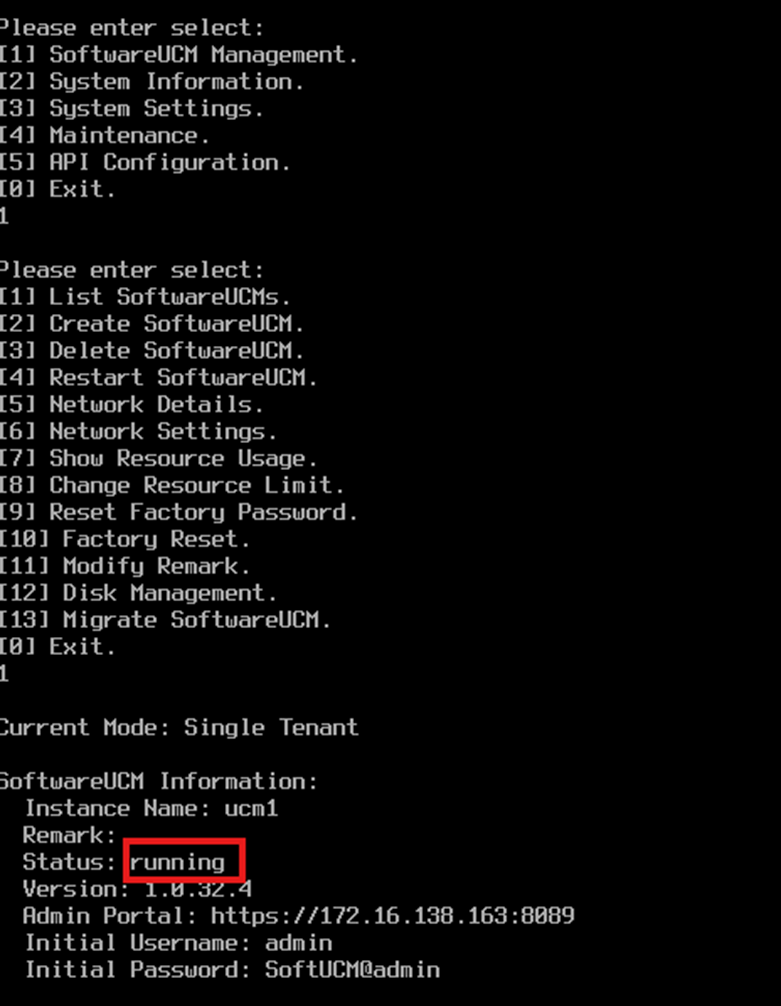
- In single-tenant mode, wait for the instance to be initialized, then select SoftwareUCM Management → List SoftwareUCMs to view the instance status.
- Select Maintenance → Disk Expansion to expand the partition.
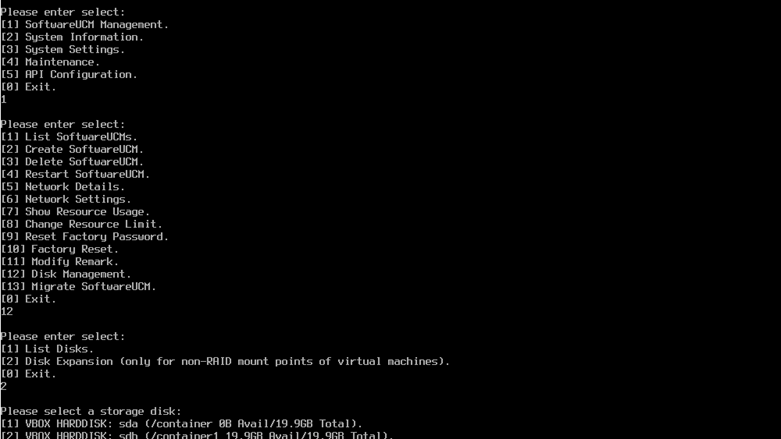
- Select the disk that requires expansion.