Introduction
KVM (Kernel-based Virtual Machine) is an open-source virtualization technology built into the Linux kernel, it enables the creation and management of virtual machines. It is commonly used for server virtualization and cloud computing. For disk expansion, KVM allows users to increase the size of virtual disks through tools like qemu-img, and then expand the partition within the guest OS to use the added space.
When the SoftwareUCM is installed on the KVM hypervisor, it can have its disk expanded by following the steps below:
Configuring Disk Expansion
KVM manager Settings
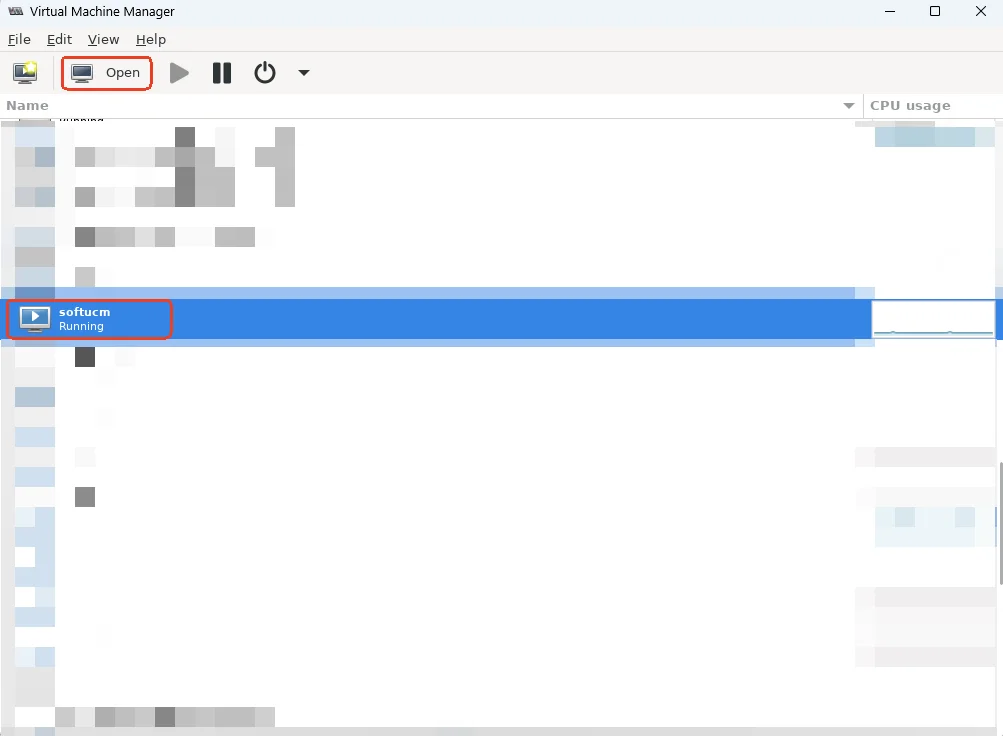
- Select the virtual machine, and click Open
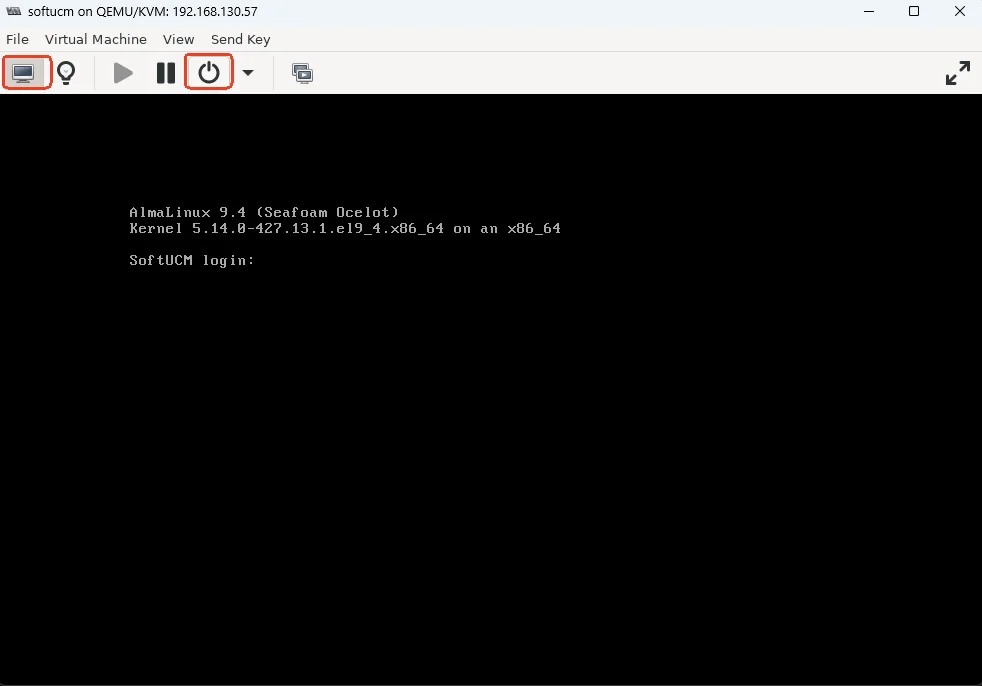
- Click the shutdown button, to stop the SoftwareUCM machine from running
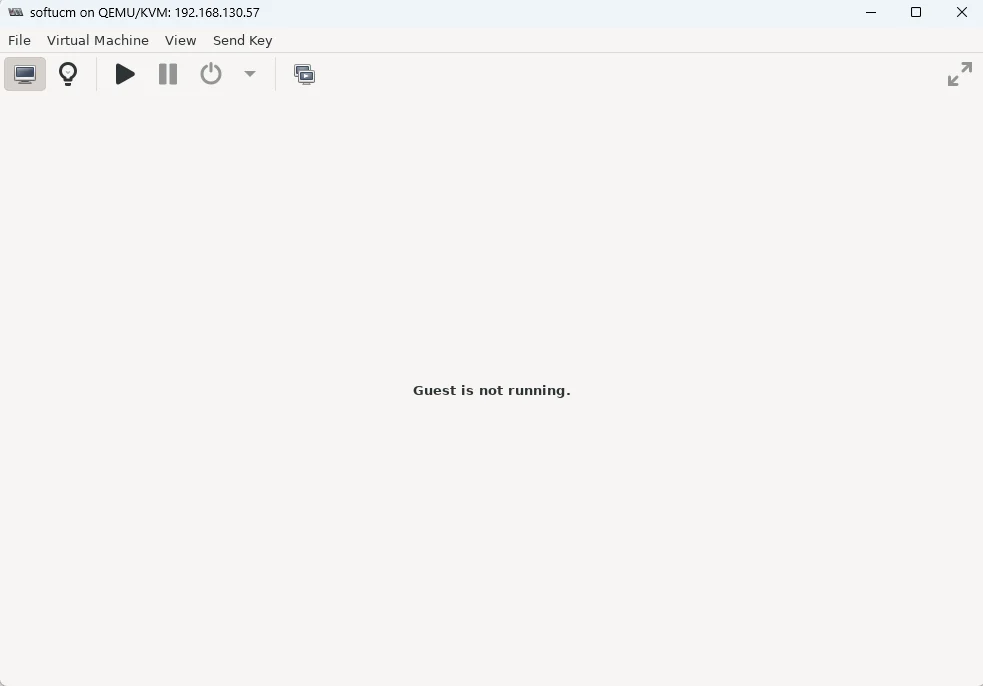
- Wait for the shutdown to complete
- Preview the path of the disk file, under Virtual Disk → Source Path
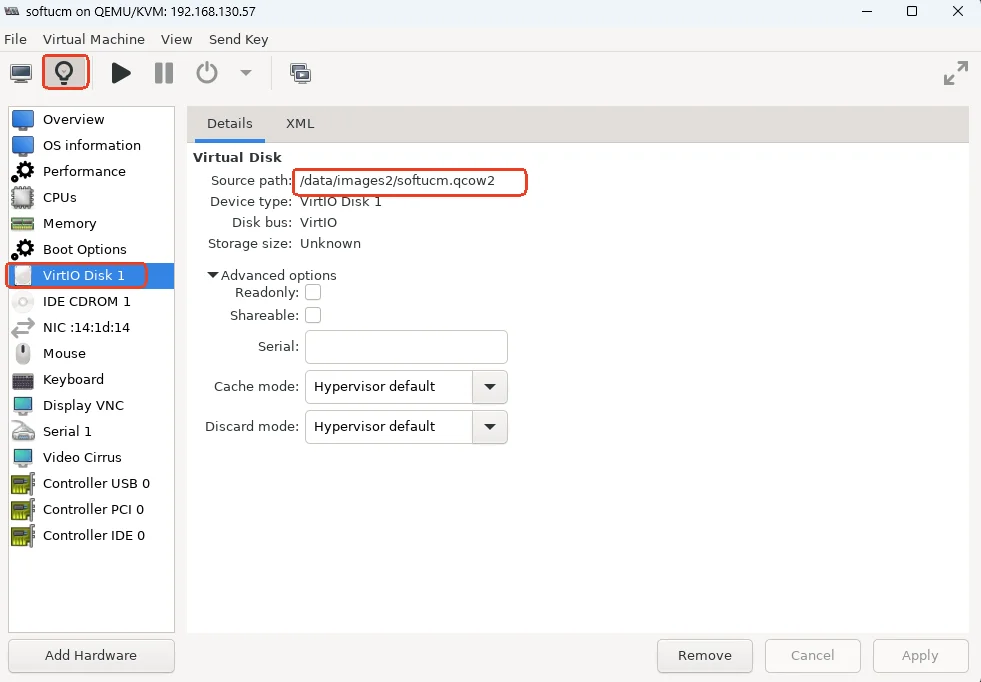
- Execute shell commands to increase the size of disk files
qemu-img resize /data/images2/softucm.qcow2 +10GExpand the Partition in The Virtual Machine
- Start the virtual machine
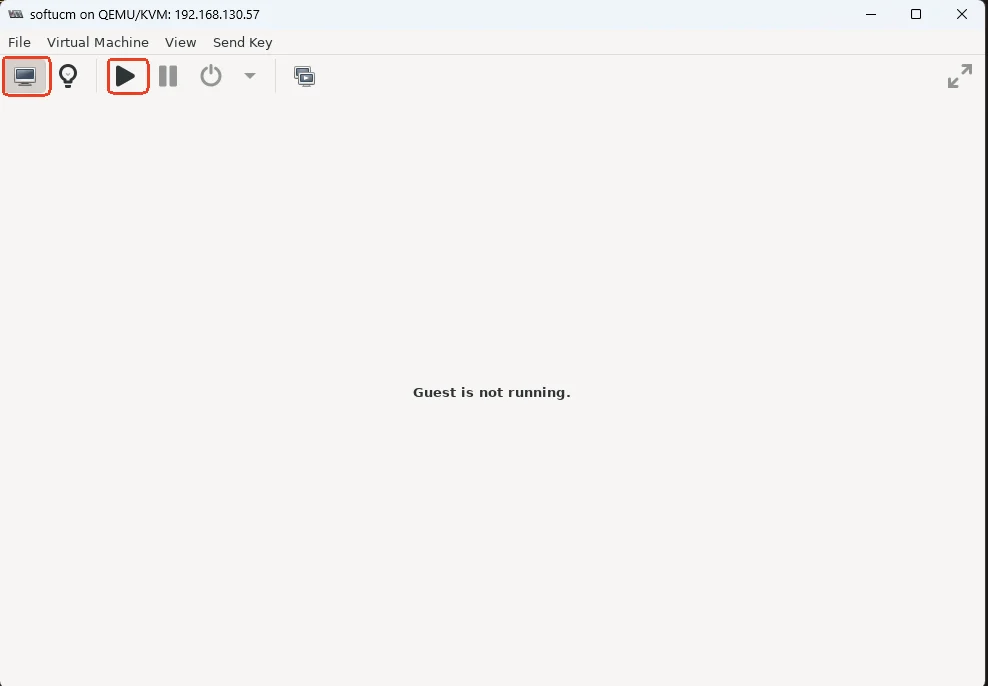
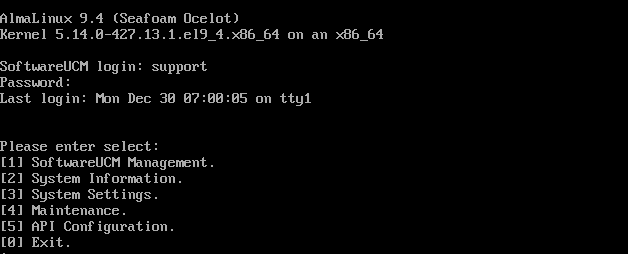
- Log in with the credentials of the user “support”
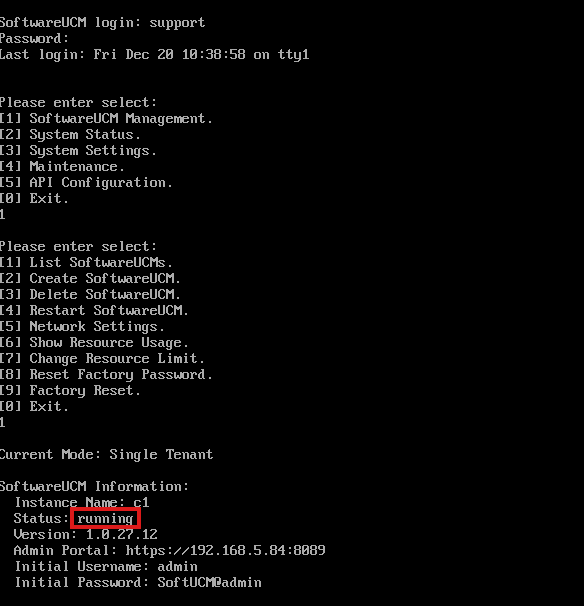
- In single-tenant mode, wait for the instance to be initialized, then select SoftwareUCM Management → List SoftwareUCMs to view the instance status.
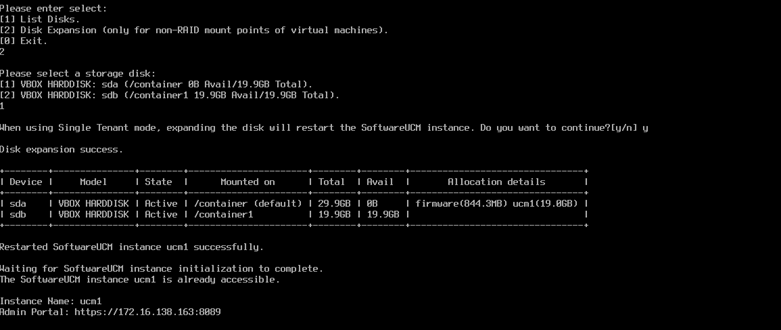
- Select Maintenance → Disk Expansion to expand the partition.
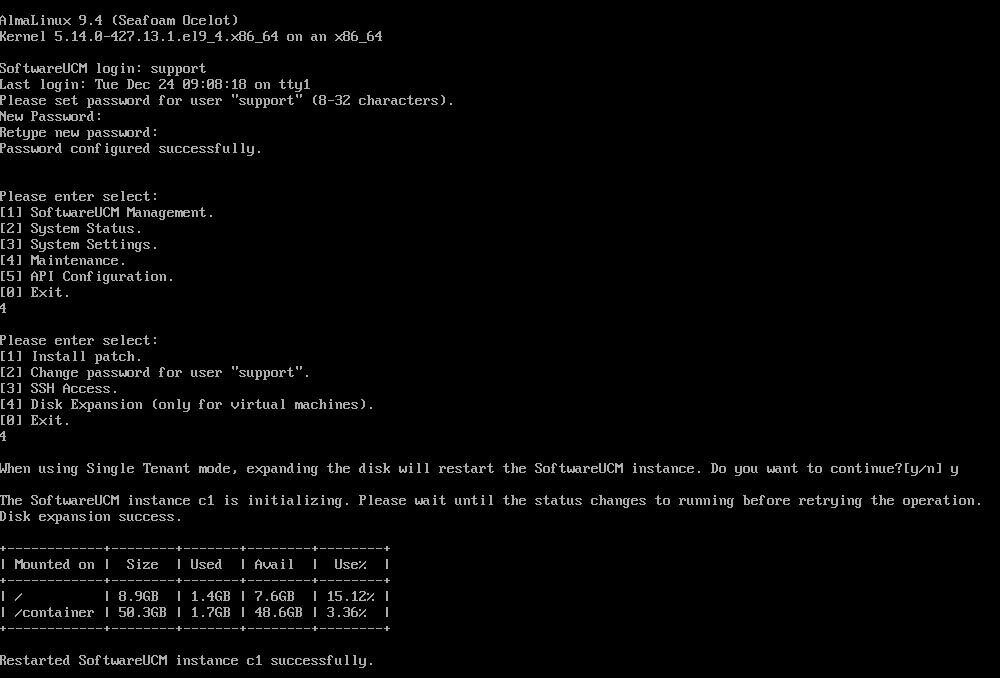
- Select the disk that requires expansion.