Introduction
The SoftwareUCM, when installed on-premise, can expand its memory, the memory that can be used for storing call records, audio, and video recording, and generally, the configuration files for your telephony system,
Oracle VirtualBox is a free, open-source virtualization software that enables users to run multiple operating systems on a single machine. It is commonly used for software development, testing, and running virtual environments for learning or experimentation. For disk expansion, Virtual Box allows users to increase the virtual disk size through its interface and then extend the partition within the guest OS to utilize the additional space.
This guide addresses the configuration steps for expanding SoftwareUCM’s storage on the Virtual Box hypervisor.
Disk Expansion Configuration
Virtual Box Settings
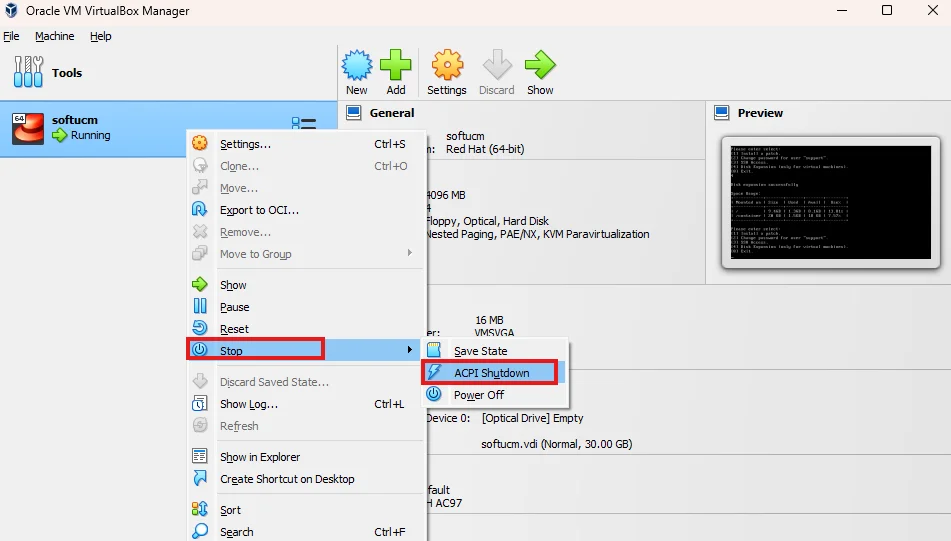
- Right-click on the SoftwareUCM Virtual Machine, and click Stop → ACPI Shutdown to shut down the virtual machine.
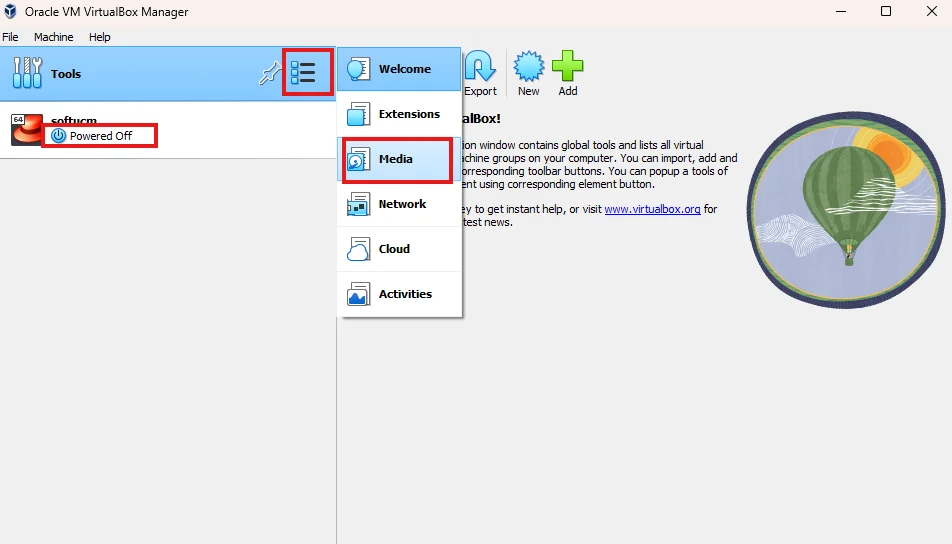
- Once the virtual machines state change to Powered Off, then click Tools → Media, as highlighted below
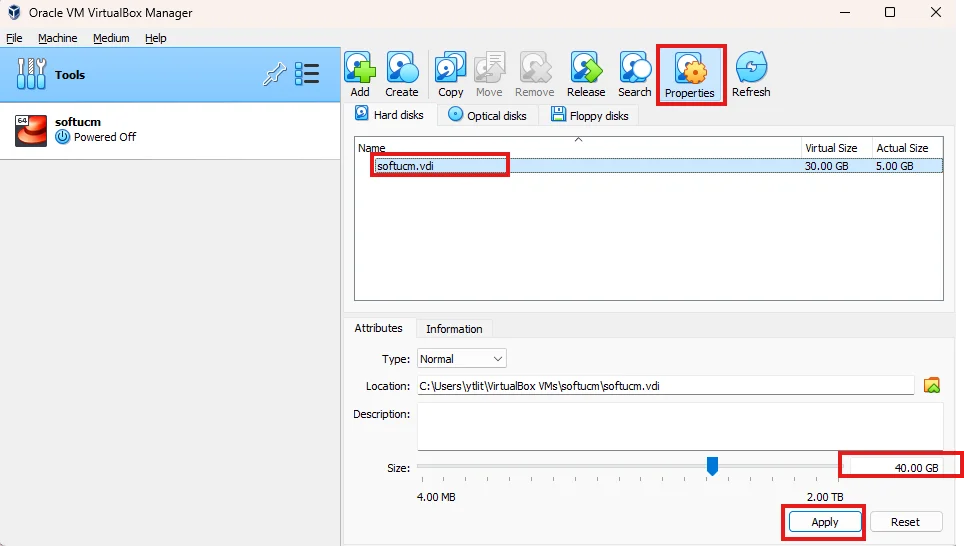
- Click Properties, select the hard disk, and set the disk size you want to configure. Then click Apply.
Expand the Partition in The Virtual Machine
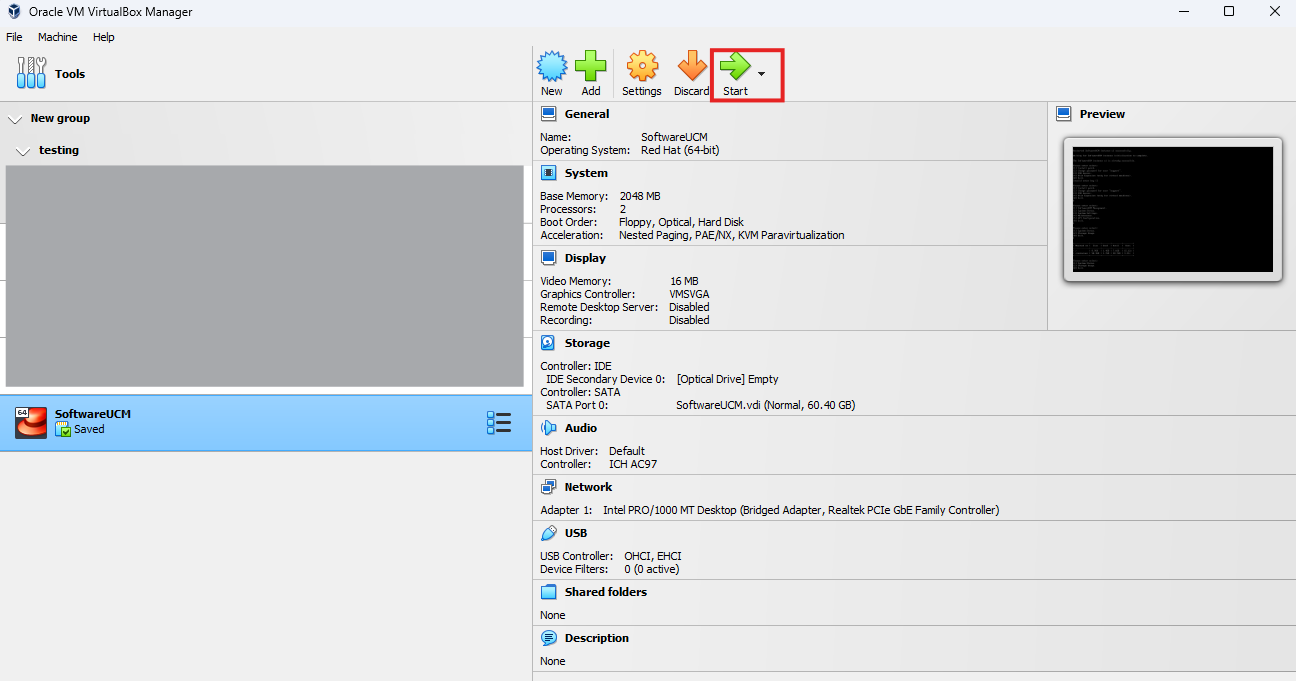
- Start the virtual machine.
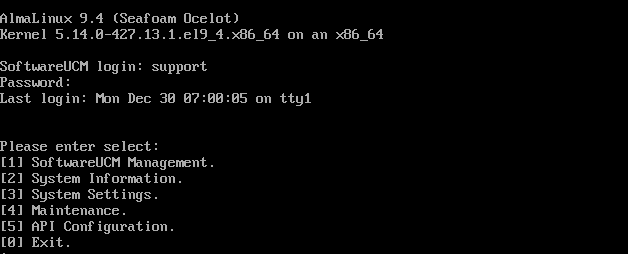
- Log in with the credentials of the user “support”
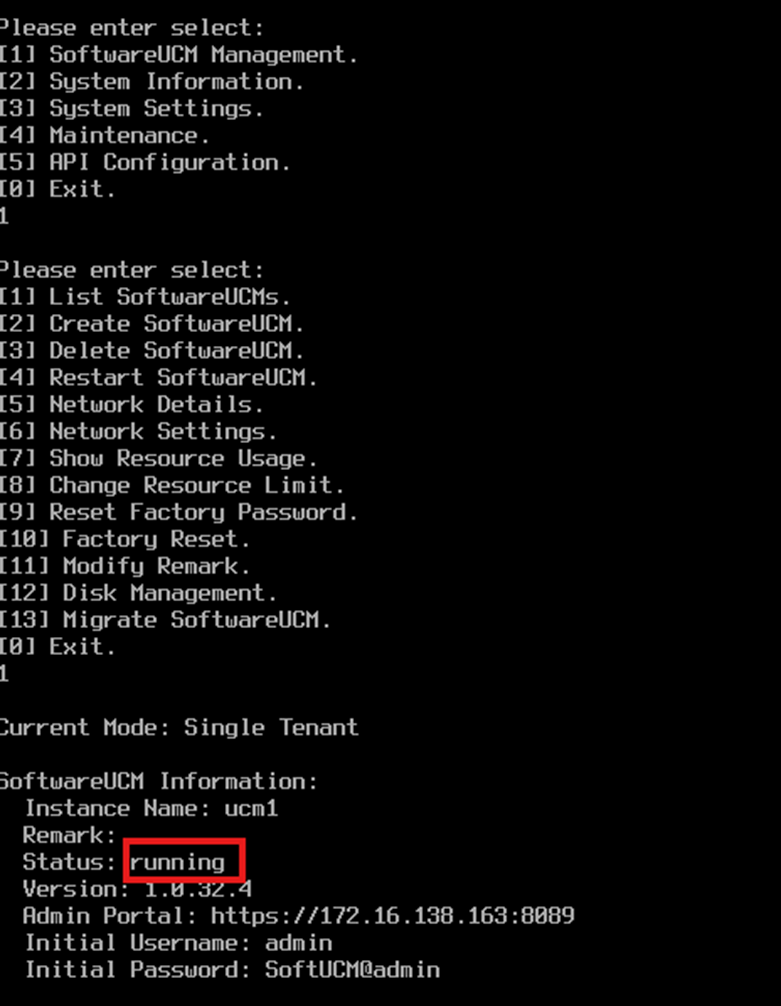
- In single-tenant mode, wait for the instance to be initialized, then select SoftwareUCM Management → List SoftwareUCMs to view the instance status.
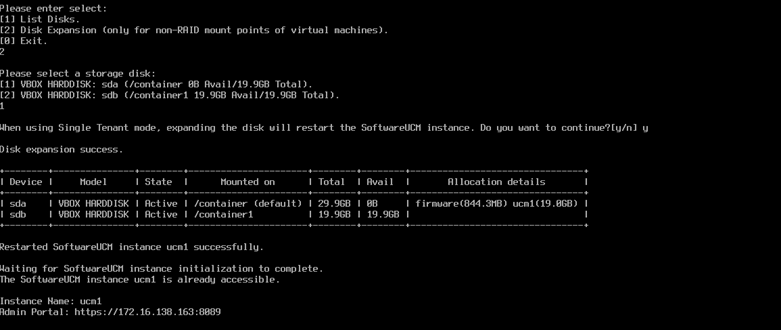
- Select Maintenance → Disk Expansion to expand the partition.
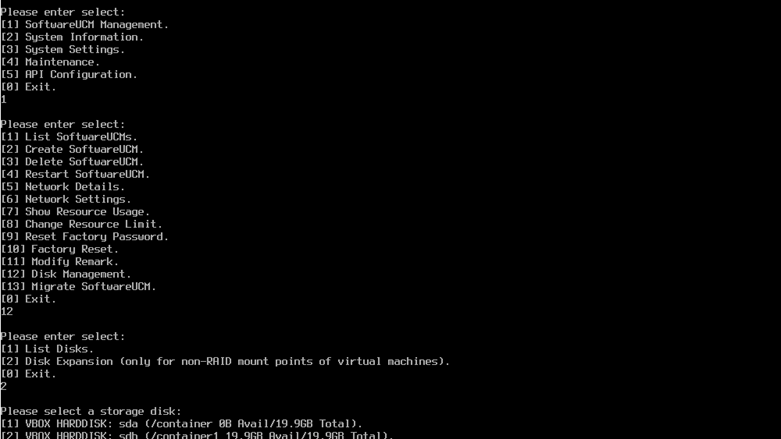
- Select the disk that requires expansion