

Introduction
ZeroTier is a secure peer-to-peer (P2P) virtual networking solution that enables geographically distributed devices to behave as if they were on the same Local Area Network (LAN).
Unlike traditional VPNs, ZeroTier does not require port forwarding, static IP addresses, or complex firewall rules. It simplifies remote access, site-to-site connectivity, and secure tunneling across NAT and firewalls.
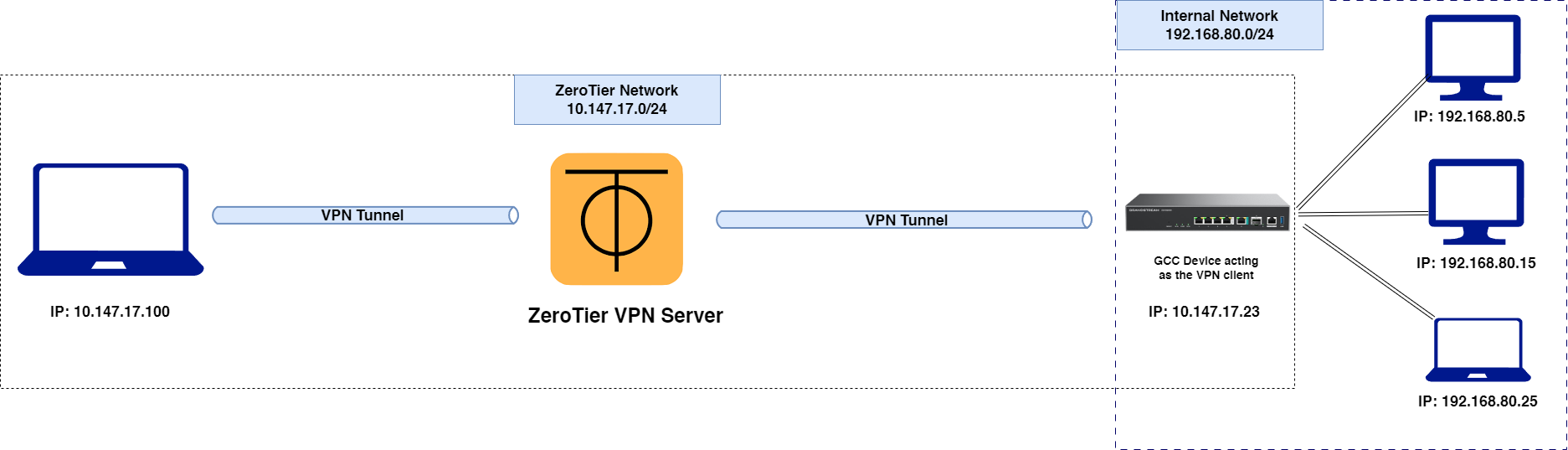
With ZeroTier integrated into your device’s web UI, you can:
- Connect remote devices to your LAN.
- Extend office networks to branch sites or home workers.
- Provide secure access to servers, IP phones, or other on-premise resources.
The GCC60xx supports ZeroTier configuration under the VPN section of the networking module, establishing a client connection to the ZeroTier network, which functions as the VPN server.
Why Configure ZeroTier?
Configuring ZeroTier provides:
- Remote Workforce Connectivity – Employees can securely access office LAN from anywhere.
- Dynamic IP Compatibility –Allows to seamlessly maintain VPN connections even when public IP addresses change, this eliminate the need for reconfiguration whenever the public ip is changed, and will bypass the use of a DDNS service.
- Branch Office Interconnectivity – Multiple sites can be virtually bridged without complex IPsec/MPLS. the set up of zerotier network is very simple.
- IoT and Device Access – Manage cameras, door stations, or SIP devices remotely without port forwarding.
- Security – End-to-end encrypted tunnels with fine-grained control over members and routes.
ZeroTier Settings
Navigate to the following menu in the GCC web UI:
Networking Module → VPN → ZeroTier
Here, you will find two key sections:
- Basic Settings – Global ZeroTier configuration.
- Network List – Where you add and manage your virtual networks.
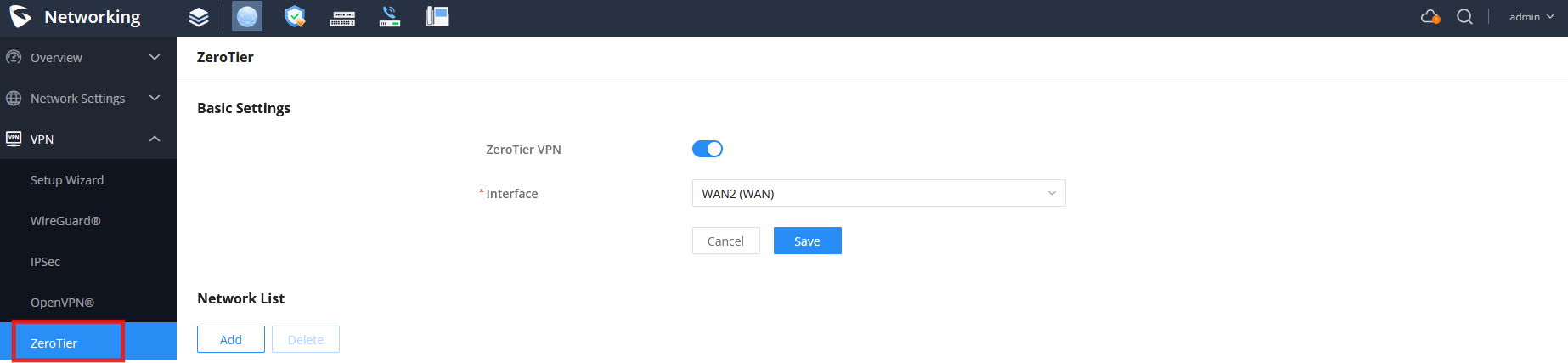
Basic Settings
- ZeroTier VPN:
Toggle ON to enable the ZeroTier client service on your device. This must be enabled before any virtual networks can be joined. - Interface:
Select the WAN interface (e.g., WAN1 or WAN2) that ZeroTier will bind to for outbound communication.- Note: Binding ensures ZeroTier packets exit the correct ISP uplink, which is important in dual-WAN or failover scenarios.

Best Practice:
If you have multiple WAN connections, bind ZeroTier to the most stable or primary WAN interface.
Adding a ZeroTier Network
Click Add under Network List to create a new entry.
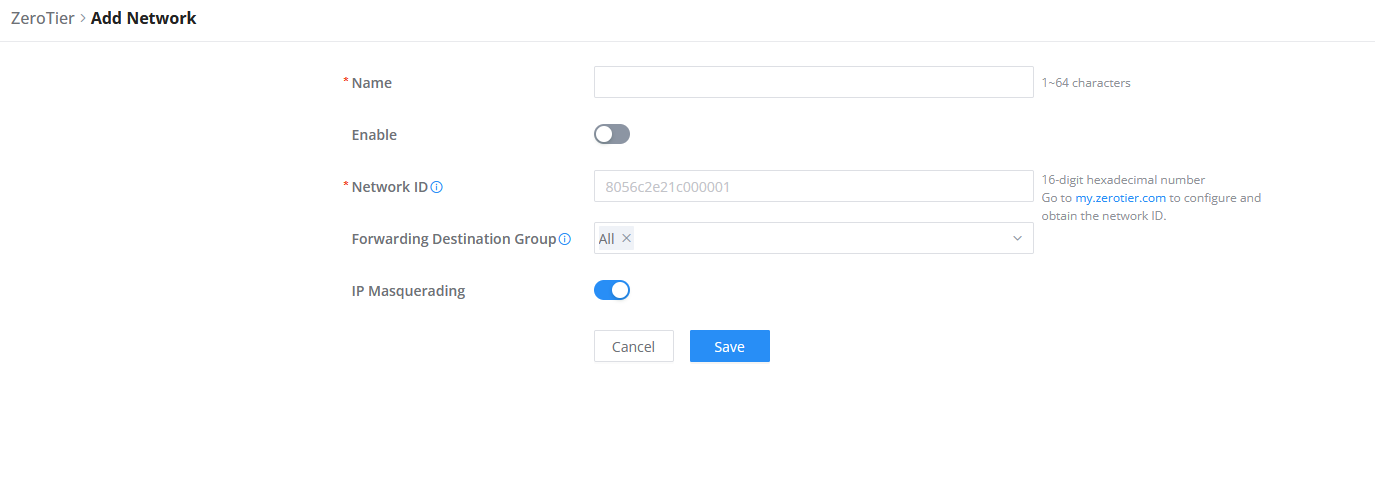
- Fields and Configuration
Field | Description |
Name | Friendly name for the virtual network (1–64 characters). |
Network ID | 16-digit hexadecimal identifier for the ZeroTier virtual network. This is created in your ZeroTier Central account. |
Forwarding Destination Group | Defines which traffic group the ZeroTier VPN forwards packets to (e.g., All, WAN1, WAN2, Default VLAN). |
IP Masquerading | If enabled, the device performs NAT (Network Address Translation) for ZeroTier clients. Will be required if ZeroTier clients need Internet access through the GCC WAN interface. Without it, clients may only access LAN resources. |
Configuration Example
Let’s consider the following example:
ZeroTier is used in a branch where the public IP is dynamically assigned. With a traditional VPN server, the configuration would need to be constantly updated whenever the public IP changes. Alternatively, the ZeroTier service can be used to bind the GCC device — which acts as the branch office gateway — to the ZeroTier network, this allows remote workers from anywhere in the world to securely access the branch office network, through the ZeroTier network: the ZeroTier
Going back to the example shown above, the setup will consist of establishing a VPN tunnel between the GCC device and the ZeroTier network using a specific Network ID. This allows devices connected to the GCC and remote clients to operate under the same virtual network. To confirm that the setup is working, you should be able to ping a device behind the GCC from a remote worker’s laptop and successfully reach it.
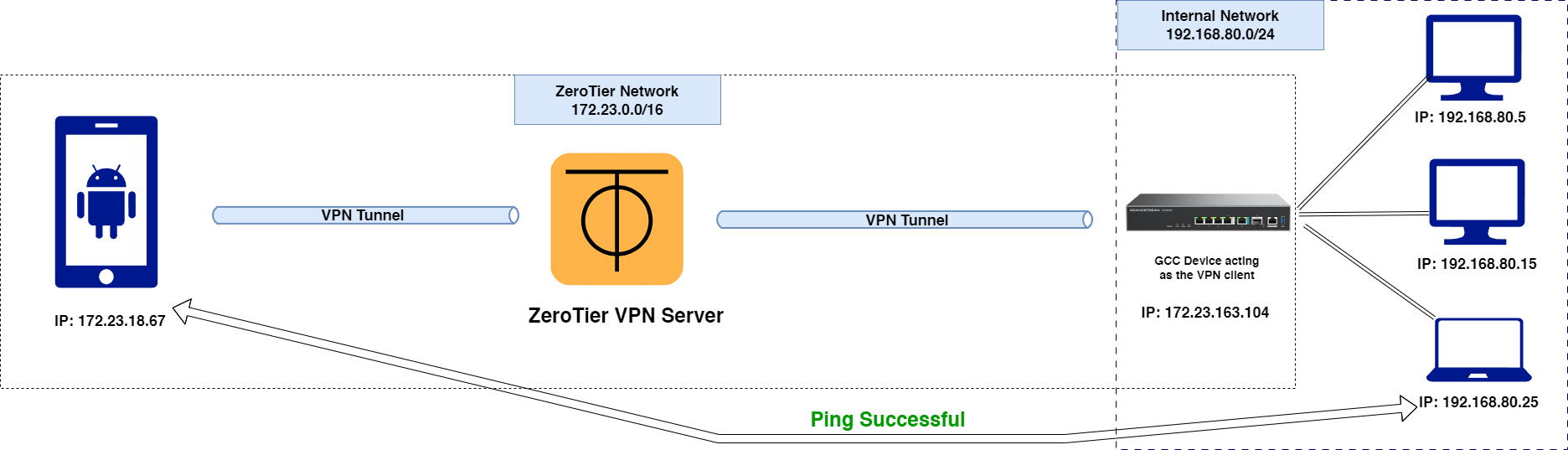
Here’s how the configuration would be carried out:
Office Router Configuration
Enable ZeroTier Service
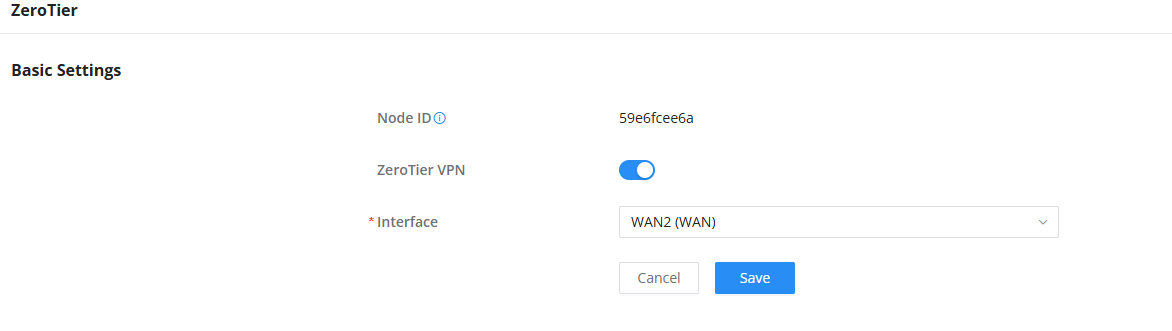
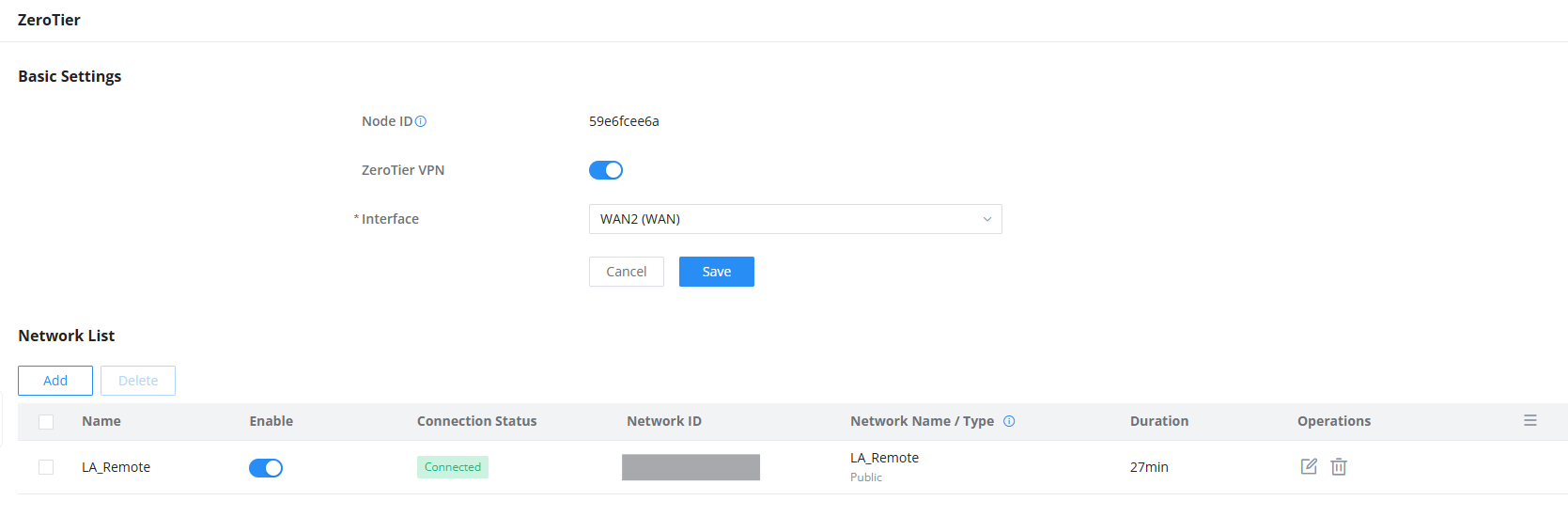
- Go to VPN → ZeroTier → Basic Settings.
- Toggle ZeroTier VPN ON.
- Select WAN2 (the office’s fiber connection).
- After the VPN connection is established, a Node ID will be displayed in the basic settings, that Node ID is the globally unique identifier of the device within the ZeroTier network.
Create a Virtual Network in ZeroTier Central
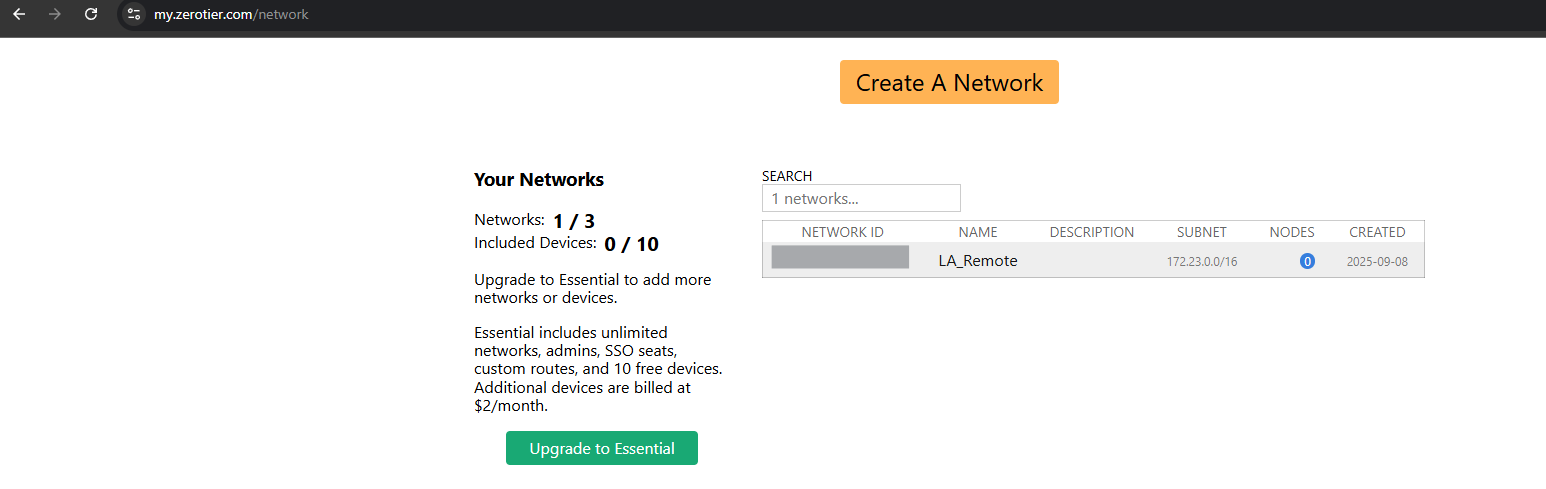
- Log into my.zerotier.com
- Create a new network called LA-Remote.
- Note the 16-digit Network ID.
Add the Network on the Router
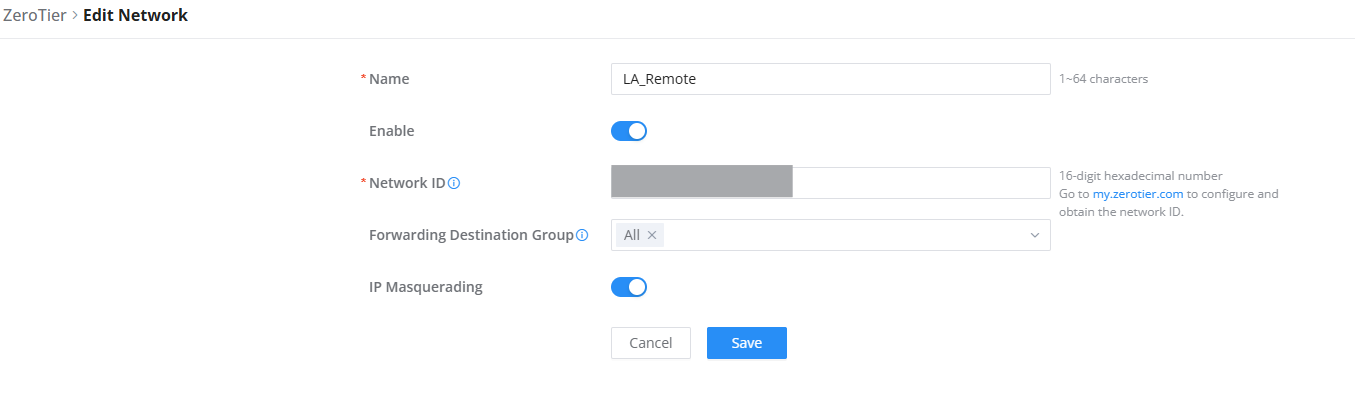
- In Network List, click Add.
- Name: LA_Remote
- Network ID: Paste the ID from ZeroTier Central.
- Forwarding Destination Group: Select All (so remote clients can reach all LAN resources).
- IP Masquerading: Enable (this allows the remote employee to browse the Internet using the office WAN).
- Save and apply.
Authorize the Router in ZeroTier Central
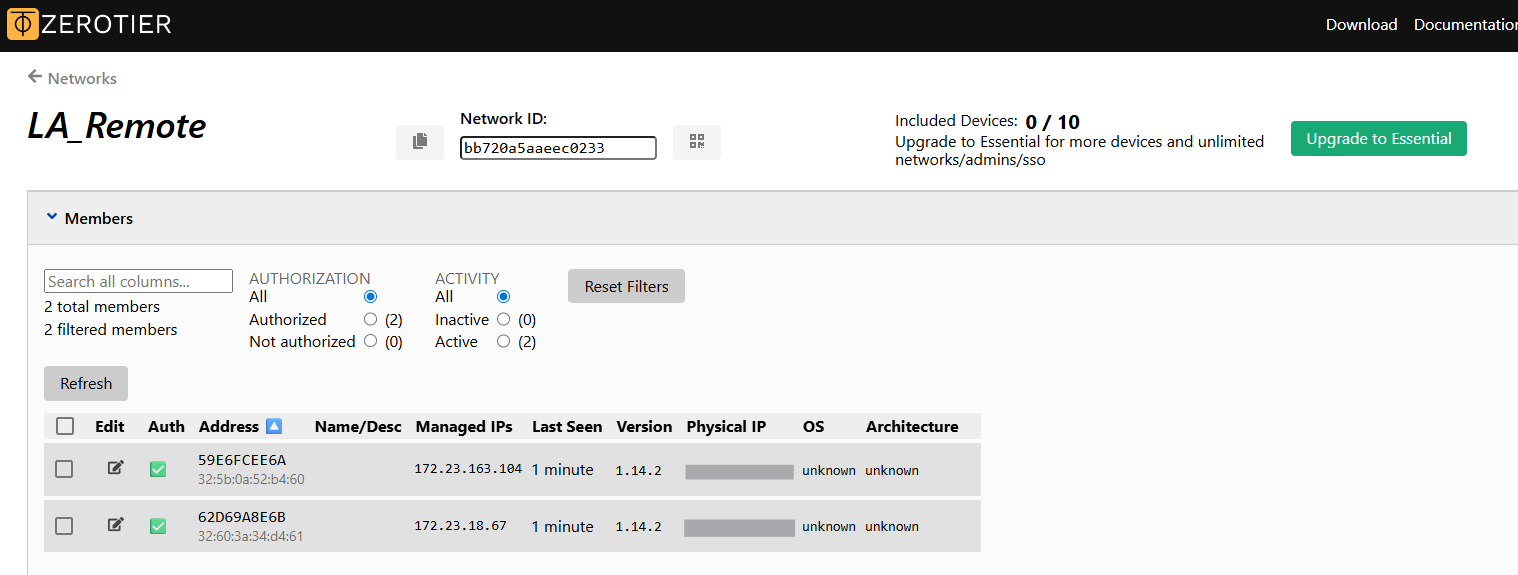
- In ZeroTier Central, approve the router as a member.
- An IP address will be assigned to the GCC device client connection from the ZeroTier subnet (e.g., 172.23.163.104).
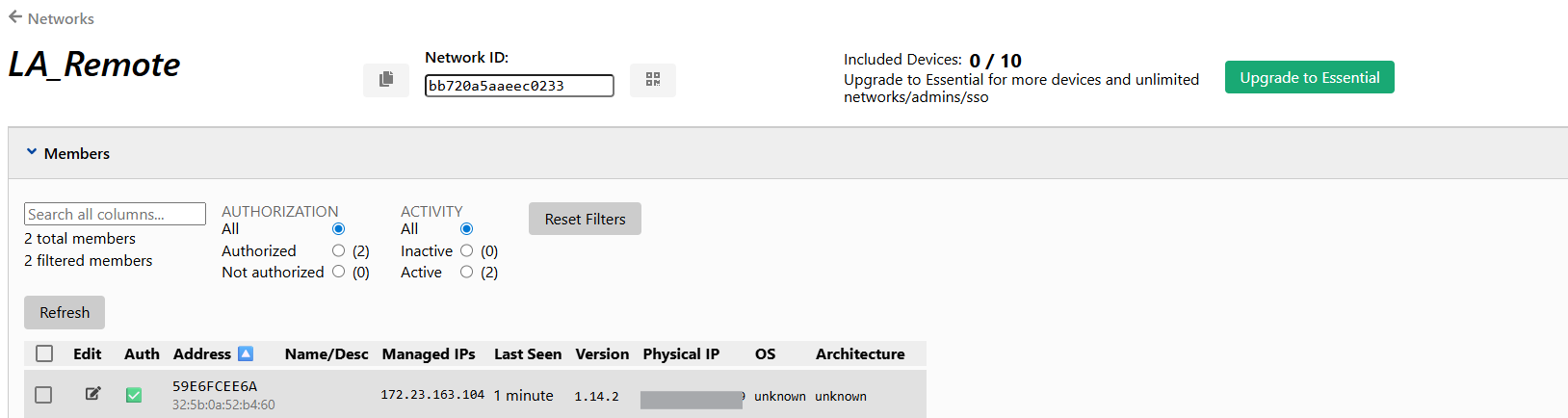
When the connection is authorized on ZeroTier side, it will be shown as connected on GCC side.
Remote Employee Device Configuration
Install ZeroTier Client
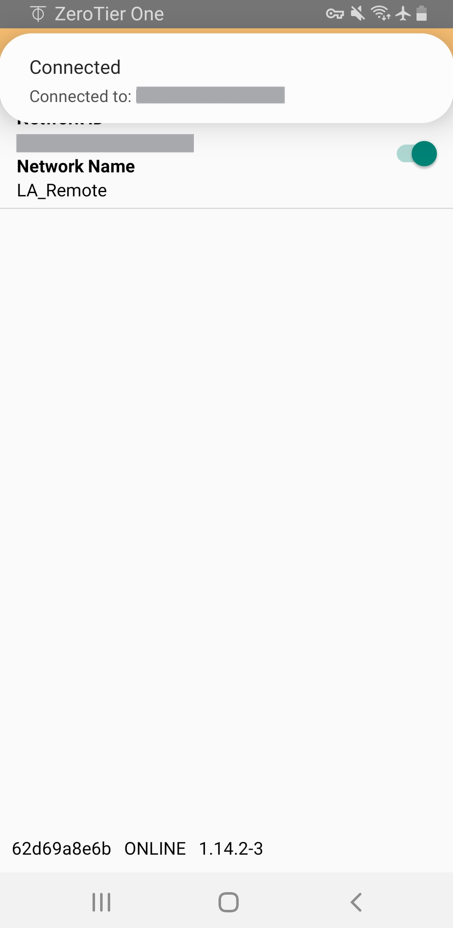
- Download and install ZeroTier One on an android device to test the connection.
- Join the network using the same Network ID.
Authorization
- In ZeroTier Central, approve the employee’s laptop as a member.
- Assign it an IP (e.g., 172.23.18.67)., it can be automatically assigned if the access control is set to Public (Any node that knows the Network ID can become a member.)
Result
The remote device now receives a virtual IP (172.23.18.67).
It can ping and access the office PBX (e.g., 192.168.80.20) and file server (192.168.80.50). that are behind the GCC device (192.168.80.1)
Best Practices & Recommendations
- Use Secure IDs Only: Never join random or unknown ZeroTier networks. Always generate and manage your own from ZeroTier Central.
- Enable IP Masquerading when:
- Remote clients require Internet access through your site.
- ZeroTier clients need to appear as local IPs on your LAN.
- Restrict Access in ZeroTier Central: Always control which devices are authorized. Unauthorized devices will not be able to join.
- Routing Considerations: Use ZeroTier Central to configure static routes if remote subnets need to reach each other.
Supported Devices
Supported Device | Fimrware |
GCC6020 | 1.0.7.44+ |
GCC6021 | 1.0.7.44+ |
GCC6010 | 1.0.7.44+ |
GCC6010W | 1.0.7.44+ |
GCC6011 | 1.0.7.44+ |
Supported Devices