

Introduction
In a client-to-site IPSec VPN, the focus is on allowing individual users (clients) to securely connect to a central network (such as a company’s internal network) from remote locations. The client device uses VPN software to establish a secure, encrypted connection to the router or VPN gateway. Unlike site-to-site VPNs, which connect entire networks, client-to-site VPNs are designed for single users accessing the network from various places, like home or while traveling…
In this Guide, we will try to configure the below scenario, where one remote worker will have a VPN connection to the Grandstream router, through the IPSec protocol, the VPN software that will be used to connect the client is Greenbow, please download the software using this link: https://thegreenbow-ipsec-vpn-client.apponic.com/
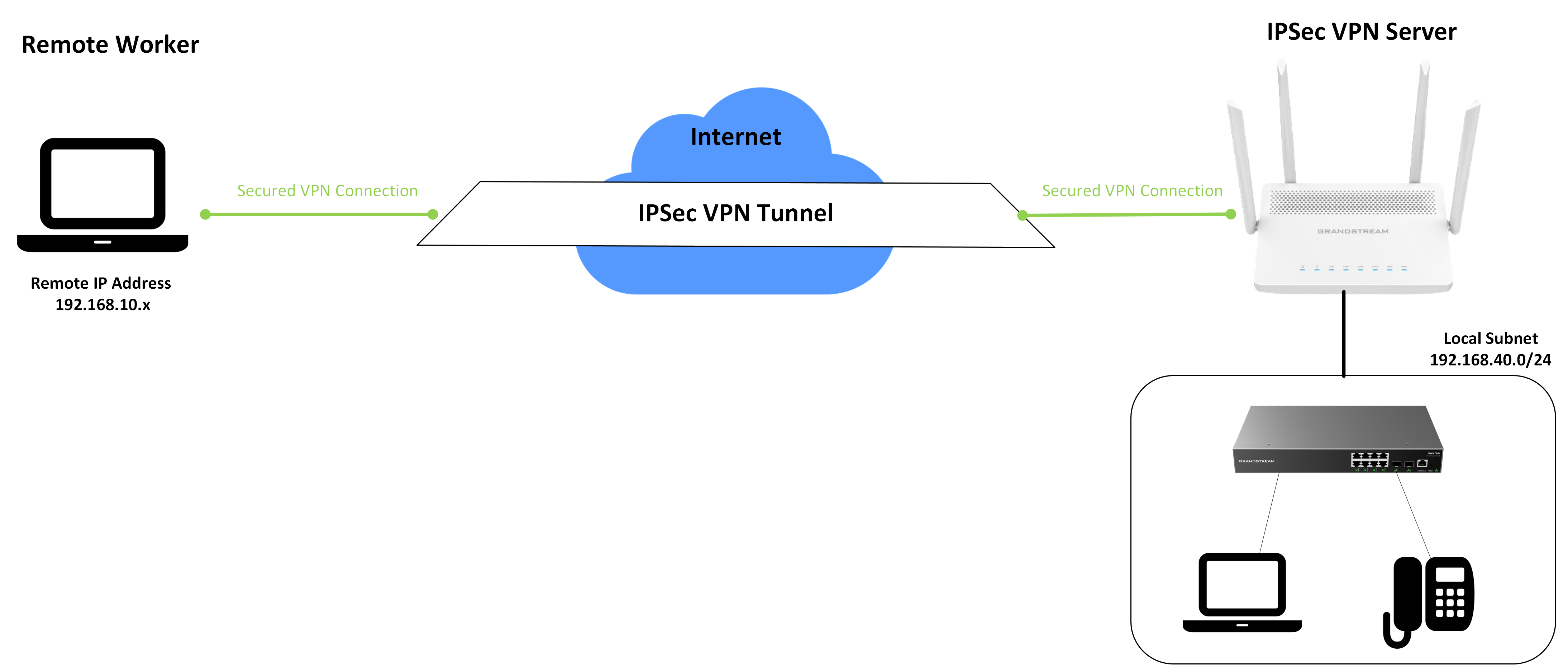
Server Configuration
Set up Router as IPSec VPN Server
On the Grandstream Router, Please carry on the below configuration:
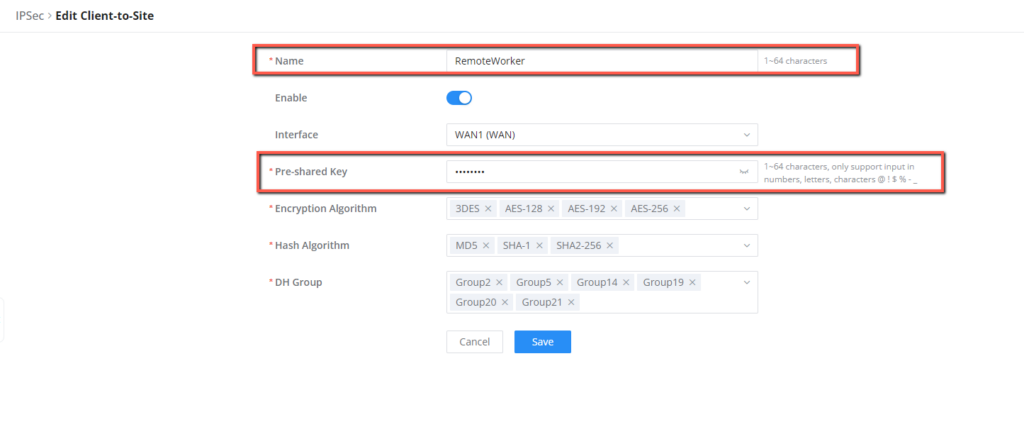
- Go to VPN → IPSec → Client-to-Site
- Click “Add”, to configure the Grandstream Router as an IPSec VPN Server
- Set the name to “RemoteWorker” as an example
- Toggle the status on, to enable the service
- Define a pre-shared key, that will be used by the VPN client to authenticate the connection.
- The Encryption and hashing algorithms alongside the Diffie-Hellman Group (DH Group) can be configured, by default, all the algorithms are selected for use, if you prefer to use a specific encryption algorithm you can select it from the drop-down menu.
Create Remote Users
On this section, we can define the parameters that will be used by remote clients to authenticate the connection to the IPSec VPN server, please follow the below steps to define it:
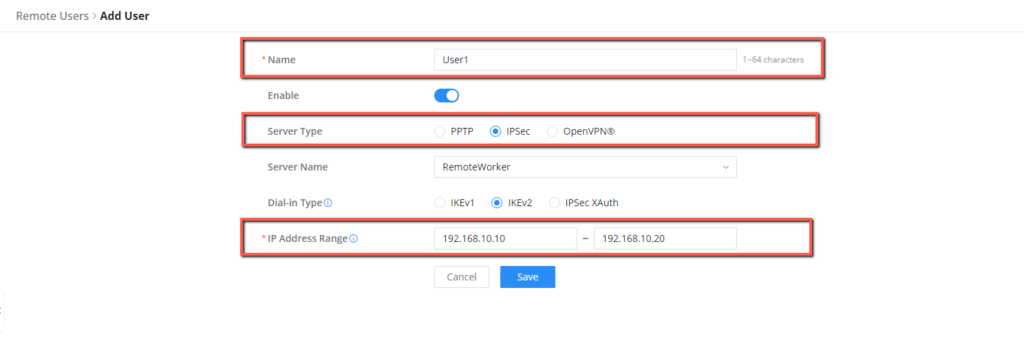
- Go to VPN → Remote Users.
- Set up a name for the user, for example “User1”.
- Toggle the status to enable the feature.
- Set the Server type to IPSec.
- Set the Server name to “RemoteWorkers”, this is the name that has been defined earlier for the IPSec VPN Server.
- We will set up the dial-in type to IKEv2, this will be the newer version used
- We will then configure the IP address range. The size of the range determines the number of users who can get the IP address. E.g. If the IP address range is set to 192.168.80.5-9, only 5 users can get the IP address. We will set the range to 192.168.10.10 to 192.168.10.20
Client Connection
The client can be any device connected on a different network, that can support a client software, where the server VPN information can be provided, in our example we will use TheGreenBow software installed on a windows machine, to connect a remote user to the office network, please apply the below steps:
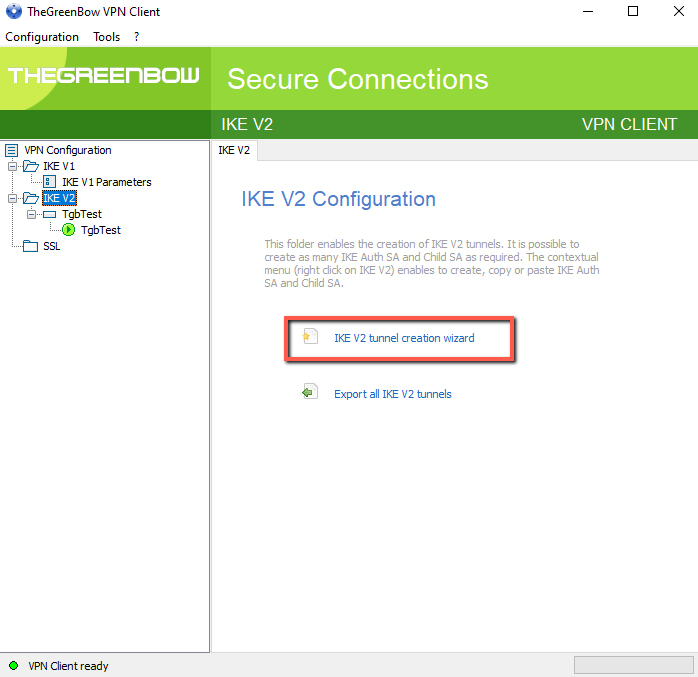
- Launch the TheGreenBow Software on your Windows Machine
- Click on the Import Wizard to for IKEv2 connection
- Define the Public IP address of the IPSec VPN Server, in our case it is: 192.168.6.225.
- Provide the pre-shared key defined on the server.
- Click Save on the IKEv2 tab.
- For some remote routers, they might not support IP fragmentation, so you can enable it under IKEv2 Auth → Protocol.
- Go to Tools → Connection Panel.
- Click on Open to establish the VPN connection created.
- Once connected, you will get the below pop up windows.
Supported Devices
Device Model | Firmware Required |
GWN7052 | 1.0.5.5+ |
GWN7052F | 1.0.7.1+ |
GWN7062 | 1.0.5.6+ |
GWN7001 | 1.0.1.6+ |
GWN7002 | 1.0.1.6+ |
GWN7003 | 1.0.1.6+ |
GCC6010 | 1.0.1.8+ |
GCC6010W | 1.0.1.34+ |
GCC6011 | 1.0.1.34+ |
GCC6020 | 1.0.7.32+ |
GCC6021 | 1.0.7.32+ |
Supported Devices