

Overview
Cloud IM services with UCM devices provide cloud communication services with high performance, large storage, multi-functions, etc.
- Resolved the problem of limited storage space and performance of UCM devices and ensured that UCM devices were used for calling services. Cloud IM system provides unified communication services such as instant messages. Both telephone calls and instant message performance will be guaranteed.
- Unified management for the UCM devices across regions and satisfied the requirements of communication within the enterprise in different regions.
- With the Cloud IM service, all Wave clients will use the Cloud IM system, and the chat data will be stored in the cloud system.
Cloud IM Usage Scenario
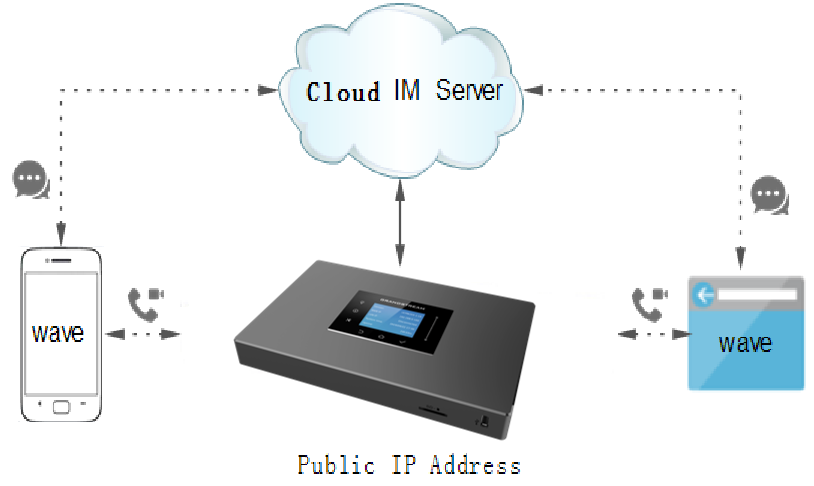
UCM under External Network
The enterprise user can use the Wave application to make calls or chat from anywhere on the public network. The enterprise user can use the calling capabilities in the UCM and the Cloud IM services in the cloud system.
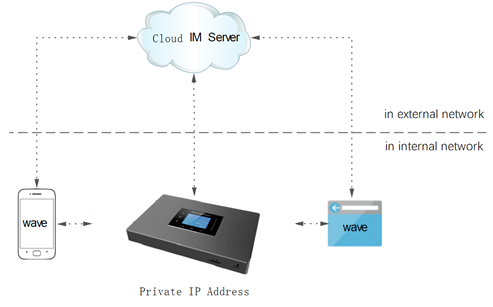
UCM under Internal Network
The enterprise user can only use the Wave application to make calls or chat on the internal network of the enterprise. The enterprise user can use the calling capabilities in the UCM and the Cloud IM services in the cloud system.
Requirements: The UCM device can connect to the Cloud IM server through the public network.
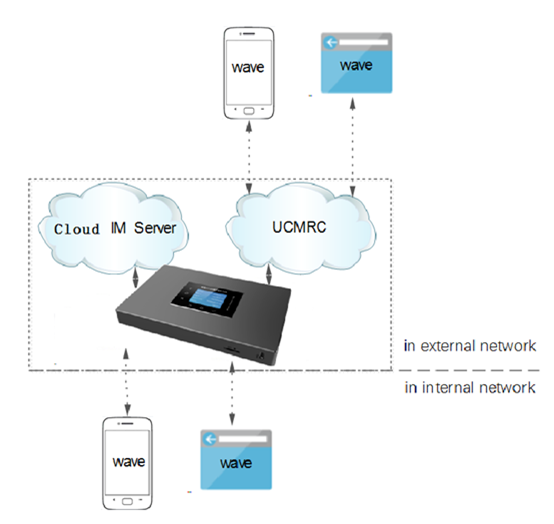
UCM under Internal/External Network
The enterprise user can use the Wave application to make calls or chat, whether under the internal network of the enterprise or the public network from anywhere. The user can make outbound calls through the UCMRC plan, and chat through Cloud IM services between the internal network and the external network.
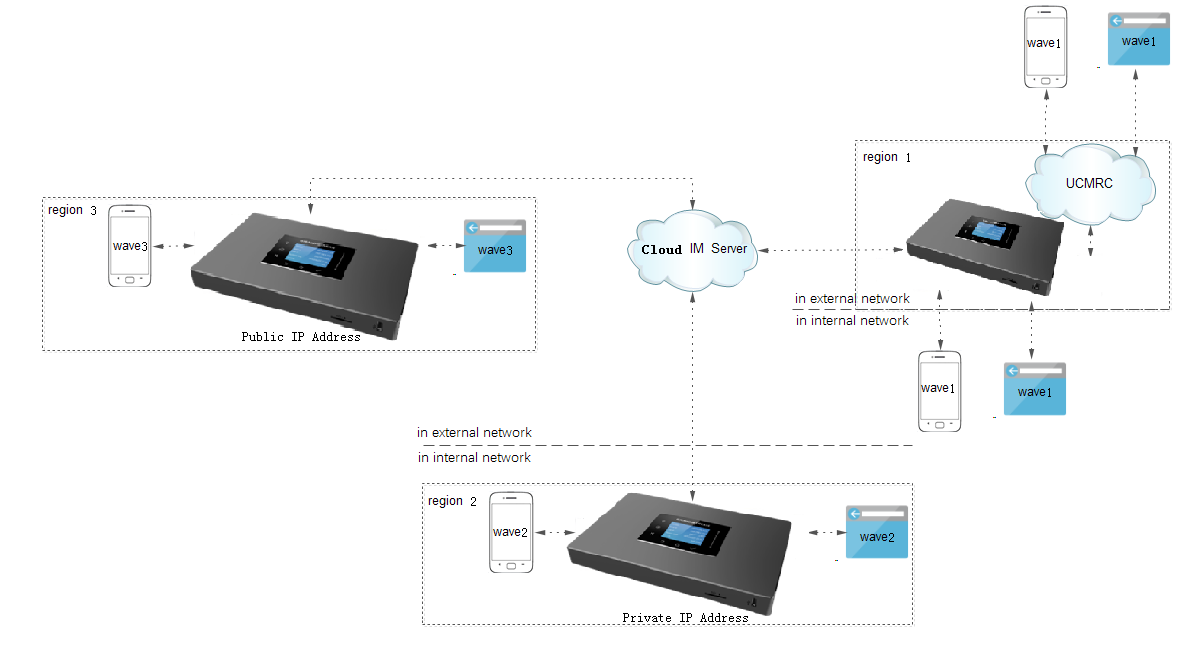
Multiple UCM Devices Share One Cloud IM Server
If the enterprise has multiple UCM devices, and it requires them to chat with each other, create a group chat, make calls, and schedule meetings, the enterprise user needs to configure the Cloud IM service to the UCM devices to satisfy the communication requirements across different regions.
Enable Cloud IM Service
The user needs to associate the UCM device with the GDMS platform.
After purchasing the UCM RemoteConnect plan which contains the Cloud IM service for the UCM device, the user can enable and use the Cloud IM service.
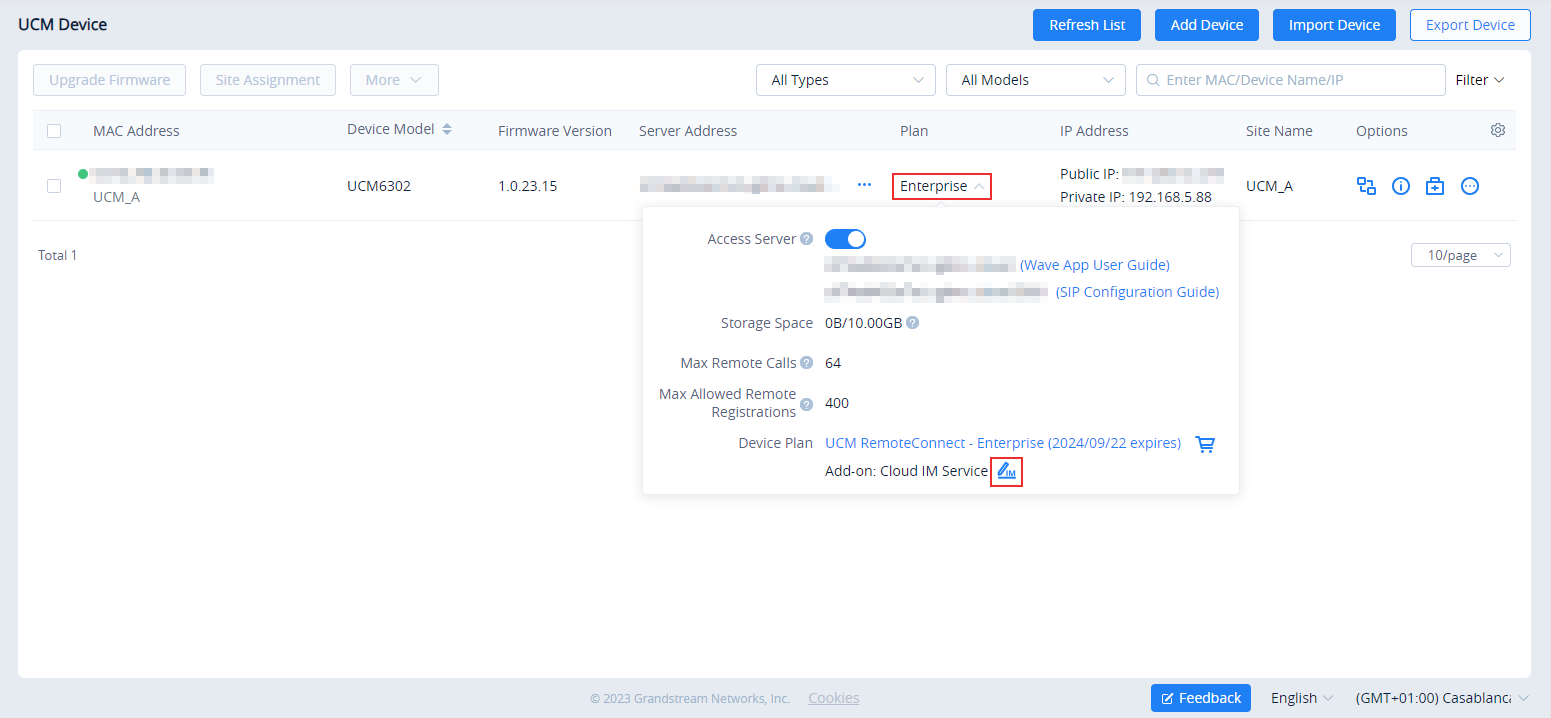
After selecting the UCMRC System, please navigate to the “UCM Device” tab, and select the UCM device on which you want to configure the Cloud IM.
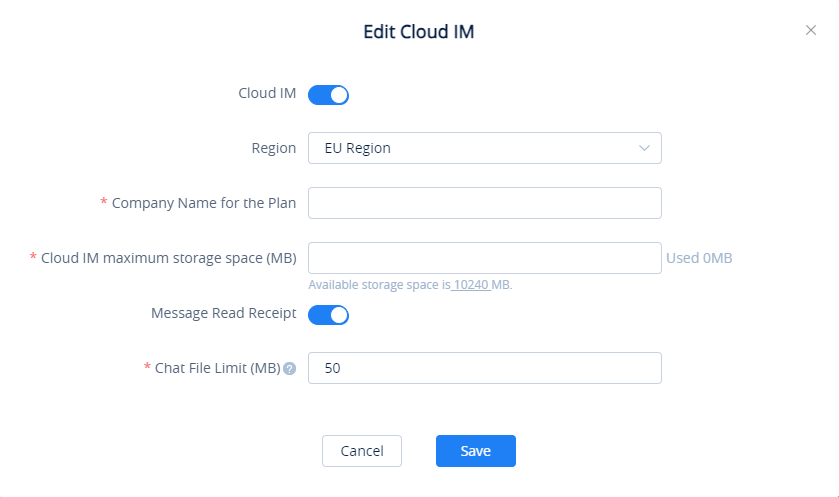
Cloud IM | Toggle on/off Cloud IM service. Note: If the user wants to disable the Cloud IM service which is currently in use and will no longer use it, the data in the Cloud IM server will be cleared after disabling it. |
Region | US Region / EU Region Note:
|
Company Name For the Plan. | The user can customize the name of the company which will use the Cloud IM service. |
Cloud IM Maximum Storage Space | The user can edit the maximum available storage space for the Cloud IM service. Note:
|
Message Read Receipt | When this option is toggled on, Wave clients will display that the message has been seen when the message is read by the recipient. |
Chat File Limit (MB) | Set the limit of the chat file which can sent over Wave clients. |
The user can click the “Save” button to enable the Cloud IM service, and the user can view the Cloud IM service domain name, service ID, and Key.
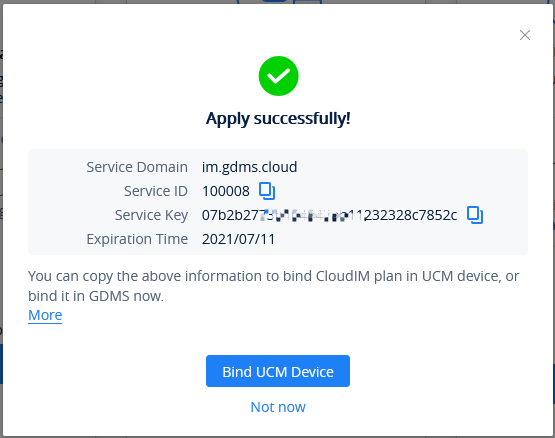
The user can quickly bind the UCM device to the Cloud IM service so that the UCM device can start to apply the Cloud IM service quickly.
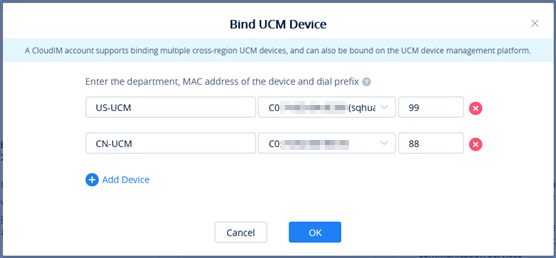
Configure Cloud IM Service for UCM
Configure Cloud IM Service Through GDMS
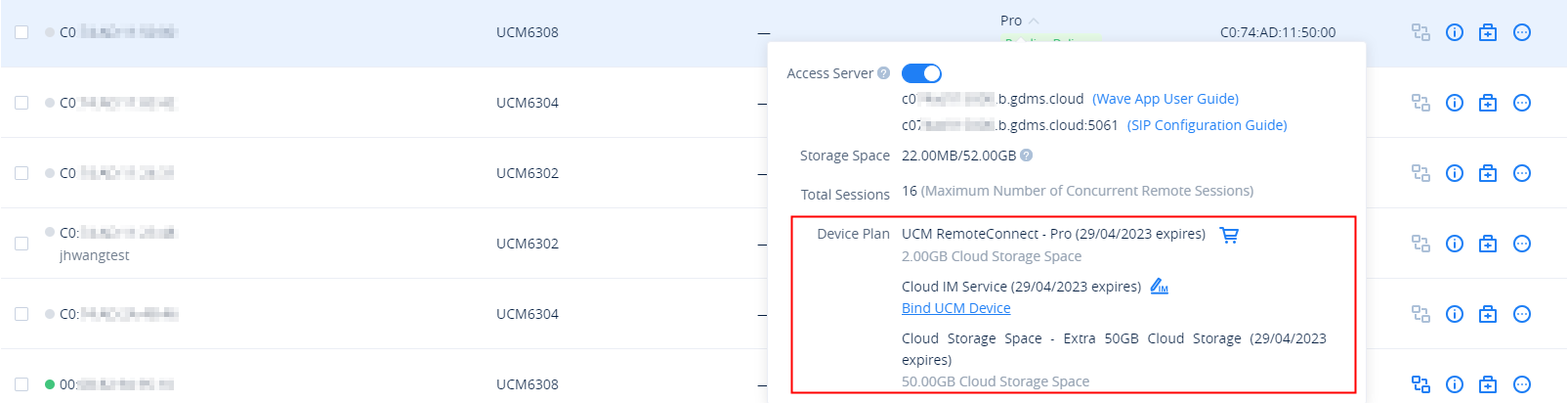
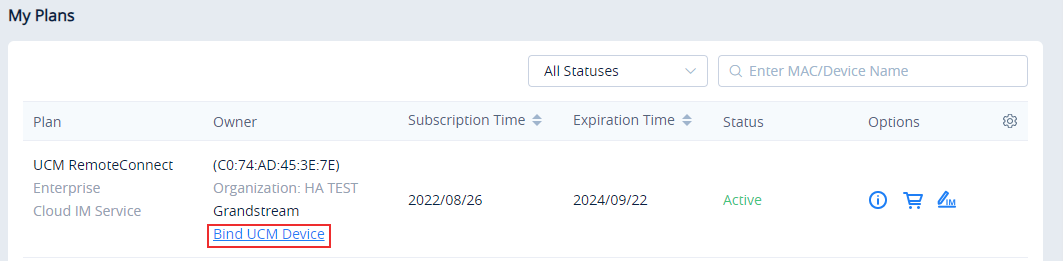
- After enabling the Cloud IM service, the user can view the UCM RemoteConnect plan which has enabled the Cloud IM service on the “My Plans” page. Then, the user can click on “Bind UCM Device” to bind the UCM to the Cloud IM instance.
2. View the UCM devices that are bound to the UCM Cloud IM service. It allows users to add/delete devices. Please see the screenshot below:
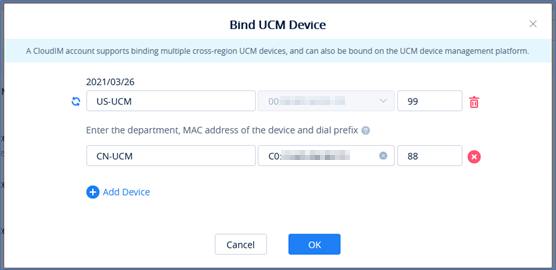
Department Name | Enter the name of the department using this UCM device so that the contact details in the Wave application can be viewed. |
UCM MAC Address | Enter the MAC address of the UCM that uses the UCM Cloud IM service. It only supports the UCM devices which have been associated with the GDMS platform. Note: For the UCM devices which have been associated with the GDMS platform, the user can only log in to the UCM management platform to configure the Cloud IM services. |
Dial Prefix | Dial prefix: It must be consistent with the prefix configuration of the call trunk on the UCM. It is not required and it supports special characters, letters and numbers. |
Bind UCM Device Parameters
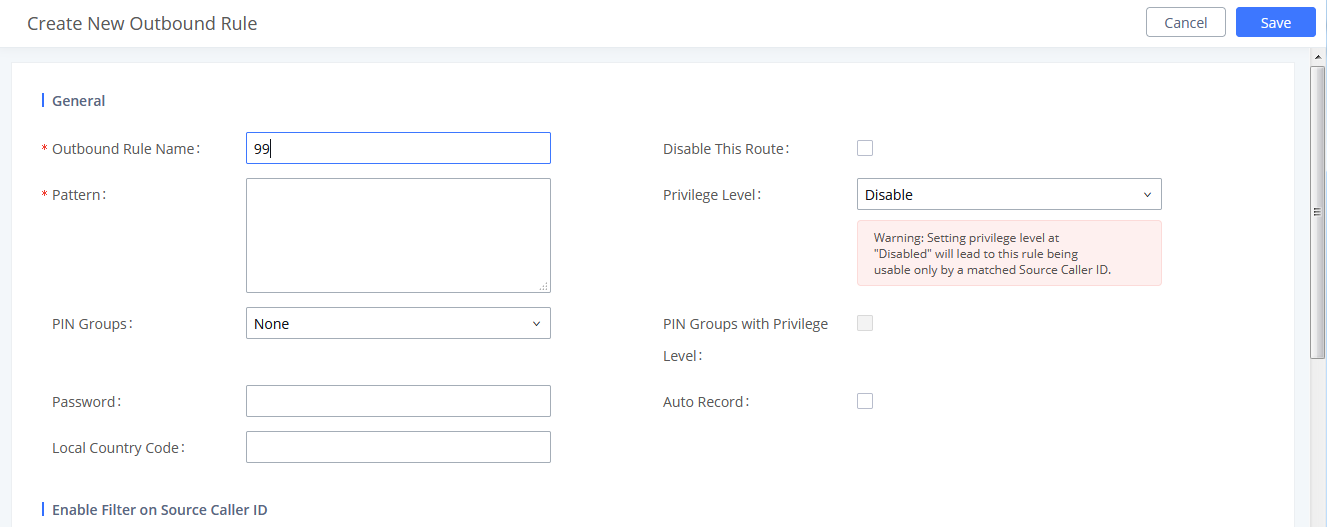
 until the UCM is online and synchronized, and then the updates will be applied.
Configure Cloud IM Service Through UCM Web UI
The user can log into the UCM device’s Web UI > Messaging > IM Settings > Cloud IM Service then tick the box related to “Enable Cloud IM Service. All chat data in the Wave application will be stored in the Cloud IM server, and the data will not be stored in UCM locally anymore.
The user can also configure the Cloud IM service for the UCM device through the GDMS platform. The UCM settings will be synchronized after pushing the parameters to the UCM device.
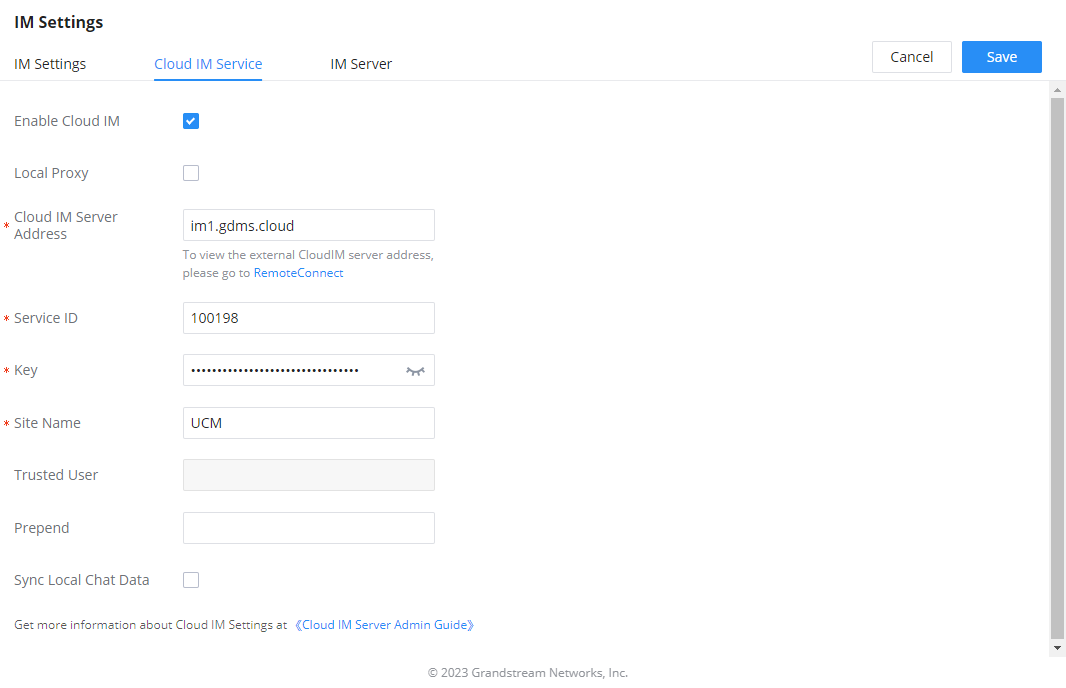
Cloud IM Service | |
Enable Cloud IM | If you have purchased the Cloud IM package or purchased the Grandstream IM server, you can configure it. If you have not purchased it, the configuration will not take effect, but PBX local IM service is allowed. Please note that after enabling this feature, local chat data will not be visible. |
Local Proxy | If enabled, the local proxy will be used to forward files and text messages if the IM server cannot be connected to upon Wave login due to certificate issues. |
Cloud IM Server Address | The address of the server that provides IM service, you can fill in the address of the Cloud IM server provided by the RemoteConnect package or the IM server address of the GDMS. |
Service ID | The service ID of the Cloud IM server. |
Key | The Key to the Cloud IM server. |
Site Name | Enter the name of the site. |
Trusted User | The trusted user of the cloud IM. Only letters, numbers, and special characters are allowed. |
Prefix | As the extension prefix, it is added before the extension number. |
Sync Local Chat Data | Syncing existing local chat data to Cloud IM server. The Wave chat feature will not be available during the syncing process. It is recommended to avoid syncing during active working hours. – Time Range
– Data Type
|
Configure Shared Department
The user can create a new department or edit an existing department to make it a shared department. This allows other UCMs to assign extensions to the shared department. When the user accesses the department on the contact list on Wave, he/she will be able all the extensions that are shared across the regions.
Step 1: To create a shared department please navigate to the web GUI of the UCM, then go to Contacts > Department Management the click on  .
.
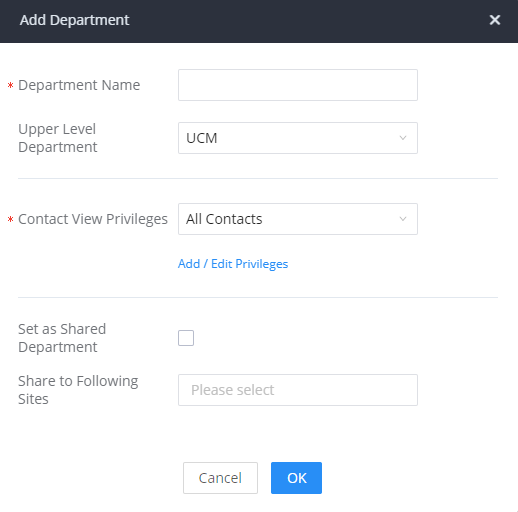
Department Name | Enter the name of the department. |
Upper Level Department | Select the upper level department if the department being created is a nested department. |
Contact View Privileges |
|
Set as Shared Department | Enable this option to share this department across the UCMs which use the same Cloud IM server. To be able to enable this option, make sure that the UCM has a RemoteConnect Plan and is correctly connected to the Cloud IM server. |
Share to Following Sites | Pick the sites to which you want to share this specific department. |
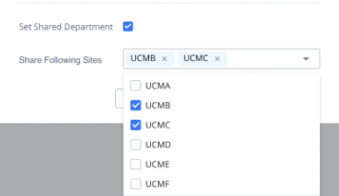
Step 2: Enable “Set Shared Department” and then select the sites to which the department will be shared.
Once the sites are chosen, the department will be shared across all the UCMs in the respective sites.
View Cloud IM Storage
With the Cloud IM service, all chat data will be stored in the storage space of this service.
Log into the GDMS platform, the user can go to “My Plans” to find the Cloud IM service, and the user can click the button  to view the service domain, service ID, service Key, and the usage of the storage space of this service.

SUPPORTED DEVICES
Supported Device | Minimum Firmware Version |
UCM6300 Series | 1.0.7.9 |
UCM6300 Audio Series | 1.0.7.9 |
GCC6XXX Series | 1.0.25.11 |
SoftwareUCM | 1.0.25.17 |
CloudUCM | 1.0.27.26 |