

Overview
The GWN7062M is a dual-band AX3000 secure router based on the latest Wi-Fi 6 (802.11ax) technology. The GWN7062M features one 2.5G combo SFP/RJ45 port and one WAN/LAN autosensing port, enabling flexible network expansion. This router is equipped with a powerful 1.3GHz dual-core processor, delivering up to 3Gbps Wi-Fi speeds and supporting simultaneous connections for up to 256 wireless devices, allowing the GWN7062M to provide robust support for applications such as smart offices, home automation, smooth 4K ultra-high-definition streaming, network meetings, video conferences, and online gaming. The GWN7062M supports wireless Mesh networking with multiple Grandstream devices, expanding Wi-Fi coverage and enabling seamless roaming. It also supports various VPNs, providing secure and dedicated network connections for remote workers. Advanced parental controls, intelligent security firewalls, and multiple encryption methods ensure the security of the router, clients, and user information at all times. The GWN7062M supports multiple management methods, including a local web user interface, GDMS Networking, and GWN Manager, Grandstream’s cloud and on-premise network management platform. Additionally, you can use the Grandstream Home App, Grandstream’s mobile unified device management platform, to easily manage your home network and devices. The GWN7062M router also supports intelligent QoS, which used to maintain smooth network operation, and other advanced features, making it an ideal router for evolving home, small office, and commercial network environments.
Package Contents
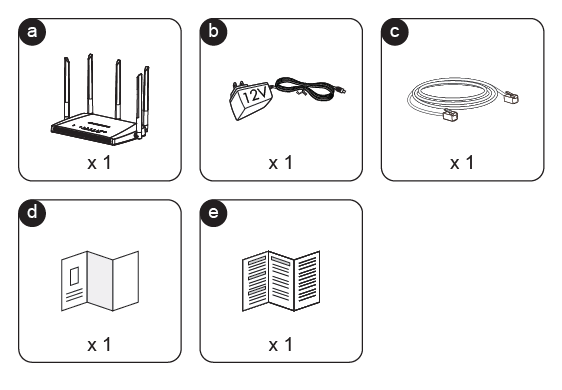
Label | Item | Description |
a | GWN7062M Router | Main wireless router unit with external antennas |
b | Power Adapter (12V) | Power supply used to power the router |
c | Ethernet Cable | Network cable for connecting the router to a modem or computer |
d | Quick Installation Guide | Basic setup instructions for installing and configuring the router |
e | Regulatory Paper | Regulatory and compliance documentation included with the device |
Package Content
In-wall Installation
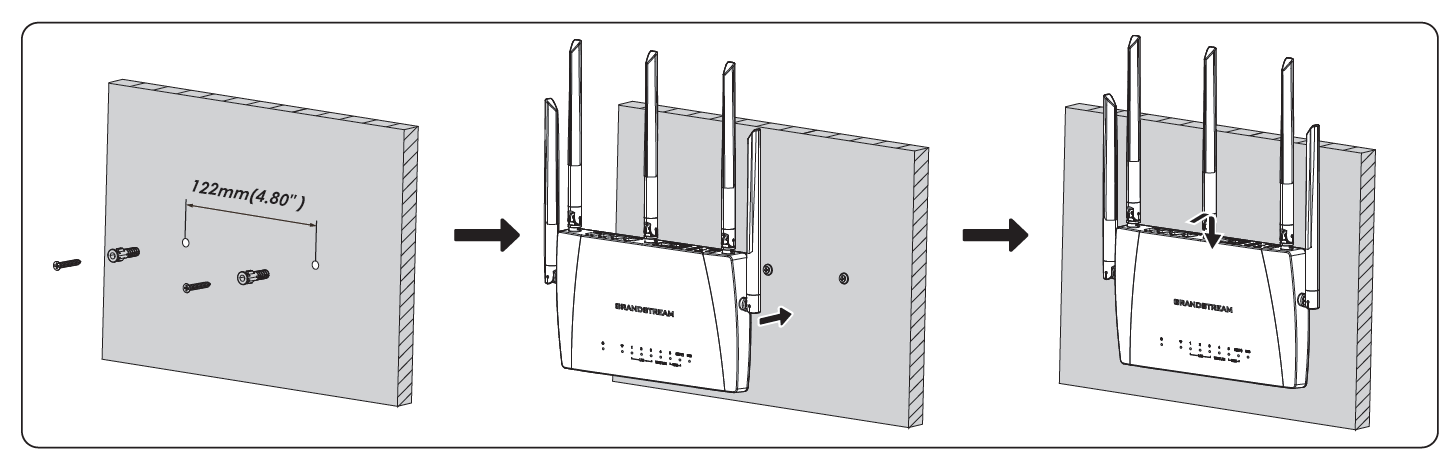
To install the GWN7062M router on-wall:
- Drill two holes in the wall with a spacing of 122 mm (4.80 inches) between them. Insert the wall anchors and screws, leaving the screw heads slightly exposed so the device can hang on them. ( the screws and anchors are not included in the package content)
- Align the mounting slots on the back of the GWN7062M with the screws on the wall, then place the device onto the screws.
- Slide the device downward gently until it is securely locked into place on the screws.
Connecting The GWN7062M
GWN7062M Ports
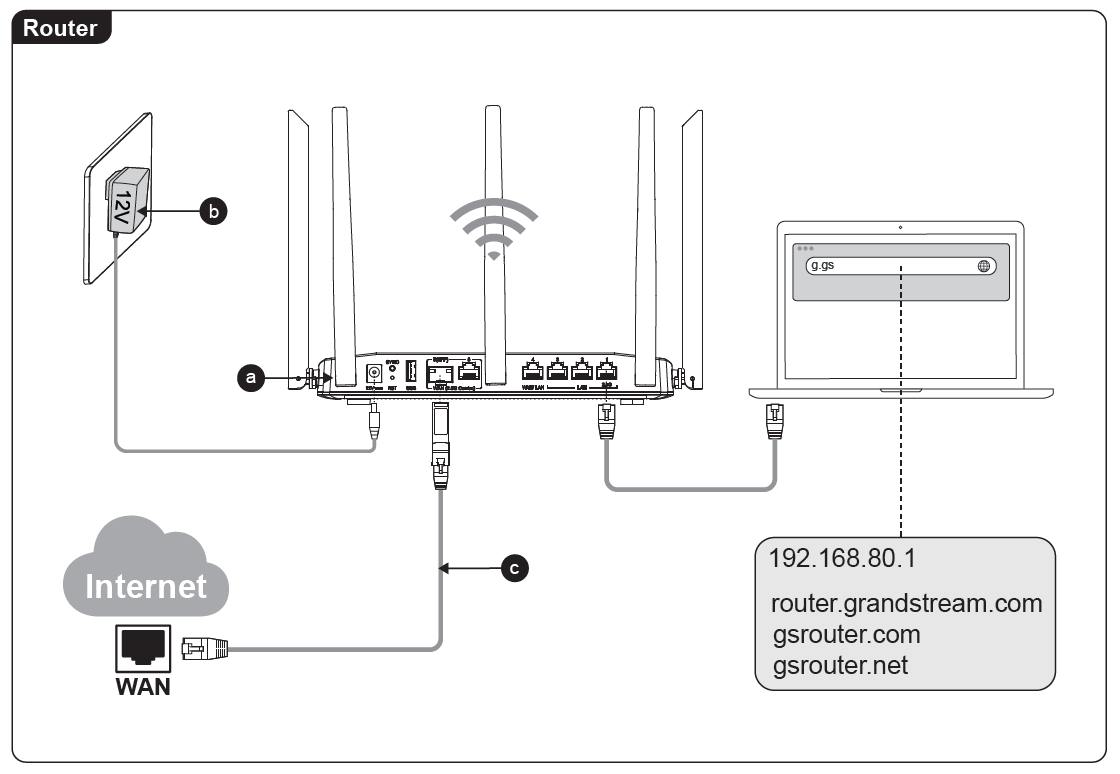
- Connect the power adapter to the router: Plug the 12V DC power adapter into the router’s power port.
- Plug the power adapter into a wall outlet: Insert the adapter into a power socket to supply power to the router.
- Connect the Internet (WAN) cable: Plug an Ethernet cable from your modem or ISP network into the router’s WAN port.
- Connect a computer to the router: Use an Ethernet cable to connect your computer to one of the router’s LAN ports, or connect to the router using Wi-Fi.
- Access the router’s web configuration interface: Open a web browser on the connected computer and enter one of the following addresses:
- 192.168.80.1
- router.grandstream.com
- gsrouter.com
- gsrouter.net
- Log in to begin configuration: Once the page loads, enter the administrator credentials to access the router’s web interface and complete the setup.
Ports
Connecting to Wi-Fi
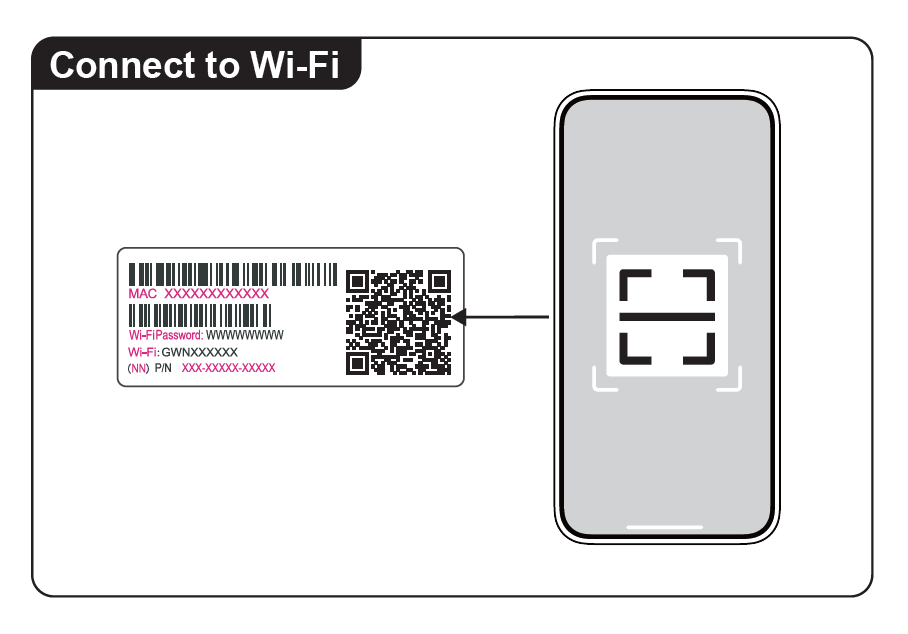
You can connect to the router’s Wi-Fi network using the information printed on the device label.
- Locate the label on the router.
The label contains the Wi-Fi network name (SSID), Wi-Fi password, MAC address, P/N, and a QR code. - Connect using the Wi-Fi credentials.
On your smartphone, tablet, or computer, open the Wi-Fi settings, find the network name listed on the label (for example GWNXXXXXX), and enter the Wi-Fi password provided on the label. - Connect using the QR code.
You can also scan the QR code on the label using your smartphone camera or a QR scanning app. This will automatically connect your device to the router’s Wi-Fi network.
Once connected, your device will have access to the router’s network.
Mesh Setup
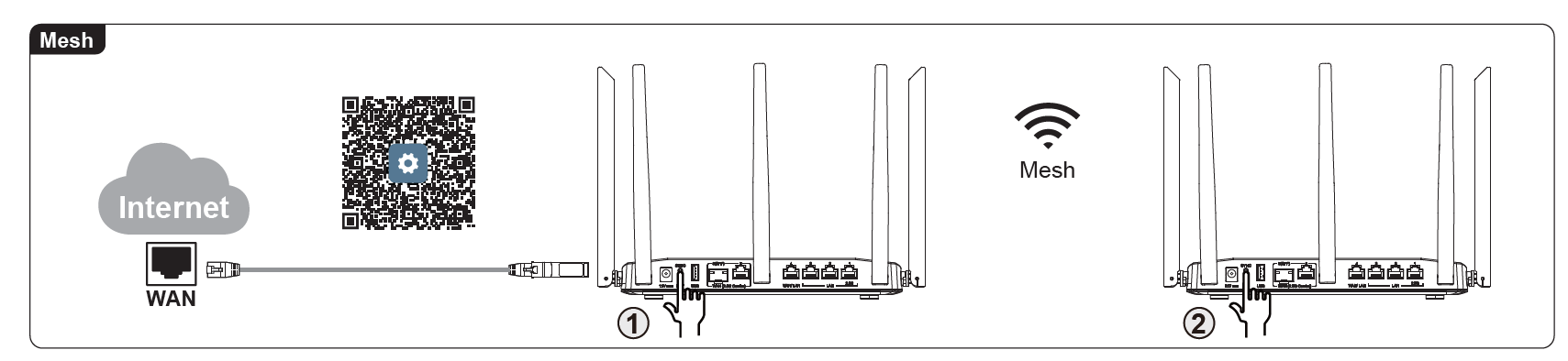
Follow the steps below to set up a Mesh network using the routers:
- Connect the main router to the Internet.
Connect an Ethernet cable from your ISP modem or Internet source to the WAN port of the first router. - Power on both routers.
Connect the power adapters and ensure both devices are powered on and fully booted. - Add the secondary router to the Mesh network.
Press the Mesh pairing button on the main router. - Pair the second router.
Within a short time, press the Mesh pairing button on the secondary router. - Wait for the devices to synchronize.
The routers will automatically establish a Mesh connection, extending the Wi-Fi coverage and creating a single seamless wireless network.
Access Grandstream Home
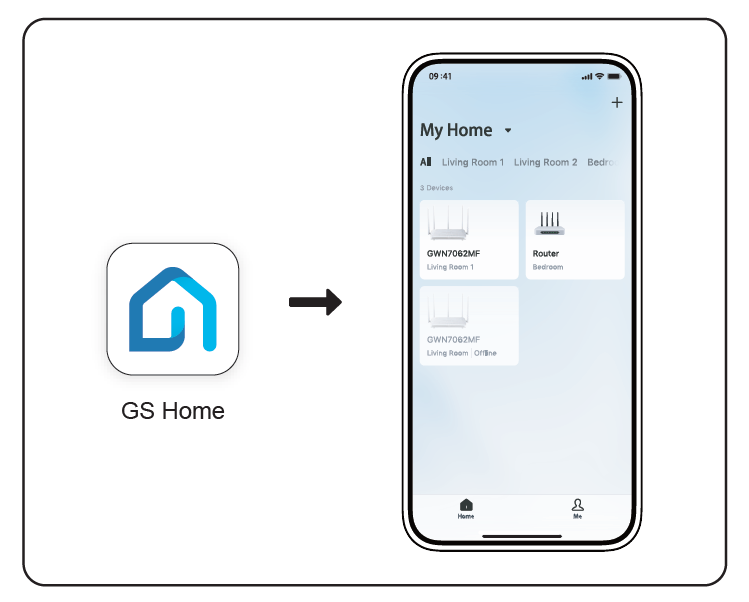
Follow the steps below to set up and manage your router using the Grandstream Home (GS Home) mobile application:
- Download and install the GS Home application.
Install the Grandstream Home (GS Home) app on your smartphone from the Google Play Store (Android) or Apple App Store (iOS). The app supports Android 8.0 or later and iOS 13 or later. - Open the GS Home app.
Launch the application on your mobile device to begin the setup process. - Add and configure your router.
Use the app to scan the QR code on the router label and follow the on-screen instructions to quickly configure your router and create your home network. - Manage your home network.
Once the router is added, the GS Home app allows you to monitor and control your network, manage connected devices, configure Mesh networks, set parental controls, and receive real-time notifications. - Access your network remotely.
The app enables remote management, allowing you to monitor and control your home network from anywhere using your mobile device.
Accessing the configuration interface
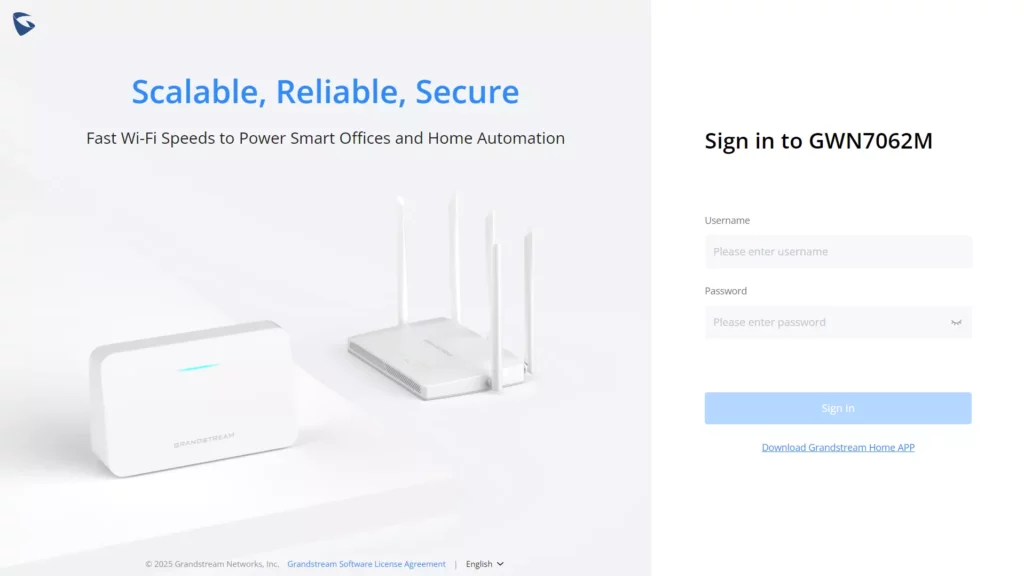
Now that you are connected to the GWN7062M’s SSID or to a LAN port with a network cable, you can access its configuration interface with: “myrouter.grandstream.com” or default IP address “192.168.80.1” and then enter the password to log in.
Refer to online documents and FAQ for more detailed information:
http://www.grandstream.com/our-products

For Certification, Warranty, and RMA information,
please visit www.grandstream.com