

Overview
The GWN7062ET is a secure, high-performance dual-band AX3000 router powered by the latest Wi-Fi 6 (802.11ax) technology. It features two FXS ports for analog telephony, making it a perfect fit for home offices, retail environments, and small businesses needing voice and data in one device.
With 2.4GHz 2×2:2 and 5GHz 3×3:2 MU-MIMO, beamforming, and XTRA Range technology, the GWN7062ET delivers fast, reliable Wi-Fi with expanded coverage. Its 1.3GHz dual-core processor supports speeds up to 3Gbps for up to 128 devices—ideal for streaming 4K video, video conferencing, remote work, and smart automation.
The device supports Mesh networking, multiple VPN options (including WireGuard® and OpenVPN®), intelligent QoS, and application-based traffic analysis with DPI. Built-in parental controls allow time-based internet restrictions and content filtering.
For security, the GWN7062ET includes URL filtering, firewall protection, and device-specific security certificates. It can be managed locally via its web interface or remotely through GDMS Networking, GWN Manager, or the GWN App.
Package Contents
The following items are included in the GWN7062ET package:
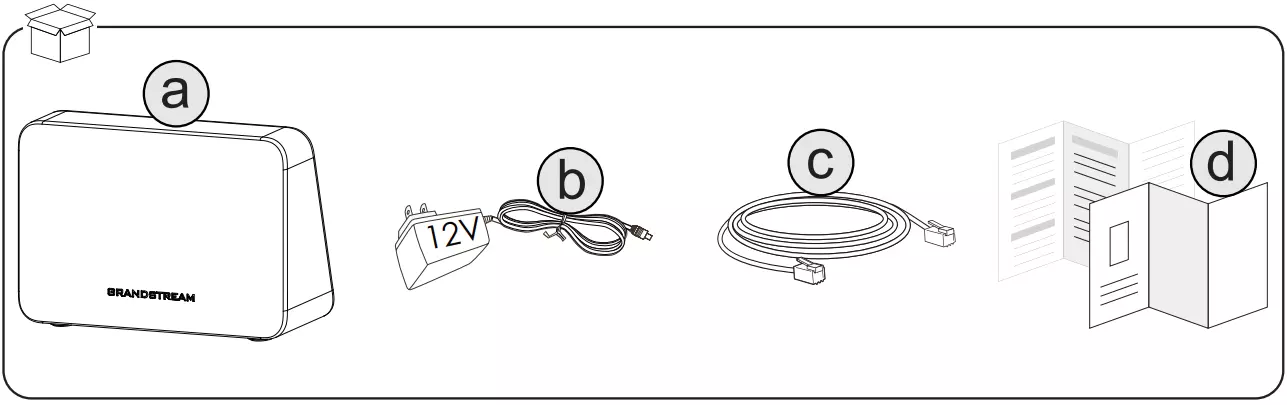
- a. GWN7062ET Router
- b. Power Adapter – 12V DC
- c. Ethernet Cable
- d. Quick Installation Guide and Regulatory Information
Initial Setup
Follow the steps below to power on your GWN7062ET and connect it to your network.
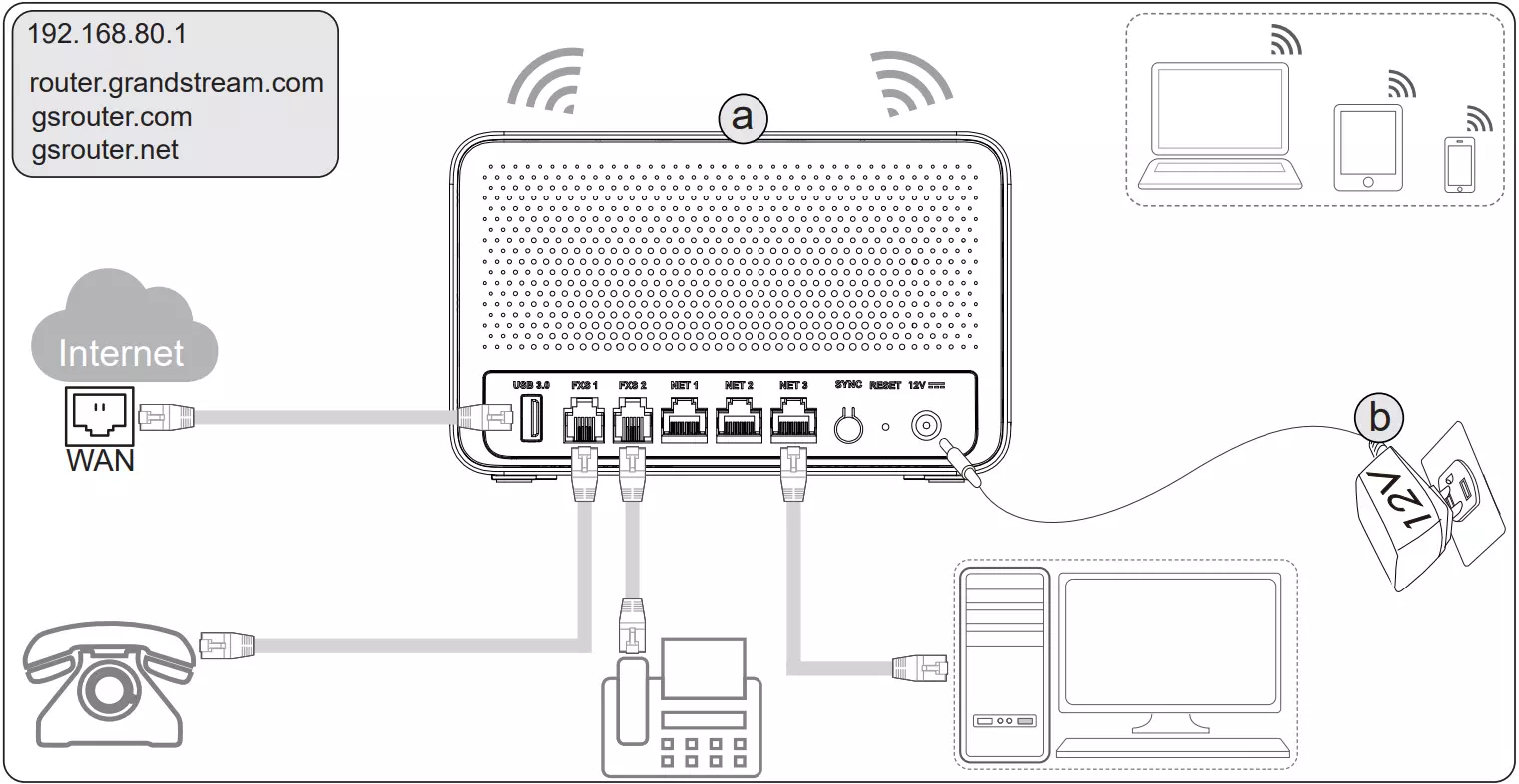
- Power the Router
Connect the included 12V DC power adapter to the router’s power port and plug it into an outlet. - Connect to the Internet
Use the Ethernet cable to connect your modem or uplink source to any available port on the router. The GWN7062ET will automatically detect the correct WAN port. - Connect Wired Devices
You can connect a PC or other device to a LAN port for direct access. - Connect Analog Phones (Optional)
The GWN7062ET includes two FXS ports for connecting analog telephones. These ports are labeled FXS1 and FXS2. - Access the Web Interface
On a connected device, open a browser and go to:http://192.168.80.1orhttp://router.grandstream.com,gsrouter.com, orgsrouter.net - Connect via Wi-Fi (Optional)
The router broadcasts a default Wi-Fi network.- SSID format:
GWN[Last 6 characters of MAC address] - Wi-Fi Password: Found on the included sticker
- SSID format:
Wireless Setup via QR Code
Easily connect to the GWN7062ET’s Wi-Fi network using your smartphone or other wireless device.
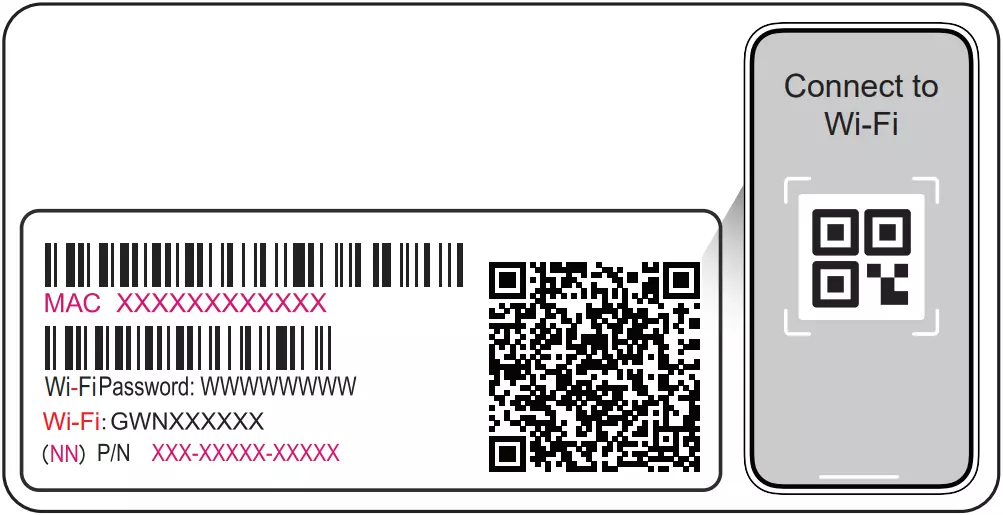
- Power on the router
Ensure the device is powered and broadcasting its default Wi-Fi signal. - Find the Wi-Fi information sticker
Locate the sticker included with the device that displays the default SSID, Wi-Fi password, and QR code. - Scan the QR code
Use your phone’s camera or a QR scanner app to scan the code. This will automatically connect you to the default Wi-Fi network. - SSID and Password
If needed, you can manually join the network using the credentials printed on the label:- SSID format:
GWN[Last 6 characters of MAC address] - Wi-Fi Password: Displayed next to “Wi-Fi Password” on the label
- SSID format:
Mesh Networking Pairing
The GWN7062ET supports Mesh networking for extended wireless coverage using additional Grandstream routers.
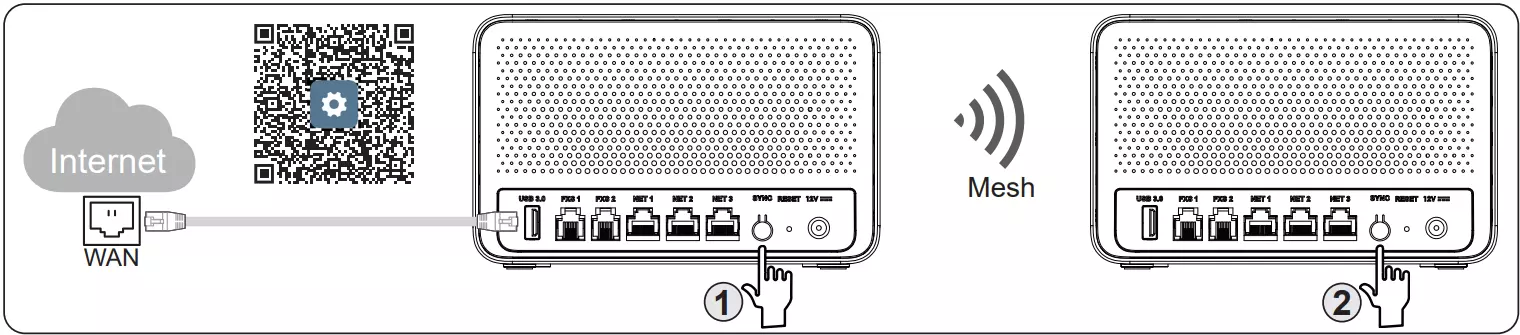
To pair two routers using Mesh:
- Ensure the primary (main) router is powered on and ready (LED should be solid blue).
- Press and hold the SYNC button on the primary router for 3 seconds (Step ①) to start discovery.
- Once discovery starts, the primary router LED will flash pink slowly while scanning for Mesh nodes.
- When the secondary router is detected, the LEDs on both devices will flash pink rapidly.
- Wired connection: No further action is needed. Pairing will complete automatically.
- Wireless connection: Press and hold the SYNC button on the secondary router for 3 seconds (Step ②) to finalize pairing.
- During pairing, both LEDs should turn solid pink. After a few seconds, if pairing is successful, both routers will show solid blue.
For full details including LED indicators and pairing behavior, scan the QR code in the image or visit: Setting Up Mesh Using the Sync Button
Precautions
Refer to online documents and FAQ for more detailed information:
https://www.grandstream.com/our-products