

This guide explains how to configure Grandstream IP PBXs to connect to an external SQL database and use it for contacts synchronization and real-time inbound caller name lookup.
Instead of manually maintaining phone book records on the PBX, the system queries the external database or syncs from it automatically, improving consistency and reducing administrative effort.
The configuration workflow includes:
- Configure the global SQL database connection
- (Optional) Sync contacts from the external database
- Configure inbound routes to perform database caller name lookup
PREREQUISITES
Before configuring the PBX, ensure the following:
- PBX running a compatible firmware (See Supported Models section).
- A SQL database server is available (MySQL or SQL Server).
- Network connectivity exists between the PBX and the database server.
- A database and user account are created.
- The database user has, at a minimum, SELECT privileges on required tables.
PBX CONFIGURATION
Configure Global SQL Integration
The PBX first needs a global database connection that other features can reference. This connection is configured once and reused by modules such as Contacts Sync and Inbound Routes’ third-party database lookup.
To configure the SQL integration, please refer to the steps below:
- Navigate to System Settings→3rd Party Database Integration.
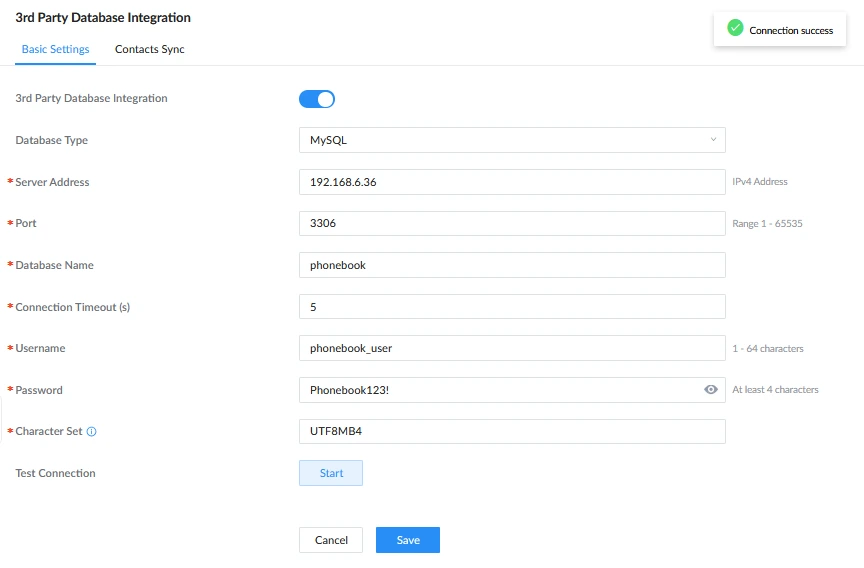
- Configure the fields as described below.
3rd Party Database Integration | Enable or disable 3rd party database integration. When enabled, the PBX queries the configured database for contact information. |
Database Type | Select the database engine:
|
Server Address | Enter the IPv4 address of the database server. |
Port | Enter the port used by the database service. Valid range: 1–65535 |
Database Name | Enter the name of the database used for establishing the connection. |
Connection Timeout (s) | Set the time (in seconds) to wait before a connection attempt times out. Please enter a value between 1 and 300. The default value is 5. |
Username | Enter the username used to connect to the database. |
Password | Enter the password for the specified username. |
Character Set | Specifies the character set for MySQL connections.
|
Test Connection | Click to test connectivity and authentication to the configured database. |
- Click Start under “Test Connection” to verify connectivity.
- If the test succeeds, click “Save”.
Configure Contacts Sync (Optional)
After the database connection is successfully established, an additional Contact Synchronization tab becomes available.
The PBX can synchronize phone book records from the external database into its internal LDAP directory. The synchronized contacts are then exposed to endpoints through the PBX LDAP server.
To configure contact synchronization:
- Navigate to Call Features → Contacts → 3rd Party Database Sync.
- Enable Contacts Sync.
- Specify the table and column mappings.
- Configure the synchronization schedule, or run a manual sync.
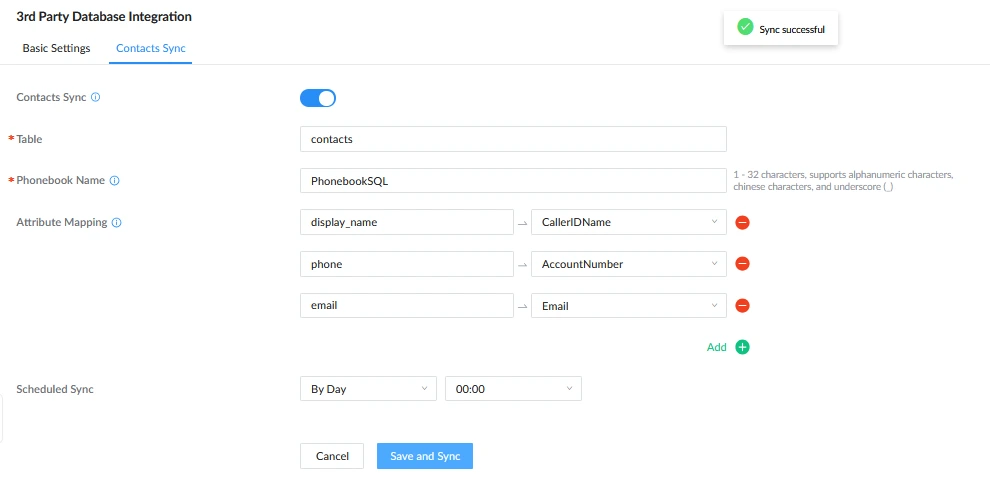
The configurable parameters are described below:
Contacts Sync | Enables synchronization of database contacts into the PBX LDAP phone book. When disabled, real-time caller lookup remains available, but contacts are not synchronized. |
Table | Enter the database table containing contact records. |
Phonebook Name | Choose the display name of the LDAP phone book created on PBX. |
Attribute Mapping | Maps the 3rd party database fields to PBX LDAP attributes (max 10). |
Scheduled Sync | Defines automatic synchronization schedule. |
When synchronization runs, the PBX imports records from the defined table and updates its internal contact storage. To verify the synced LDAP Phonebook:
- Navigate to System Settings→LDAP Server→LDAP Phonebook.
- Confirm a new phonebook with the configured name is present.
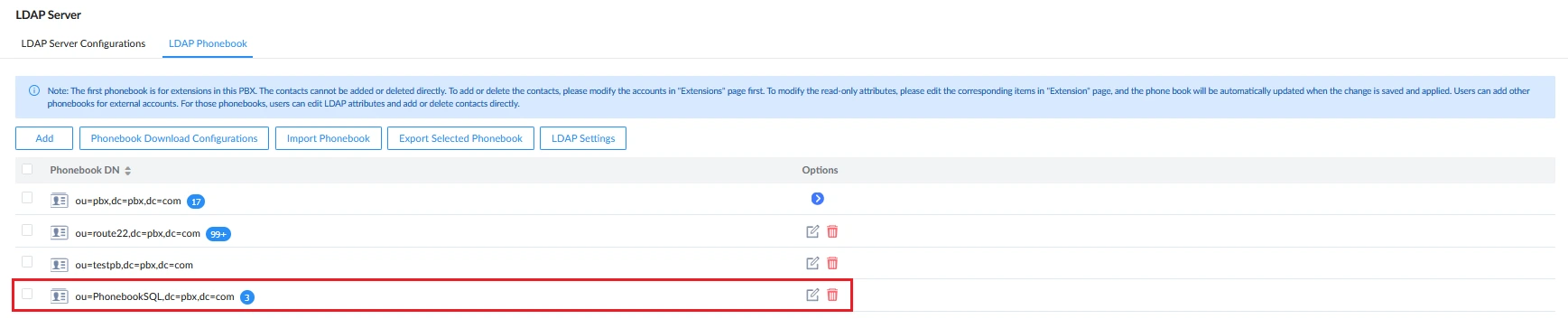
- Verify that the 3rd party database synced contacts are listed and searchable.

Configure Inbound Routes Search
This feature allows the PBX to perform a real-time lookup in an external SQL database when an inbound call is received. If the inbound caller number matches a record in the database, the associated name is returned and displayed as the caller ID.
This lookup operates independently of the contact synchronization feature. Instead of importing data, the PBX queries the external database dynamically during call processing.
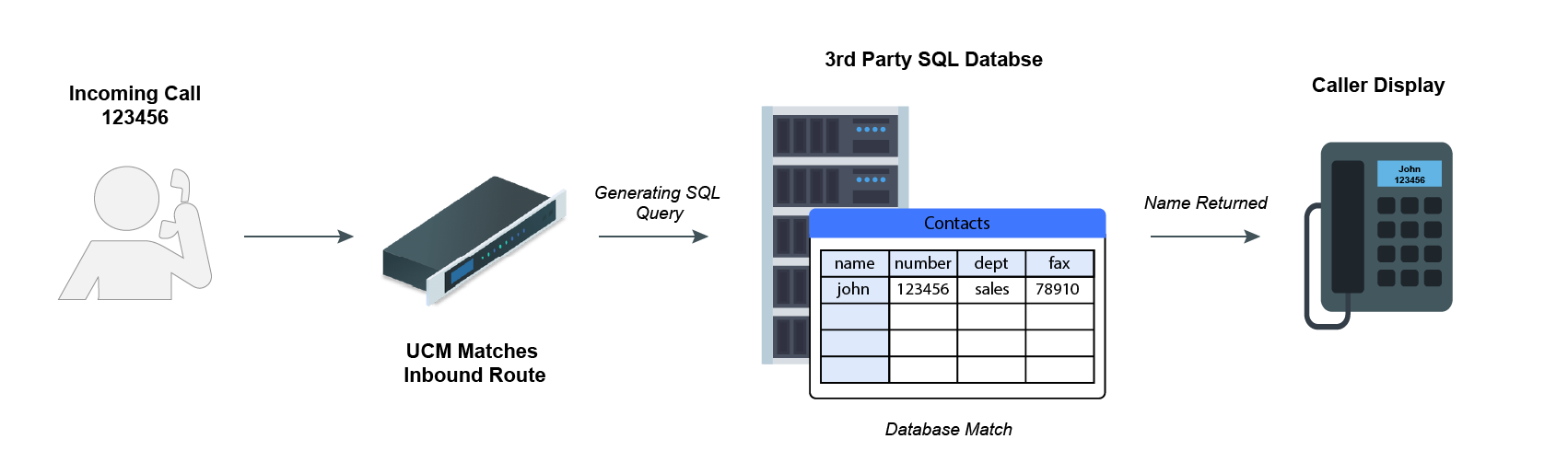
To configure third-party database lookup on inbound routes, please refer to these instructions:
- Navigate to Extension/Trunk → Inbound Routes
- Enable 3rd Party Database Search.
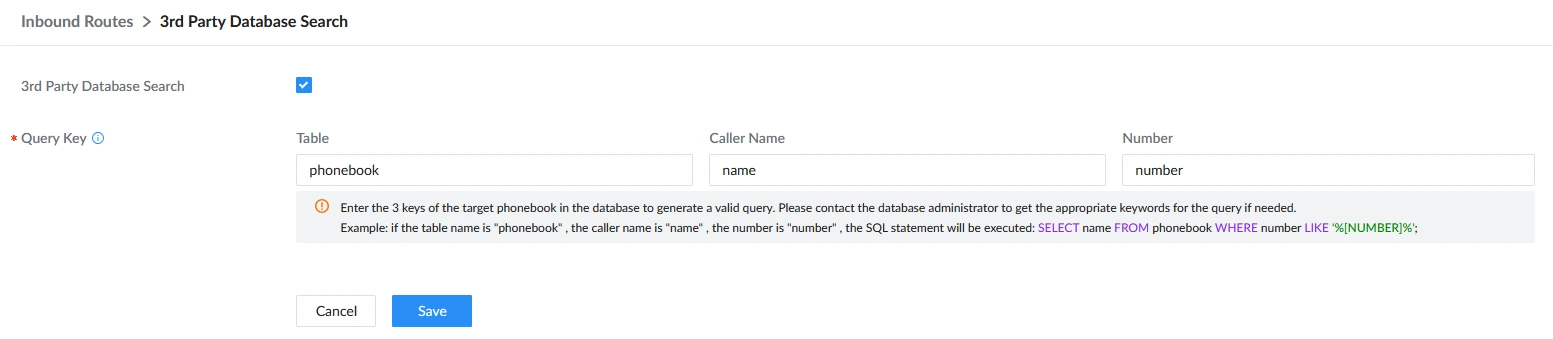
- Configure the Query Key fields described below.
Field | Description |
Table | Specifies the name of the database table that contains caller information. This table is queried when an inbound call is received. Note: The table name must exist in the configured database and be accessible by the database user defined under the Global SQL Integration. |
Caller Name | Specifies the column in the selected table that stores the caller’s display name. When a matching record is found, the value from this column is used as the inbound caller ID name. |
Number | Specifies the column in the selected table that stores the phone number. The PBX compares the inbound caller number against this column to determine whether a matching record exists. |
Based on the configured query keys, the PBX automatically generates and executes a SQL query in the following format:
SELECT <Caller Name Column>
FROM <Table>
WHERE <Number Column> LIKE '%[INBOUND_NUMBER]%';
The inbound caller number is dynamically substituted at call time.
SUPPORTED MODELS
The following table shows the list of models that support the 3rd Party SQL Database Integration.
Model | Minimum Firmware Version |
UCM63xx | 1.0.31.7+ |
UCM63xx/A | 1.0.31.7+ |
CloudUCM | 1.0.27.15+ |
SoftwareUCM | 1.0.33.7+ |
GCC6000 IPPBX | 1.0.27.14+ |
GCC6020 IPPBX | 1.0.27.70+ |