Thank you for using Grandstream Device Management System! GDMS Unified Communications is a cloud-based solution that provides the ability to easily manage Grandstream products before, during, and after deployment. GDMS Unified Communications separates systems independently based on different product lines: Unified Communication solution and the Networking solution.
PRODUCT OVERVIEW
Feature Highlights
Intuitive deployment and management: GDMS’s easy-to-navigate web portal and batch operation support allow users to easily deploy and manage Grandstream devices located on several sites.
All-in-one solution: GDMS offers a complete package that offers convenient management of devices and SIP server accounts on multiple sites, real-time monitoring and alerts, task scheduling and tracking, and device diagnostics.
Supports presetting offline devices.
Diagnostic tools: Easily collect system logs, network captures, ping and traceroute information remotely from the devices using GDMS user interface without having to be located in proximity of the devices.
Supports IPPBX devices’ remote management and synchronizes SIP accounts to the GDMS platform in real-time. All devices/SIP account one-stop management.
Supports value-added services – IPPBX Remote Management Plan in GDMS platform. Supports remote external network communication for IPPBX clients.
Supports value-added services – Cloud Storage Space in GDMS platform. IPPBX users can store more data safely thanks to encrypted storage and reinforced authentication procedure.
Channel customer support: Allows automatic association of Grandstream ERP devices, allowing for the establishment of channel relationships and quick device allocation.
Powerful API integration features: GDMS is compatible with ERP/CRM/OA platforms to improve workflow efficiency.
GDMS Technical Specifications
Functions
VoIP Device Management
PBX Device Management
Account Management
Device Configuration
Firmware Upgrade
Device Monitoring
Intelligent Alarm
Statistical Analysis
Channel Management
Task Management
PBX Backup
Plan & Service
Security and Authentication
HTTPS protocol and two-way certificate verification to ensure data security between devices and GDMS.
The key information of devices is encrypted and stored so that the key information cannot be obtained from the data storage.
The account password is encrypted and stored with sha256 algorithm to ensure the security of the account.
Serial number authentication of devices to ensure private rights of devices.
The privileges of the sub-users can be managed on the GDMS platform.
Support Multi-Factor Authentication.
Enterprise Features
No limitations on the number of devices and SIP accounts that can be managed.
Configuration of all supported device parameters is supported, including but not limited to account settings, phone settings, network settings, system settings, maintenance, applications, profiles, and handsets.
Management of sites, group templates, and model templates.
Supported Device Models
GXP Series (GXP21xx only)
GXV Series (GXV3370, GXV3380, GXV3350, GXV3450, GXV3470, GXV3480)
GRP Series
GHP Series (GHP610, GHP611, GHP620, GHP621, GHP63x(W))
DP Series
WP Series
GVC Series (GVC3210 and GVC3220)
GWN Series
UCM6300 and UCM6300A Series
CloudUCM
GCC Series
SoftwareUCM
GCC Series
HT Series
GXW42xx V2 Series
GXW45xx Series
GSC36xx Series
GDS Series
GSC357x Series
GSC35xx Series (GSC3505, GSC3506, GSC3506 v2, GSC3510, GSC3516)
GDMS Technical Specifications
GETTING STARTED
GDMS Overview
Main Functions Overview
For different solutions, the user can select to use one of the systems in the GDMS platform. Each system is in charge of managing and monitoring a line of products that belong to one solution.
GDMS Networking: This system manages the networking products offered by Grandstream. This line of products consists of routers, switches, access points, etc…
GDMS Unified Communications: This system manages the Unified Communication products offered by Grandstream, like IPPBX appliances, cloud IPPBXs, IP phones, facility management devices, conferencing devices, etc…
Select a System
The user can access the modules listed in each category to jump quickly to the intended destination. See the example below for the GDMS Unified Communications system.
GDMS Unified Communications Module
Import Devices and Management
Users need to import the devices into the GDMS platform first to view the status and configuration of the devices and monitor the devices on the GDMS platform.
Channel vendors could acquire devices directly through ERP, and the channel vendors need to submit relevant certificates to Grandstream customer support.
Import SIP Accounts and Allocate to Devices
Users could import a batch of SIP accounts with Excel files, and allocate the batch of SIP accounts to devices. Users could complete all account configurations for all devices by importing a batch of SIP accounts to a batch of devices.
Configure Devices
Configure devices by model: Once the device is associated with the GDMS platform, the device will be allocated with the configuration parameters according to the device model and located site.
Configure devices by group: Manage the devices by certain rules and groups, and the GDMS supports pushing configuration files to all devices under a group.
Configure a single device: Modify a specific device configuration in the Device list directly.
Configure devices by configuration file: Users can upload the configuration file of the device into the GDMS platform directly.
Firmware Upgrade
GDMS platform supports upgrading a batch of devices’ firmware by device model, site, firmware version range, and other conditions. It also supports upgrading the devices’ firmware by a batch of MAC addresses of the devices.
Schedule Tasks
Users could schedule certain tasks for a certain period of time. For example, users could schedule firmware upgrade tasks and execute the task in the early morning, so that the task will not affect the device owners.
Alarm Message and Diagnostic
In case of malfunction or dangerous operation of the devices, the administrator will be alerted. The GDMS platform allows administrators to diagnose faults of some devices to locate and resolve problems quickly.
Prerequisites
TR-069 feature needs to be enabled on the endpoints.
Working Internet connection to access the GDMS platform.
Click on the Sign Up option to enter the registration page, and then fill in the following information:
Register GDMS Account
Nickname
Enter the name that will be displayed in Grandstream Cloud Platform
Username
Enter a username. The username will be used to login.
Email
Enter the email. This is necessary for account activation.
Country
Select the country from the dropdown menu.
Region
Select your region, and user data will be stored in the data center of the corresponding region.
User Type
Select the user type.
Enterprise
Service Provider
Channel Reseller
System Integrator
Personal User
Grandstream Device Verification
Fill in the device information you own (device purchase channel, Mac address, SN or initial password) so that the administrator can review your registration application.
Verification Code
Enter the Captcha verification code
Register GDMS Account
After submitting the registration application, device verification is performed in real time. Based on the verification result, the application may be immediately approved or rejected.
GDMS Account Access
Login
Once the account has been activate, the user can log into the GDMS platform using their username or email address. In case the user has used the address email to log into the GDMS and the address email is bound to multiple accounts, the user will be prompted to choose the account to use by choosing the corresponding username.
Upon first login with valid credentials, users are prompted to configure an MFA method. The available methods depend on the authentication policy set by the GDMS administrator. For more information, refer to the GDMS MFA Device User Guide.
Note
If the failed logging attempts exceed 5 attemps, the account will be frozen for 30 minutes. The user has to wait until the cooldown time has elapsed before attempting to log in again. If the user wishes to log in before the cooldown timer elapses, they will need to reset their password by clicking on “Forgot Password?”, and log in using the new password.
GDMS Login Page
Single Sign-On (SSO)
If the user has set to log in using SAML Single Sign-on, they can click on “Sign in with SSO” button then enter the SSO Access Code.
GDMS Log in Page
Single Sign-on Log-in Page
Login Auto-Lock for Inactive Users
To enhance system security and maintain account integrity, GDMS includes an Auto-Lock for Silent Users feature.
Any user account that has not signed in for more than one year will be automatically locked by the system. Locked users will be unable to log in until their account is reactivated.
To regain access, the user must reset their password by selecting the “Reset Password” option on the login page when prompted with the account security reminder.
GDMS Login Pormpt for Inactive Users
Supported Devices and Requirements
The current GDMS platform version supports the following device models.
Supported Device Models
Audio Device
GXP21XX
DP7XX
GRP26XX
WP8XX
GHP6XX
GSC36XX
GSC35XX
Video Device
GXV33XX
GXV34XX
Conference Device
GAC2570
GSC35XX
GVC32XX
Facility Access Device
GDS37XX
GSC3570
Video Surveillance Device
GSC3610
GSC3615
GSC3620
ATA Device
HT80X
HT81X
HT841
HT881
Gateway Device
GXW45XX
GXW42XX V2
PBX Device
UCM63XX
UCM63XXA
GCC60XX
CloudUCM
SoftwareUCM
Supported Devices
Connect with GDMS
The devices must be upgraded to firmware versions that are compatible with the GDMS platform. Otherwise, the devices will not be able to connect to GDMS. When the devices connect to the Internet, and the user has added this device to the GDMS account, the device will connect to GDMS automatically.
DASHBOARD
The dashboard offers a general look and information which is represented in numbers and graphs to make it easier to read and interpret. The different information is gathered from all the organizations which are assigned to the user. Within the dashboard page, the user can access four tabs and each gives a specific type of information to the user so he/she can quickly jump between pages and view the needed information. The categories are Device Statistics, PBX Top 5, Device Geo Map, and Device List.
Device Statistics
The Device Statistics page provides an overview of the following information:
Total Accounts
Total Devices
Total Sites
Accounts Status
Device status
Device Type
Site Statistics
Model statistics
Overview
Module
Description
Total Accounts
Displays the total number of SIP accounts configured on GDMS.
Total Devices
Displays the total number of devices configured on GDMS.
Total Sites
Displays the total number of sites configured on GDMS.
Account Status
Displays the total number of accounts currently registered, unregistered, and unallocated.
Normal: All devices which use this account are registered successfully.
Abnormal: The account is unregistered on a device.
Unallocated: This account is not allocated to any device.
Devices Status
Displays the total number of devices currently online and offline.
Online: Device and GDMS platform network connection is normal.
Offline: Device and GDMS platform lose network connection.
Device Type
Displays the total number of devices in each category: audio, video, and conferencing.
Audio devices: GRP series, DP series, GXP series, and WP series
Video devices: GXV series
Conference devices: GVC series
Site Statistics
Displays the total number of devices assigned to each site and the allocation of devices per site.
Model Statistics
Displays the total number of each device model, the percentage of total devices that each model makes up, and the distribution of different firmware per model.
Model Statistics
PBX Top 5
In this tab, the user can view the top 5 PBX devices per local calls, remote calls, local registrations, cloud storage space usage, local call duration, remote call duration, and remote registrations. This gives the user a comprehensive view of the top 5 PBX devices for each category, to ensure that educated decision on distributing the IP telephony resources.
PBX Top 5
Device List
On this page, the user can view the list of all devices which are added to the organization. This includes every device that belongs to the Unified Communications system. The user can choose the categories highlighted in the screenshot below to display SIP endpoints, on-premise PBXs, or CloudUCM.
GDMS Unified Communication Device List
Device Geo Map
This menu will show the distribution map of the devices which have been associated with the enterprise.
The dark blue area on the map shows that the area has more associated devices, and the light blue area shows the area has fewer devices.
Users could leave the cursor on the area to check the number of devices in that area.
If a certain city has the devices, it will be marked with a green dot , and users could leave the cursor on the city to check the number of devices in that city. The user can click on the dot to see the devices list in this city.
Device Distribution
ORGANIZATION
The user can use this specific button to switch quickly between organizations. The user can only see the statistics and devices from one organization at a time. The user can have the privilege of managing multiple organizations.
Overview
The Overview page displays all VoIP device statistics information in the current organization.
Organization Overview
Extension
On this page, the user will be able to view all the extensions that are created in the selected organization and the SIP servers that are added to the organization.
SIP Account
In this page, the user can view, create, and delete extensions for this specific organization. The user can also use the assign button to assign the extension to a specific SIP endpoint that has been added to the same organization as the extension.
SIP Account
Status
Description
Status
Normal:
All devices using the account are registered, and the account is working normally.
Abnormal Registration:
At least one device using this account is not registered. Possible reasons include:
The device is unable to register successfully.
The account was modified through other means such as through the endpoint device web portal or provisioning.
This represents the SIP accounts are synchronized from the IPPBX device. If the user modifies the SIP accounts in IPPBX device, the updates will be synchronized to GDMS platform. The user can only edit SIP server, assign device, and cannot edit other information.
This represents the SIP accounts are synchronized from the CloudUCM. If the user modifies the SIP accounts in CloudUCM , the updates will be synchronized to GDMS platform. The user can only edit SIP server, assign device, and cannot edit other information.
Account Status Description
Operation
Description
Sorting
Click on the buttons to sort the list in ascending/descending order based on a specific column.
Custom Display Option
Users could customize the displaying options on the list by clicking on option on the right side of the list to select the displayed/hidden options.
Filter and Search
Filter accounts by status, and site, and search for specific accounts by entering their user IDs, account names, or display names.
Operation Description
Add SIP Account
The SIP Account page shows all of the SIP accounts added to GDMS.
Add SIP Account
Account Active
Activates/deactivates the SIP account.
Account Name
This is a necessary option. Specifies an identity name for the SIP account.
SIP User ID
This is a necessary option. Configures user account information provided by your VoIP service provider (ITSP). It is usually in the form of digits similar to a phone number or actually a phone number.
SIP Authentication ID
This is a necessary option. Configures the SIP service subscriber’s Authenticate ID used for authentication. It can be identical to or different from the SIP User ID.
Password
This is a necessary option. Configures the account password required for the phone to authenticate with the ITSP (SIP) server before the account can be registered. After saving, it will appear as hidden for security purposes.
Name
Configure the display name of the SIP account. This option will be used for Caller ID display. The configured content will be included in the From, Contact, and P-Preferred-Identity headers of the SIP INVITE message
Voicemail Access Number
If the SIP Server also configures this item, this configuration will prevail.
SIP Server
This is a necessary option. Users need to select the SIP server for the SIP account. If there is no available SIP server for the current SIP account, users could click on the “Add Server” option to add a new SIP server for the SIP account.
Add Server
If the user needs to configure multiple SIP server addresses for a single SIP account, such as the UDP/TLS protocol server address (The UCM63xx device which purchases UCM RemoteConnect plan can synchronize multiple protocol server addresses to the GDMS platform), the user can configure it and assign to devices separately.
Assign device
This option will allow assigning a specific device to this account.
Allocate to Devices:
To associate devices currently in GDMS with the new SIP account, click on the Add button at the bottom of the screen and enter the following information:
Assign Device
Site
This option is used to set which site this device belongs to.
Select Device Model
This is a necessary option. Users need to select the device model to which the account will be allocated.
Select Device MAC Address
This is a necessary option. Users need to select the device MAC address to which the account will be allocated.
Select Account Index
This is a necessary option. Users need to select the account index to which the account will be allocated to (e.g. Account 1 – Account 16). If the account location has a configured account, the account number will be displayed.
Select Server Address
This is a necessary option. Users can select the SIP Server address for the device, such as the UDP server address or UCM RemoteConnect server address.
Assigning accounts to DP devices and HT devices from this page is currently not supported. Please use the account importing feature or the Device Management page to manage SIP accounts on DP devices and HT devices.
If a device is not on GDMS, users will be unable to allocate a SIP account.
Batch Import SIP Account
GDMS platform allows users to import a batch of SIP accounts and SIP servers to the system and allocate them to the devices via Excel files.
On the SIP Account page, click on the Import Account button. The following window will appear:
Import SIP Account
Click on either the Download General Device Template button, Download DP Device Template, or Download HT Device Template button to get a template that will be used to import account and server information.
Import Account Template – General Device Template
Import Account Template – DP Device Template
Import Account Template – HT Device Template
Account Name
This is an optional option. Users need to set the identity name for the SIP account.
SIP Server
This is a necessary option. Users need to input the SIP server address. If the SIP server does not exist in the GDMS platform, the GDMS platform will create the SIP server in the system.
SIP User ID
This is a necessary option. Configures user account information provided by your VoIP service provider (ITSP). It is usually in the form of digits similar to a phone number or actually a phone number.
SIP Authentication ID
This is a necessary option. Configures the SIP service subscriber’s Authenticate ID used for authentication. It can be identical to or different from the SIP User ID.
SIP Authentication Password
This is a necessary option. Configures the account password required for the phone to authenticate with the ITSP (SIP) server before the account can be registered. After saving, it will appear as hidden for security purposes.
Display Name
Configure the display name of the SIP account. This option will be used for Caller ID display. The configured content will be included in the From, Contact, and P-Preferred-Identity headers of the SIP INVITE message.
Device MAC Address
Input the device MAC address: e.g. 00-15-65-1A-2B-3C; 00:15:65:1a:2b:3c; 0015651a2B3c
Account Index
Users need to select the account index to which the account will be allocated (e.g. Account 1 – Account 16). If the current account location has a configured account, the configured account will be replaced with the new account information.
Profile
For DP devices and HT devices only. Enter the profile that the account will use (e.g. Profile1, Profile2, etc.). If multiple different SIP servers use the same profile, the import will fail.
HS Mode
For DP devices only. Enter the HS mode for the account. Available options are “Circular”, “Linear”, “Parallel”, and “HSx”, where x can be 1 to 5.
HS1-HS5
For DP devices only. Users could configure the Line for each handset from Line 1 to Line 10. Each SIP account can be allocated to different handsets.
Port Type (FXS/FXO)
This option is valid only for HT devices. Input the port type which will be assigned to the device. Users could select FXO port type or FXS port type.
Port Serial Number
This option is valid only for HT devices. Input the port serial number which will be assigned to the device. Users could input the port serial number from Port 1 to Port 10.
Search Group
This option is valid only for HT devices. Users could select the search group between None (default), Active, and other port serial numbers beside their own.
Import Account Template Options
Once the template is filled out, drag, and drop the file to the upload window or select the file from your PC. Click on the Import button to confirm the import.
When the Excel file is imported into the GDMS platform successfully, the GDMS platform will prompt the execution result. If there is data that failed to be imported, the user could export the failed data and re-edit the Excel file.
Examples:
If the user wants to allocate 1 SIP account to multiple devices, the 1st SIP account information will be the correct information to allocate to the devices.
Example I
For the existing SIP account, if the user wants to allocate this SIP account to another device, here is the example: Account 100 has been allocated to Device 1, and the user wants to allocate the SIP account 100 to Device 2 (00:0b:82:cc:dd:ee).
Example II
If the user wants to allocate multiple SIP accounts to a single device, here is an example:
Example III
If the user wants to allocate multiple SIP accounts to a single DP device, here is an example:
Example IV
Incorrect examples:
If the user wants to allocate multiple SIP accounts to a single device, the account index cannot be the same.
Example V
Different SIP server addresses cannot be allocated to the same Profile in the same DP device.
Example VI
If the user wants to allocate the SIP accounts to the same DP device, the different SIP accounts cannot be allocated to the same HS Line.
Example VII
Allocate Device
Users could allocate the SIP accounts to the devices while adding SIP accounts, editing SIP accounts, or importing a batch of SIP accounts to the GDMS platform. Each SIP account can be allocated to multiple devices.
Edit Account
Users could edit the SIP account information and allocated devices on the Edit Account configuration page.
Click on the button for the SIP account you want to modify.
Edit Account
Click on the Save button to finalize changes. All associated devices will receive the updated account information.
Click on the button to unallocate devices from the account. The SIP account will be removed from unassigned devices.
If the device is offline at the time, its SIP account information will be updated when it is online again.
If the SIP server is synchronized from the IPPBX server, it cannot be edited, and it can only be assigned to the device.
Delete Account
To delete SIP accounts on GDMS, click on the button for a single account or the Delete button in the top-left corner for multiple accounts. Associated devices will automatically remove deleted SIP account information.
Users could delete 1 single SIP account or a batch of SIP accounts on the GDMS platform:
Delete Account
If the SIP account is synchronized from the IPPBX server, this will only delete the data in the GDMS platform, and the data in the IPPBX server will not be deleted.
Batch Modify SIP Server of SIP Accounts
Users can batch modify the SIP server of the SIP accounts, e.g. Modify the SIP protocol of the SIP server from UDP to TCP.
On the “SIP Account” interface, select the SIP accounts that need to be modified.
The user can select the SIP accounts by searching the items. E.g. If the user wants to modify the SIP server for 250 SIP accounts, the user can set the page to display 250 SIP accounts at once from 10 SIP accounts per page and select all SIP accounts on the page.
Click on the “Modify SIP Server” button at the top of the interface.
Modify SIP Server
Select the target SIP server, which can be searched by the server name.
Modify SIP Server
After clicking the “OK” button, the SIP server corresponding to the SIP accounts will be modified immediately. Then, the updated account information will be assigned to the corresponding VOIP devices.
If the SIP accounts are synchronized from IPPBX device, the SIP accounts information will be synchronized after the SIP server is modified.
Export Account
Users can export all existing SIP accounts in GDMS to a file by clicking on the Export Account button in the top-right corner of the SIP Account page.
SIP Server
Add SIP Server
The SIP Server page shows all of the SIP servers added to GDMS.
Add SIP Server
Server Name
Specifies an identity name for the SIP server. (Required)
SIP Server
This is a necessary option. Specifies the URL or IP address, and port of the SIP server. This should be provided by the VoIP service provider (ITSP).
Outbound Proxy
Configures the IP address or the domain name of the primary outbound proxy, media gateway, or session border controller. It is used by the phone for firewall or NAT penetration in different network environments. If a symmetric NAT is detected, STUN will not work and only an outbound proxy can provide a solution.
Secondary Outbound Proxy
Sets the IP address or domain name of the secondary outbound proxy, media gateway, or session border controller. The phone system will try to connect the Secondary outbound proxy only if the primary outbound proxy fails.
Voice Mail Access Number
Sets if the phone system allows users to access the voice messages by pressing the MESSAGE key on the phone. This ID is usually the VM portal access number. For example, in UCM6xxx IPPBX, *97 could be used.
DNS Mode
Defines which DNS service will be used to look up the IP address for the SIP server’s hostname. There are three modes:
A Record
SRV
NATPTR/SRV
To locate the server by DNS SRV set this option to “SRV” or “NATPTR/SRV”.
NAT Traversal
Specifies which NAT traversal mechanism will be enabled on the phone system. It can be selected from the dropdown list:
NAT NO
STUN
Keep-alive
UPnP
Auto
VPN
If the outbound proxy is configured and used, it can be set to “NAT NO”.
If set to “STUN” and the STUN server is configured, the phone system will periodically send a STUN message to the STUN server to get the public IP address of its NAT environment and keep the NAT port open. STUN will not work if the NAT is a symmetric type.
If set to “Keep-alive”, the phone system will send the STUN packets to maintain the connection that is first established during the registration of the phone. The “Keep-alive” packets will fool the NAT device into keeping the connection open and this allows the host server to send SIP requests directly to the registered phone.
If it needs to use OpenVPN to connect to the host server, it needs to set it to “VPN”.
If the firewall and the SIP device behind the firewall are both able to use UPnP, it can be set to “UPnP”. Both parties will negotiate to use of which port to allow SIP through.
Proxy-Require
Adds the Proxy-Required header in the SIP message. It is used to indicate proxy-sensitive features that must be supported by the proxy. Do not configure this parameter unless this feature is supported on the SIP server.
Additional Settings
Users could add the custom fields below. Some custom fields are only available for certain device models:
Secondary SIP Server
Failover SIP Server
Prefer Primary SIP Server
Primary IP
Backup IP 1
Backup IP 2
DNS SRV Failover Mode
Use NAT IP
SIP Diff-Serv
RTP Diff-Serv
Tel URI
For detailed filling rules, please refer to the User Guide of the devices.
Add SIP Server
Upon adding the SIP server, it will appear in the SIP Server list. Entries in the list can be edited or deleted.
Finish Adding SIP Server to GDMS
Edit SIP Server
Users can edit SIP server information by clicking on the button for the desired SIP server. Changes to the server will affect all associated SIP accounts.
If the SIP server is synchronized from the IPPBX server, it cannot be edited.
Delete SIP Server
Users can delete selected SIP servers by selecting them in the SIP server list and clicking on the Delete button in the top left corner of the SIP Server page.
Delete SIP Server
If the SIP server is synchronized from the IPPBX server, this will only delete the data in the GDMS platform, and the data in IPPBX server will not be deleted.
UCMRC
On-Premise PBX
The PBX Device page shows all associated IPPBXs which can be UCM6xxx devices, GCC devices , or SoftwareUCM on-premise management systems. Users can view the firmware version numbers, IP addresses, plans, and other information of the IPPBX devices. It also allows users to access the device, upgrade firmware, reboot the devices remotely, etc.
On-premise PBX
Plan: Displays the RemoteConnect plan of the device.
Local Storage:Displays the used and the free local storage.
Cloud Storage: Displays the used and the free local storage.
Resource Usage: Displays the CPU usage and the RAM usage.
Last Online Time: Displays the date and the time of the last time the device was online.
Wave Server: Shows the address to use for Wave.
SIP Server: Shows the address.
Public IP: Displays the public IP address of the device or network gateway.
Private IP: Displays the private IP of the device, if the device is behind a NAT gateway.
Remote: Displays the number of remotely registered to the UCM.
Conference: Displays the number conferences created on the UCM.
Trunk: Displays the number of trunks created on the device.
Status
Description
Status indicator
The device is offline.
The device is online.
Firmware version too low
This icon indicates device firmware version is too low and the device cannot be used normally with GDMS.
Plan Status
This indicator means the plan is expiring soon or already expired.
IPPBX Device Management
Operation
Description
Sorting
Click on the sorting buttons to sort the list by various columns in ascending/descending order.
Custom Display Option
Click on the button on the top right corner of the list to select the columns to show and/or hide.
Search
In addition to being able to search for devices with the search bar near the top-right corner of the page, users can further refine search results by clicking on the Filter button by specifying device status, site, city, and firmware version.
Operation Instructions
Search Devices
Add IPPBX Device
To add a new IPPBX device to the GDMS platform, users can click on the Add Device button. Please see the screenshot below:
Add IPPBX MAC Address
Once the correct MAC address is provided, users will need to provide the following information below:
Add IPPBX MAC Address
When SoftwareUCM device is added, the following information will be displayed:
Add IPPBX MAC Address for SoftwareUCM
Device Name
(Optional) This option is used to set the name of the device so that the users could identify this device. The maximum number of the input characters is up to 64.
MAC Address
(Required) This option is used to enter the MAC address of the device. (Locate the MAC address on the MAC tag of the unit, which is on the underside of the device, or on the package. Or the address can be viewed on the IPPBX Web GUI System Status System Information Network interface (LAN MAC address).
Initial Password
(Required) This option is used to enter the Initial Password of the device. The original password can be viewed on the UCM’s case or LCD.
S/N
(Required) This field is used to provided the serial number of the on-Premise PBX. Note: using S/N is used when adding a SofwareUCM device.
Select Site
(Required) This option is used to set which site this device belongs to. The newly created site name is the same as the name of the IPPBX device, as the first level site. The user can also select another site.
Enable Cloud Storage for UCM
After enabling the option, the recording files and chats will be stored to the GDMS if the PBX device has the paid UCMRC plan.
Activate UCMRC Free Trial Plan (Plus)
Activates the UCMRC Free Trial Plan (Plus), If not activated, the free Basic plan will be assigned to the device instead. Enabled by default.
Add IPPBX Device
When the device is added to the GDMS platform successfully, the SIP accounts in UCM63xx and GCC Device will be synchronized to the GDMS platform by default. If the user wants to turn off the synchronization function, please refer to the UCM63xx RemoteConnect Guide for details.
Users could click on the “Save” button to save the configuration.
Each device can only be associated with only one GDMS account.
Users can use the search bar on the Device page to find added devices via device name, MAC address, and sites.
When adding a SoftwareUCM device, only Mac address and SN serial number are supported.
After clicking the “Save” button, the device will be added to the GDMS platform successfully. When an IPPBX device is added for the first time, a trial period for the RemoteConnect Plus plan will start at the time of adding the device.
Device Added Successfully
Notes
Each IPPBX device only can apply for a UCMRC advanced plan free trial once for 3 months. If the user purchased a UCMRC plan before or applied for a UCMRC plan free trial before, the user cannot apply for another free trial anymore.
If the user has not applied for a UCMRC plan free trial before, the user can apply for it on the “IPPBX Devices” list.
Batch Import IPPBX Devices
Users can import multiple devices by uploading a file. Click on the Import Devices button on the Device page to get started. The following window will appear:
Import IPPBX Device
Click on the button to download the template. Users must follow the instructions to enter the required information.
The template will have the following fields:
MAC Address
Users need to fill in the MAC address of the device in this field (Required). For instance, 000B82E21234, and it supports to fill “:” and “-” characters in this field.
Original Password
Users need to fill in the original password of the device in this field (Required). The original password can be viewed on the UCM’s case or LCD.
Device Name
This option is used to set the name of the device so that the users could identify this device (Optional). The maximum number of the input characters is up to 64.
Site Name
Enter the site to assign this device to (Required). If the site is under more than one level, all site levels must be included in the site name (e.g. first_level/second_level/…/new_site). If the site level does not exist, it will be automatically created. The maximum character limit is 64.
Import IPPBX Device Template
Users can drag the file to the pop-up window, or they can click the upload button to select a file from their PC to import.
Once the file is imported into GDMS, the result window will appear. If any data fails to import successfully, users can export the problematic data, re-edit, and attempt to import them into GDMS again.
Currently, users can only add UCM63xx devices to the GDMS platform.
When the device is added to the GDMS platform successfully, the SIP accounts in UCM63xx will be synchronized to the GDMS platform by default.
If the user wants to turn off the synchronization function, please refer to the UCM63xx RemoteConnect Guide for details.
If an existing device on GDMS is imported, the device’s existing information will be replaced with the newly imported information.
If a device’s MAC address and serial number are invalid, the import will fail.
View Device Details
Click on the button to view a specific device’s system information.
View IPPBX Device Details
In the UCMRC system, the user can quickly view all SIP server addresses in the Device List. For a certain SIP server address, the user can quickly view the advanced settings of the SIP server, including all advanced settings of the SIP server in the VoIP system.
The information on this page is obtained from the device in real time. If the device is offline, the details page will be inaccessible.
View Device Plan
Select the plan for a specific IPPBX device to view the plan of the device, expiration date, currently used cloud storage space and total cloud storage space.
View IPPBX Device Plan
Access Server
This is used to configure Wave phones so that Wave users can connect to the IPPBX server and make calls at any time, anywhere on any network.
If the user wants to configure the remote service address on the terminals for remote calls, the user can enable the button
and obtain the remote service address.
Storage Space
Refer to the current storage space used by the IPPBX device, and the total storage space of the IPPBX device. If there is not enough space, the backup files cannot be stored.
The used storage space contains: – l Used storage space by cloud storage (excluding the space allocated to the Cloud IM service) – The maximum storage space allocated to the Cloud IM service
Device Plan
Refer to the current plan and add-on plan of the device. If the plan has expired, the user can only use the Basic plan as the current plan.
Remote Access to IPPBX Web UI
On the GDMS platform interface, even though the IPPBX is under the internal network, the user can remotely access the IPPBX Web UI through the external network for viewing data and configuration.
Prerequisite: The IPPBX device firmware version must be later than 1.0.15.1
Go to UCMRC → On-Premise PBX interface, click on the button of the specific IPPBX device, as the screenshot shows below:
IPPBX List
Go to the IPPBX Web UI, and log in to the IPPBX device through the username and password, as the screenshot shows below:
After logging in, the user can operate this IPPBX remotely by accessing the IPPBX device under the local network, as the screenshot shows below:
IPPBX Home Page
Notes
Users do not need to configure the external network for IPPBX devices and access the IPPBX devices with encryption through the GDMS platform. However, the network environment of the IPPBX devices is allowed access through external networks.
Users can assign permission that remote access to IPPBX Web UI without entering a password. Once the permission is assigned, the user can remotely access the IPPBX Web UI through the GDMS platform without entering the IPPBX password.
Remote Password Access
IPPBX Device Diagnosis
On the IPPBX Device list, users can click the Diagnosis button following the IPPBX device to diagnose the IPPBX device, including UCMRC Connection, Ping/Traceroute, Syslog, Capture Trace, Network Diagnostics, and System Status.
IPPBX Device Diagnosis
If the IPPBX device that is using the UCMRC services has any problems, the user can diagnose the IPPBX device and troubleshoot the problems remotely. The user can try to fix the problems based on the suggestions and click on the “Feedback” button to send the logs and descriptions to our technical support.
Diagnostic Details
View Statistics
Daily Report
Prerequisite: The IPPBX plan contains permission for this function.
The IPPBX device collects the data report of the day and sends it to the GDMS user or the configured email box.
Please refer to the screenshot below for the daily report email:
IPPBX Statistics Report
Statistics Time
The time of sending the data is displayed according to the local time zone of the IPPBX device.
Device
The MAC address of the IPPBX device is counted.
Time Zone
The local time zone of the IPPBX device.
Firmware Version
The current firmware version number.
Running Time
The running time displays the deadline for reporting the data.
Storage Space
By the reporting data time, it displays the usage of the local storage space of the device. If the usage reaches 80%, the indicator will be marked in red.
Cloud Storage Space
By the reporting data time, it displays the cloud storage space usage of the device. If the usage reaches 80%, the indicator will be marked in red.
Total Calls
The total number of calls on the reported day.
Total Remote Calls
The total number of calls made by the remote users on the reported day.
Max Remote Sessions
The maximum number of concurrent remote calls on the reported day.
Call Type Statistics
The distribution of all call types on the reported day.
Max Allowed UCMRC Registrations
The maximum number of remote registered extensions on the reported day.
Max Local UCMRC Registrations
The maximum number of local registered extensions on the reported day.
Max Time Per Remote Call/Meeting
The maximum call duration of the single remote call on the reported day. If the maximum call duration of the single remote call reaches 90% of the plan limitation, the value will be marked in red.
Aggregate Time for Remote Calls/Meetings
The total remote call duration on the reported day. If the total remote call duration reaches 90% of the plan limitation, the value will be marked in read.
Some data are only available for data statistics in the premium plan.
The daily report sending time is according to the 0 a.m. of the IPPBX local time zone.
View Statistics Report (Last 30 days)
Prerequisite: The IPPBX plan contains permission for this function.
Go to the UCMRC → On-premise PBX, then click on the MAC address of the specific IPPBX device and select the “Statistics Report” menu.
Users can only view the statistics report for the last 30 days. The reports will be sorted by the local time zone of the IPPBX devices, as the screenshot shows below:
View IPPBX Device Statistics Report
Click on the button Add Device Step 2 to view the type and amount of the connected device on the current day to the IPPBX device:
View Connected Devices Type/Amount
Click on button to view the call type statistics of the current day:
View Call Type Statistics
Set Daily Report Receiving Mailbox
Prerequisite: The IPPBX plan contains permission for this function.
GDMS platform will send a daily report email of the IPPBX device every day. Click on the button on the IPPBX → On-Premise PBX, then click on the MAC address of the device, after that, click on the Statistics Report tab. Click on “Email Notification Settings” and configure the appropriate settings as shown below:
Set Daily Report Receiving Mailbox
Daily Email Notification
This is used to configure whether the user wants to send the daily report to the mailbox every day. If not, no mail notification will be sent, and users can view the statistics report on the GDMS platform.
Time Zone
This is used to set the time zone of the daily report.
Send Time
This is used to set the sending time of the daily report.
Repeating
This is used to set the repeating sending time of the statistical report. Once this configuration is set, the statistical report will be sent to the configured email box periodically.
Receiving Email Address
Supports entering any email address. Users can click “Add Email Address” to add multiple email addresses to receive the daily report.
Set Daily Report Receiving Mailbox
View Operation Logs
Prerequisite: The IPPBX plan contains permission for this function.
Users can view all operation logs on the GDMS platform for the IPPBX devices.
On the IPPBX Device List, select the menu button following the specific device, and click on the “Operation Log” button.
Operation logs include Remote accessing IPPBX Web UI logs, restarting logs, and firmware upgrading logs.
Users could only view the device operation logs for the last 30 days.
View IPPBX Device Operation Logs
Custom Remote Access Domain Name
Remote Access Domain Name is used to configure the Wave application so that Wave application can connect to the IPPBX server and make calls at any time, anywhere under any network environment.
Prerequisite: The IPPBX plan contains permission for this function.
You can also customize your domain to access the Wave Web RTC page/ IPPBX portal.
Go to Device Management 🡪 IPPBX Device interface, click the Edit Device option for the specific IPPBX device, and access the“Device Edit” menu.
If the user wants to configure this address on the soft terminals for remote calls, the user can click the button and customize the remote domain address. Please see the screenshot below:
Device Edit Menu
3. Click on the “Personal URL” field, and enter the preferred URL, such as {yourdomain}.zoneb.gdms.cloud
Custom IPPBX Remote Access Domain Name
4. If the plan has a custom domain name function, the user can click on the “Custom Domain” option and enter the server address with the private domain name, and the user also needs to enter the custom certificate of the domain name.
Note
The custom address needs to be resolved to the existing default server address (e.g. xxxxxxxx.zonea.gdms.cloud) using a CNAME DNS record , otherwise the custom address cannot be recognized, and Wave users cannot connect to the IPPBX device through the custom address.
Enter Private Domain Name and Certificate
5. If the user needs to modify the information, the user can click on the button to add a new custom server address.
6. Click on the “Save” button to apply the settings. Then, both the default server address and the new custom server address can be used.
If the user modifies the custom server address, the phones or Wave applications that use the previous custom server address need to be re-configured with the new custom server address. Otherwise, the service cannot be used normally.
Synchronize IPPBX Device Alert to GDMS
Only the paid IPPBX Remote Control plans support synchronizing IPPBX device alerts to the GDMS platform. For IPPBX Remote Control plan details, please refer to our official website.
Users need to enable IPPBX alert notifications on the management platform of the IPPBX device. For details, please refer to the IPPBX User Guide on the IPPBX product page.
The alerts generated in the IPPBX device will be synchronized to the GDMS platform.
Users can view all IPPBX alert notifications in the GDMS platform and set the alert notification methods: Email Notification, Message Notification, or SMS Notification.
Set Parameters for SoftwareUCM/UCM63xx Series Devices
GDMS supports the creation of configuration templates for both SoftwareUCM and UCM63xx series devices. These templates can be applied in the following ways:
To individual or multiple sites.
To a group of IP-PBX devices.
For detailed information on how templates operate and their application scopes, please refer to the [By Model] and [By Group] sections of this user manual.
To create a configuration template for SoftwareUCM/UCM63xx, follow one of the options below based on your desired deployment scope:
Via the Device Template Section:
Navigate to Device Template → By Model to create a model-specific template.
Navigate to Device Template → By Group to create a group-based template.
Via the On-Premise PBX Tab:
After the SoftwareUCM/UCM63xx device is added to GDMS, locate it under the On-Premise PBX tab.
Click “Set Parameters” for the device to edit its configuration elements.
CloudUCM Configuration Template
The diagram below displays the available parameters that can be configured for both UCM63xx and SoftwareUCM devices.
Users can reboot IPPBX devices from GDMS instantly or set up a schedule to reboot the IPPBX devices.
Select an IPPBX device from the GDMS 🡪 Device 🡪 IPPBX Device page, and click on “Reboot Device”. Or select multiple IPPBX devices by clicking More 🡪 Reboot Device.
The users can select to reboot the device immediately or set up a schedule to reboot the device. For a scheduled reboot, please select the start and end times of the task. Reboot will be performed during this period.
Reboot IPPBX on GDMS
After saving the reboot configuration, users can view the status of this task from the GDMS 🡪 Task page.
If the task is failed, the GDMS platform will send the system notification to the user.
Upgrade Firmware
Prerequisite: The IPPBX plan contains permission for this function.
Upgrading IPPBX firmware via GDMS is supported. Please note there must be IPPBX official firmware or customized firmware available on the GDMS platform first.
Select an IPPBX device from GDMS 🡪 Device 🡪 IPPBX Device and click on “Upgrade Firmware” as shown in the below picture. Users can also select multiple IPPBX devices and then click on “Upgrade Firmware” to perform a batch upgrade for all selected IPPBXs.
IPPBX Devices Listed in GDMS
Select upgrade immediately or set up a schedule to perform the upgrade. For scheduled upgrades, please select the start and end times of the task. The upgrade will be performed during this period.
Upgrade Firmware Configuration on GDMS
Save the configuration. Then the users can view the task status under the GDMS Task page.
If the task is failed, the GDMS platform will send the system notification to the user.
Edit Device
Users could edit the IPPBX Device name and which site the device belongs to.
In the device list, click on the button to Edit Device to access the device editing page.
Edit IPPBX Device Option
Users will see the device editing page as the figure shows below:
Edit Device
If the plan has the custom server address function, the user can click “Personal URL”; If the plan has permission to custom private domain name function, the user can click on the “Custom Domain” option to configure it.
Click on the “Save” button to apply the changes on the GDMS platform.
After modifying the GDMS server region, the GDMS platform system will generate a new Access Server address, and the Wave users and the phones which are not connected to the GDMS platform need to be configured with the new Access Server address manually. If the user is using the Custom Domain, the user does not need to update the address.
UCMRC Settings
Prerequisite: The user has the corresponding UCMRC plan including this function.
The user can remotely access the PBX device to set the plan of the UCMRC service.
In the IPPBX Device list, the user can select the IPPBX device which the user prefers to access and click button to set the IPPBX device.
UCMRC Settings Interface
After clicking the UCMRC Settings button, the user will be directed to the IPPBX Web UI remotely.
The user will be directed to the IPPBX Web UI > UCM RemoteConnect > Plan Settings interface. As the screenshot shows below:
Plan Settings for UCMRC
Enterprise UI Customization
Prerequisite: The user has the corresponding UCMRC plan including this function.
The user can remotely access the IPPBX device Web UI to customize the enterprise logo.
In the IPPBX Device list, the user can select the IPPBX device that the user prefers to customize the logo and click button to access the IPPBX Web UI.
Custom Enterprise Logo Interface
After clicking the custom logo button, the user will be directed to the IPPBX device Web UI.
The user will be directed to the IPPBX Web UI 🡪 UCM RemoteConnect 🡪 Custom Logo to customize the enterprise logo. As the screenshot shows below:
Custom Logo
Back up IPPBX Data
Prerequisite: The user has the corresponding UCMRC plan including this function.
The user can remotely access the IPPBX device to enable the IPPBX data backup function.
On the IPPBX Devices list, the user can select the IPPBX device, click the button to access the IPPBX Web UI, and set the IPPBX data backup function for the GDMS platform account.
Back up IPPBX Data
2. After clicking the IPPBX data backup button, the user will be directed to the IPPBX device Web UI.
3. The user will be directed to the IPPBX Web UI, RemoteConnect → Plan Settings → Storage & Backup interface and set to back up the IPPBX data to the GDMS platform account. Please see the screenshot below:
Storage & Backup
Synchronize extensions to GDMS
This feature allows users to sync the created extensions on the IPPBX device into the GDMS account,
Synchrionize the exnetions to GDMS
Steps to Synchronize SIP Extensions:
After selecting the appropriate option, navigate to the WebUI interface of the PBX device.
Once logged in, go to the UCMRC settings page.
Locate the setting labeled “SIP Extension Sync”.
If this option is enabled, the system will automatically synchronize the SIP extensions configured on the PBX with the GDMS (Grandstream Device Management System) server.
This synchronization ensures that any changes or additions to SIP extensions in the PBX are reflected on the GDMS server without requiring manual updates.
Synchronize extensions to GDMS
Batch Modify Sites
Users could edit the site of a batch of IPPBX devices on the GDMS platform. The default site is “default”.
Select the desired devices and click on the ”Site Assignment” button.
Site Assignment
Select the site to assign the selected devices.
Click on the” Save“ button, and all selected devices will be transferred to the selected site.
Each device can only be allocated to one single site.
View/Disassociate Host/Spare IPPBX Device
Prerequisite: The user has the corresponding UCMRC plan including this function.
Users can view Host/Spare IPPBX devices in the IPPBX devices list, the Host/Spare icon will be marked following the MAC address, and users can view the corresponding MAC address of the Host/Spare devices.
When the Host/Spare association is established, and once the Host IPPBX server is down, the Spare IPPBX device can still get connected through the Host IPPBX device’s UCMRC domain name.
The user can click “Remove Relationship” to remove the UCMRC Host/Spare relationship. However, the local Host/Spare relationship configuration in the IPPBX devices is still retained. If the user also wants to remove this relationship, the user needs to go to the IPPBX management platform to disassociate the relationship.
Note
If the user only purchases one UCMRC plan which contains the HA service for one of the IPPBX devices, the HA features for the IPPBX devices cannot be used normally.
To ensure that the IPPBX devices can be used normally under the HA mode, the user needs to purchase two UCMRC plans with the same specifications and both plans contain the HA service.
Delete Device
Users could delete one IPPBX device or a batch of IPPBX devices on the GDMS platform.
Select the desired devices and click on More 🡪 Delete.
Select an IPPBX device from GDMS 🡪 Device 🡪 IPPBX Device and click on “Delete Device”. Users can also select multiple IPPBX devices and then click on More 🡪 Delete to perform a batch delete for all selected IPPBXs.
Click on the” OK“ button on the pop-up window to confirm deleting the devices, and the selected devices will be deleted immediately from the GDMS platform. The timing tasks involving the deleted devices will be canceled either.
Delete Device Prompt
Export Device
To export the entire device list, click on the button in the top-right corner of the device list page. The exported list includes all device information.
Cloud Storage
For backup files generated from IPPBX manually or automatically, they can be stored in GDMS cloud storage. On the GDMS platform, users can view all backup files.
Go to the IPPBX Backup page, all backup files available for connected IPPBX devices will be displayed. The file type includes CDR files, config files, etc.
It only displays all the backup files of the IPPBX devices under the current organization. Users can switch the organization to view the backup files of the IPPBX devices under other organizations.
Click the searching box at the top of the interface to search the backup files by device MAC address, backup file type, and device model.
View Backup File
If the storage space of the IPPBX device is insufficient, the backup file cannot be stored. Please clear the storage space or renew the plan to get more storage space.
Users can subscribe to the email notifications so that the alert message will be sent to the configured email box by default when the device storage space is insufficient.
Upload Backup File
Users can upload the backup file and recover the backup file on IPPBX.
Go to the IPPBX Backup page, and click on the “Upload File” button in the right upper corner to access the interface:
Upload File
File
Click to select the backup file from the local PC or drag the backup file to this field to upload the backup file. The backup file can be the configuration file of the device.
MAC Address
Enter the MAC address of the IPPBX device for uploading this backup file.
Note: The IPPBX device must be in the current organization, otherwise, the backup file cannot be uploaded.
File Name
Enter the name of the backup file.
File Type
Enter the file type of the backup file so that the IPPBX device can obtain the backup file accordingly by the file type.
Click the OK button to upload the backup file.
If the IPPBX device does not have enough storage space, the backup file cannot be uploaded. The user can clean up the cloud storage space file for this IPPBX or purchase an additional plan.
Download Backup File
On the ”IPPBX Backup“ page, click the button following the backup file to download the file.
Download the files locally.
Users can view the backup files and restore the IPPBX device quickly without downloading.
Users can download the backup file manually and restore the IPPBX device.
Users can download the files in batches by selecting them on the UI and then clicking “Download”
Restore an IPPBX Backup File Remotely
Users can restore backup files for IPPBX devices remotely through the GDMS platform.
Navigate to UCMRC → Cloud Storage, select an IPPBX backup file, and click the “Restore” button to restore the IPPBX device.
Restore a Backup File Remotely
Once the user clicks the “OK” button, the IPPBX backup file will be assigned to the IPPBX device to restore the IPPBX device.
It may take several minutes to restore the backup file for the IPPBX device. The user can refresh the interface to view the results next to the MAC address of the IPPBX device on the interface. As the screenshot shows below:
: Restored successfully. The user can leave the cursor on the icon to view the last restoring time.
: Restored failed. The user can leave the cursor on the icon to view the last restoring operation time.
View Results
Delete Backup File
If the user wants to clean up the storage space of the IPPBX device, the user can delete the backup files in the IPPBX device.
On the” IPPBX Backup“ page, click the button following the resource file to delete the backup file. Users can also select multiple backup files and click the Delete button on the top of the page to batch delete the backup files.
When the user confirms to delete, the selected files will be deleted from the GDMS platform.
Note
To delete multiple files at once, please select them by then clicking on “Delete”.
Please note that when the backup file is deleted, it cannot be restored.
Convert Configuration File
If the user has upgraded the IPPBX device model, the user can use this function to convert the configuration file of UCM62xx/UCM65xx to the configuration file of UCM63XX.
Go to the UCMRC→Cloud Storage interface, the user can click the “Convert Config File” button to access the conversion interface, as the screenshot shows below:
Convert Config File
The user can click to upload or drag the configuration file of UCM62xx/UCM65xx to the uploading area.
Select the target model to be converted, which means the model of your new IPPBX device.
Select the converted configuration file and save it to the cloud storage space of the new IPPBX device.
The converting duration will last for several minutes. When the conversion is done, the user can download the converted configuration file on the IPPBX Backup interface. Or the user can click to download the converted configuration file directly to the local PC. The user can also restore the configuration file in the new IPPBX device directly.
Converted File Successfully
The original configuration file format needs to be a .tar file, and the file size limit is 10GB.
Automatic File Cleanup
Automatic File Cleanup feature allows the user to manage the cloud storage efficiently by removing the older files following a storage percent threshold or a number of days before the files are cleaned. These settings apply on all the PBX devices in the organization.
Automatic File Cleanup Configuration
Automatic Cleaning
Toggle on/off the automatic cleaning
File Types to Be Cleaned
Select the files which will be cleaned. Multiple selections are allowed.
Backup File: Backup files stored in cloud storage space.
CDR Records: CDR records stored in cloud storage space
Audio Records: Recording files stored in cloud storage space.
IM Files: Wave chat files stored in cloud storage space.
Cleaning Conditions
Choose the condition which will trigger the cleaning.
By Threshold: Sets a storage threshold which the back up files can take. Once that threshold is reached, the older files will be deleted.
Keep Last X Days: Delete all files older than X days.
CloudUCM
In the CloudUCM Device List, all CloudUCM devices in the current organization are displayed, along with device status, plan information, storage space, CloudUCM server address, the number of calls in real-time, extension number (the number of currently registered extensions/the number of created extensions/the maximum number of extensions in the plan), and Trunk status.
CloudUCM System integration in the GDMS allows the creation of CloudUCM devices and other features for managing the device like starting and stopping the CloudUCM, rebooting, upgrading the firmware, running diagnostic for the device, checking the task history and operation log, and resetting the device’s default password.
Status Descriptions:
Status
Description
Device Status
This indicates that the CloudUCM device is running properly.
This indicates that the CloudUCM device is not running. (It is possible that the plan has expired, or it has been stopped manually by the administrator.)
This indicates that the CloudUCM device has not been activated yet and it needs to be activated before it can be used.
This indicates that the CloudUCM device is being started and cannot be accessed in this state.
This indicates that the current CloudUCM device is in the process of deploying services, such as upgrading firmware, upgrading plan services, or restoring configuration, etc. In this state, the CloudUCM device cannot be accessed.
The firmware version is too low
This icon indicates device firmware version is too low, and the device cannot be used normally with GDMS.
The Plan is about to expire
This indicator means the plan is expiring soon or already expired.
Trunk Abnormal
This indicates that the abnormal trunk exists in the CloudUCM. You can click to view the status of all trunks.
Unread Notification
This indicates that the CloudUCM device has some unread notifications. You can click to access the Web UI of the CloudUCM device.
Fail2ban
This indicates that the CloudUCM device has 2 IP addresses that are blocked by Fail2ban. You can click to access the Fail2ban page on the Web UI of the CloudUCM device.
Server Address Descriptions:
Admin Portal: This specifies the CloudUCM device’s Web UI access address. The username and password of the device are required. CloudUCM User Manual
Wave Server: This specifies the server address of the Wave client. Wave User Manual
SIP Server: This specifies the SIP server address used for registering extensions. IP Phone Configuration User Manual
Filter Device:
Search Filter
Apply for CloudUCM Free Trial
Users can apply for the CloudUCM free trial. If you need more free trials, you can contact your superior channel or Grandstream Support for help. Learn more about CloudUCM Free Trial.
CloudUCM Free Trial Limitations:
For GDMS “Personal” and “Entreprise” users, one CloudUCM trial is allowed per organization under the GDMS account at any given time. Once a trial is converted to a paid plan, the GDMS user can apply for a new trial.
For GDMS “Service Provider,” “Reseller,” and “System Integrator” users, up to five CloudUCM trials are allowed per organization under the GDMS account at any given time. Once a trial ends or is converted to a paid plan, the GDMS user can apply for a new trial.
Apply in the CloudUCM Device List:
Free Trial Application
After applying for the free trial, click the option “Activate Now” in the pop-up window or click the button in the CloudUCM Device List to activate the device. After activating the device, the free trial will be started.
Free Trial Application Successful
If you have entered the customer’s email address, an activation email is automatically sent to that configured email address. (Individual and company users do not have the “Customer Email Address” option.)
Activate CloudUCM
If you are applying for a second free trial, you will be asked to fill in the following information and submit it to us.
Second Free Trial Period Application
Activate CloudUCM Device
For a newly created CloudUCM device, you need to activate the device before you can start using it.
You can activate the CloudUCM device by clicking the icon in the activation email or in the CloudUCM Device module of the GDMS platform.
Activate CloudUCM
Before activating the CloudUCM device, you need to fill in the following information:
Zone
Select the nearest data center for quick access.
CloudUCM Server Address
Enter your custom service address for easy memorization.
Note: Only the paid plans support this function.
Device Administrator Email
Enter the administrator email of your CloudUCM device so that you can use it to retrieve the password, receive plan notifications, storage space alerts, etc.
The device information will be displayed after filling the information:
MAC Address
It indicates the virtual MAC address of the CloudUCM device, as a unique identifier for this device.
Initial Password
It indicates the initial password of the CloudUCM device, and it is also the initial password of the super administrator for logging in to the CloudUCM Web UI.
Plan Information
It indicates the plan name for this CloudUCM device.
Valid Duration
It indicates the validity period of this CloudUCM device’s plan.
The activation may take several minutes. After activating the CloudUCM device, you can quickly access the CloudUCM admin portal to configure the CloudUCM service or add it to the GDMS platform for management.
Please refer to the CloudUCM User Manual to learn more details.
CloudUCM Activated Successfully
Add CloudUCM Device
.You will need to enter the MAC address initially followed by the initial password of your CloudUCM device to add it. The rules are the same as adding IPPBX devices to the UCMRC System.
Add Device – Define MAC Address
Define Initial Password
Import CloudUCM Devices in Batches
The rules are the same as importing IPPBX devices in batches to the UCMRC System.
Start/Stop CloudUCM Device
Start Device: When the CloudUCM device stops running or needs to be activated, you can manually start the device. If the current plan has expired, it cannot be started.
Stop Device: When the CloudUCM device is running, you can click the option to stop the device. After stopping the device, the device is no longer accessible.
Remotely Access CloudUCM Device Web UI
Click the option to remotely access the Web UI of the CloudUCM device on the device list.
You can access the CloudUCM device Web UI without entering a password. Once the permission is assigned, the user can remotely access the IPPBX Web UI through the GDMS platform without entering the IPPBX password.
Enable Passwordless Remote Access
You can also set the CloudUCM device Web UI to be accessible only through the GDMS platform:
Restrict Accessibility Through GDMS Only
View Device Details
In the CloudUCM Device List, you can click the option to view the device details, including the current extension registration status, VoIP device status registered with the extension, storage space usage status, the number of terminals connected to the server address, alert statistics, call statistics, and extension registration statistics.
You can view the CloudUCM device daily statistical reports, basic device information, plan information, etc.
Server Address Descriptions:
Admin Portal: This specifies the CloudUCM device’s Web UI access address. The username and password of the device are required. CloudUCM User Manual
Wave Server: This specifies the server address of the Wave client. Wave User Manual
You can click the option in the CloudUCM Device List to edit the device:
Edit Device
Customer Email: Enter the email address of the customer who uses this device.
Customer Remarks: Enter the remarks of the customer who uses this device.
Device Remarks: Enter the remarks of the device. The device remarks of the CloudUCM device will be synchronized to the GDMS platform.
Server Address: Enter the server address of the CloudUCM device. The Plus plan allows you to customize the domain name for this server address.
Custom Server Domain Name
Prerequisite: The CloudUCM advanced plans support custom server domain names.
On the CloudUCM device editing page, users can customize the server domain name.
You can enter the preferred URL, such as {yourdomain}.a.myIPPBX.cloud.
CloudUCM Server Address
If the plan has a custom domain name function, the user can click on the “Custom Server Domain Name” option and enter the server address with the private domain name, and the user also needs to enter the custom certificate of the domain name.
Note
The custom address needs to be resolved to the existing default server address (e.g. a.myucm.cloud), otherwise, the custom address cannot be recognized, and users cannot connect to the IPPBX device through the custom address.
Notes
When a plan is downgraded to one that does not support custom server domain names, this server address is restored to the default domain address.
If the user modifies the custom server address, the phones or Wave applications that use the previous custom server address need to be re-configured with the new custom server address. Otherwise, the service cannot be used normally.
Reboot Device
After the device is restarted, its status changes to ”Starting”. After a few minutes, its status changes to “Running”. Other rules are the same as those for IPPBX devices in the UCMRC System.
Upgrade Firmware
It only supports upgrading to the official CloudUCM firmware version.
Downgrading the firmware version is not currently supported. Please contact Grandstream Support if needed.
Other rules are the same as those for IPPBX devices in the UCMRC System.
Upgrade CloudUCM Firmware
CloudUCM Device Diagnostics
CloudUCM devices only support Ping/Traceroute and Syslog, which are the same as those in the UCMRC System.
CloudUCM Diagnostic tools
View Device Operation Logs
In the CloudUCM Device List, you can click to view the operation logs of devices. The rules are the same as those for IPPBX devices in the UCMRC System.
Operation Logs
Factory Reset
You can factory reset a single CloudUCM device. After resetting the device, the firmware version is still used the same one before restoration.
Note
Factory reset will not delete backup files.
Reset CloudUCM Super Administrator Password
In the CloudUCM device list, you can click the option and click the option “Reset Super Administrator Password”.
Reset Super Administrator Password
After confirming the reset, an email will be sent to the email address of the device administrator:
Note
You will also need to send the 6-digit verification code to the device administrator.
Password Reset
The device administrator can click the link in the reset password email and enter the 6-digit verification code, then after the verification passes, the device administrator can enter a new password.
Password Reset
Modify Sites in Batches
Users could edit the site of a batch of CloudUCM devices on the GDMS platform. The default site is “default”.
Select the desired devices and click on the “Site Management” button.
Site Assignment
Select the site to assign the selected devices.
Click on the “Save” button, and all the selected devices will be transferred to the selected site.
Note
Each device can only be allocated to one single site.
Delete CloudUCM Device
To delete a CloudUCM Device, the user can go click on then click “Delete Device” as shown in the screenshot below.
Delete Device
Or, to delete multiple CloudUCM devices at once, please select the device by ticking the box next to the device’s MAC address then go to “More”, then select “Delete”.
Delete Devices in Batches
Export CloudUCM Device
To export the list of CloudUCM devices, click on button. The list created will be in .xls format, and it will include all the CloudUCM devices that are added to the organization. If the user wishes to select the devices to be exported, he/she can tick the box next to the CloudUCM MAC address, then click on “Export Device” to export only those selected devices.
Export Device List
Synchronize CloudUCM Device Alerts to GDMS
Users need to enable CloudUCM alert notifications on the management platform of the CloudUCM device. For details, please refer to the CloudUCM User Guide on the CloudUCM product page.
The alerts generated in the CloudUCM device will be synchronized to the GDMS platform.
Users can view all CloudUCM alert notifications in the GDMS platform and set the alert notification methods: Email Notification, Message Notification, or SMS Notification.
Create a Template for CloudUCM Devices
The GDMS supports creating configuration templates for the CloudUCM devices. A configuration template can be applied either applied to one or multiple site(s), or it can applied to a group of CloudUCM devices. For more information regarding the templates and how they function, please refer to [By Model] and [By Group] sections, respetively, in this user manual.
To create a CloudUCM template, please access either to Device Template > By Model or Device Template > By Group, depending on your objective explained in the previous paragraph, then click on “Add Model Template” or “Add Group Template”, respectively. Follow the instructions of creating of the template according to the type of the template chosen; once the template has been created, the configuration page will be displayed as shown in the figure below.
CloudUCM Configuration Template
To understand the role of each option on the template, please refer to the CloudUCM – User Manual
VoIP Device
The device page shows all the associated VOIP devices. Users can view the information and status of the devices, the allocated account information, etc. GDMS platform supports to allow users to configure parameters, upgrade firmware, reboot/factory reset devices, view device details, device diagnostics, and other operations.
VoIP Device Management
Status
Description
Status Indicator
The device is offline. The current account status is the last reported status before the device is offline.
The device is online.
The device network penetration (NAT) is abnormal, the GDMS server cannot connect to the device, but the device can periodically obtain the configuration.
Account Status
Normal: The allocated accounts from the GDMS platform to the devices are registered successfully, and all accounts can be used normally.
When an account is registered normally, the extension number will be displayed.
Abnormal: Some of the device’s allocated accounts are unregistered. This may be due to the following reasons:
The account is not activated.
The account registration credentials are incorrect.
The account was modified on the device.
No Account: The GDMS platform does not allocate any account to the device.
Last Config Time
Synchronizing: If the account and device parameters are modified, the changes will immediately be pushed to the device. This status will be shown while this is happening.
Date/Time: The date and time of the last successful provisioning.
Last Online Time
Displays when the device was last online to indicate what time it went offline. This field indicates the date and the exact hour and minute when the device went offline.
Call Status
Idle: The SIP account is in an idle state.
Busy: The SIP account is on a call.
HS Status
The SIP account is configured on the handset.
The SIP account is not configured on the handset.
VoIP Device Management
Operation
Description
Sorting
Click on the sorting buttons to sort the list by various columns in ascending/descending order.
Custom Display Option
Click on the button on the top right corner of the list to select the columns to show and/or hide.
Search
In addition to being able to search for devices with the search bar near the top-right corner of the page, users can further refine search results by clicking on the Filter button by specifying account status, device status, site, city, and firmware version.
Operation Instructions
Search Devices
Add a SIP endpoint
To add a new device to GDMS, click on the Add Device button. The following window will appear:
Add VoIP Device Step 1
Enter the device name with the serial number, then select the site to which the SIP endpoint belongs.
Add Device Step 2
Users could click on the “Save” button to save the configuration.
Each device can only be associated with only one GDMS account.
Users can use the search bar on the Device page to find added devices via device name, MAC address, and sites.
Batch Import VoIP Devices
Users can import multiple devices by uploading a file. Click on the Import Devices button on the Device page to get started. The following window will appear:
Import VOIP Device
Click on the button to download the template. Users must follow the instructions to enter the required information.
Import VoIP Device Template
The template will have the following fields:
MAC Address
Users need to fill in the MAC address of the device in this field (Required). For instance, 000B82E21234, and it supports to fill “:” and “-” characters in this field.
SN
Users need to fill in the serial number of the device in this field (Required).
Device Name
This option is used to set the name of the device so that the users could identify this device (Optional). The maximum number of the input characters is up to 64.
Site Name
Enter the site to assign this device to (Required). If the site is under more than one level, all site levels must be included in the site name (e.g. first_level/second_level/…/new_site). If the site level does not exist, it will be automatically created. Maximum character limit is 64.
Import VoIP Device Template
Users can drag the file to the pop-up window, or they can click the upload button to select a file from their PC to import.
Once the file is imported into GDMS, the result window will appear. If any data failed to import successfully, users can export the problematic data, re-edit, and attempt to import them into GDMS again.
The user can choose to sync the devices’ configuration by enabling “Sync Configuration”. Once that is enabled, the local configuration and SIP accounts will be synchronized to the GDMS.
If an existing device on GDMS is imported, the device’s existing information will be replaced with the newly imported information.
If a device’s MAC address and serial number are invalid, the import will fail.
Configure SIP Account (Non-DP Devices)
Users can configure SIP accounts for each device from the Device page.
In the devices list, click on the icon corresponding to the account to access the Account Configuration page.
After clicking the button, users will see the Account configuration page as the figure shows below:
Configure SIP Account
On this Account Configuration page, users can select the SIP accounts created on the SIP Account page to assign to the device.
Users could also select to replace the existing SIP account with a specific account or delete the existing accounts.
Click on the Save and Apply button. The accounts will then be assigned to the device.
If a device is offline during the account assignment, GDMS will synchronize any changes to it the next time it goes online.
Settings configured via other means (e.g. endpoint device web portals, Zero Config provisioning, etc.) will not be synchronized to GDMS.
Configure SIP Account/Line (DP Devices)
Users could configure SIP accounts and lines for DP devices. GDMS platform allows users to view the existing SIP accounts for current devices and edit/delete the accounts.
In the devices list, click on the icon corresponding to the account to access the Account Configuration page.
After clicking the button, users will see the figure as shown below:
Configure SIP Account for DP Devices
User ID
Allocated: This SIP account has already been allocated to other devices; Unallocated: This SIP account has not been allocated to any device.
Profile
Different SIP servers cannot be set to the same profile.
HS Mode
If this field is not filled, the default setting is “Circular” mode.
Configure SIP Account for DP Devices
To configure the lines for each HS mode, click on the Line Configuration tab.
Line Configuration
Set up a line account for each handset and select the SIP accounts from the configured accounts in the device
Select the desired SIP accounts to use for each line and handset.
Click on the button Save and Apply to allocate the SIP accounts or lines to the devices.
If a device is offline during the account assignment, GDMS will synchronize any changes to it the next time it goes online.
Settings configured via other means (e.g. endpoint device web portals, Zero Config provisioning, etc.) will not be synchronized to GDMS.
For device-specific configuration rules, please refer to the DP device user guide.
GXW4500 series and GXW42xx series are supported on the VoIP Device module.
Device Parameters Configuration
Users can modify the configuration parameters for a single device.
In the device list, click on the button to go to the Device Parameters Configuration page, as shown in the figure below:
Device Parameter Configuration
Clicking on the Select All button will select every option on the current page. Clicking on it again will deselect all the options.
Clicking on the Reset Settings button will restore all settings on the current page to default values.
Clicking on the button following the account, users can copy and paste the current account configuration to other accounts.
When users try to configure the device wallpaper or screensaver image, users can select a picture from the resources list, or upload the local picture to GDMS and configure it to the device.
Ringtone Configuration
Modify the desired settings on the page or click on the Switch to GUI Editor to configure device settings via text editing (i.e. p-values).
Edit Configuration File
The format requirement is key=value. The key can be either a P-value or an alias.
Users can enter the latest parameters and values of a device in the text editor even if the GDMS configuration page does not display the configuration options.
Click on the Save and Apply button to finalize changes. Only settings that are checked will be pushed to the device.
If the device is not connected to the GDMS platform currently, the device cannot be synchronized with the GDMS platform.
When the device is connected to the GDMS platform, the allocated accounts will be synchronized on the device immediately.
The SIP accounts that are configured manually on the device will not be synchronized to the GDMS platform. For the configuration rules, please refer to the User Guide of the devices.
MPK Stickers Printing
Certain Grandstream IP phones have an MPK sticker placement (GRP2604, GRP2634, GRP2636, GXP2130, GXP2160) to label the MPKs as the user desires. GDMS offers a way to print the stickers when configuring the devices.
You can select whether to print the background color, whether to display the border, or whether to print repeatedly on the A4 paper.
Print MPK Sticker
When the user prints the MPK sticker repeatedly on an A4 paper, it will be displayed as follows.
You can select the firmware path from the existing firmware resource list or directly upload your firmware file by clicking the “Upload” button following the option. Please refer to the screenshot below.
Upgrade Settings – Firmware
Configure Resource Files
Users can configure custom ringtones and languages for devices (Supported models: GXP/DP series).
On the Device list, click on the button to go to the Device Parameters Configuration 🡪 Resource Configuration page, as shown in the figure below:
Resource Configuration
On the “Custom Ringtone” page, for Ringtone 1 to Ringtone N, select a ringtone file from the resources for each ringtone index.
On the “Language Configuration” page, select a language pack from the resources for the device.
Click on the “Save and Apply” button, the device will download the selected resources from the firmware path.
For each device model, the size and duration of each ringtone are different. If the duration and size exceed the limit, the system will intercept the resource file to the maximum limit automatically.
Synchronize Device Local Configuration
Before the device is configured, the user can synchronize the device’s local configuration to the GDMS server.
Select a specific device, click icon and select the option “Synchronize Device Local Configuration”.
Click “OK” to confirm synchronization on the pop-up window. Then, the GDMS server will synchronize all the account configurations and parameters of the current device to the GDMS server.
Enable Sync SIP Account if you wish to have your SIP accounts synchronized to the GDMS.
If the device’s parameter configuration conflicts with the server’s configuration, the device’s local configuration prevails.
If the account on the device does not exist on the GDMS server, the SIP account and server are automatically created on the GDMS server.
This option can be turned on only for the devices which are online.
Disable Push Configuration
If the user does not want to push any configuration to the device through the GDMS server, please follow the steps below:
Select a specific device, click icon and select the option “Disable Push Configuration”.
Click “OK” to confirm the operation, the account configuration or parameters will not be pushed to the device through the GDMS server anymore, including the scheduled tasks. The configuration that has not been pushed to the device will not be pushed to the device anymore.
If the user wants to resume pushing the configuration or parameters to the device, the user can click the “Enable Push Configuration” option to operate in the GDMS server.
View VoIP Device Details
Click on the button to view a specific device’s system information and account status.
View VoIP Device Details
System Information
The device details include System information, Network information, Account status, etc.
VoIP Device Details
The information on this page is obtained from the device in real time. If the device is offline, the details page will be inaccessible.
Account Status
Device Details
Energy Saving Inform (GRP Series Only)
If you are viewing the details of a GRP series IP phone, an additional tab will appear Energy Saving Inform. This tab contains information about your GRP device power usage. It provides information about which Energy Saving Mode has been configured on your device, the percentage of the energy saved, whether Deep Energy Saving has been enabled, and information about when the Energy Saving has been enabled with all the related information of how much energy has been saved and how long the phone has been operational under energy saving mode.
Energy Saving Inform
Edit VoIP Device
Users could edit the Device name and which site the device belongs to.
In the device list, click on the button that follows the device, and select Edit Device to access the device editing page.
Edit VoIP Device Option
Users will see the device editing page as the figure shows below:
Edit VoIP Device
Click on the Save button to apply the changes on the GDMS platform.
Remotely Access VoIP Device Web UI
GDMS allows administrators to remotely access and manage VoIP devices, specifically GRP261x, GRP262x, GRP263x, GRP2650, and GRP2670 IP phones.
Note:
To ensure full compatibility with GDMS, the minimum firmware version required for remote access to Web UI is 1.0.13.21.
In this section, we will demonstrate how users can remotely access the web UI of a GRP2634 IP phone via GDMS.
Before proceeding, ensure that the GRP2634 IP phone is added under “VoIP Device” in your GDMS account and is running firmware version 1.0.13.21or higher.
GDMS VoIP Device Page
To remotely access the phone’s web UI, hover over “Additional Options” and select “Remote Access to Web UI“.
Remote Access to Web UI via GDMS
A window will appear, informing you of temporary access (1 hour), and you will be redirected to the web UI.
Remotely Connecting to the GRP Phone
GRP2634 Web UI Login Page
View VoIP Device Operation Logs
Users can view all operation logs for a specific device on the GDMS platform.
On the Device List, select the menu button following the specific device, and click on the “Operation Log” button.
Access to the Operation Log menu of the device, the menu includes the operation logs of device SIP account configuration, updating configuration parameters, device rebooting, device upgrading/downgrading, device factory reset, device diagnostics, etc.
Note:
Users could only view the device operation logs for the last 30 days.
View VoIP Device Operation Logs
View VoIP Device Task History
Users could view all task histories in the sub-system for a specific device on the GDMS platform, including immediate tasks and timed tasks.
On the Device List, select the menu button following the specific device, and click on the “Task History” button.
Access the Task management page, and search for all tasks of the specific device.
View VoIP Device Task History
Firmware Upgrade
Users could upgrade firmware for a batch of devices to a specific firmware version.
In the device list, check multiple devices, and then click on the button Upgrade Firmware on the top of the Device page.
Upgrade Firmware
Users need to select the firmware version to upgrade to.
Task Time: Select when to start the firmware upgrade. Users can choose to upgrade immediately or to schedule the firmware upgrade for a specific time.
Click on the Save button to create the task. Users can check the status of the upgrade by navigating to the Task Management page.
Users cannot batch upgrade different device models or models on different firmware.
If the desired firmware is not available, users will need to contact their GDMS administrator.
Site Assignment
Users could edit the site of a batch of devices on the GDMS platform. The default site is “default”.
Select the desired devices and click on the Site Assignment button.
Site Assignment
Select the site to assign the selected devices.
Click on the Save button, and all selected devices will be transferred to the selected site.
Each device can only be allocated to one single site.
Move Device
Users can move devices to other organizations.
Select the desired devices and click on More 🡪 Move Device.
Move Device
Select the target organization where to transfer the device.
The user needs to select whether to clone the SIP account and server which have been configured in the devices. If the user selects “No”, only the device data are transferred to the new organization, and the configured SIP accounts become empty after moving the devices.
Assign RPS
To assign an RPS to the devices, please click on and pick an RPS from the list, then select the devices to configure with the selected RPS.
Assign RPS
If no RPS has been created, please refer to the RPS Management section.
Reboot VoIP Device
Users could reboot one device or a batch of devices on the GDMS platform.
Select the desired devices and click on More 🡪 Reboot Device.
Reboot Device
Task Time: Select when to start the device reboot. Users can choose to reboot immediately or schedule the reboot for a specific time.
Click on the Save button to create the task. Users can check the status of the reboot by navigating to the Task Management page.
Factory Reset
Users could factory reset one device or a batch of devices on the GDMS platform.
Select the desired devices and click on More 🡪 Factory Reset.
Factory Reset
Task Time: Select when to factory reset the device. Users can choose to factory reset the device immediately or to schedule the factory reset for a specific time.
Click on the Save button to create the task. Users can check the status of the reboot by navigating to the Task Management page.
Factory resetting a device will erase all existing settings on it such as accounts, call history, contacts, etc. The device will synchronize with GDMS the next time it goes online after the factory reset.
Delete VoIP Device
Users could delete one device or a batch of devices on the GDMS platform.
Select the desired devices and click on More 🡪 Delete.
Delete Device
Click on the OK button on the pop-up window to confirm deleting the devices, and the selected devices will be deleted immediately from the GDMS platform. The scheduled tasks involving the deleted devices will be canceled too.
Delete Device Prompt
Export VoIP Device
To export the entire device list, click on the button in the top-right corner of the device list page. The exported list includes all device and account information.
Manage Device via GDMS Support
If the user’s device is abnormal and wants Grandstream Support to troubleshoot the problem, the user can enable to manage the device through GDMS Support.
After the authorization is assigned, Grandstream Support can diagnose the device and assign parameters to the device.
On the VoIP Device list, click the “More” button following the device and select to access the “Authorization Management” interface, as the screenshot shows below:
Authorization Management
Enter the authorization duration, which can be set between 1 to 9999 minutes, according to the time required for problem troubleshooting.
Tick the “Grant SSH Access” box to grant access using SSH, then enter the username and password of the VoIP endpoint device SSH information.
Once the user clicks the “Authorization” button, Grandstream Support can only manage the device within the authorization period. Once the authorization period ends, Grandstream Support cannot manage the device.
Stop Authorizing Manually
When the problem is confirmed, the user can end authorization manually. The user can click the “More” button following the device, and select to access the “Authorization Management” interface, as the screenshot shows below:
Stop Authorizing Manually
The user can click the “Stop Authorizing” button to stop managing the device immediately, and then Grandstream Support cannot manage the device.
Configure Parameter For Device
GDMS platform administrator can configure the parameters of UCM RemoteConnect for the device remotely. Once the device has been configured following the methods below, the device can use the UCM RemoteConnect functions.
Method 1:
GDMS platform administrator can go to VoIP Account 🡪 SIP Account interface, select the SIP accounts that will be assigned to the device, and click on the edit button to access the account editing interface:
Edit Account
Click the Add Server option and select the external network server address reported by the UCM RemoteConnect.
Assign the SIP server to the device and enter the device MAC address and Account index, then select the SIP server of the UCM RemoteConnect.
Click to save and apply the changes for UCM RemoteConnect for the device.
Method 2:
Users can select multiple SIP accounts, click the “Modify SIP Server” option on the top of the interface, and then select the server address of UCM RemoteConnect to modify the SIP server address (internal network) to the server address of UCM RemoteConnect for a batch of devices.
Modify a SIP Server Address
Choose SIP Server
When the user configures the server address of UCM RemoteConnect for the device, the following settings will be assigned to the device automatically to ensure the UCM RemoteConnect service can be used successfully:
SIP Protocol – TLS
STUN server setting will be changed to the TURN server address of UCM RemoteConnect.
When the UCM RemoteConnect account is deleted from the device, the STUN server setting will be removed automatically from the device.
Open Subscription for DP Base Stations
The user can open the DP subscription on DP752 and DP750 base stations remotely from the GDMS user interface. In the VoIP list, click on button of the DP base station which you want to open the subscription for then select “Open Subscription” as shown in the figure below.
Open Subscription
Note
Please ensure that the firmware version 1.0.21.19 or higher is installed on the DP base stations for this option to work.
Call Quality
Statistics Overview
The interface below displays the call quality reported by the device on the GDMS platform.
Prerequisites: The device must use the SIP account in the IPPBX server which has the UCM RemoteConnect service so that the device can report the call quality to the GDMS platform. This function is only supported for certain UCM RemoteConnect plans. To check which plans support this feature please refer to the RemoteConnect website: https://ucmrc.gdms.cloud/home
Statistics Overview
Module
Description
Total VoIP Devices
Display the number of VoIP devices reported by the current organization (only display the statistics report for the current filter time)
Total Calls
Display the number of calls reported by the current organization (only display the statistics report for the current filter time)
Call Quality
Display the call quality ratio and average values for the reported call history by the current organization (only display the statistics report for the current filter time)
Call Type
Display the call types for the reported call history by the current organization (only display the statistics report for the current filter time)
Statistics Overview
Note
This feature requires Business or Enterprise plans to be used. To use the call quality analysis feature a supported phone model should be added to the GDMS platform. If the phone was provisioned using an extension that was synchronized on the GDMS, the phone will report information regarding the quality of the call using tools that calculate latency, jitter, and packet loss. No audio will be collected.
Supported models: HT8XX, GXV33XX, and GRP260X series.
Call Quality Record
GDMS platform displays all reported call quality records on the Call Quality interface.
Please see the screenshot below:
Call Quality Record
GDMS platform supports filtering call quality records by date.
Filter by Date
GDMS platform supports search call quality records by site, device model, call quality, and call type.
GDMS platform supports to search of call quality records by device MAC address, device name, and SIP Account.
Click the Call Statistics button to view the statistical report of the filtered call quality records.
Call Quality Record Report
Call Quality Reporting
Users can enable/disable reporting call quality on the GDMS platform. If the user does not want to view the call quality report, the user can disable this function on the GDMS platform.
On the Call Quality interface, the user can click Phone reports the call quality button to disable reporting call quality. When this function is disabled, the devices under the current organization will no longer report the call quality to the GDMS platform.
Enable/Disable Call Quality Reporting
Device Template
The Device Template page allows users to create templates that can be used to provision devices of the same model or in the same group. Additionally, users can upload configuration files for individual devices and manage them individually.
Users can only manage the devices in the current organization of the current system.
By Model
Users could customize the configuration template and classify the templates by device model and site. Users could also configure a batch of devices on the GDMS platform, which means users could create a configuration template for all the same models of devices or create multiple templates for different sites.
Automatic Configuration Push
When a device is added to GDMS for the first time, it will automatically obtain and use the configuration template for its model.
Manual Configuration Push
To manually push the configuration to specific device models, click on the button of the desired models.
Manual Configuration Push
If a device’s setting has not been modified in the Device Management 🡪 Device 🡪 Set Parameters page, GDMS will automatically update the device with the template settings created in the Device Configuration page.
Example:
For GXV3370 devices, all sites are using the same configuration template, and all the devices under site A – D will acquire the same configuration template – GXV3370 Config Template.xml.
For DP720 devices, different sites have different configuration templates. The DP720 in site A will acquire the DP720 configuration file – Config Template -1.xml; the DP720 in site B will acquire the DP720 configuration file – Config Template -2.xml.
Example – GXV3370
Add Template
To add a configuration template for a specific device model, click on the Add Template button on the By Model page and enter the following information:
Add Template
Name
Enter the name of the template. This name must be unique and has a maximum character limit of 64.
Model
Select the device model of the template.
The following models are supported:
DP755
DP750
DP752
GDS3710
GAC2570
GDS3702
GDS3705
GDS3710
GDS3712
GHP610
GHP611
GHP620
GHP621
GHP630
GHP630W
GHP631
GHP631W
GRP2601
GRP2602
GRP2603
GRP2604
GRP2612
GRP2613
GRP2613W
GRP2614
GRP2615
GRP2616
GRP2624
GRP2634
GRP2636
GRP2650
GRP2670
GSC3506
GSC3510
GSC3516
GSC3570
GSC3574
GSC3575
GSC3610
GSC3615
GSC3620
GVC3210
GVC3220
GXP2130
GXP2135
GXP2140
GXP2160
GXP2170
GXV3350
GXV3370
GXV3380
GXV3450
GXV3470
GXV3480
GXW4216V2
GXW4224V2
GXW4232V2
GXW4248V2
HT801
HT801V2
HT802
HT802V2
HT812
HT812V2
HT813
HT814
HT814V2
HT818
HT818V2
HT841
HT881
WP810
WP816
WP820
WP822
WP825
WP826
CloudUCM
Select Site
Select the site for which the template will be used.
All Sites: All devices in all sites will use this template.
Select Site: All devices in the selected sites will use this template. Multiple sites can be selected.
None: GDMS platform will not allocate the template to any device. The user could allocate the template to the device manually.
Description
Users could input the descriptions of the template and the purpose.
Once complete, users will be redirected to the Set Parameters page to modify the device settings of the template.
For the new associated device, when the device first time connects to the GDMS platform, it will acquire the configuration template according to the device model and site automatically. Users do not need to push the configuration template manually.
Devices already on GDMS will not automatically obtain the settings from newly added configuration templates. Users will need to update these devices manually.
If the GDMS platform has the model configuration template for the current device, and the user does not modify the configuration parameters from the Device Management 🡪 Device 🡪 Set Parameters menu, the GDMS platform will push the default model configuration template to the device when the device is online. Otherwise, if the user updates the device configuration on the “Set Parameters” menu on the GDMS platform and pushes it to the device, the device will use this configuration as the default configuration.
Set Parameters
Users can configure model-specific settings when editing model templates.
To configure these model-specific settings, click on the of the desired template.
Set Parameters
Clicking on the Select All button will select every option on the current page. Clicking on it again will deselect all the options.
Clicking on the Reset Settings button will restore all settings on the current page to default values.
Clicking on the button following the account, users can copy and paste the current account configuration to other accounts.
When users try to configure the device wallpaper or screensaver image, users can select a picture from the resources list, or upload the local picture to GDMS and configure it to the device.
Ringtone Configuration
Modify the desired settings on the page or click on the Switch to Text Editor to configure device settings via text editing (e.g. p-values). The key can be either a P-value or an alias.
After setting the parameters, the user can click the “Save” button to save the changes. The user can select to apply the template configuration to all the same model devices on the corresponding site. The user can click the option “Provision to Selected Devices” to select the devices to which the user wants to push the parameters. The user can also click the button “Apply All” to push the parameters to all devices.
Saved Parameters Successfully
The available settings for each model template are different. For more details on acceptable configuration values, please refer to the user guide for each device model.
When the user adds a new model configuration template in the GDMS platform, the GDMS platform will not push the template to the existing devices in the GDMS platform, and the GDMS platform will only push the newly added template automatically to the new associated devices in the system.
When the settings of a template are modified, the changes will not be automatically applied to related devices. Users will need to manually push the configuration to devices.
For the newly added devices, the devices will acquire the updated configuration template automatically.
If a scheduled task involves a modified template, the task will use the template settings at the time of scheduling, not the newly modified settings.
Users can use the Search function to find the needed parameter.
Configure Resource Files
Users can configure custom ringtones and language for devices (Supported models: GXP/DP series).
To configure these model-specific settings, click on the button of the desired template to go to the Parameters Configuration 🡪 Resource Configuration page, as shown in the figure below:
Resource Configuration
On the “Custom Ringtone” page, for Ringtone 1 to Ringtone N, select a ringtone file from the resources for each ringtone index.
On the “Language Configuration” page, select a language pack from the resources for the device.
After clicking the “Save” button, the device of this model will download the resource file from the firmware path once the device is connected to the GDMS platform for the first time.
Or, users can click the “Push” button to push the template of the model to the device. Then, the device will download the resource file from the firmware path.
For each device model, the size and duration of each ringtone are different. If the duration and size exceed the limit, the system will intercept the resource file to the maximum limit automatically.
Push Update
Users could push the configuration template to the device manually.
Select a specific configuration template, and click on the button following the template.
Push Configuration File
Users can select any device in this device model to push the configuration template, and the device will be updated with the configuration template.
Users can either push the configuration template immediately or schedule the configuration push for a specified time. If the latter is selected, users will need to enter a name and time for the scheduled push.
Schedule Config Update
Click on the Save button to finalize the task. Users can check the task status on the Task Management page.
Edit Template
To edit the configuration template’s name, site, and description, click on the button for the desired template.
Edit Model Template
Download Model Template Configuration
To download the configuration template of a device model, click on the button for the desired template.
Download Configuration Template
Copy Model Template
On the main page of the Model Template, the user can copy one or multiple templates and apply them to a different organization, this allows the user to copy the configuration easily across many organizations.
To copy a template, please tick the box on the left side of the template name, then select .
Copy Template
Target Organization: Select the organization to which you want to copy the template to.
Auto Provision to Devices in: You can select “All Sites”, “Select Sites”, or “None”. The rules are the same as those for creating model templates.
After the templates have been copied successfully, the templates will be added to the “By Model” page of the selected organization, and the template’s name will be “Original Template Name_Copy”.
Delete Model Template
To delete configuration templates from GDMS, select the desired templates and click on the Delete button in the top left corner of the By Model page.
template saved at the time of scheduling. A scheduled task will not fail due to deleted templates.
Delete Template
By Site
Users can customize device templates based on sites. The users will be able to configure devices based on the sites to which they have been assigned.
Device Template: By Site
Add Site Template
To add a template, please click
Add Site Template
Name: Enter the name of the template.
Auto Provision to Devices in: Choose the site on which the template will be applied to.
Description: Enter a description for the template.
: Use this button to edit the information related to the template. : Use this button to change the configuration of the template.
By Group
Users could customize the configuration template by group. Users could configure a group and update the configuration template by group. For example, users could classify a batch of devices into a group and configure/manage the devices in the group. Users could push the configuration template to the group members on the GDMS platform.
Users could view the group configuration template and the devices list in each group.
Users could modify the configuration parameters, push the configuration to the devices, edit the group and members, and download the configuration template by group.
By Group
Add Group Template
Users can add a group at any time on the GDMS platform.
Click on the Add Group Template button at the top right of the By Group page.
Add Group
Group Name
Enter the name of the group to identify it easily. Names must be unique and have a maximum character limit of 64.
Type
Users need to select the type:
General Series: This is used to configure the general parameters which exist across all the supported devices.
DP Series: Use the configuration template for the DP Series
HT Series: Use the configuration template for the HT Series
GRP Series: Use the configuration template for the GRP Series
GXP Series: Use the configuration template for the GXP Series
GXV Series: Use the configuration template for the GXV Series
GVC Series: Use the configuration template for the GVC Series
WP Series: Use the configuration template for the WP Series
Audio Phone Series (GXP, GRP): Use the configuration template for the common parameters in the GXP Series and GRP Series
GSC Audio Conference Series: Use the configuration template for the GSC Audio Conference Series
GSC Video Surveillance Series: Use the configuration template for the GSC Video Surveillance Series
GDS Series: Use the configuration template for the GDS Series
GXW4200 Series: Use the configuration template for the GXW4200 V2 Series
GAC Series: Use the configuration template for the GAC Series
GHP Series: Use the configuration template for the GHP Series
Control Stations: Use the configuration template for GSC control stations
CloudUCM: Use the configuration template for the CloudUCM
SoftwareUCM: Use the configuration template for the SoftwareUCM
Description
Enter the detailed description and purpose of the configuration template.
Once complete, users will be redirected to the device selection page to add devices to the group. Users can either select devices from the list or manually enter the MAC addresses of the devices. Selected devices will be moved to the Selected Device list on the right of the page.
Finish Adding Group
Users could click on the “Prev” button to go back to the group configuration page to re-edit the group information.
Click on the Save button to complete the group member selection. Users will then be redirected to the Set Parameters page.
Users need to set the parameters of the configuration template for the newly added group.
Set Parameters
Users could set the unique parameters of the devices in the group in the configuration template to push the unique parameters to the devices in the group.
Select a specific group, and click on the button to access the group member parameters configuration page.
Clicking on the Select All button will select every option on the current page. Clicking on it again will deselect all the options.
Clicking on the Reset Settings button will restore all settings on the current page to default values.
Clicking on the button following the account, users can copy and paste the current account configuration to other accounts.
When users try to configure the device wallpaper or screensaver image, users can select a picture from the resources list, or upload the local picture to GDMS and configure it to the device.
Ringtone Configuration
Modify the desired settings on the page or click on the Edit Configuration File to configure device settings via text editing (i.e. p-values). The key can be either a P-value or an alias.
The available settings for each model template are different. For more details on acceptable configuration values, please refer to the user guide for each device model.
When the user adds a new model configuration template in the GDMS platform, the GDMS platform will not push the template to the existing devices in the GDMS platform, and the GDMS platform will only push the newly added template automatically to the new associated devices in the system.
When the settings of a template are modified, the changes will not be automatically applied to related devices. Users will need to manually push the configuration to devices.
For the newly added devices, the devices will acquire the updated configuration template automatically.
If a scheduled task involves a modified template, the task will use the template settings at the time of scheduling, not the newly modified settings.
Configure Resource Files
Users can configure custom ringtones and language for devices (Supported models: GXP/DP series).
Select a specific group, and click on the button to access the group member parameters configuration page.
Resource Configuration
On the “Custom Ringtone” page, for Ringtone 1 to Ringtone N, select a ringtone file from the resources for each ringtone index.
On the “Language Configuration” page, select a language pack from the resources for the device.
After clicking the “Save” button, the configured parameters and resources will be saved in the system. When the user clicks the “Push” button to push the template to the device, the device will download the resource file from the firmware path.
For each device model, the size and duration of each ringtone are different. If the duration and size exceed the limit, the system will intercept the resource file to the maximum limit automatically.
Push Update
Users could push the group configuration template to the device manually.
Click on the button for the desired group.
Push Update
In addition to being able to push the configuration template to all or select members of the group, users can also push it to non-members.
Users can either push the configuration template immediately or schedule the configuration push for a specified time. If the latter is selected, users will need to enter a name and time for the scheduled push.
Click on the Save button to finalize the task. Users can check the task status on the Task Management page.
Edit Group Template
Users could edit the group name, descriptions, and group members.
Click on the button for the desired group.
Edit Group
Modify the desired settings and click on the Save button to finalize changes.
New members of an existing group will not automatically obtain the group configuration template. The template must be manually pushed to the new member devices.
Download Group Template Configuration
Users can download the group configuration template by clicking on the button for the desired group.
Download Configuration File
Copy Group Template
On the main page of the Group Template, the user can copy one or multiple templates and apply them to a different organization, this allows the user to copy the configuration easily across many organizations.
To copy a template, please tick the box on the left side of the template name, then select .
Copy Group Template
Select the organization to which you want to copy the template to by selecting the organization name from the “Target Organization” list.
Delete Group Template
Users can delete groups by selecting the desired groups and clicking on the Delete button in the top-left corner of the By Group page.
The existing timing tasks involving the group configuration template will be reserved, and the timing task will be executed with the original group configuration template.
By CFG
Users can import configuration files for specific devices. Settings in these uploaded files will be used for their specified device.
By CFG
Upload CFG File
Users could upload the custom configuration file to the GDMS platform and push the custom configuration file to the device.
Click on the Import Configuration File button at the top-right corner of the By CFG page. The following window will appear:
Upload CFG File
Drag and drop the file to the window or click on the upload icon to select a file from your PC.
The uploaded file must be named as the device’s MAC address (e.g. 000b82afd0b0.xml).
Click on the OK button to finalize the import.
The following window will appear asking the user to either push the configuration to the specified device immediately or to cancel the configuration push.
Finalize Import
Only XML file format is supported for the uploaded custom configuration file.
If the file name does not meet MAC address format requirements, the import will fail. When uploading another configuration file for an existing device, the previous configuration file will be overwritten
Push Update
Click on the button for the desired device to manually push the configuration to it.
Push Update
Download Configuration File
Click on the button for the desired device to get its configuration file.
Delete CFG File
To delete uploaded configuration files from GDMS, select the desired devices in the list and click on the Delete button at the top left of the By CFG page.
Site
Site page allows users to organize their devices by sites and categories.
Site Management
Add Site
Users can add a site at any time on the GDMS platform.
Click on the Add Site button at the top right of the Site Management page. To quickly add a sub-site under a specific site, click on the button next to the desired site. Users can create a total of 7 different levels of sites.
Add Site
Site Name
Enter a name for the site to identify it easily. Sites on the same level cannot have the same name.
Superior Site
The parent level of the site. This field can be left blank if the created site is a top-level site.
Site Description
Enter the descriptions of the site.
Add Site
Once the site is created, users can then assign devices to it.
Batch Import Sites
Users could import a batch of sites into the GDMS platform.
Click on the Import Site button at the top right corner of the Site Management page. The following window will appear:
Import Site
Click on the Download button to get a template that will be used to import site information.
Site Template
Site Name
Enter the name of the site. If the site is the child of another site, users must enter the entire path (e.g. top-level site/second-level site/third-level site/…new site name).
Description
Enter the descriptions of the site.
Site Template Options
Once the template is filled out, drag, and drop the file to the upload window or select the file from your PC. Click on the Import button to confirm the import.
When the Excel file is imported into the GDMS platform successfully, the GDMS platform will prompt the execution result. If there is data that failed to be imported, the user could export the failed data and re-edit the Excel file.
If an imported site has the same name as another site on the specified level, the import will fail.
Edit Site
Users could edit the information of the site on the GDMS platform.
Click on the button next to the desired site.
Edit the desired fields and click on the Save button to finalize changes.
Edit Site
Delete Site
To remove a site from GDMS, click on the button next to the desired site.
If the selected site has devices assigned to it, the site cannot be deleted unless the devices are assigned to another site beforehand.
Transfer Site
Users can select devices on a site and move them to another site by clicking on the Move button.
Transfer Site
Clicking on the Save button will finalize the move to the specified site.
Task
The Task Management page displays all queued and completed tasks in GDMS such as configuration pushes, firmware upgrades, reboots, and factory resets. Users can add, edit, and delete tasks from this page.
Users can only manage the devices in the current organization of the current system. If the user does not have the permissions on the device, the user cannot manage tasks on the device.
Add Task
To add a task to GDMS, click on the Add Task button.
Add Task
Task Name
Enter the name of the task.
Task Time
Immediate: The task will be run immediately. If the task is not run after 5 minutes, GDMS will automatically close it.
Scheduled: Schedule the task to run at a specified time. The task will end at the specified end time, even if there are still devices queued up to run the task.
Interval: Users could configure the recurring tasks such as daily, weekly, monthly, Nth week of each month, and perform a certain task. Specify the start date and time when the task will start, then specify the Duration of the task. If a device goes online during the duration of the task, the scheduled task will be performed as soon as the device goes online. If the device goes online after the task’s duration, the task will not performed on that specific device.
Permanent: This option applies only when the task type is Firmware Upgrade. Every time a corresponding device is added, the device will be upgraded. This is a reccurrent task.
Task Type
Reboot Device: VOIP device, UCM6300 Series devices, and CloudUCM.
Factory Reset: VOIP devices and CloudUCM.
Upgrade Firmware: Users will need to select the device model and firmware version to upgrade to. VoIP device and IPPBX device.
Update Config:Model: Select the model template that will be used for the configuration update push. Applicable to VoIP devices and CloudUCM.
Update Config: Group: Select the group template that will be used for the configuration update push. Applicable to VoIP devices and CloudUCM.
Upgrade Method
This option is available only when Upgrade Firmware is selected as the Task Type.
Sequential Upgrade: Devices are upgraded one by one in a sequence. Recommended to minimize network traffic.
Concurrent Upgrade: All devices are upgraded simultaneously. This option may cause heavy network traffic. To ensure network quality, the user can also limit the maximum number of concurrent devices, such as upgrading 10 devices at the same time.
Current Firmware Range
This option is available only when Firmware Upgrade is selected as the Task Type. Devices will be upgraded only if they meet certain requirements:
All: Upgrade all devices regardless of their current firmware version.
Specific Firmware Version: Upgrade devices on the specified firmware version.
Firmware Version Range: For the selected devices, only the devices in a specified firmware version range (Lowest firmware version ≤ x ≤ Highest firmware version) will be upgraded.
Target Device(s)
All devices of this model.
Select Device.
Enter MAC Address.
Add Task
Click on the Save button to finalize the task creation. Users can view this task in the Task Management list.
Task Management List
If there are multiple tasks for 1 device, they will be queued up to run in order of their configured start time.
If a device is offline, pending tasks associated with the device will be run the next time the device is offline.
Certain tasks and device setting changes can cause a device to reboot.
Firmware upgrade tasks may require more time to run due to the size of some firmware files.
The latest configuration files or firmware will be generated for each cycle of the recurring tasks, and the system will collect all devices of this specific model, and then execute the corresponding task.
If the task is created in a specific sub-system, the user can view the task only in the corresponding sub-system, and other sub-system users cannot view it.
View Task Status
Users can see the status of all completed and pending tasks by looking at the Status column.
View Task Status
Pending
The task has not been executed yet.
Executing
The task is currently in progress.
Success
The task has been completed successfully.
Failed
The task has failed.
Canceled
The task was canceled.
Timeout
The task was not executed when it arrived at the ending time.
Ended
The task was ended before it could be completed. Some of the involved devices may not have run the task before it ended.
Task Status Description
To view more details about a task, click on the button for the desired task. Users can view the task status of each device involved.
Task Status
Pending Executed
The task has not been run yet.
Executing
The task is currently ongoing.
Success
The task has been completed successfully.
Failed
The task has failed. A failure reason will be shown.
Timeout
The task has been sent to the device, but the device has not responded yet.
Success (Timeout)
The task has been completed successfully for this device, but it was completed later than the specified time.
Canceled
The task has been canceled before the starting time.
Ended
The task was ended before it could be completed. Some of the involved devices may not have run the task before it ended.
Task Status Detailed Description
Users could re-create tasks for the executed failed devices or all devices. If the user re-creates tasks for certain devices, all attributes of the task and all executed device information will be logged on the “Re-create Task” page.
Start Scheduled Tasks
Users can start pending scheduled tasks immediately by clicking on the button.
Cancel Pending Tasks
To cancel a pending task, click on the button for the desired task. The task status will be changed to Cancelled. To run the task again after it is completed, click on Task Details 🡪 Run Again for the desired task.
If the task is recurring, users could select whether to cancel the entire recurring task or just cancel the single task.
End Task
To stop a running task, click on the button to immediately end it.
If the device has already executed the task (e.g. Reboot Device), the device will finish the task; if the device does not start to execute the task, the device will not execute the task anymore.
Search Task
Users can search for specific tasks by using the search bar and filter at the top-right of the top-right corner of the Task Management page.
Search Task
Delete Task
Users can delete tasks at any time. Select one or more tasks and click on the Delete button at the top of the page to delete them.
When deleting ongoing tasks, GDMS will automatically suspend and delete them. Any changes made before the task was suspended cannot be undone.
Diagnostics
Device Diagnostics allows users to check devices on GDMS for issues, view device information, obtain network captures and Syslog, and conduct traceroutes.
Support to diagnose VoIP devices and IPPBX devices.
The user can view the diagnosis status of the device in the current organization of the current system. If the user does not have the relevant permissions, the user cannot diagnose the corresponding device.
Start Diagnostics
To start diagnosing a device, users can do one of the following:
Enter the device’s MAC address and click on the Start Diagnostics button.
Click on the button for the desired device in the list to diagnose the device.
Device Diagnostics
If the device is offline, users cannot diagnose this device on the GDMS platform.
Devices that are currently being diagnosed by a user cannot be diagnosed by other users.
View Device Details
Click on the button on the right of the Device Diagnostics page to view information about the device.
View Device Details
On the Diagnostics Details page, users can quickly perform operations on the devices, including restarting the devices, factory resetting the devices, updating the configuration, and upgrading the devices. Users can also view detailed information about the device, including device name, MAC address, public/private IP address, device model, and device type on this page.
Click on the button next to the diagnosis record to view the specific diagnosis result of the device.
View Diagnosis Result
Notes
The IPPBX series and GXW45XX devices do not support resetting to factory and updating configuration files through the GDMS platform.
The diagnosis record only displays the diagnosis data of the device in the last 30 days.
If the device is offline, the user still can view the diagnosis record of the device.
UCMRC Connection
Users can diagnose the current UCMRC connection status in the GDMS platform.
Click on the button “Start Diagnosis” and wait for the GDMS platform to diagnose the device. The GDMS platform will display the diagnosis result of the UCMRC connection.
UCMRC Connection Diagnosis
If the IPPBX device that is using the UCMRC services has any problems, the user can diagnose the IPPBX device and troubleshoot the problems remotely. The user can try to fix the problems based on the suggestions and click on the “Feedback” button to send the logs and descriptions to our technical support.
Note
It only displays the UCMRC connection diagnosis records of the device in the last 30 days.
Ping/Traceroute
Clicking on the Ping/Traceroute tab on the Device Diagnostics page will show the following:
Ping/Traceroute
Operation Method
Ping: Checks the connection status and speed between the device and the target host. Results include packet loss information, maximum/minimum data packet size, and the round-trip time of the packets.
Traceroute: Displays the route and transit delays of packets from the device to the target host. Up to 30 hops can be monitored.
Target Host
Enter the IP address or hostname of the target host.
Ping/Traceroute Options
Users could click on the “Start” button, and wait for the GDMS system to diagnose the device, and the GDMS platform will print out the results of the diagnostics.
Each operation prints the diagnostics result once, and users can operate the diagnostics multiple times.
To avoid canceling the ping/traceroute, do not leave the Ping/Traceroute page.
Syslog
The Syslog tool allows users to capture logs from a device.
1. To start a capture, click on the Start button on the Syslog page. At any time during the capture, users can click on the button to download the Syslog.
2. Clicking on the End button will stop the capture, and the Syslog will be saved to GDMS.
3. Users can access these saved logs at any time.
Syslog
An ongoing Syslog capture will end automatically after 7 days.
Capture Trace
The Capture Trace tool allows users to get a network packet capture of a device.
1. Click on the Start button to start the packet capture.
2. Click on the Stop button to end the packet capture.
3. Click on the button to download the capture file.
Capture Trace
GDMS can only capture up to 5 minutes. An ongoing capture will end automatically after 5 minutes.
Some models do not support capturing the trace file remotely.
Network Diagnostics
Users can perform network diagnostics on a specific device, including local network status, network packet loss rate and latency, uplink/downlink network rates, etc.
1. Click the “Start Diagnostic” button to start network diagnosis.
Network Diagnostics
SSH Remote Capture
One of the diagnostic tools that the GDMS provides is the ability to perform a capture trace through SSH remotely.
Important Note
Please note that SSH Remote Capture is supported currently on the GRP260X IP phones only.
To access the SSH Remote Capture feature please navigate to the Diagnostics tab, then click on the corresponding device on which you would like to enable SSH Remote Capture. Then select “SSH Remote Access” tab.
Users can view the system status of a specific device through the GDMS platform to diagnose the device problems, including storage space, CPU, memory information, etc.
Click the “Start to Get” button to get the system status from the device in real time.
System Status
End Diagnostics
Click on the End Capture button on the Device Diagnostics page to end diagnostics for the device. All diagnostic processes will stop.
Since GDMS does not allow multiple users to diagnose the same device simultaneously, please make sure that a diagnosis is properly ended by clicking on the End Diagnostics button.
Diagnostics Records
Users can view the entire diagnostic history of all devices associated with the current account.
Diagnostics Records
If a device is currently being diagnosed, click on the button to continue diagnosing or the button to end it.
If a device has been diagnosed already, click on the button to start another round of diagnosis or the button to view the results.
View the diagnostic history of a specific device by using the search bar on the top right of the Diagnostic Records page.
Users can delete records by selecting one or more items and clicking on the Delete button.
SYSTEM
Alerts
GDMS has an alert system that will trigger when certain conditions are fulfilled. There are 3 alert levels: High, Medium, and Low.
Alert Notification Settings
Users can view and receive alert notifications in two ways: Message Notification and Email Notification.
Message Notification Settings
This displays the alert as a notification under the icon in the top right corner of the GDMS page.
To manage message alert notifications, click on the Message Notification Settings button on the top-right corner of the Alert Management page.
Message Notification Settings
Organization
Select the organization in question.
Subsriber
Select the users that will be alerted. Only sub-users created by the current user can be selected. The administrator can also add email addresses as subscribers instead of selecting the user account. This is a convenient feature when the email address is not linked to any GDMS user.
Notification Time
Set the time for sending notifications. Only alerts that are generated during this time period will be sent as notifications.
VoIP
Alert Details
High Level:
Account Registration Failed
Medium Level:
Factory Reset
Reboot Device
Failed to Run Task
Device Offline
PBX
Alert Details
Users can specify what alerts to receive. The following alert priority levels are available:
Note: Only the IPPBX devices that have UCM RemoteConnect advanced plans can report the alert contents and send the alert notifications.
CloudUCM
Alert Details
High Level:
Local Disk Usage
Abnormal System Reboot
Fail2ban Blocking
SIP Peer Trunk Status
SIP Trunk Registration Status
Configuration Recovery (Backup Restore)
Remote Login
High-frequency outbound call
Outbound trunk call duration usage
Outgoing call duration limit has been reached
Meduim Level:
Failed to run task, Select the task: Reboot Device, Upgrade Firmwate
Modify Super Admin Password
System Upgrade
User Login Banned
Message Notification Settings
If a scheduled task fails to run, the alert notification will be sent only to the task creator.
When there are unread alerts, and a user subscribed to alerts logs in, the icon will shake. Hovering over the icon will show the unread messages. Clicking on these messages will show more details about the alerts.
Unread Message Icon
Email Notification Settings
Alerts will be sent as emails to subscribers. The subscribers chosen can either be a GDMS sub-user or the administrator can directly enter an email address as a subscriber, please see the figure below.
To manage email alert notifications, click on the button on the top-right corner of the Alert Management page.
Email Notification Settings
Organization
Select the organization in question.
Subsriber
Select the users that will be alerted. Only sub-users created by the current user can be selected. The administrator can also add email addresses as subscribers instead of selecting the user account. This is a convenient feature when the email address is not linked to any GDMS user.
Notification Time
Set the time for sending notifications. Only alerts that are generated during this time period will be sent as notifications.
VoIP
Alert Details
High Level:
Account Registration Failed
Medium Level:
Factory Reset
Reboot Device
Failed to Run Task
Device Offline
PBX
Alert Details
Users can specify what alerts to receive. The following alert priority levels are available:
Note: Only the IPPBX devices that have UCM RemoteConnect advanced plans can report the alert contents and send the alert notifications.
CloudUCM
Alert Details
High Level:
Local Disk Usage
Abnormal System Reboot
Fail2ban Blocking
SIP Peer Trunk Status
SIP Trunk Registration Status
Configuration Recovery (Backup Restore)
Remote Login
High-frequency outbound call
Outbound trunk call duration usage
Outgoing call duration limit has been reached
Meduim Level:
Failed to run task, Select the task: Reboot Device, Upgrade Firmwate
Modify Super Admin Password
System Upgrade
User Login Banned
Email Notification Settings
If a scheduled task fails to run, the alert notification will be sent only to the task creator.
When the subscriber receives the alarm notification, the GDMS platform will send an email to inform the subscriber. To avoid the alarm notification emails disturbing the subscriber, the GDMS platform only can send one alarm notification email to the subscriber’s email box per hour.
Email Alert Notification
App Notification Settings
The alerts can be pushed to the subscribers through the App notifications.
The user can click the button to access the App notification settings interface.
App Notification Settings
Organization
Select the organization in question.
Subsriber
Select the users that will be alerted. Only sub-users created by the current user can be selected. The administrator can also add email addresses as subscribers instead of selecting the user account. This is a convenient feature when the email address is not linked to any GDMS user.
Notification Time
Set the time for sending notifications. Only alerts that are generated during this time period will be sent as notifications.
VoIP
Alert Details
High Level:
Account Registration Failed
Medium Level:
Factory Reset
Reboot Device
Failed to Run Task
Device Offline
PBX
Alert Details
Users can specify what alerts to receive. The following alert priority levels are available:
Note: Only the IPPBX devices that have UCM RemoteConnect advanced plans can report the alert contents and send the alert notifications.
CloudUCM
Alert Details
High Level:
Local Disk Usage
Abnormal System Reboot
Fail2ban Blocking
SIP Peer Trunk Status
SIP Trunk Registration Status
Configuration Recovery (Backup Restore)
Remote Login
High-frequency outbound call
Outbound trunk call duration usage
Outgoing call duration limit has been reached
Meduim Level:
Failed to run task, Select the task: Reboot Device, Upgrade Firmwate
Modify Super Admin Password
System Upgrade
User Login Banned
App Notification Settings
Message Notification Settings
IPPBX devices that have a UCM RemoteConnect service plan can use the SMS Notification function. This function is only supported by some of the UCM RemoteConnect plans.
To manage email alert notifications, click on the button on the top-right corner of the Alert Management page.
Message Notification Settings
Organization
Select the organization in question.
Subsriber
Select the users that will be alerted. Only sub-users created by the current user can be selected. The administrator can also add email addresses as subscribers instead of selecting the user account. This is a convenient feature when the email address is not linked to any GDMS user.
Notification Time
Set the time for sending notifications. Only alerts that are generated during this time period will be sent as notifications.
VoIP
Alert Details
High Level:
Account Registration Failed
Medium Level:
Factory Reset
Reboot Device
Failed to Run Task
Device Offline
PBX
Alert Details
Users can specify what alerts to receive. The following alert priority levels are available:
Note: Only the IPPBX devices that have UCM RemoteConnect advanced plans can report the alert contents and send the alert notifications.
CloudUCM
Alert Details
High Level:
Local Disk Usage
Abnormal System Reboot
Fail2ban Blocking
SIP Peer Trunk Status
SIP Trunk Registration Status
Configuration Recovery (Backup Restore)
Remote Login
High-frequency outbound call
Outbound trunk call duration usage
Outgoing call duration limit has been reached
Meduim Level:
Failed to run task, Select the task: Reboot Device, Upgrade Firmwate
Modify Super Admin Password
System Upgrade
User Login Banned
Notification Settings
Click the Save button to apply the changes.
View Alert Notification
The Alert Management page shows all alerts that have been generated by GDMS.
Users can be limited by their privileges on the alerts they can view on the Alert Management page. Please refer to the User Management section for more details.
View Alert Notification
Search: Users can find specific alerts by using the filter and search features in the top right corner of the Alert Management page.
Latest alarm notification: If the alarm notification includes a red dot at the beginning of the item, it means the alarm notification is unread. Users could click on the button to mark all unread notifications as “Read.”
View Details: Users could click on the button following the alert notification to view the alert notification details, and the red dot will disappear if the user has viewed the alert notification details. Note: When you click on , the following information will appear.
Device Alert Details
Device Diagnostics: For the device that has a fault, the user could click on the option to access the Device Diagnostics page to diagnose the device.
Delete Alerts: Users can delete notifications by selecting one or more items and clicking on the Delete button.
To display the device that has generated the event, the user can click on the hyperlinked MAC address to view more information about the device.
Region Management
The user can switch between the available regions which are available on the GDMS platform. Currently, we support the US region and the EU region. The user can enable both regions at the same time if they wish to, to do that please access the region configuration window by clicking your region name on the upper right corner of the GDMS web UI.
GDMS Region
Select the region you would like to switch to. Or, to configure a new region, please click on “Region Settings”
Region Settings
You can either delete or add a region.
Delete/Add Region
Enter the password of the administrator to be able to add or delete a region.
Enter Password
Caution
Deleting a region will result in the loss of data of that region, please proceed with caution.
Note
By default, only the main administrator can delete or add a region.
Resources
Firmware
Custom Firmware
Users could upload the firmware of the devices to upgrade the associated devices on the GDMS platform.
It is recommended to download the device’s firmware from the Grandstream Official website to avoid device failure.
On the Custom Firmware page, click on the Upload Firmware button.
Either drag and drop the firmware file to the upload area or enter the firmware file path.
Custom Firmware
Upgrade Path
Upload File: Upload the firmware file directly. Users could drag the firmware file to the uploading area or click on the uploading area to select the uploading firmware.
Enter File Path: File path of the firmware. Please make sure that this file path can be accessed by your devices.
Firmware Name
This is used to identify the firmware file name. The limit is 1 – 64 characters.
Version Number
Fill in the actual version number of the uploaded firmware.
Supported Model
Select the supported device models of the firmware.
Description
Description of the firmware. The maximum character limit is 256.
Custom Firmware
Once the firmware is uploaded successfully, it will appear in the custom firmware list. Devices will be able to select the firmware when upgrading via GDMS.
Finish Uploading Custom Firmware
Official Firmware
The official firmware page lists the latest official firmware for every supported device. This list is maintained and updated by Grandstream.
Official Firmware
Official firmware cannot be edited or deleted, and users can only download or push the firmware to upgrade the devices.
Firmware Update Notification Settings
Users can subscribe to firmware update email notifications to keep up to date with the latest firmware releases.
Click on the New Version Notification Settings button at the top of the Firmware page.
Official Firmware
The following page will appear, on which you can choose which products to receive notifications when new firmware is released.
Firmware Update Notification Settings
Users can select the device models they want firmware update notifications for.
Click on the Save button to finalize changes.
Push Firmware Update
Using this feature, the user can push firmware updates to the devices directly; this can be performed for devices with various firmware version numbers, or if the user wants to upgrade devices that have a specific firmware version number, the user will be able to specify that version number or specify a range of firmware versions to be upgraded.
Click on the button for the desired firmware. The following window will appear:
Push Firmware Upgrade
Select the devices to push the firmware to. Users can search for specific devices by entering a MAC address or name or filter devices by specific sites.
Click on Update Now to immediately push the firmware upgrade to devices or Schedule Config Update.
Click on the Save button to create the task. Users can check the status of the firmware upgrade on the Task Management page.
Edit Custom Firmware File Info
Users could edit the custom firmware file name, firmware version, and other information on the GDMS platform. Click on the button to access the firmware editing page.
If the firmware file is changed, existing scheduled tasks involving that firmware will still use the original file, not the newly uploaded file.
Download Firmware
Users can download firmware on GDMS by clicking on the button.
If a firmware on GDMS is using a configured file path, that path will be used when downloading it.
Delete Custom Firmware
Users can delete custom firmware by selecting them in the firmware list and clicking on the Delete button in the top-left corner of the list.
If the firmware is deleted, scheduled tasks associated with it will continue as normal anyway. Once all associated scheduled tasks are completed, the firmware file will automatically be removed from GDMS
Other Resources Management
Users can upload the resource files (such as ringtone files, wallpapers, language packs, etc.) to the GDMS platform so that users can configure or assign the resource files to devices at any time.
Upload Resource
On the Resource Management 🡪 Other Resources page, click on the resource files uploading button.
Users can drag or click to upload ringtone files, pictures, language packs, and other files, as the figure shows below:
Custom Firmware
File
Users could drag the file to the uploading area or click on the uploading area to select the file.
Supported file format: gsrt/flac/gsm/ogg/wav/mp3/jpg/png/txt. If the user selects the file type as “Other,” the GDMS platform will not restrict the file format.
File size limit: Bin file/Ringtone – 128KB; Picture/Language pack – 500KB; Other – 5MB.
File Name
This is used to identify the file name. The limit is 1 – 64 characters.
File Type
This is used to identify the file type, such as ringtone, picture, language pack, and Others.
Custom Firmware
Click the “OK” button to save the file to the GDMS server.
The user can also choose to edit a file, this allows the user to upload a file and overwrite the existing one.
When the resource file is uploaded to the GDMS server, users can configure the resource file for the device on the “Set Parameters” page.
Only some specific models support configuring custom ringtones and language packs, and the supported file sizes are different.
The new resource files will be loaded after the device is restarted.
View Resource List
Users can view all resources on the Resource List under the enterprise, including the uploaded resources.
Users can go to Resources 🡪 Other Resources to view the resources list.
Users can also search the resources by resource type or file name on the resources list.
Other Resources
Copy File URL
On Resource Management 🡪 Other Resources page, click the button following the resource file to copy the resource URL.
Copy the file URL and paste it to another file download path.
Download Resource
On Resource Management 🡪 Other Resources page, click the button following the resource file to download the resource.
Download the resource file locally.
Modify Resource
On Resource Management 🡪 Other Resources page, click the button following the resource file to modify the resource.
Users can modify the file and file name.
If the user wants to re-upload the resource file, the device using this file URL may download and use the new resource file.
Delete Resource
On the Resource Management 🡪 Other Resources page, click the button following the resource file to delete the resource. Users can also select multiple resource files and click the Delete button on the top of the page to batch delete the resource files.
When the user confirms to delete the resource file, the selected file will be deleted from the GDMS platform.
When the file is deleted from the GDMS platform, the device using this file URL still can use the downloaded resource file in the device locally.
GUI Config File
The user can use the GUI Config tool to create a configuration file for a specific model device and store the configuration file in the GDMS storage space.
On Other Resources, please click “Create GUI Config File”
Create GUI Config File
Choose the model of which you want to create the configuration file.
Choose a model
Once the configuration has been customized, click on “Save to GDMS”.
Save to GDMS
View Storage Space
All resource files are stored in the enterprise’s storage space. This interface shows the storage space occupied and the total storage space:
On the” Resource Management“ 🡪 ”Storage Space“ interface, go to the Storage Space statistics page. This interface shows the storage space taken up by the custom firmware and the other resource files.
View Storage Space
Note
If the current storage space is less than 10% or full, the user can upgrade the plan or clean up the storage space to get more available storage space.
Default Config File
Default Conf File feature allows the administrator to deploy a default configuration for devices in batches.
Note
To have this option enabled, please contact Grandstream Support.
Important
This feature is supported only on GRP260X Series device. More devices will be supported in the future.
Only accounts with the required permissions can access this features.
Users can upload and manage default configuration files under Resource Management > Default Config File, and classify them based on device model, version, and other information.
Default Config File
Upload Config File
Under Reseller Channel > Default Config Customization or Task Management, users can create config tasks by selecting target devices and configuration files. Once devices connect to GDMS, they will automatically execute the corresponding tasks.
Default Config Customization
Add Custom Task
Reseller Channel
Channel customers and service providers can obtain a list of purchased devices from Grandstream ERP. This list will allow the channel customer or service provider to:
1. Quickly assign devices to sub-channel customers. These customers will then be able to log into GDMS to manage the devices.
2. Manage devices directly for customers.
Channel customers and service providers will need to contact Grandstream support to associate their GDMS account with an ERP account.
Track Device
View Device
To view all devices assigned to the account, click on the Track Device tab.
Track Device
Users can search for specific devices by using the filter and search options in the top-right of the Channel Management page.
Users cannot directly upgrade the firmware or update the configuration file of the devices from this list. Please refer to the Configure Device section.
Device Assignment Notification
When devices are assigned to an account, the icon will show a notification. Clicking on the notification will show the list of assigned devices.
Device Assignment
For the devices that have been sold to the associated company customer, the user could allocate the devices to them. The associated company customer could log in to the GDMS platform to view and manage the devices.
Assign Devices:
Click on the Device Operation button at the top-right of the Reseller Channel page.
Click on Assign to Associate Company on the Track Device page. The user will be redirected to the batch device assignment page.
Device Operation Options
The user will be directed to the batch devices allocating page:
Assign Multiple Devices to an Associated Company
Select Associate Company
Select the associated company to add the device
to.
Device
Select the devices to assign to the associated company from the list or enter the MAC addresses of the devices.
Assign to Associated Company
Copy and Paste Multiple MAC Addresses
Click the Save button to finalize the changes and the assignment. The sub-channel will then be notified of the device assignment.
The device which has been allocated to a customer cannot be allocated to any customer else.
When the device is allocated, the user cannot acquire back the device. If the device is allocated to a customer incorrectly, the user could contact the associated company customer to allocate the device back to the user.
Assign to Organization
To assign devices to different organizations, please navigate to Reseller Channel → Track Device then click on “Assing to Organization”.
Assign to Organization
Reclaim Device
Reclaim Device allows the user to reclaim devices that are assigned to an associated company. This can be done to forcibly reclaim the device by the superior channel. Once a device has been reclaimed, it will no longer appear in the account of the user in the associated company.
To reclaim a device, please navigate to System → Reseller Channel, then click on “More”, then “Reclaim Device”.
Reclaim Device
Choose the device(s) to reclaim then click “Save”.
Return Device
The user can use return a device to return it to the superior channel once it’s no longer needed. Once the device is returned, it will be deleted from the list of devices on the user’s account.
To return a device, please navigate to System → Reseller Channel, then click on “More”, then “Return Device”.
Return Device
Choose the device(s) to return then click “Save”.
Upgrade Task
Users can perform an upgrade task to devices that belong to a specific channel. The upgrading can be triggered to many devices at once or it can be performed subsequently.
On the main page of scheduled tasks, please click on “Add Upgrade Task” on the top right corner of the page.
Add Upgrade Task
Add Upgrade Task
Fill in the fields according to the description in the table below.
Task Name
Enter the task name.
Firmware Version
Select the device model and firmware version number
Upgrade Method
Select the upgrade method
Concurrent Upgrade: Enter the maximum number of devices which will be upgraded simultaneously. The valid range is 1-9999.
Sequential Upgrade: The devices will be upgrade one at a time.
Current Firmware Range
All Versions: All version are taken into consideration.
Specified Firmware Version: Enter a specific firmware version.
Firmware Version Range: Enter a range of version number.
Target Device(s)
All Devices of This Model: All the devices of the selected model will be upgraded.
Select Devices: Select the devices to upgrade.
Enter MAC Address: Enter the MAC address of the device. The task will remain pending until the device has been added to the GDMS platform.
RPS Management
RPS (Redirection & Provision Server) allows creating and pushing configuration to many Grandstream devices, this reduces the time and effort spent on configuring the devices manually, which improves the deployment process greatly and lessens the frequency of mistakes that occur when configuring the device manually.
The user can create instances of RPS (Redirection and Provisioning Server).
To configure this option, the user needs to create an RPS server by providing the IP address or FQDN domain of the server, and then select the protocol used for upgrading.
RPS MANAGEMENT
Server Name
Enter the server name.
Config Upgrade Via
Select the protocol used for configuration upgrade.
TFTP
HTTP
HTTPS
FTP
FTPS
Config Server Path
Enter configuration server path.
Config Server Username
Enter the username to authenticate into the server.
Config Server Password
Enter the password to authenticate into the server.
Always Authenticate Before Challenge
Only applies to HTTP/HTTPS. If enabled, the phone will send credentials before being challenged by the server.
Config File Prefix
If configured, only the configuration file with the matching encrypted prefix will be downloaded and flashed into the phone.
Config File Postfix
If configured, only the configuration file with the matching encrypted postfix will be downloaded and flashed into the phone.
To assign a specific RPS to an organization, click on the three dots and add an organization as indicated in the figure below.
When an RPS is edited, the new RPS will be automatically delivered to the associated devices. If an RPS has been deleted, it only deletes the association between the RPS and the device. The RPS configuration will not be deleted from the device.
Users
The User Management page allows users to view, add, and edit users and manage role privileges. By default, GDMS has one administrator, which has all available privileges. Roles are sets of privileges that admins can assign sub-users.
Users
Add User
To add a sub-user to the GDMS account, click on the Add Sub-user button and enter the following information:
Add Sub-user
User
Enables /Disables the user.
Nickname
Enter the display name of the user.
Email
Enter the email of the user.
Role
Select the role of the user.
Multi-factor Authentication
Toggle on/off the multi-factor authentication.
Managed Organizations
Select the organization (s) which the user can manage.
Upon creating the sub-user, an activation email will be sent to the configured email address. The sub-user must click on the provided link to activate the account.
Edit Subuser
To edit a verified sub-user’s role, click on the button for the desired sub-user and select the new role. The sub-user’s other information cannot be modified even by an administrator.
Edit Sub-user
The user will be displayed as “disabled” if the “user” option toggle is on:
User Disabled
For unverified sub-users, administrators can modify the name, email address, and role. Additionally, they can send an account activation email to the configured email address.
Edit Unverified Sub-user
Delete User
To delete user accounts, click on the button for the desired user. Deleted users cannot log into GDMS.
Role
Add Role
To add a role with specific privileges, click on the Add Role button at the top right of the User Management 🡪 Role page and enter the following information:
Add Role
Role Name
Users need to input the name of the role in this field.
Description
Users need to input the description of the role in this field.
Select Permissions
Users need to select the privileges of the role.
Add Role
If a role does not have the privilege of a feature, the GDMS portal will not show it.
Edit Role
To edit a role’s name, description, and privileges, click on the button for the desired role.
Users cannot edit the roles of the default admin account.
Delete Role
To delete a role, click on the button for the desired role. If the role includes some sub-users accounts, the role cannot be deleted.
User Settings
The user can customize his/her settings when logged into the account. To access the settings of the account, the user must click on the name of the account in the top right corner, and then select User Settings.
GDMS User Settings Page
Nickname
The display name of your account. Click “Modify” to modify your nickname.
Username
The name used to log into Grandstream Cloud Platform. Click “Modify” to modify your username.
Email
The email bound to the account created. Click “Modify” to modify your email.
Password
The password is hidden and cannot be viewed in clear text. This option allows modification of the password only. Click “Modify” to modify your password.
Language
The display language of the web GUI. Click “Modify” to modify your display language.
Timezone
The timezone selected to display your time and date. Click “Modify” to modify your timezone.
Time
The time format selected to display your time. Click “Modify” to modify your time format.
Date Format
The date format selected to display your date. Click “Modify” to modify your date format.
Appearance
Set the theme of the user interface.
Follow System: The theme will be selected according to the system’s theme.
Light: Light theme will be selected.
Dark: Dark theme will be selected.
User Type
The type of the user selected. Click “Modify” to modify the type of the user.
Company Name
The company name which is given using this account. Click “Modify” to modify the name of the company.
Country
The country selected for the account. Click “Modify” to modify your country.
Multi-factor Safety Authentication
Displays the MFA method currently configured for this account. Click “Modify” to change and reconfigure the authentication method.
Note: If the GDMS administrator has enforced a specific MFA method, this option cannot be modified
Sign Out
Log out of the account by clicking on the username in the top-right corner of the GDMS portal and clicking Sign Out.
Sign Out
Delete GDMS Account
If the user does not want to use the GDMS platform to manage devices anymore, the user can delete the GDMS account and all sub-accounts of the enterprise.
After deleting the GDMS account, all data of the GDMS account will be deleted.
Click the “Personal Information” option on the name menu at the upper right corner of the main page to enter the personal information configuration page.
Click the “Delete business account” button at the top of the page to delete the current GDMS account. If the enterprise GDMS administration account is deleted, all sub-accounts under the main GDMS account will also be deleted.
Reset Multi-Factor Authentication for Sub-users
Since multi-factor authentication is mandatory for all accounts, the administrator cannot disable MFA for sub-users. However, the administrator can reset the MFA configuration for a sub-users in cases where they have lost their MFA device or they’re unable to log in.
To reset MFA for a sub-user, navigate to the Users section under System, click on the Remove MFA icon in the target user options.
GDMS Users Page
A confirmation prompt will appear requesting the administrator’s account password. Upon confirmation, the sub-user’s current MFA configuration will be cleared. The sub-user will be prompted to reconfigure their MFA method on their next login attempt.
Remove User MFA Prompt
Note:
For detailed steps on how to configure multi-factor authentication, please refer to the GDMS MFA Device User Guide.
Account Security Settings
Under this tab, administrators can manage security settings for sub-user accounts they have created. This allows them to enforce security requirements, strengthening account protection and reducing the risk of login credential compromise.
Account Security Settings Tab
Password Security
Password Security
Toggle on/off the password security.
Password Expiration (days)
Specify the number of days of validity of a password. Once the number of days configured has elapsed, the user will be prompted to change his/her password upon login.
No Repeating Passwords
Settings this option will prevent the user from using a password which he/she had previously used. You can set the number of previous passwords which have been used to prevent them from being used again as a new password.
Account Security
Idle Timeout (min)
This configures the number of minutes of a user being idle on the web GUI before he/she can be automatically logged out by the system. The user can enter a value from 5 to 1440 minutes. Configuring this value is required. Note: The default value is 180.
Login Duration (min)
This configures the number of minutes a login session can last before the user is logged out automatically by the system. The user has to log in again to start after being logged out.
Note: The user can enter a value between 5 and 1440
Multi-factor Authentication
Configures the multi-factor authentication method that all users must use. Users with MFA already enabled are not subject to this requirement. The options are:
No Limit: Users can choose any supported MFA method.
Email Authentication: MFA codes are delivered via email.
Authentication App: Time-based one-time passwords (TOTP) via authenticator apps (e.g., Google Authenticator).
FIDO Security Key: Hardware-based authentication using FIDO-compliant keys.
Allow Trusting This Browser
Toggle this feature on to allow users to choose to trust the browser for future logins. When the user chooses to trust a certain browser on a device, they will not be prompted to enter the multi-factor authentication code when they login again.
Access Rules
This section in the GDMS web UI under Account Security Settings allows users to configure and manage IP-based access control for enhanced protection. It provides options to specify which IP addresses or network segments are allowed to access the account, as well as controls to add or remove entries from the trusted list.
On this page, users can configure the following parameters:
IP Access Rules
This setting defines which IP addresses are permitted to access the user’s account:
Allow All: Grants access from any IP address, with no restrictions.
Only Allow Specified IP(s): Restricts access to only the IP addresses listed by the administrator or user. All other IPs will be denied.
Add
Click this button to input and save the trusted IP(s)/Network segment(s).
Delete
Click this button to remove an entry from the list of trusted IP addresses or network segments.
Associated Company Management
Users can add associated companies for management in the GDMS platform. After establishing the association relationship, users can select the associated companies and share the organizations with the associated companies for management. The associated companies are a way to centralize the management of the devices of many entities.
Add Associated Company
After adding the associated enterprise, the user can select the associated company and share the organization with the company
The user can obtain the binding address from the enterprise with which the user wants to establish the association relationship.
The user can access the Users → Associate Company page, and click the “Add Associated Company” button to add the associated company. Please see the screenshot below:
Add Associated Company
2. Enter the binding address of the associated company in the field “My Company Associating Address”.
3. Fill in the remarks of the associated company.
4. The user can click the “Save” button to add the associated company. Once done, the user can view the associated company name, remarks, and association time on the “Associated Companies” list. Please see the screenshot below:
Associated Companies List
Edit Associated Company
On the “Associated Company” list, the user can click the button to access the “Edit Associated Company” interface to modify the remarks of the associated company.
Edit Associated Company
Disassociate Company
If the user wants to disassociate the relationship with the associated company, the user can select the enterprise and click the button to disassociate the association relationship.
Disassociate Company
Note
After disassociating the association relationship, the shared organizations will not be affected, the organization can also be managed by the previously associated enterprise.
SAML SSO
SAML SSO, Security Assertion Markup Language Single Sign-on is a log in method in which the user is identified and authenticated using an access code
Identity Provider Configuration
To add a SAML identity provider, please navigate to Users > SAML SSO > Configure, then create the configuration according to the table below.
SAML SSO Configure
SAML SSO
Enable SAML Single Sign-on
SSO Access Code
Set a unique SSO access code. On the GDMS login page, use the code to navigate to the corresponding SSO service.
Remark
Enter a remark regarding this SAML Identity Provider.
Metadata
This section is for SAML IdP metadata. The user can upload the metadata.
IdP Entity ID
Enter identifier provided by the Identity Provider.
Note: IdP stands for Identity Provider.
X.509 Cert SHA1 Fingerprint
Fingerprint (SHA1) of the SAML certificate provided by your Identity Provider (IdP). This will be used for encryption / validation.
SSO Login URL
Users will be redirected to this URL to log in again when their session expires.
SSO Logout URL
When the user logs out, the user will be redirected to this URL and the IdP account will be logged out simultaneously.
SAML SSO Role Configuration
SAML SSO role allows assigning roles directly from the identity provider platform, these roles will take effect when the role of the same exact name is selected for a specific user on the identity provider platform.
On GDMS, the user should create the roles on SAML SSO Role page to specify the permissions which are accorded to this role.
To create a role please navigate to Users > SAML SSO > SAML SSO Role then click the button “Add”.
Enter the Role Name, the Role Name must match the name of the role created on the identity provider platform. Select the organization(s) on which the role will apply. By enabling the option Networking, the user can choose the corresponding role on GDMS Networking. If you choose the role “Guest Administrator” this role will not inherit the permissions.
Add Role – General Settings
Click “Next”, the select the UC Permissions to grant for this specific role.
UC Permissions
Click “Next”, then select the corresponding role on GDMS Networking. By selecting a specific role, the new role will inherit the permissions granted to the aforementioned role. After specifying the role, click “Finish”.
Networking Permissions
Organization Management
If users want to manage devices in multiple associated companies, users could create multiple organizations (such as customer enterprises, and sub-companies), and assign the devices to multiple users to manage separately. The devices, SIP accounts, and other parameters are separated between different organizations. The data in a specific organization can only be viewed and managed by the administrator who has permission.
All devices and data are in the “Default” organization by default.
Multiple organizations and administrators:
Multiple Organizations and Administrators
Switch Organization
If the user has permissions for multiple organizations, the user could switch to manage different organizations.
Click the drop-down box of the Organizations menu at the upper left corner of the page to select the organization the user wants to manage.
After switching the organization, the user only could view/edit the Device, SIP Account, Template, and other data under the organization.
Switch Organization
Add Organization
The user could create an organization if the user has permission.
On the menu at the right side of the page, under System category, select the tab Users, and select the Organization tab, click the “Add Organization” button at the upper right corner.
Fill in the information of the organization as shown in the following figure:
Add Organization
Organization Name
Input the name of the organization.
Assign User
Select the users who will have permission to manage the organization.
Clone Organization
This is used to select to copy data from other organizations, the data include SIP accounts, model templates, group templates, sites, etc. When the organization is created successfully, the data under the specific organization will be copied to the current organization.
Description
Input detailed descriptions of the organization.
Add Organization
Click the Save button to save the organization in the GDMS platform.
The system will switch to the newly created organization by default, and the user could add devices to the newly created organization for management.
Edit Organization
Users can edit the organization’s information at any time.
On the menu at the right side of the page, select System Management 🡪 User Management, and select the “Organization” tab to view all organizations under the account.
Click on the button following the organization name to access the editing page. The user could edit the organization name, the administrator of the organization, and descriptions, as the figure shows below:
Edit Organization
Delete Organization
On the menu at the right side of the page, select System Management 🡪 User Management, and select the “Organization” tab to view all organizations under the account.
Click on the Delete button following the organization name, the organization will be deleted completely after confirmation, including the SIP accounts, templates, tasks, diagnostics histories, and other data under the organization.
If there are devices in the organization, the organization cannot be deleted. Please transfer the devices to other organizations before deleting the organization.
Share Organization
The user can select to share the organizations with the associated enterprises. There are 2 methods of sharing permissions: Co-management and Authorized Management.
On the “Organization” management interface, the user can select the organization that the user wants to share with another enterprise for management and click the button to access the “Share” organization interface. Please see the screenshot below:
Share Organization
Share Permission
There are 2 methods of sharing permissions to another enterprise: Co-management and Authorized Management.
Co-management: After sharing the organization, the user can manage the organization with the associated enterprise together. The associated enterprise can manage all devices in the shared organization and view the related data.
Notes:
If the user sets to “Co-management”, the associated enterprise can manage the organization, but the associated enterprise cannot delete the shared organization.
If the user has shared the organization with one associated enterprise for management, the user cannot share the organization again with any other enterprise.
Authorized Management: After sharing the organization to the associated enterprise, the user can fully authorize the management permissions to the associated enterprise for management, and the user does not have permission to manage this organization anymore.
Note:
If the user sets to “Authorized Management”, the user cannot make any operation to this organization, and the organization information will be removed from the user’s “Organization” list. The data in the organization will be transferred to the associated enterprise for management.
After sharing the organization through the “Authorized Management” method, the associated enterprise can manage/edit/delete the organization.
After sharing the organization through the “Authorized Management” method, the associated enterprise can share the organization again with another associated enterprise.
Associate Enterprise
The user needs to select the associated enterprise with which the user wants to share the organization.
Share Organization
2. The user can select “Share Permission”: “Co-management” or “Authorized Management”.
Share Permission
3. Select the associated enterprise to which the user wants to share the organization.
4. After clicking the “Save” button, the selected organization will be shared with the selected associated enterprise.
5. After the operation steps above, the user can view the organizations that were shared with other associated enterprises and shared with other associated enterprises on the “Organization” list. Please see the screenshot below:
Organization List – Shared Organization
: The label indicates the organization has been shared with another associated enterprise for management together.
: The label indicates the organization is shared with another associated enterprise for management together.
Notes
The organization can only be shared between the enterprises in the same region. If the selected associated enterprise does not enable the service in the current region, the user needs to inform the associated enterprise to enable the service in the current region so that the organization can be shared with the associated enterprise.
The user can access the User Management → Associated Enterprises interface to add the associated enterprises.
Cancel Sharing Organization
The user can cancel sharing the organization with the associated enterprise.
On the “Organization” list, the user can select the organization with which the user wants to cancel sharing with the associated enterprise and click the button to cancel sharing with the organization. Please see the screenshot below:
Cancel Sharing Organization
2. After canceling sharing the organization, the user will get the organization management permission back, and the associated enterprise cannot manage this organization anymore.
Notes
After canceling sharing an organization, the user can share the organization again with another associated enterprise.
The user can cancel sharing the organization only if the user sets the “Co-management” method when sharing the organization. If the user sets the method to “Authorized Management”, the user does not have any management permission after sharing the organization with the associated enterprise.
Return Organization
After receiving the shared organization, the associated enterprise can return the management permission to the user.
On the “Organization” list, the user can view the received shared organizations and select the organization to which the user wants to return it by clicking the button as the screenshot shows below:
Return Organization
2. After returning the organization, the organization will be removed from the “Organization” list of the associated enterprise, and the associated enterprise will lose the management permission of the organization.
Default Organization
The user can select one organization to be the default organization. This organization will be selected by default when logging into the GDMS platform or when adding a new device. To set a specific organization as the default organization, please navigate to Users →Organization, the click on the button “Default Organization”.
Organization
Then from the list of organizations, please choose the organization that you want to make as the default organization.
Default Organization
System Log
Users can view comprehensive system operation logs, which are organized into the following categories, including but not limited to:
Login & Security
Incorrect password entry
Multi-factor authentication errors
IP whitelist violations
Silent user login failure/success
Remote Access
Remote access to PBX
Remote access to VoIP device
System & Service Management
Start/Stop CloudUCM
Start Diagnostics
System Status Diagnostics
Upload Backup File
Upload Custom Firmware
Upload Resource File
Device Management
Set Parameters
Transfer VoIP Devices
Turn On/Off Call Quality
Upgrade VoIP Device Firmware
VoIP Device Assign Site
VoIP Device Configure Account
VoIP Device Factory Reset
VoIP Synchronize Device Local Configuration
Organization & Template Management
Shared Organization
Site Template – Add
Site Template – Delete
On the menu at the right side of the page, select System Management 🡪 System Log, and users can view all operation logs of the system. Users could also search the operation logs by level, operation contents, operators, and time.
Users could only view the system logs for the last 30 days.
System Log
Plans & Services
Users can click on the button in the top right corner to view UCM RemoteConnect plans and the services offered with each plan. When the user clicks on he/she will be able to view general information about the types of purchased plans.
RemoteConnect Plan
To view the history of all purchases, the user should click on .
To ask for help to purchase a RemoteConnect plan, the user should click on .
To edit Cloud IM settings, the user should click on .
By hovering over with the mouse pointer and clicking on you will access the UCM RemoteConnect website, on which the user can find all the details of the services provided by RemoteConnect.
Info
The user can access the UCM RemoteConnect by typing the address https://ucmrc.gdms.cloud/home in the address bar in the web navigator.
UCM RemoteConnect Plan
Supports only UCM63XX. When the user adds the UCM63XX device to the GDMS platform, the user can apply for a UCMRC advanced plan for a free trial.
Complete NAT penetration mechanism. Users can use it directly without complicated configuration, so it can ensure the remote communication requirements through external networks (including Wave application in mobile phones/desktop clients for registration/communication through external networks).
IPPBX Remote Management: There are 3 levels according to the plans, including View device information (e.g. Firmware version), SIP accounts synchronization, remote restarting the IPPBX device, upgrading IPPBX, and remote access to the IPPBX Web UI.
GDMS Cloud Storage service is provided with bonus cloud storage space. This is used for backup configuration files and user data for IPPBX.
IPPBX data statistics report is provided and sent to the administrator through email.
UCM Cloud IM Plan provides cloud IM communication services for IPPBX devices. After purchasing this plan, Wave users can use the cloud IM system, and the chat data will be stored in the cloud system.
Notes
Users can view the details of different plans on the official website.
Users can only apply for the free trial of the UCMRC advanced plan once for each IPPBX device that is associated with the GDMS platform. If the user purchases a UCMRC plan that is different from the free trial plan, the current free trial will expire and the purchased UCMRC plan will take effect immediately.
Please refer to the UCM63xx User Guide on the official website for details about Using the remote call function on the UCM/Wave application, backup files to GDMS cloud storage space, restoring backup files, and viewing the details of remote call records.
CloudUCM Service Plan
CloudUCM is a cloud PBX solution that provides a scalable and secure business communication and collaboration platform with powerful features and integrations that enable teams to be more productive than ever before. This cloud PBX unifies all business communication into one centralized solution that provides voice and video calls, meetings, chat, data, analytics, mobility, surveillance, facility access, intercoms, and more. CloudUCM supports all SIP endpoints and the Wave app for desktop, mobile, and web, allowing teams to communicate and collaborate from anywhere on nearly any device. This scalable solution can be easily expanded at any time without the need for extra equipment, provides enterprise-level security and reliability, and supports powerful third-party integrations and expansions. By providing a state-of-the-art suite of communication and collaboration features, bank-grade security, advanced customization, and a variety of plan options, CloudUCM is the ideal PBX solution for small-to-medium-sized businesses, retail, hospitality, and residential deployments.
Please refer to the CloudUCM Plans page for more details on the CloudUCM service plans offered.
UCM Cloud IM Service Plan
UCM CloudIM Plan provides cloud IM communication services for IPPBX devices. After purchasing this plan, Wave users can use the cloud IM system, and the chat data will be stored in the cloud system.UCM Cloud IM service is an add-on service of the UCM RemoteConnect plan, and it provides cloud IM communication services for IPPBX devices. After purchasing a UCMRC plan that contains the Cloud IM service, the Wave user can use the Cloud IM system, and the chat data will be stored in the cloud system.UCM CloudIM Plan provides cloud IM communication services for IPPBX devices. After purchasing this plan, Wave users can use the cloud IM system, and the chat data will be stored in the cloud system.
Supports unified communication across multiple IPPBX devices in different regions.
Provides cloud communication service with high performance, large storage, and multi-function.
Starts to use UCM CloudIM service, which is not limited by the performance and storage space of IPPBX devices. Phone calls and messages are not affected by each other.
The user needs to purchase the UCM RemoteConnect plan which contains the Cloud IM service. After purchasing the plan, the user needs to enable the service on the GDMS platform before using the service.
After enabling the UCM CloudIM plan in the IPPBX device, all chat data will be stored in the cloud system. The local chat history will not be viewable.
Each UCM CloudIM plan can be bound to the multiple IPPBX devices in a certain enterprise so that the users of the multiple IPPBX devices can send IM messages, create groups, send meeting notifications to each other, etc.
When the UCM RemoteConnect plan which contains the Cloud IM service expires, the Wave user will have to either renew his subscription using a plan that supports the CloudIM or purchase the CloudIM add-on.
Enable Service
Prerequisite: The IPPBX plan contains the permission for this function.
The user can click the button to access the “My Plans” list, select a UCM RemoteConnect plan that contains the Cloud IM service, and enable the Cloud IM service on the GDMS platform.
My Plans
The user can click the button to access the “Edit Cloud IM” interface. Please see the screenshot below:
Edit Cloud IM
Enable Cloud IM
After purchasing a UCMRC plan that contains the Cloud IM service, the user needs to enable the Cloud IM service on the GDMS platform.
Note:
If the user wants to disable the Cloud IM service which is currently in use and will no longer use it, the data in the Cloud IM server will be cleared after disabling it.
Region
US Region / EU Region
Note:
It is recommended to select the nearest region to the IPPBX device.
If the user switches to another region, the data in the Cloud IM server will be cleared.
Enterprise Name
The user can customize the name of the enterprise which will use the Cloud IM service.
Cloud IM Maximum Storage Space
The user can edit the maximum available storage space for the Cloud IM service.
Note:
The user needs to allocate some space from the cloud storage space for Cloud IM service usage.
The configured storage space must be larger than the space currently used by the Cloud IM service and smaller than the available cloud storage space.
Edit Cloud IM
Note
On the IPPBX Devices list, the user can click to view the plan information of the selected device and enable the Cloud IM service for the specific device.
IPPBX Device → Enable Cloud IM
3. Click the “Save” button to get the UCM Cloud IM Service, and the user can view the Cloud IM service domain name, service ID, and Key.
CloudIM Credentials on Web Interface
4. The user can quickly bind the IPPBX device for the Cloud IM service so that the IPPBX device can start to apply the Cloud IM service quickly.
Bind IPPBX Device
Note
The user can also copy the service ID and service key and bind the IPPBX device to the IPPBX device management platform. The user can go to the IPPBX Web UI → System Settings → Cloud IM interface and enter the Cloud IM-involved information in the blanks. The corresponding IM data are placed in the Cloud IM external server.
Bind IPPBX Device on Web UI
The bound IPPBX device also needs the UCMRC plan which contains the Cloud IM service.
For the Cloud IM service in the UCMRC plan free trial, when the free trial expires, the user cannot use the Cloud IM service on the GDMS platform, and if the user wants to use the IPPBX device data in the Cloud IM service in the UCMRC plan free trial, the user needs to transfer the data to the newly purchased Cloud IM service.
View UCM CloudIM Plan Service ID and Key
In “My Plan” interface, find the UCM CloudIM plan, and click the icon to view the service domain name, service ID, and Key of this plan.
View Service ID and Key
If the storage space of this plan is full, the user cannot send files and pictures.
Manage Bound IPPBX Device
In My Plan interface, find the UCM CloudIM plan, and click the icon .
Find UCM CloudIM Plan
View the IPPBX devices that are bound to the UCM CloudIM plan. It allows users to add/delete devices. Please see the screenshot below:
View Bound IPPBX Devices
Department Name
Enter the name of the department using this IPPBX device so that the contact details in the Wave application can be viewed.
UCM MAC Address
Enter the MAC address of the IPPBX that uses the UCM CloudIM plan. It only supports the IPPBX devices which have been associated with the GDMS platform.
Note:
For the IPPBX devices which have not been associated with the GDMS platform, the user can only log in to the UCM management platform to configure the Cloud IM services.
The bound IPPBX device also needs the UCMRC plan which contains the Cloud IM service.
Dial Prefix
The dial prefix required to dial this IPPBX device must be the same as the trunk dial prefix configured in the IPPBX. Please refer to the UCM &GCC Administration Guides for more details.
For example, there are IPPBX A, IPPBX B, and IPPBX C. If the configured prefix of IPPBX B and C to dial A is 99 (configured trunk), then when the user adds IPPBX A, the user needs to configure the dial prefix to 99.
Note
If the user adds/deletes/edits department names, the status will show as the icon until the IPPBX is online and synchronized, and then the updates will be applied.
Edit Enterprise Name
In My Plan interface, find the UCM CloudIM plan, and click the icon .
Find UCM Cloud IM Plan
The user can modify the name of the enterprise, and the new name will be applied immediately.
Edit Enterprise
Currently, the enterprise name is only used to remark the UCM CloudIM plan, and it will not be displayed elsewhere.
Cloud IM Maximum Storage Space
In the “My Plans” interface, find the UCM Cloud IM Service, and click the icon .
Find UCM Cloud IM Plan
2. The user can modify the maximum storage space of the Cloud IM service. The configured Cloud IM service usage storage space must be smaller than the currently available storage space and larger than the currently used storage space.
Cloud IM Maximum Storage Space
Notes
The user needs to allocate some space from the cloud storage space for the Cloud IM service usage.
If there is no more available cloud storage space, the user can contact the device distributor to upgrade the UCM RemoteConnect plan to a higher-level plan or purchase an add-on storage space plan to obtain more cloud storage space.
IM File Limit
The user can set the maximum limit size of the file that the user can send at one time. To set the limit, please refer to the screenshot below.
Chat File Limit (MB): The single file size limit in the Wave instant chat. The size limit is between 10 MB and 100 MB. It also cannot be greater than the total size of Cloud IM’s Maximum Storage Space.
Synchronize IPPBX Data in Cloud IM Service Free Trial
For the Cloud IM service in the UCMRC plan free trial, when the free trial expires, the user cannot use the Cloud IM service on the GDMS platform, and if the user wants to use the IPPBX device data in the Cloud IM service in the UCMRC plan free trial, the user needs to transfer the data to the newly purchased Cloud IM service.
Cloud IM Service Free Trial
The user can hover the mouse pointer on click the button to access the “My Plans” interface, select the previous Cloud IM service on the list of the plans, click the button and select the newly purchased Cloud IM service so that the IPPBX device data in the previous Cloud IM service will be transferred to the newly purchased Cloud IM service.
Sync IPPBX Data
2. The user needs to select the main plan that contains the Cloud IM service, click the button to access the Cloud IM service editing interface, and the user can customize the enterprise name, and allocate the maximum storage space for the Cloud IM service.
Sync IPPBX Data – Edit Cloud IM
3. After clicking the “Save” button, the IPPBX device data in the previous Cloud IM service will be transferred to the newly purchased Cloud IM service of the UCMRC plan.
Note
If the newly purchased Cloud IM service has been enabled and there is some existing data in the service, after transferring the IPPBX data to the Cloud IM service, the data in the newly purchased Cloud IM service will be cleared.
If the previous Cloud IM service has expired over 1 month, the synchronized IPPBX data will not contain the chat history and files, and it will only synchronize the IPPBX device information.
Purchase Service
Users can purchase one or more UCM RemoteConnect plans and assign them to the corresponding UCM63XX devices. If the user wants to purchase a UCM RemoteConnect plan, the user needs to contact the device distributor to learn more details about the plan and purchase the plan. The GDMS platform does not provide the purchasing service online. Users can purchase one or more UCM RemoteConnect plans and assign them to the corresponding UCM63XX devices.
Note:
If the user cannot contact the device distributor, the user can access the “IPPBX Devices” list → Plans or by hovering on the clicking on to view the “My Plans” list and click the button to access purchasing interface. Then, the user can click the “Help” button so that the GDMS platform will inform the device distributor to contact the user as soon as possible.
Services Interface
RemoteConnect Plan Purchase Form
View My Plans
Click on the Plan and Serviceson the upper right corner, the click on . This page displays all purchased plans by the current enterprise.
View UCM RemoteConnect Plans
View all plans on the Plans menu:
Active
Expired
About to expire (Less than 15 days from expiration date)
Invalid (The plan has been revoked or has not been approved)
In trial (The plan is a free trial plan)
Notes:
If the user can see icon , it means the Add-on Plan will expire soon.
IPPBX Cloud Storage Add-on Plan Expiration
If the user can see the icon , it indicates that the plan will expire soon. Please renew or upgrade the plan as soon as possible.
View Plan Details
On the My Plans interface, select a specific plan and click on the button to view all order history of this device.
Users could check the ID, Plan, Transaction, Type (upgrade/renew/purchase), Subscription Time, and Expiration Time.
The user can view all the additional plans under the current plan, as well as the record of orders of the additional plans.
The plan details contain the main plan and the add-on plan.
View Plan Details
Export Receipt
The user can download the receipt for a specific plan renewal or upgrade from the plan details page.
View all plans for the “My Plans” menu.
Select of the plan to which you want to export the receipt.
Export Receipt
The receipt will be downloaded as a PDF file and below is an example of a receipt
UCM RemoteConnect Order Receipt
Renew/Upgrade Plan
If the user wants to renew the current UCM RemoteConnect plan or upgrade it, the user needs to contact the device distributor to learn more details about the plan and renew or upgrade the plan.
Note
If the user cannot contact the device distributor, the user can access the “My Plans” interface, select the IPPBX device which the user wants to renew the plan for, and click the button to access the purchasing page.
Please click on the name of your plan, then select
Purchase a RemoteConnect Plan
2. This window will appear, please select “I want to purchase a UCM RemoteConnect plan, but I cannot contact the dealer.
Ask for Help
3. Fill in the form with the corresponding information:
Contact Form
Device MAC Address
Enter the address MAC of the IPPBX device that you wish purchase/renew/upgrade the RemoteConnect plan for.
UCM RemoteConnect Plan
Choose the RemoteConnect plan that you want to purchase/renew/upgrade to. For more information about RemoteConnect plans, please visit: https://ucmrc.gdms.cloud/plans
Company Name
Enter the name of the company.
Your Name
Enter your full name.
Phone Number
Enter your phone number.
Email Address
Enter your email address.
Job Title
Enter your job title.
Describe the problem
Give details of the problem you have encountered.
Plan Expiration Notice
If the plan in the account expires after 15 days or already expired, the user will receive a notification through registered email.
An example of a plan expired email notification:
Plan Expiration Notice
Once the plan expires, the files that exceed the maximum storage space will be deleted after 7 days. Please download the files as soon as possible or renew them in advance.
Once the plan expires, if the user configures a custom access server address for the IPPBX device, the custom access server address will be deleted after 7 days.
If the previous Cloud IM service has expired over 1 month, the synchronized IPPBX data will not contain the chat history and files, and it will only synchronize the IPPBX device information. If the user renews the UCMRC plan which contains the Cloud IM service within 1 month, the chat history and files will be preserved.
Multi-Factor Authentication
GDMS enforces multi-factor authentication (MFA) for all accounts as a mandatory security measure. Upon first login, users are prompted to configure an MFA method. The available methods may vary depending on the authentication policy set by the administrator.
For detailed information on supported MFA methods, device setup, administrator configuration, and troubleshooting, refer to the GDMS MFA Device User Guide.
GDMS platform opens API interfaces for public users. Users can apply for API Developer to use the services. Users can click to view the details about API interfaces.
Click on “API Developer” on the menu on the left side and click to apply for API Developer.
API Developer
Click on “Apply for API Developer”, the GDMS platform will assign the API Client ID and secret key to the GDMS account, and the GDMS account can use the API Client ID and secret key to invoke the API interfaces.
Apply for API Developer
If the user wants to disable the API Developer feature, the user can click on “Disable API Developer” to stop invoking the API interfaces.
Notes:
1. Call API Address:
The API Address is https://{gdms_domain}/oapi/xxx
If your GDMS account is in the US region, the {gdms_domain} can be filled with www.gdms.cloud
If your GDMS account is in the EU region, the {gdms_domain} can be filled with eu.gdms.cloud
2. When the API Developer is disabled, the previous API secret key will be invalid, the user cannot invoke the GDMS interfaces. If the user tries to re-apply for the API Developer feature, the system will assign another secret key to the GDMS account.
About GDMS
Users can view GDMS “System Version”, “Server information”, and “Supported Models and Firmware” by clicking on System 🡪 About GDMS.
“System Version” includes:
GDMS Version: The current version of the GDMS platform and the “Release Notes” link.
App Version: iOS and Android application version and QR codes to scan to download the app.
Modified the GDMS Logo and updated the login page.
GDMS Networking system has been added
Merged VoIP, UCMRC, and CloudUCM systems to “GDMS Unified Communications”. The left navigation menu was updated. GWN.Cloud was renamed to “GDMS Networking”. [GDMS Overview]
Updated the Dashboard page and Overview page. [Dashboard]
Merged GXW4500 series and GXW42xx series into the VoIP Device module. [VoIP Devices]
Supported entering any email address and setting the notification email for expired plans in the Alert module. [Email Notifications Alert]
Version 1.0.16.25
Added support for GCC all-in-one products in the GDMS and supported cross-system management for GCC devices. [Supported Devices and Requirements]
The “IPPBX device” module in the UCMRC System has been renamed to “PBX Device”.
Supported to view and subscribe to the latest firmware of the CloudUCM, and users can view the release notes of the CloudUCM. [Firmware Update Notification Settings]
Supported to set a specific organization to the default organization. [Default Organization]
GDMS and GWN.Cloud can now be merged into one account to manage all Grandstream devices using one account. [Main Functions Overview]
The user can now quickly switch between VoIP System, UCMRC System, and GWN.Cloud System. [Main Functions Overview]
Added “Account Security” module which includes password security settings, login timeout, and multi-factor authentication for all users. [Account Security Settings]
Added “Return Device” and “Reclaim Device” features on the Reseller Channel page. [Return Device] [Reclaim Device]
Moved the “Reseller Channel → Subchannel” module to “Users → Associated Company” for management. [Associated Company Management]
Added the “Region Settings” module to open or close certain regions. [REGION MANAGEMENT]
Optimized the login page, User management page, Personal Settings page, Reseller Channel, etc.
Version 1.0.13.21
Added DP755 model on the support list of the GDMS platform. [About GDMS]
Added “Account Active” option on the “Add Account” page and “Edit Account” page under the “SIP Account” module. [Add SIP Account] [Edit Account]
Version 1.0.13.15
Add FIDO U2F multi-factor authentication method. (GDMS platform mobile apps do not support this feature) [Enable FIDO Security Key]
Added ability for the administrator to forcibly enable multi-factor authentication for sub-users, and remove multi-factor authentication for sub-users in batches. [Enable Multifactor Authentication For a User]
Integrated GUI Config Tools. Users can quickly create GUI Config files on the Resource Management page and parameters configuration page. [GUI Config File]
Added new features for VoIP devices on the parameters configuration page: Print MPK Sticker, select firmware path or upload firmware from the firmware list, and move up and down the tables. [Device Parameters Configuration]
Supported copying model templates and group templates to another organization. [Copy Model Template]
Supported creating permanent firmware upgrade task and it can take effect on newly added devices [Add Task]
Added the SSH remote diagnosis switch in the Diagnostics module for devices (Currently only supported by GRP260x). [SSH Remote Capture]
Added the following updates to the IPPBX device details statistics report: Device status statistics chart and remote user registration statistics chart. The alert list is also added to the PDF report file. [IPPBX Device Statistics]
Added the device model info to the alert emails and alert details. [View Alert Notification]
Added the alert for restoring the online status of the VoIP devices.
Added ability to set chat file size limit after enabling Cloud IM service. [IM File Limit]
Added the following APIs: View the template list and push the configuration template with a specific ID to some devices. [API Developer]
Version 1.0.12.18
Added “RPS Management” module. Users can manage multiple RPS (Redirection & Provision Server) in a unified manner and configure RPS for device organizations. [RPS Management]
Added ability to quickly configure RPS for the current organization on the “VoIP Device” menu. [Assign RPS]
Added SSH access authorization to the IPPBX device or VoIP device for remote support to troubleshoot problems. [Manage Device via GDMS Support]
Added ability to select whether to enable/disable GDMS cloud storage space when adding an IPPBX device or importing an IPPBX device to the GDMS platform. This feature is only for the UCMRC paid plan users. [IPPBX Device Management]
Added ability to batch download files on the IPPBX cloud storage space interface. [Storage]
Added ability to select to upgrade firmware for “All devices in this model” when creating the upgrade tasks on the “Task” module. [Add Task]
Added the ability to edit the “Alert” settings for multiple organizations in batches. [Alert Notification Settings]
Added ability to directly upgrade firmware for the devices in the “Reseller Channel” module. [Upgrade Task]
Added “GDMS Security Whitepaper” document and “Privacy Statement” in the “About” module. [About GDMS]
Version 1.0.12.6
Added “By Site” option under the “Device Template” module. It allows users to configure the template for a specific site and provision the devices on that site. [By Site]
Added the “Energy Saving Inform” tab under the VoIP Device Details module. Users can configure the energy-saving settings through the device configuration template. [View Device Details]
Version 1.0.11.19
Added an add-on plan for UCM RemoteConnect service: Extra 100 Concurrent Calls. If the user purchases this add-on plan, the corresponding UCM63XX device can add the capacity of 100 concurrent calls. [Plan & Service]
Added an option to export order receipts. Users can export the order receipts after placing the orders. [Export Receipt]
Added an option to ask the user whether to synchronize the local configurations of the device when adding/importing VoIP devices to the GDMS platform. [Add VoIP Device]
Added an option to ask the user whether to import the local SIP account configuration of the device when synchronizing the VoIP device’s local configuration to the GDMS platform. [Batch Import SIP Account]
Added a new alert type for the UCM63XX device “Outbound trunk call duration usage”, and combined “Network Disk Status” and “External Disk Status” alert types to “External Disk Usage”. [Alert Notification Settings]
Added the time range settings for “Message notification settings”, “App notification settings”, and “Email notification settings”. If the user sets the time range for alerts, the user can only receive the alert notifications during that specific period. The user can select the whole day, a specific time period, or multiple different time periods during a day. [Alert Notification Settings]
Supported editing resource files. The user can upload the resource file again, and leave the URL unchanged. [Other Resources Management]
Added an entrance to view UCM RemoteConnect plan specifications on the GDMS main page. [Plan & Services]
Added an option to apply the changes to all devices when editing the “By Model” template. Added an option to remember the current setting for the option “Auto Provision to Devices in”, and the option will be set following the setting for the previous model template when the user creates a new one. [Add Template]
Optimized the “IPPBX Devices” interface and added the feature to apply for the free trial plan. [Add SIP Server]
Optimized the “My Plans” interface and added the feature to apply for the Cloud IM service. [Enable Service]
Optimized interface according to the specifications of the UCM RemoteConnect plans.
Version 1.0.9.13
Unified the account login center. Users do not need to select the US regional server or EU server for login. [GDMS Account Registration]
VoIP System is classified by supporting VoIP device and GXW45XX Device. [Supported Device Model]
Added search function in Set Parameters module. [Set Parameters]
Improved the function performances in the Diagnostics module. [Device Diagnostics]
Version 1.0.8.16
Assigned permissions to separate the different sub-systems in the GDMS platform.
Added UCMRC system module and the navigation structure has been updated. Added Dashboard module and Overview module and added displaying more IPPBX device status information.[UCMRC SYSTEM]
Optimized the IPPBX device list. Added Overview module and Plan Details information module in the Device Details module. [IPPBX Device Details]
Added a new default site when adding a new IPPBX device to the GDMS platform. [Add SIP Server]
Added supporting remote access to the UCMRC, IPPBX permissions settings, and supporting accessing the IPPBX Web UI without entering a password through the GDMS platform. [UCMRC SYSTEM]
Added managing SIP server address for IPPBX devices, and support configuring the advanced settings of SIP servers. [Add SIP Server]
Added to support Spanish, Latin Spanish, French, Greek, and Arabic languages in the GDMS platform. [About GDMS]
Added to support UCMRC and VoIP sub-systems in the GDMS mobile application.
Added alert messages pushing function in the GDMS mobile application.
Version 1.0.7.11
Supported Host/Spare functionality for UCMRC services. Users can view the Host/Spare associations in the GDMS platform and disassociate the relationship. [View/Disassociate Host/Spare IPPBX Device]
Supported to allow users to diagnose UCMRC services availability. [IPPBX Device Diagnosis]
Added time and date format settings in Personal Settings. [User Settings]
Added the ability to convert configuration files. Supported converting the configuration file of UCM62xx to the configuration file of UCM63XX. [Convert Configuration File]
Added to display VPN IP address in VoIP Device Details interface. [View Device Details]
Added Call Statistics module for VoIP devices. The SIP accounts in the devices that are using the UCM RemoteConnect service plan will report the call quality and statistical report. [Call Statistics]
Added support to upload IPPBX device backup files to the GDMS platform. [Upload Backup File]
Supported adding UCM63XX to the GDMS platform. Added PBX Device module: Remote access to UCM63XX, restart UCM63XX, upgrade UCM63XX, view UCM63XX device details, data statistics report, synchronize SIP accounts in the UCM63XX to GDMS platform, etc. [IPPBX Device Management]
Added Value-added services module in the GDMS platform. Supported to purchase/renew/upgrade a UCM RemoteConnect Plan and IPPBX/User Cloud Storage Space Plan and view the order history.
Supported to view statistics report of UCM63XX device. The system can send the daily report to the configured mailbox. [IPPBX Device Diagnosis]
Supported viewing the enterprise/IPPBX cloud storage space usage. Users can receive alert messages through a configured mailbox. [View Storage Space]
Supported to notify users when the plan will expire soon or has already expired. The alert notification can be sent to the user through a configured mailbox. [View My Plans]
Supported creating tasks to reboot/upgrade PBX devices. [TASK MANAGEMENT]
Version 1.0.1.16
Added device local configuration synchronization function. Users can synchronize the SIP accounts and parameters to the GDMS platform. [Synchronize Device Local Configuration]
Added “Disable Push Configuration” function. Users can disable pushing the configuration to the device through the GDMS platform. [Disable Push Configuration]
Added file type “Others” in the Resources Management module. There is no file type limit if the user selects the file type as “Others”. [Other Resources Management]
Added to allow users to manage devices with the GDMS mobile application. Users can use the application to scan the bar code of the device to add the device to the GDMS platform, configure SIP accounts, view alert messages, etc.
Supported Multi-Factor Authentication function in GDMS platform to provide higher security protection for GDMS account. [MULTI-FACTOR AUTHENTICATION]
Supported to copy and paste the data from other organizations when users try to create a new organization. [Add Organization]
Supported to transfer of the devices to other organizations. [Move Device]
Supported to divide group templates into multiple series templates, which makes it easier for users to configure devices in different groups. [By Group]


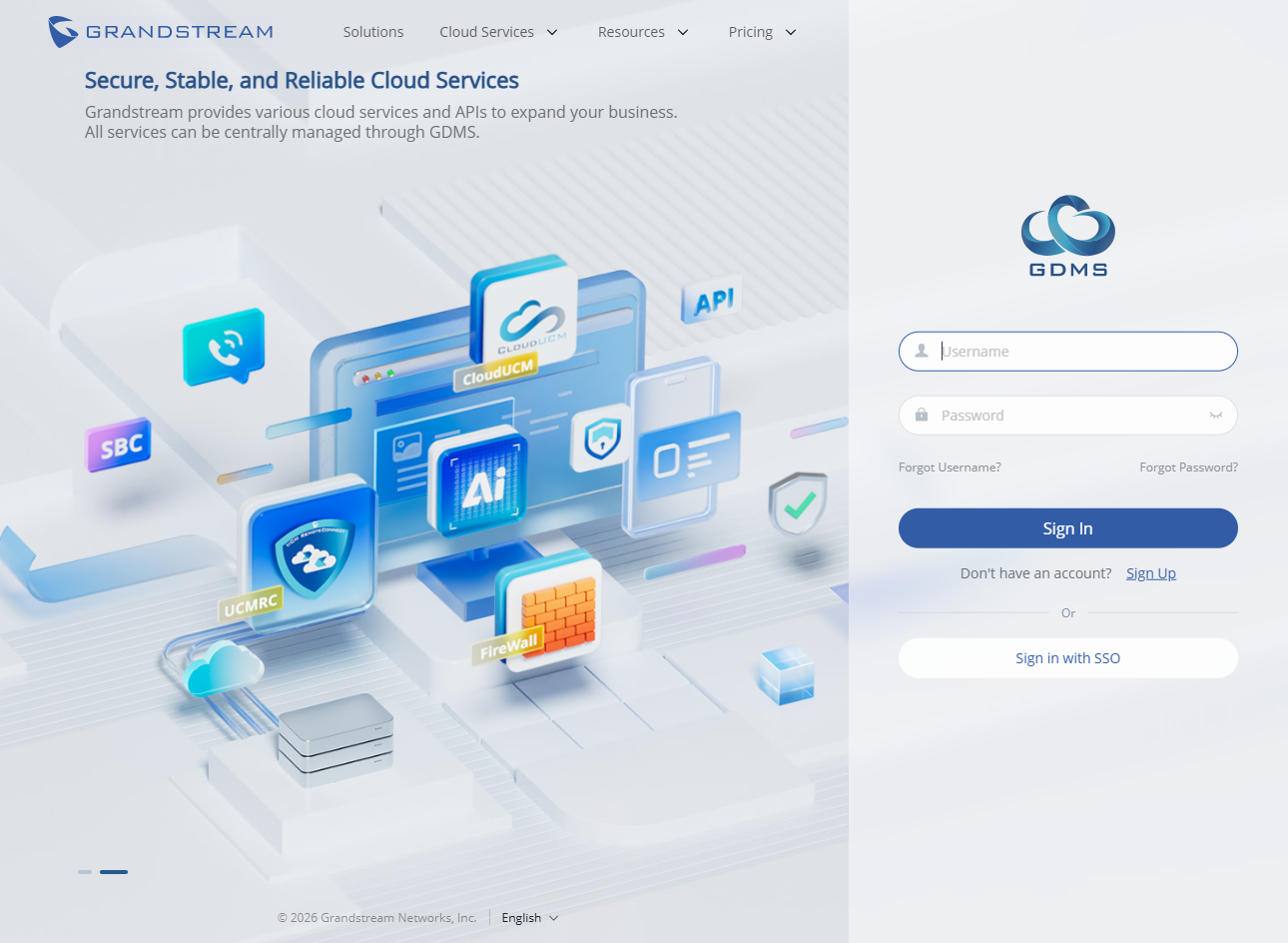

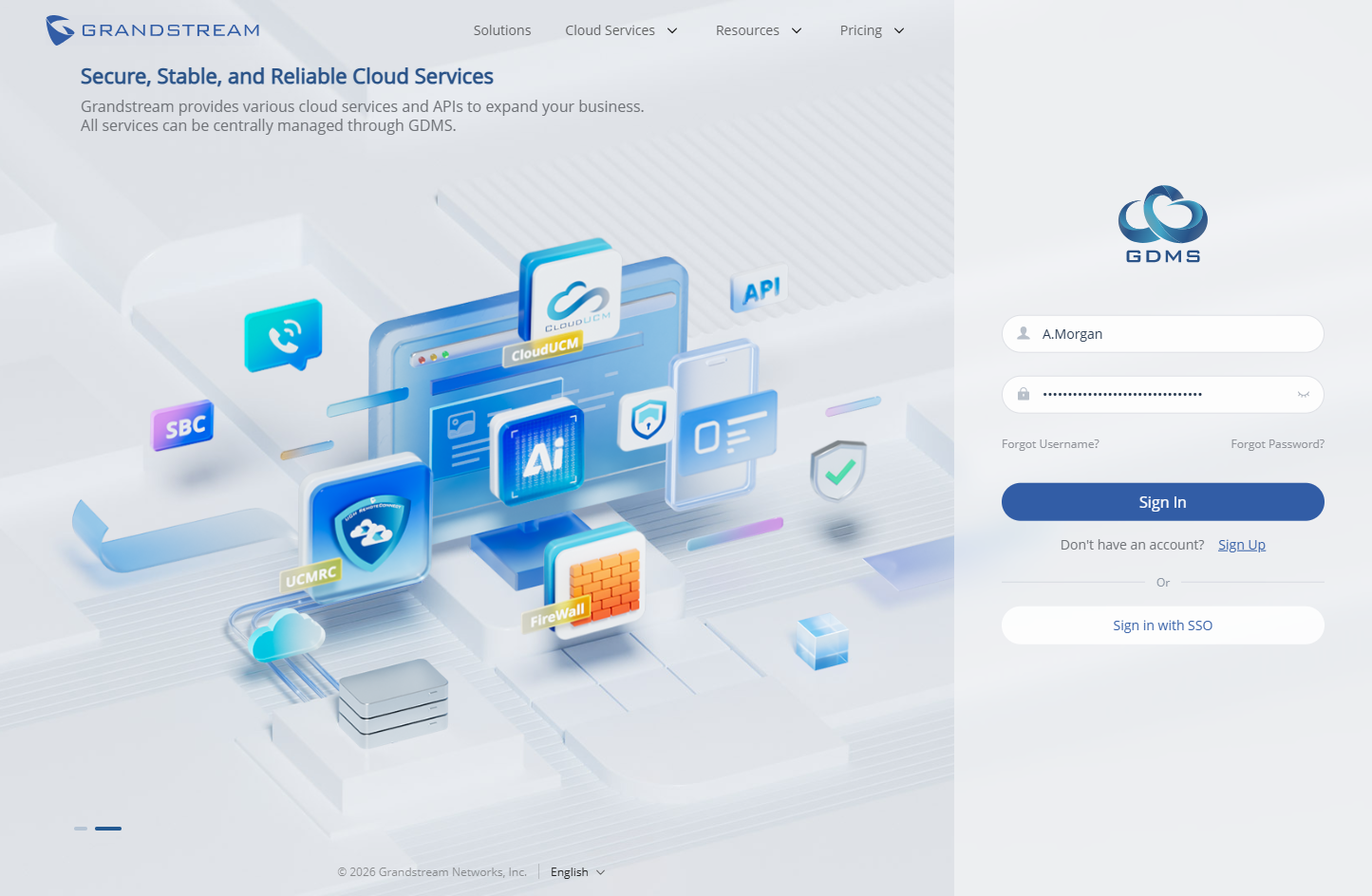
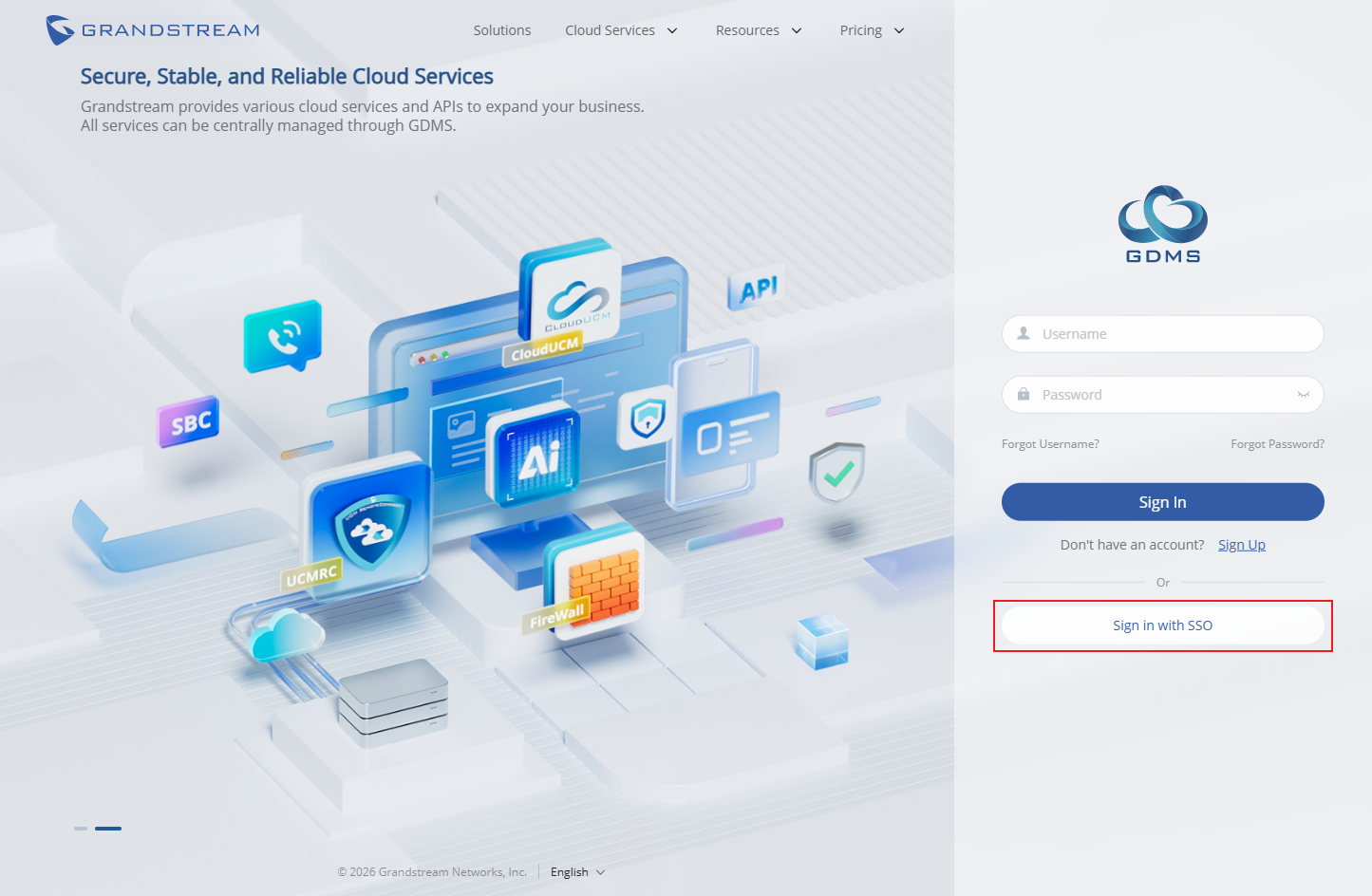
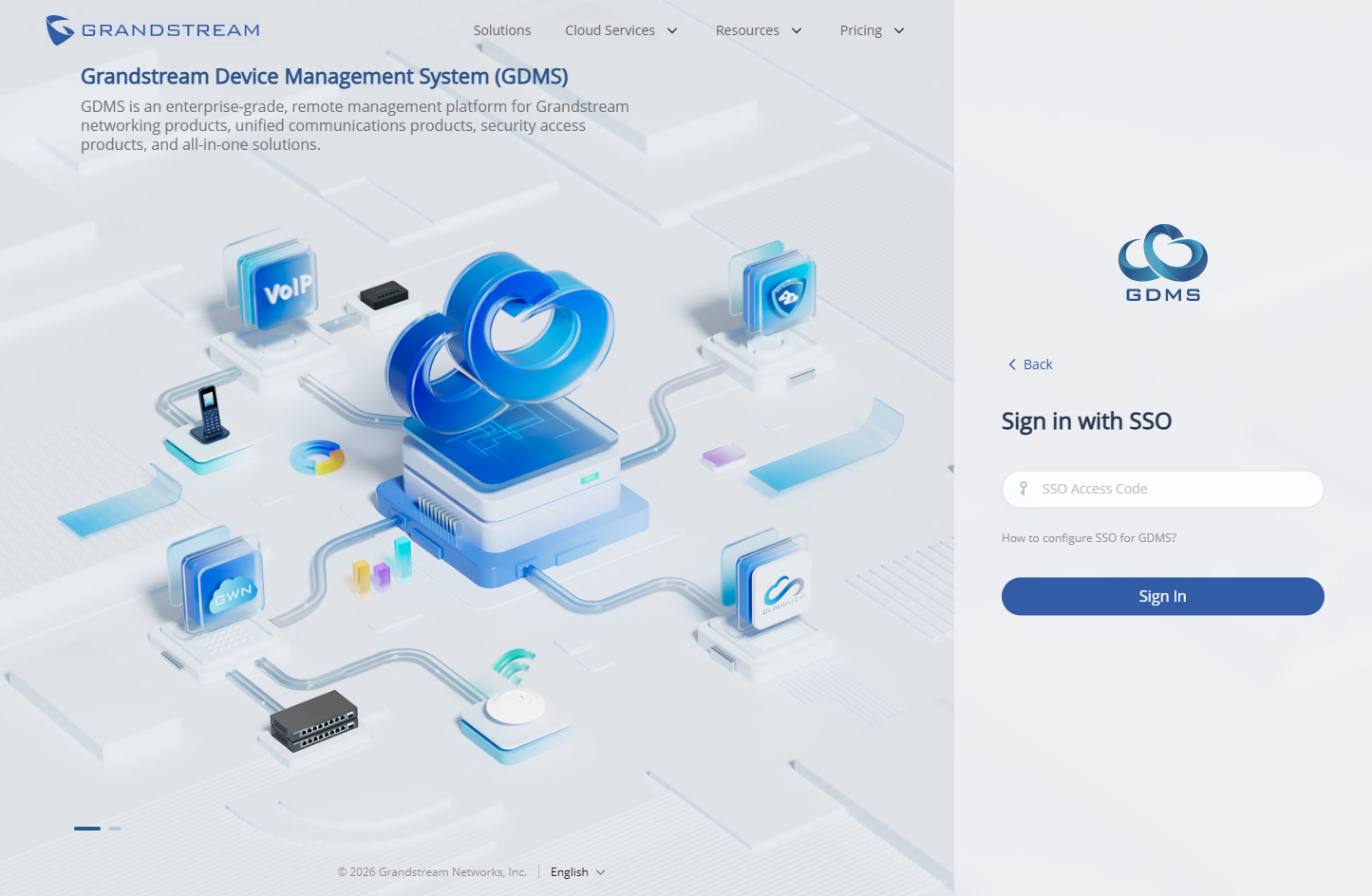
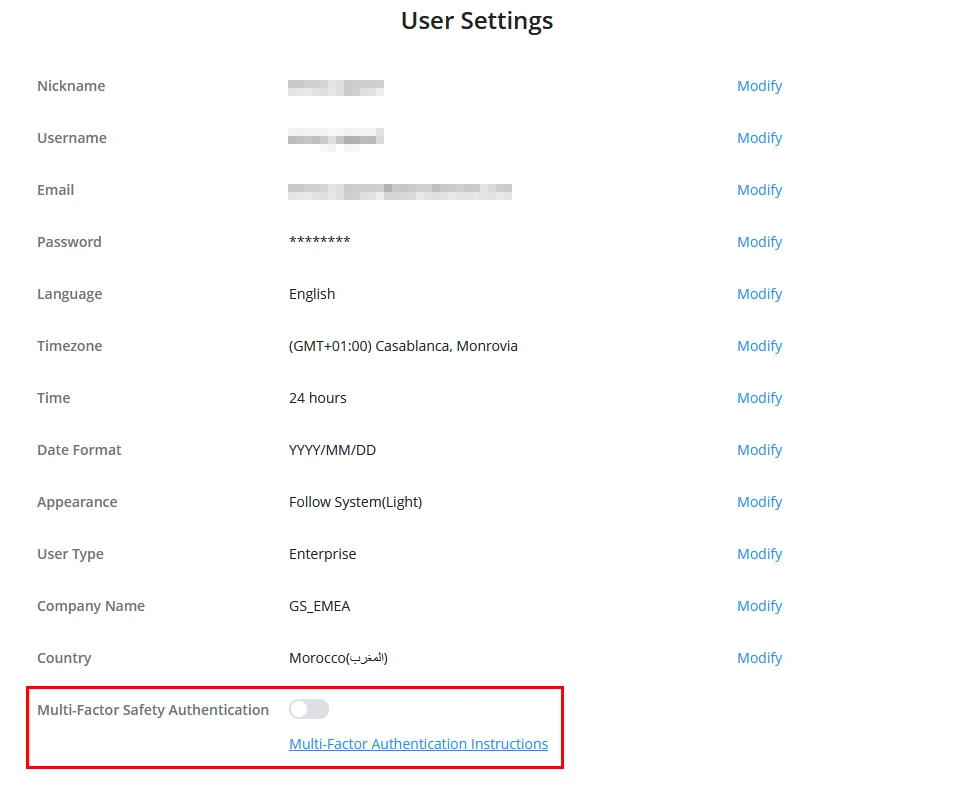




 buttons to sort the list in ascending/descending order based on a specific column.
 on the right side of the list to select the displayed/hidden options.
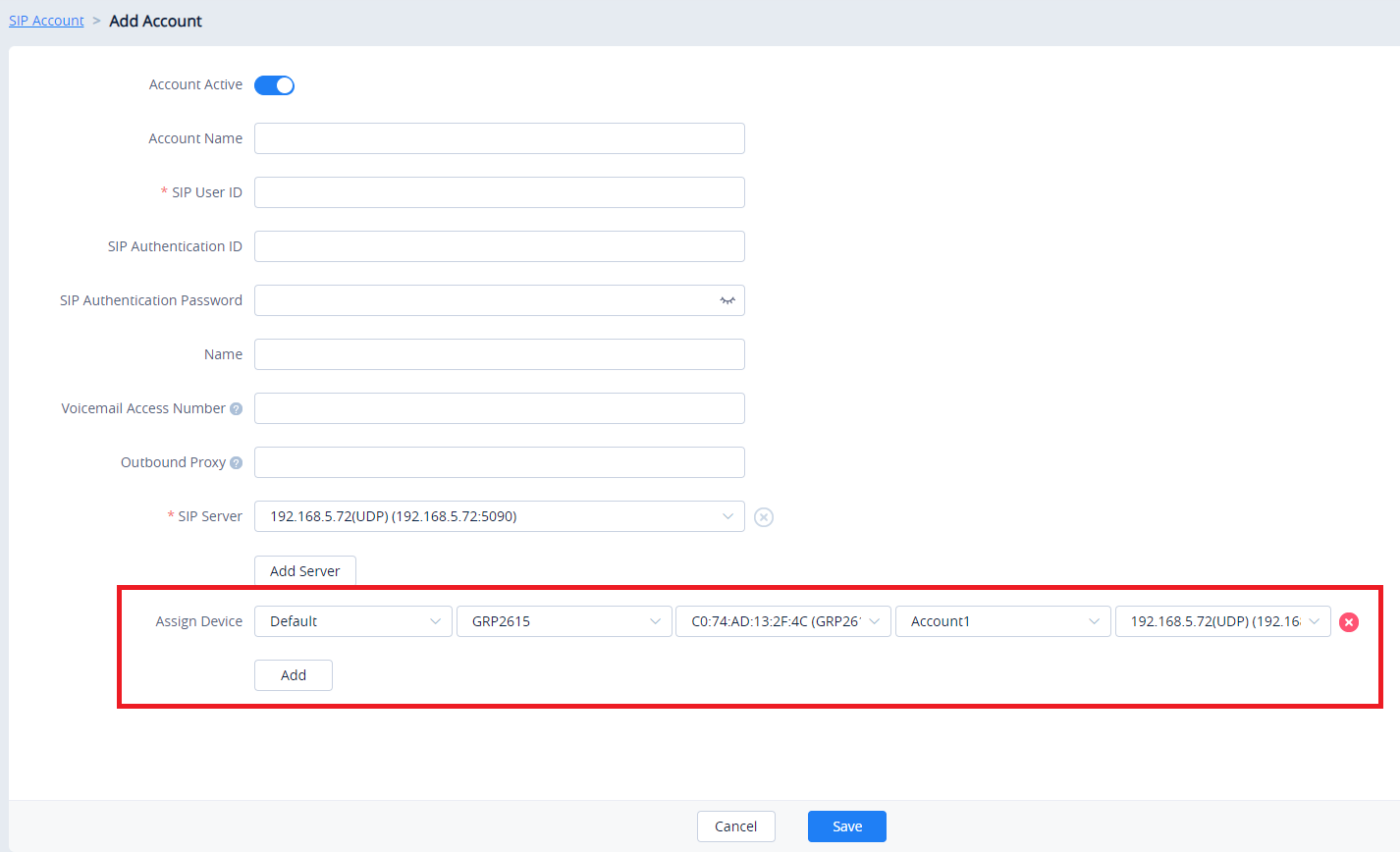
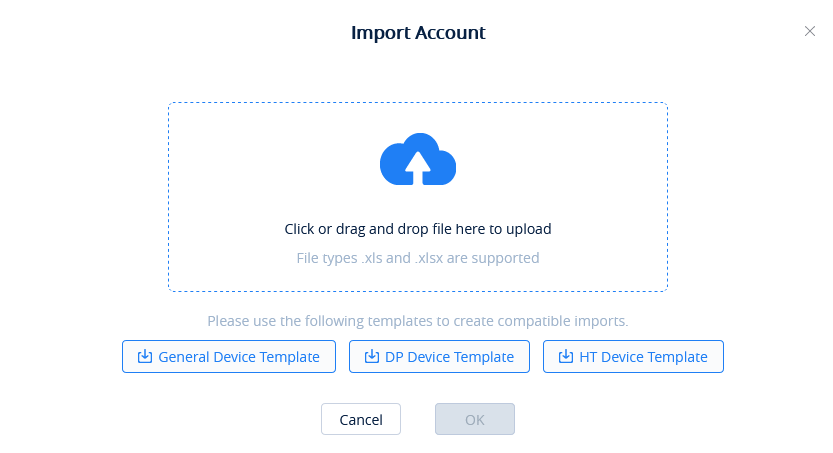
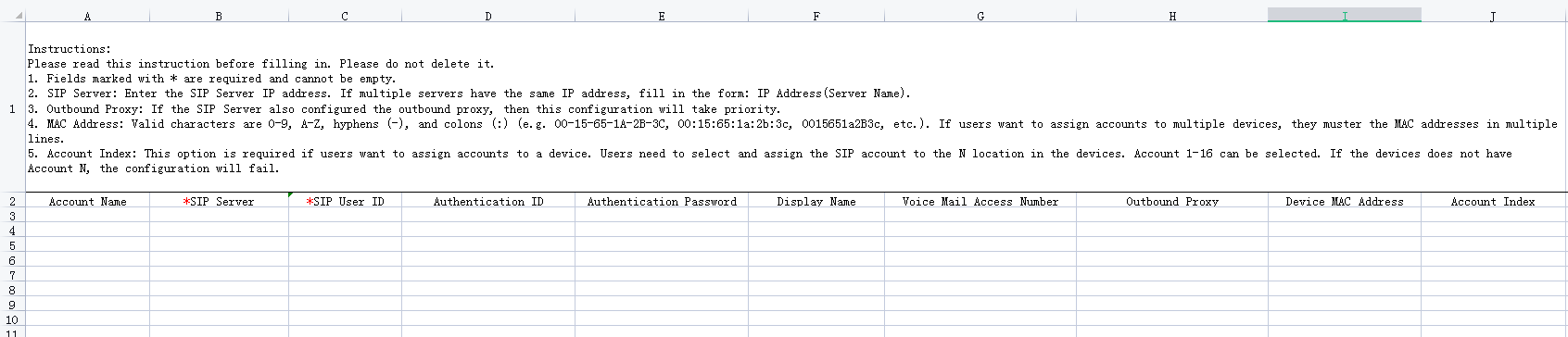
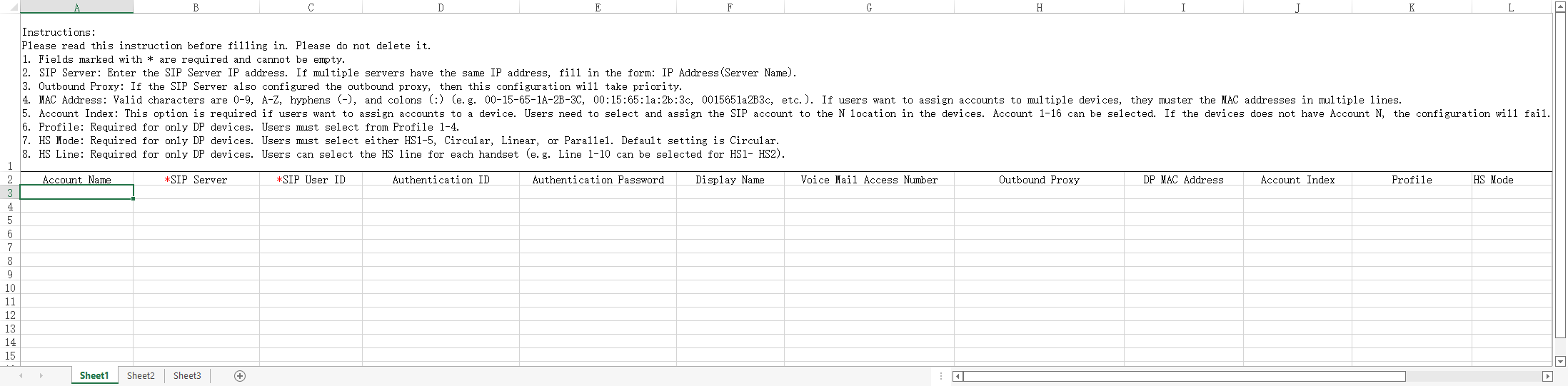
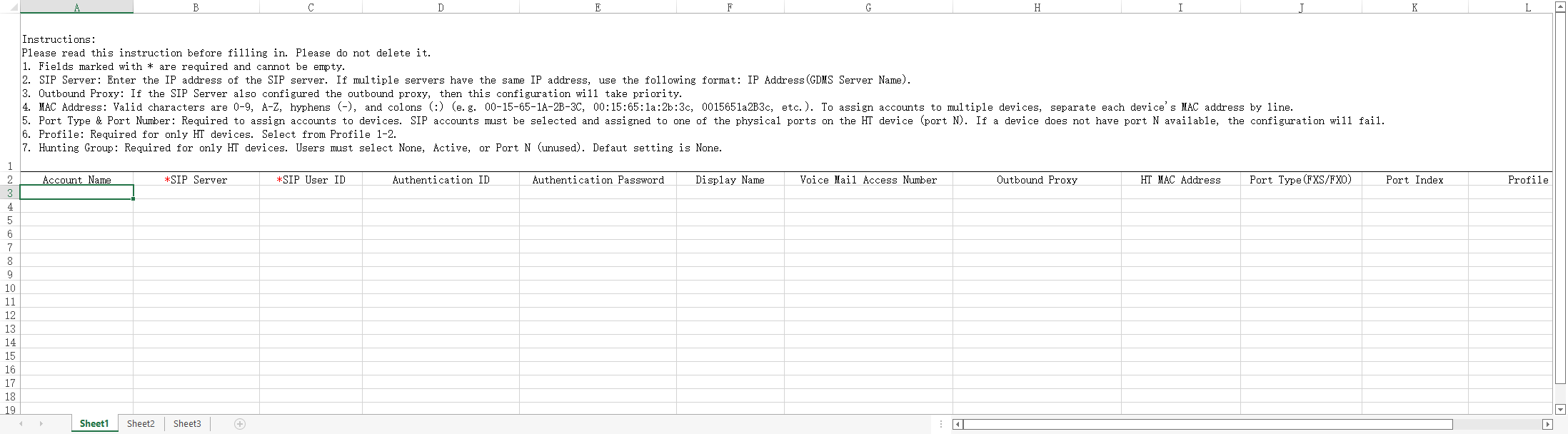









 button to unallocate devices from the account. The SIP account will be removed from unassigned devices.
 button to unallocate devices from the account. The SIP account will be removed from unassigned devices.
 button for a single account or the Delete button in the top-left corner for multiple accounts. Associated devices will automatically remove deleted SIP account information.


 button for the desired SIP server. Changes to the server will affect all associated SIP accounts.
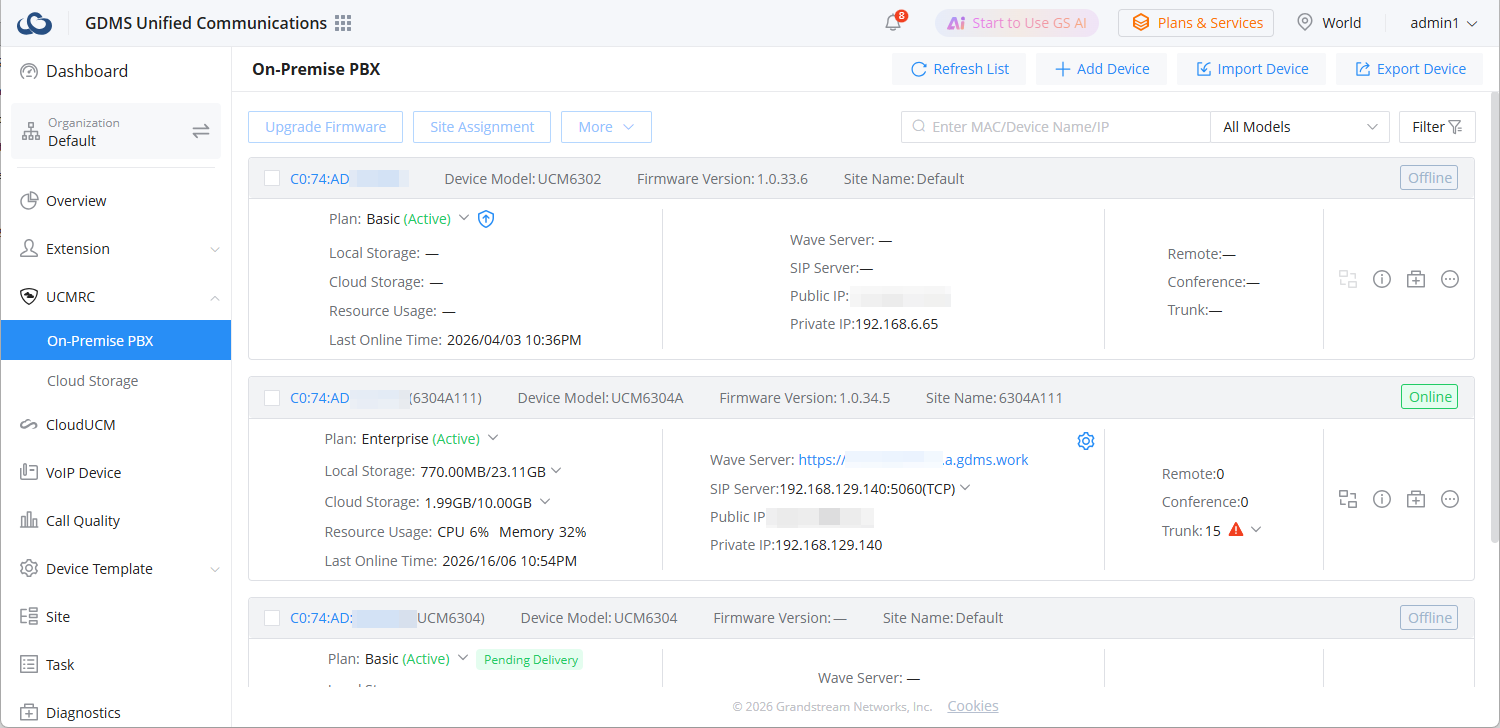
 The device is offline.
 The device is online.
 This icon indicates device firmware version is too low and the device cannot be used normally with GDMS.
 This indicator means the plan is expiring soon or already expired.
 to sort the list by various columns in ascending/descending order.
 button on the top right corner of the list to select the columns to show and/or hide.
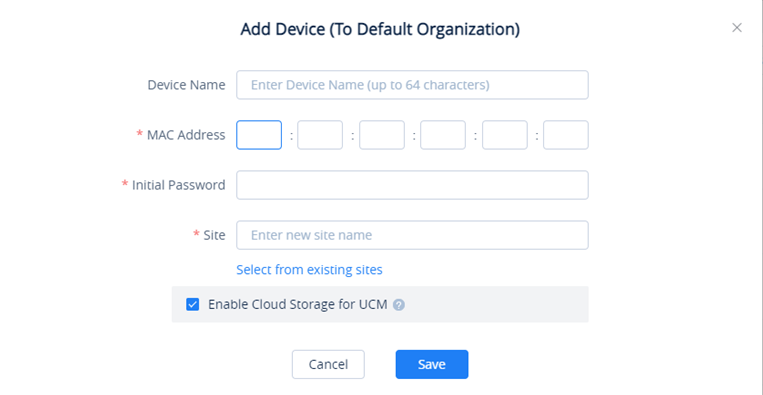


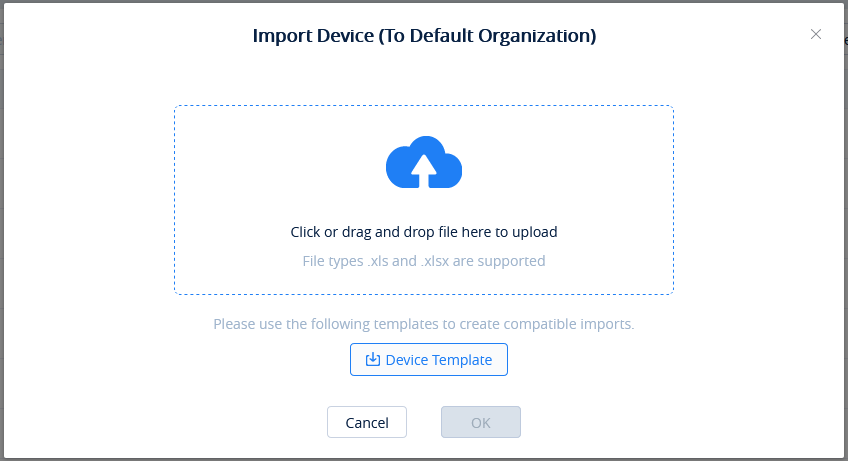

 button to view a specific device’s system information.



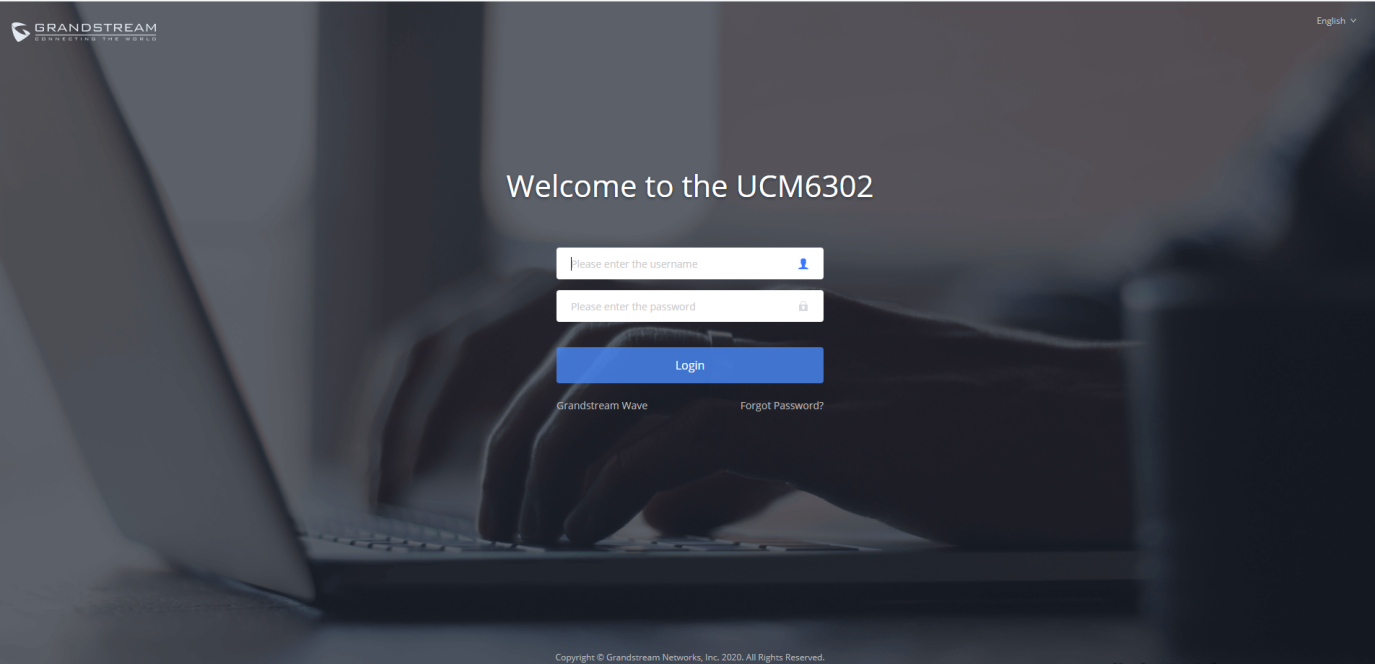
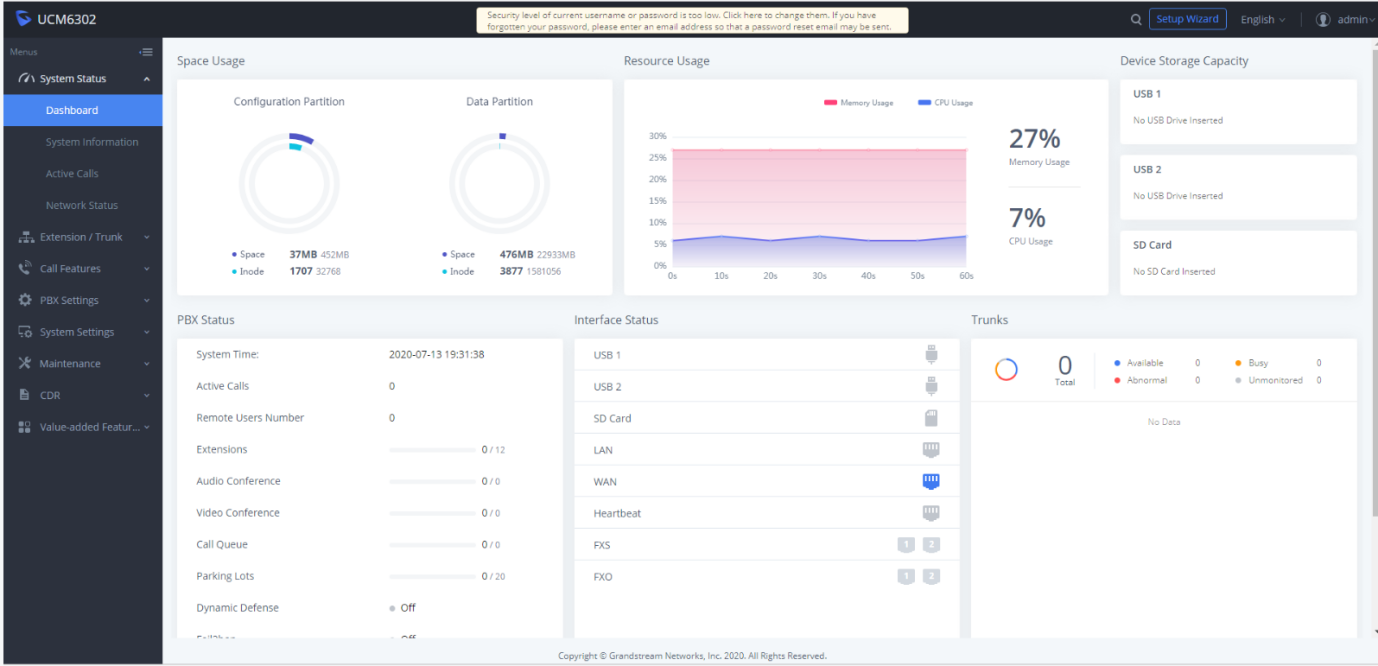
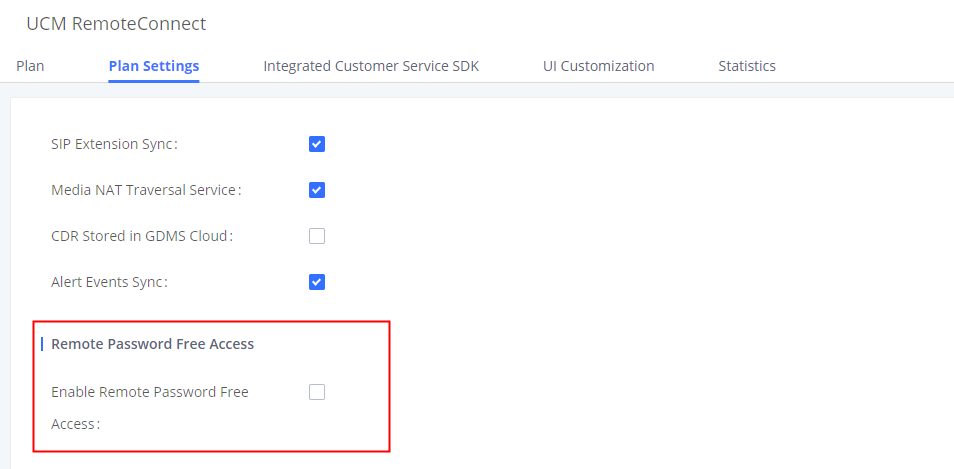
 following the IPPBX device to diagnose the IPPBX device, including UCMRC Connection, Ping/Traceroute, Syslog, Capture Trace, Network Diagnostics, and System Status.

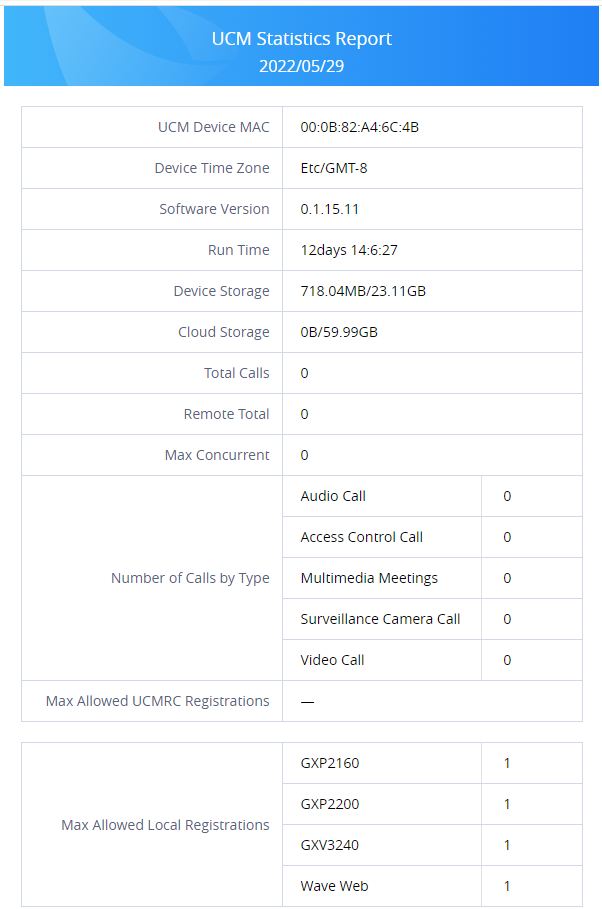
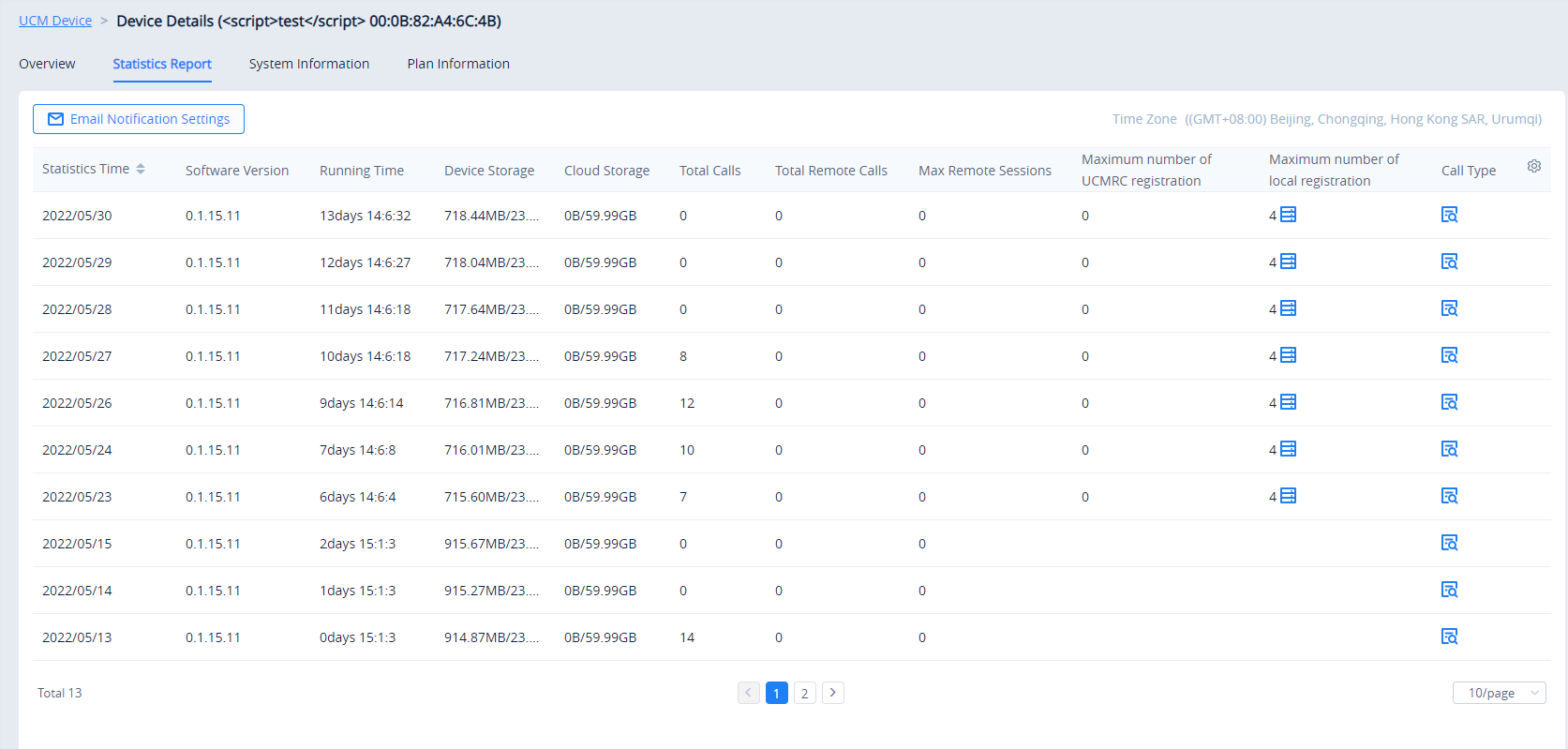


 on the IPPBX → On-Premise PBX, then click on the MAC address of the device, after that, click on the Statistics Report tab. Click on “Email Notification Settings” and configure the appropriate settings as shown below: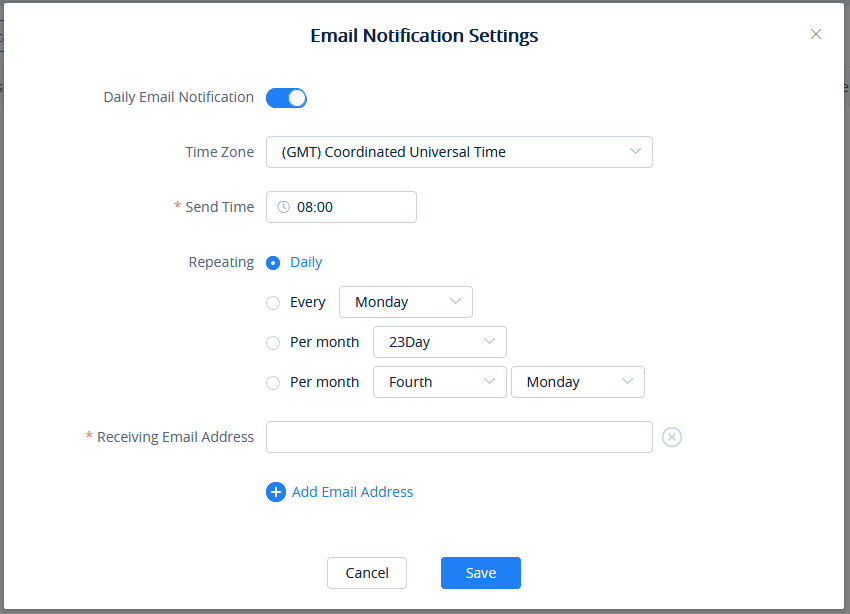


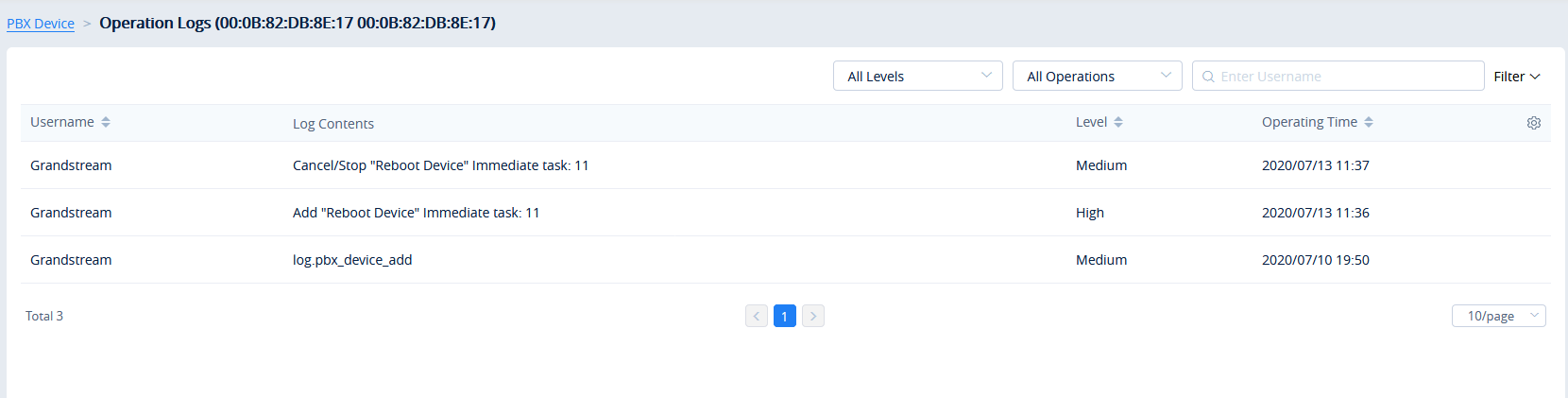

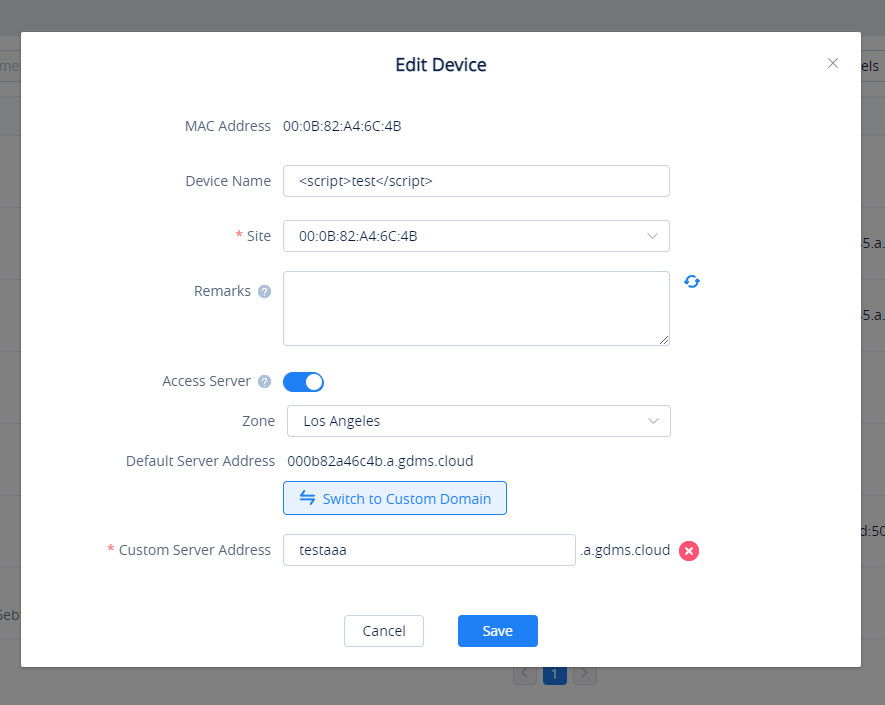

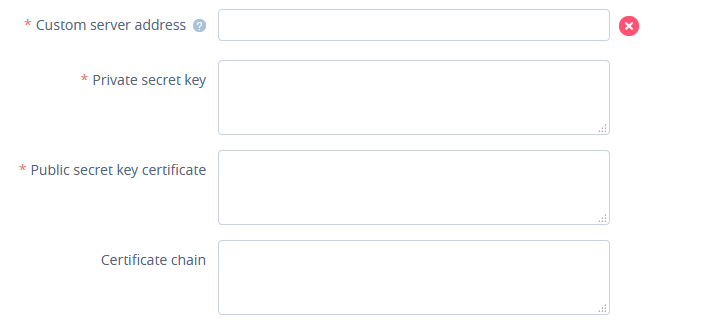
 to add a new custom server address.
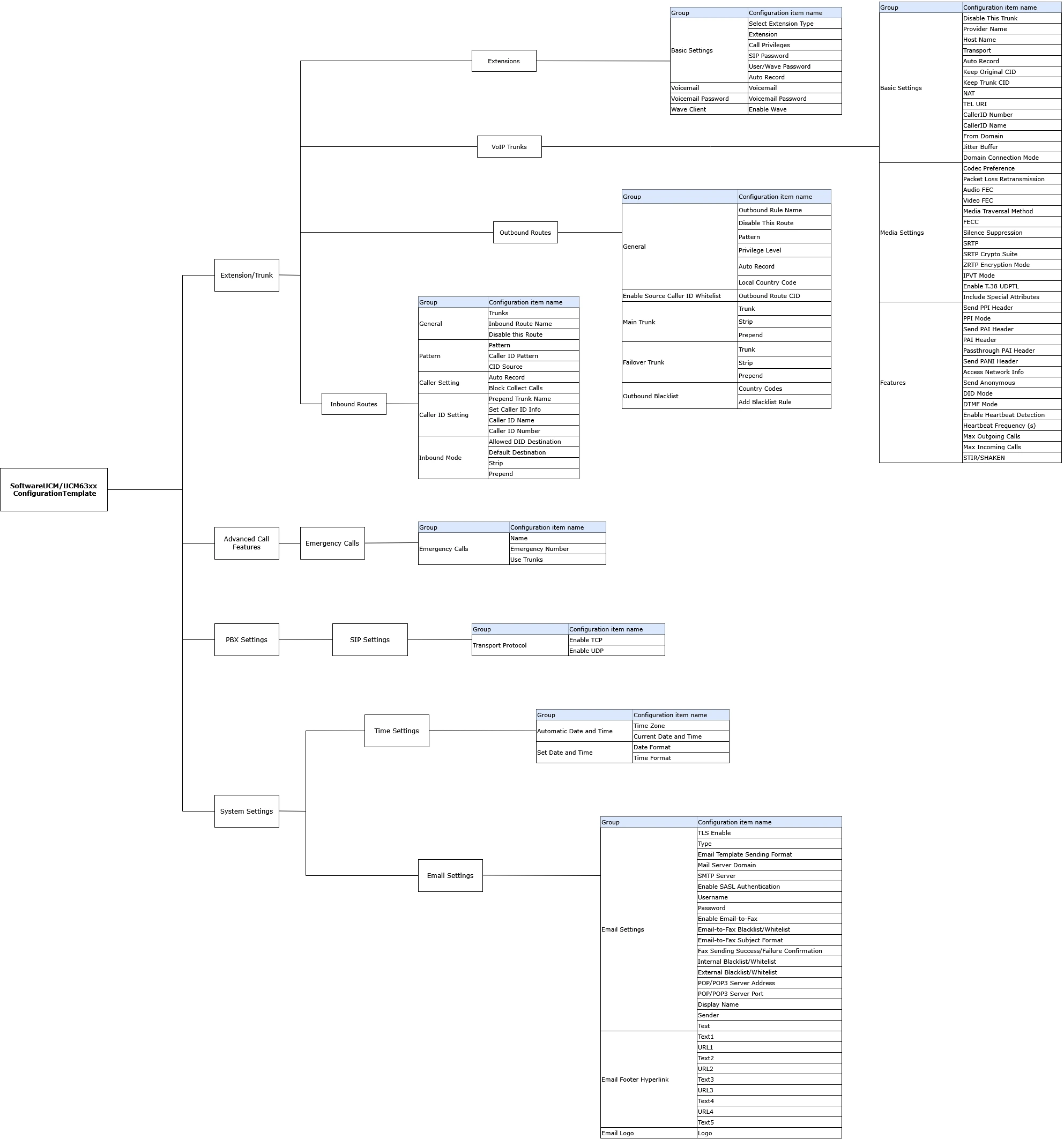
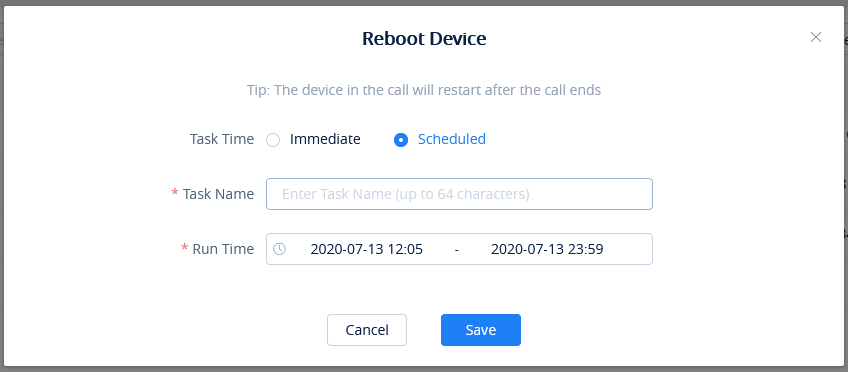

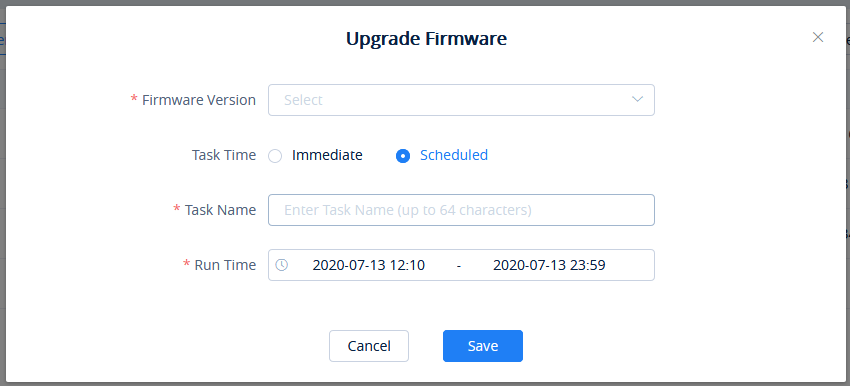


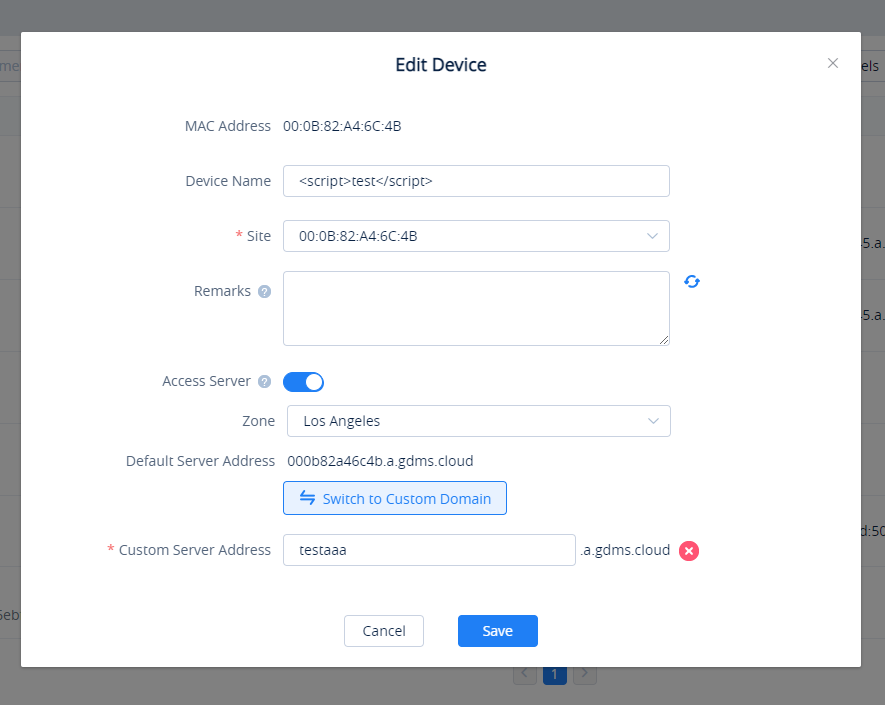


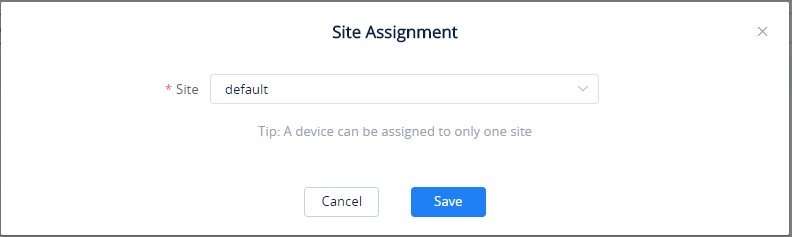

 button in the top-right corner of the device list page. The exported list includes all device information.
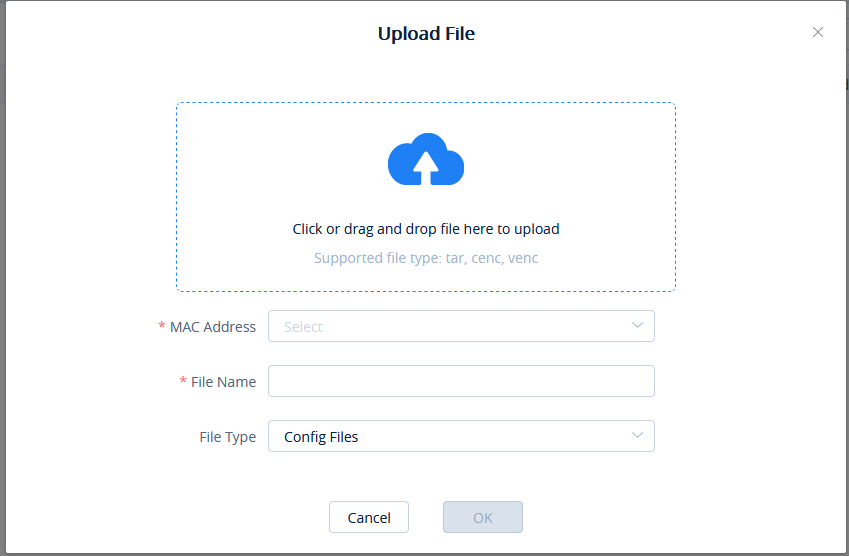


 : Restored successfully. The user can leave the cursor on the icon to view the last restoring time.
 : Restored failed. The user can leave the cursor on the icon to view the last restoring operation time.


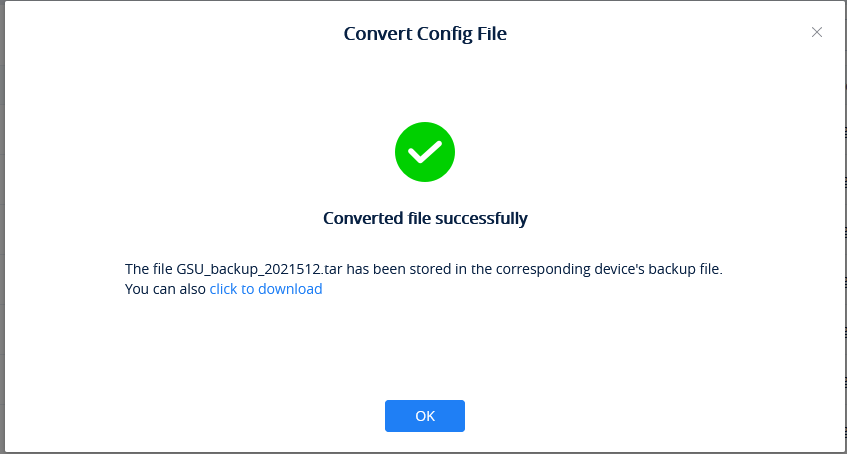
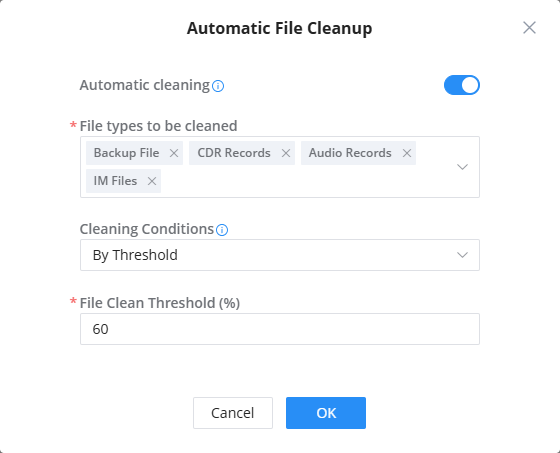

 This indicates that the CloudUCM device is running properly.
  This indicates that the CloudUCM device is not running. (It is possible that the plan has expired, or it has been stopped manually by the administrator.)
  This indicates that the CloudUCM device has not been activated yet and it needs to be activated before it can be used.
  This indicates that the CloudUCM device is being started and cannot be accessed in this state.
  This indicates that the current CloudUCM device is in the process of deploying services, such as upgrading firmware, upgrading plan services, or restoring configuration, etc. In this state, the CloudUCM device cannot be accessed.
  This icon indicates device firmware version is too low, and the device cannot be used normally with GDMS.
  This indicator means the plan is expiring soon or already expired.
 This indicates that the abnormal trunk exists in the CloudUCM. You can click to view the status of all trunks.
  This indicates that the CloudUCM device has some unread notifications. You can click to access the Web UI of the CloudUCM device.
  This indicates that the CloudUCM device has 2 IP addresses that are blocked by Fail2ban. You can click to access the Fail2ban page on the Web UI of the CloudUCM device.


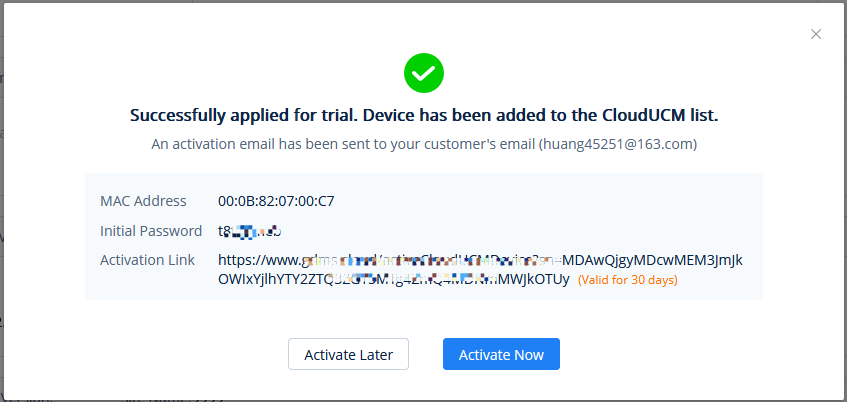
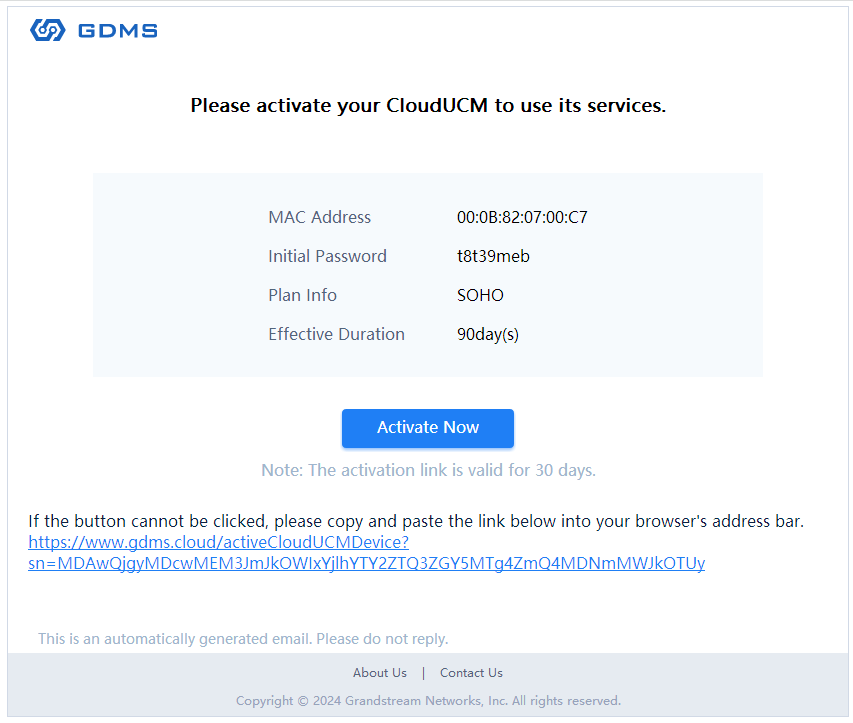
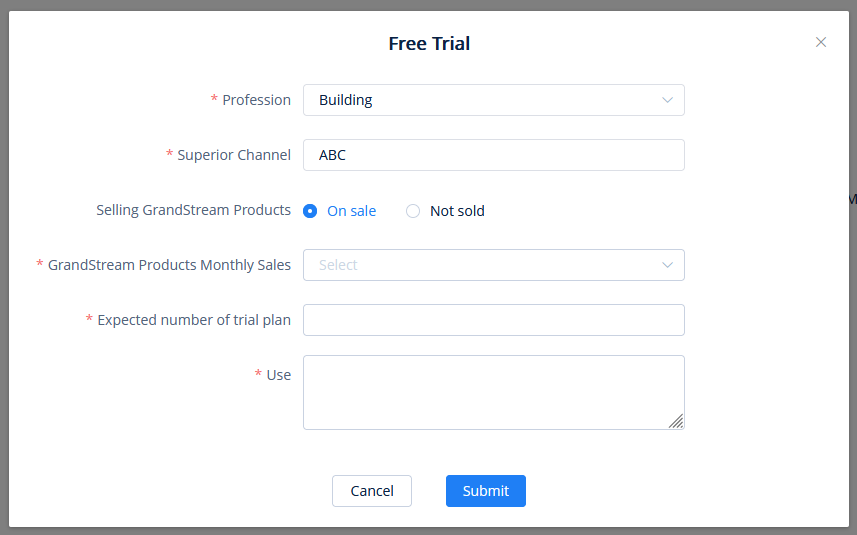


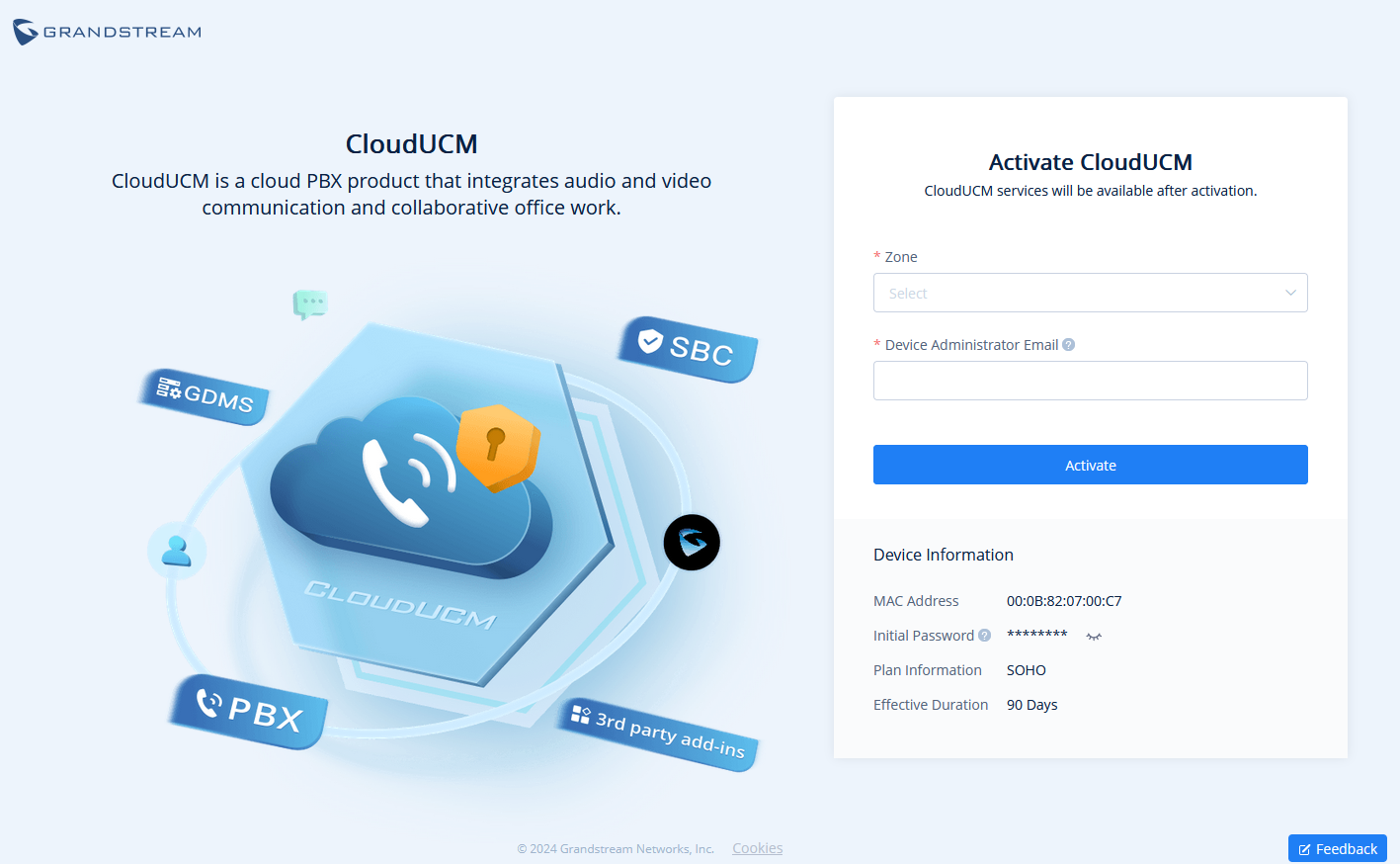
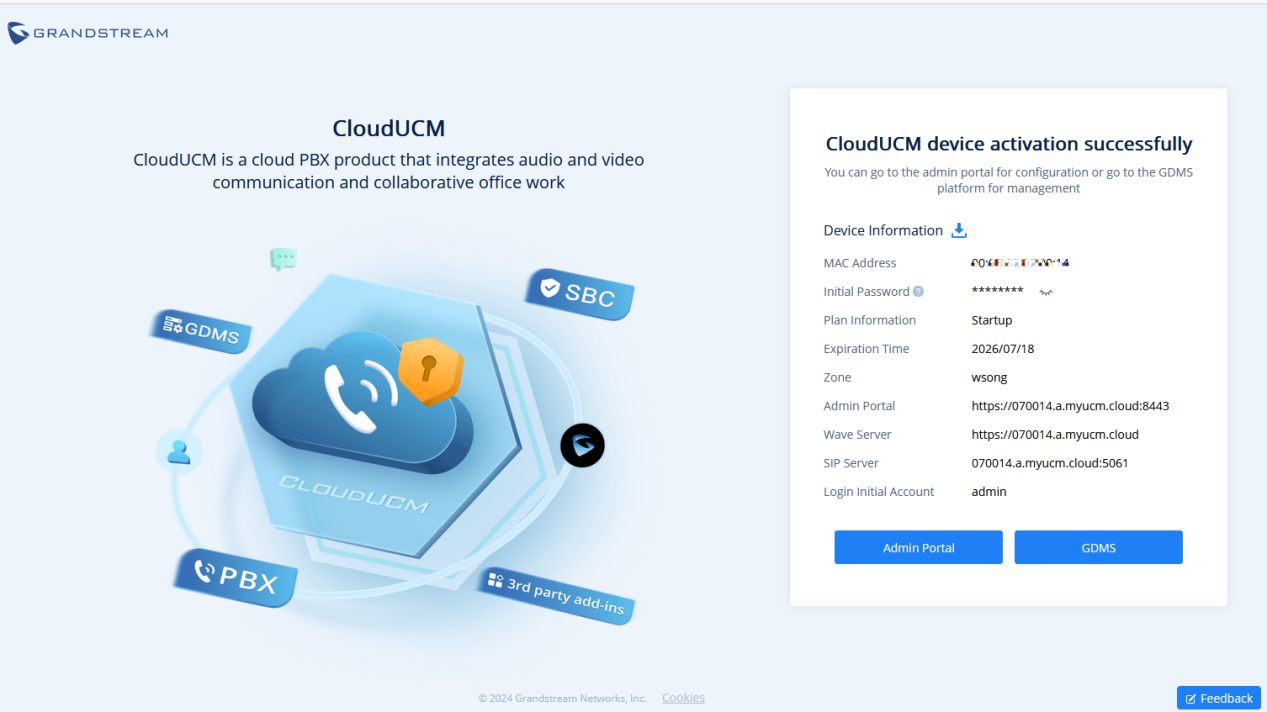


 Start Device: When the CloudUCM device stops running or needs to be activated, you can manually start the device. If the current plan has expired, it cannot be started.
  Stop Device: When the CloudUCM device is running, you can click the option
  to stop the device. After stopping the device, the device is no longer accessible.
  to remotely access the Web UI of the CloudUCM device on the device list.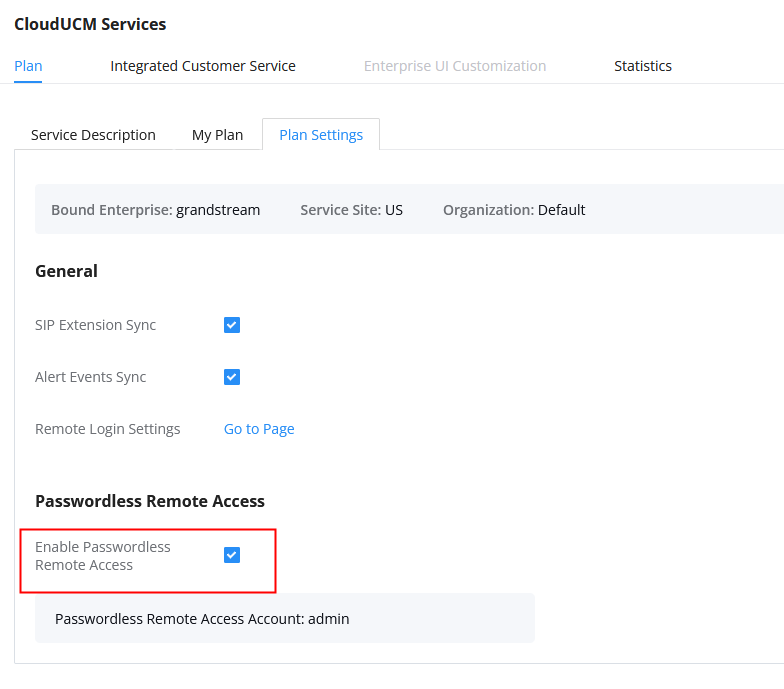

 to view the device details, including the current extension registration status, VoIP device status registered with the extension, storage space usage status, the number of terminals connected to the server address, alert statistics, call statistics, and extension registration statistics.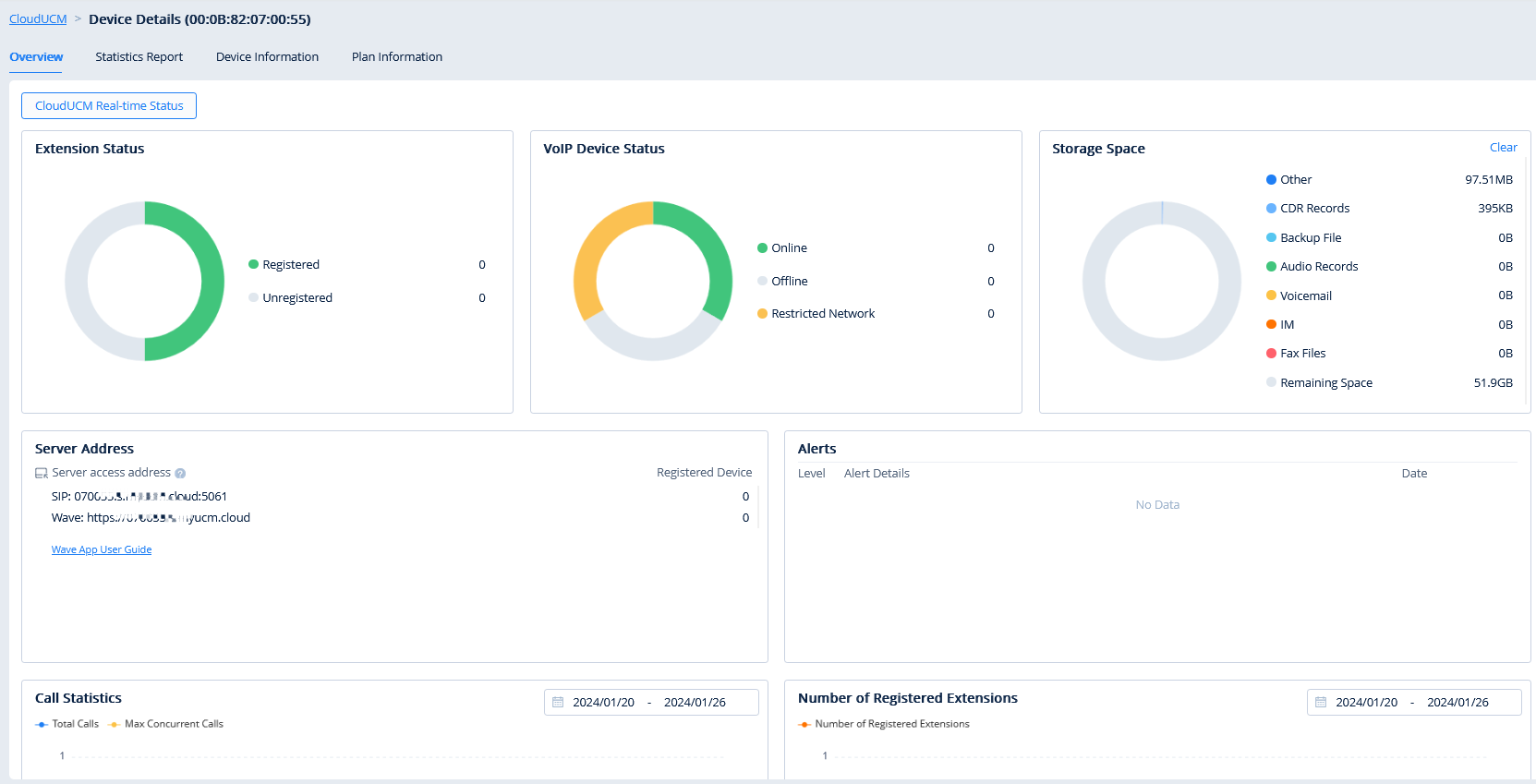
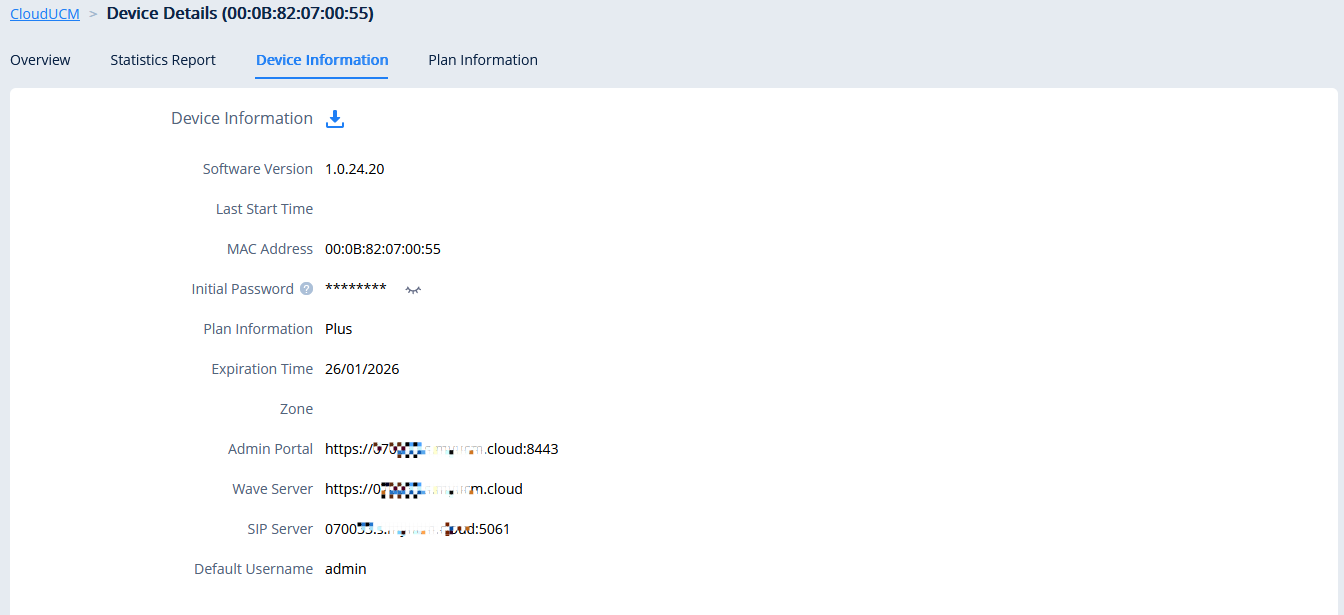
 in the CloudUCM Device List to edit the device: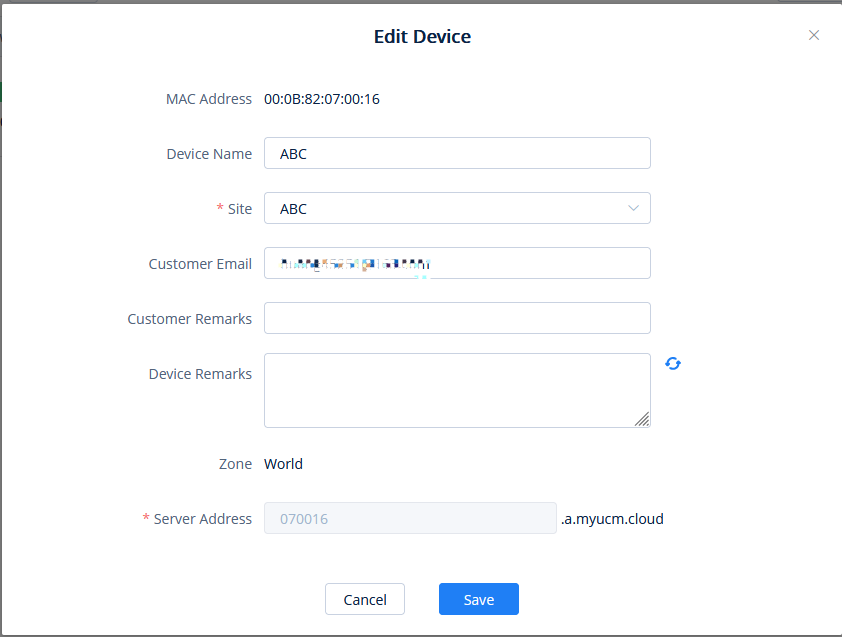

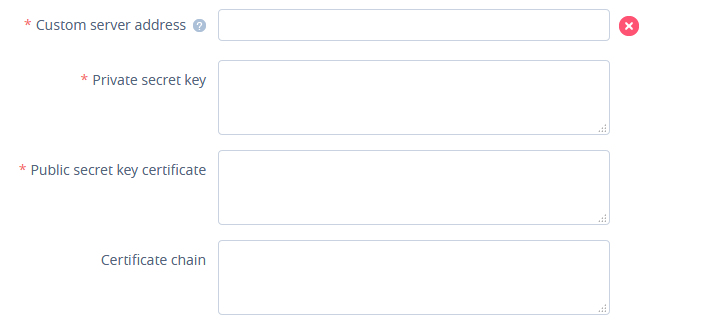
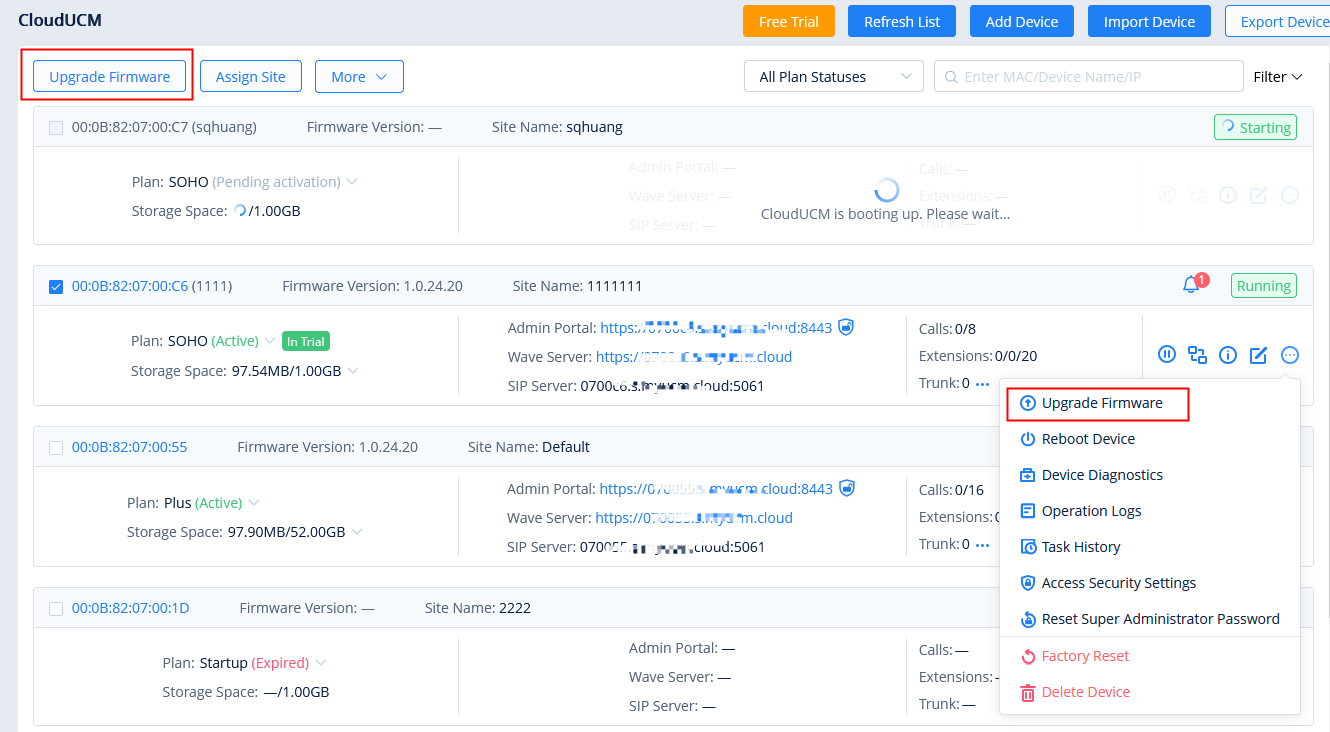
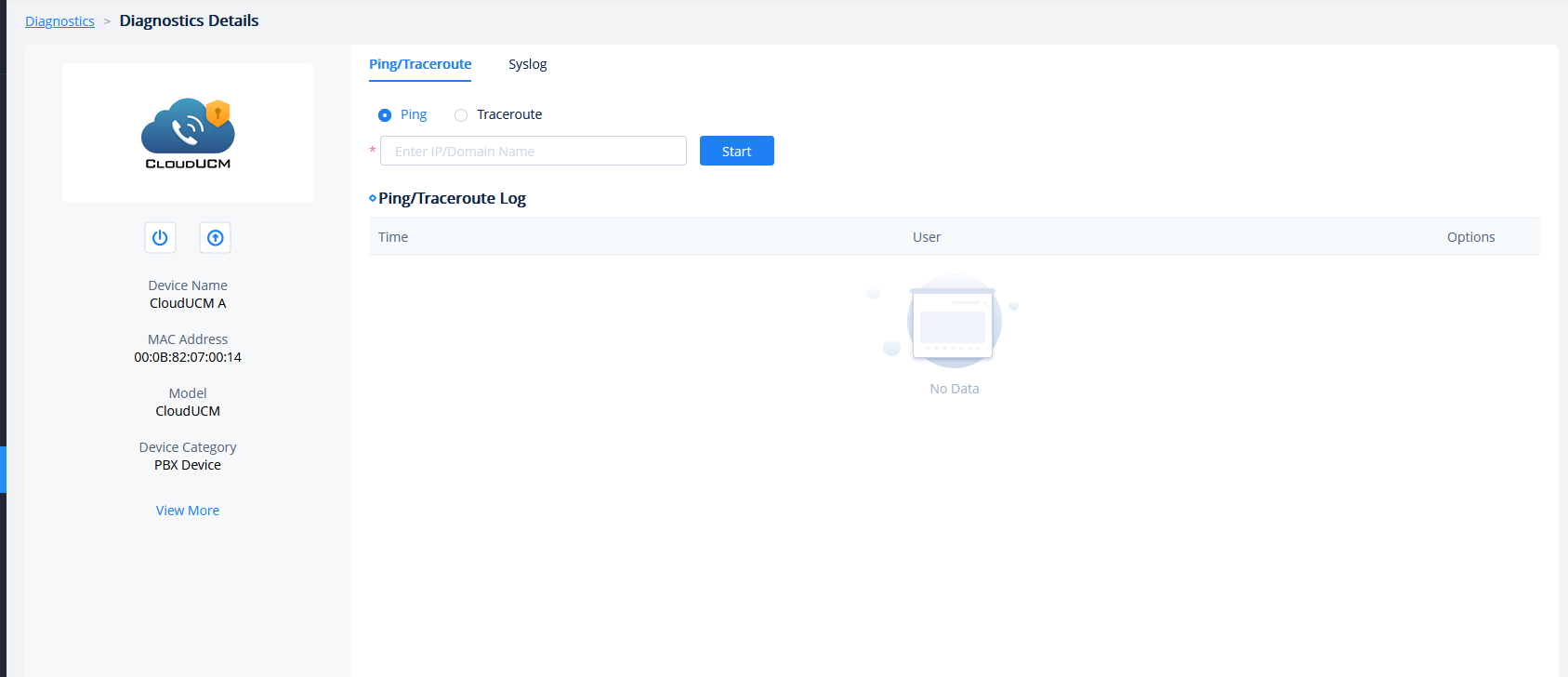
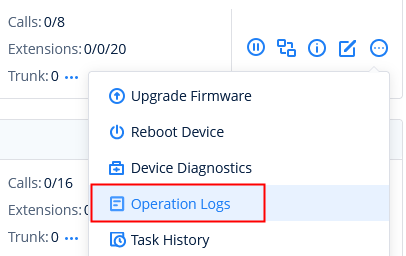


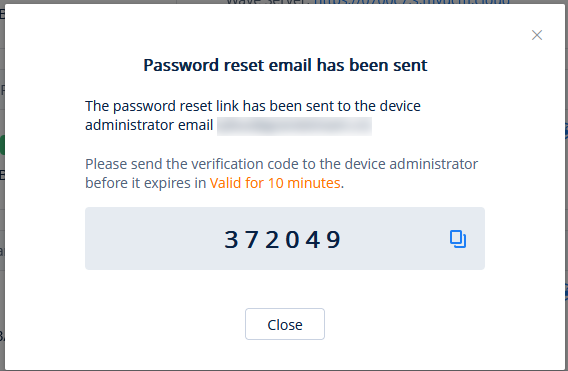
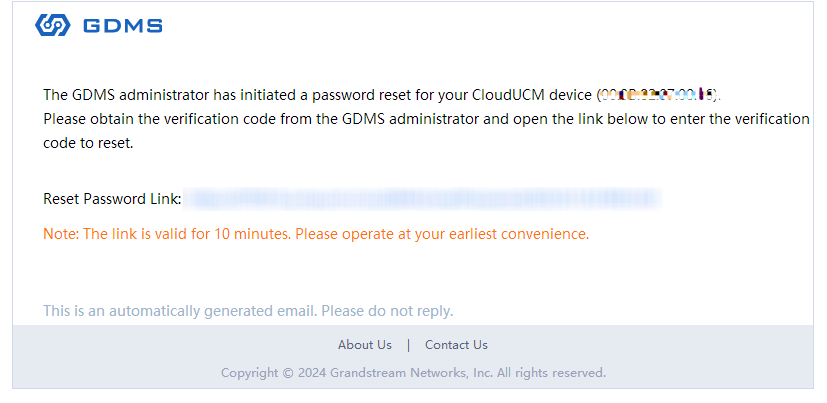
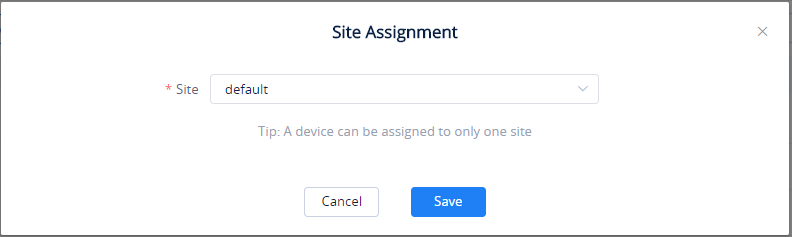
 then click “Delete Device” as shown in the screenshot below.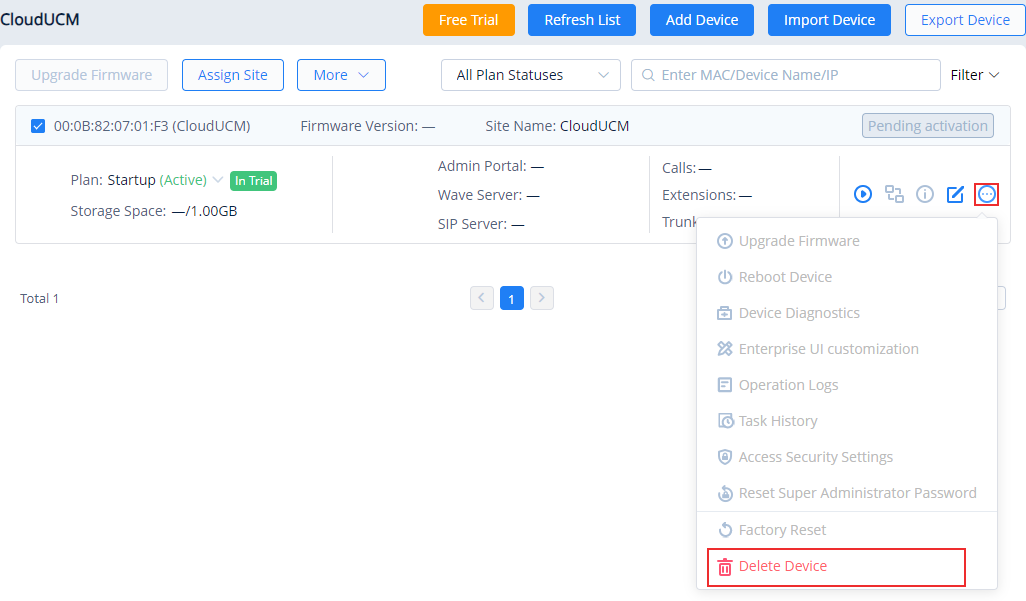
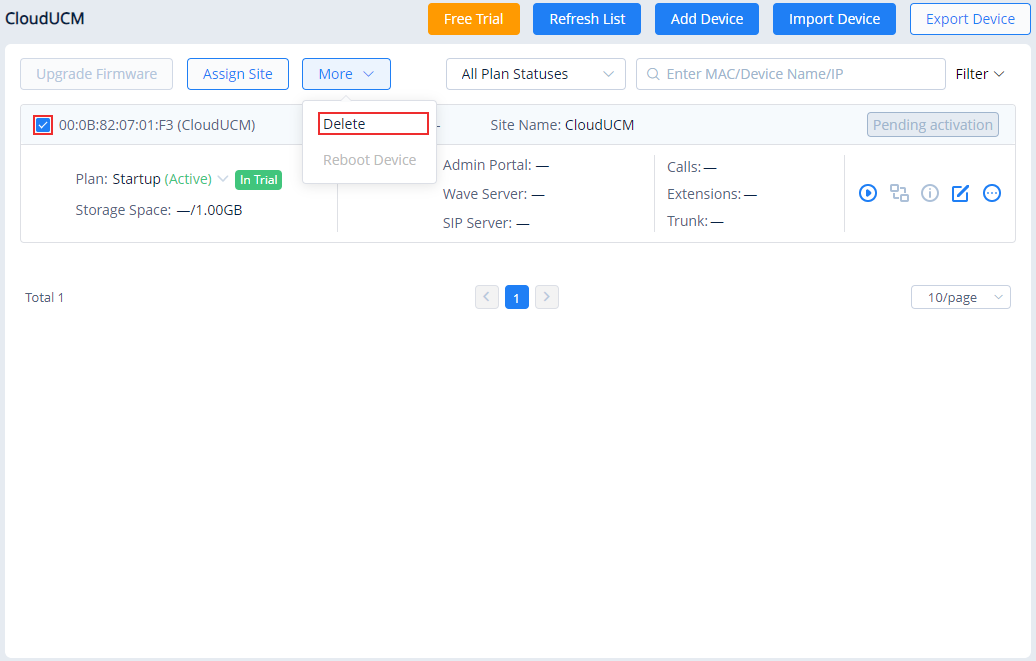
 button. The list created will be in .xls format, and it will include all the CloudUCM devices that are added to the organization. If the user wishes to select the devices to be exported, he/she can tick the box next to the CloudUCM MAC address, then click on “Export Device” to export only those selected devices.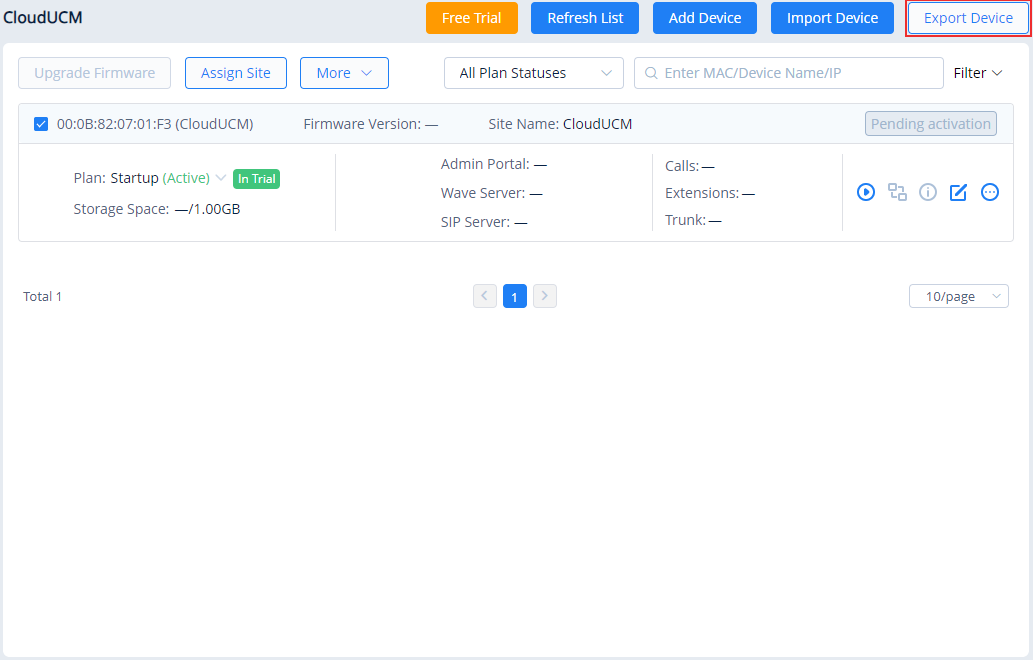
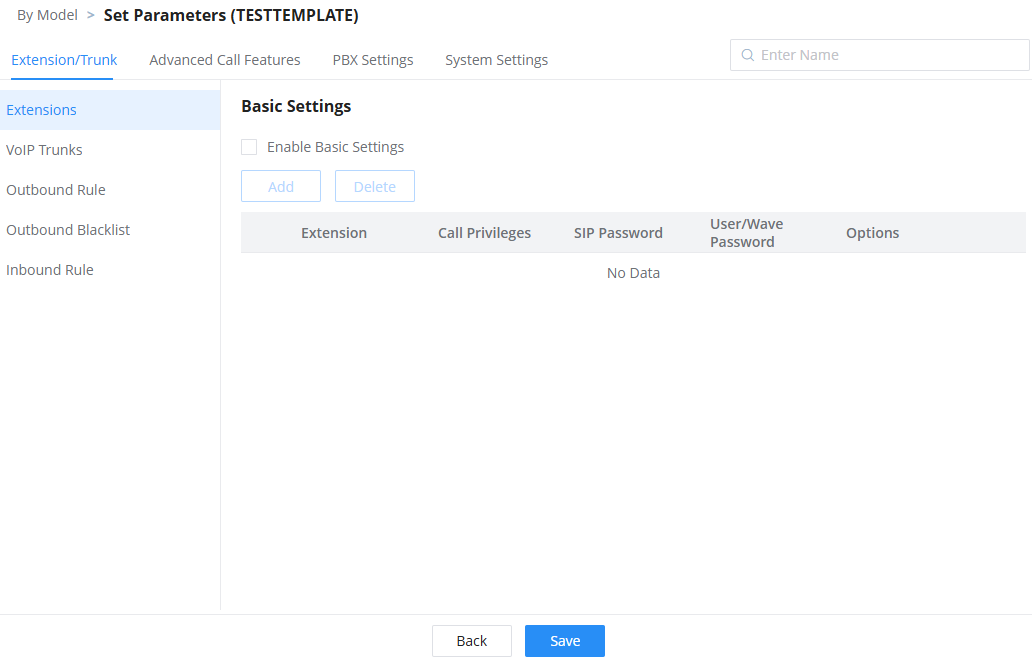

 The device is offline. The current account status is the last reported status before the device is offline.
 The device is online.
 The device network penetration (NAT) is abnormal, the GDMS server cannot connect to the device, but the device can periodically obtain the configuration.
 The SIP account is configured on the handset.
 The SIP account is not configured on the handset.
 to sort the list by various columns in ascending/descending order.
 button on the top right corner of the list to select the columns to show and/or hide.


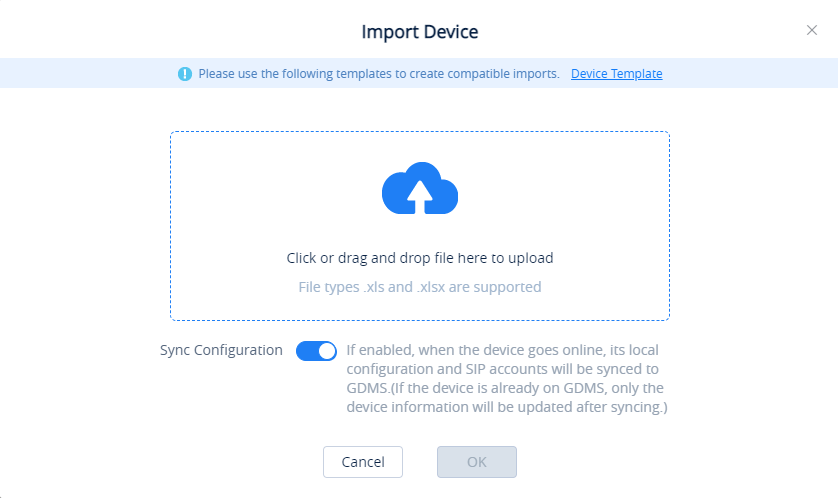
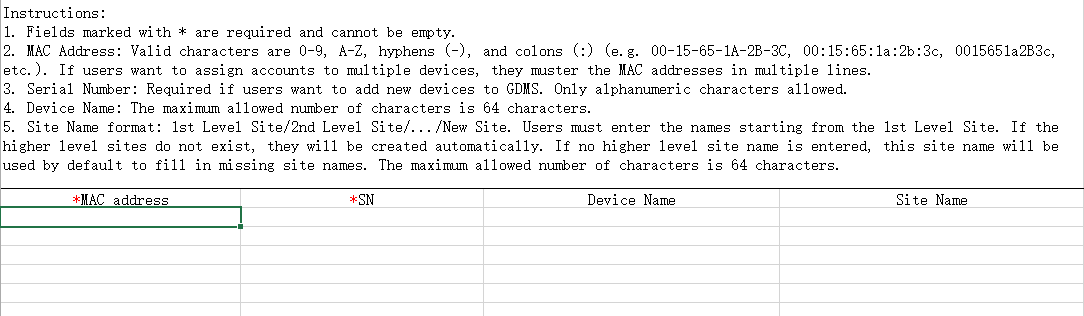


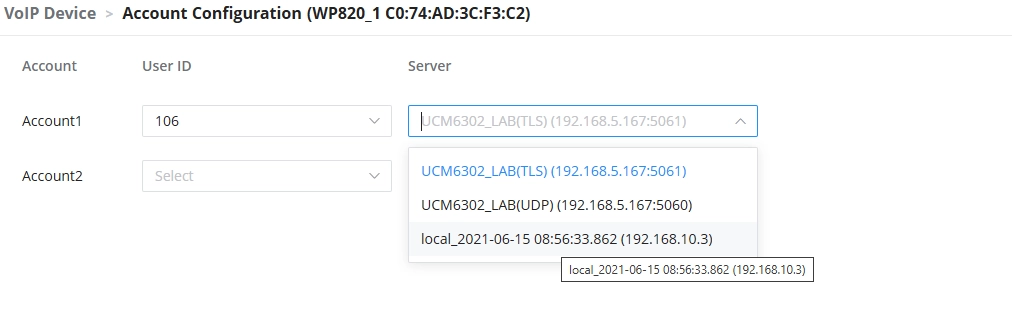

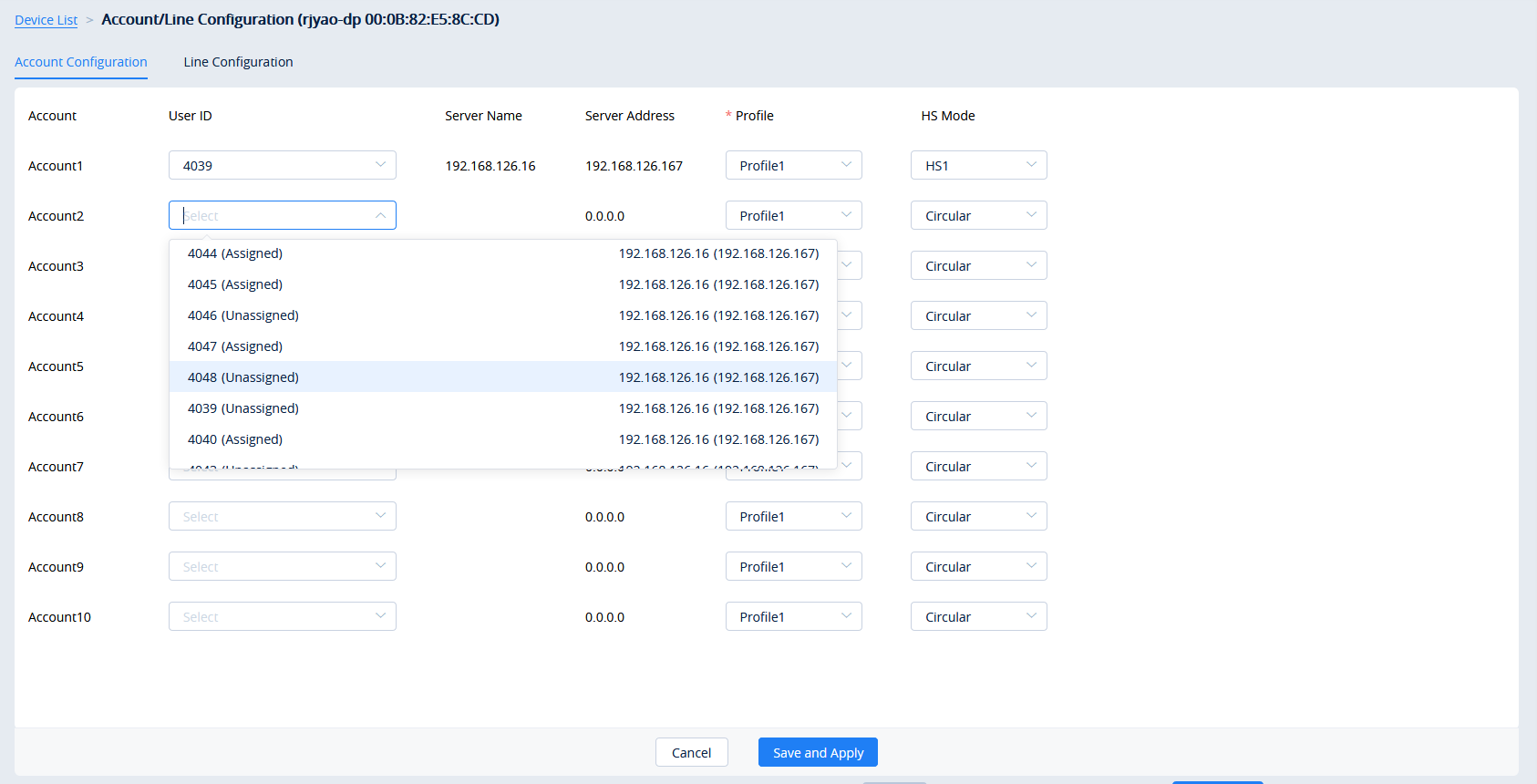
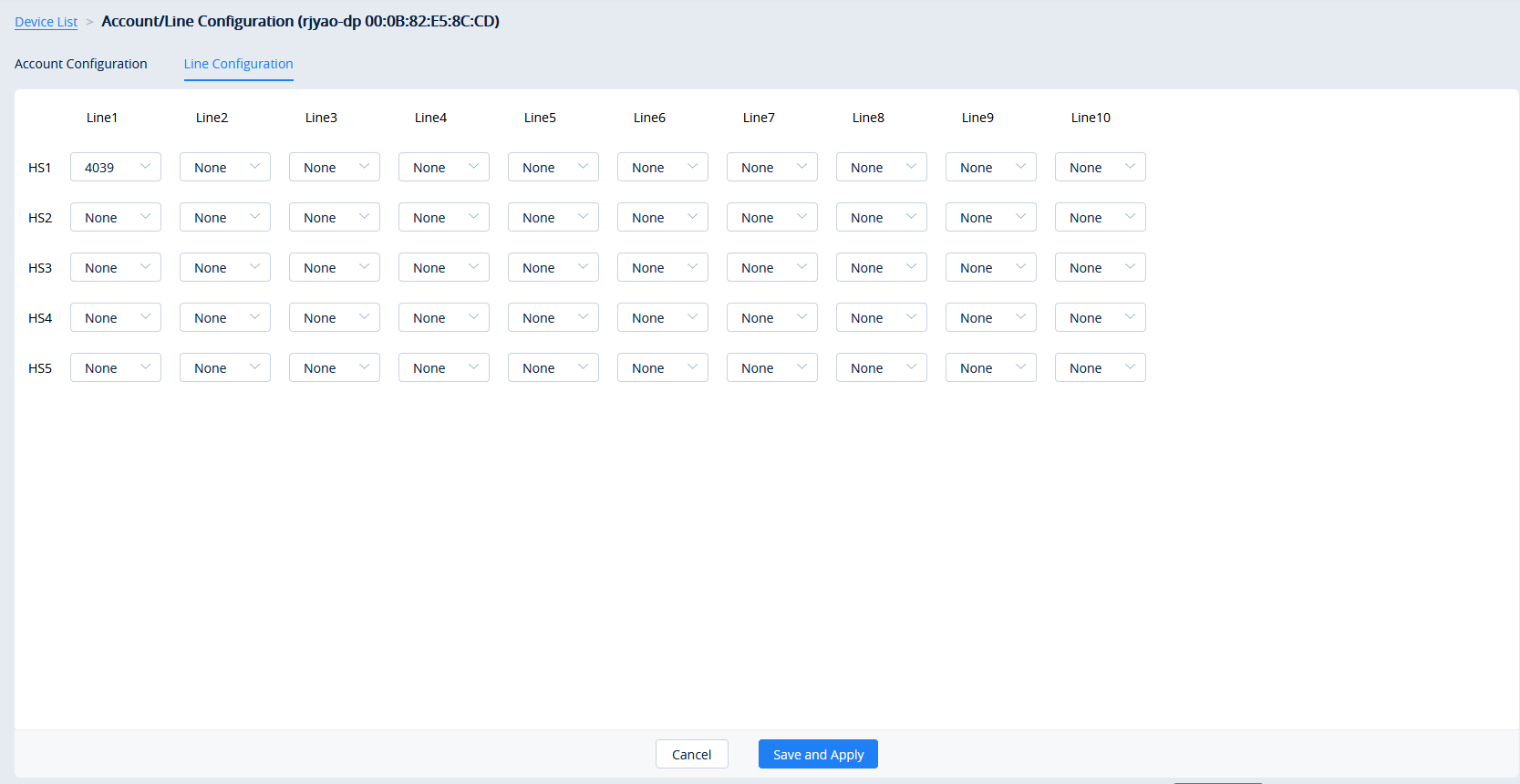


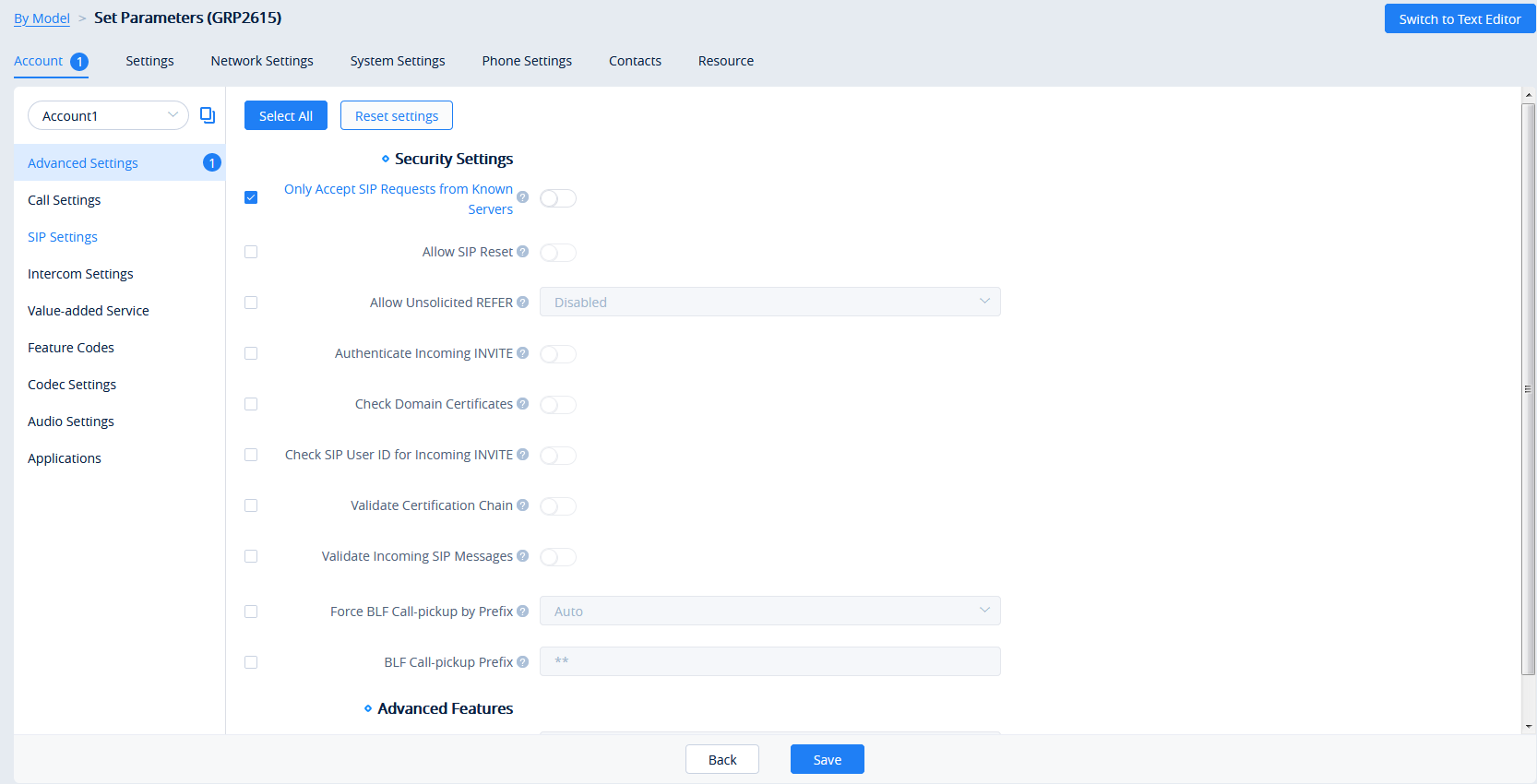



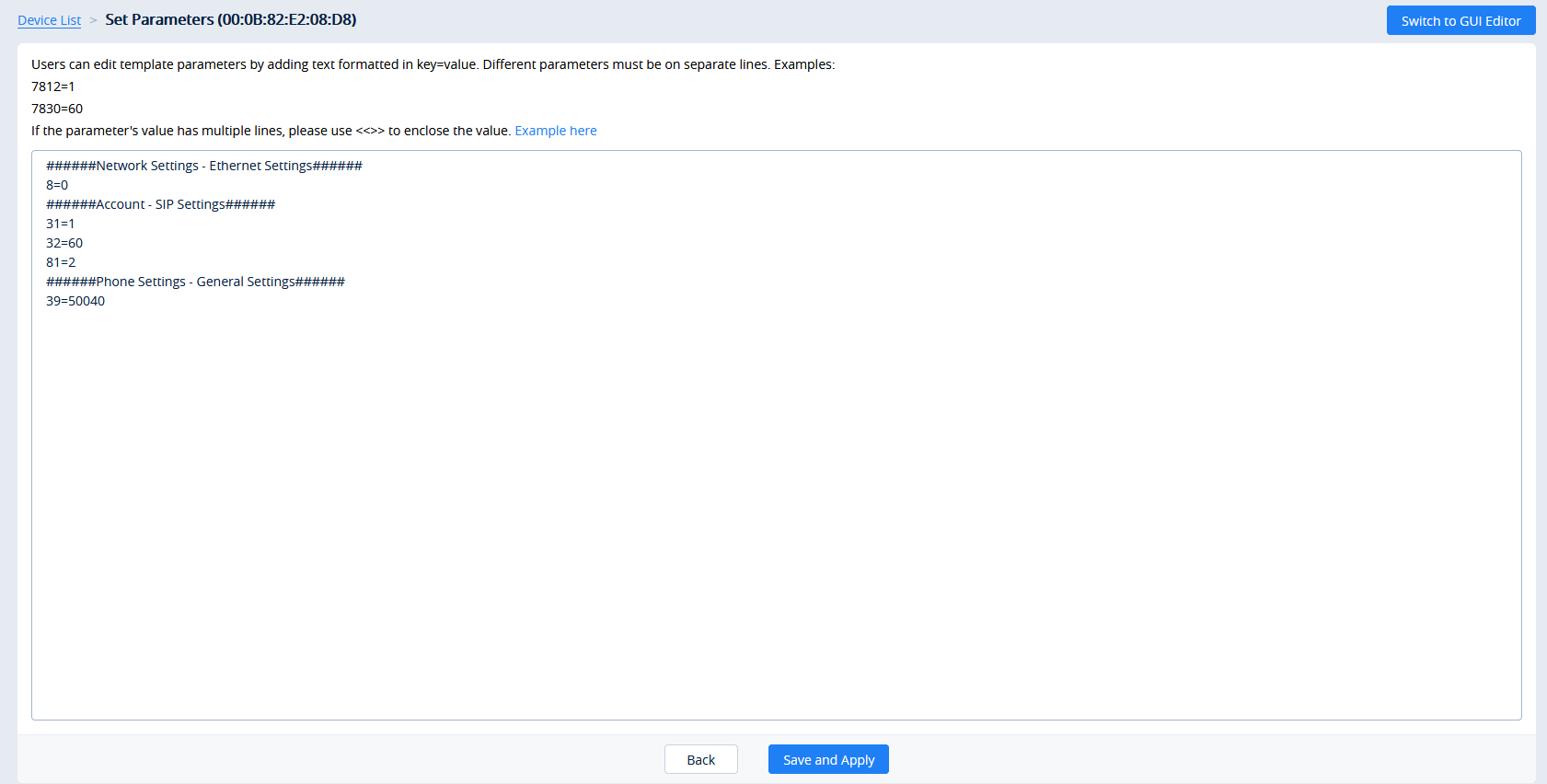
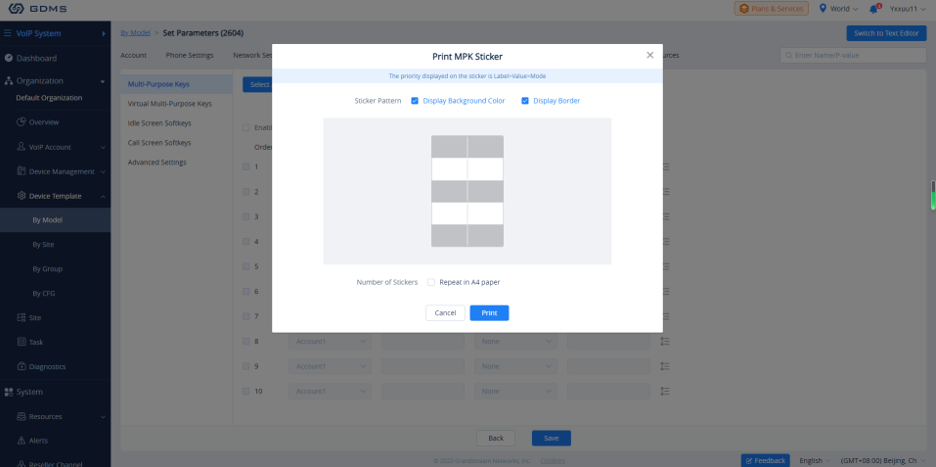
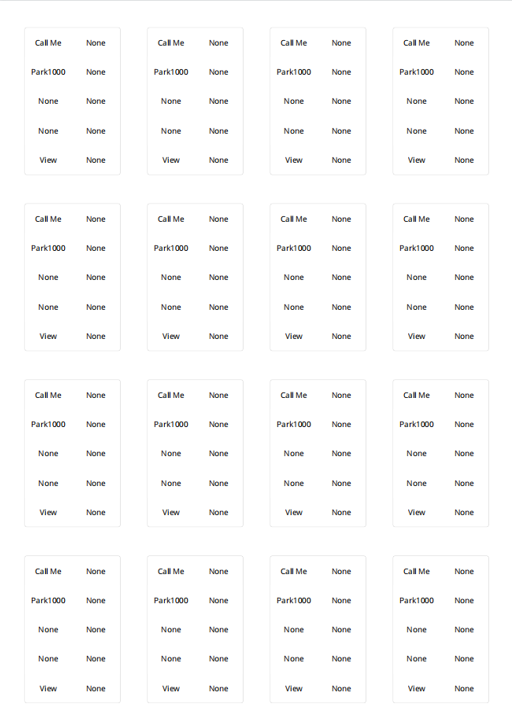
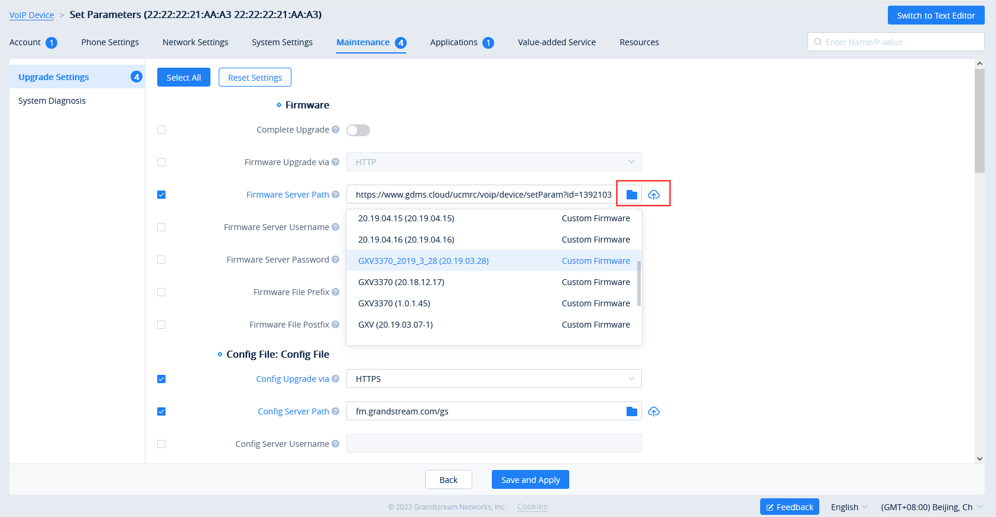


 button to view a specific device’s system information and account status.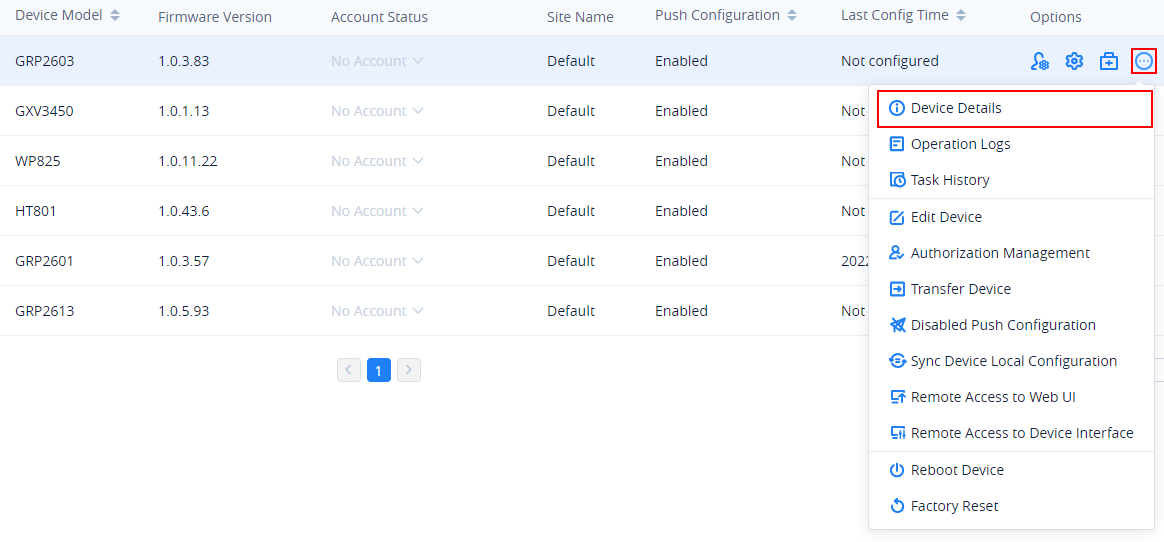
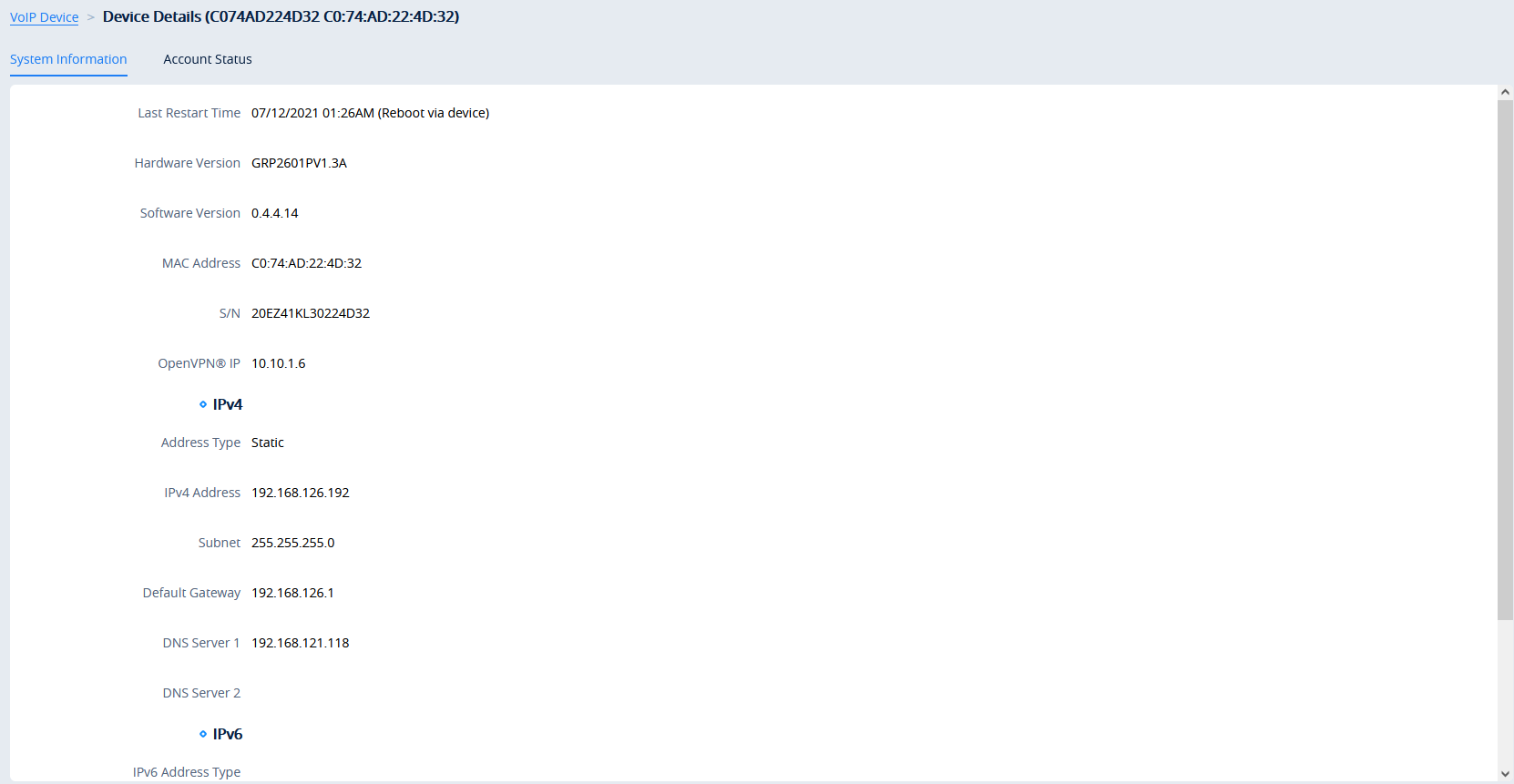
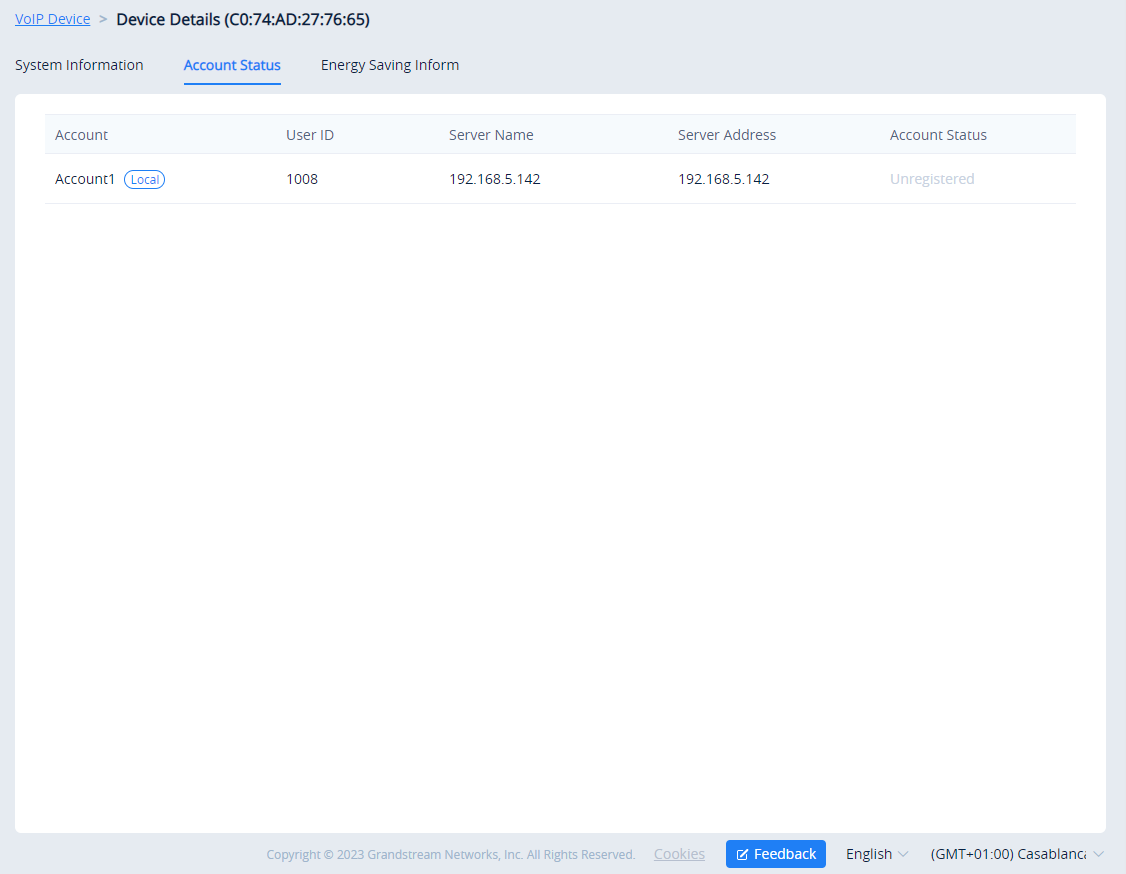
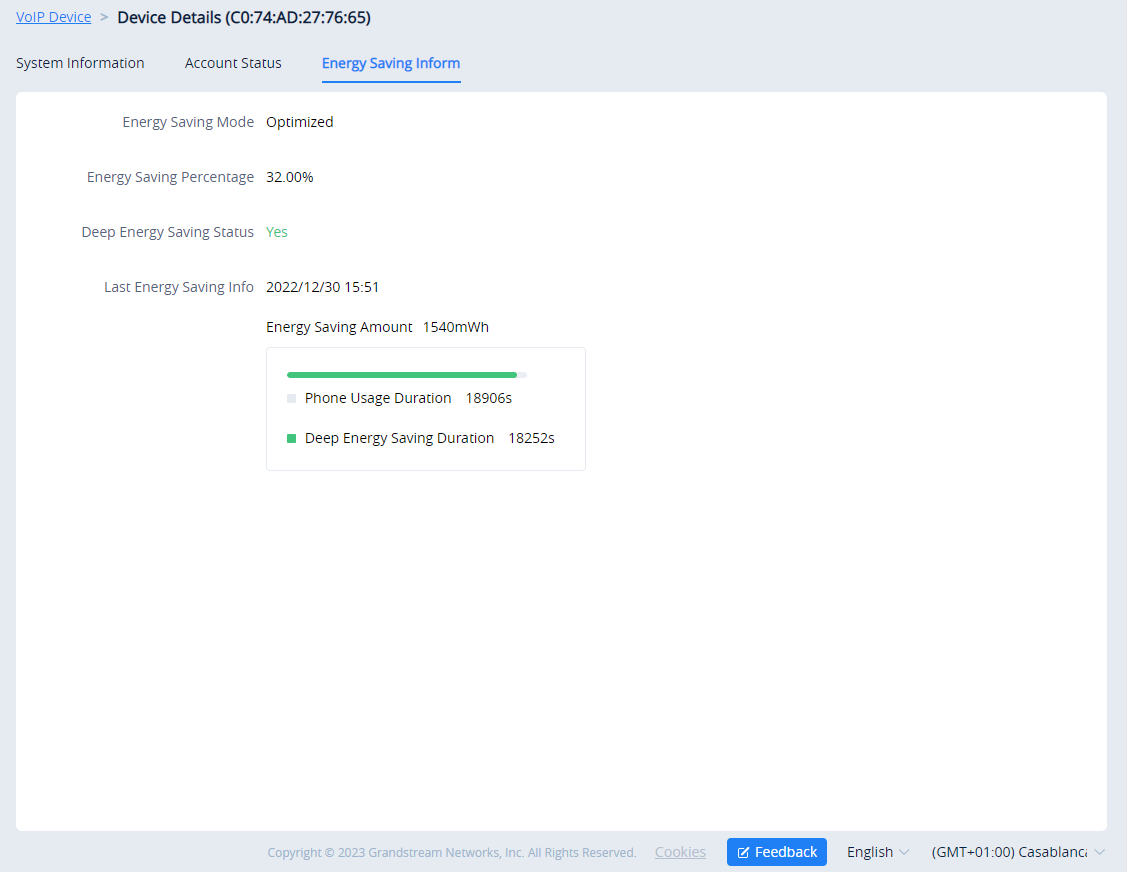

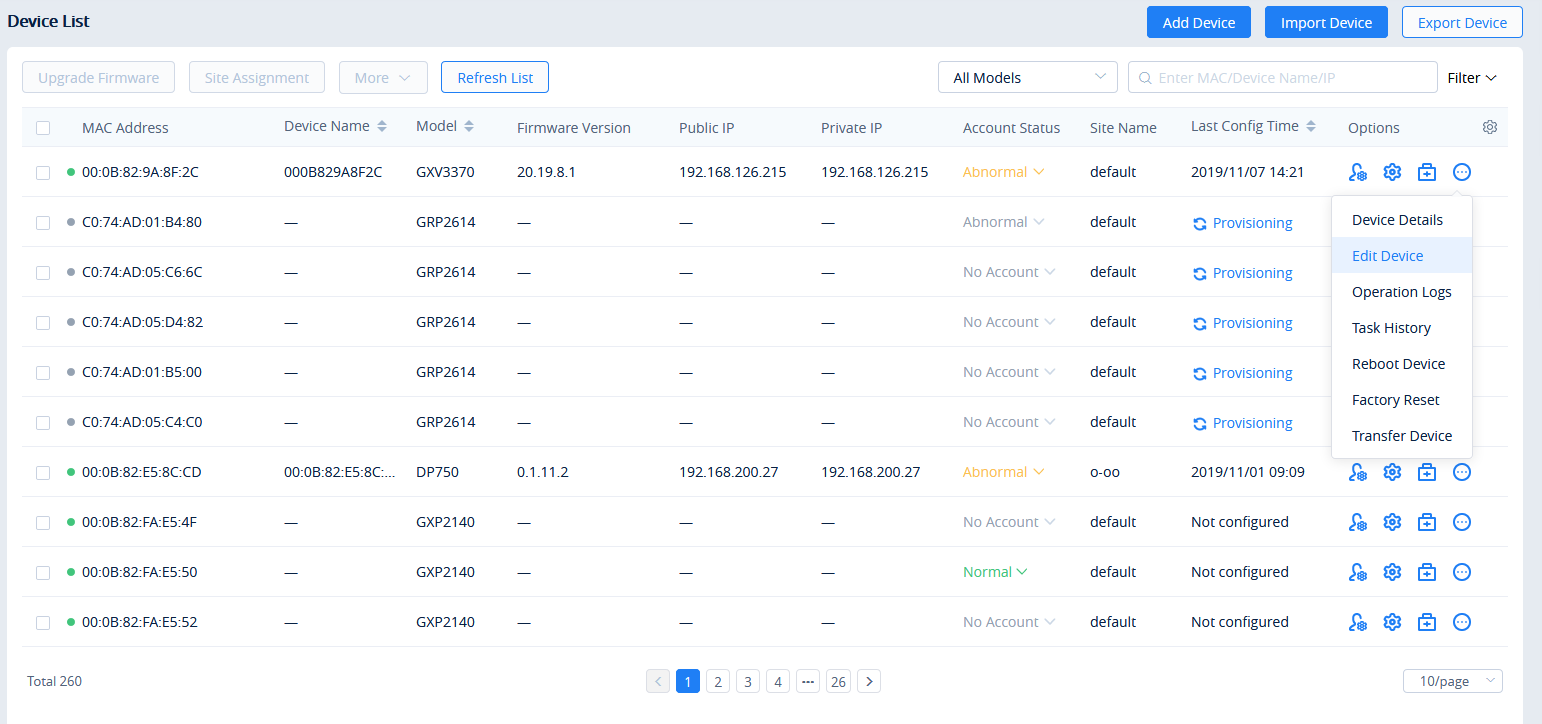
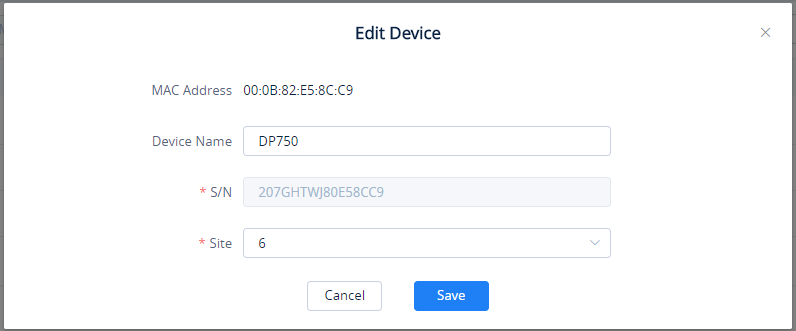


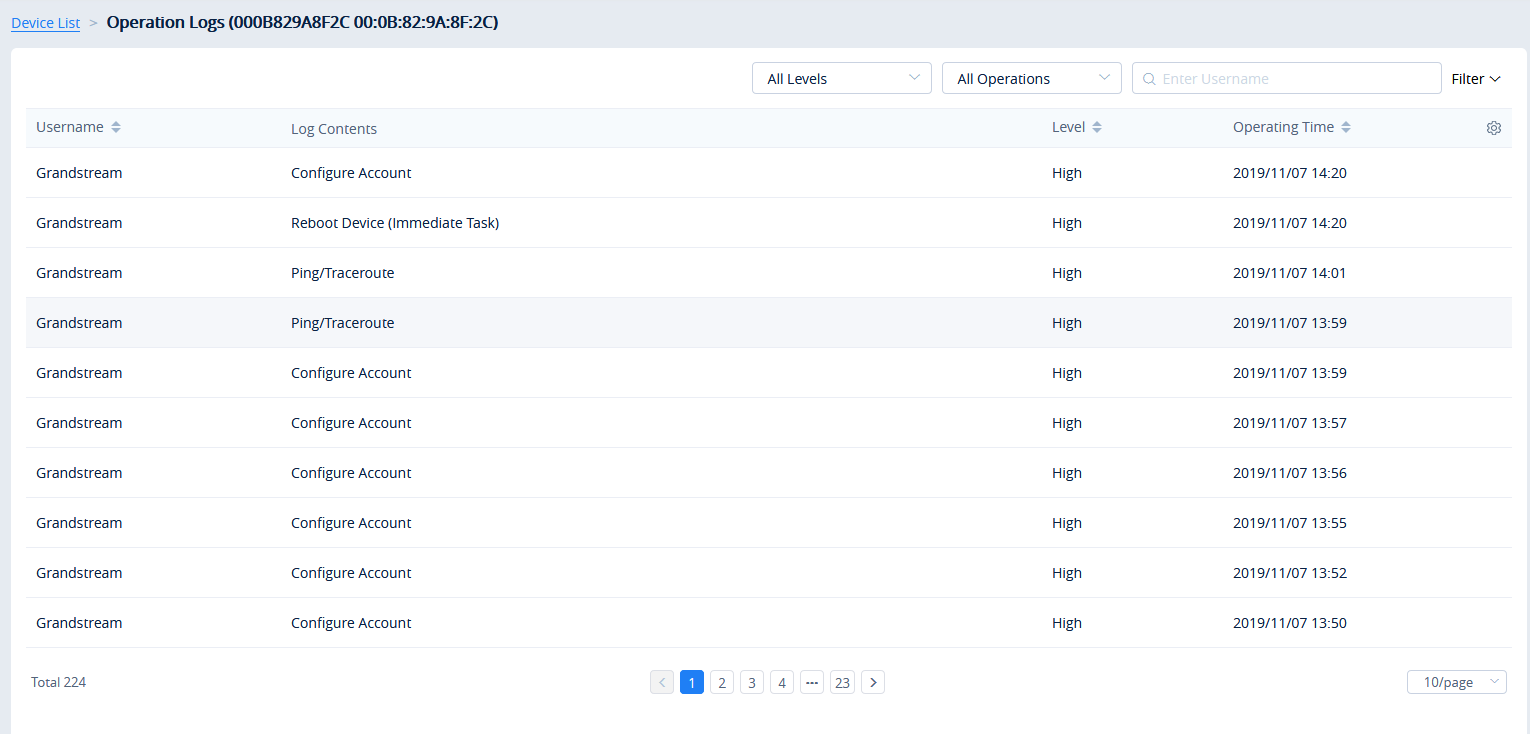


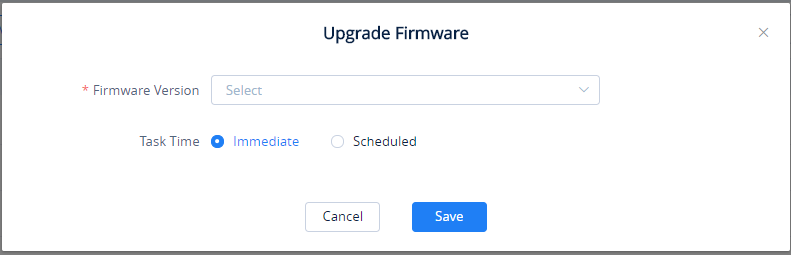
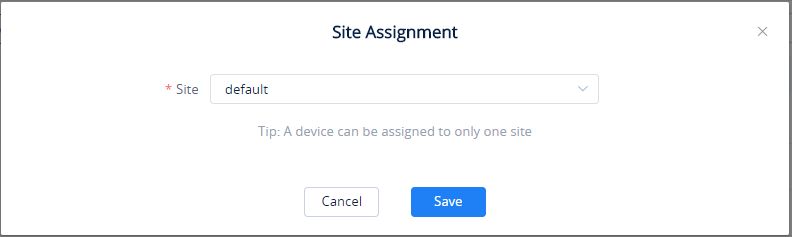
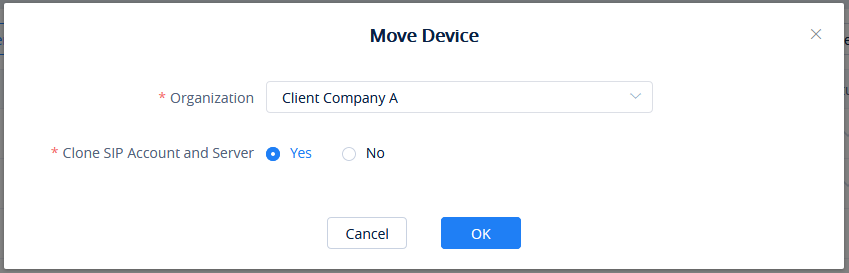
 and pick an RPS from the list, then select the devices to configure with the selected RPS.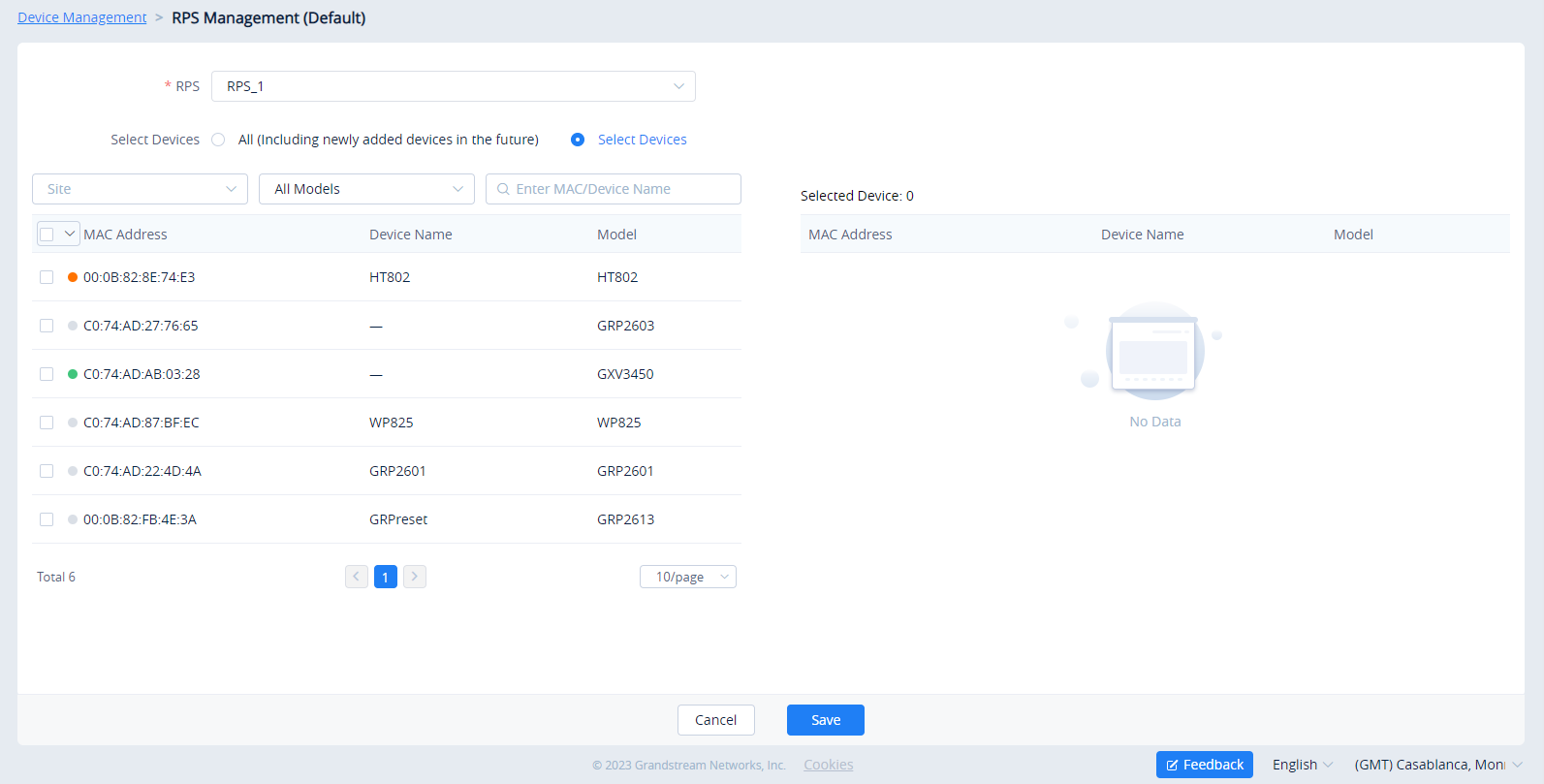
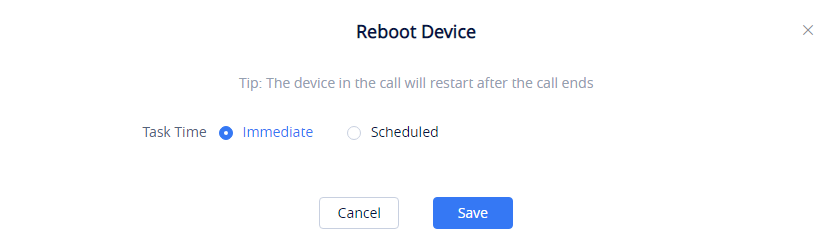
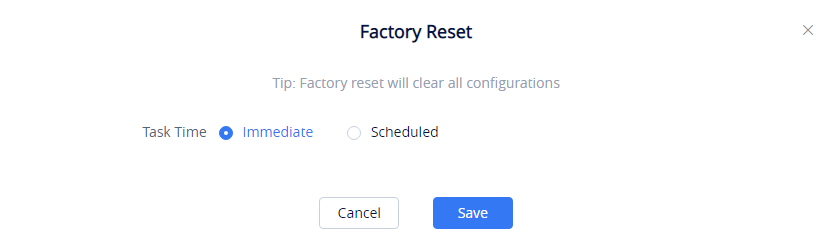
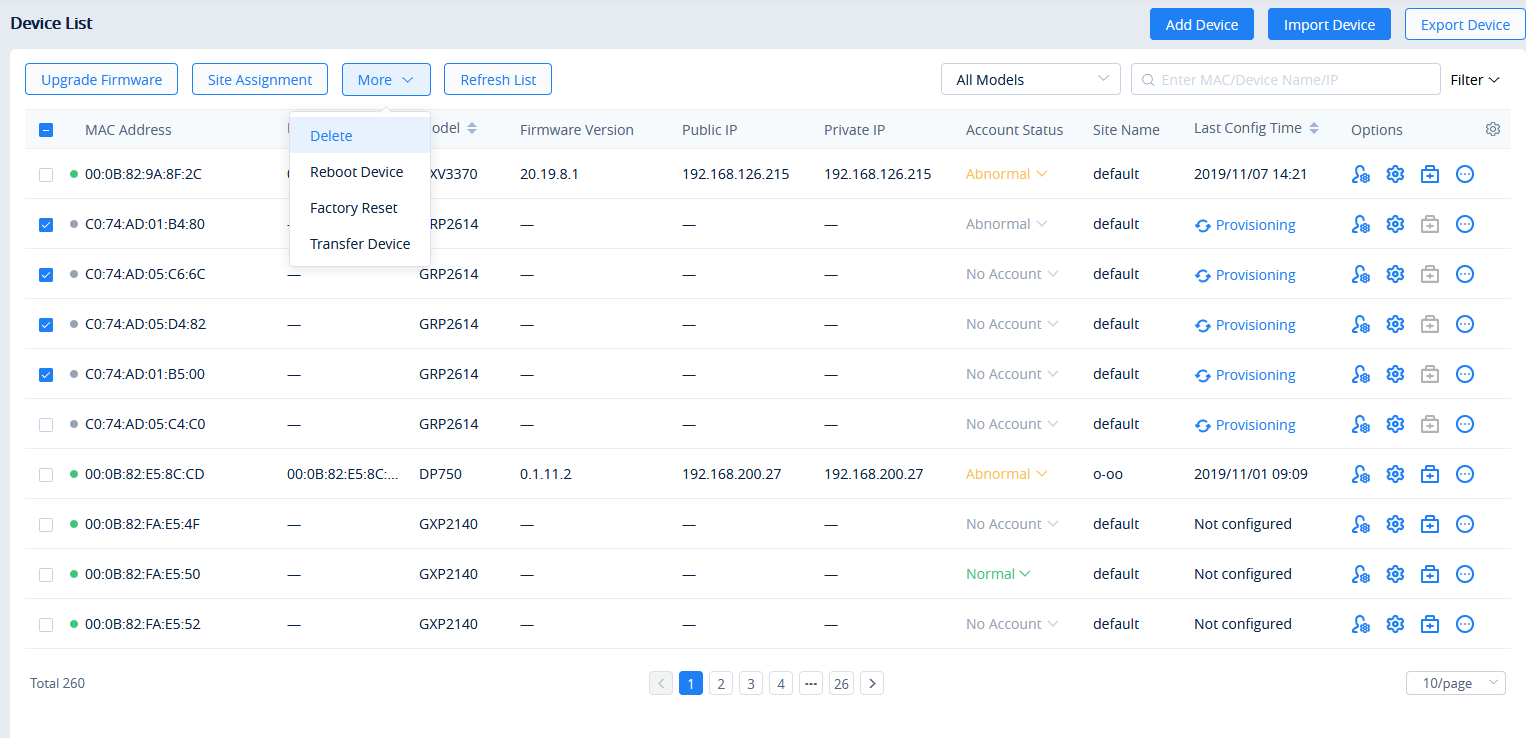

 button in the top-right corner of the device list page. The exported list includes all device and account information.

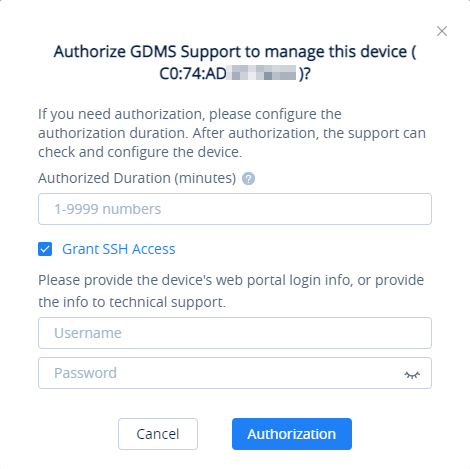

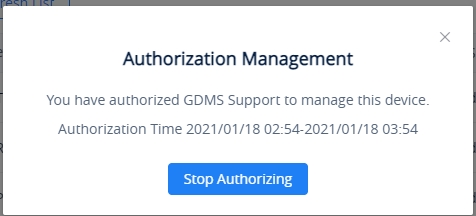


 button of the DP base station which you want to open the subscription for then select “Open Subscription” as shown in the figure below.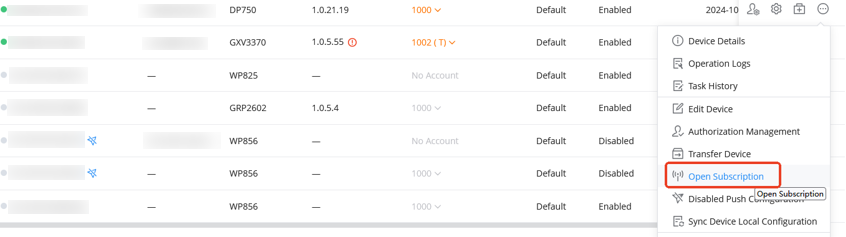





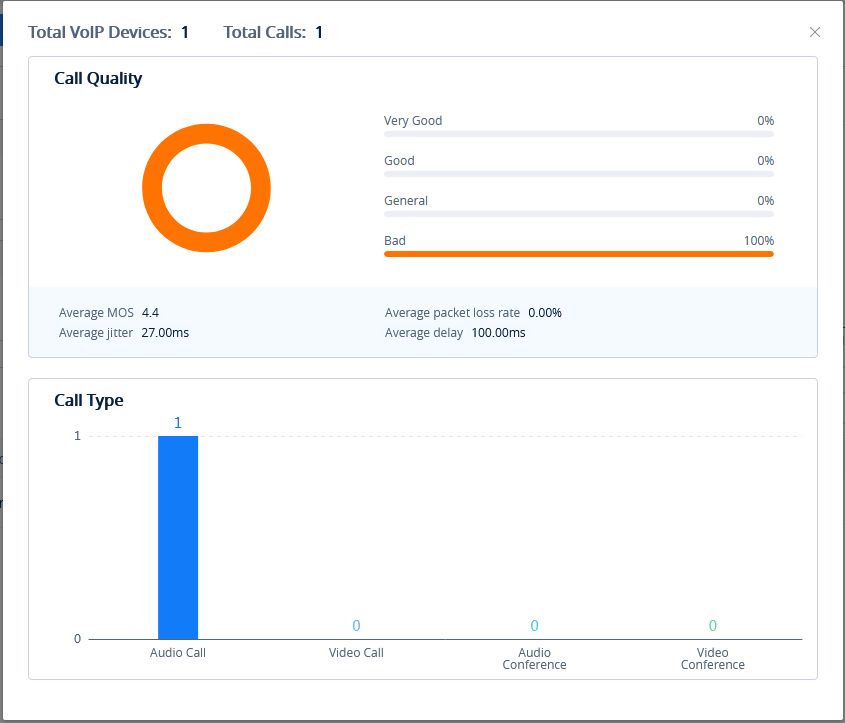
 to disable reporting call quality. When this function is disabled, the devices under the current organization will no longer report the call quality to the GDMS platform.
 button of the desired models.

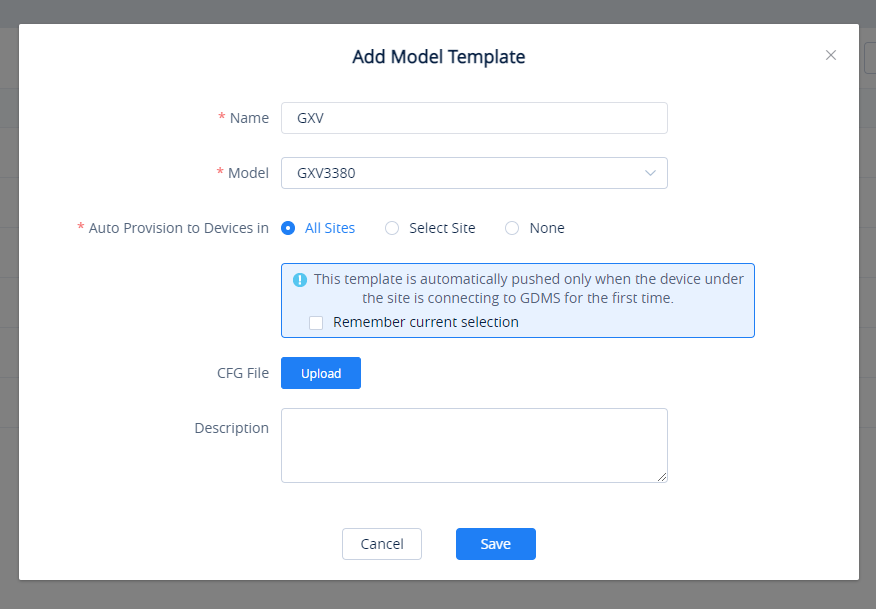

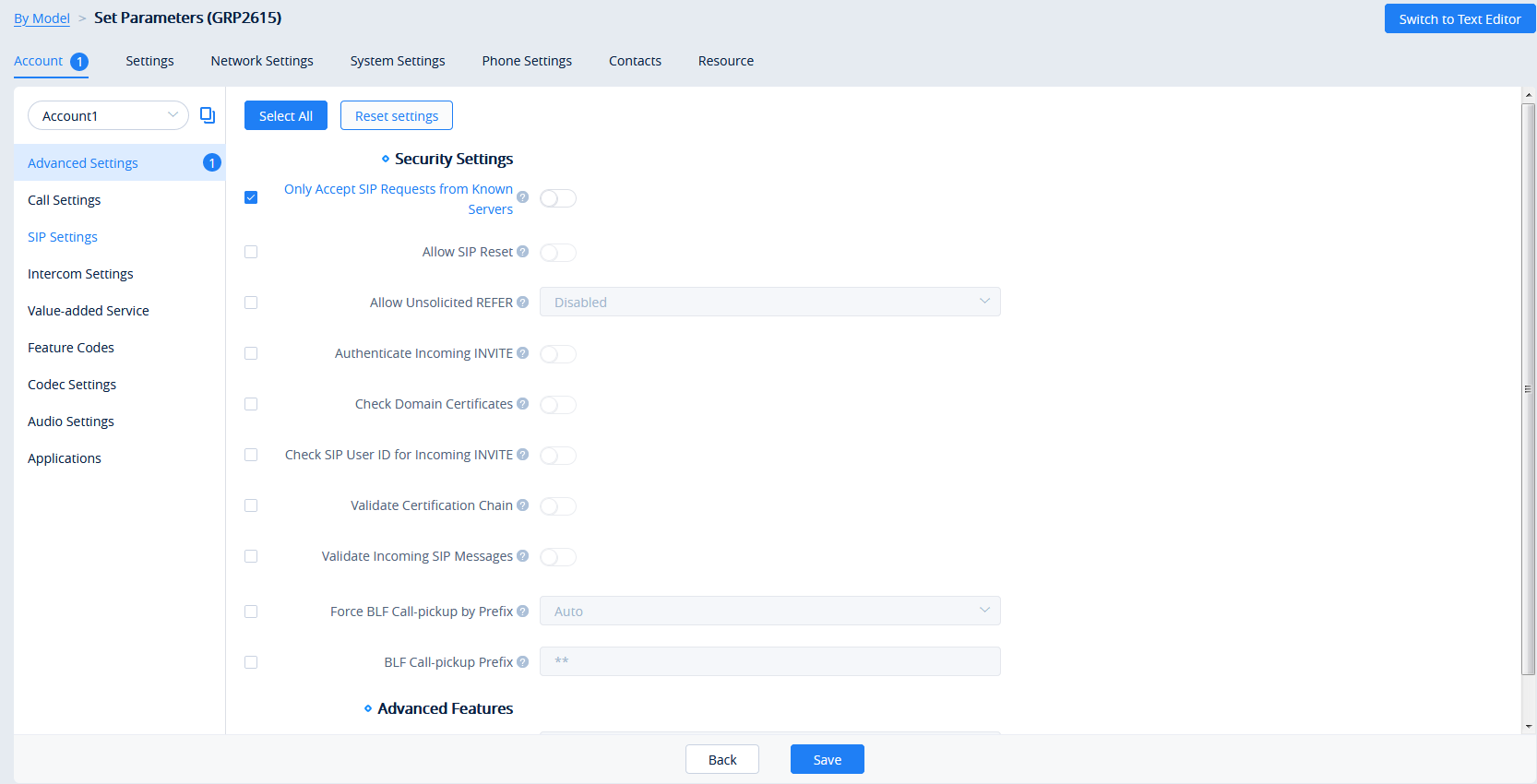


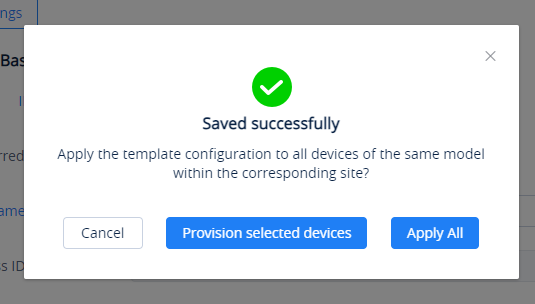


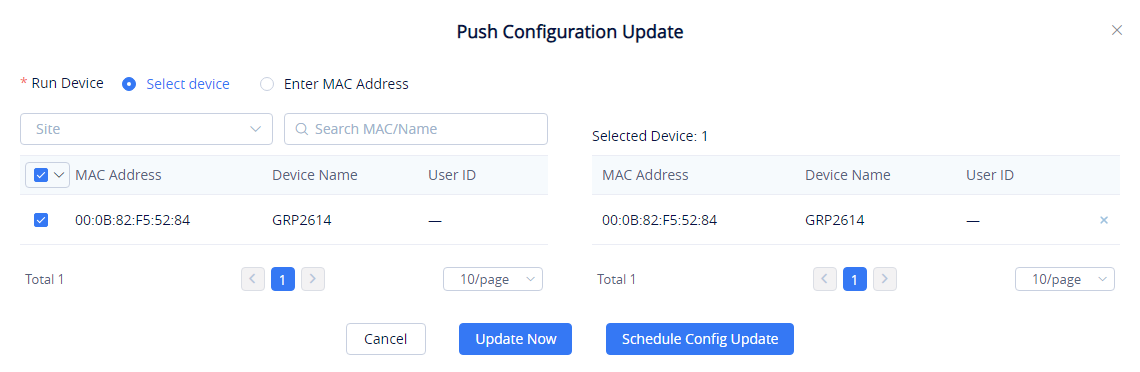
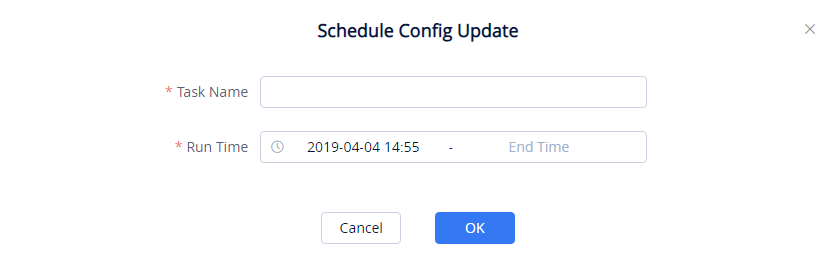
 button for the desired template.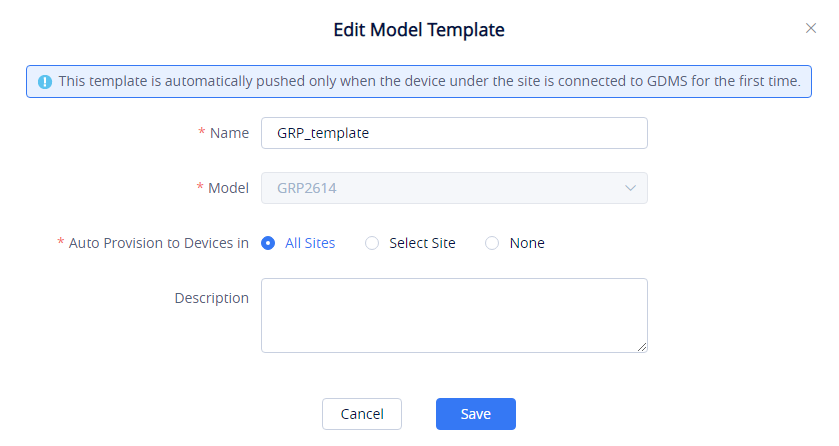
 button for the desired template.
 .
.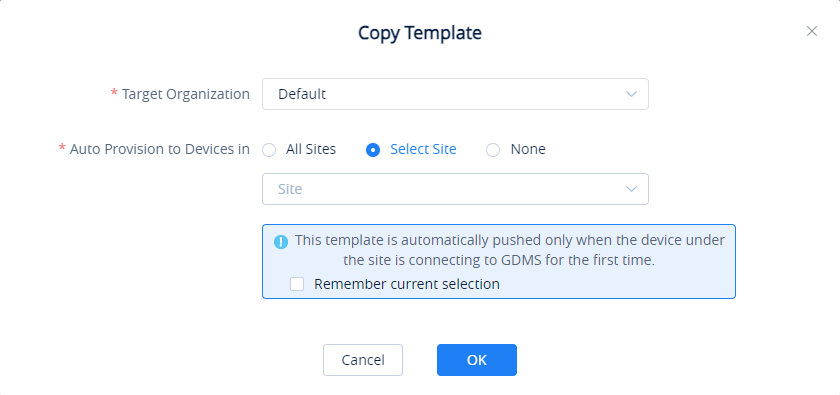

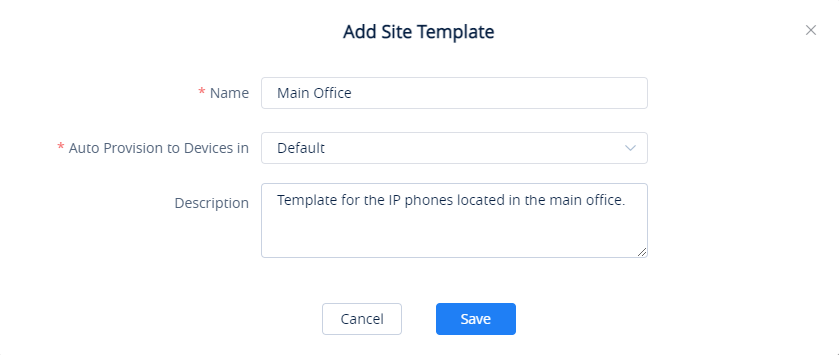
 : Use this button to edit the information related to the template.
 : Use this button to change the configuration of the template.
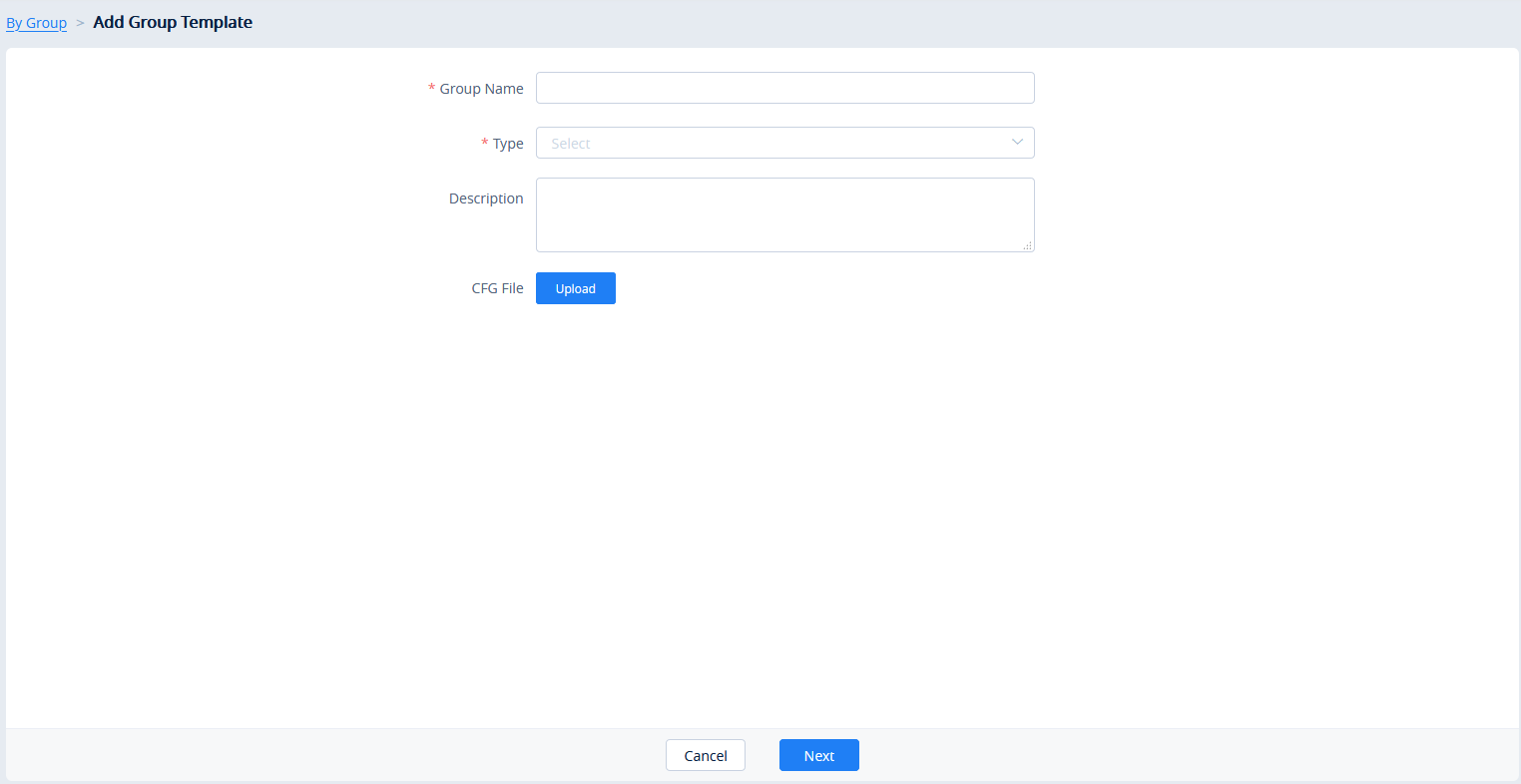
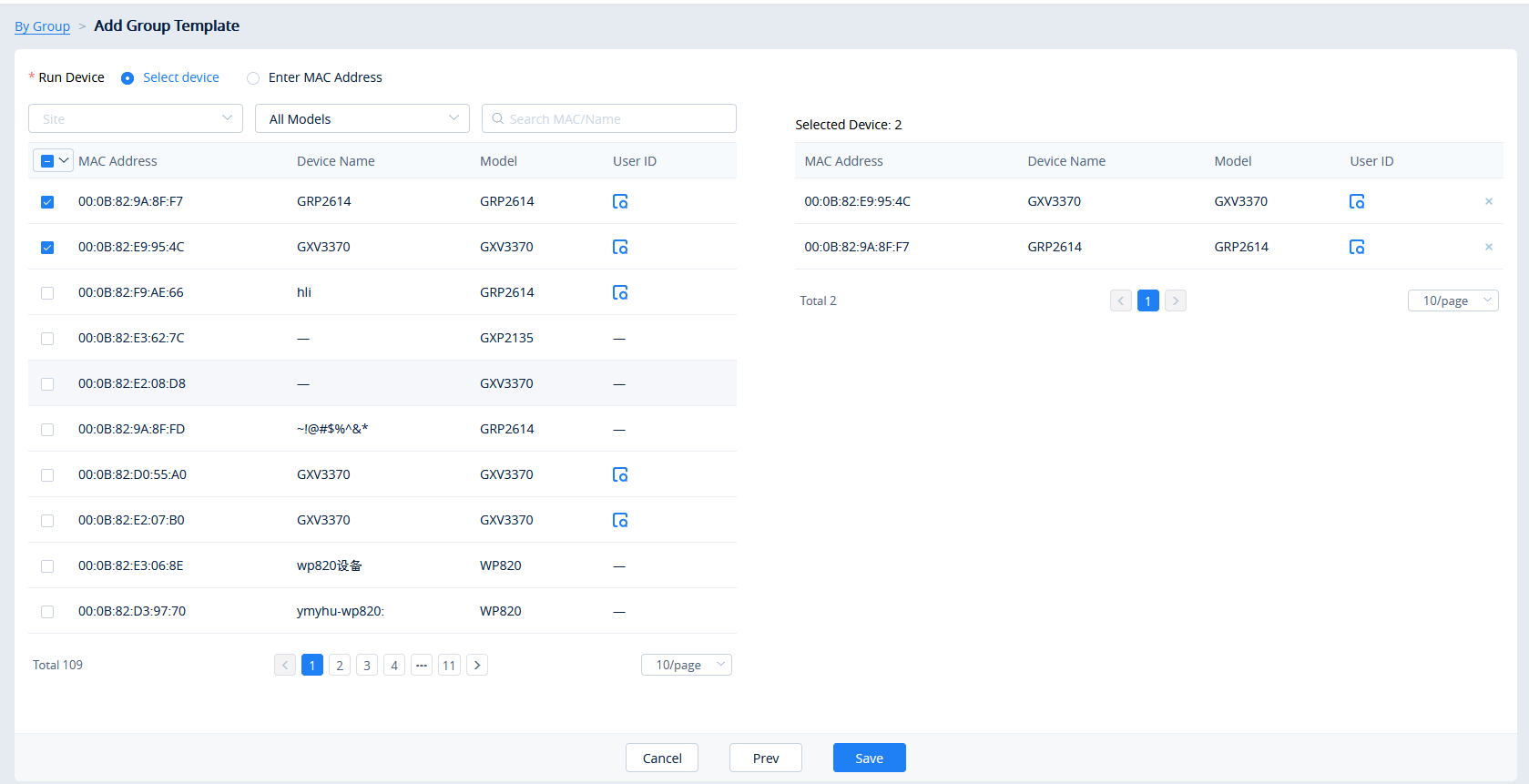
 to access the group member parameters configuration page.



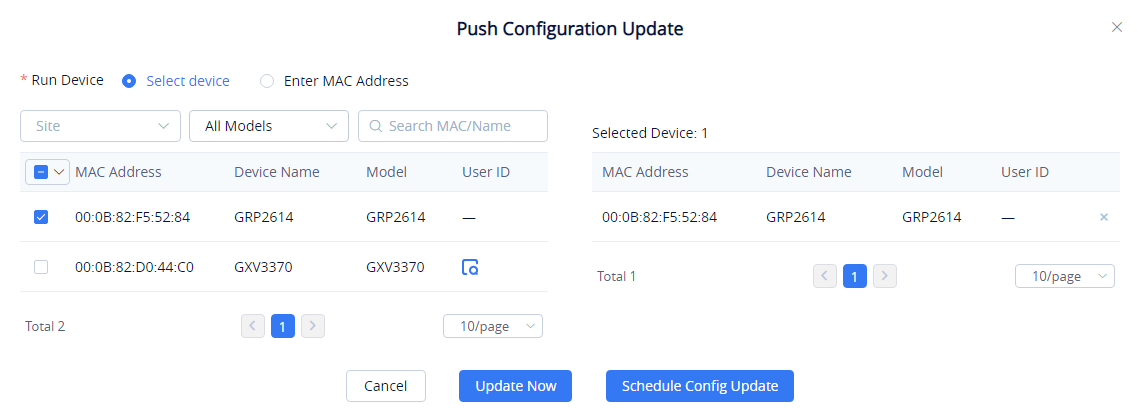


 button for the desired group.
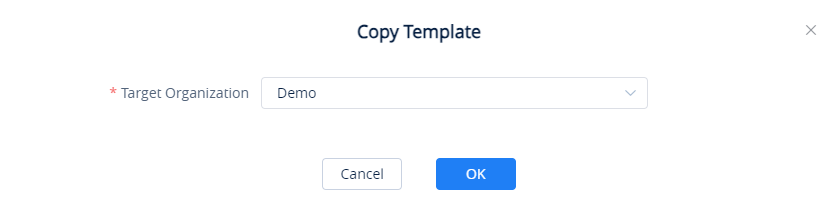

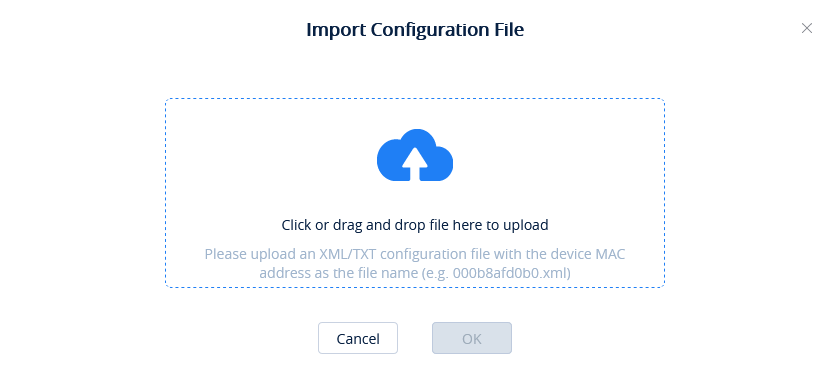

 button for the desired device to manually push the configuration to it.
 button for the desired device to get its configuration file.

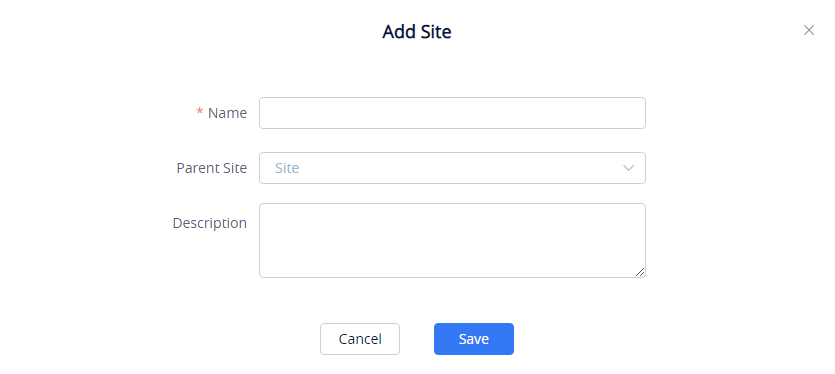
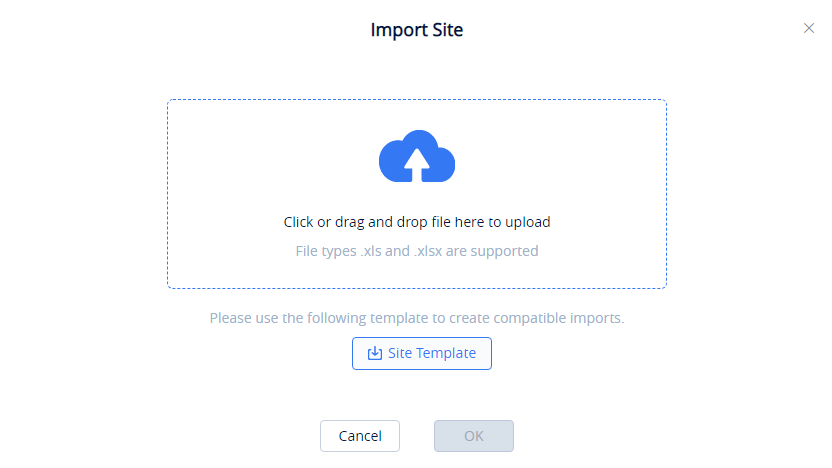
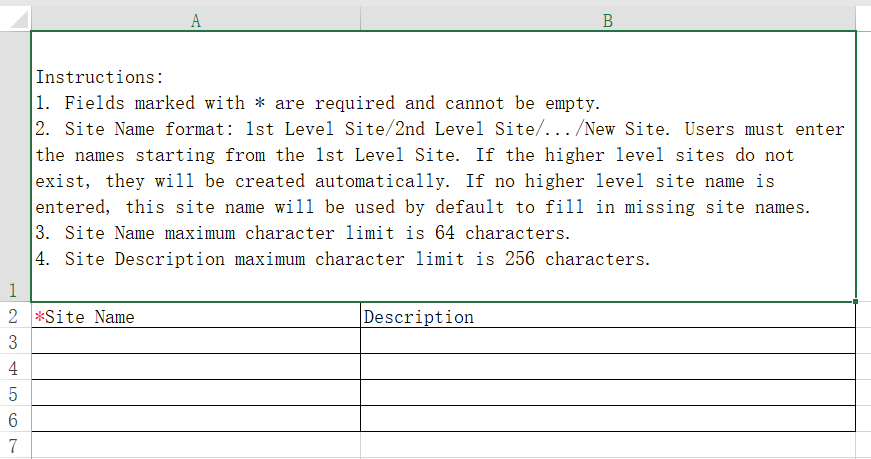



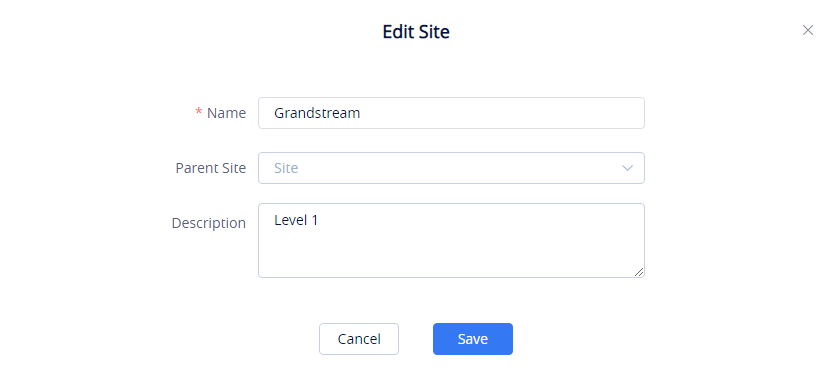
 button next to the desired site.
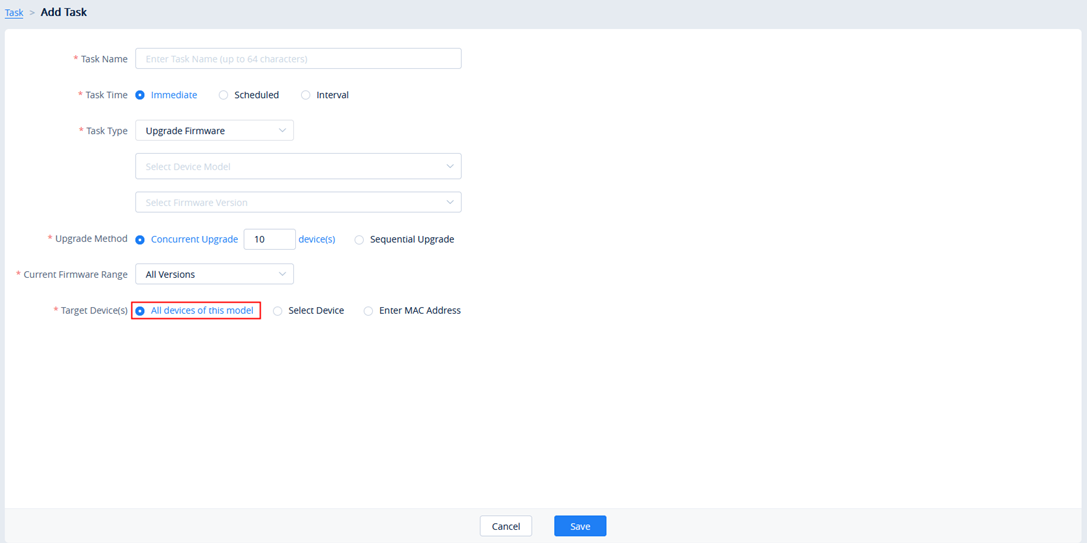

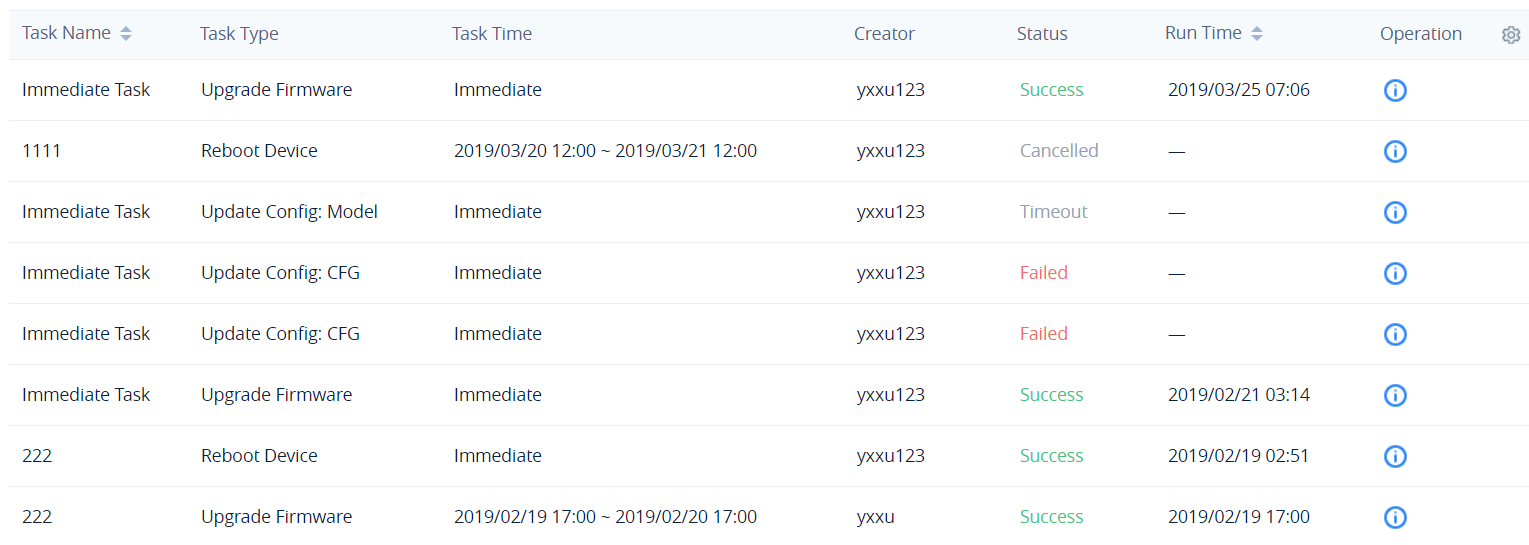

 button for the desired task. Users can view the task status of each device involved.
 button.
 button for the desired task. The task status will be changed to Cancelled. To run the task again after it is completed, click on Task Details 🡪 Run Again for the desired task.
 button to immediately end it.


 button on the right of the Device Diagnostics page to view information about the device.
 next to the diagnosis record to view the specific diagnosis result of the device.

 button to download the Syslog.
 button to download the capture file.

 on the corresponding device on which you would like to enable SSH Remote Capture. Then select “SSH Remote Access” tab.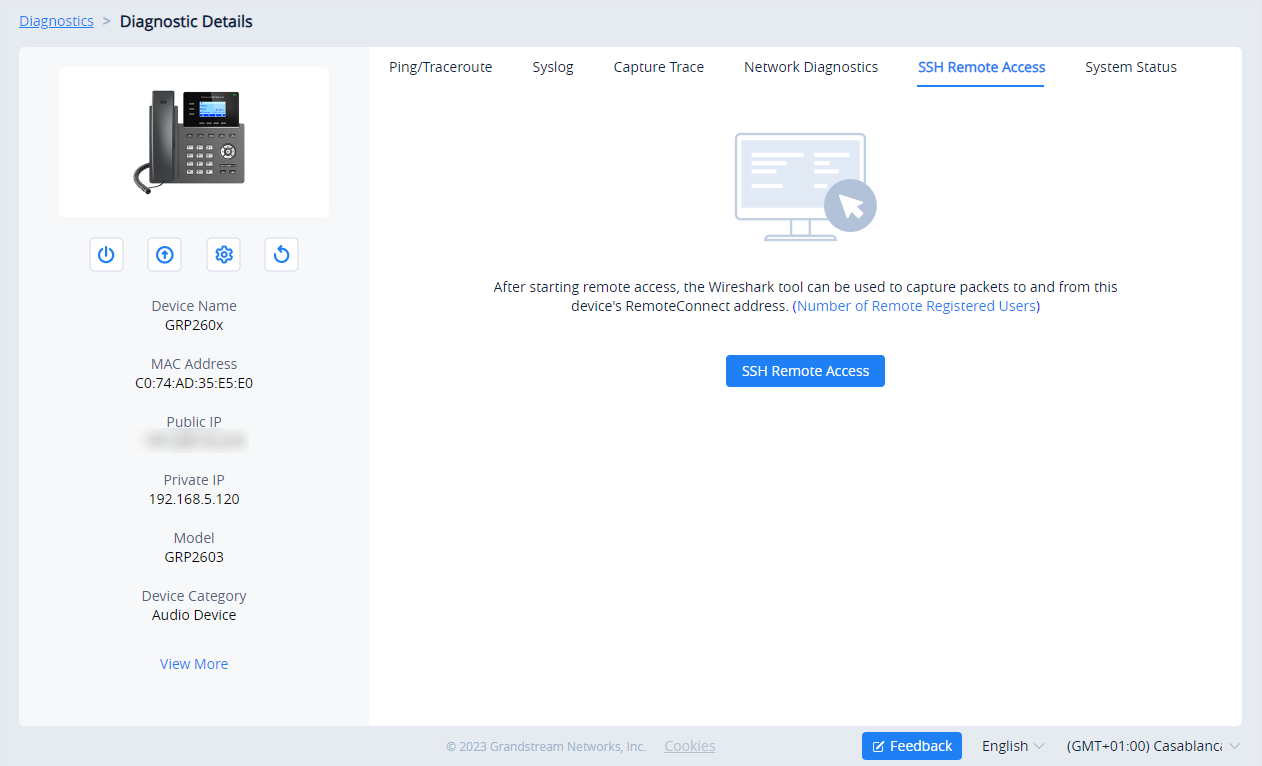
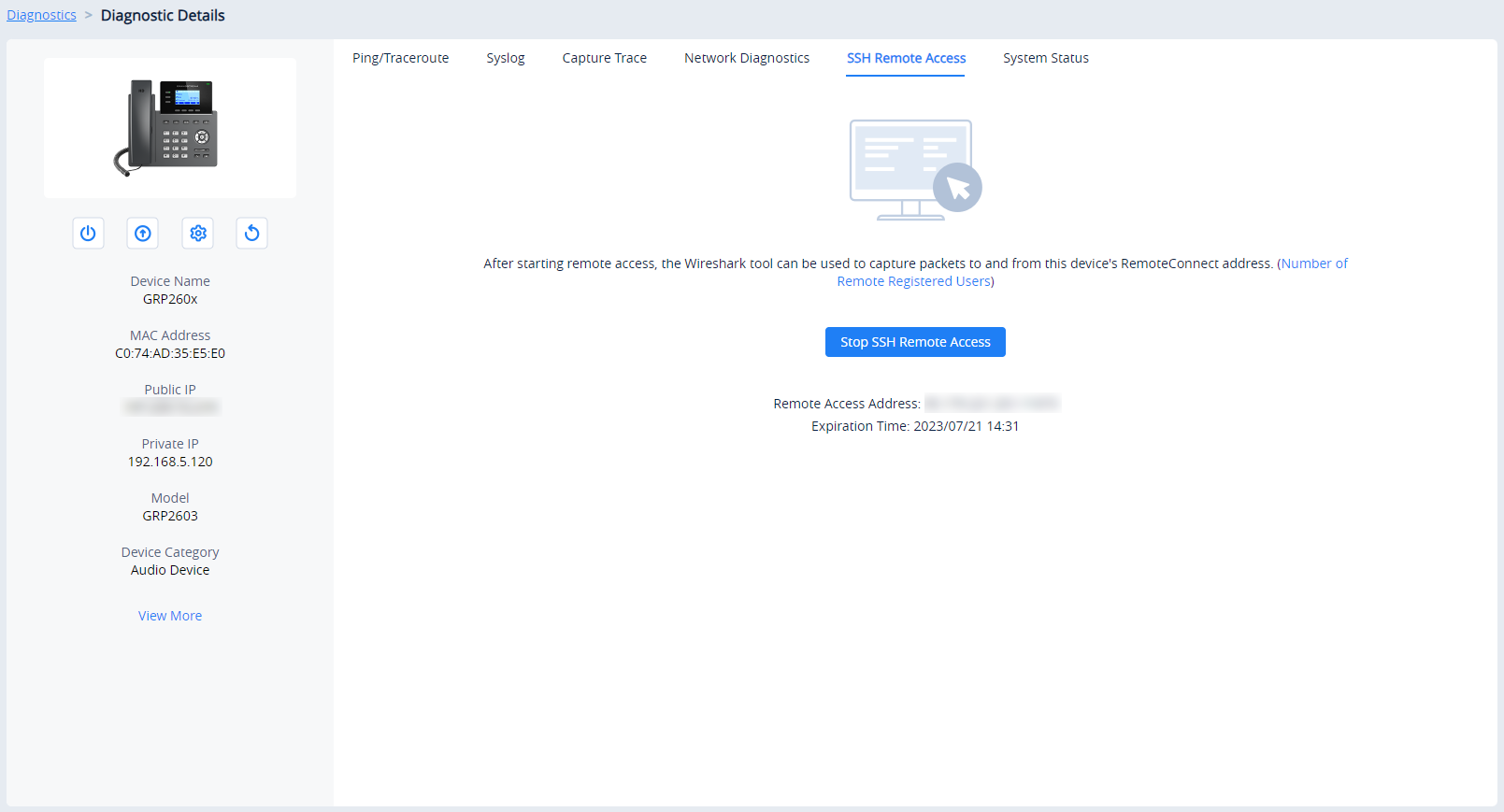

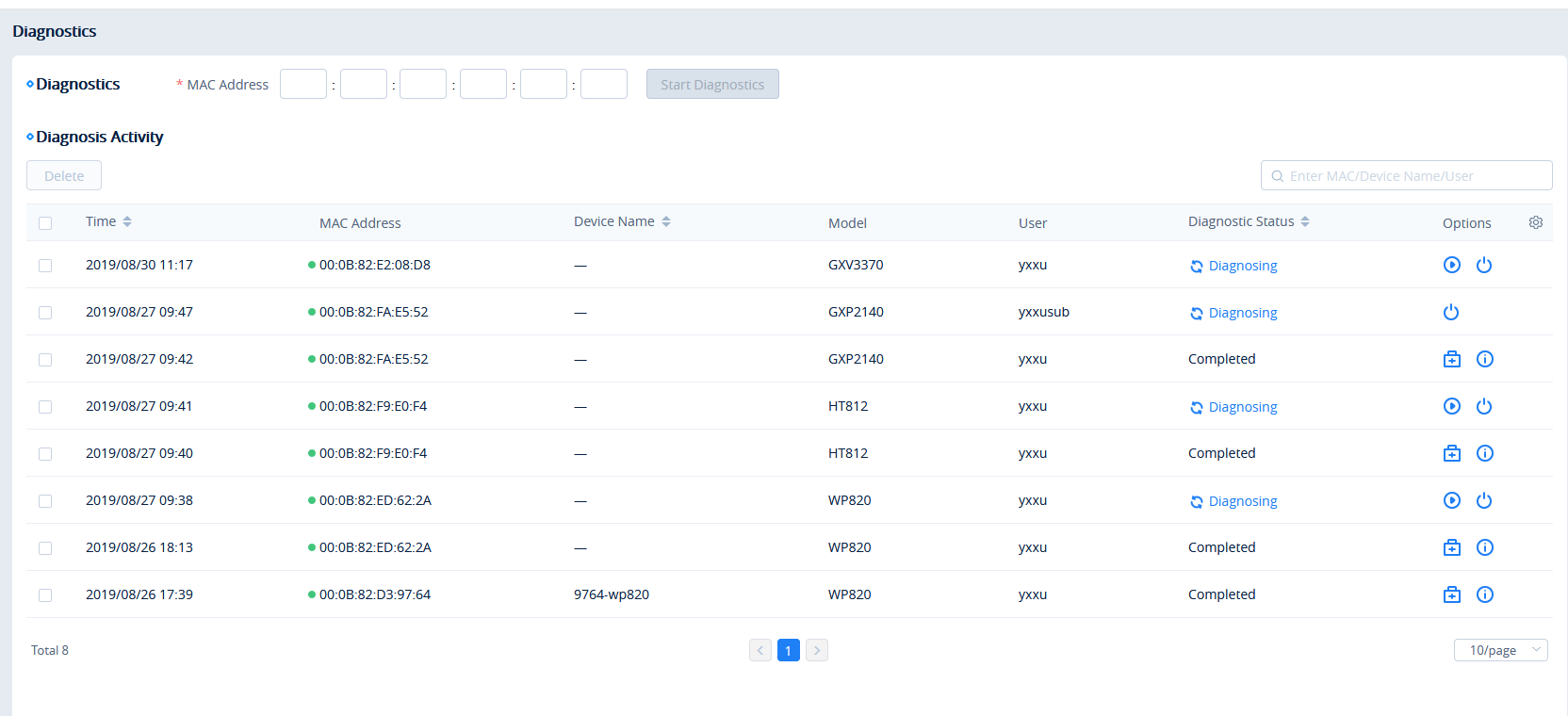


 icon in the top right corner of the GDMS page.

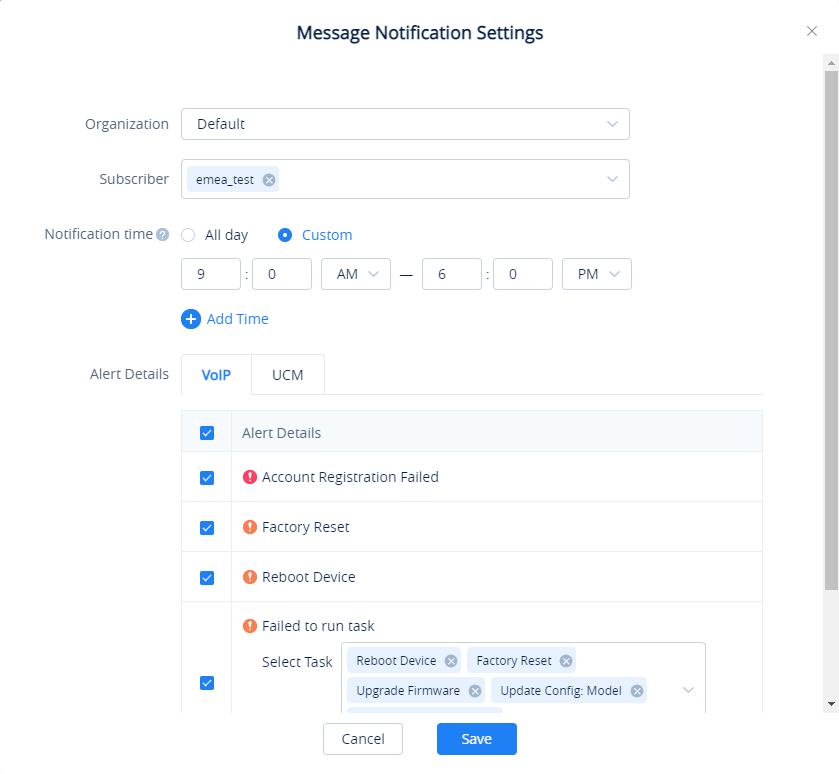




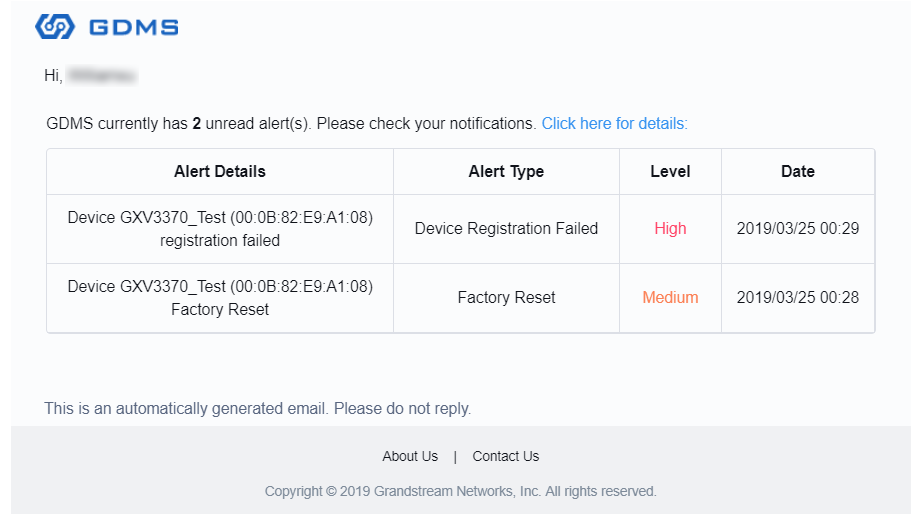


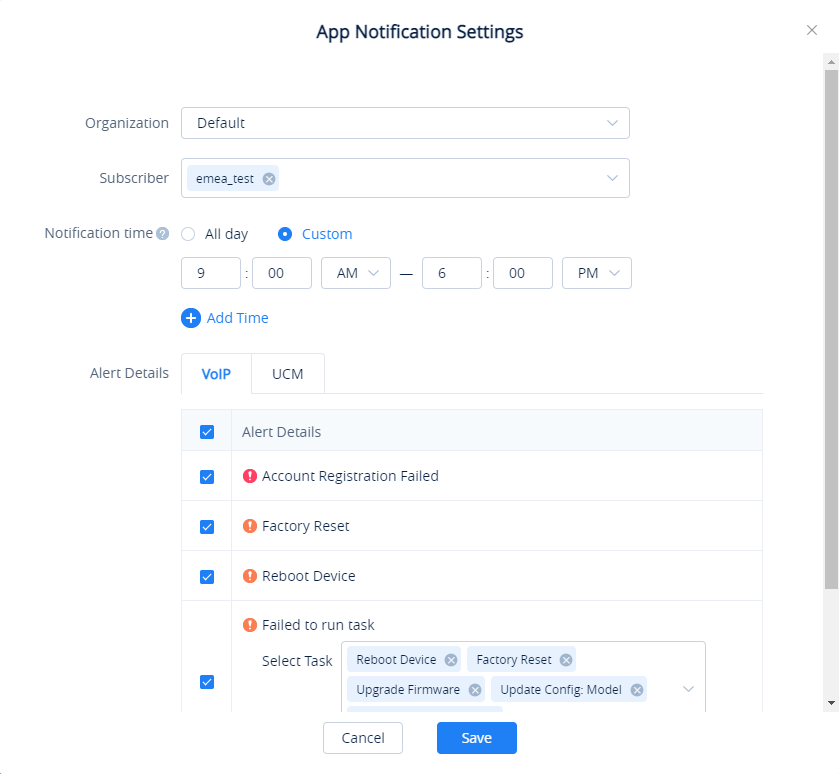





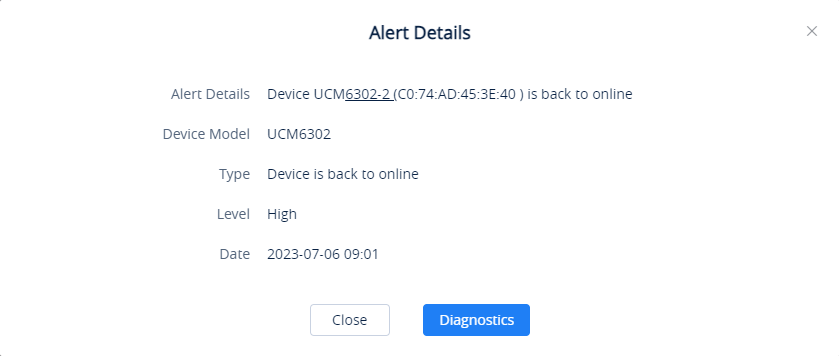


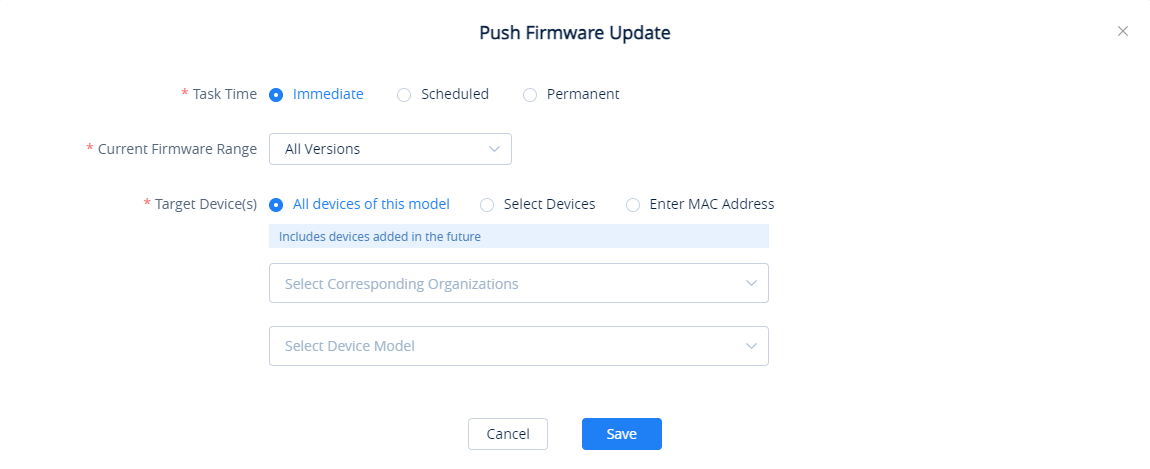
 to access the firmware editing page.
 button.
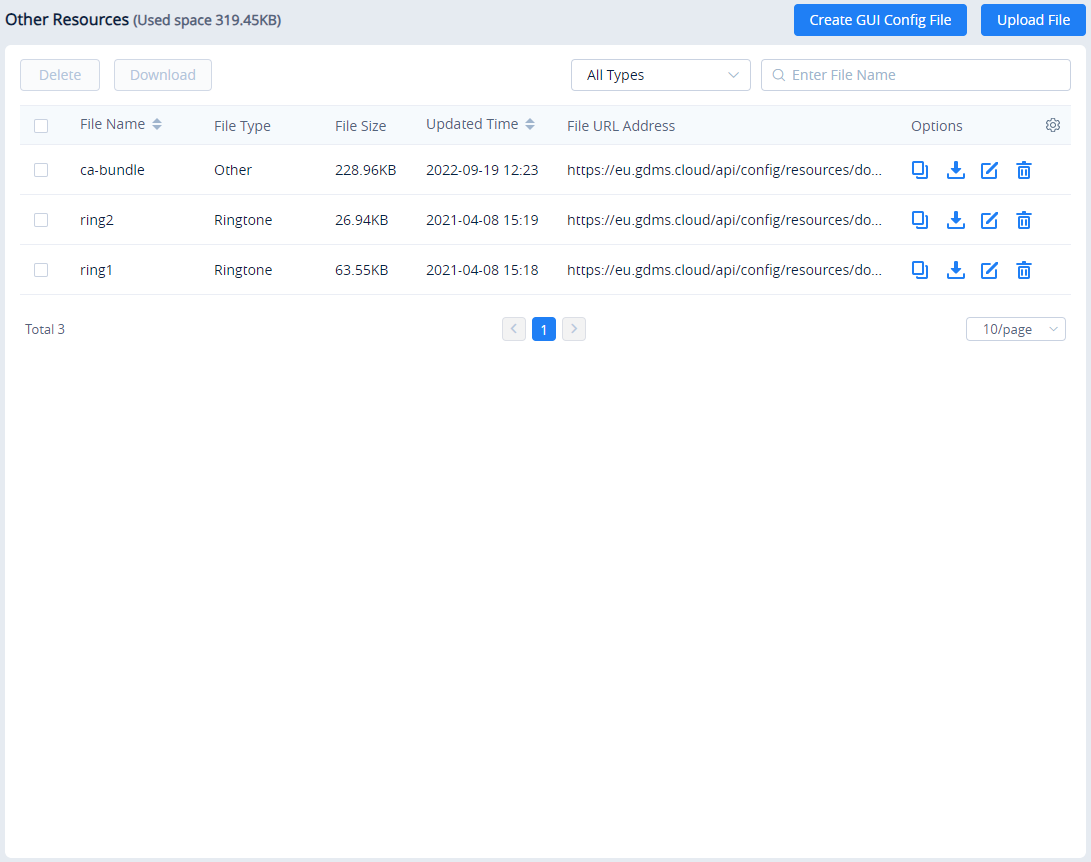


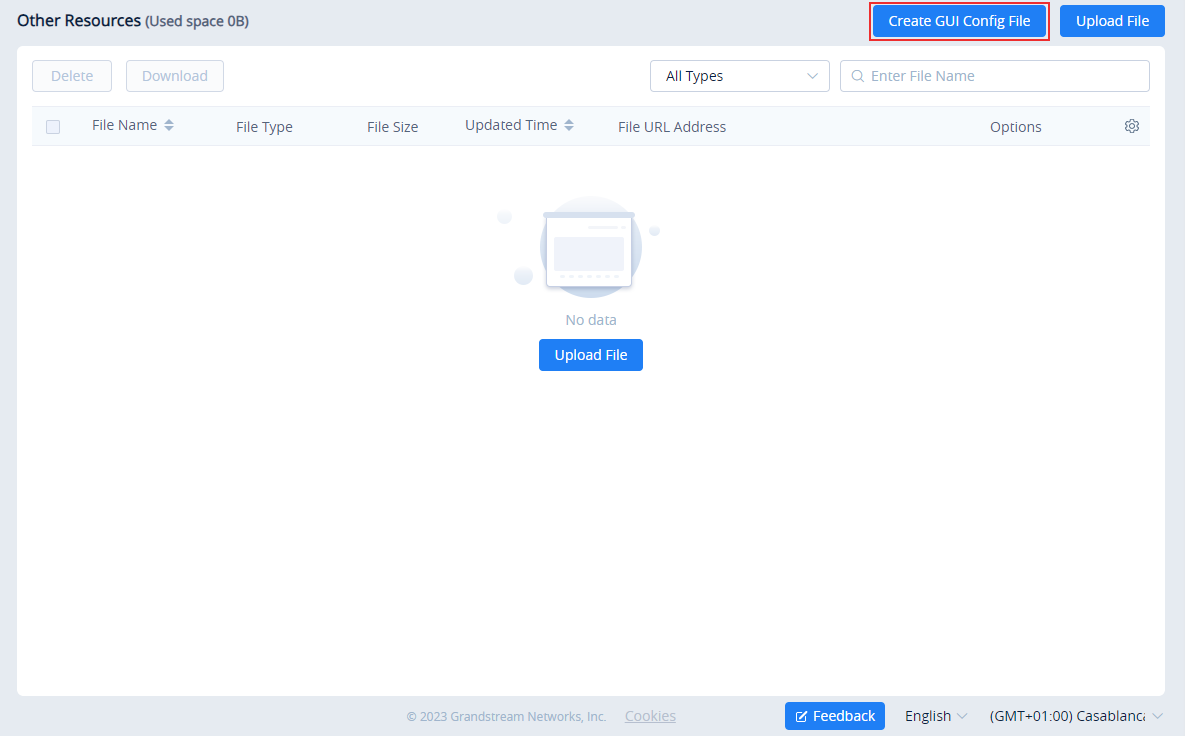
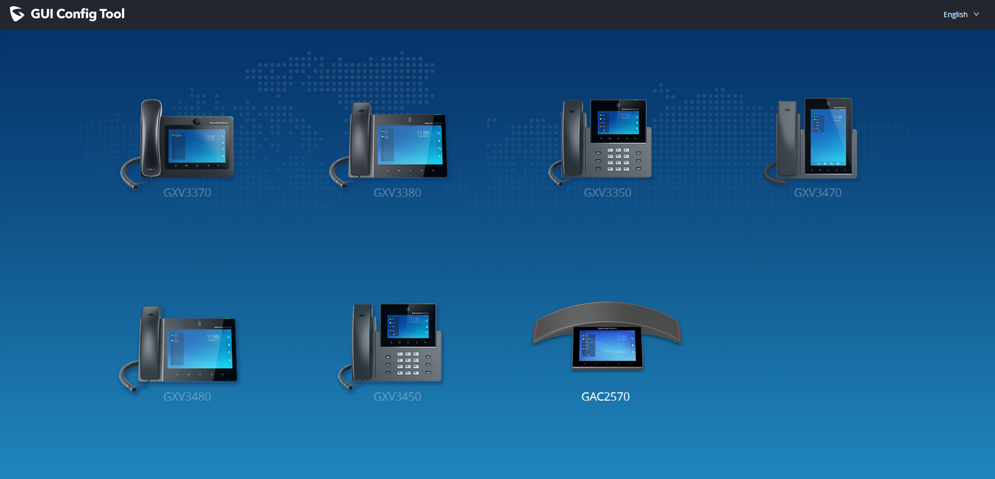
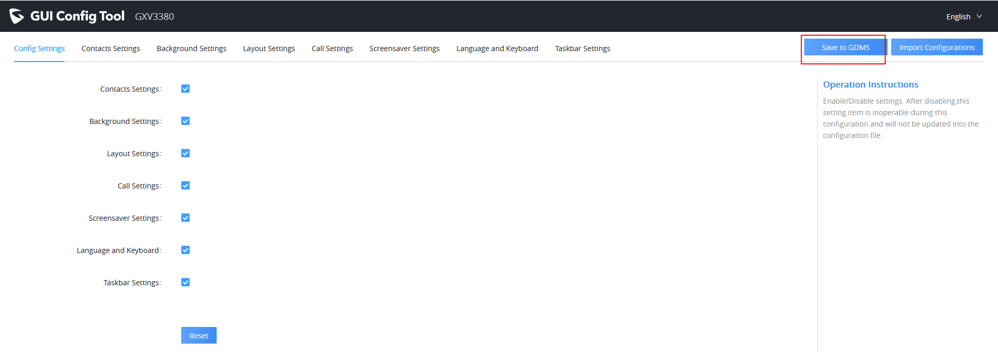

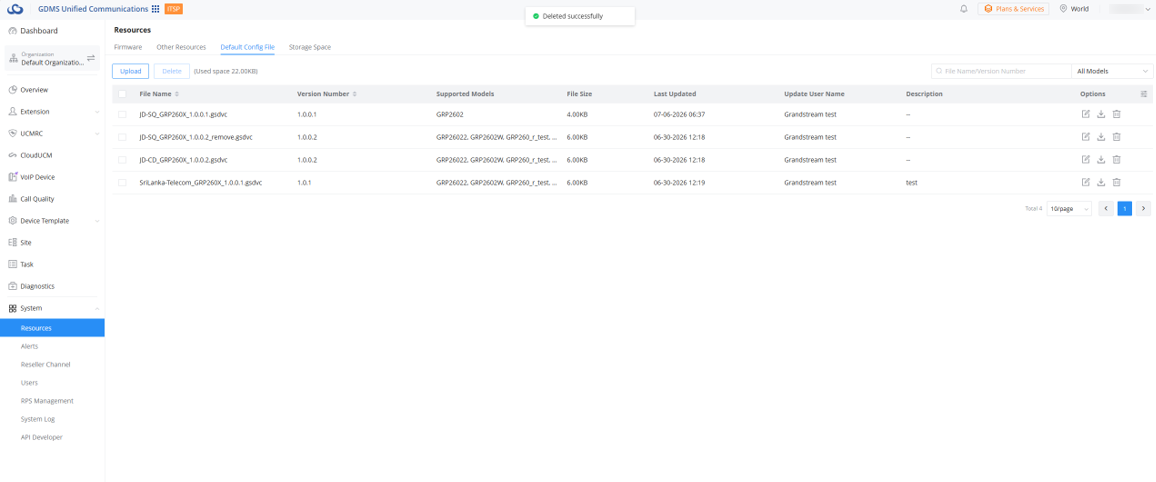
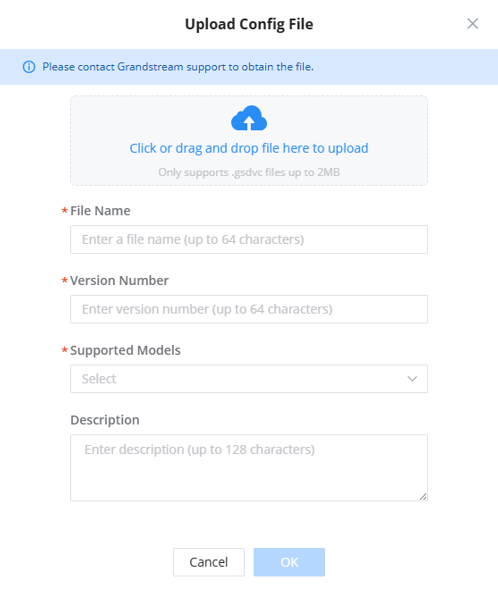
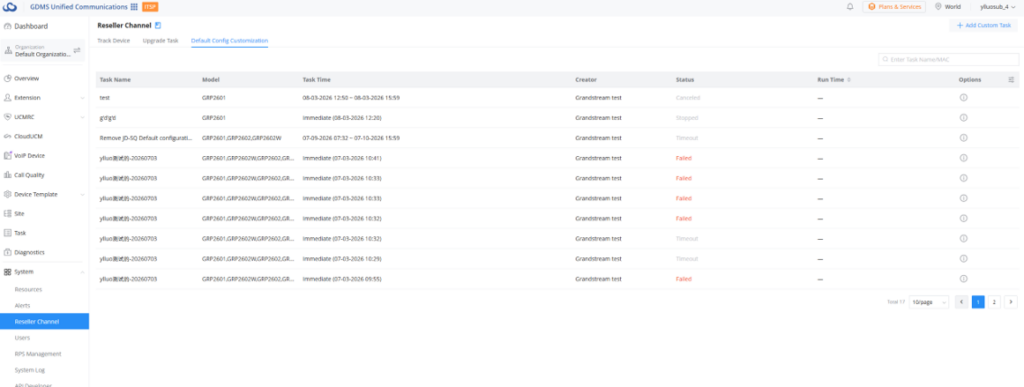
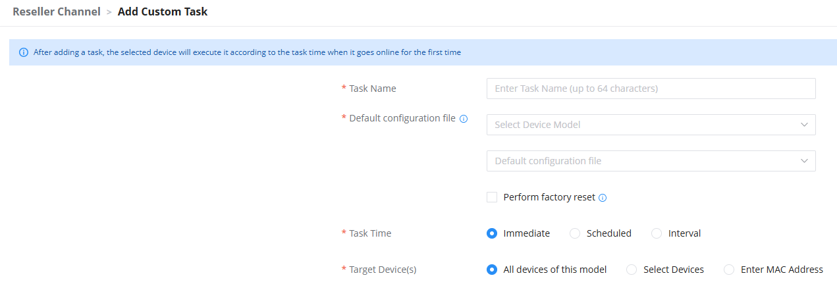
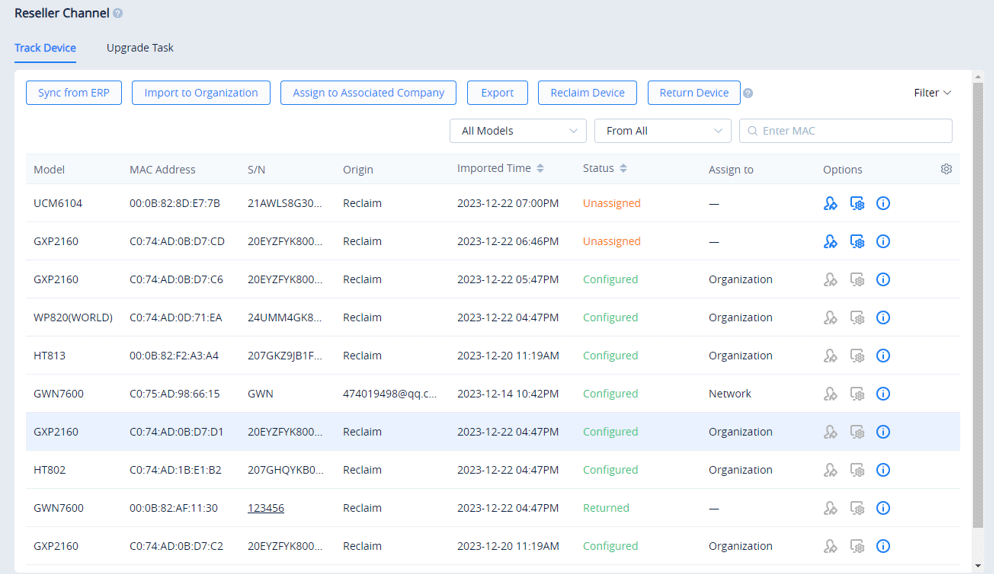
 icon will show a notification. Clicking on the notification will show the list of assigned devices.
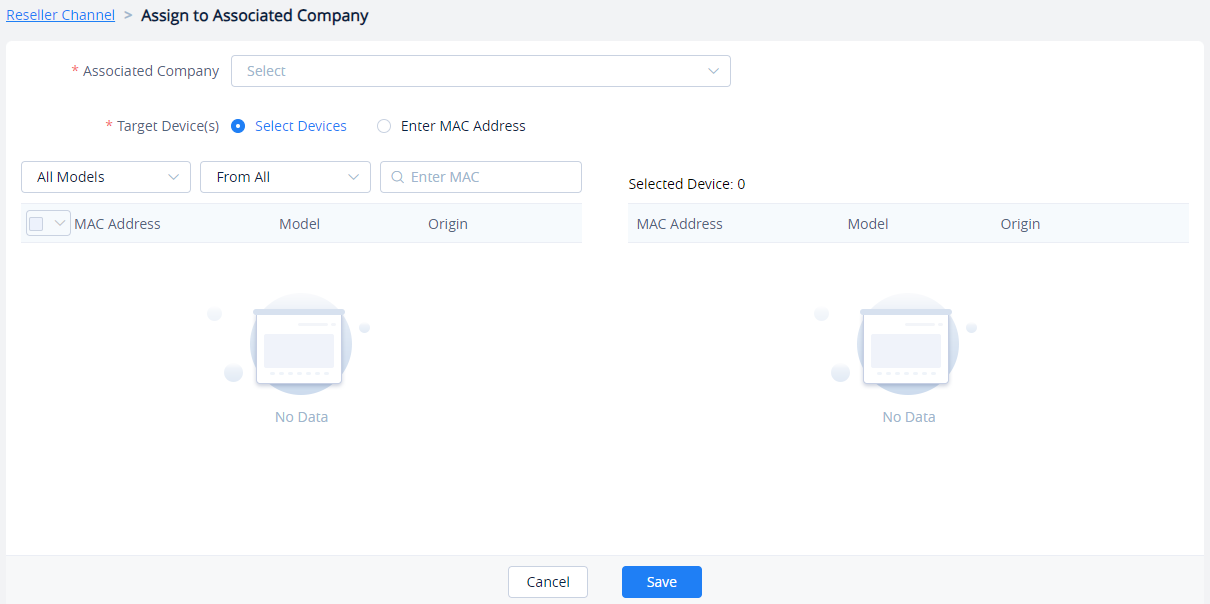

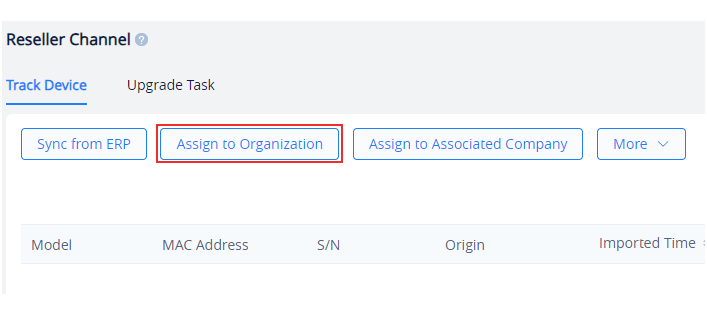
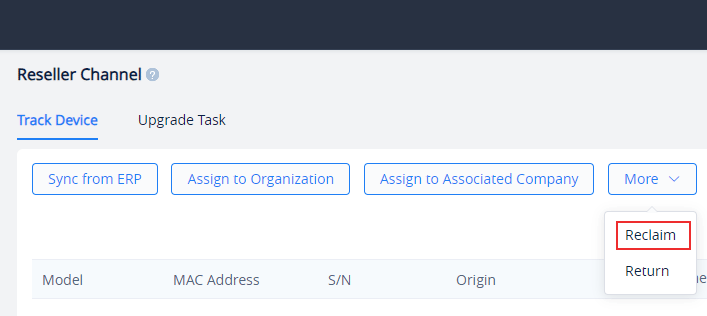
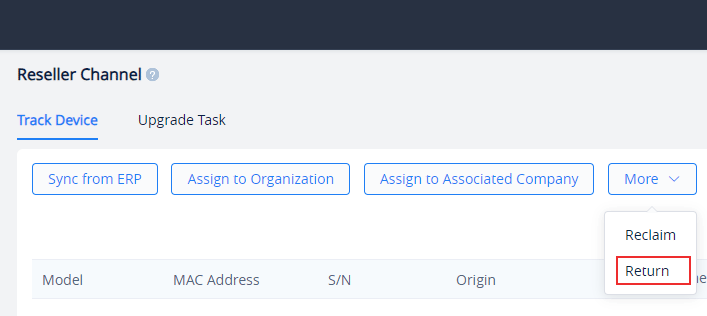
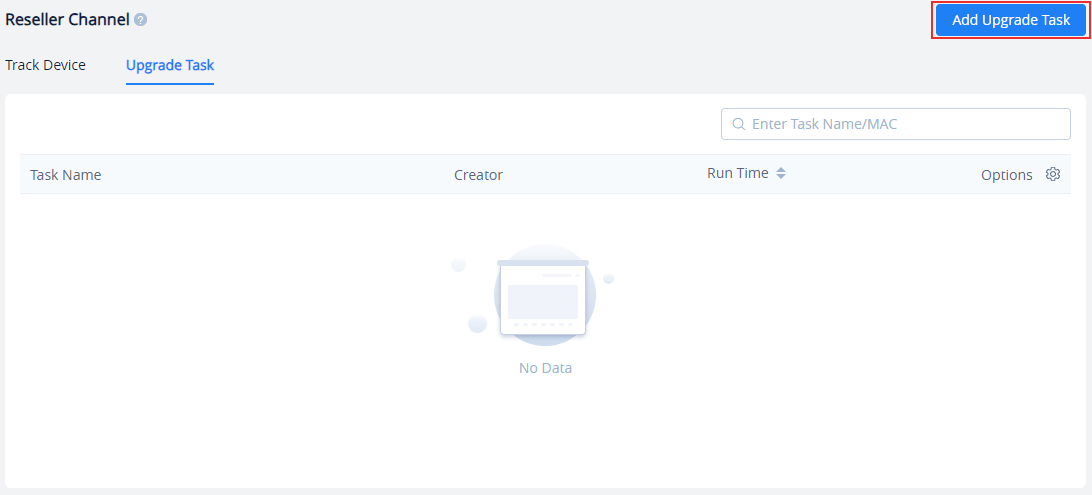
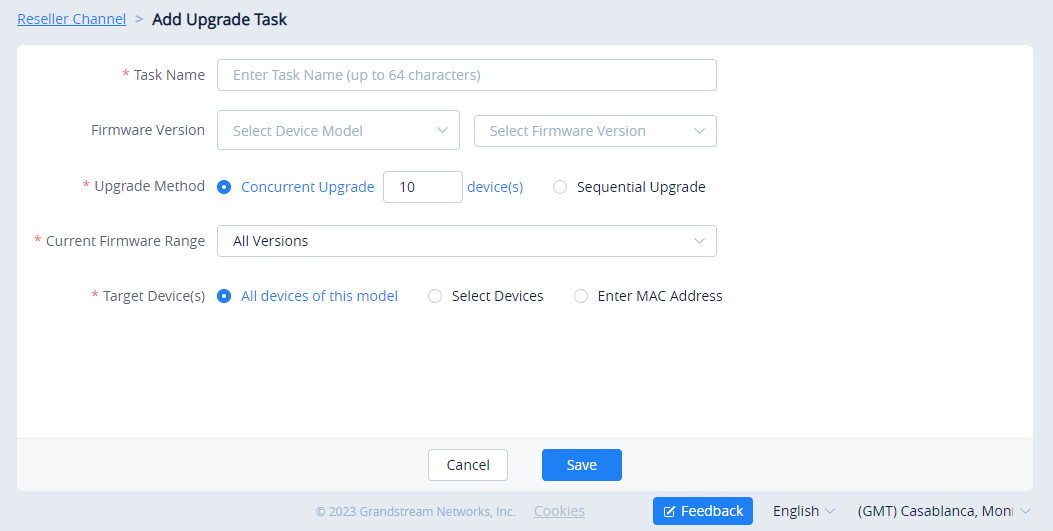
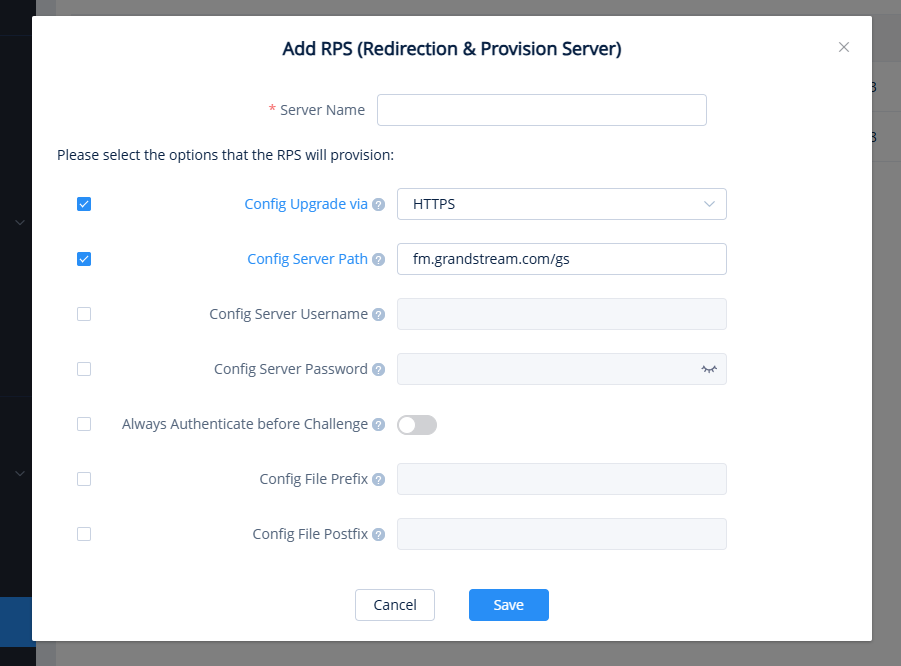

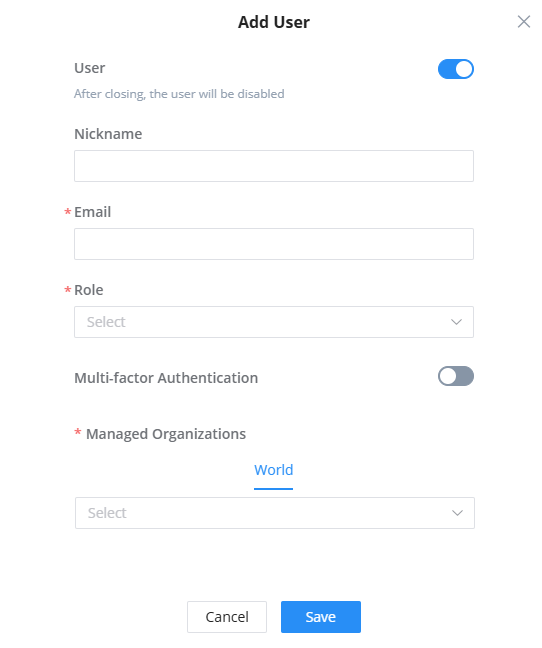
 button for the desired sub-user and select the new role. The sub-user’s other information cannot be modified even by an administrator.


 button for the desired user. Deleted users cannot log into GDMS.
 button for the desired role.
 button for the desired role. If the role includes some sub-users accounts, the role cannot be deleted.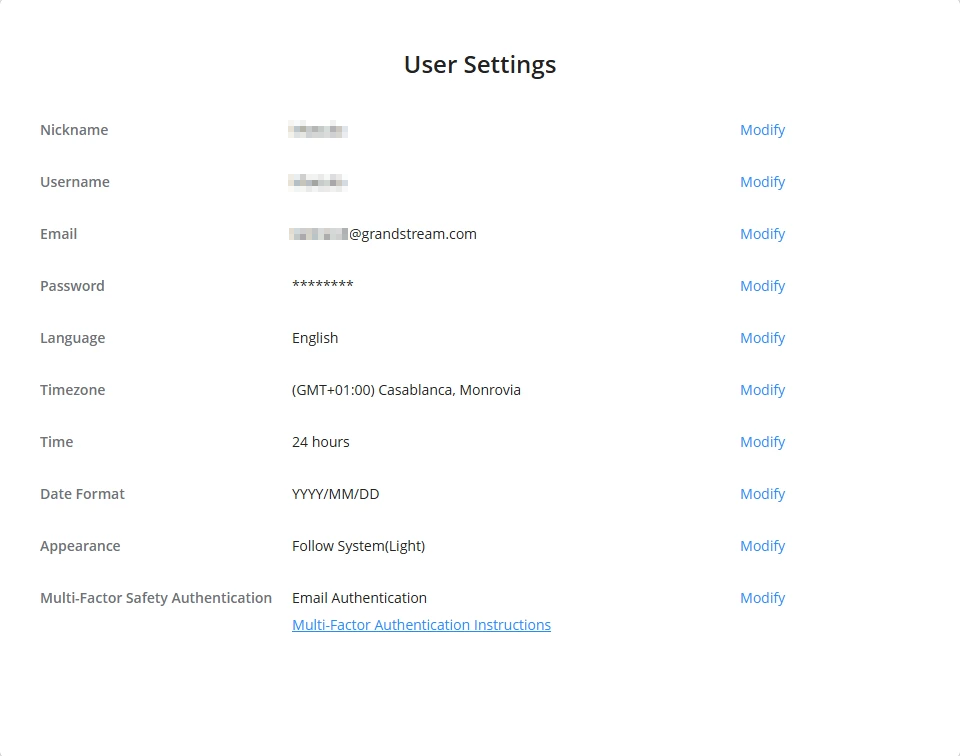

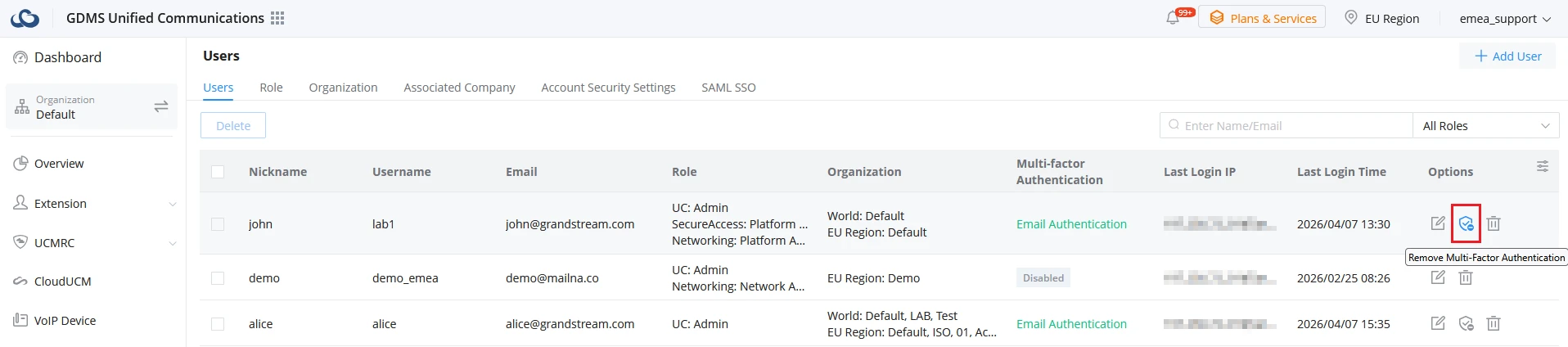
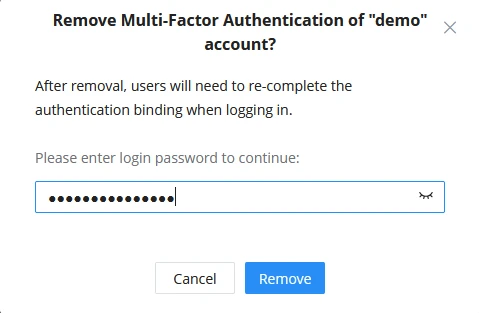
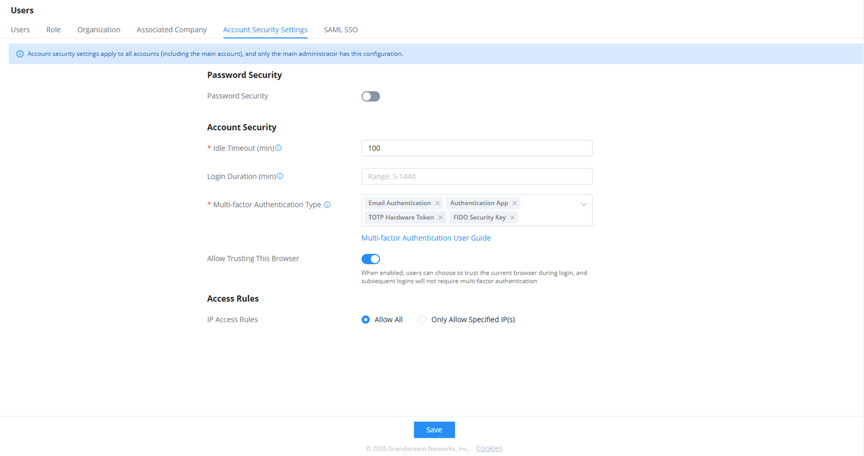

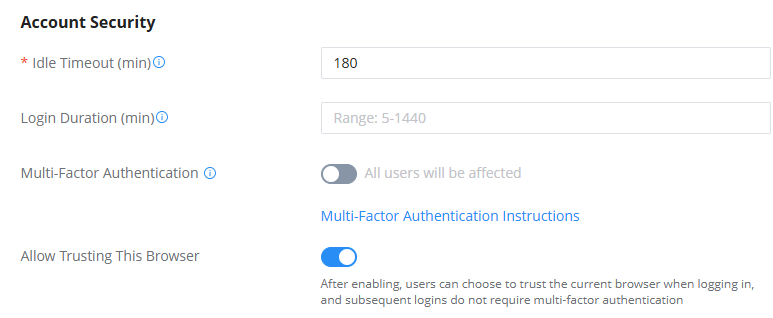
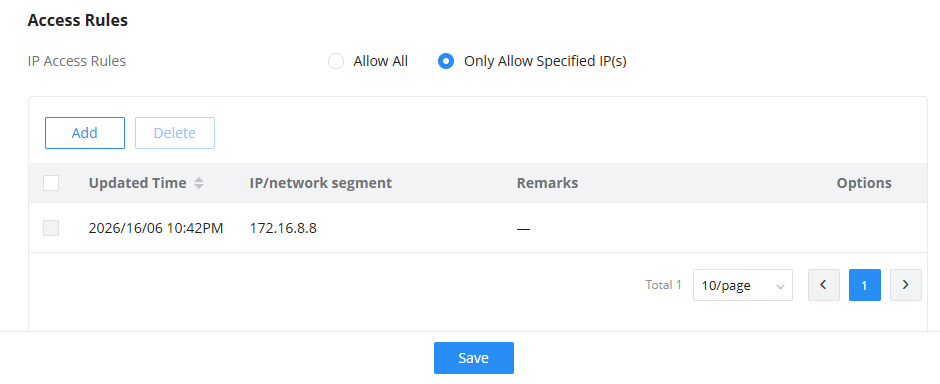
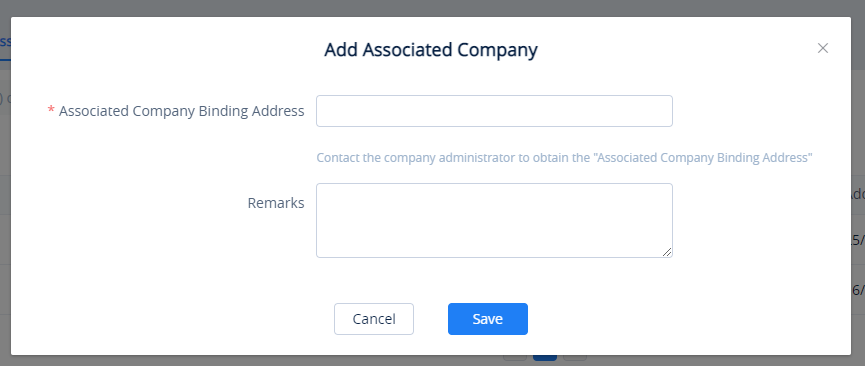
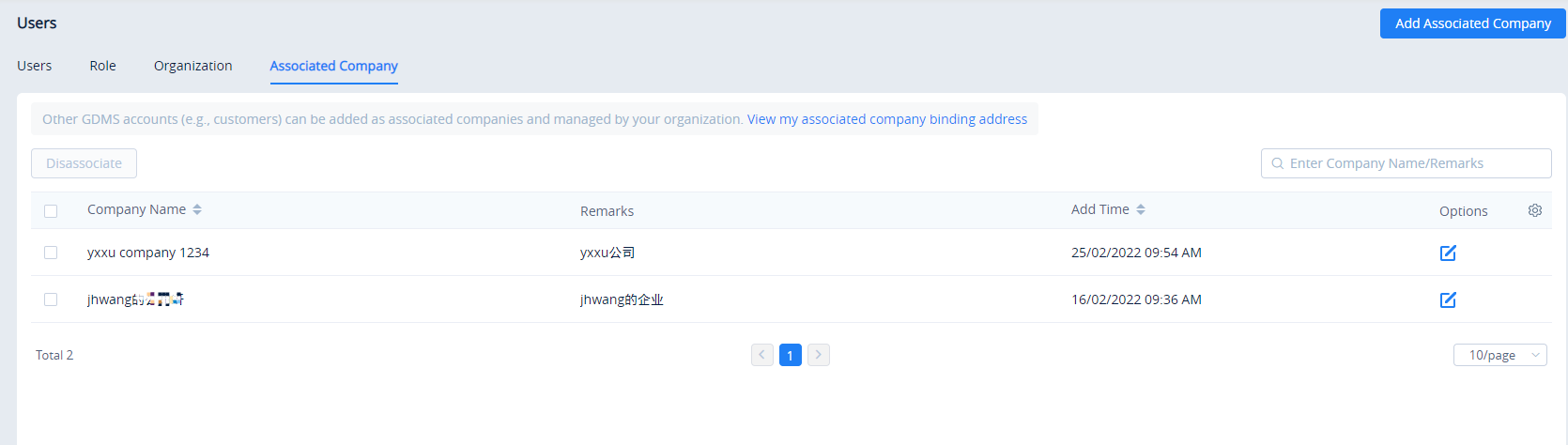
 to access the “Edit Associated Company” interface to modify the remarks of the associated company.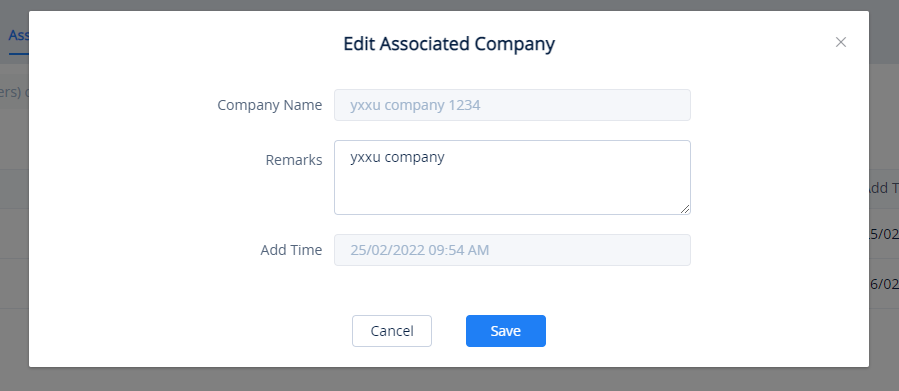
 to disassociate the association relationship.
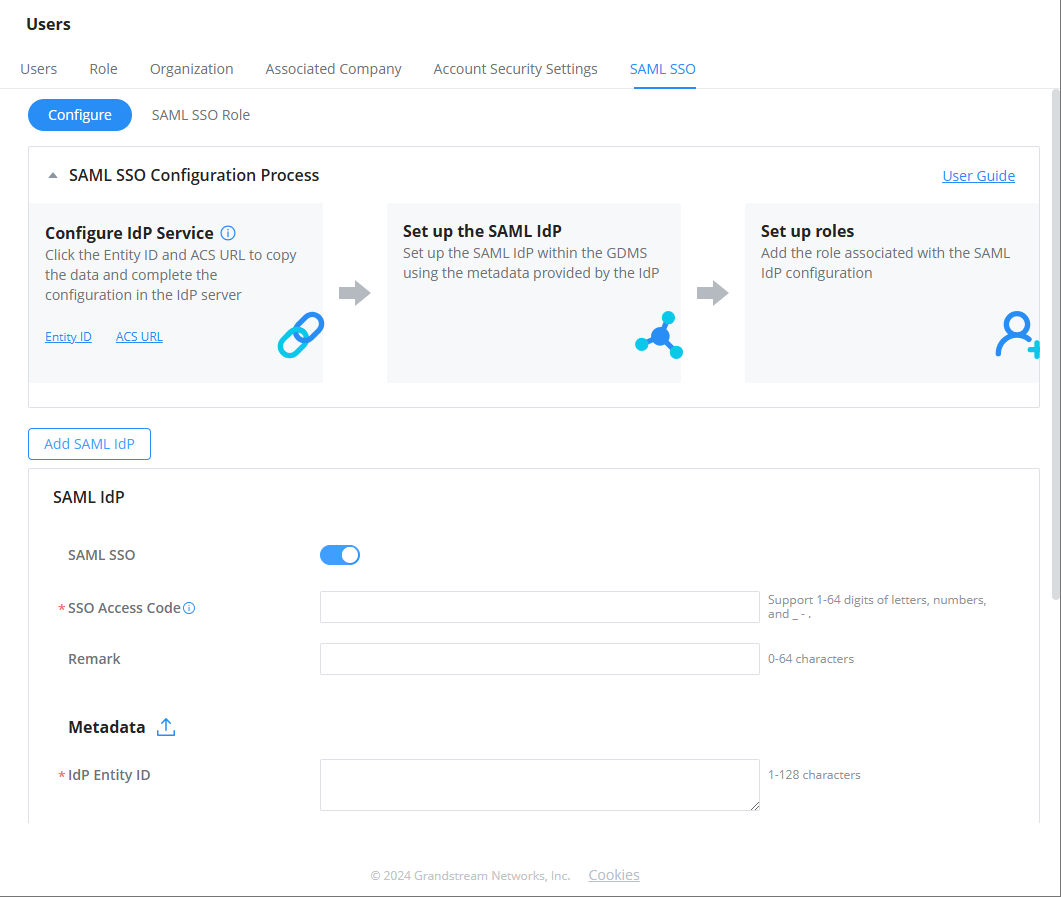
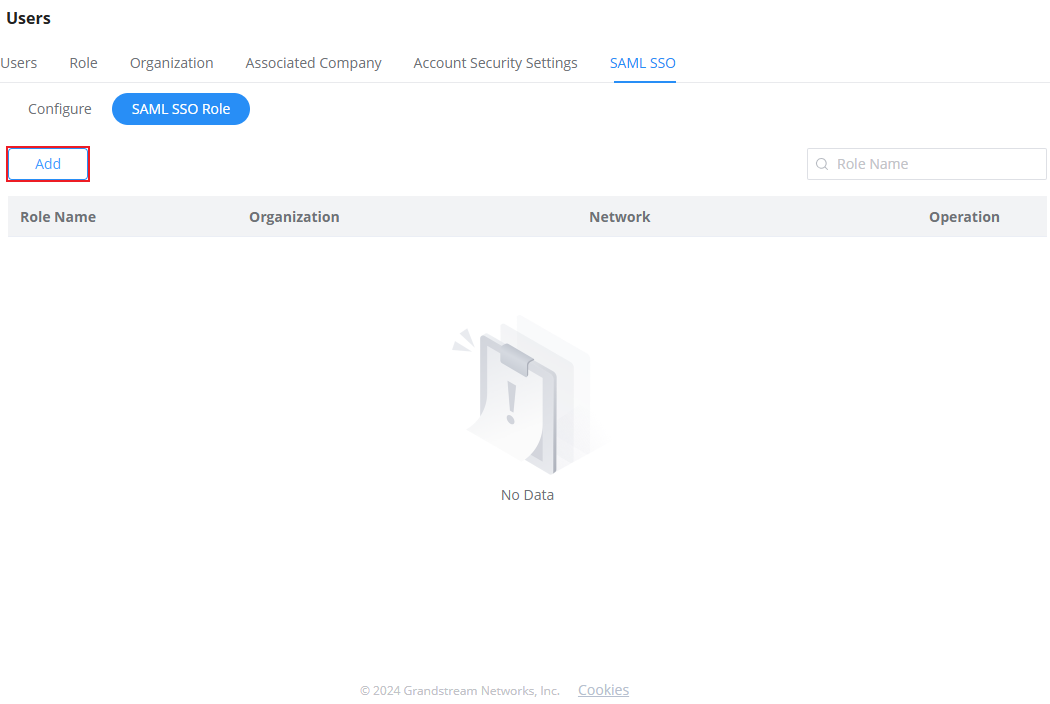
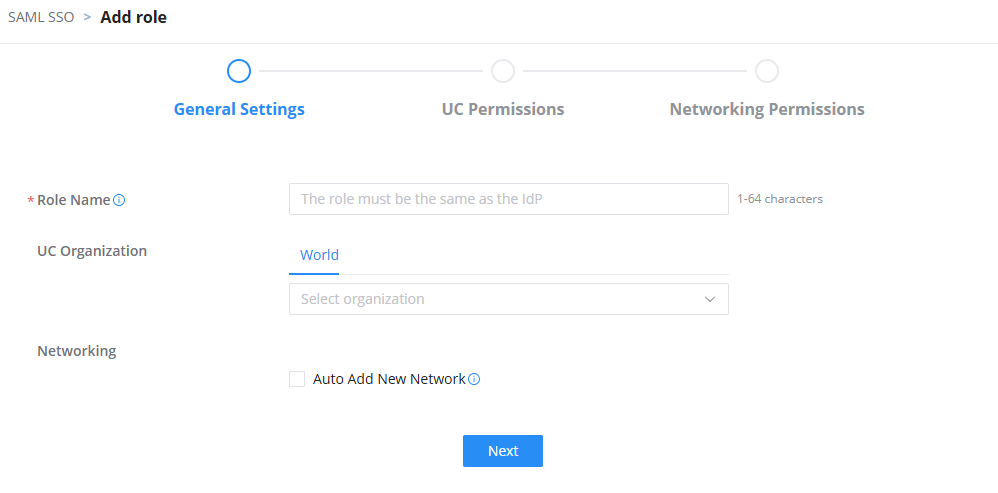
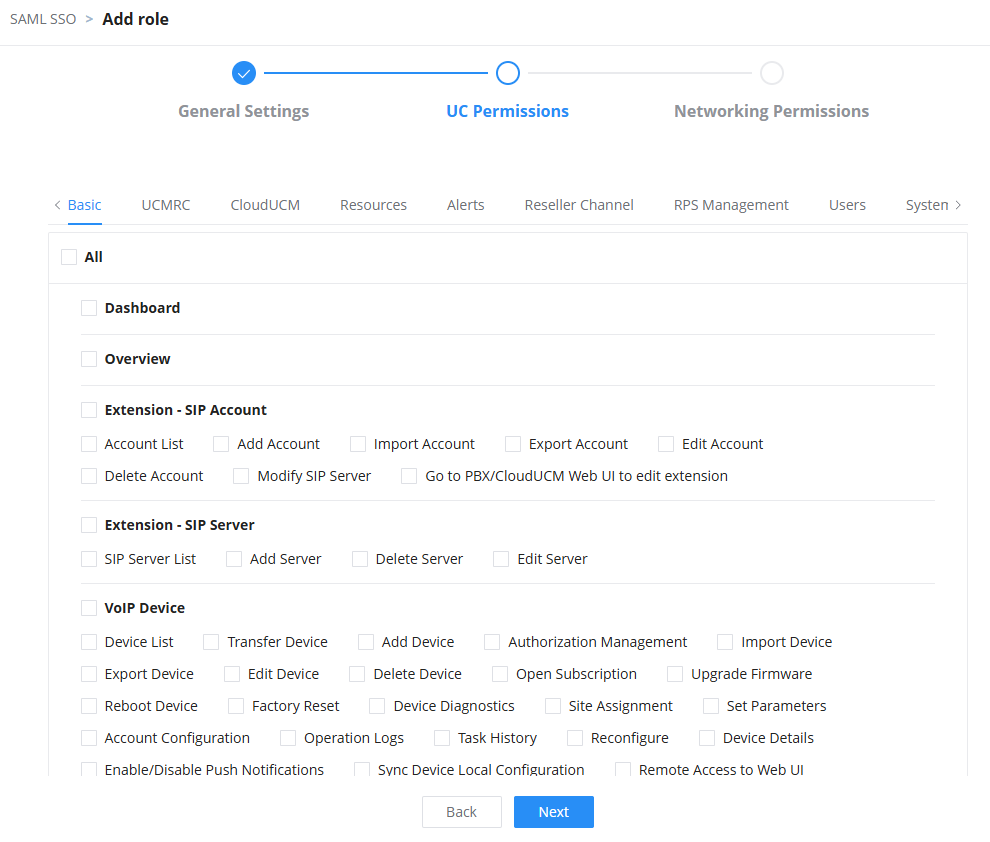
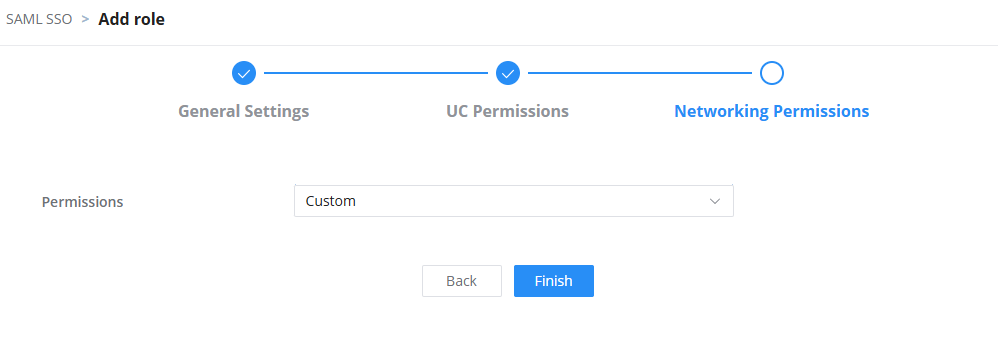


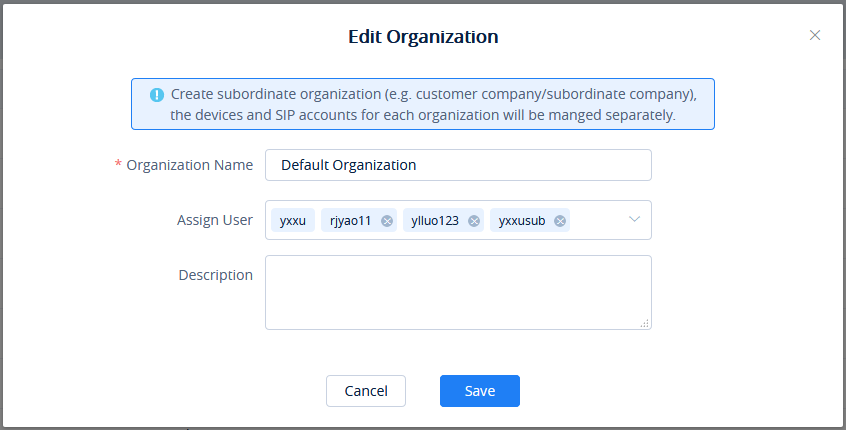
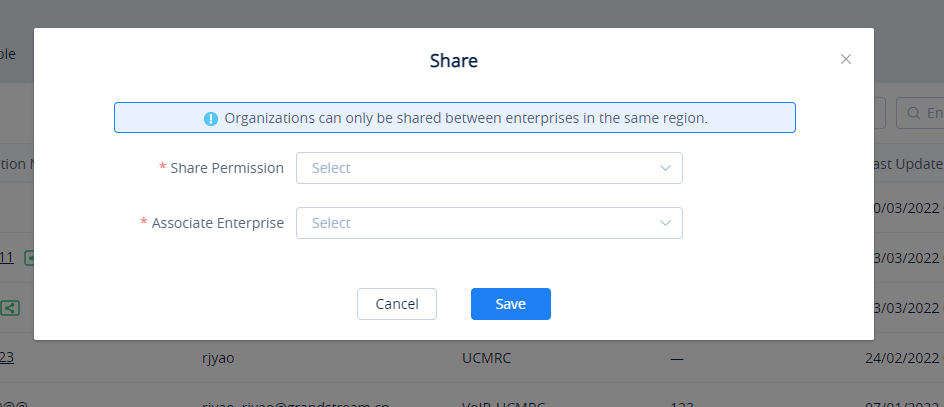
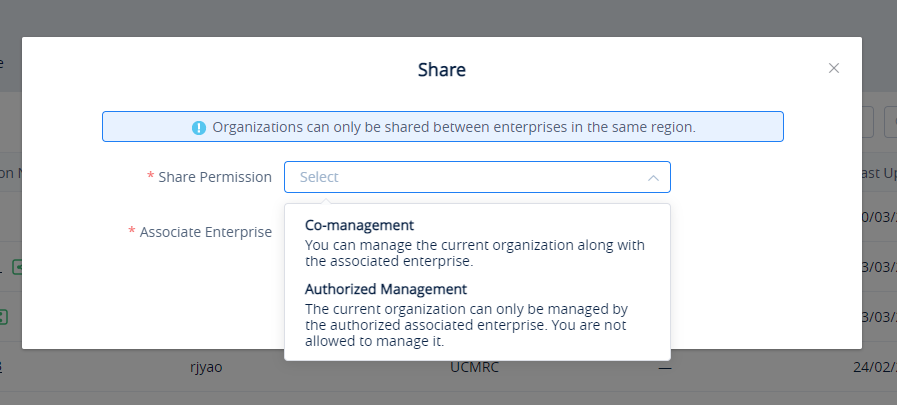

 : The label indicates the organization has been shared with another associated enterprise for management together.
 : The label indicates the organization is shared with another associated enterprise for management together.
 as the screenshot shows below:

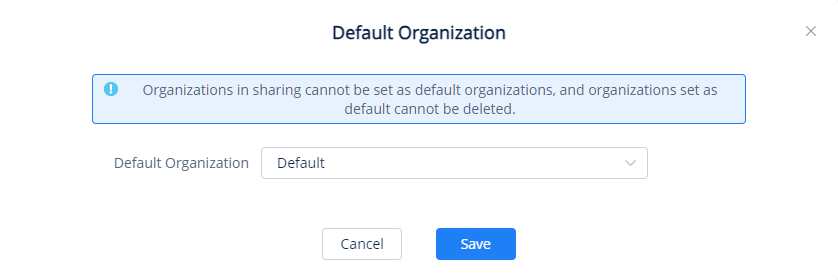

 in the top right corner to view UCM RemoteConnect plans and the services offered with each plan. When the user clicks on
  he/she will be able to view general information about the types of purchased plans.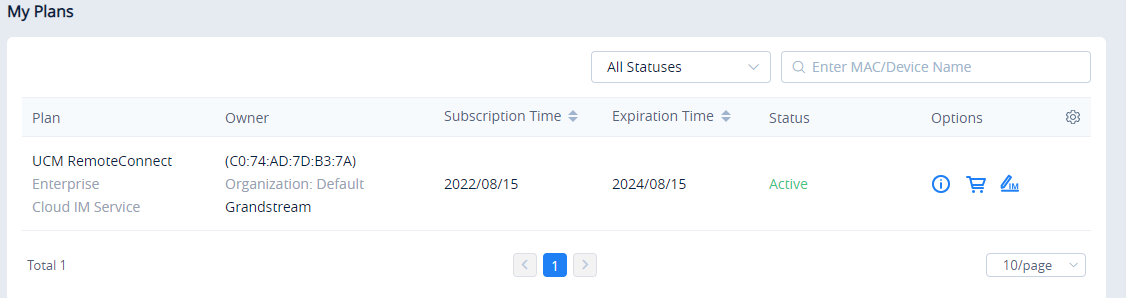


 you will access the UCM RemoteConnect website, on which the user can find all the details of the services provided by RemoteConnect.


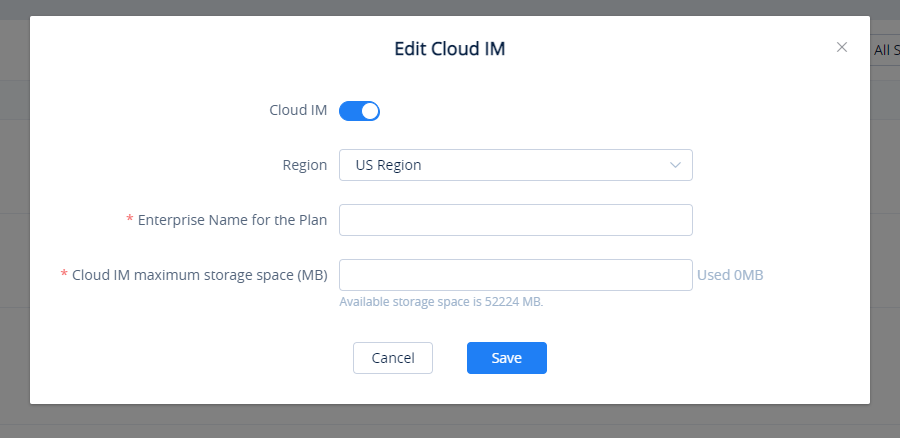
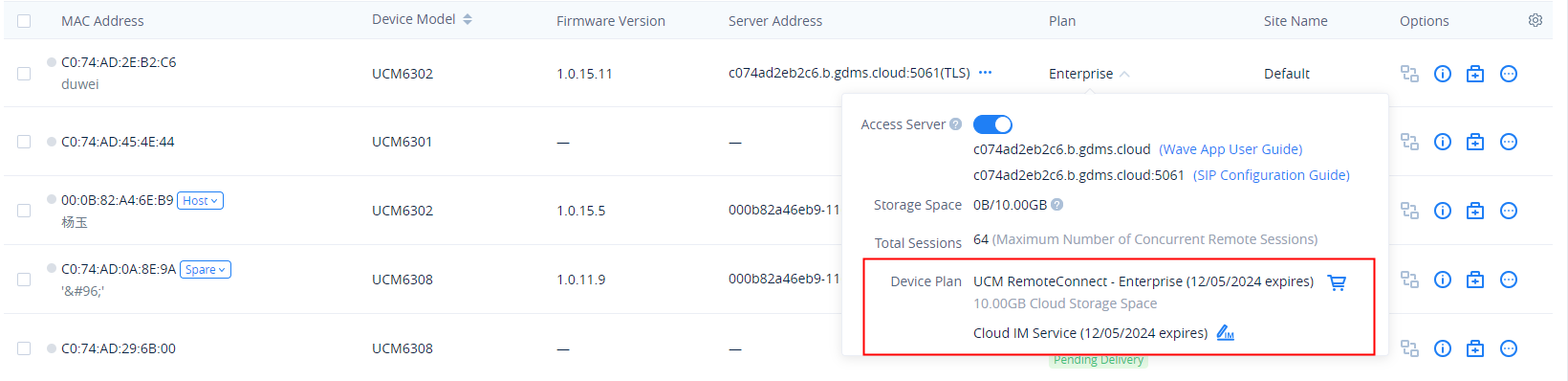
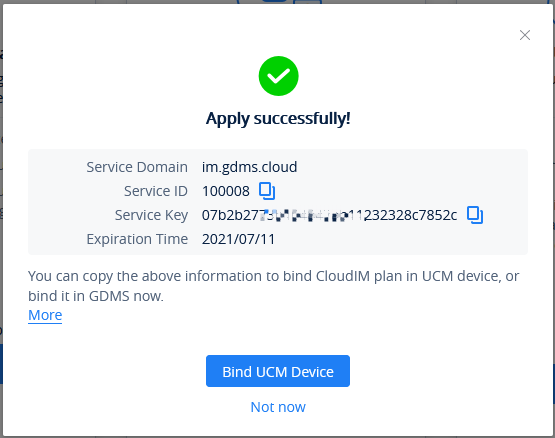
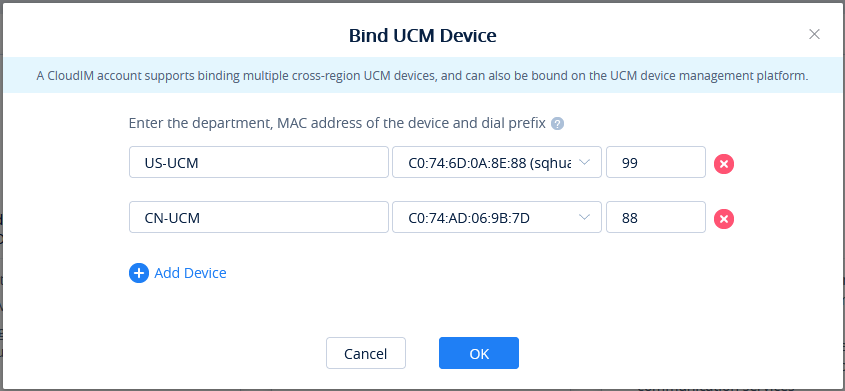
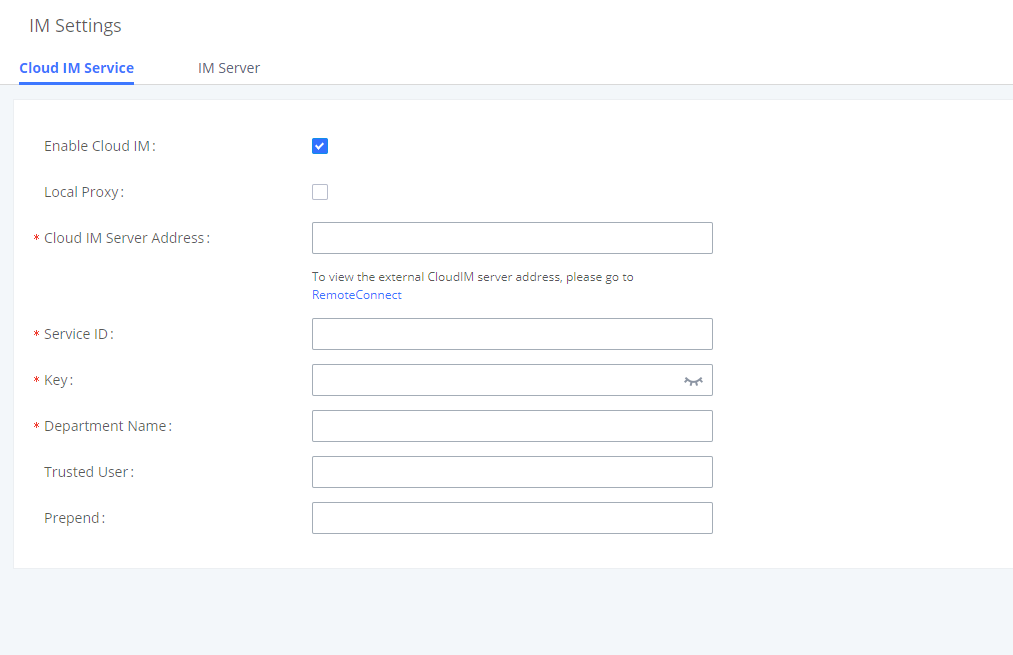
 to view the service domain name, service ID, and Key of this plan.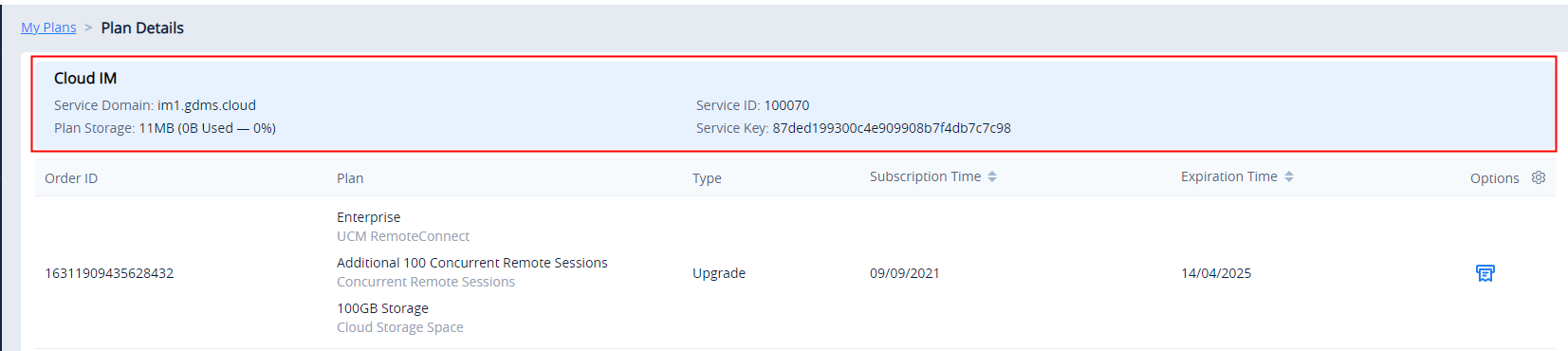



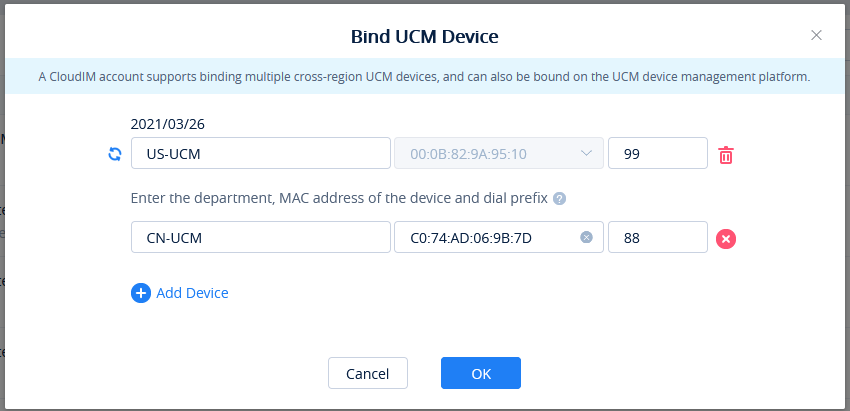
 until the IPPBX is online and synchronized, and then the updates will be applied.


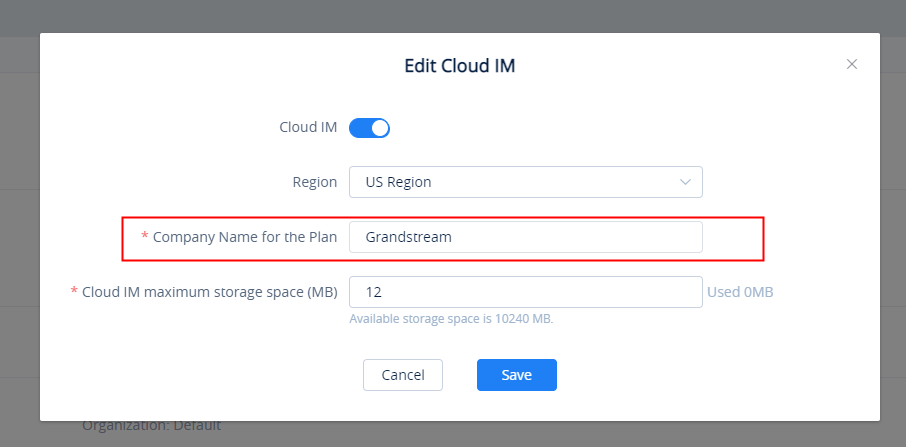

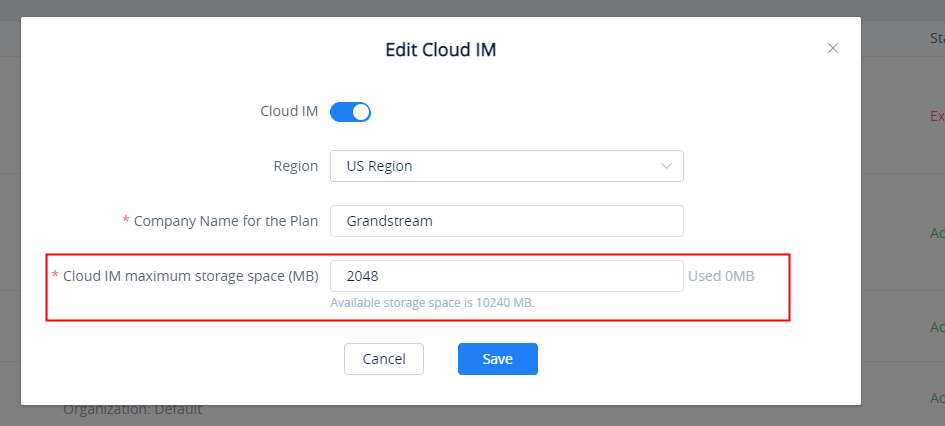
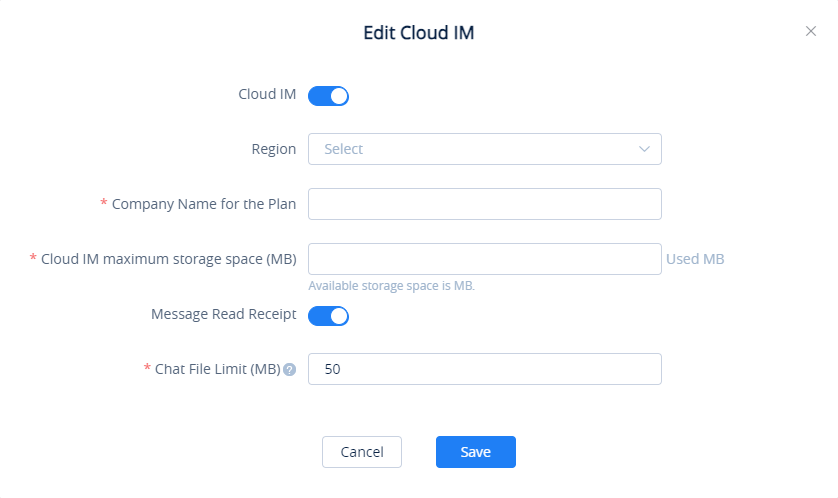


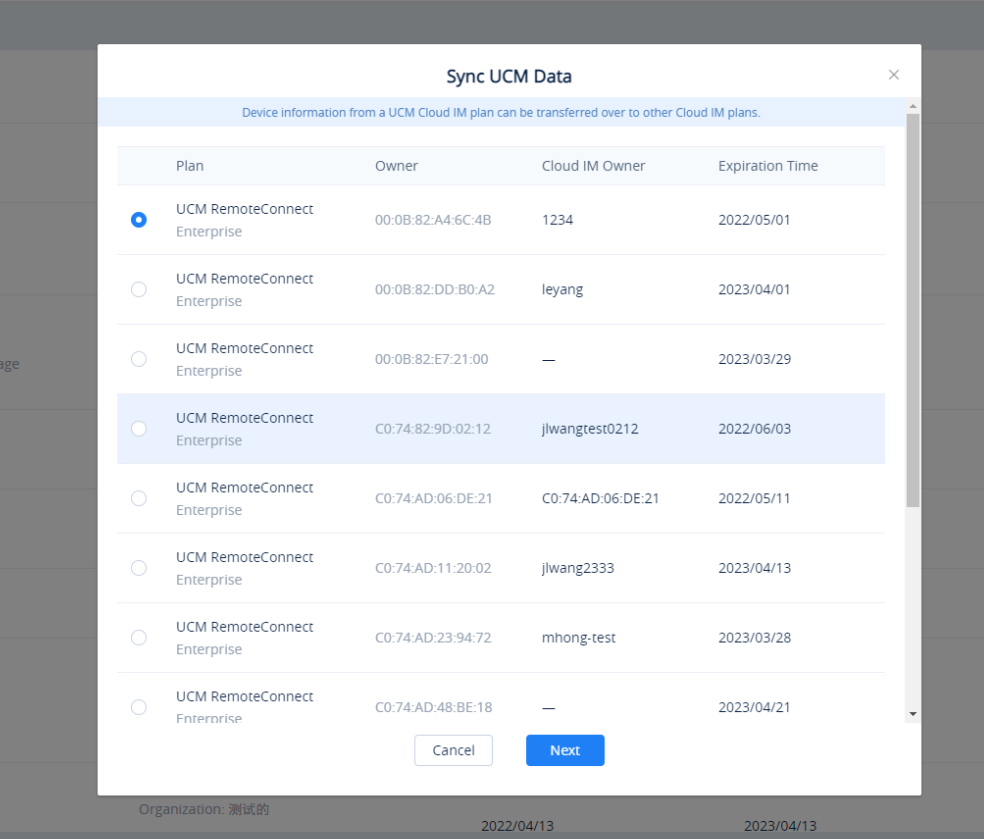
 to access the Cloud IM service editing interface, and the user can customize the enterprise name, and allocate the maximum storage space for the Cloud IM service.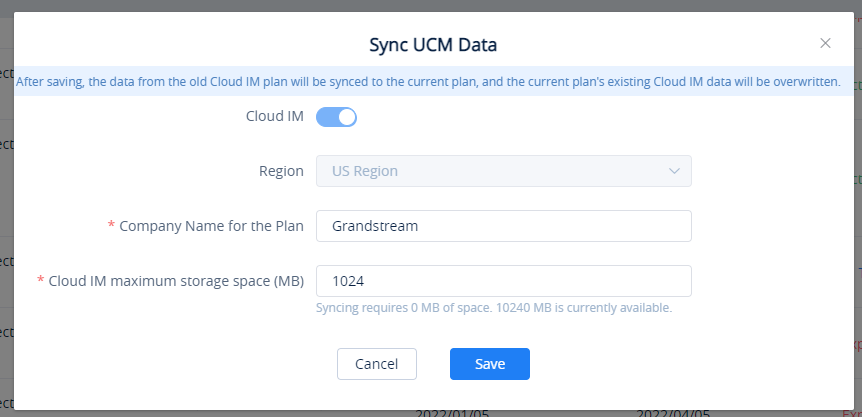
 the clicking on
  to view the “My Plans” list and click the button
  to access purchasing interface. Then, the user can click the “Help” button so that the GDMS platform will inform the device distributor to contact the user as soon as possible.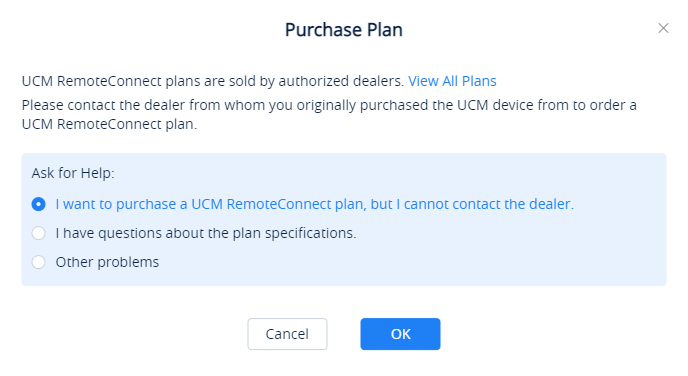





 to view all order history of this device.