Overview
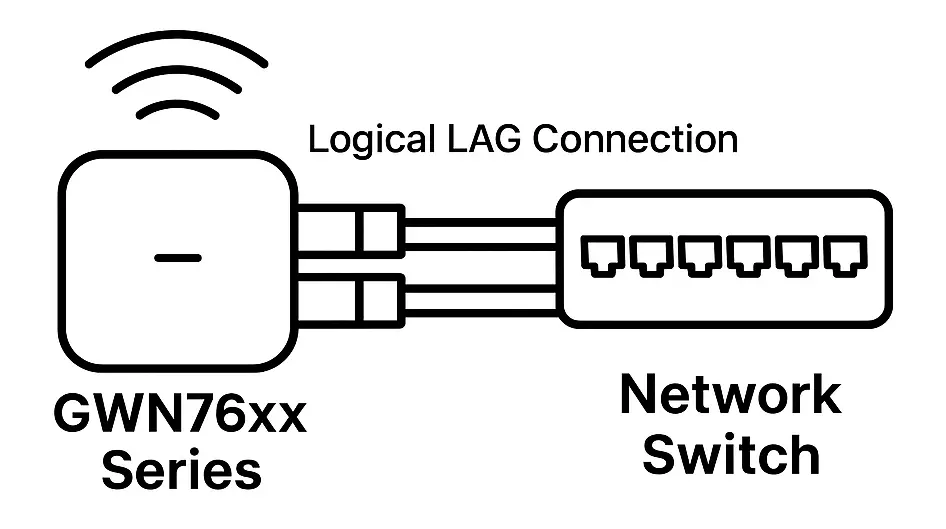
Link Aggregation (also known as Port Bonding or LAG) enables GWN76xx access points to combine multiple physical Ethernet interfaces into a single, logical uplink. This increases the total available bandwidth, provides redundancy in case of link failure, and ensures more stable wired performance in high-density wireless deployments.
GWN access points support both:
- LACP (Link Aggregation Control Protocol): dynamic negotiation with supported switches.
- Static Link Aggregation: manually configured, without protocol exchange.
This guide provides configuration requirements, supported models, best practices, and deployment examples to help users integrate link aggregation seamlessly with switches in enterprise Wi-Fi environments.
Supported Models
The following GWN76xx access points include multiple Ethernet ports and support link aggregation features. This enables combining ports into a logical uplink for increased throughput and redundancy.
| Model | Link Aggregation Support |
|---|---|
| GWN7664 | ✅ Supported |
| GWN7664LR | ✅ Supported |
| GWN7664E | ✅ Supported |
| GWN7664ELR | ✅ Supported |
| GWN7672 | ✅ Supported |
| GWN7670 | ✅ Supported |
| GWN7674 | ✅ Supported |
| GWN7670LR | ✅ Supported |
| GWN7670ELR | ✅ Supported |
Link Aggregation Best Practices
To ensure reliable operation when deploying link aggregation between a GWN76xx access point and another device, follow these best practices:
- ✅ Aggregation Mode Matching
Make sure both devices involved in the link aggregation (e.g., an access point and a switch) use the same aggregation mode either LACP or Static. Mixed configurations may prevent the link from functioning correctly. - ✅ Consistent Port Speeds
Link aggregation is most reliable when all ports in the group operate at the same Ethernet speed. Using different speeds (e.g., combining a 1G port with a 2.5G port) may cause reduced performance or negotiation failure, depending on the specific devices. To avoid unpredictable results, use matching speeds across all connected ports. - ✅ Port Configuration Symmetry
Ensure that the same number of ports are selected and configured identically on both ends. Any mismatch in selected ports or settings can cause the aggregation to fail. - ✅ Enable After Physical Setup
For a smoother experience, complete the physical setup and configure link aggregation on the other device first (e.g., the switch) before enabling it on the access point. This helps prevent temporary disconnects during negotiation. - ✅ Use Reliable Cabling
Damaged or low-quality Ethernet cables can interfere with link negotiation and cause instability. Always use well-tested cables suitable for your Ethernet speed.
Example Deployment Scenario
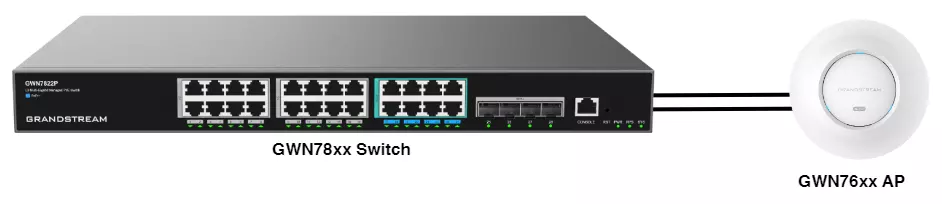
This section illustrates how to deploy Link Aggregation between a supported GWN76xx access point and a compatible network device. In this example, we use the GWN7664 access point connected to a GWN7822P switch. The goal is to demonstrate a practical configuration using two Ethernet cables to create a logical uplink, increasing bandwidth and providing redundancy in case one link fails.
This scenario can be replicated with any other compatible access point and device that supports LACP or Static aggregation, as long as port compatibility and configuration best practices are followed.
Step 1: Configure Access Point
- Login to the GWN76xx web UI or controller interface.
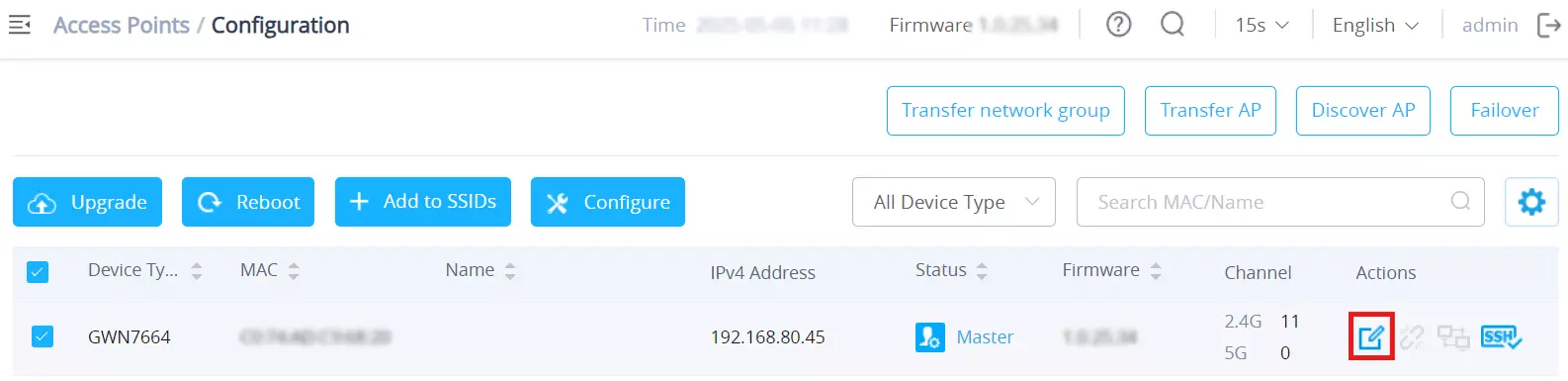
- Navigate to Access Points → Configuration and locate the target AP.
- Click the edit icon to access the device configuration screen.
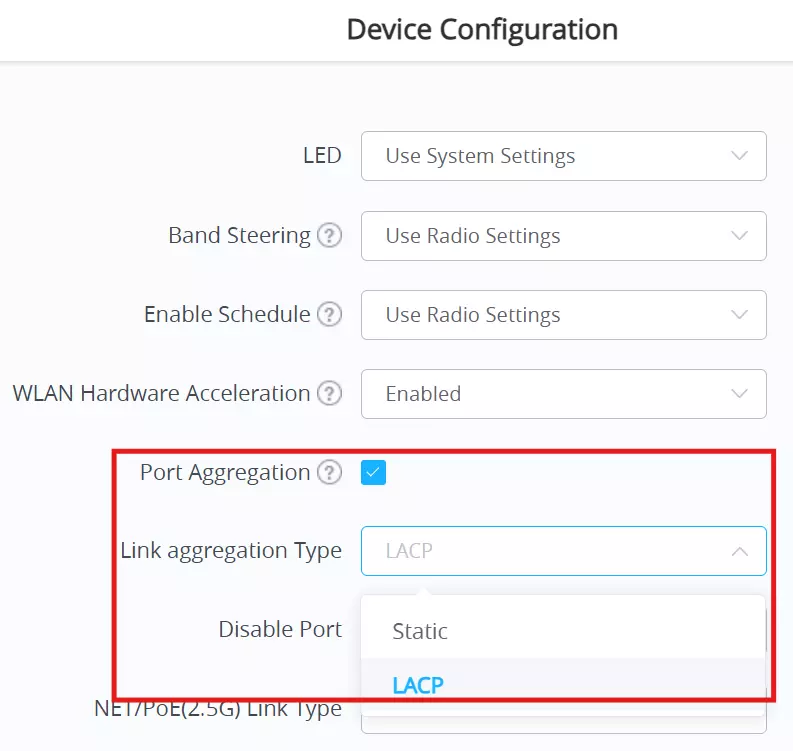
- In the Device Configuration section:
- Enable Port Aggregation.
- Select a Link Aggregation Type:
Static– for manual configuration.LACP– for dynamic negotiation with the connected device.
Step 2: Configure Device (e.g. Switch)
- Login to the GWN78xx switch web UI.
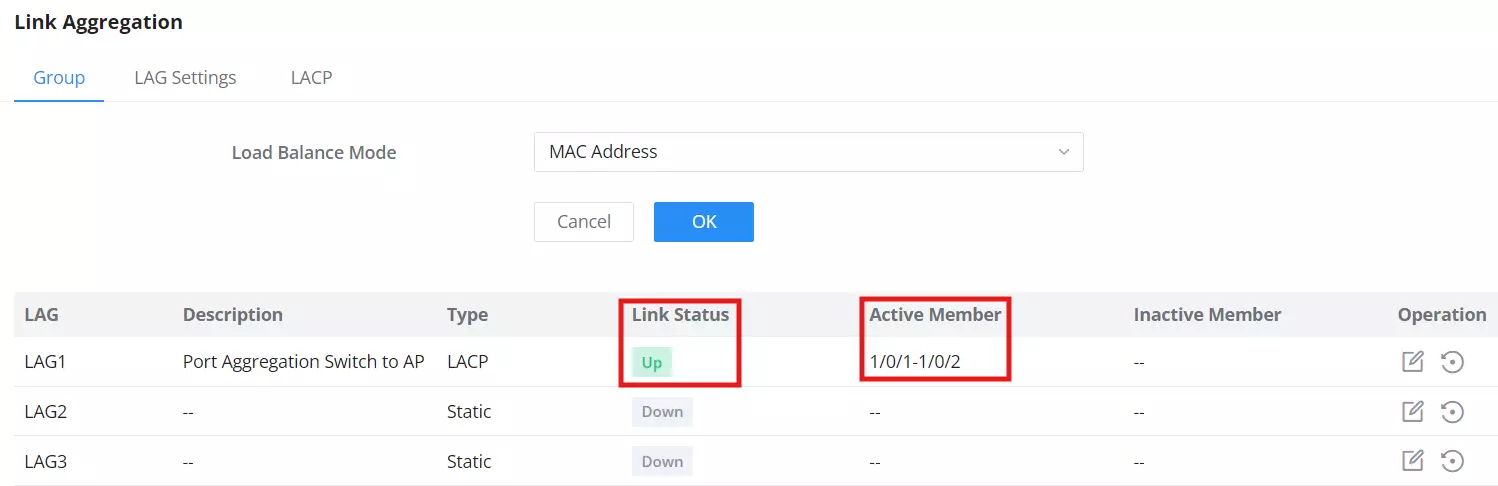
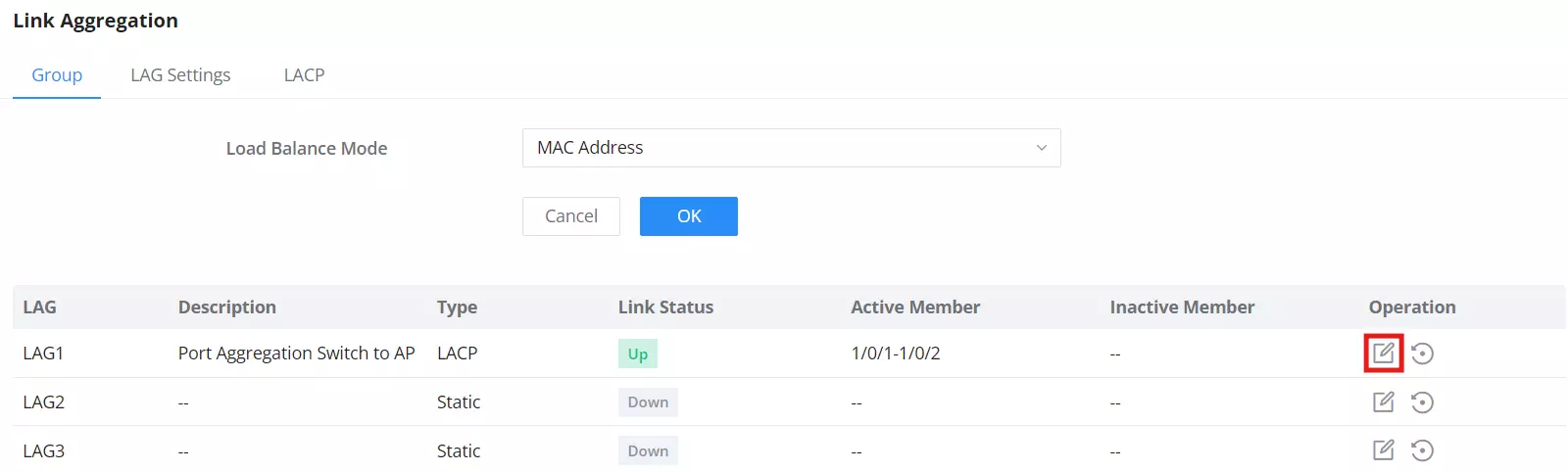
- Go to Switching → Link Aggregation, then click the edit icon on an available LAG group.
- Set the Type to match the AP (LACP or Static), and select the ports connected to the AP.
- Make sure to use ports of the same speed on both ends (e.g., 1G+1G or 2.5G+2.5G) to avoid compatibility issues. Different speeds may cause the link aggregation to function improperly or fall back to a lower speed.
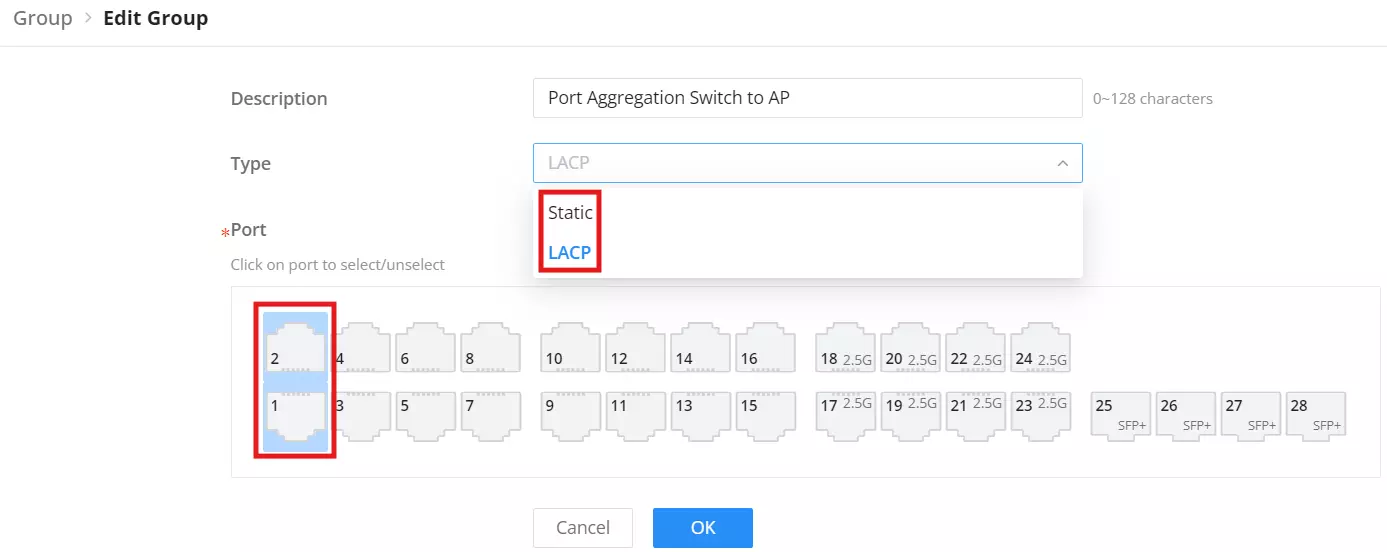
- Once applied, the switch will show Link Status: Up and list active members when the connection is properly established.