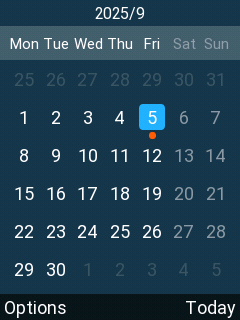
The Calendar feature allows the device to display dates, manage local calendar events, handle event reminders, and import or export calendar data using .ics files. Calendar information can be viewed and managed from both the LCD interface and the WEB interface of the WP8x6, with visual indicators highlighting dates that contain events.
The calendar supports local events, subscribed events, reminder notifications, configurable start days of the week, and file-based calendar customization using standard and vendor-specific .ics components.
Core Calendar Functions
Calendar Display
- Displays the current year and month, with today selected by default.
- Allows jumping to a specific date using a valid date input.
- Supports returning to today using the Today option.
Local Calendar Events
- Supports creating local events directly from the LCD.
- Start and end times default to the selected date, with validation preventing invalid time ranges.
- Dates containing events are marked with an orange dot.
- Schedule lists are automatically sorted by:
- Ongoing schedules (earliest end time first)
- Upcoming schedules (earliest start time first)
- Completed schedules
- Supports deleting individual schedules or bulk deletion.
- Limits local schedules to 500 entries, after which creation is blocked.
Schedule Reminders
- Supports audible, silent, and on-time reminders.
- Reminder behavior adapts based on device state (idle, in call, powered off).
- Missed reminders are displayed after reboot under Unnotified schedule.
- Reminder interfaces support viewing schedule details.
Calendar Import and Export
- Supports importing
.icsfiles via:- URL (HTTP / HTTPS / TFTP)
- File upload
- Supports authenticated URLs.
- Automatically refreshes subscribed calendars daily at 24:00.
- Allows manual subscription updates.
- Supports exporting all local and subscribed schedules into a single
.icsfile. - Up to five
.icssources can be active simultaneously.
Calendar Display Configuration
- Allows configuring the start day of the week (Monday–Sunday) from both WEB and LCD interfaces.
- Supports calendar styling and priority rules using
.icscomponents such as:X-GRANDSTREAM-STYLECATEGORIESVTODOandVJOURNAL
Example Configuration
Example scenario to put into perspective the configuration workflow:
Below is a simple.ics file that follows the structure shown in the Calendar Test Case document and creates two all-day local calendar schedules:
- 5th September
- 10th October
The below .ics file will help us set up the calendar year to mark those two dates as public holidays
BEGIN:VCALENDAR
PRODID:-//Grandstream//WP8X6//EN
VERSION:2.0
CALSCALE:GREGORIAN
METHOD:PUBLISH

BEGIN:VEVENT
UID:event-20250905@grandstream
DTSTAMP:20250901T000000Z
DTSTART:20250905T000000Z
DTEND:20250905T000000Z
SUMMARY:Event on 5 September
END:VEVENT

BEGIN:VEVENT
UID:event-20251013@grandstream
DTSTAMP:20251001T000000Z
DTSTART:20251013T000000Z
DTEND:20251013T000000Z
SUMMARY:Event on 13 October
END:VEVENT

END:VCALENDAR
Once the .ics file has been saved, it can be uploaded to the WP8x6 web interface for integration. To do so, access the calendar import section within the web UI, select the appropriate upload method (such as file upload or URL entry), and follow the prompts to complete the import process. After successful upload, ensure that the calendar data is saved and synchronized accordingly to reflect the imported schedules.
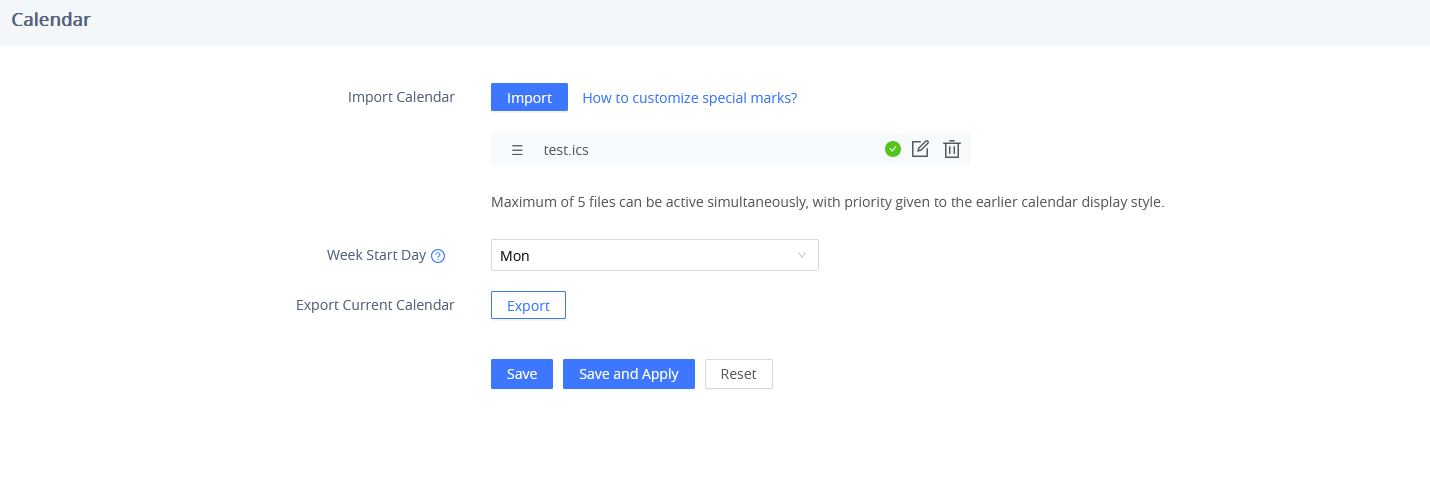
Once the file is saved to the device, the marked dates within the imported calendar data will be automatically integrated into the device’s calendar system. This automatic addition ensures that all relevant schedules are promptly reflected, facilitating efficient schedule management and reducing manual intervention.