OVERVIEW
This guide provides detailed instructions for using the AI Call Transcription and Summary feature on the Grandstream IP PBX. This feature processes call audio to generate a real-time transcript visible to participants in the Wave client. After the call ends, the AI automatically creates a concise summary, highlighting key discussion points and action items. Both the full transcript and the summary are saved and associated with the call record for future reference.
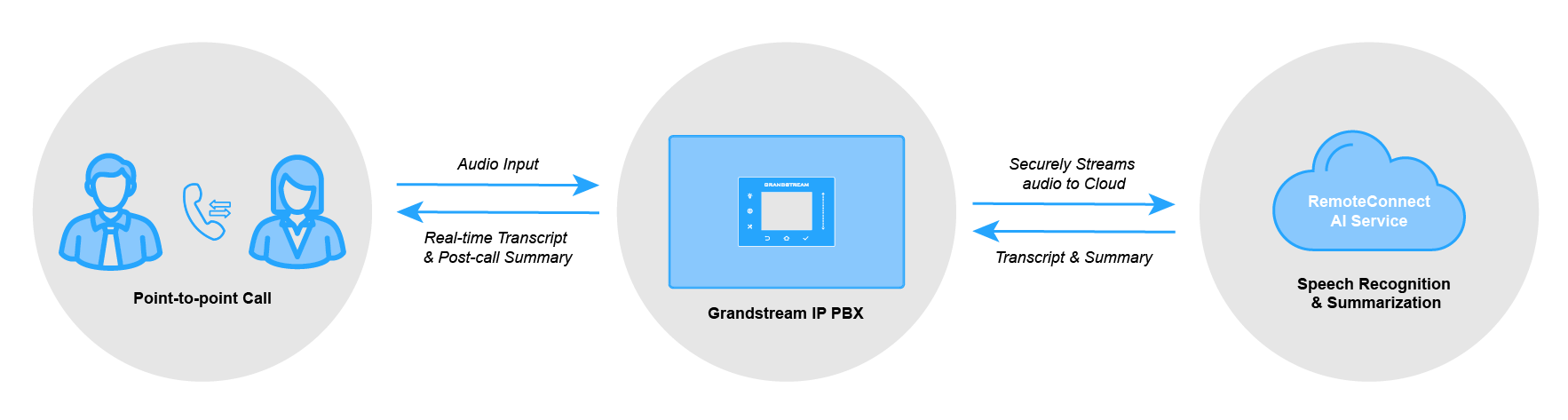
This feature is available for point-to-point calls, including:
- General point-to-point calls.
- Call queue and ring group calls.
- WebRTC/SIP trunk calls.
PBX CONFIGURATION
This section covers the administrative steps required to configure the AI Call Transcription and Summary feature on the PBX.
The feature must first be enabled at the system level and assigned to the desired extensions:
- Log in to the PBX web portal as an administrator.
- Navigate to Integrations→AI Settings.
- Enable the AI Call Transcription and Summary feature.
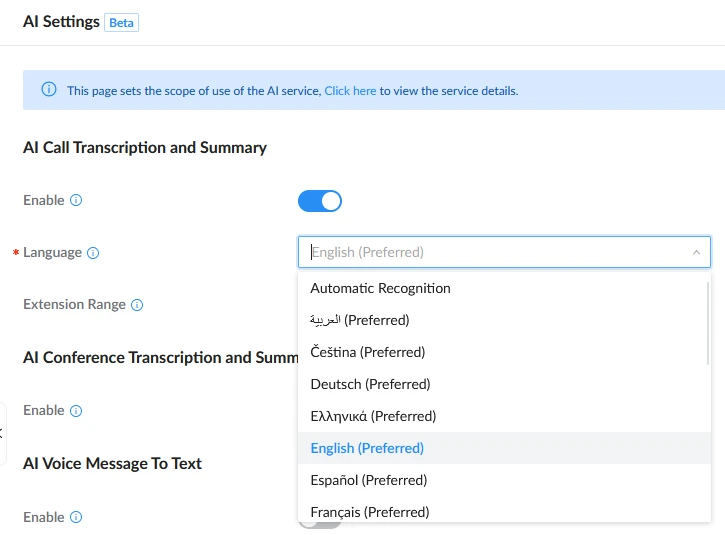
- In the Language dropdown, select the desired language recognition behavior:
- Automatic Recognition: The AI automatically detects the spoken language during calls.
- Specific Language (e.g., English, Spanish): Prioritizes recognition of the selected language for improved accuracy.
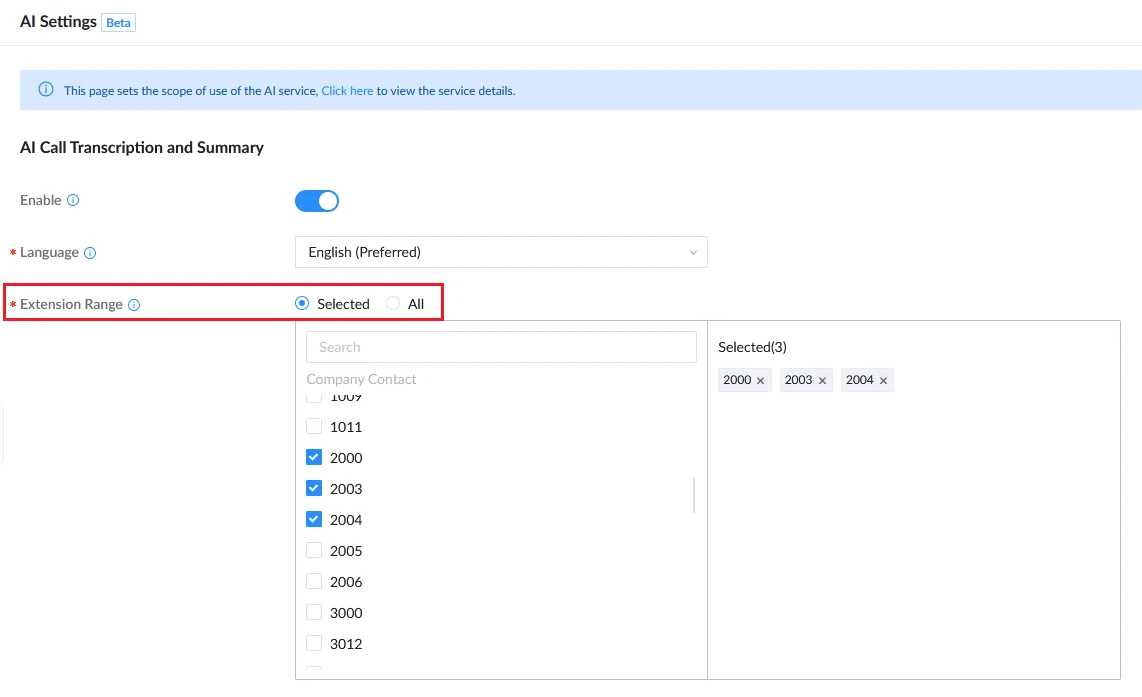
- In the Extension Range parameter, select whether this feature applies to:
- All: The feature is available to every extension on the system.
- Selected: The feature is only available to extensions specifically selected from the list.
- Click Save and Apply to confirm the changes.
Once the feature is enabled globally, users can configure individual extensions to have all their calls automatically transcribed and summarized without any intervention. In order to achieve this, please refer to the steps below:
- Navigate to Extension/Trunk→Extensions.
- Locate the extension you wish to configure and click its Edit icon.
- In the extension settings window, select the AI tab.
- In the AI Call Transcription and Summary section, configure the following:
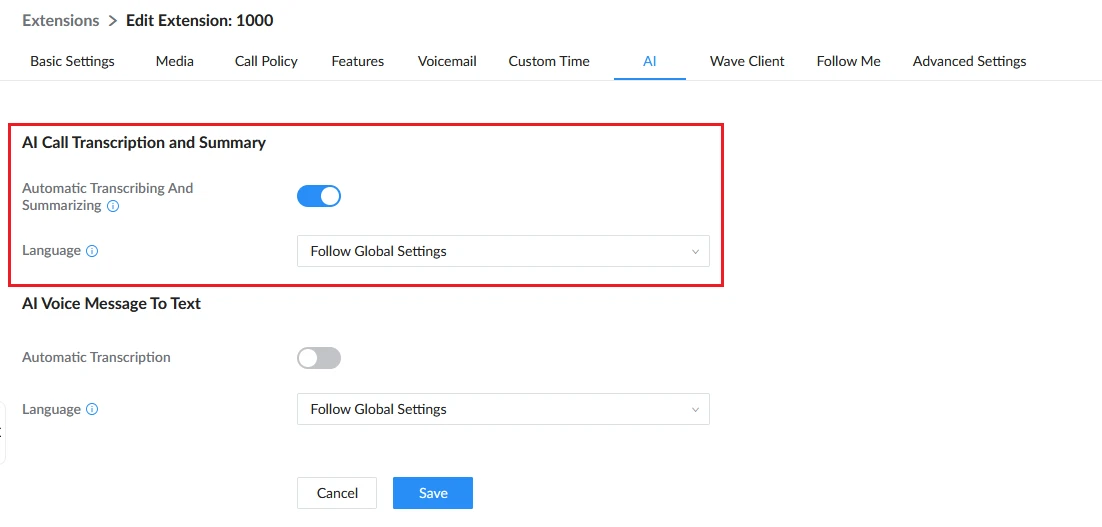
Automatic Transcribing and Summarizing | If enabled, all calls made or received by this extension will be automatically transcribed and summarized. Otherwise, users can still manually enable transcription during a call from their Wave client, provided that the extension has the permission. |
Language | This setting defines the language recognition behavior for the extension’s transcriptions.
|
- Click Save and Apply to confirm the changes.
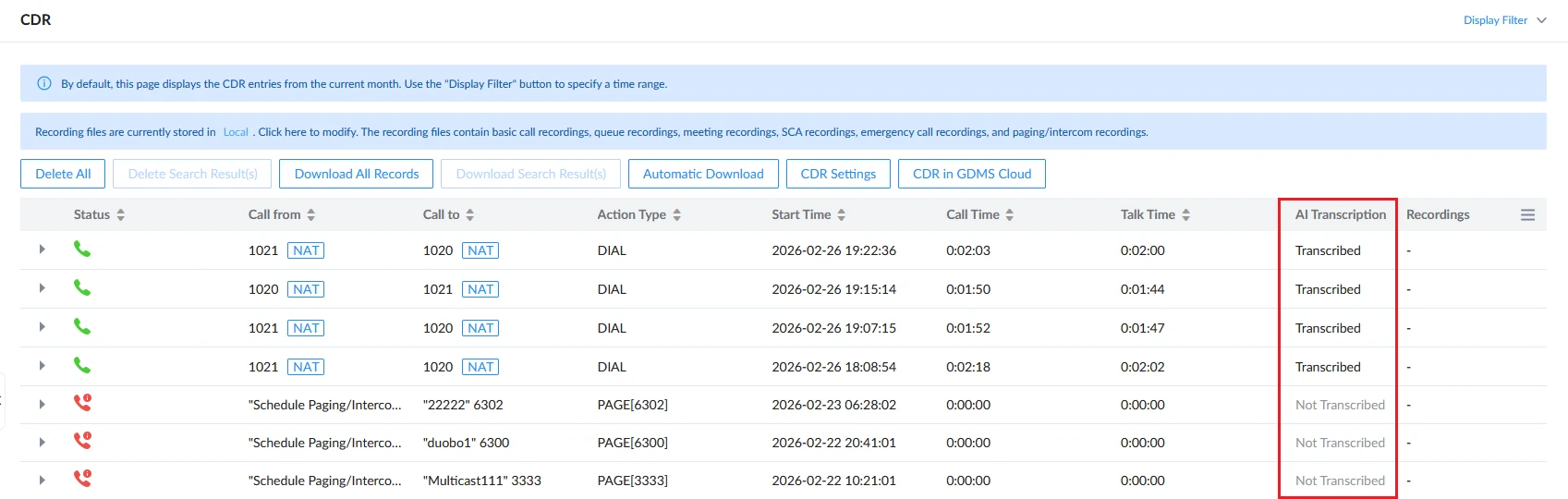
Administrators can identify transcribed calls from the CDR page as shown below:
USER CONFIGURATION
Users with the appropriate permissions can manually enable transcription during an active call. This section explains how to control the feature from the Wave application.
Enable Transcription During a Call
- During an active call on Wave, locate the call control toolbar at the bottom of the call window.
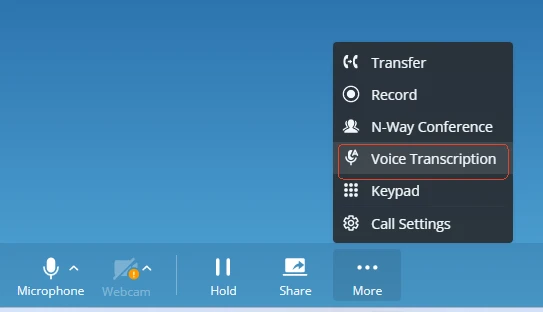
- Click the Voice Transcription button, represented by a microphone icon.
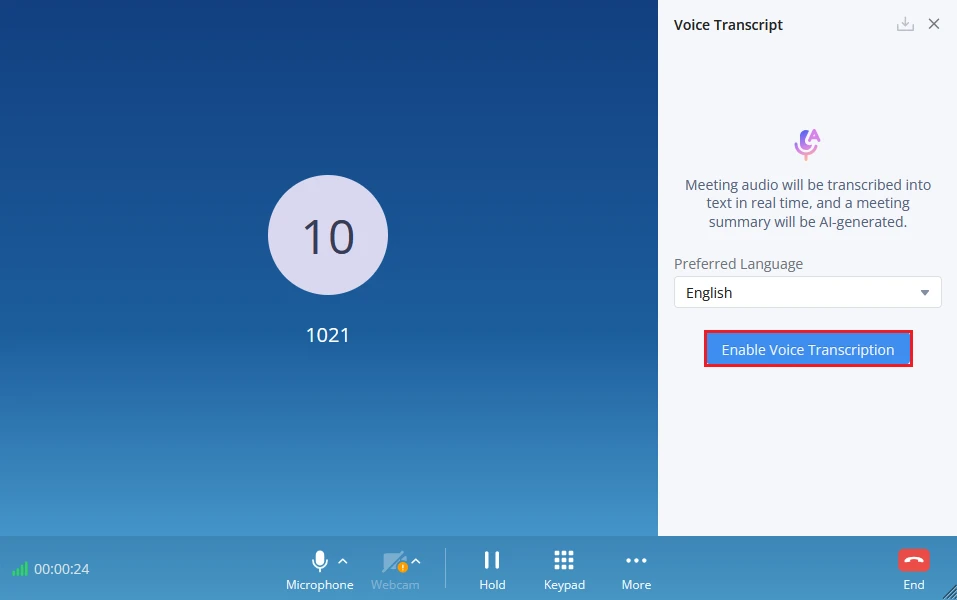
- A pop-up window will appear prompting you to select the transcription language for this specific call.
- Choose the desired language option. Click the Enable Voice Transcription button to begin transcription.
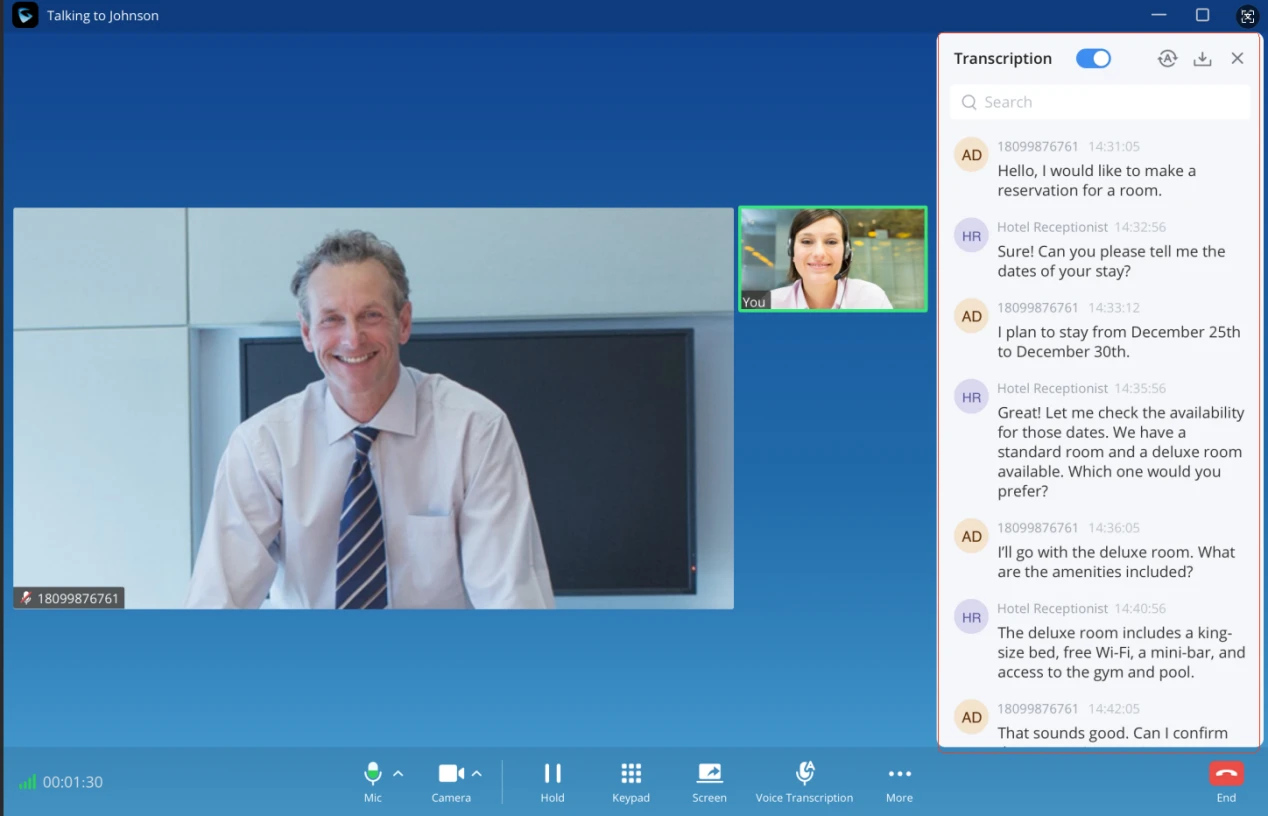
- Once enabled, a real-time transcript will appear on your screen. All participants on the call will be able to view the live transcription.
Stop Transcription During a Call
If you wish to stop transcription before the call ends, please refer to the steps below:
- During the active call, return to the Voice Transcription window.
- Use the Voice Transcript toggle to stop the real-time transcription.
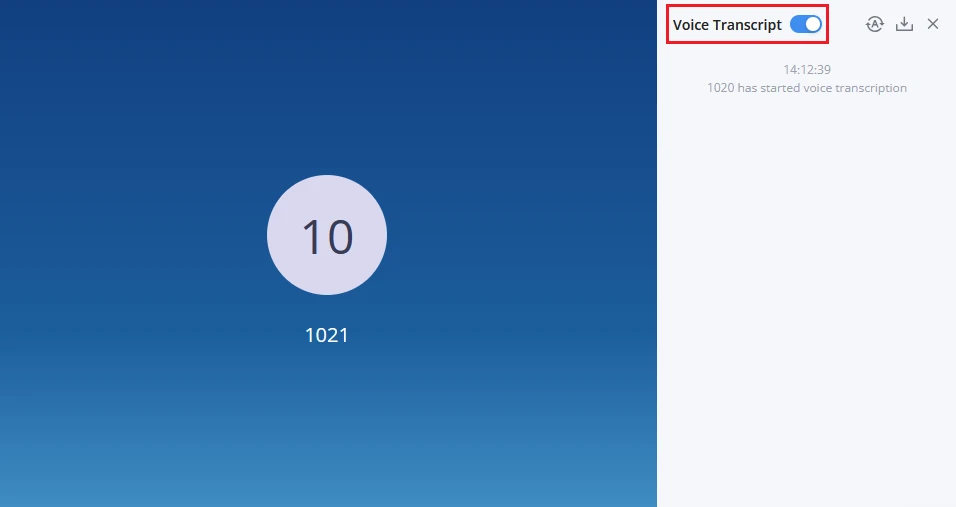
- A confirmation message will appear, and no further speech will be transcribed for the remainder of the call.
Add the Voice Transcription Button to the Toolbar
To make the Voice Transcription button more accessible, you can add it to your call toolbar for quick access during calls:
- In the Wave Desktop/Web application, go to Settings.
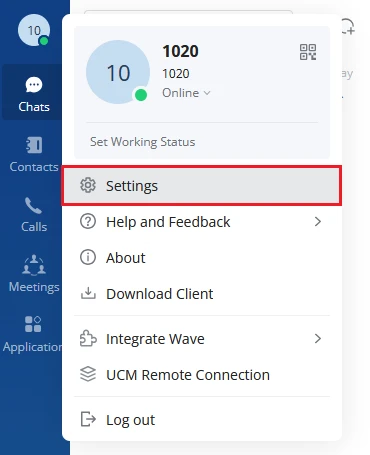
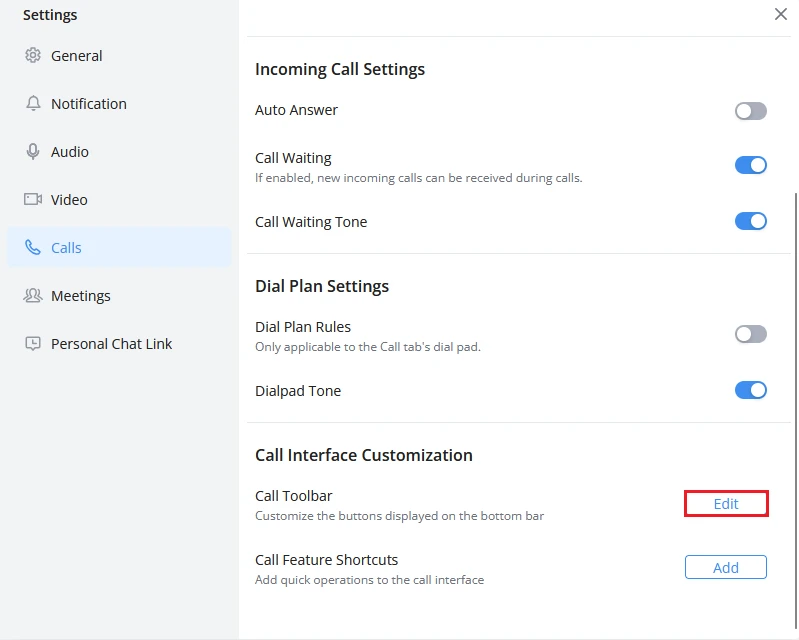
- Navigate to the Calls section, and find the Call Toolbar customization area.
- Check the Voice Transcription box in the list of available tools.
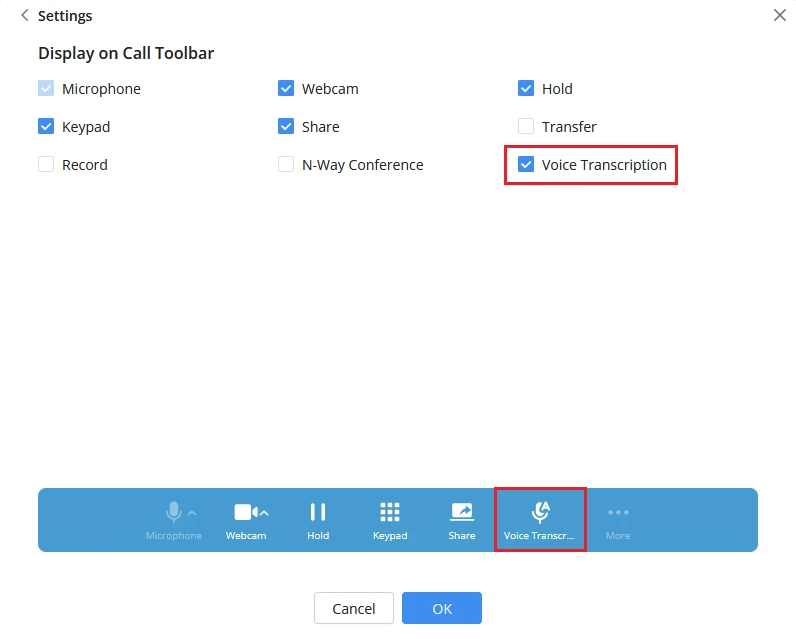
- Click OK to apply the changes. The button will now appear during future calls.
ACCESSING CALL TRANSCRIPT AND SUMMARY
After a call ends, users can access the full transcription and AI-generated summary through the Wave desktop application, Wave mobile app, or the User Portal (for call queue chairmen). This section explains how to view, edit, download, and share these records.
On Wave Web/Desktop
- Sign in to the Wave Desktop application.
- Navigate to the Call History located in the left sidebar.
- Browse or search for the desired call entry. Calls with available transcripts and summaries will have a View Transcript/Summary icon next to them.
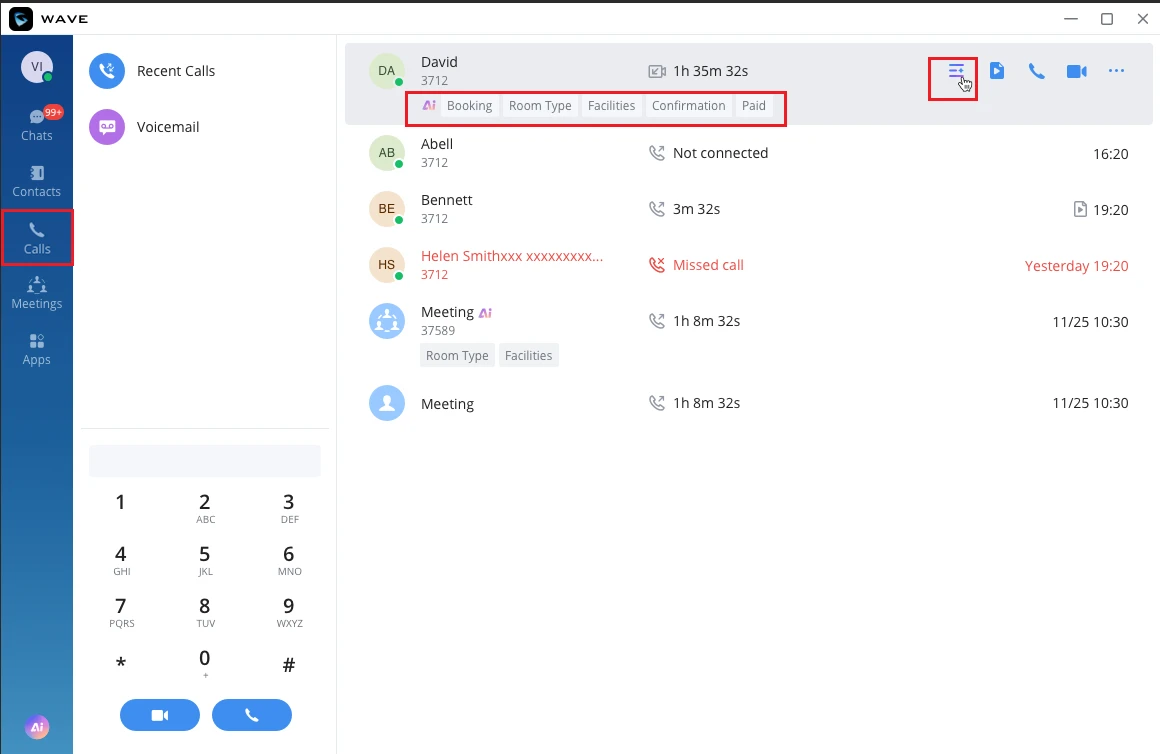
- Click the icon to open the detailed view.
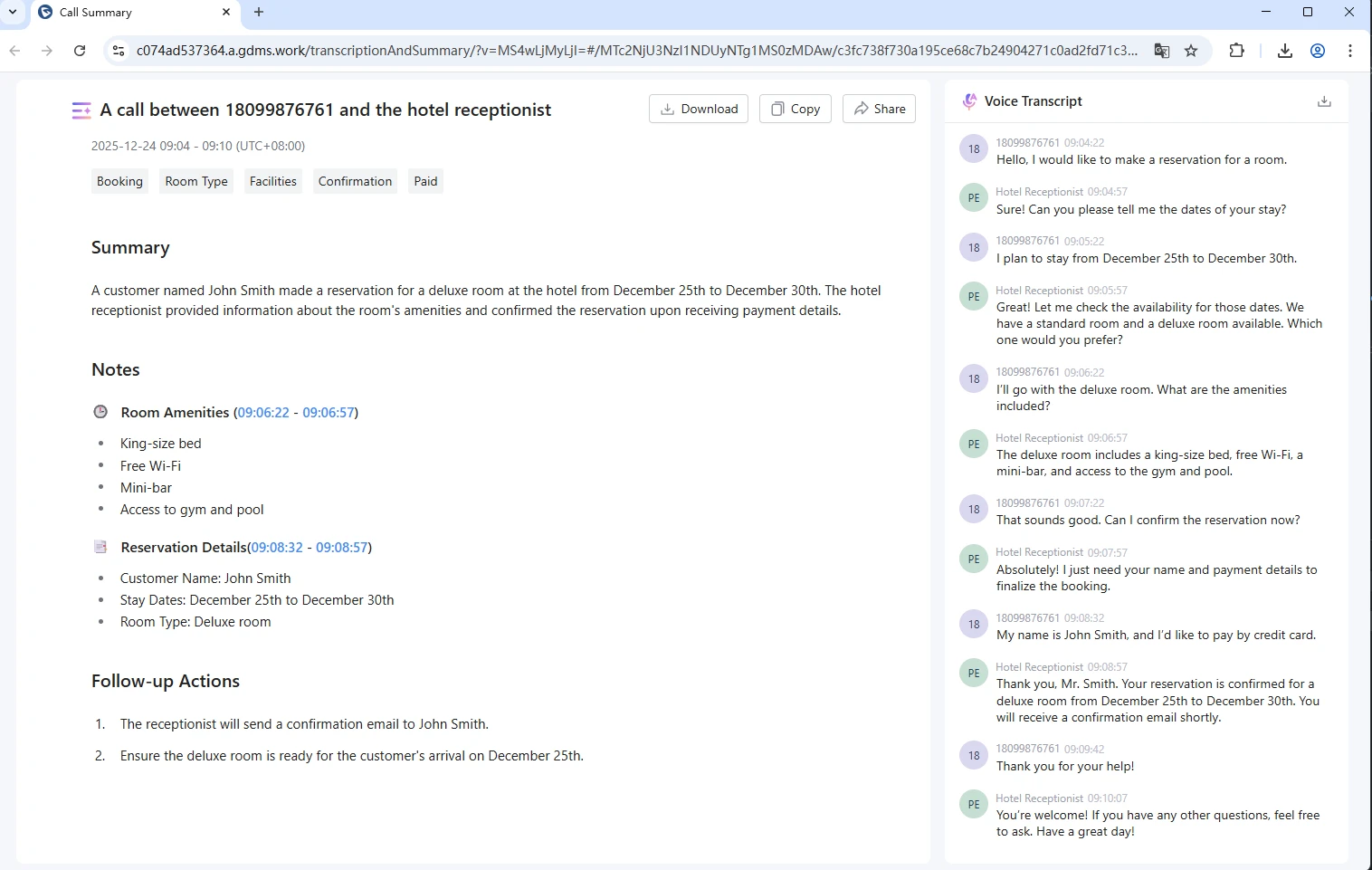
In the detailed view, you can perform the following actions:
- View Full Transcript: View the complete, time-stamped transcription of the call. Speakers are labeled for clarity.
- Read the Summary: Review the AI-generated summary, which highlights key discussion points, decisions, and action items.
- Download: Click the Download icon to export the transcript and summary. You can choose from Word Document (.docx) or Plain Text (.txt)
- Copy Summary: Click the Copy icon to copy the summary text to your clipboard for easy pasting into emails, reports, or messages.
- Share Summary Link: Click the Share icon to generate a shareable link. This link provides access to the summary and is valid for 7 days.
On Wave Mobile
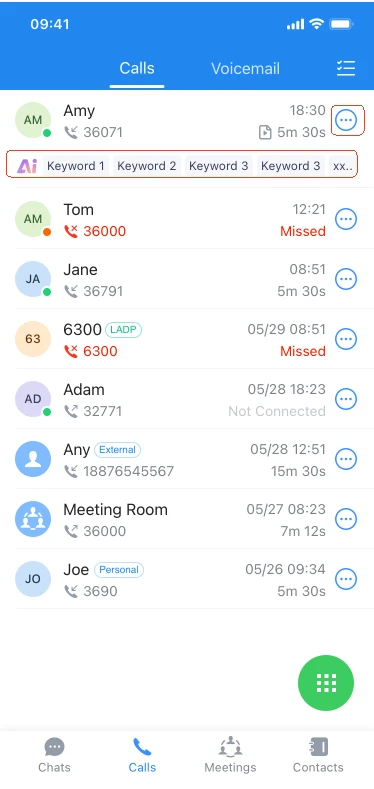
- Sign in to the Wave mobile application on your smartphone or tablet.
- Navigate to the Calls tab located at the bottom of the screen.
- Tap on the specific call record you wish to review.
On the User Portal
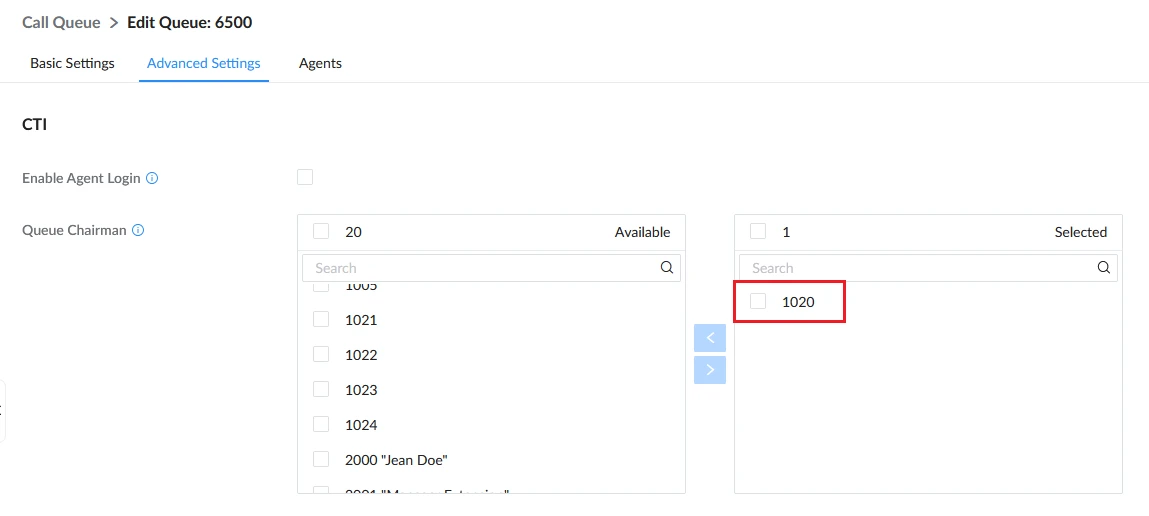
If the transcribed call was part of a call queue, the queue chairman has additional access to all calls handled by that queue.
Before proceeding, ensure that your extension is configured as Chairman for the Call Queue you are handling. This setting is configured by the PBX administrator under Basic Call features→Call Queue→Add/Edit Call Queue.
- Open a web browser and sign in to the User Portal with your chairman account.
- Navigate to the CDR page, either from the Personal Data→CDR, or from Other Features→Call Queue Statistics→CDR.


- Locate the desired call from the queue. Calls with available transcripts and summaries will be marked as “Transcribed” under the AI Transcription column.
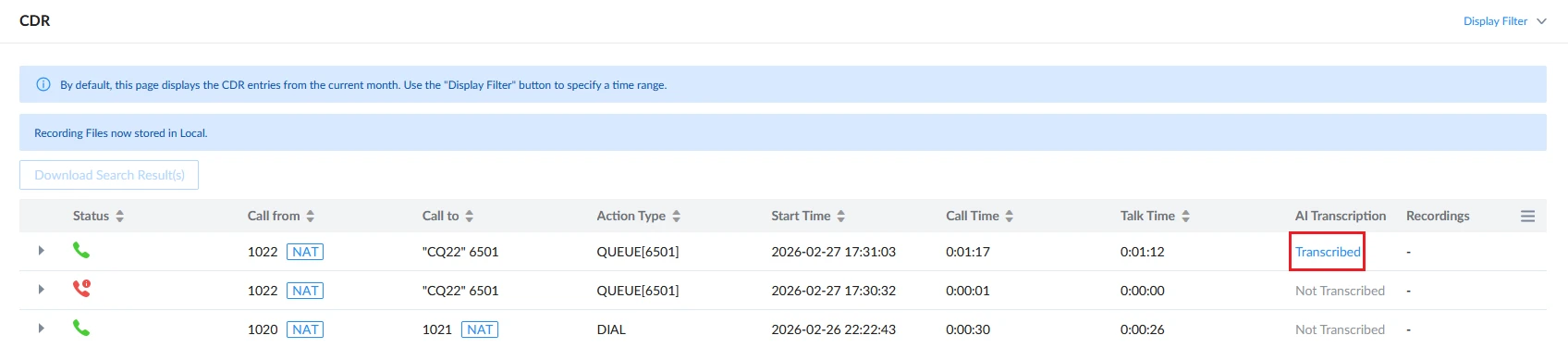
- Open link to view the full transcript and AI-generated summary for that specific call.