Overview
The UCM63xx Series supports a variety of AI functionalities enabled by the RemoteConnect AI Service for Wave softphone app extensions. AI services are available as a purchasable add-on and are subject to usage limits defined by your active RemoteConnect plan. This guide provides detailed instructions for configuring and using the AI Translation feature on the Grandstream IP PBX.
The feature translates transcripts generated by the Voice Transcription feature under Integrations → AI Settings (Beta) → Voice Transcription into the language configured on the same page. It supports:
- Call Transcription and Summary Translation
- Meeting Transcription and Summary Translation
- Recording Transcription and Summary Translation
These functionalities help facilitate communication across language barriers, improve visibility and access to voice and audio information, and provide valuable text-based records that can be reviewed, downloaded, shared and stored for future reference.
Pre-requisites
Before configuring and using the AI Translation, ensure that the required firmware and Wave software versions are installed.
Firmware and Software requirements:
- UCM63xx firmware version 1.0.35.8 or later
- Wave Desktop version 1.0.35.6 or later
- Wave Web version 1.0.35.7 or later
- Wave Android App version 1.0.35.7 or later
- Wave IOS App version 1.0.35.7 or later
Configuring Voice Transcription
AI Translation depends on the Voice Transcription feature to generate the transcripts that are translated. Therefore, Voice Transcription must be configured and enabled before AI Translation can be used.
Refer to the examples below for the configuration steps. For more information about configuring Voice Transcription and other AI functionalities, refer to GS AI Features Guide.
The AI Voice Transcription and Translation features currently support the following language options:
- Automatic Recognition
- العربية – Arabic
- Čeština – Czech
- Deutsch – German
- Ελληνικά – Greek
- English
- Español – Spanish
- Français – French
- עברית – Hebrew
- Italiano – Italian
- Nederlands – Dutch
- Polski – Polish
- Português – Porteguese
- Русский – Russian
- ภาษาไทย – Thai
- Türkçe – Turkish
- Tiếng Việt – Vietnamese
- 简体中文 – Simplified Chinese
- 繁體中文 – Traditional Chinese
Configuring the AI Translation
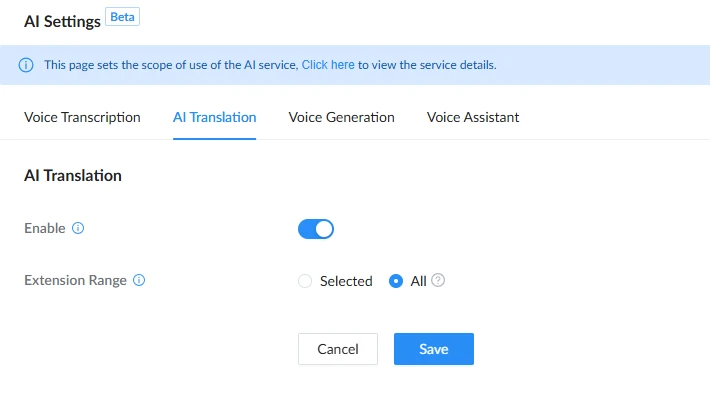
To enable the AI Translation feature, navigate to Integrations → AI Settings (Beta) → AI Translation and follow the steps below:
- Enable AI Translation.
- Select the extension range from the available options:
- Selected: Selects the Extension Groups, Not Synced Contacts, Departments or individual extension.
- All: Selects all existing extensions and automatically includes any extensions added subsequently.
AI Translation for Call Transcription and Summary
This section demonstrates the configuration steps required in order to use the AI Translation feature for calls. Both real-time translation and summary translation are supported. Please follow the steps below:
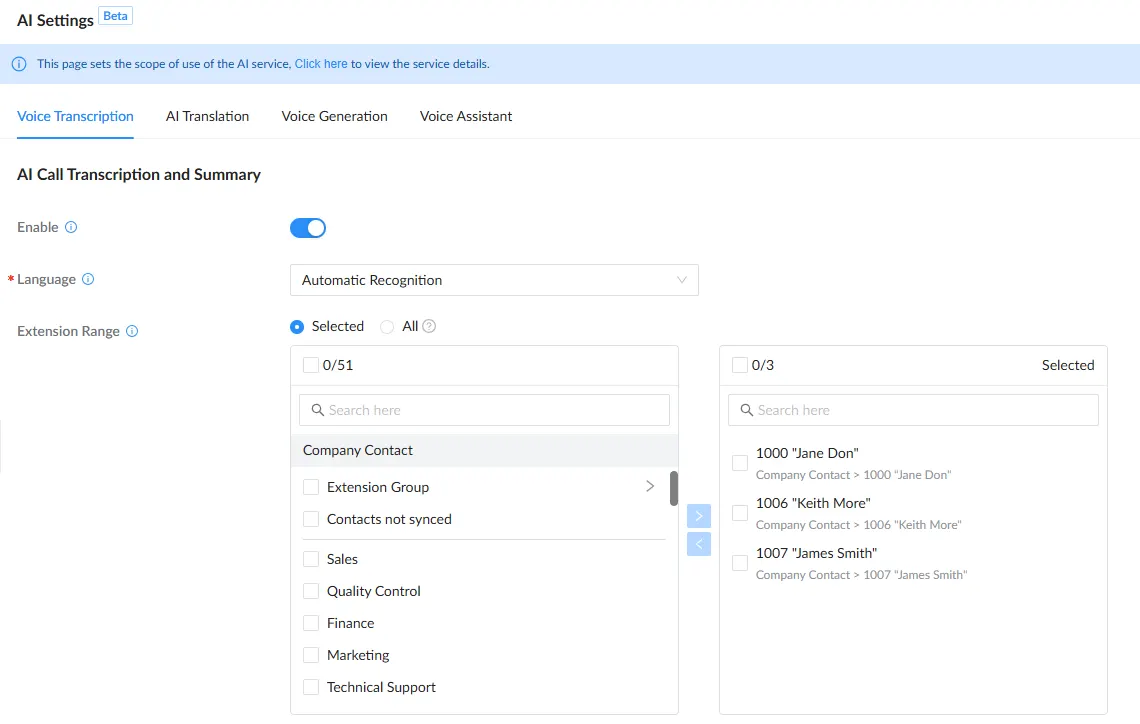
- To configure the general AI Settings, navigate to Integrations → AI Settings (Beta) → Voice Transcription → AI Call Transcription and Summary.
- Enable AI Call Transcription and Summary.
- Select a global preferred Language. Leave it set to Auto Recognition if no specific language is preferred or multiple languages are spoken.
- Ensure the extension is included in the Extension Range. In this example, select extension 1007.
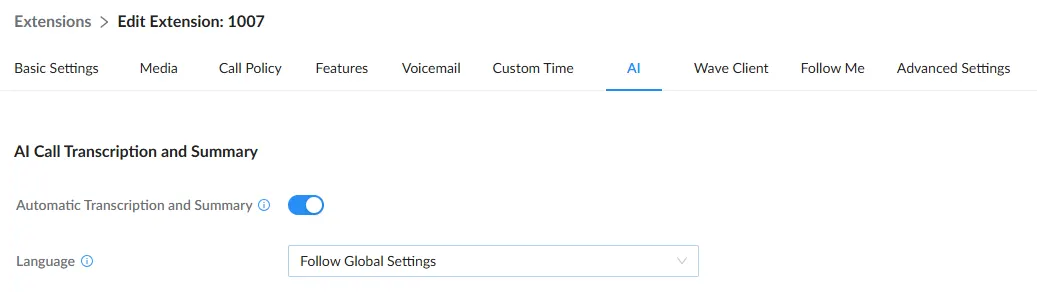
- To configure the extension-specific AI settings, navigate to Extension/Trunk → Extensions, locate the extension 1007 and press Edit then click the AI tab.
- Enable Automatic Transcription and Summary under AI Call Transcription and Summary to automatically transcribe and summarize calls.
- Select an extension-specific preferred Language. Leave it set to Follow Global Settings to use the language configured in the previous section.
Example of AI Translation for Call Transcription
- Log in to Wave using the extension’s credentials and initiate a call.
- Once the call is established a voice prompt announcing that the conversation will be transcribed will play.
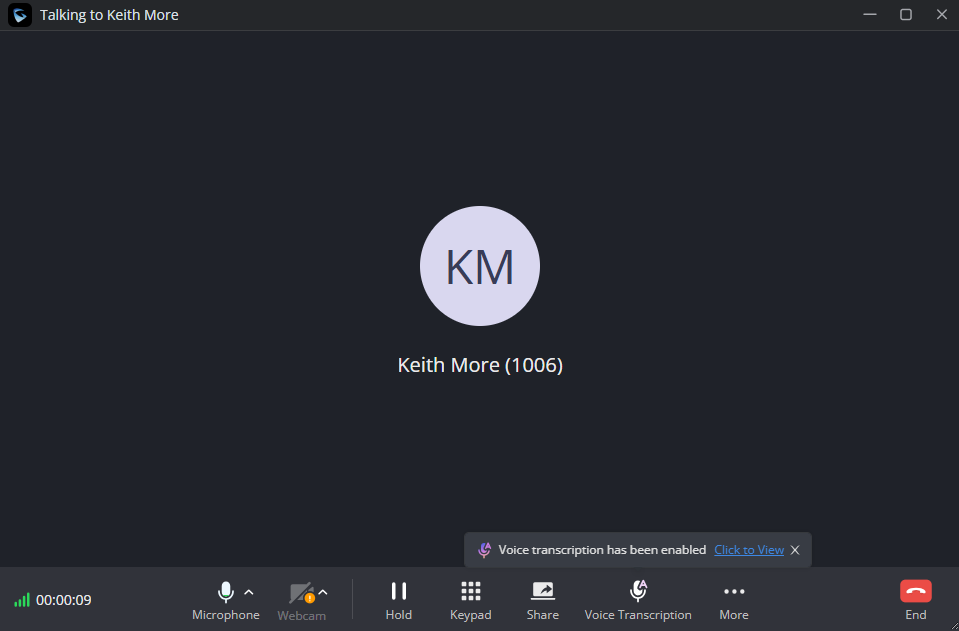
- Press the Voice Transcription option at the bottom of the call interface to display the transcription of the speech.
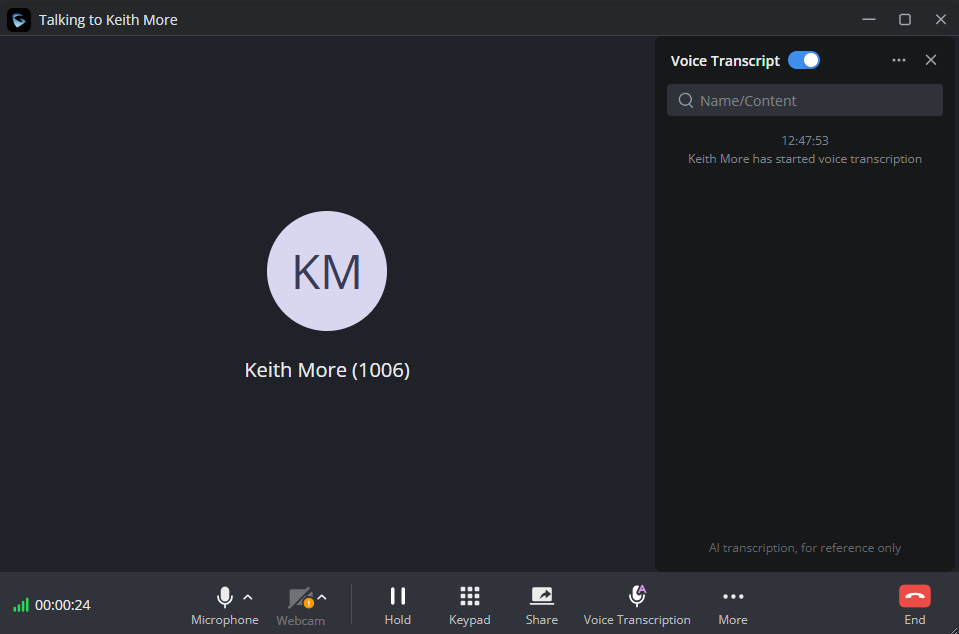
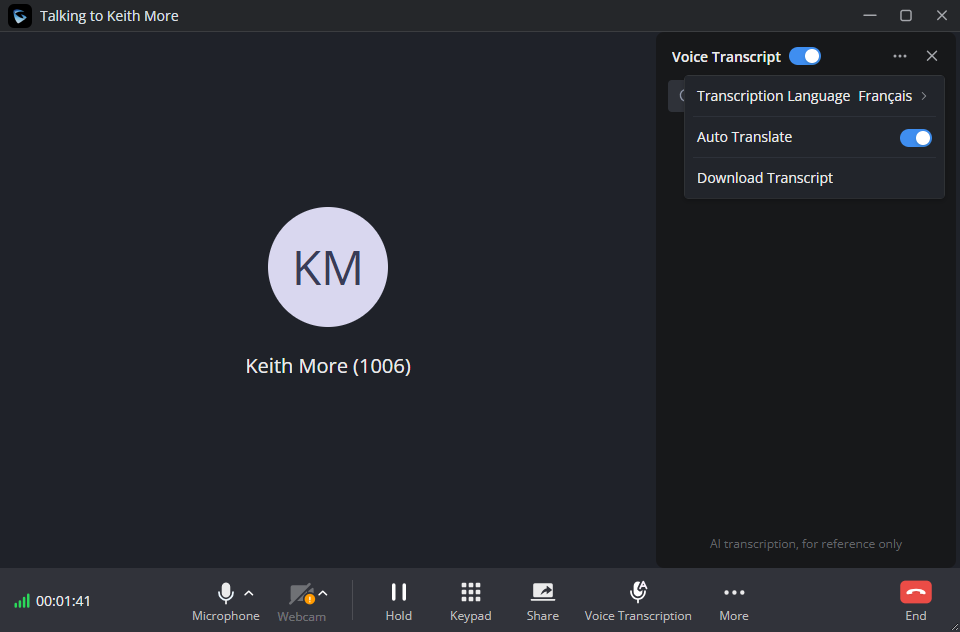
- Press the Settings icon
 to view the Voice Transcription settings. Press Transcription Language to change the transcription language of the summary.
- Enable Auto Translate to start the translation of the call transcription.
 to view the Voice Transcription settings. Press Transcription Language to change the transcription language of the summary.
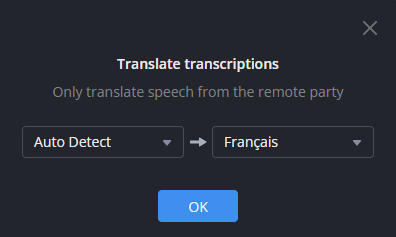
- Press Auto Translate to change the translation language. Select the source and target languages for speech translation, then press OK. Leave the source language set to Auto Detect if multiple languages are spoken.
- The transcript can be downloaded during the call by pressing Download Transcript.
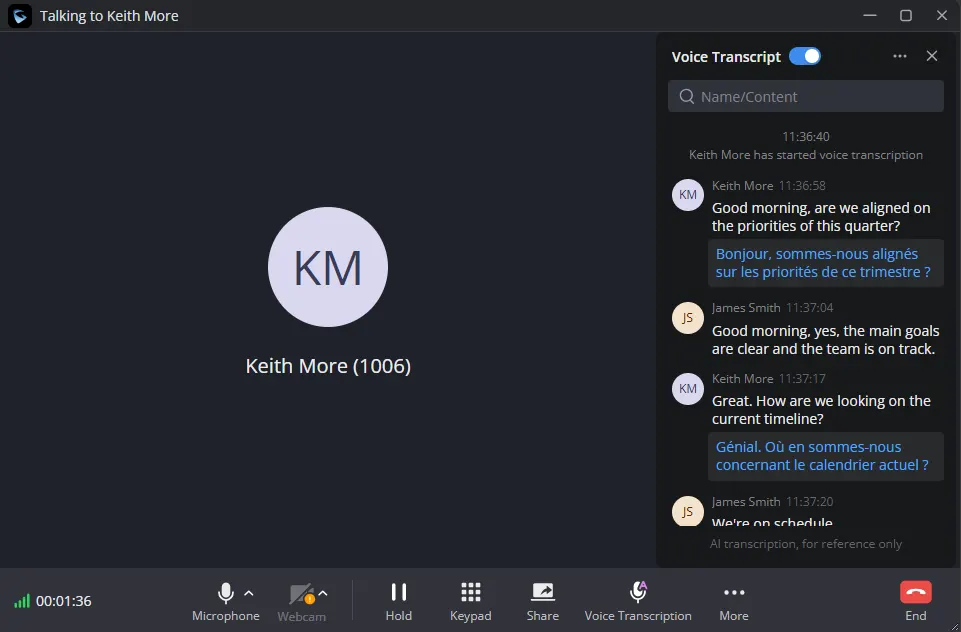
- The speech is automatically translated. If the translation fails, hover over the text and press the Translate icon
 to re-translate the transcript. The language can be modified during the call by selecting a different language in the Auto Translate setting. The transcript can also be downloaded during the call by pressing Download Transcript.
 to re-translate the transcript. The language can be modified during the call by selecting a different language in the Auto Translate setting. The transcript can also be downloaded during the call by pressing Download Transcript.
Example of AI Translation for Call Summary
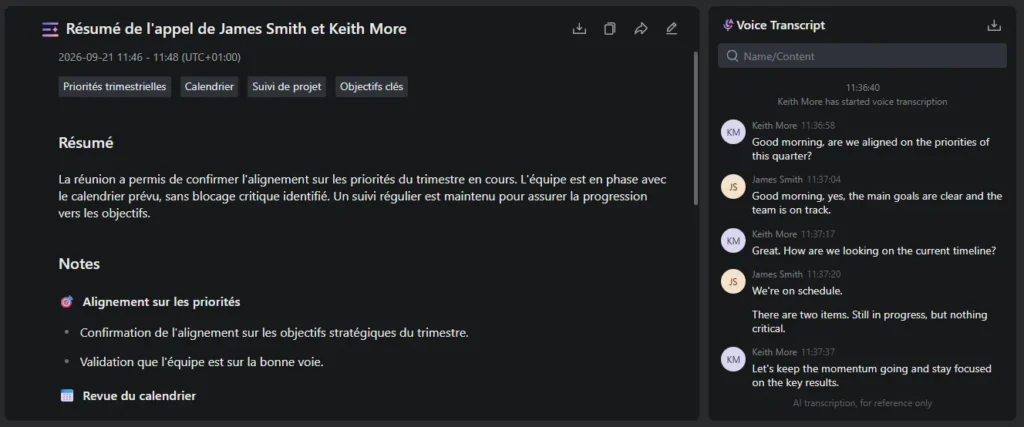
- Once the call is terminated, access the Calls → Recent Calls and locate the call in the list.
- Hover over the call to display the available icons, then press the Call Summary icon
 . On Wave, press the icon to open the summary.
 . On Wave, press the icon to open the summary.
AI Translation for Meeting Transcription and Summary
This section demonstrates the configuration steps required in order to use the AI Translation feature for meetings. Both real-time translation and summary translation are supported. Please follow the steps below:
- To configure the general AI Settings, navigate to Integrations → AI Settings (Beta) → Voice Transcription → AI Meeting Transcription and Summary.
- Enable AI Meeting Transcription and Summary.
- Ensure the extensions are included in the Extension Range.
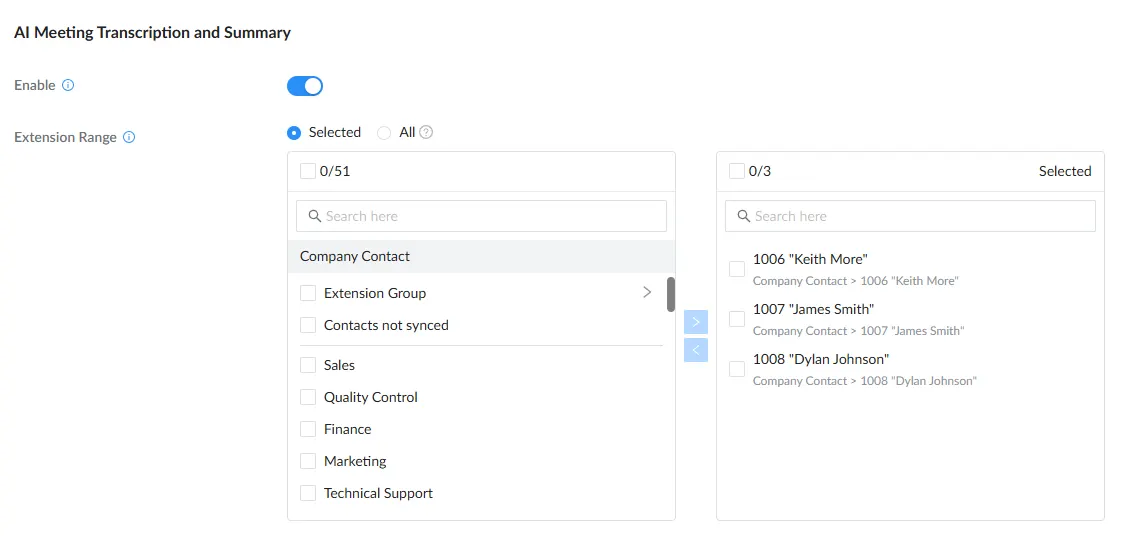
Example of AI Translation for Meeting Transcription
- Log in to Wave using the extension’s credentials and initiate a meeting.
- To start a meeting immediately, press Meet Now, and choose the Voice Transcription language, then click Enable.
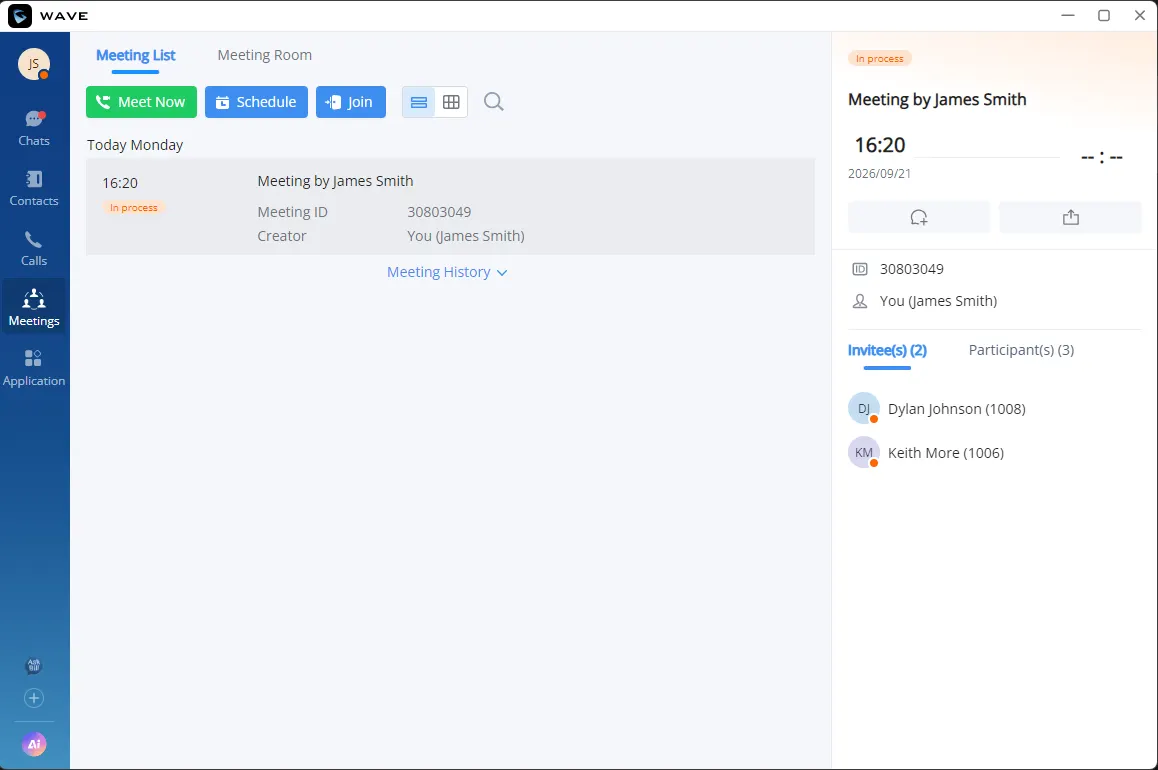
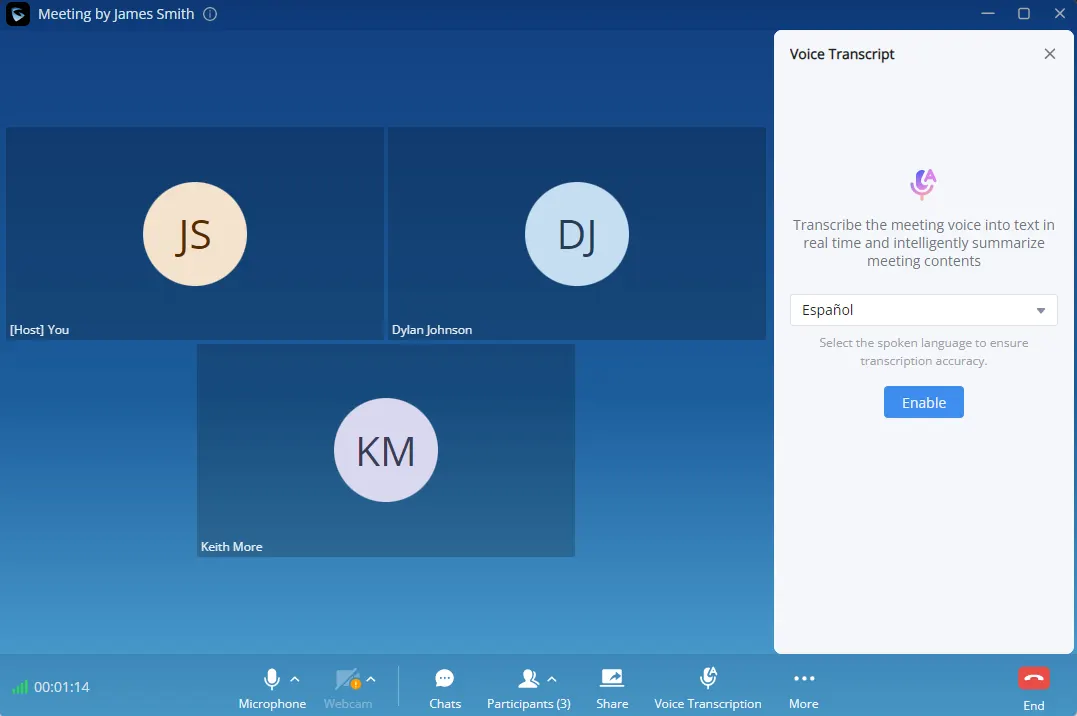
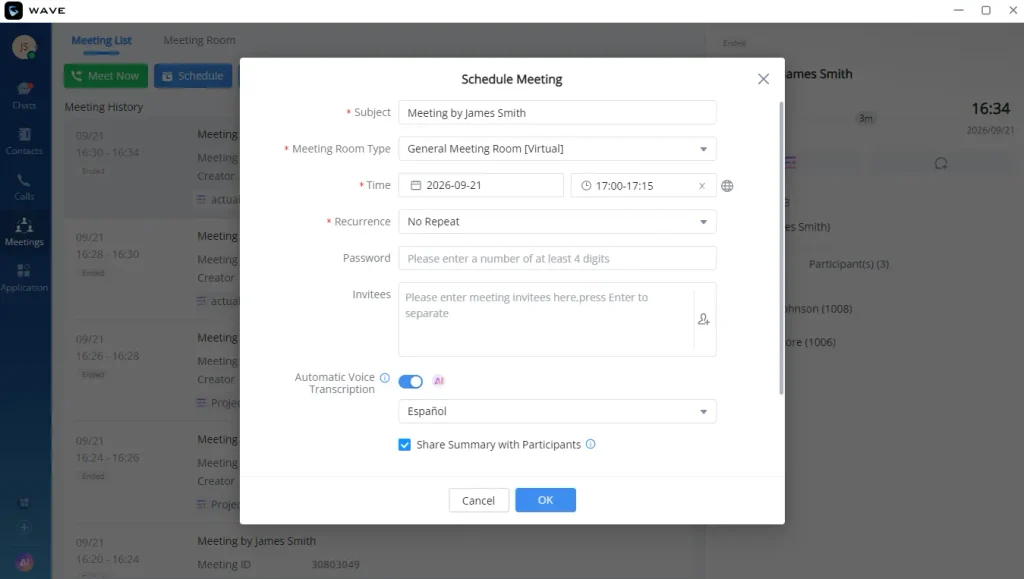
- To schedule a meeting, press Schedule Meeting, enable Automatic Voice Transcription, and select the transcription language. Enable Share Summary with Participants to share the summary with participants after the meeting.
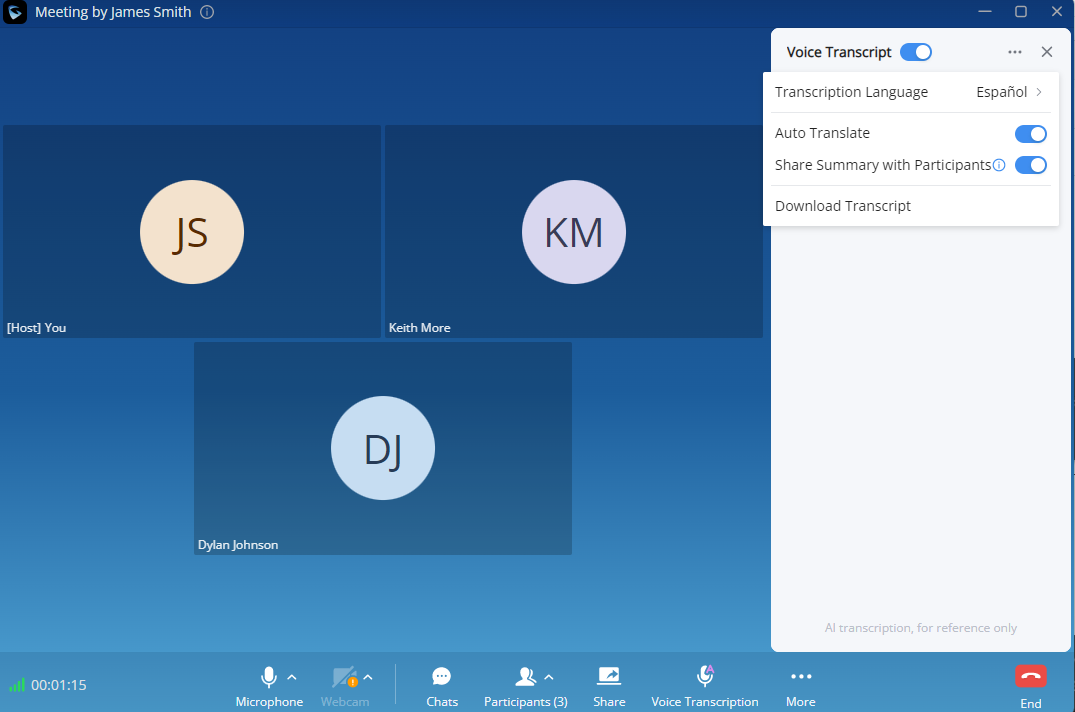
- Once the meeting is established, press the Voice Transcription option at the bottom of the meeting interface to display the transcription of the speech.
- Press the Settings icon
 to view the Voice Transcription settings. Press Transcription Language to change the transcription language of the summary.
- Enable Auto Translate to start the translation of the call transcription. Press Auto Translate to change the translation language. Select the source and target languages for speech translation, then press OK. Leave the source language set to Auto Detect if multiple languages are spoken.
- Enable Share Summary with Participants to share the meeting summary with participants after the meeting ends.
- The transcript can also be downloaded during the call by pressing Download Transcript.
- Transcription Language and Share Summary with Participants are host-only options. Participants can enable and choose the Auto Translate language and Download Transcript.
 to view the Voice Transcription settings. Press Transcription Language to change the transcription language of the summary.
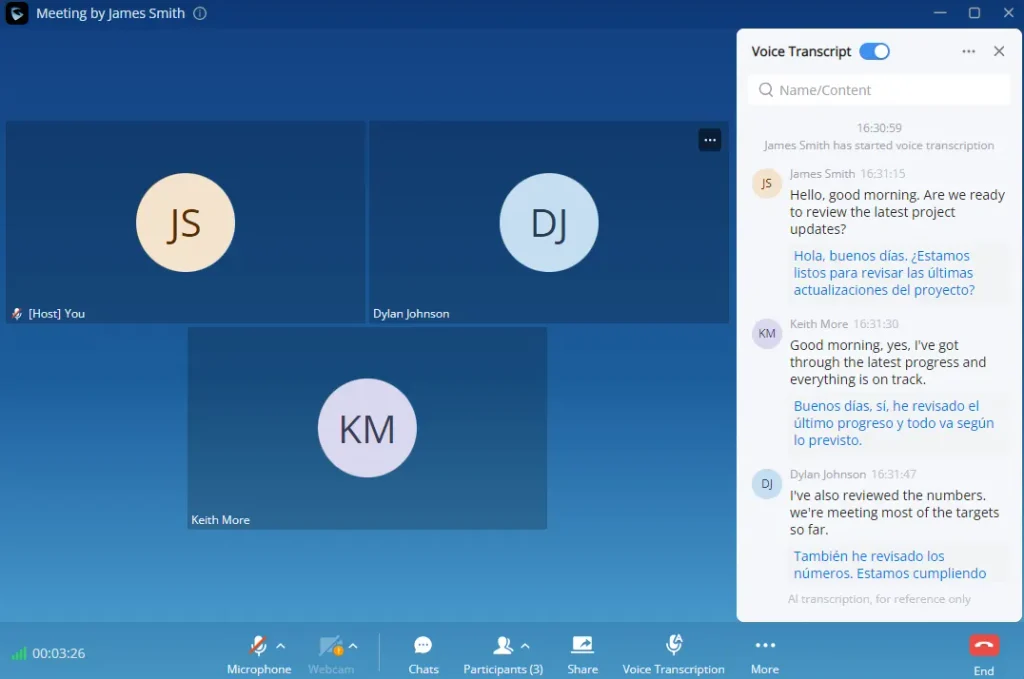
- The speech is automatically translated. If the translation fails, press the Translate icon
 to re-translate the transcript. The language can be modified during the call by selecting a different language in the Auto Translate setting.
 to re-translate the transcript. The language can be modified during the call by selecting a different language in the Auto Translate setting.
Example of AI Translation for Meeting Summary
- Once the meeting is over, access the Meetings → Recent Calls and locate the meeting in the Meeting List.
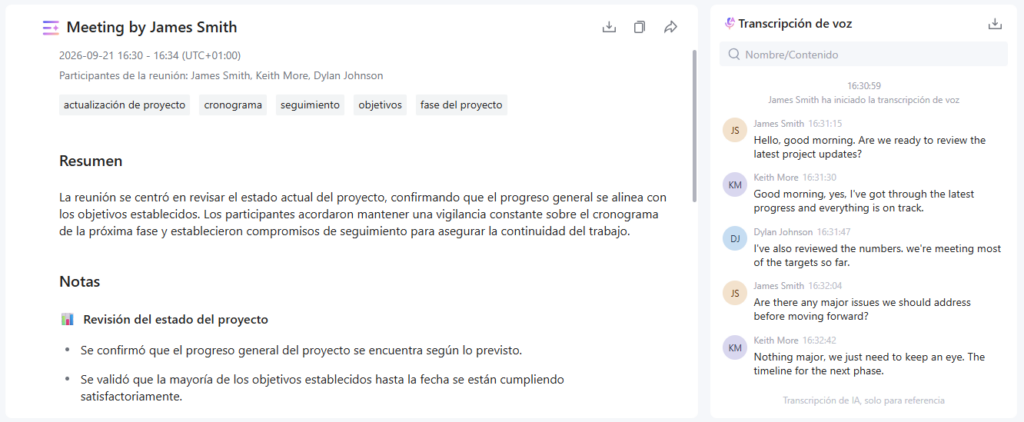
- Select the meeting then press the Call Summary icon
 to open the summary.
 to open the summary.
AI Translation for Recording Transcription and Summary
This section demonstrates the configuration steps required in order to use the AI Translation feature for recording transcripts. Please follow the steps below:
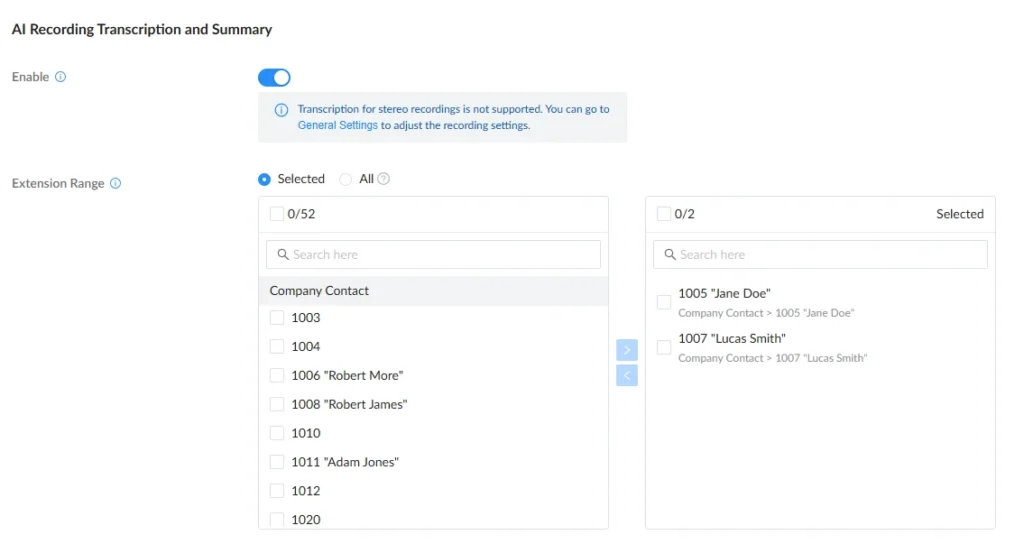
- Enable AI Recording Transcription and Summary.
- Ensure the extension is included in the Extension Range
Example of AI Translation for Recording Transcription and Summary
- Log in to Wave using the extension’s credentials and initiate a call or meeting.
- When the call or meeting is established, press Record to start recording.
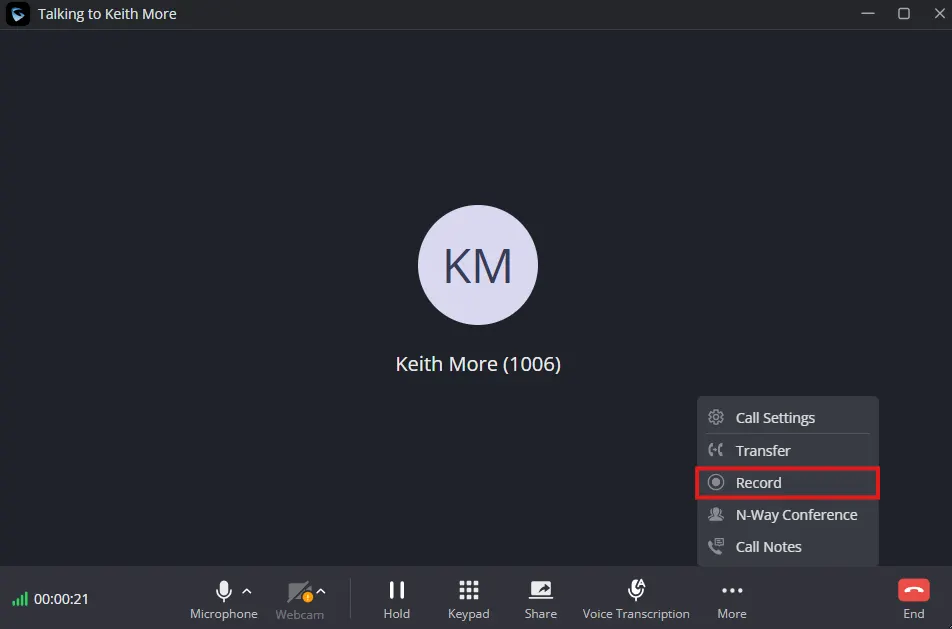
- Stop the recording at any point during the active call or meeting, then end the call or meeting.
- For calls, access Calls → Recent Calls. For meetings, access Meetings → Meeting List. Click the Summary icon to access the automatically generated summary, which includes the recorded audio or video.
- The recording can be played at different speeds, and the progress bar can be clicked to navigate to different points in the recording. The transcribed speech is also clickable and can be used to navigate to the corresponding points in the recording. The summary page provides the same features described in the section above.
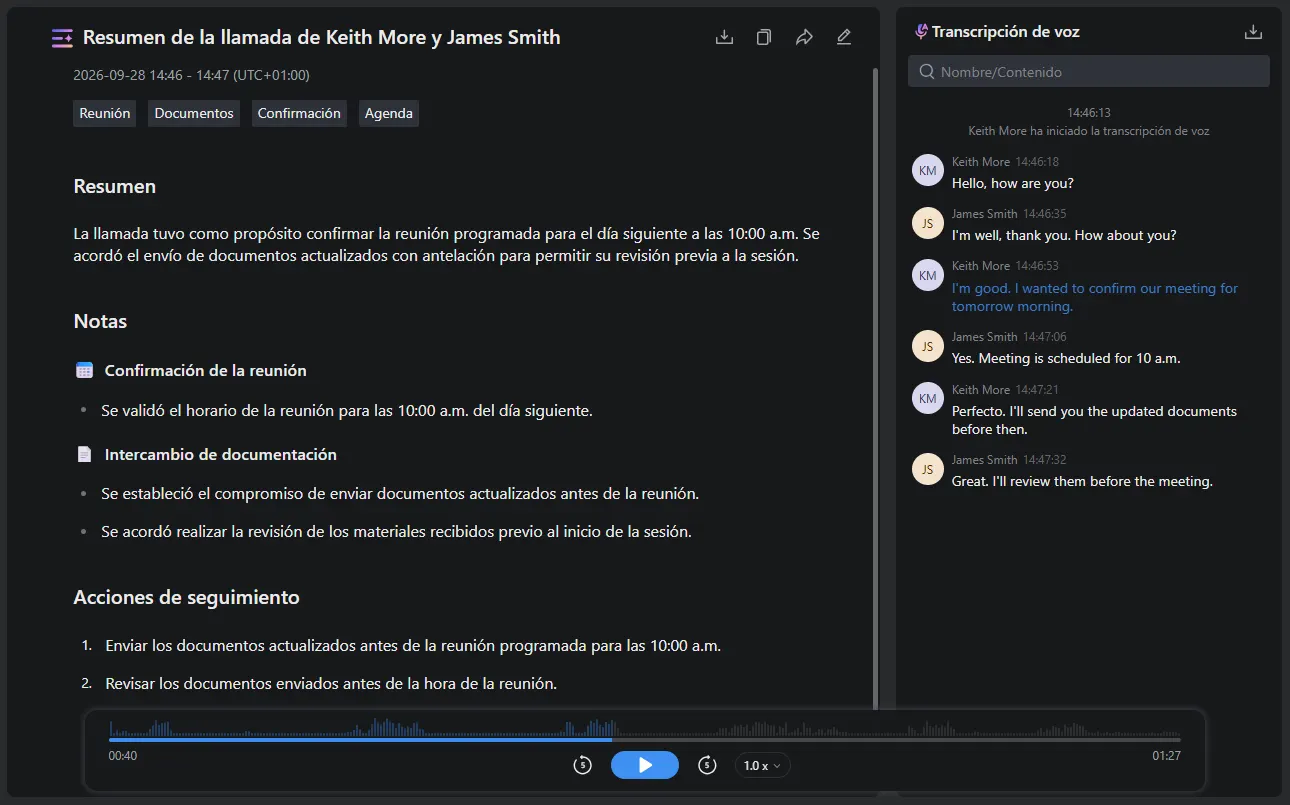
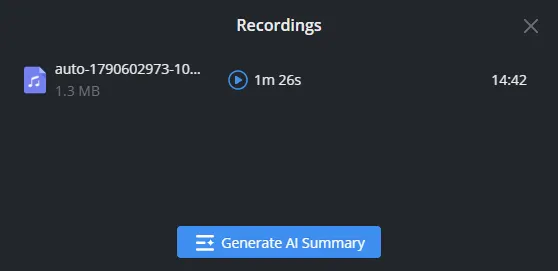
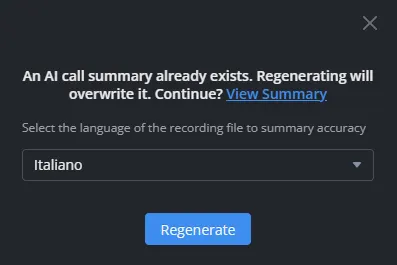
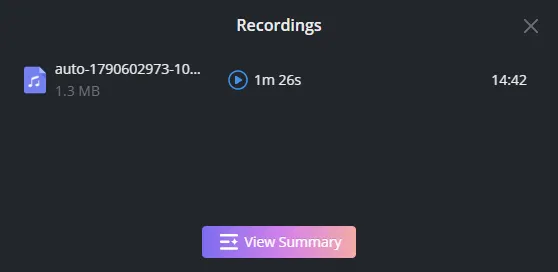
- To overwrite the automatically generated summary with a summary in another language, click the Recording icon
 , select the desired language, and press Generate. After the summary is generated, press View Summary to access it.
 , select the desired language, and press Generate. After the summary is generated, press View Summary to access it.