OVERVIEW
This guide provides detailed instructions for using the AI Generated Speech feature on the Grandstream IP PBX. This feature provides text-to-speech (TTS) capabilities powered by the AI service, allowing administrators to generate voice prompt audio directly from text. It is primarily used for IVR prompts, call queue announcements, and other system voice prompts, eliminating the need to manually record or upload audio files. Once generated, prompts are saved directly to the custom prompt library and can be reused by any service on the PBX.
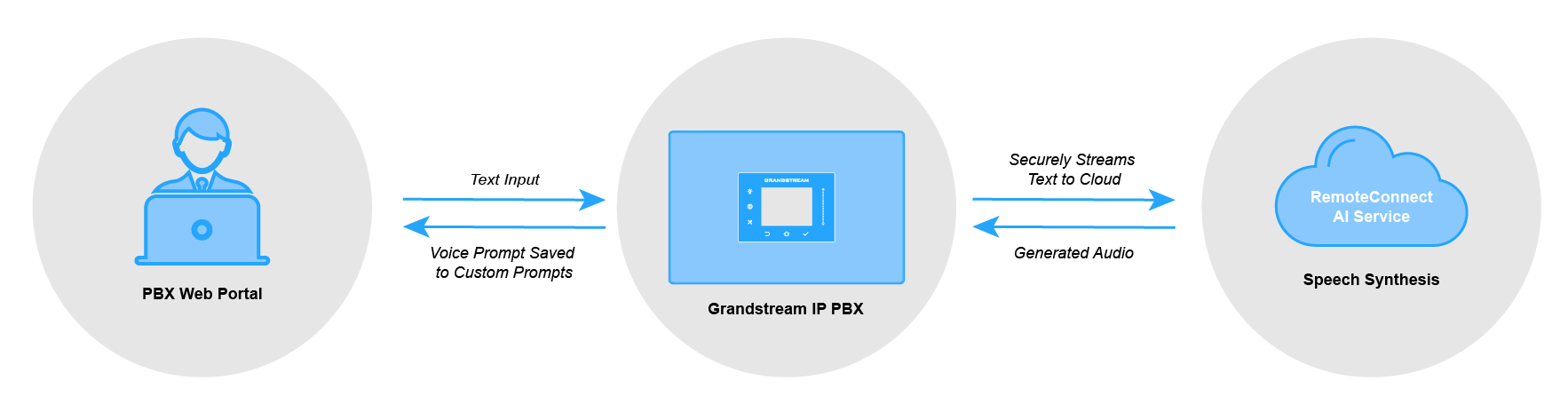
PBX CONFIGURATION
The Grandstream IP PBX supports custom voice prompts for use across various features such as IVR menus, call queues, and Intercom. Traditionally, these prompts are created by either recording directly from an extension or uploading a pre-recorded audio file that meets specific format requirements.
The AI Generated Speech feature introduces a third method, allowing administrators to generate professional voice prompts directly from text without any recording or audio file preparation.
Before the feature can be used, it must be enabled at the system level:
- Log in to the PBX web portal as an administrator.
- Navigate to Integrations→AI Settings.
- Enable the AI Generated Speech feature.
- Click Save and Apply to confirm the changes.
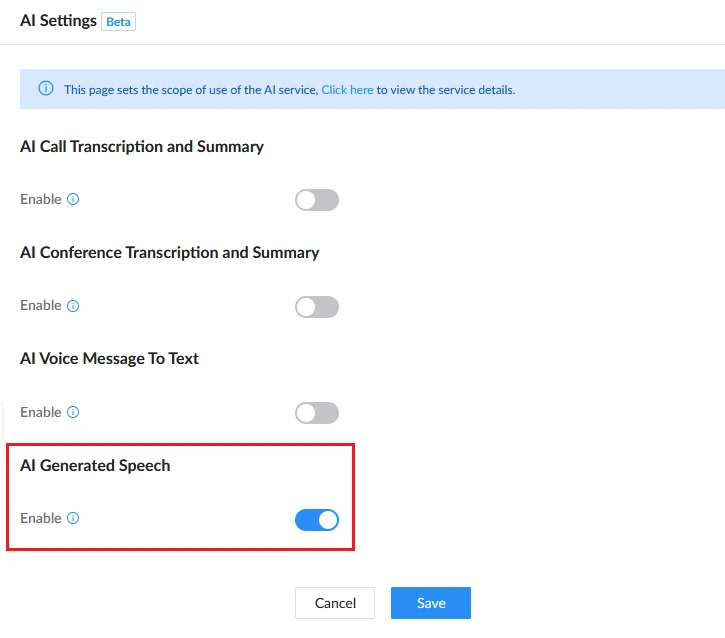
Once enabled, the AI Generated Speech option becomes available from two entry points across the PBX web portal: the Custom Prompt page and any feature configuration page that includes a prompt selection field. Both entry points are covered in the following section.
GENERATING A VOICE PROMPT
AI Generated Speech can be accessed from two entry points in the PBX web portal, each covered in the sections below.
From the Custom Prompt Page
This method is used to generate and save a prompt independently, without being in the context of a specific feature configuration:
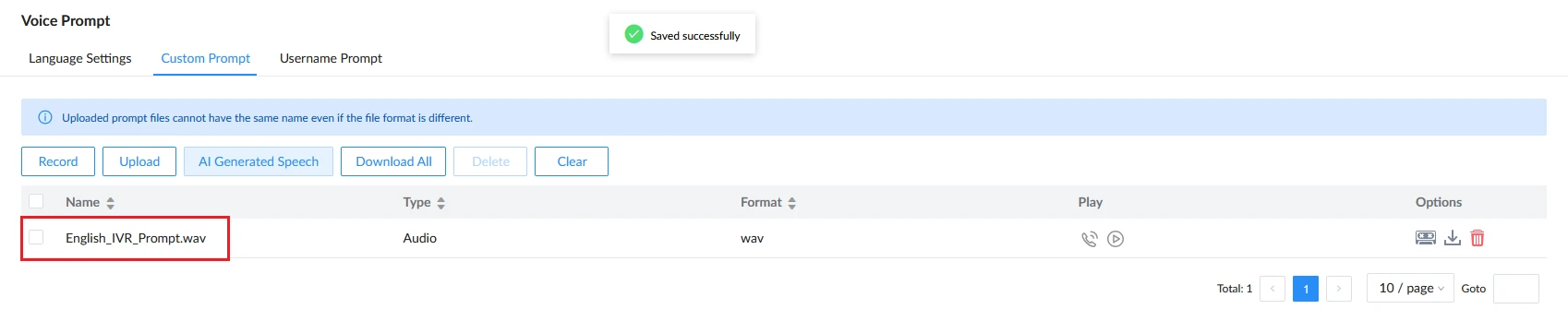
- Navigate to PBX Settings→Voice Prompt→Custom Prompt.
- Click the AI Generated Speech button to open the AI generation window.
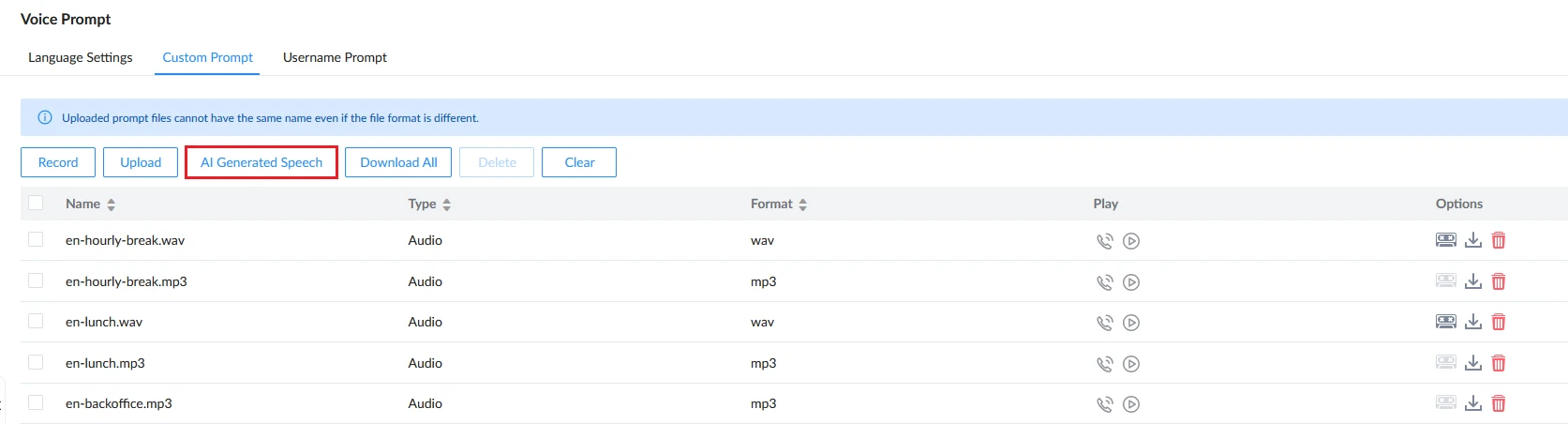
- Configure the prompt parameters as described in the Prompt Configuration Parameters section below.
- Click AI Generate to produce an audio preview.
- Review the preview and adjust the parameters if needed.
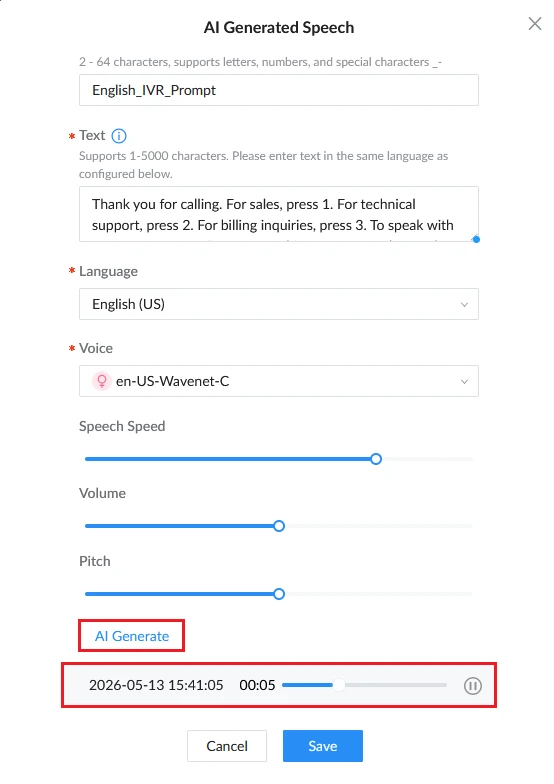
- Once satisfied, save the prompt. It will be stored in the custom prompt library and available for use by any service on the PBX.
From a Feature Configuration Page
AI Generated Speech is also accessible directly while configuring features that require voice prompts, such as call queues and IVR menus. This allows administrators to generate a prompt without leaving the feature configuration:
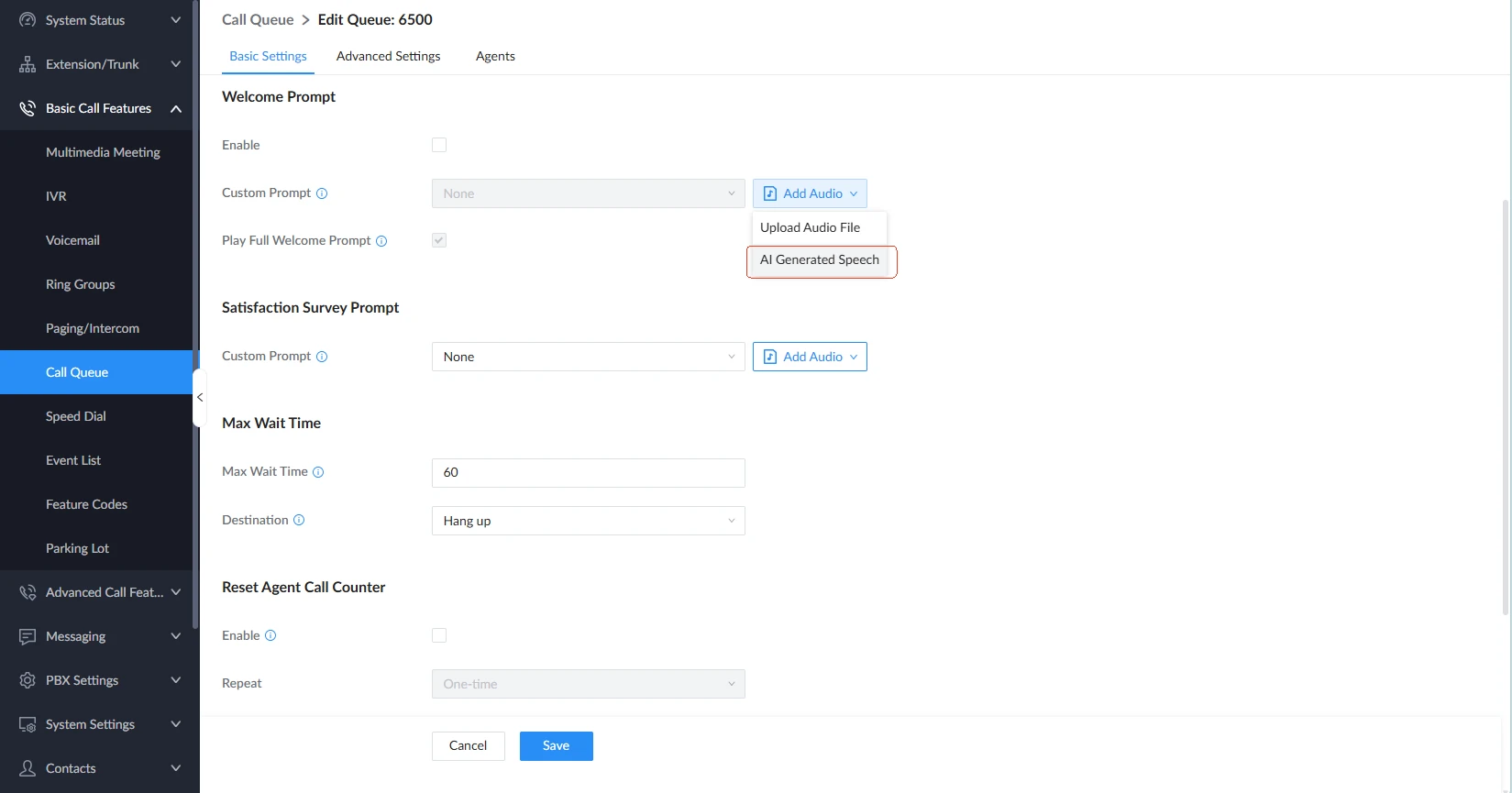
- While configuring a feature that includes a prompt selection field (e.g., Call Queue, IVR), locate the prompt dropdown.
- Select AI Generated Speech from the dropdown options. This will open the same AI generation window used in the Custom Prompt page.
- Configure the prompt parameters as described in the Prompt Configuration Parameters section below.
- Once satisfied, save the prompt. It will be stored in the custom prompt library and automatically applied to the feature being configured.
PROMPT CONFIGURATION PARAMETERS
When generating a voice prompt, the following settings are available:
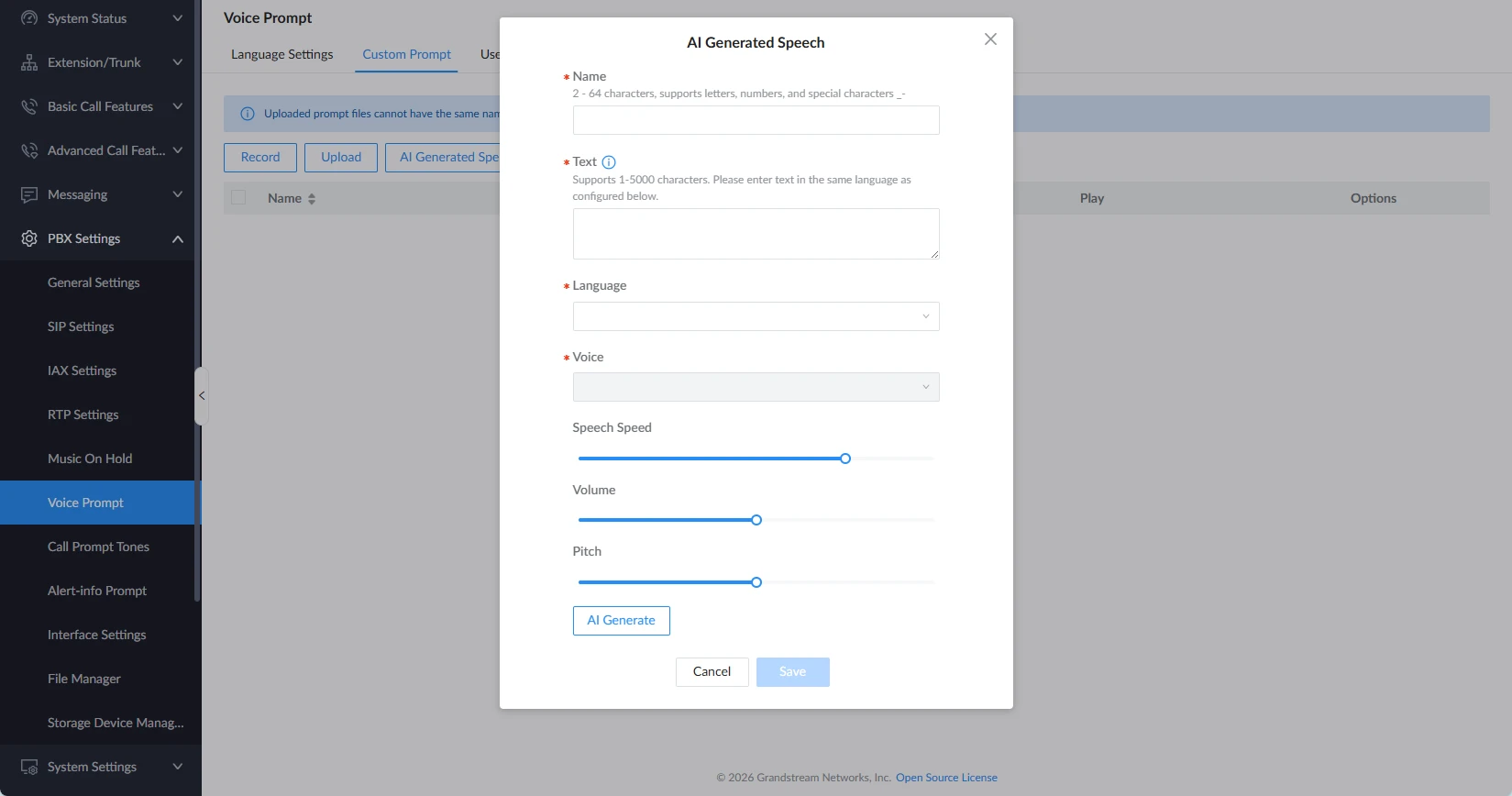
Name | Defines the name of the generated voice prompt. This name is used to identify the prompt in the system and must be unique. The field supports 2–64 characters, including letters, numbers, and special characters. |
Text | Specifies the text content that will be converted into speech. The text length supports up to 5,000 characters. |
Language | Specifies the language used for text-to-speech processing. |
Voice | Selects the voice profile used to generate the speech. Different voice options may be available depending on the selected language. A preview option is provided, allowing administrators to listen to the voice style before generating the prompt. |
Speech Speed | Controls the playback speed of the generated speech. The speed can be adjusted from slower to faster relative to normal speaking speed. |
Volume | Adjusts the output volume level of the generated audio. The value can be set from 0 to 100 to accommodate different playback environments. |
Pitch | Controls the pitch of the generated voice. Higher values produce a higher-frequency voice, while lower values produce a deeper tone. The pitch range can be set from 0 to 100. |