OVERVIEW
This guide provides detailed instructions for using the AI Voicemail to Text feature on the Grandstream IP PBX. This feature transcribes voicemail messages left on unanswered calls into text, allowing users to quickly read their voicemail content without having to listen to the audio. The transcription can be delivered automatically via email or accessed on demand through the Wave client.
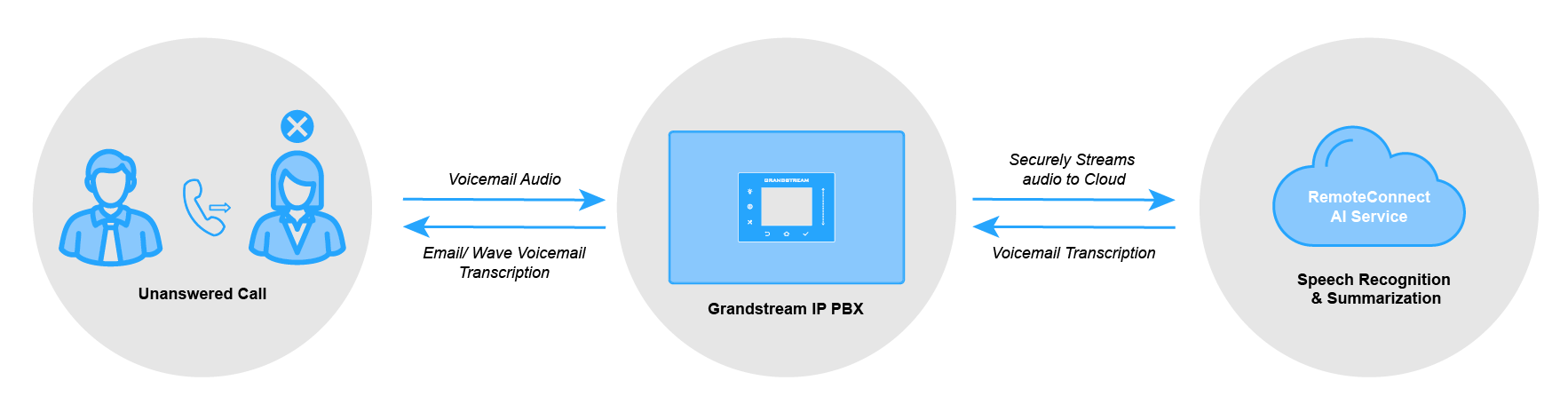
PBX CONFIGURATION
This section covers the administrative steps required to configure the AI Voicemail To Text feature on the PBX.
The feature must first be enabled at the system level and assigned to the desired extensions:
- Log in to the PBX web portal as an administrator.
- Navigate to Integrations→AI Settings.
- Enable the AI Voicemail To Text feature.
- In the Language dropdown, select the desired language recognition behavior:
- Select a language: (Recommended) The AI will recognize all voices in this language and will not recognize other languages. It is recommended to set it to the actual language spoken by the speaker.
- Specific Language (e.g., English, Spanish): Prioritizes the automatic recognition of different types of languages but may not be as accurate.
- In the Extension Range parameter, select whether this feature applies to:
- All: The feature is available to every extension on the system.
- Selected: The feature is only available to extensions specifically selected from the list.
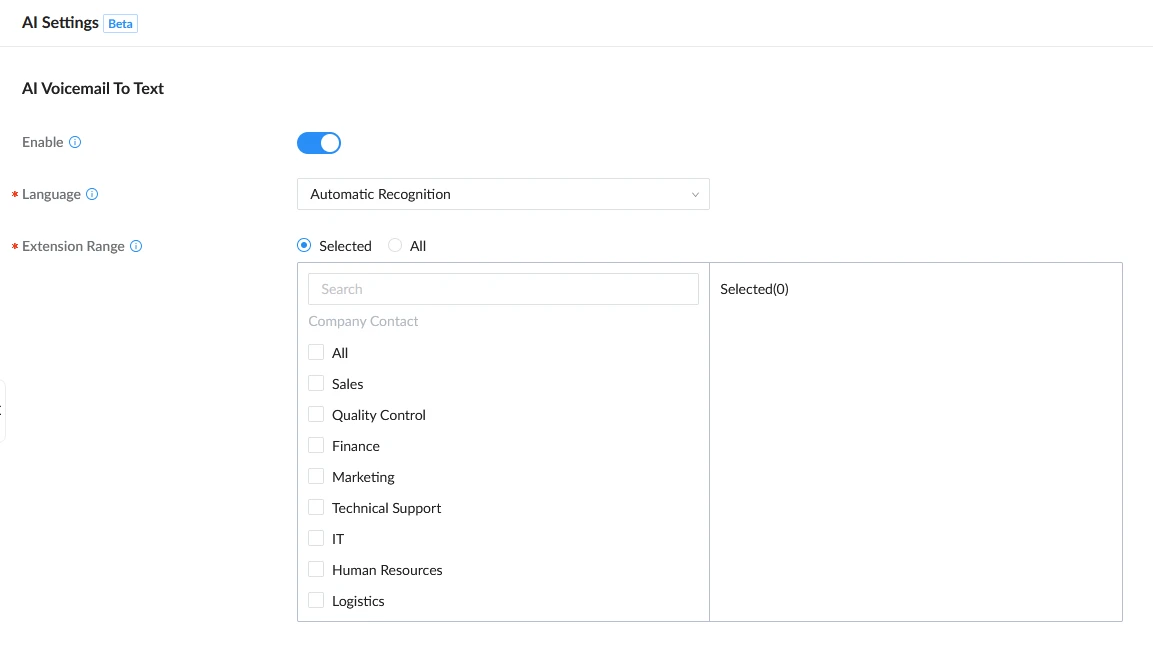
- Click Save and Apply to confirm the changes.
Once the feature is enabled globally, individual extensions can be configured for automatic voicemail transcription. To achieve this, follow the steps below:
- Navigate to Extension/Trunk→Extensions.
- Locate the extension you wish to configure and click its Edit icon.
- In the extension settings window, select the AI tab.
- In the AI Voicemail to Text section, configure the following:
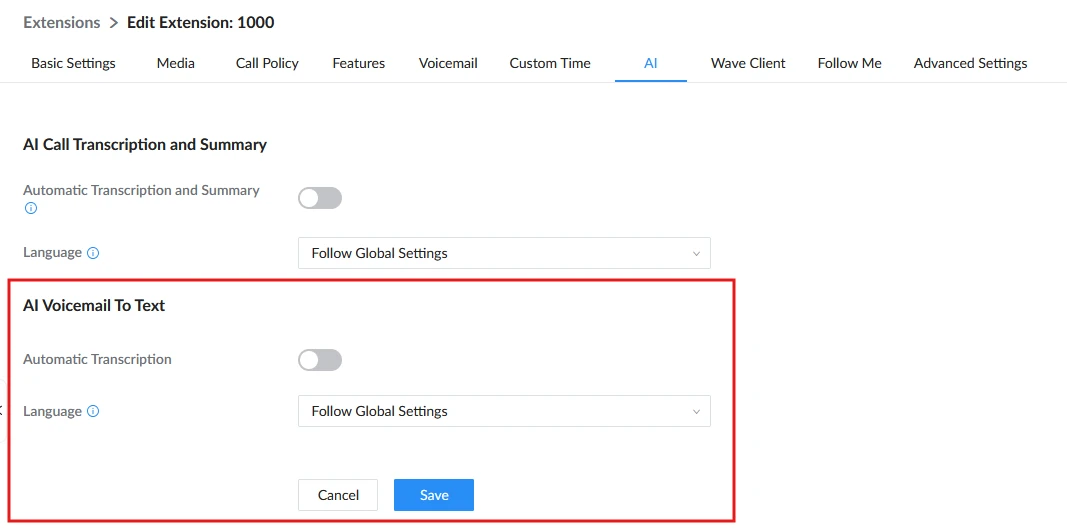
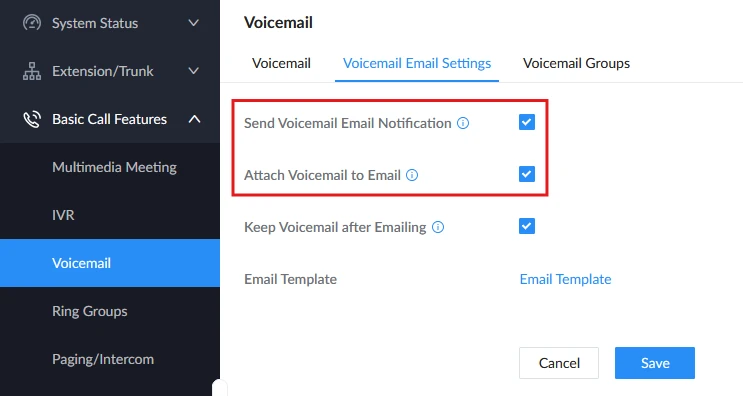
Automatic Transcription | If enabled, voicemails received by this extension will be automatically transcribed. The transcription will be included in the voicemail notification email sent to the user. Otherwise, the user can still transcribe voicemails on demand from the Wave client. Note: For automatic transcription to be delivered by email, the options “Send Voicemail Email Notification” and “Attach Voicemail to Email” must also be enabled for the extension. |
Language | Defines the language recognition behavior for this extension’s voicemail transcriptions.
|
- Click Save and Apply to confirm the changes.
To ensure the transcription is delivered by email, the voicemail email settings must also be configured for the extension:
- Within the same extension settings window, select the Voicemail tab.
- Set Send Voicemail Email Notification and Attach Voicemail to Email to “Yes”.
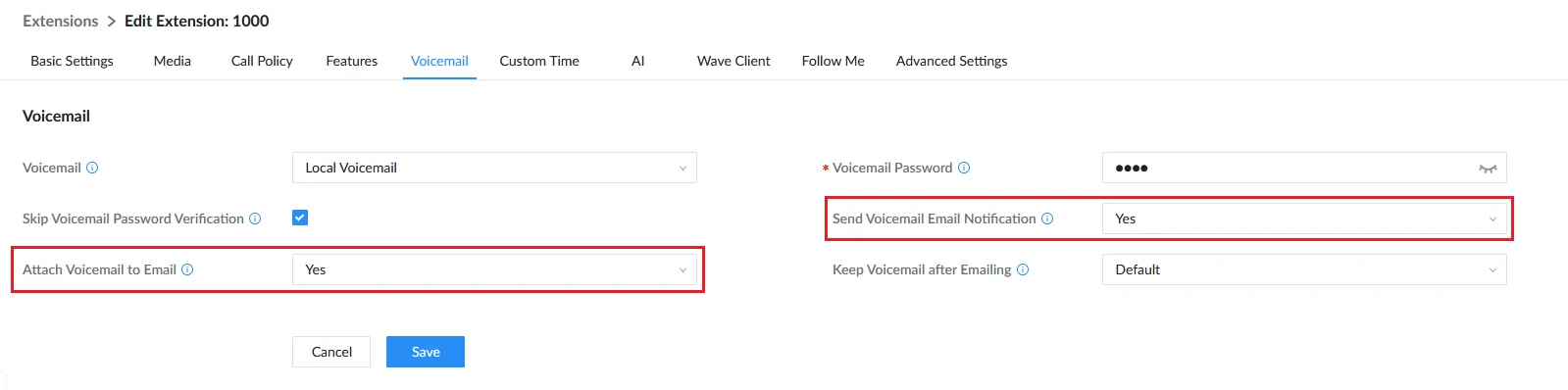
- You can also choose the “Default” if the global voicemail settings under Basic Call Features→Voicemail→Voicemail Email Settings have these options enabled.
USER CONFIGURATION
Users can access voicemail transcriptions in two ways:
- Via Email: if automatic transcription has been configured by the administrator.
- On Demand: if transcription is requested through the Wave client.
Voicemail Transcription via Email
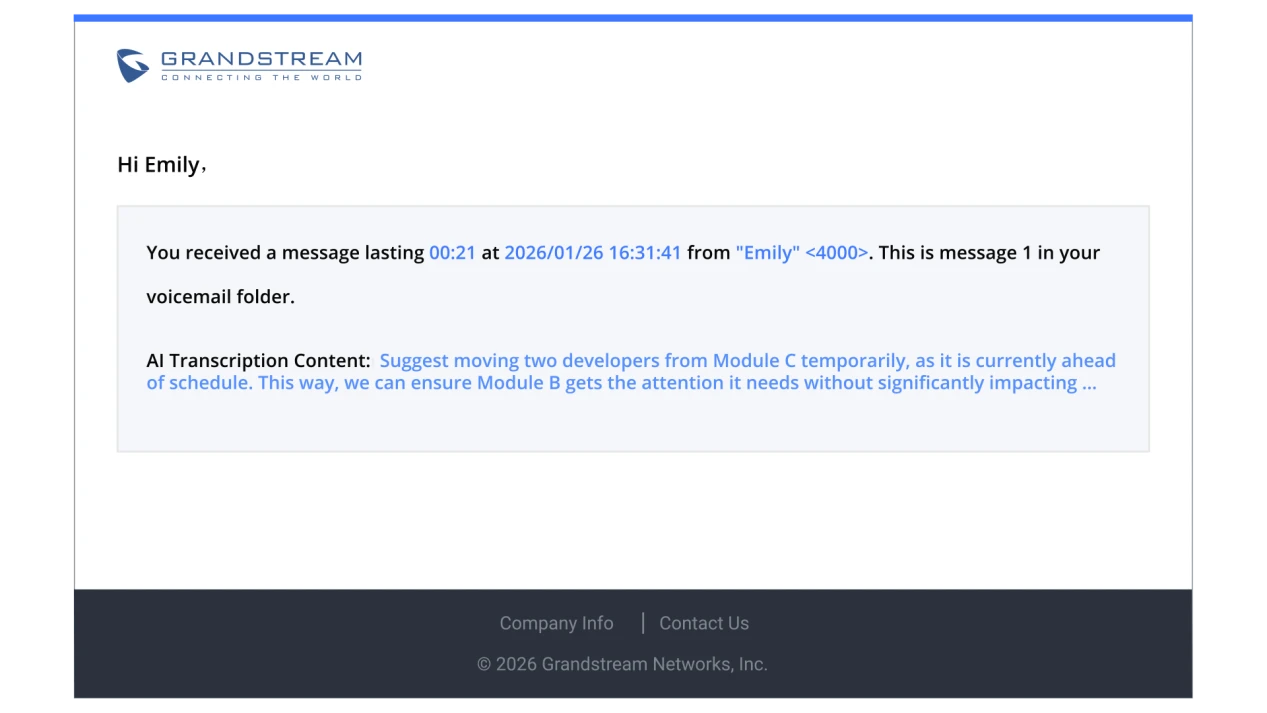
If the administrator has enabled automatic transcription for the extension (refer to the PBX Configuration section for setup steps), the user will automatically receive voicemail notification emails containing the AI transcription content.
No action is required from the user. The email will include the voicemail details and the transcription inline as shown below.
Voicemail Transcription via Wave Client
Users can manually transcribe any received voicemail on demand from the Wave Desktop or Wave mobile application:
- Sign in to the Wave application and navigate to the Voicemail tab.
- Locate the voicemail you wish to transcribe.
- Click the More icon (three dots) next to the voicemail entry.
- Select Convert to Text from the context menu. The AI will process the voicemail audio and generate the transcription.
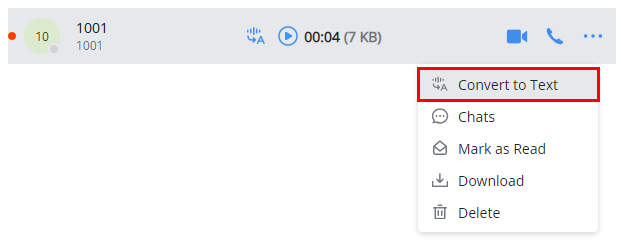
- The AI will process the voicemail audio and generate the transcription as shown below.
If you wish to run the transcription again to improve accuracy or try a different language, you can re-transcribe any previously transcribed voicemail:
- Open the voicemail transcription by selecting View Voice Transcription Content.
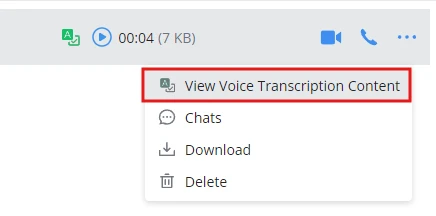
- Click the Re-transcription button.
- Select the desired language from the dropdown, or keep the same language to run the transcription again.
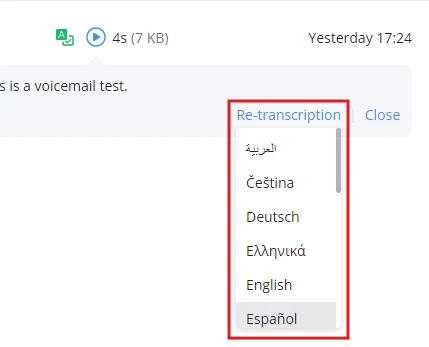
- The voicemail will be re-processed and the transcription content will be updated.