
Overview
This guide provides detailed instructions on implementing the External Captive Portal API (EXCAP) on your server, enabling customized and secure authentication workflows for wireless network users.
Pre-conditions
- A dedicated HTTP/HTTPS server to host web services.
- A RADIUS server for handling client authentication.
- Access points running firmware version 1.0.11.8 or higher.
API Introduction
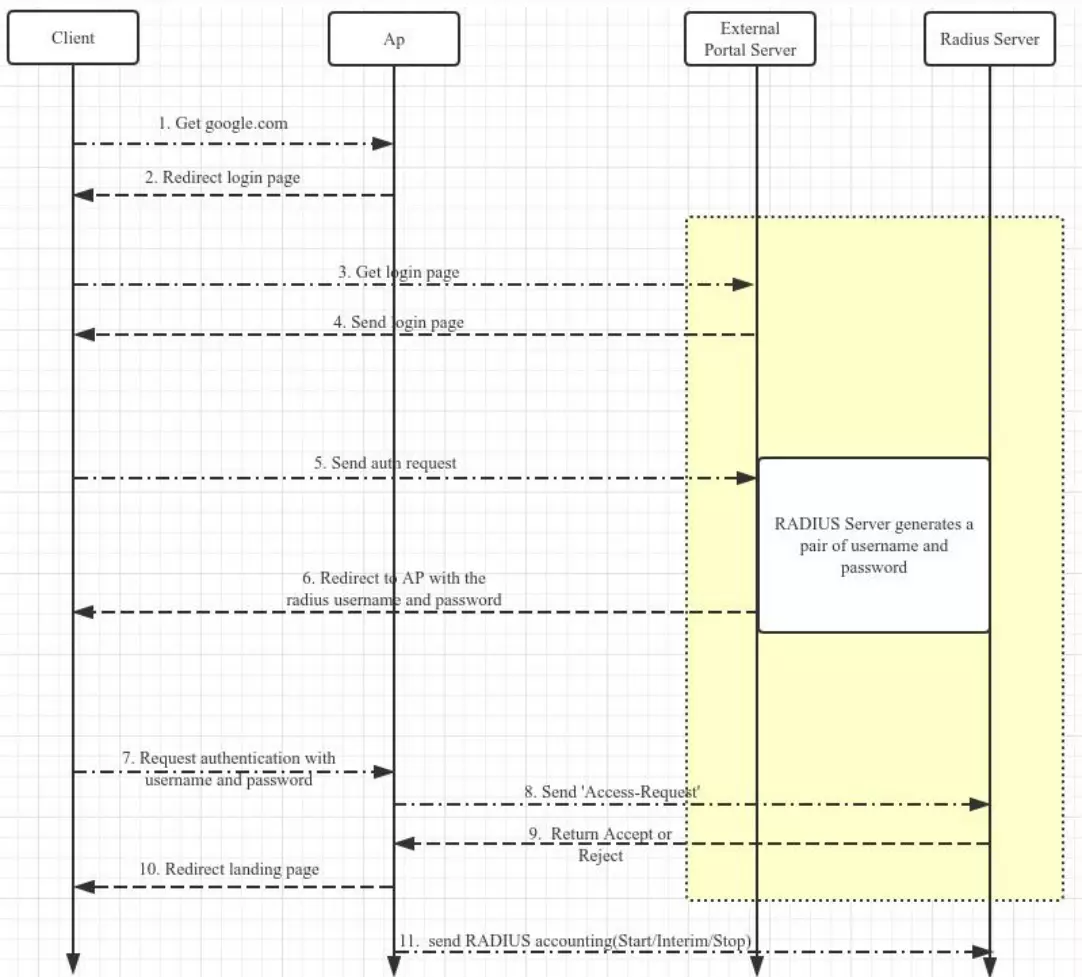
The following diagram illustrates the data interaction in the authorization process:
Detailed Process Explanation
The following diagram illustrates the communication flow between a client, access point (AP), external portal server, and RADIUS server during the login and authentication process.
- Client Requests Access: The client (e.g., phone or laptop) attempts to access a website such as google.com.
- Redirection to Login Page: The AP intercepts the request and redirects the client to a login page instead of the intended site.
- Login Page Fetching: The client requests the login page from the AP, typically hosted on an external portal server.
- Sending Login Information: Once the login page is displayed, the client submits login credentials (e.g., username/password).
- Sending Authentication Request: The AP forwards the login request to the external portal server, which in turn communicates with the RADIUS server.
- RADIUS Generates Credentials: The RADIUS server validates the credentials, generates or verifies a username and password, and sends a response.
- Authenticating the Client: The AP uses the received credentials to authenticate the client with the RADIUS server.
- Access Request Sent to RADIUS: The AP sends an “Access-Request” to the RADIUS server, requesting authorization for the client.
- Authentication Result: The RADIUS server responds with either “Access-Accept” (approved) or “Access-Reject” (denied).
- Redirecting to the Landing Page: Upon successful authentication, the client is redirected to a final landing page, which could be the originally requested page or a custom success page.
- RADIUS Accounting: The AP sends session data (e.g., session start, stop, or interim updates) to the RADIUS server to track client activity, including login time, connection duration, and logout time.
Login Page Fetching (step 3)
In this step, configure your web server and specify the Splash Page URL within the GCC6000 series devices or the GDMS Networking cloud platform.
For example: under GCC6000 series, Navigate to Network Nodes -> Captive Portal -> Policy -> Add.
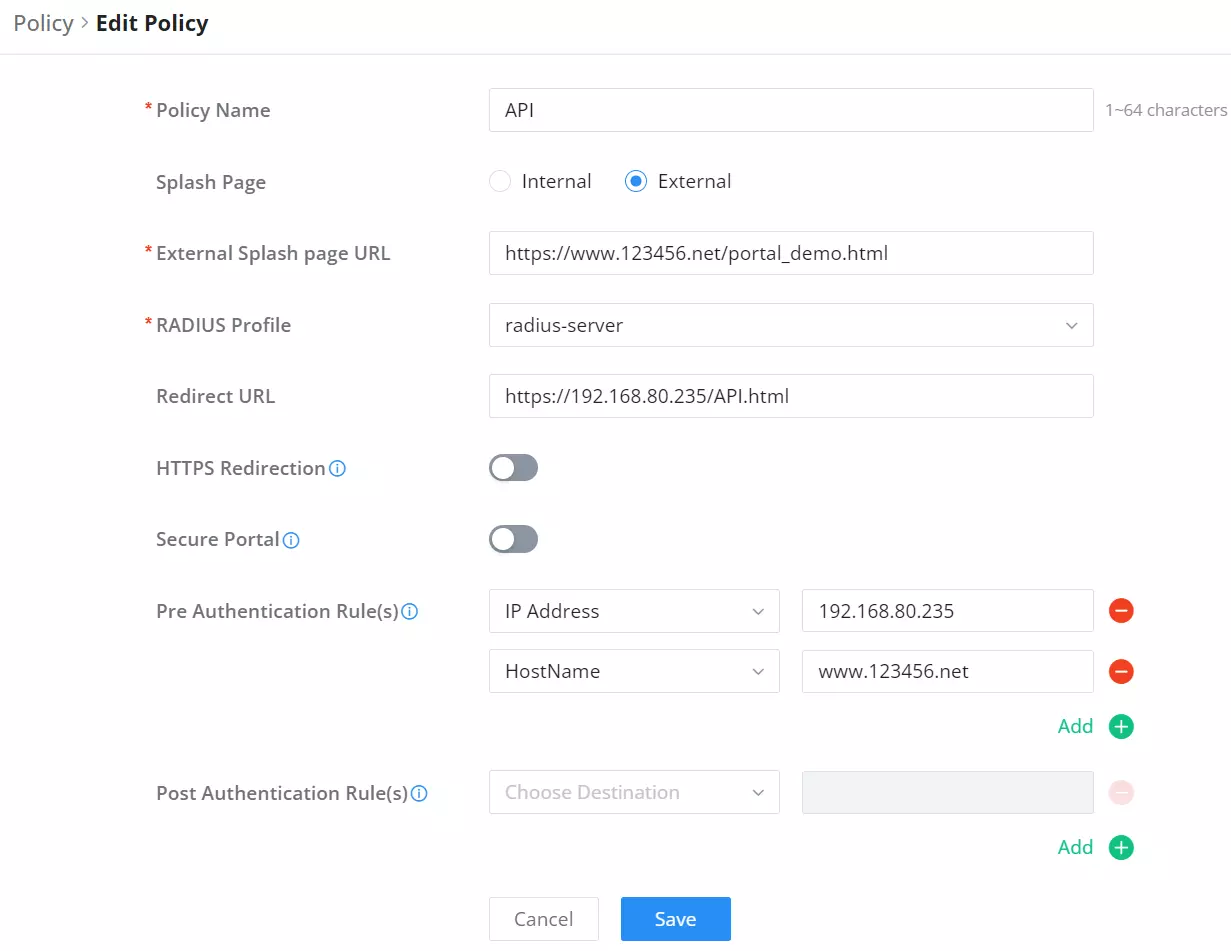
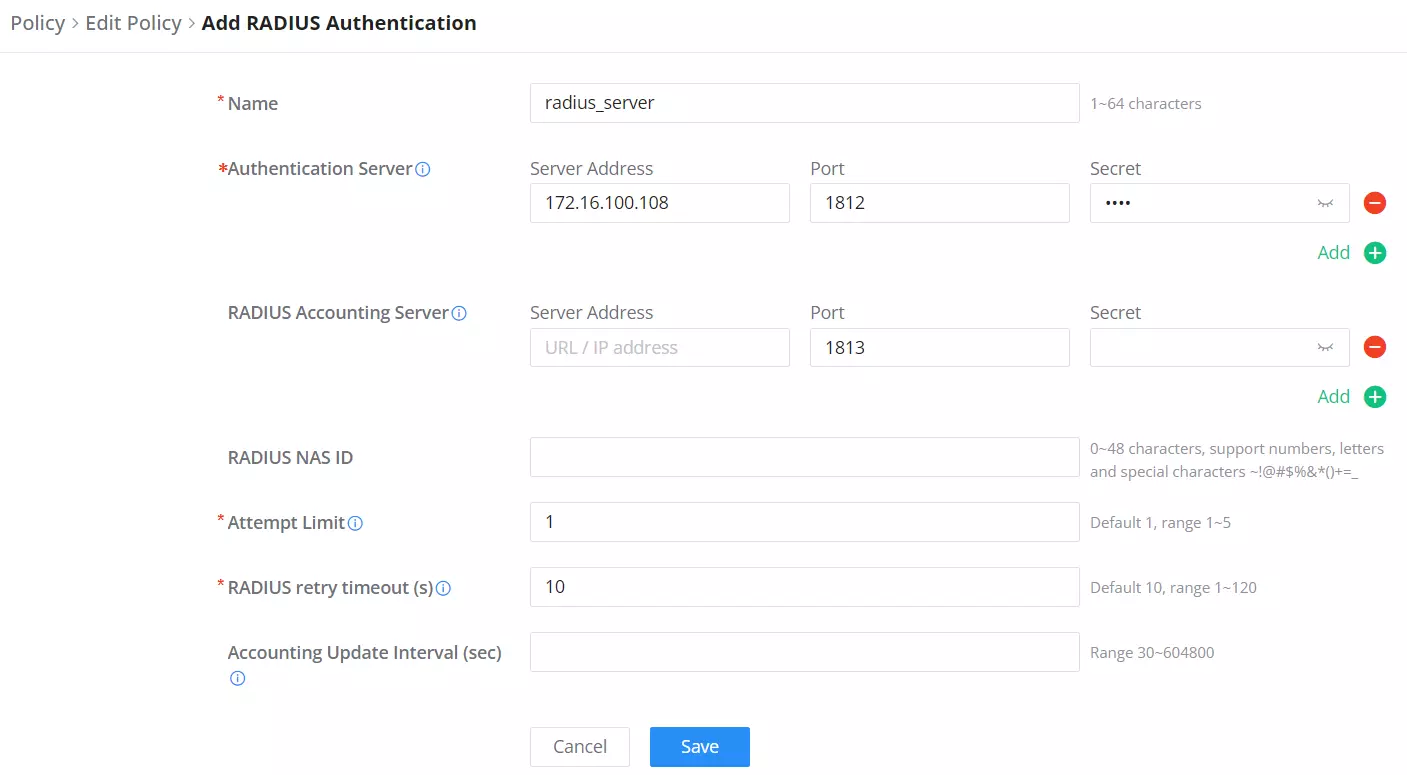
You can select an existing RADIUS profile or add a new one under the “RADIUS Profile” section.
In Step 2, the GCC/AP sends a redirect page to the client and prompts them to submit a corresponding request. The request format is as follows:
http://www.123456.net/access.php?login_url=<LOGIN_URL>&ap_mac=<AP_MAC>&client_mac=<CLIENT_MAC>&orig_url=<ORIG_URL>&ssid=<SSID>Example URL Request:
http://www.123456.net/portal_demo.html?login_url=http://192.168.1.2:8080/gwn_login&ap_mac=AA-BB-CC-DD-EE-FF&client_mac=11-22-33-44-55-66&orig_url=http://www.google.com&ssid=GWNWiFiVariable | Required | Meaning |
LOGIN_URL | Yes | URL for end user device to login AP |
AP_MAC | Yes | The MAC of the AP. e.g. AA-BB-CC-DD-EE-FF |
CLIENT_MAC | Yes | The MAC of the client device. e.g. 11-22-33-44-55-66 |
ORIG_URL | No | The original URL that the client tried to access |
SSID | Yes | The SSID the user connected to |
Request Parameter Definitions
Sending Authentication Request (step 5)
At this stage, the client interacts with the portal’s login page to submit an authentication request. This request may include various login methods, such as:
- Login with Facebook
- Login with Twitter
- Custom login methods
Important: At this point, the GCC/AP has not yet granted the client full access to network resources. Therefore, it is crucial to configure Pre Authentication Rule(s) to allow access to specific websites or services (e.g., Facebook, Twitter) before full network access is permitted.
RADIUS Generates Credentials (step 6)
Once the External Portal Server successfully authenticates the client, it requests the RADIUS server to generate a temporary set of credentials (username and password) for the client. These credentials allow the AP to grant the client network access.
The server responds with an HTTP redirect URL containing the generated username and password. The URL format should be structured as follows:
http://<LOGIN_URL>?username=<USERNAME>&password=<PASSWORD>&redirect=<REDIRECT>Parameters:
Variable | Required | Meaning |
LOGIN_URL | Yes | The AP login URL obtained from Step 3 |
USERNAME | Yes | A RADIUS username generated by the gateway for the client. Typically a short-term, temporary username. |
PASSWORD | Yes | The RADIUS password associated with the user |
REDIRECT | No | The URL the client is redirected to after successful authentication. If not configured, the default ‘Redirect URL’ in GCC settings will be used. |
SSID | Yes | The SSID to which the user is connected. |
Required Parameters for Authentication via RADIUS
Example Redirect URL:
http://192.168.1.2:8080/gwn_login?username=gwn@gwn&password=password&redirect=http://google.comAccess Request Sent to RADIUS (step 8)
After receiving the temporary credentials, the AP sends an “Access-Request” to the RADIUS server to authenticate the client.
The “Access-Request” includes the following attributes:
Attribute | Value |
User-Name | A RADIUS username to be used by the gateway for the station that performed the request. Likely a short-term, ephemeral username. |
User-Password | The RADIUS password of the user USER. |
NAS-IP-Address | LAN-side IP address of the gateway. |
NAS-Port | Appropriate value. |
NAS-Port-Type | Appropriate value, most likely Wireless-802.11. |
Called-Station-Id | MAC of AP, i.e., AA-BB-CC-DD-EE-FF. |
Calling-Station-Id | MAC of the end user device, i.e., 00-11-22-33-44-55. |
Attributes Included in the Access-Request Sent to the RADIUS Server
Authentication Result (step 9)
After processing the Access-Request, the RADIUS server responds with either Access-Accept or Access-Reject:
- Access-Accept: When the Access-Accept response is received, the AP confirms that the user’s credentials have been validated by the RADIUS server. The user is then granted access to the network resources, and a redirect URL is presented. The user will either be directed to their originally requested website or a custom landing page defined by the system.
- Access-Reject: When the Access-Reject response is received, the user’s authentication attempt is denied, and access to the network is blocked. The GCC/AP will redirect the user back to the login page on the external captive portal. At this stage, the user can retry their credentials or choose a different login method if available, such as using a simple password, social login (e.g., Facebook), or RADIUS-based authentication
The Access-Accept response may include the following optional attributes. These parameters will define the user’s session behavior, including bandwidth limits and session duration:
Attribute | Value |
Session-Timeout | The time period the session should last. |
WISPr-Bandwidth-Max-Up | The maximum upstream rate of the end user device. |
WISPr-Bandwidth-Max-Down | The maximum downstream rate of the end user device. |
Acct-Interim-Interval | The sending interval of the accounting package. |
Optional Attributes for Access-Accept Response
RADIUS Accounting (step 11)
RADIUS accounting tracks the session details of the client. The AP sends different accounting packets to the RADIUS server at various stages of the session. These include:
- Start Package: Sent when a session begins.
- Interim Update Package: Sent at regular intervals during the session to update session status.
- Stop Package: Sent when a session ends.
All accounting packages must include the following attributes:
Attribute | Value |
User-Name | The value of the USER field obtained from the Captive Portal via the redirect URL. |
Acct-Session-Id | An opaque, unique string identifying the session. |
NAS-IP-Address | LAN-side IP address of the gateway. |
NAS-Port | Appropriate value. |
NAS-Port-Type | Appropriate value, most likely Wireless-802.11. |
Called-Station-Id | MAC address of AP, i.e., AA-BB-CC-DD-EE-FF. |
Calling-Station-Id | MAC address of the end user device, i.e., 00-11-22-33-44-55. |
Framed-IP-Address | IP address of the end user device. |
Event-Timestamp | Absolute time at which the data sent in this message has been collected. |
Required Attributes for RADIUS Accounting Packages
The following attributes are included based on the package type:
Start Package
Attribute | Value |
Acct-Status-Type | Value is “Start“ |
RADIUS Accounting – Start Package
Interim Update Package
Attribute | Value |
Acct-Status-Type | Value is ‘Interim-Update’ |
Acct-Input-Packets | Number of network-layer frames received from the station since the beginning of the session. |
Acct-Output-Packets | Number of bytes received from the station since the beginning of the session. |
Acct-Input-Octets | Number of network-layer frames sent to the station since the beginning of the session. |
Acct-Output-Octets | Number of bytes sent to the station since the beginning of the session. |
Acct-Session-Time | Amount of time that has passed since the beginning of the session. |
RADIUS Accounting – Interim Update Package
Stop Package
Attribute | Value |
Acct-Status-Type | Value is ‘Stop’ |
Acct-Terminate-Cause | Appropriate value, e.g., Session-Timeout. |
Acct-Input-Packets | Number of network-layer frames received from the station since the beginning of the session. |
Acct-Output-Packets | Number of bytes received from the station since the beginning of the session. |
Acct-Input-Octets | Number of network-layer frames sent to the station since the beginning of the session. |
Acct-Output-Octets | Number of bytes sent to the station since the beginning of the session. |
Acct-Session-Time | Amount of time that has passed since the beginning of the session. |
RADIUS Accounting – Stop Package