
Introduction
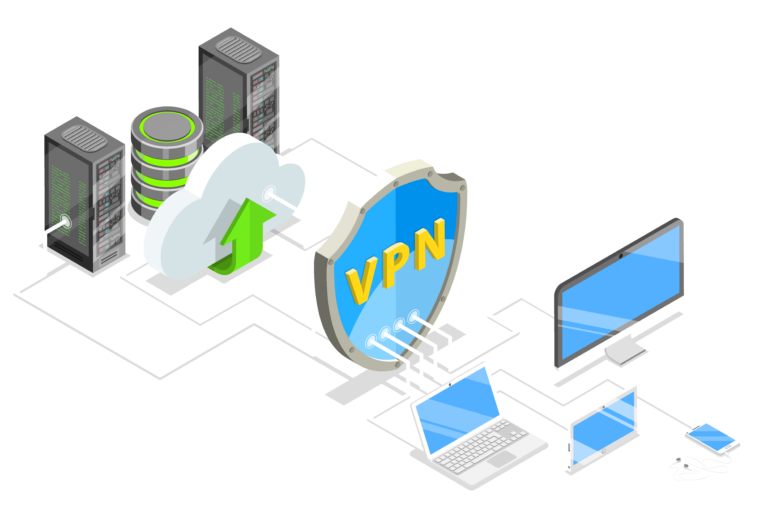
A Virtual Private Network (VPN) is a powerful tool used to create secure, encrypted connections over shared or public networks, enabling users to safely exchange data as if their devices were directly connected to a private network. VPNs are crucial for ensuring security, data integrity, and confidentiality, especially when the underlying network infrastructure is not inherently secure.
Grandstream’s GWN series of routers and GCC Convergence Devices support a wide range of VPN protocols, allowing users to implement various VPN configurations tailored to their specific needs. This guide provides an overview of all supported VPN types and links to detailed guides for setting up each type of VPN.
Supported Devices
The following Grandstream devices support VPN configurations:
Device Series | Models Supported |
GWN70x2 (Wireless Routers) | GWN7052, GWN7052F, GWN7062, GWN7062E, GWN7062ET, GWN7062M |
GWN70xx (Wired Routers) | GWN7001, GWN7002, GWN7003 |
GCC601x (Convergence Devices) | GCC6010W, GCC6010, GCC6011 |
GCC602x (Convergence Devices) | GCC6020, GCC6021 |
Supported Devices
VPN Protocols Overview
Grandstream devices support multiple VPN protocols, each offering unique advantages. Below is an overview of each VPN type along with links to detailed configuration guides.
WireGuard®
WireGuard® is a modern, lightweight VPN protocol designed for simplicity, speed, and security. It is known for its high performance and ease of configuration. WireGuard can be used for both site-to-site and client-to-server VPN configurations.
WireGuard is ideal for users seeking a fast and secure VPN solution that is easy to set up and maintain.
OpenVPN®
OpenVPN® is a highly configurable and secure VPN protocol that supports both site-to-site and client-to-server VPN configurations. It is widely used in enterprise environments for its robust security features and flexibility.
OpenVPN® is suitable for users who need a customizable VPN solution that can adapt to various network environments.
L2TP
L2TP (Layer 2 Tunneling Protocol) is often paired with IPSec for enhanced security. It is primarily used for client-to-server VPN configurations, where the router acts as a client connecting to an L2TP server.
L2TP is commonly used in environments where simple, secure remote access is required.
PPTP
PPTP (Point-to-Point Tunneling Protocol) is an older VPN protocol that is easy to set up but is considered less secure than modern alternatives. It is typically used for client-to-server configurations where the router acts as a client connecting to a PPTP server.
PPTP is suitable for scenarios where ease of setup is a priority, but it should be used with caution in environments requiring high security.
IPSec
IPSec (Internet Protocol Security) is a suite of protocols used to secure IP communications by authenticating and encrypting each IP packet in a communication session. It is widely used for both site-to-site and client-to-site VPN configurations, providing robust security.
IPSec is ideal for scenarios requiring strong encryption and secure connections between networks or between individual clients and a network.
Configuring L2TP and PPTP Under WAN Settings
Grandstream routers also offer the option to configure L2TP and PPTP directly under the WAN settings. This configuration allows all traffic through a WAN interface to be routed through a VPN tunnel, providing an additional layer of security.
When you configure L2TP or PPTP under the WAN interface, all outgoing and incoming traffic through this WAN interface will be encrypted and transmitted through the VPN tunnel. This is particularly useful for connecting branch offices to a central office securely or for ensuring all traffic from a specific WAN interface is protected.
To configure L2TP or PPTP under the WAN settings:
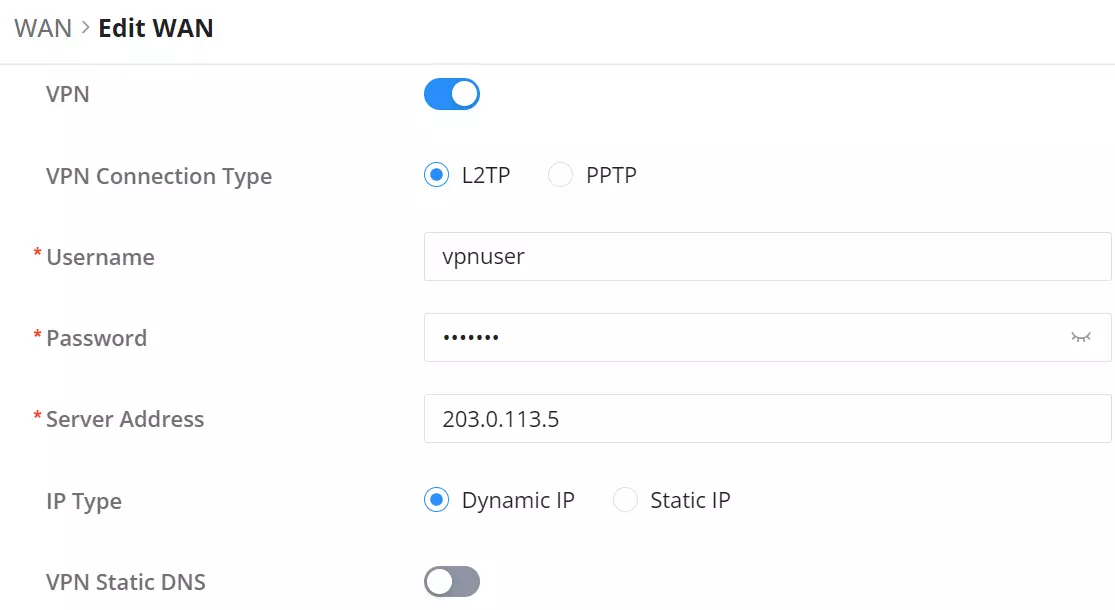
- Navigate to Network Settings → WAN in the router’s web interface.
- Select the WAN interface you want to configure and click Edit.
- Toggle the VPN option to On.
- Select the desired VPN Connection Type (L2TP or PPTP).
- Enter the necessary VPN credentials, such as Username, Password, and Server Address.
- Choose the IP type (Dynamic or Static) and configure any additional settings as needed.
- Dynamic IP: The IP address is automatically assigned by the VPN server and may change with each connection. This option is simpler to configure and is often used when the IP address does not need to remain constant.
- Static IP: The IP address is manually set and remains constant every time the connection is established. This option is useful for scenarios where a fixed IP address is required, such as for accessing specific services or resources that rely on IP-based filtering or access controls.
- Click Save to apply the configuration.
For more detailed instructions on WAN configuration, including VPN setup, please visit:
Conclusion
VPNs are a critical component of network security, enabling secure and private communication over public networks. Grandstream’s GWN series and GCC Convergence Devices offer robust support for various VPN protocols, allowing users to implement secure connections that meet their specific needs. For detailed setup instructions, refer to the specific guides linked above.
By carefully selecting and configuring the appropriate VPN type, you can ensure that your network communications are secure and reliable.
© 2002-2023 OpenVPN Inc. OpenVPN is a registered trademark of OpenVPN Inc.
© Copyright 2015-2022 Jason A. Donenfeld. All Rights Reserved. “WireGuard” and the “WireGuard” logo are registered trademarks of Jason A. Donenfeld.