


Overview
The GWN7670 is a next-generation enterprise-grade Wi-Fi 7 access point designed for SMB environments. It offers 2×2:2 MIMO technology on the 2.4GHz band and 2×2:2 MIMO on the 5GHz band, along with a sophisticated antenna design. Wi-Fi 7’s 4096-QAM modulation delivers significant increases in data transfer rates, while MLO technology optimizes spectrum resource utilization to ensure a smooth experience for every user. To facilitate easy installation and management, the GWN7670 inherits the controller-less distributed network management design from the GWN766x series, with the controller embedded within the product’s Web user interface. The GWN7670 is also supported by GDMS Networking and GWN Manager, Grandstream’s cloud and on-premise Wi-Fi management platforms. It is ideal for voice-over-Wi-Fi deployments and offers seamless integration with Grandstream’s Wi-Fi-capable IP phones. With support for advanced QoS, low-latency real-time applications, mesh networks, captive portals, Bluetooth location services with BLE 5.3, 256 concurrent clients per AP, and 2x 2.5 Gigabit network ports (one supporting PoE+), the GWN7670 is an ideal for medium-sized wireless network deployments with medium-to-high user density.
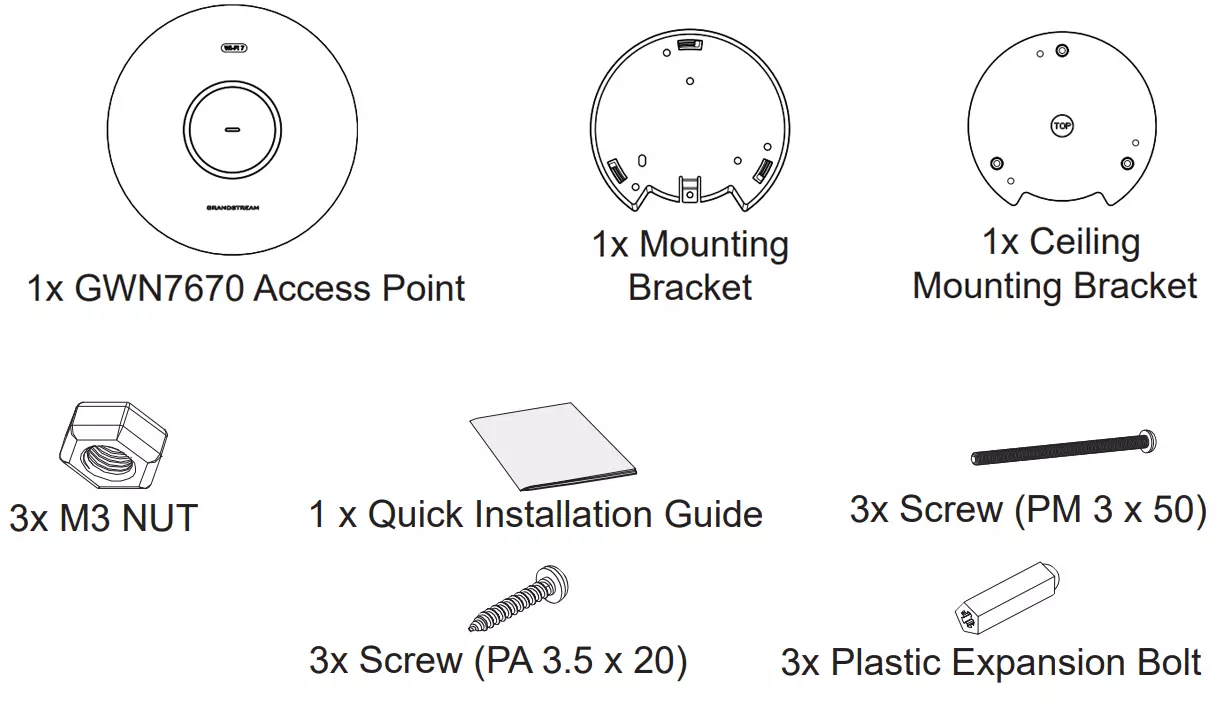
Package Contents
GWN7670 Ports
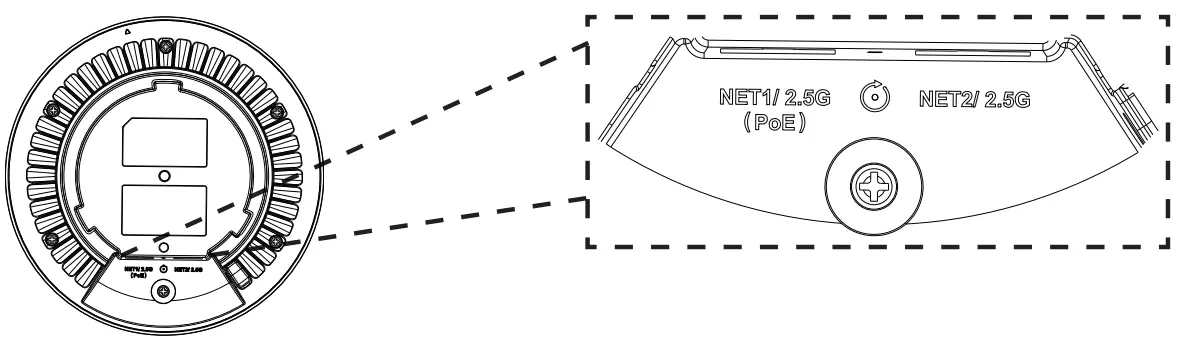
Port | Description |
NET1/2.5G (PoE) | Ethernet RJ45 port (2.5Gbps) supporting PoE+. |
NET2/2.5G | Ethernet RJ45 port (2.5Gbps). |
RESET | Factory reset button. |
GWN7670 Ports
Powering and Connecting the GWN7670
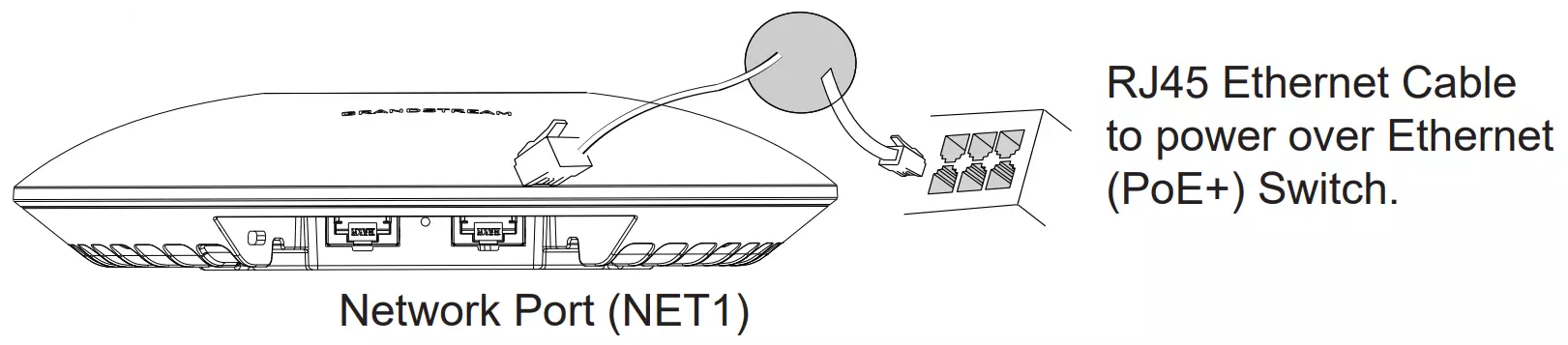
GWN7670 can be powered on using PoE/PoE+ switch using the following steps:
Step 1: Plug a RJ45 Ethernet cable into the network port (NET1) of GWN7670.
Step 2: Plug the other end into the uplink port of the power over the Ethernet (PoE+) switch.
Hardware Installation
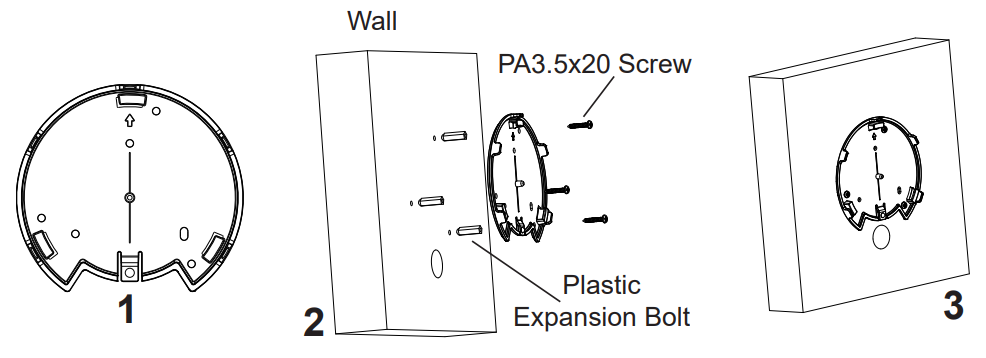
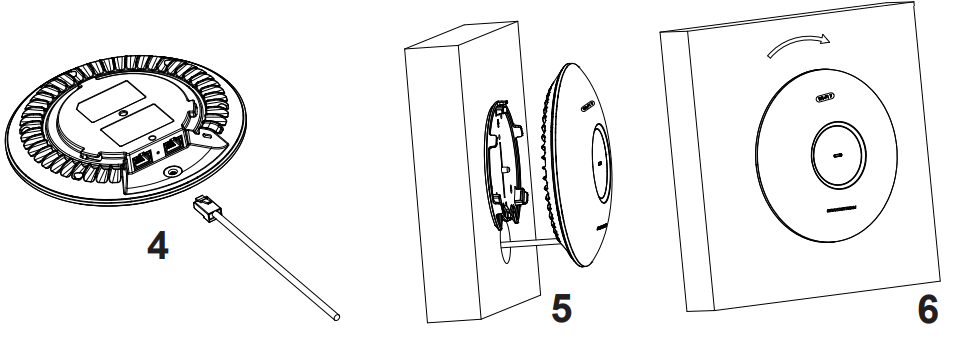
GWN7670 can be mounted on the wall or ceiling, Please refer to the following steps for the appropriate installation.
Wall Mount
- Connect the Ethernet cable (RJ45) to the correct ports of your GWN7670.
- Align the arrow on the GWN7670 AP with the arrow on the locking tab of the mounting bracket and ensure that your GWN is firmly seated on the mounting bracket.
- Turn the GWN clockwise until it locks into place and fits the locking tab.
- Connect the power cable and the Ethernet cable (RJ45) to the correct ports of your GWN7670.
- Align the arrow on the GWN7670 AP with the arrow on the locking tab of the mounting bracket and ensure that your GWN7670 is firmly seated on the mounting bracket.
- Turn the GWN7670 clockwise until it locks into place and fits the locking tab.
Ceiling Mount
- Remove the ceiling tile.
- Place the ceiling backing plate in the center of the ceiling tile and mark the mounting screw holes (screw holes DIA 5.5mm, reticle hole DIA 25mm).
- Insert the screws through the mounting bracket.
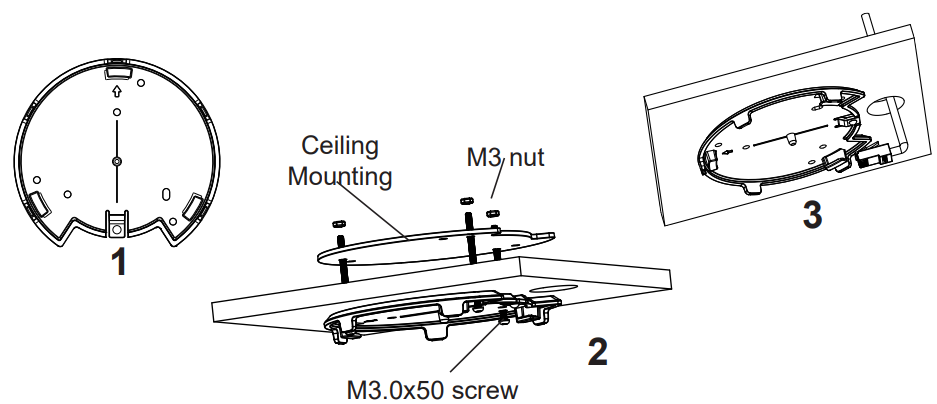
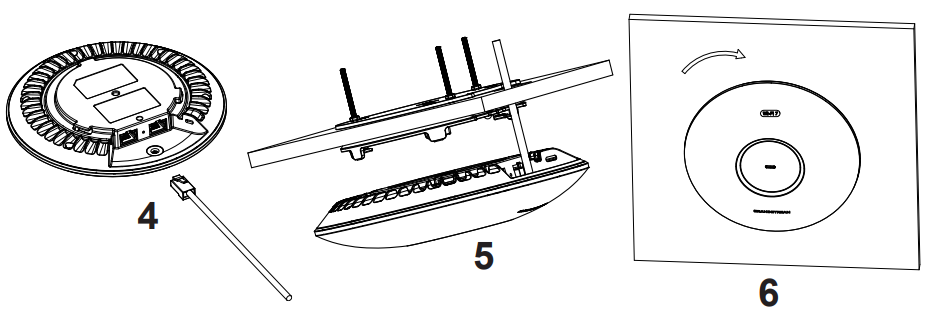
- Connect the Ethernet cable (RJ45) to the correct ports of your GWN7670.
- Align the arrow on the GWN7670 with the arrow on the locking tab of the mounting bracket and ensure that your GWN is firmly seated on the mounting bracket and connect the network and power cables.
- Turn the GWN clockwise until it locks into place and fits the locking tab.
CONNECT TO GWN7670 DEFAULT Wi-Fi NETWORK
GWN7670 can be used as a standalone access point out of the box, or after a factory reset with Wi-Fi enabled by default.
After powering the GWN7670 and connecting it to the network, GWN7670 will broadcast a default SSID based on its MAC address GWN[MAC’s last 6 digits], and a random password.
ACCESSING THE CONFIGURATION INTERFACE
A computer connected to the GWN7670’s SSID, or to the same network as the GWN7670 can discover and access its configuration interface using one of the below methods:
Method 1: Discover GWN7670 using its MAC Address
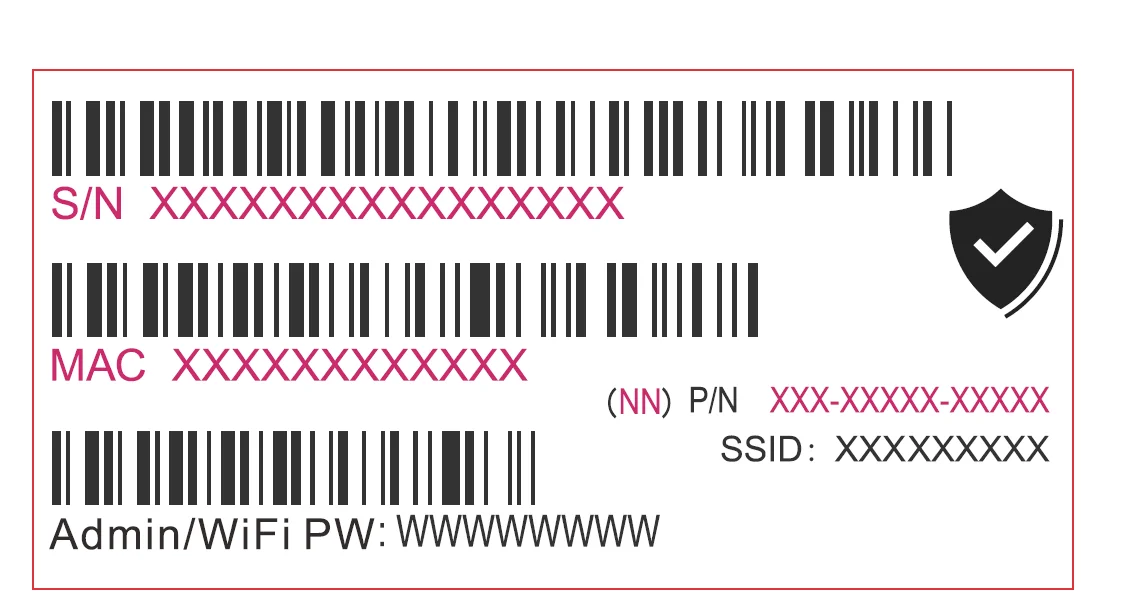
- Locate the MAC address on the MAC tag of the unit, which is on the underside of the device, or on the package.
- From a computer connected to the same network as the GWN7670, type in the following address using GWN7670’s MAC address on your browser: https://gwn_<mac>.local
Example: If a GWN7670 has the MAC address C0:74:AD:8B:4E:28, this unit can be accessed by typing https://gwn_c074ad8b4e28.local on the browser.
Method 2: Discover GWN7670 using GWN Discovery Tool
- Download and install GWN Discovery Tool from the following link:
https://www.grandstream.com/tools/GWNDiscoveryTool.zip - Open the GWN DiscoveryTool, and click on Scan.
- The tool will discover all GWN76XX Access Points connected on the network showing their MAC and IP addresses.
- Click on Manage Device to be redirected directly to the GWN7670’s configuration interface, or type in manually the displayed IP address on your browser.
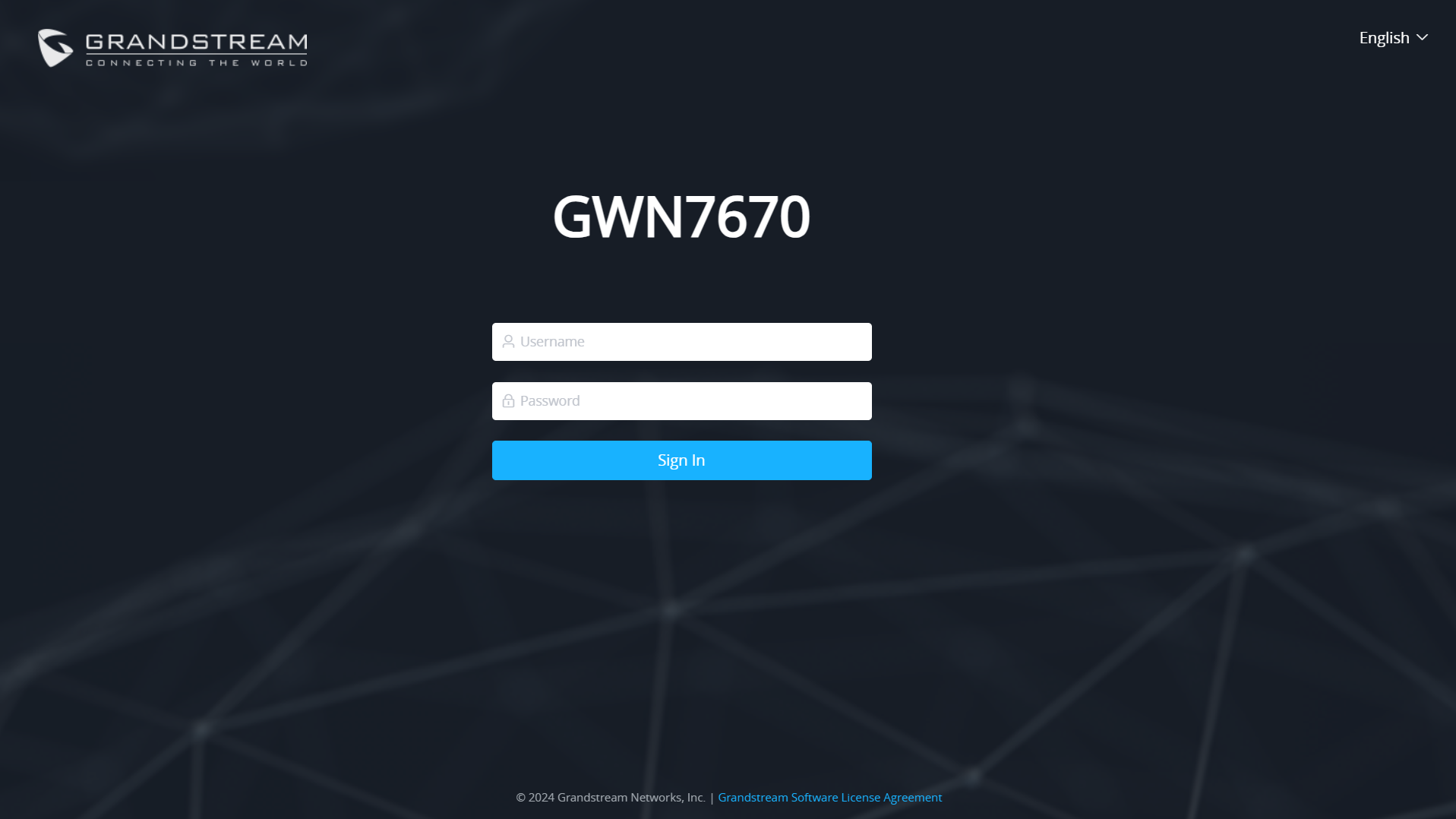
Enter username and password to log in. (The default administrator username is “admin” and the default random password can be found on the sticker on the GWN7670).
Refer to online documents and FAQ for more detailed information:
https://www.grandstream.com/our-products

For Certification, Warranty, and RMA information, please visit www.grandstream.com