Introduction
The GWN7672WM is a tri-band Wi-Fi 7 wall-mounted access point with BE11000, ideal for small-to-medium-sized businesses to build next-generation Wi-Fi networks. It has a stylish appearance and a sprayable shell, which easily matches various decoration styles and perfectly integrates into the space. It offers tri-band 2×2:2 MU-MIMO with DL/UL OFDMA technology and a sophisticated antenna design for maximum network throughput and expanded Wi-Fi coverage range. It also improves bandwidth utilization and anti-interference ability with Multi-RU and Preamble Puncturing technology. With 4096 QAM modulation, Wi-Fi 7 achieves a significant increase in data transfer rates. MLO technology optimizes spectrum resource utilization to ensure a smooth experience for every user. To ensure easy installation and management, the GWN7672WM uses a controller-less distributed network management design in which the controller is embedded within the product’s Web user interface. The GWN7672WM is also supported by GDMS Networking and GWN Manager, Grandstream’s cloud and on-premise Wi-Fi management platform. It is the ideal Wi-Fi AP for voice-over-Wi-Fi deployments and offers a seamless connection with Grandstream’s Wi-Fi capable IP phones. With support for advanced QoS, low-latency real- time applications, mesh networks, captive portals, BT location with BLE 5.3, 384 concurrent clients per AP and 1 x 2.5 Gigabit network ports with PoE+, GWN7672WM is an ideal Wi-Fi access point for medium wireless network deployments with medium-to-high user density.
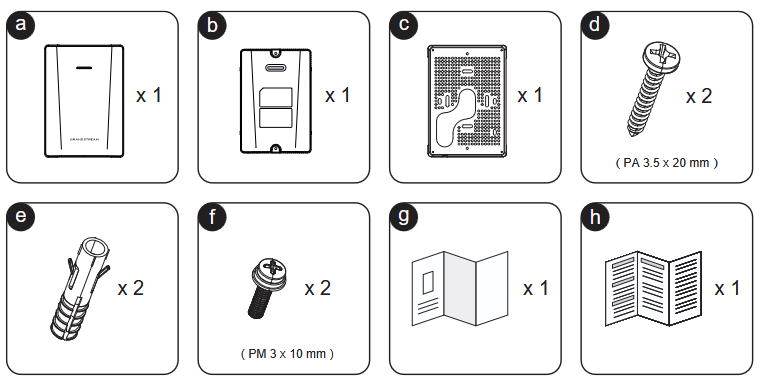
Package Content
| Letter | Package Content | Quantity |
|---|---|---|
| a | GWN7672WM | 1 × |
| b | Mounting Bracket | 1 × |
| c | Rear Cover | 1 × |
| d | PA 3.5 × 20 mm Screws | 2 × |
| e | Screw Anchors | 2 × |
| f | PM 3 × 10 mm Screws | 2 × |
| g | Quick Installation Guide | 1 × |
| h | Regulatory Paper | 1 × |
Wall Mount
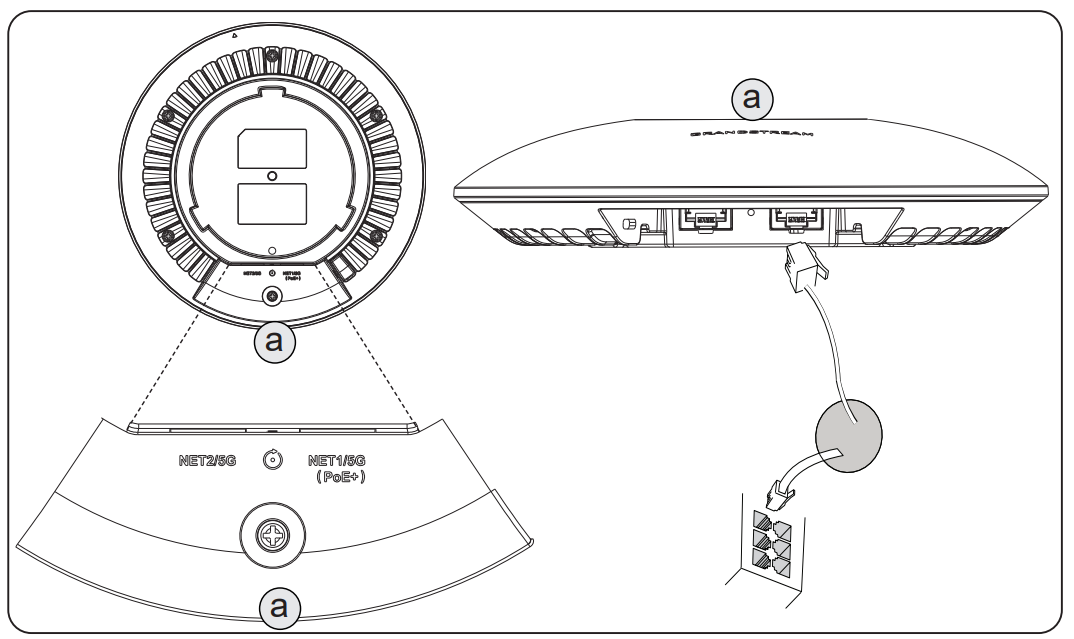
Powering on The Device
Connect an Ethernet cable to the PoE+ port from a PoE+ capable switch (or injector).
The LEDs will begin to light up to indicate booting.
Accessing the WebUI
- Connect Your PC to the same network as the GWN7672WM.
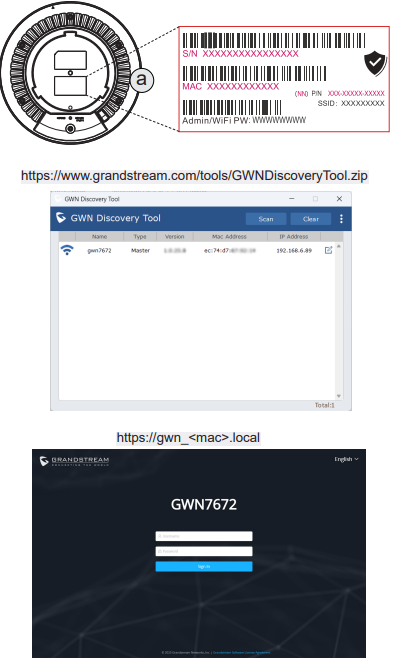
- Open the Browser and go to:
https://gwn_<MAC>.local- Replace
<MAC>with the last 6 characters of the device’s MAC address (found on the label).
- Log in using default credentials (check device label).
- Change Password on first login as prompted.
Accessing the Cloud
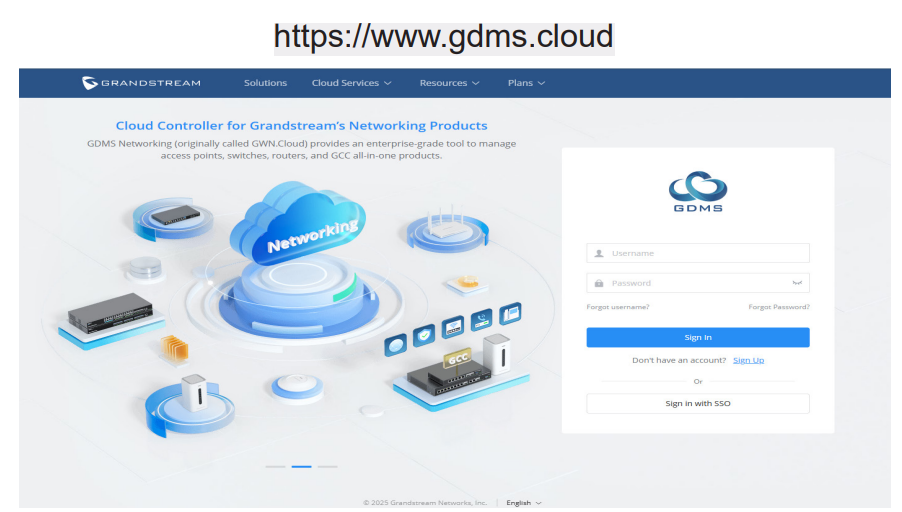
- Visit: https://www.gdms.cloud
- Create/Login to your GDMS account.
- Add Device:
- Click “Add Device”.
- Enter the MAC address and Device Password (both on the label).
- The device will now appear under your cloud dashboard for remote management.