Introduction
The GWN7674 is a new generation enterprise-grade Wi-Fi 7 access point with BE21000, ideal for medium sized businesses and large enterprises to build next-generation Wi-Fi networks. It offers 4×4:4 MU-MIMO on 5G and 6G band, 2×2:2 MU-MIMO on 2.4G band with DL/UL Enhanced OFDMA technology and a sophisticated antenna design for maximum network throughput and expanded Wi-Fi coverage range. It is equipped with an independent scanning radio module, that can monitor the wireless quality in the environment and the signal status of terminal device in real time along with supporting seamless intelligent roaming, and fine-tune wireless resource management to provide stable wireless data services for terminals. It supports intelligent QoS strategies to ensure network priority for key business applications with a high-performance CPU. GWN7674 is also equipped with advanced Wi-Fi 7 technology such as Multi-RU, Preamble Puncturing technology, 4096 QAM modulation and MLO technology to ensure a smooth experience for every user. To ensure easy installation and management, the GWN7674 uses a controller-less distributed network management design in which the controller is embedded within the product’s Web user interface. The GWN7674 is also supported by GDMS Networking and GWN Manager, Grandstream’s cloud and on-premise Wi-Fi management platform. It is the ideal Wi-Fi AP for voice-over-Wi-Fi deployments and offers a seamless connection with Grandstream’s Wi-Fi capable IP phones. With support for low-latency real- time applications, mesh networks, captive portals, 768 concurrent clients per AP, 1 x 2.5 Gigabit network port and 1 x 10 Gigabit network port with PoE++, GWN7674 is an ideal Wi-Fi access point for medium wireless network deployments with medium-to-high user density.
Package Content
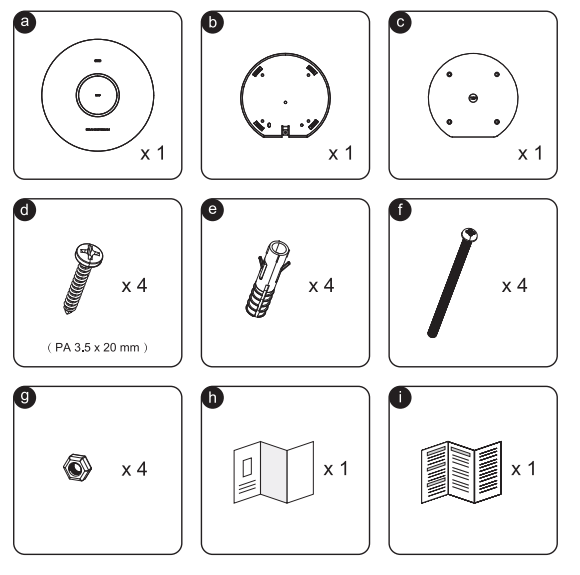
a | GWN7674 |
b | 1x mounting bracket |
c | 1x Ceiling mounting bracket |
d | 4x Screws (PA 3.5 x 20) |
e | 4x Plastic Expansions Bolts |
f | 4x Screws (PM 3 x 50) |
g | 4x M3 NUT |
h | Quick Installation Guide |
i | Regulatory Paper |
Package Content
Powering and Connecting the GWN7674
The GWN7674 provides two Ethernet ports that both support PoE++ (802.3bt) for flexible powering and uplink options.
NET1 / 10G (PoE++)
- Supports 10 Gigabit Ethernet
- Ideal for high-speed uplink, backbone connection, or performance-critical deployments.
NET2 / 2.5G (PoE++)
- Supports 2.5 Gigabit Ethernet
- Suitable for standard enterprise access or when 10G is not available.
To Power and Connect:
- Only one port needs to be connected for power and network access.
- Connect an RJ45 Ethernet cable to either NET1 or NET2.
- Plug the other end into a PoE++ (802.3bt) compliant switch or injector.
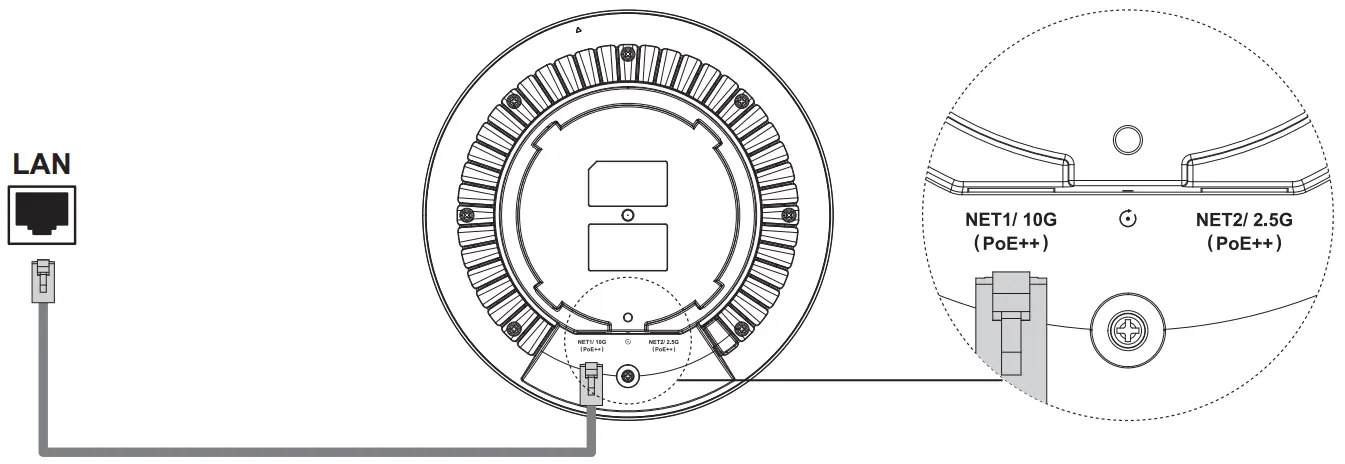
Recommendation: Use NET1 (10G) if your network supports it, to take full advantage of Wi-Fi 7 speed and backhaul performance.
Wall Mounting
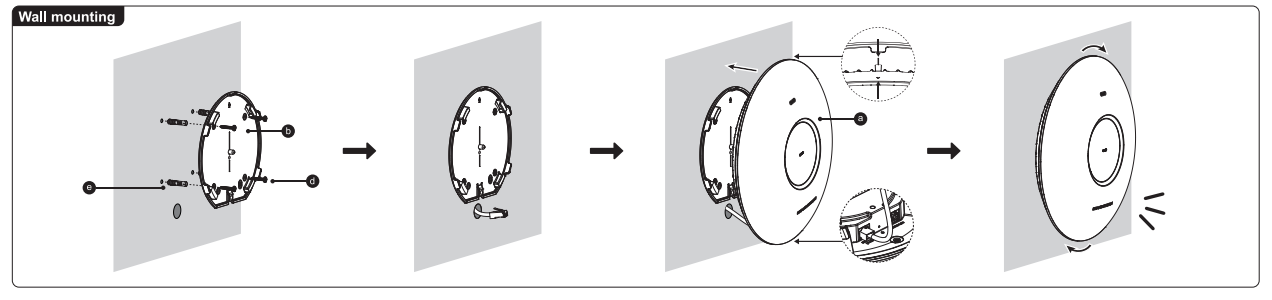
- Connect the Ethernet cable (RJ45) to the correct ports of your GWN7674 .
- Align the arrow on the GWN7674 AP with the arrow on the locking tab of the mounting bracket and ensure that your GWN7674 is firmly seated on the mounting bracket.
- Turn the device clockwise until it locks into place and fits the locking tab.
- Connect the power cable and the Ethernet cable (RJ45) to the correct ports of your GWN7674.
- Align the arrow on the GWN7674 AP with the arrow on the locking tab of the mounting bracket and ensure that your GWN7674 is firmly seated on the mounting bracket.
- Turn the GWN7674 clockwise until it locks into place and fits the locking tab.
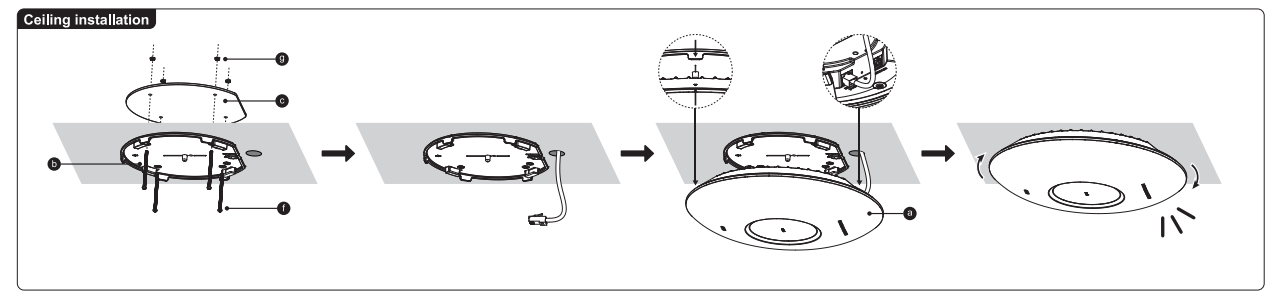
Ceiling Installation
- Remove the ceiling tile.
- Place the ceiling backing plate in the center of the ceiling tile and mark the mounting screw holes (screw holes DIA 5.5mm, reticle hole DIA 25mm).
- Insert the screws through the mounting bracket.
- Connect the Ethernet cable (RJ45) to the correct ports of your GWN7674.
- Align the arrow on the GWN7674 with the arrow on the locking tab of the mounting bracket and ensure that your device is firmly seated on the mounting bracket and connect the network and power cables.
- Turn the device clockwise until it locks into place and fits the locking tab.
Accessing Web Configuration
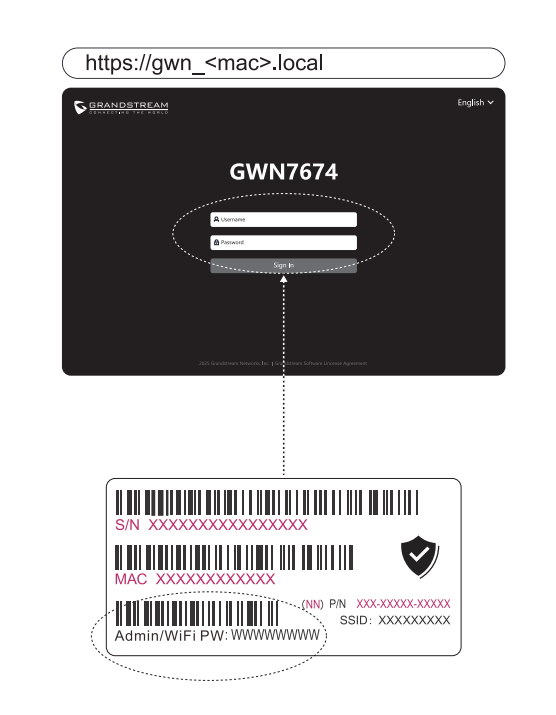
GWN7674 can be used as a standalone access point out of the box, or after a factory reset with Wi-Fi enabled by default.
After powering the GWN7674 and connecting it to the network, GWN7674 will broadcast a default SSID based on its MAC address GWN[MAC’s last 6 digits], and a random password.
Adding the device to the GDMS.Cloud
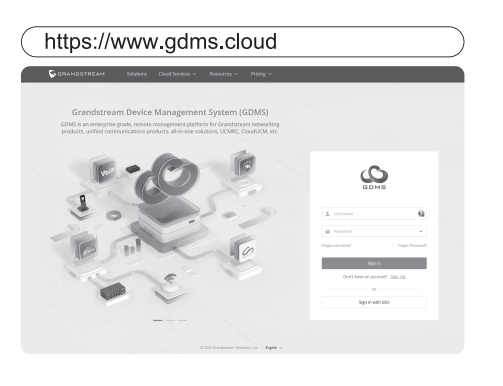
To add the GWN7674 device to the cloud, navigate to the GDMS Networking Cloud by visiting https://www.gdms.cloud. Log in with your GDMS account credentials, then proceed to register and manage your GWN7674 device within the platform.