

INTRODUCTION
The 1+N media cluster feature allows clustering multiple SoftwareUCM instances to expand the number of concurrent calls and meeting participants, in addition to audio/video calls recordings storage.
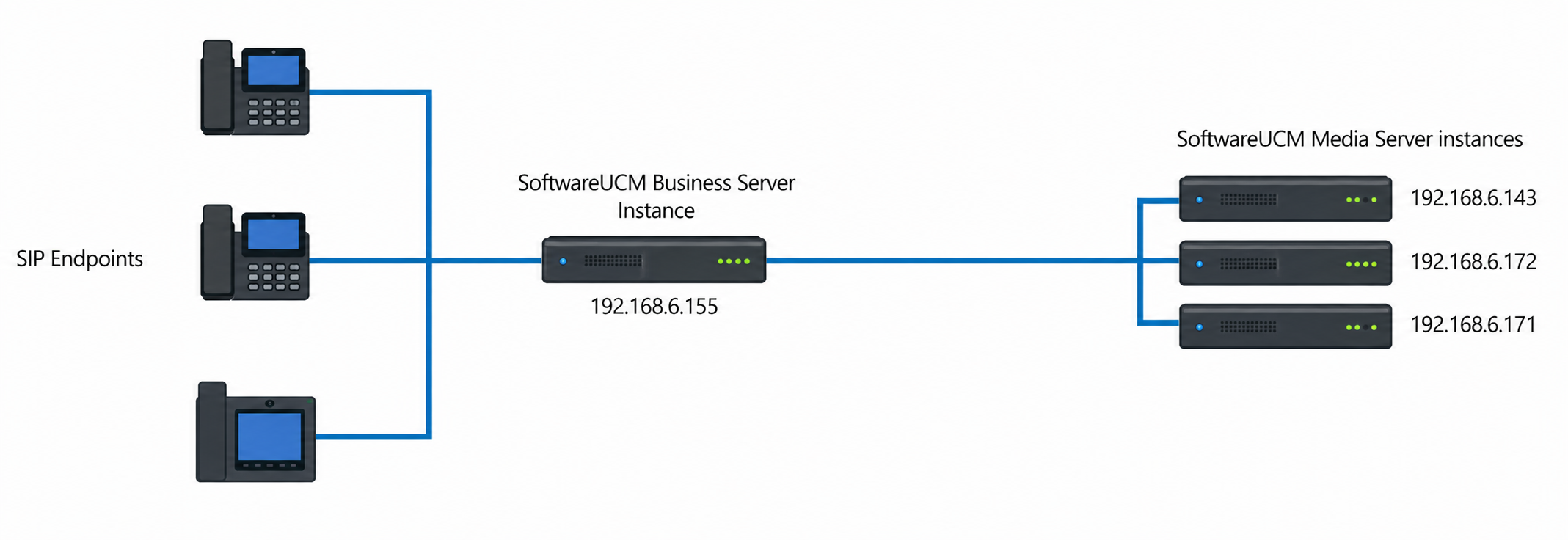
The deployment architecture of this feature consists of one main business server that handles signaling, and at least one other server handling the media traffic. Please see the example for the SoftwareUCM below.
CONFIGURATION STEPS
The cluster configuration consists of two main parts: the business server configuration and the media server(s) configuration.
Business Server
Setting a Static IP address
To ensure the connection to the business server isn’t lost, the user must configure a static IP on the business server.
- For the SoftwareUCM instance that you want to set as the business server:
A static IP can be configured directly in the web UI or reserved on the DHCP server.
- Access the web UI, navigate to System Settings → Network Settings, and then set a static IP on the network interface that is connected to the network where the media servers are hosted.
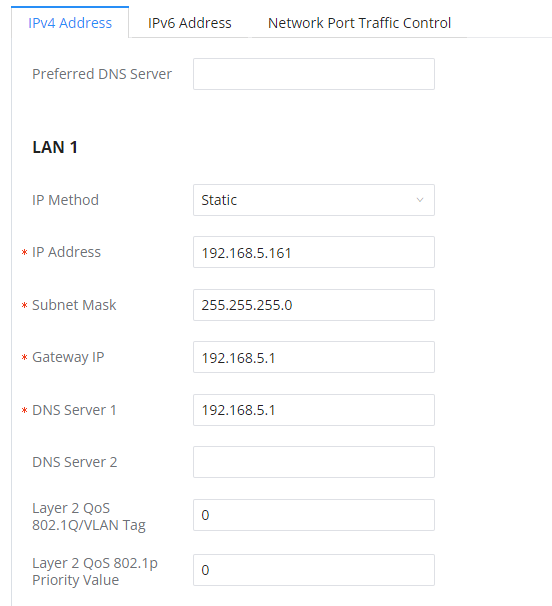
- Click “Save” to save the configuration.
Configuring the Cluster Settings
To configure the SoftwareUCM instance as the Business Server, please follow the steps below:
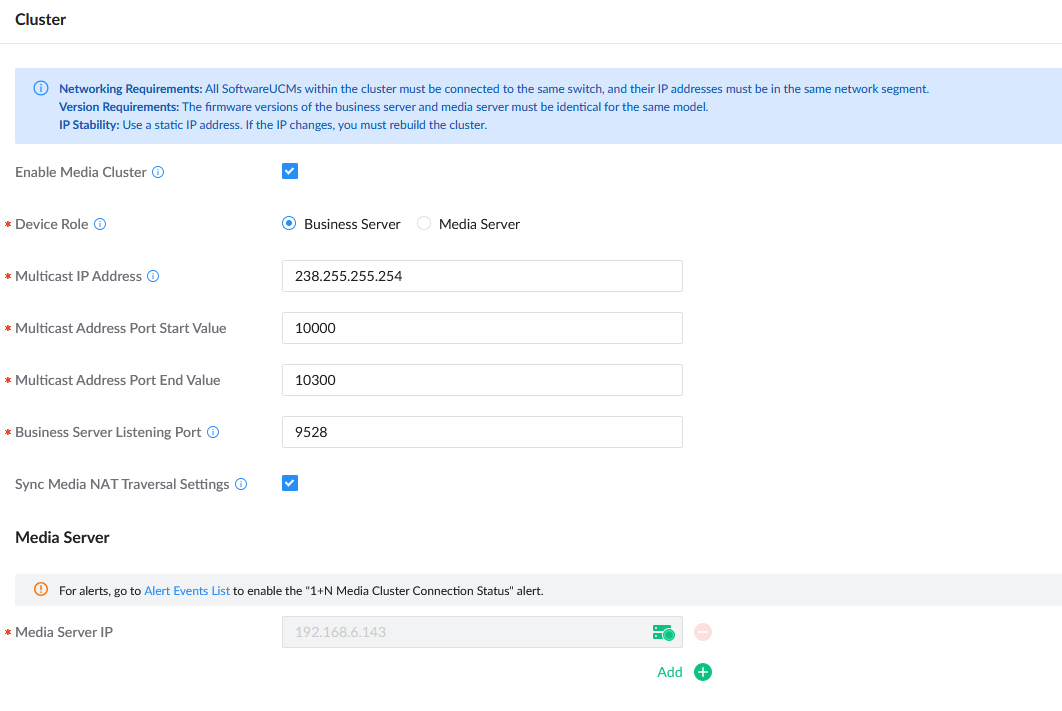
- Navigate to System Settings → Cluster, then tick the option Enable Media Cluster.
- Choose “Business Server” as the Device Role.
- Choose the Multicast Network Port. This depends on the networking settings of the device (Route mode or Dual mode).
- Enter a Multicast IP address that will be used to send multicast traffic. Please ensure the IP address is within the allowed multicast range (224.0.1.0 – 238.255.255.255).
- Enter a port range start value and end value in the corresponding fields. The range must be between 1024 and 65535.
- Enter the Business Server Listening Port number. This must also be within 1024 – 65535.
- Enter the Media Server addresses. These can be added in advance and later assigned to the media server(s).
- Once all settings are entered, click “Save” to save the configuration.
Parameter | Description |
Enable Media Cluster | Enable Media Cluster feature. |
Device Role | Configure the device role.
|
Multicast IP Address | The allowed multicast IP address range is 224.0.1.0 – 238.255.255.255 |
Multicast Address Port Start Value | Enter the multicast address port start value. The port number value can be within the range 1024 – 65535. Note: The multicast address port start value must be lower or equal to the multicast address port end value. |
Multicast Address Port End Value | Enter the multicast address port end value. The port number value can be within the range 1024 – 65535. Note: The multicast address port end value must be greater or equal to the multicast address port start value. |
Business Server Listening Port | The port on which the business server listens and receives information reported by the media server. The value of the listening port value can be within 1024 – 65535. |
Sync Media NAT Traversal Settings | If enabled, all media servers in the cluster will use the same Media NAT Traversal settings as the business server. If disabled, each server will need to be configured individually. |
Media Server | |
Media Server Settings | Enter the IP address of the media server. This is the IP address of the SoftwareUCM instance that you want to set as media server. The statuses of the media servers are indicated using three colors:
|
Media Server Switch Threshold | |
Memory Usage Threshold (%) | When the memory usage of this media server is exceeded, media services will be assumed by another media server in the cluster with the lowest usage at the time. |
CPU Usage Call Control Threshold (%) | When the CPU usage of this media server is exceeded, media services will be asssumed by another media server in the cluster with the lowest usage at the time. |
Media Server Usage Threshold | |
Memory Usage Threshold (%) | When this server’s memory usage exceeds the specified threshold, service from this server will be temporarily paused. |
CPU Usage Call Control Threshold (%) | When this server’s CPU usage exceeds the specified threshold, service from this server will be temporarily paused. |
Disk Available Space (MB) | When the percentage of available space in the device’s disk data partition falls below the set value, this server will not be used until the amount of available space is above the threshold again. |
Media Server
Enabling Media Server Mode
Before using the SoftwareUCM instance as a media server, the following steps should be followed:
- Install the SoftwareUCM ISO on either a virtual machine (VM) or bare-metal hardware, depending on your deployment preference.
- Once installation is complete, access the Web UI using the local IP address assigned to the instance.
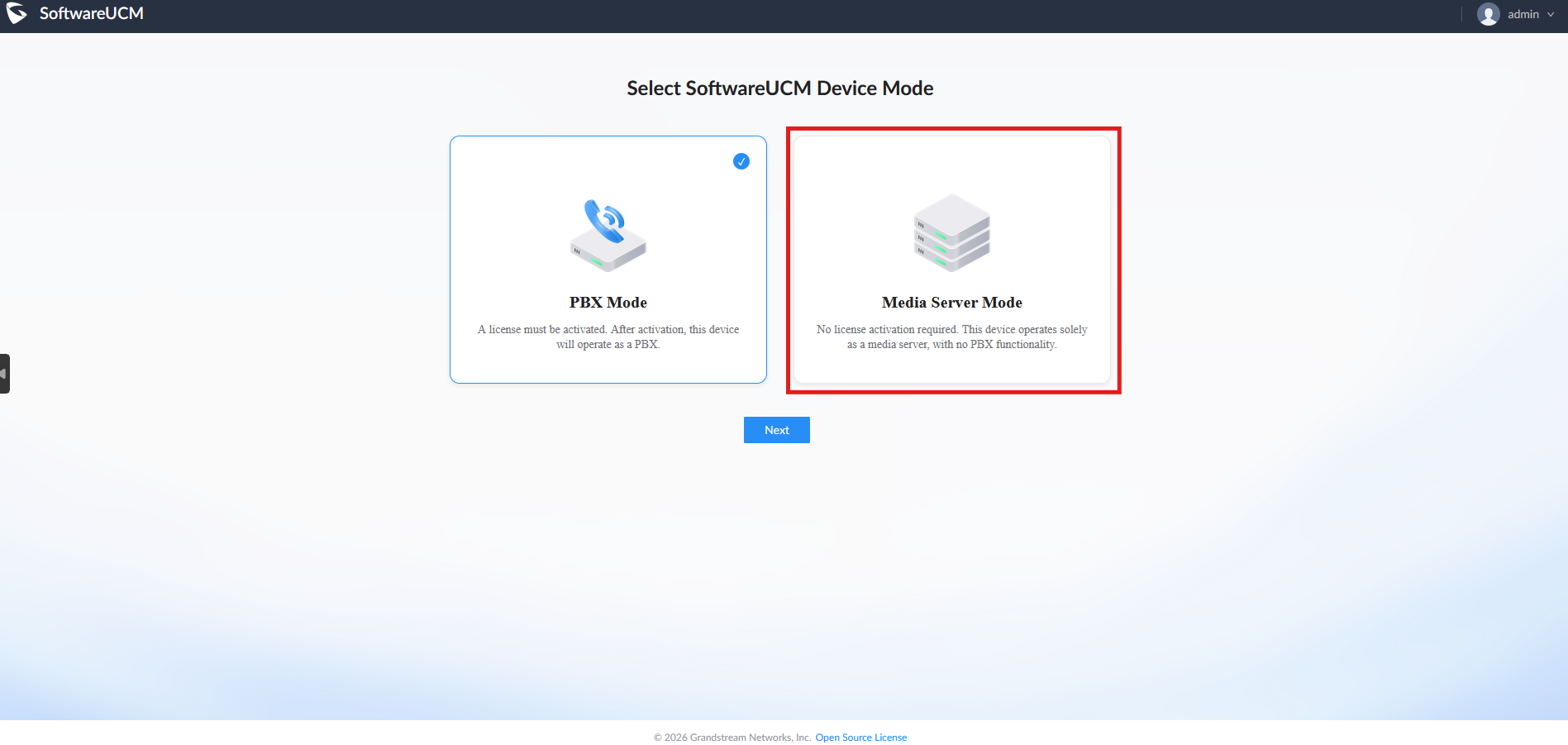
- During the initial setup wizard, select the option to configure the instance as a Media Server.
- Follow the setup wizard to complete the remaining configuration parameters (network, credentials, etc.).
- After the instance is configured in Media Server Mode, all VoIP and telephony (call control) features will be disabled.
- The instance will function strictly as a media processing node, handling tasks such as media streams and storage, rather than acting as a Business Server.
Setting a Static IP address
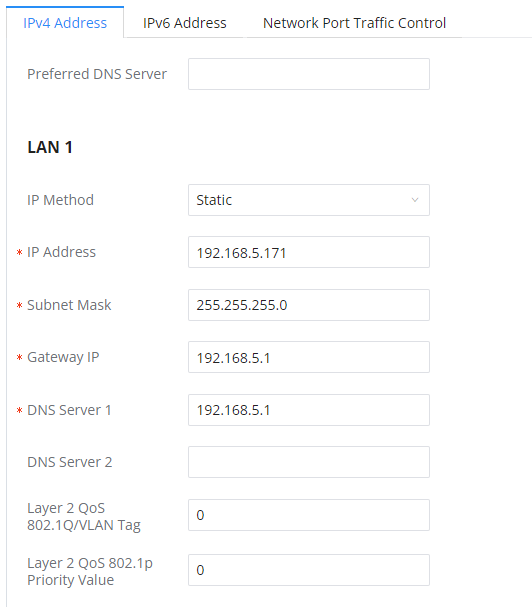
Similar to the business server, we also need to set the static IP address for the media server to avoid losing the connection to it.
A static IP can be configured directly in the web UI or reserved on the DHCP server.
- Access the SoftwareUCM’s web UI, navigate to System Settings → Network Settings, and then set a static IP on the network interface that is connected to the network where the business server is hosted.
- Click “Save” to save the configuration.
Configuring the Cluster Settings
To configure the SoftwareUCM device as a media server, please follow the steps below:
- Please navigate to System Settings → Cluster.
- Tick the option “Enable Media Cluster”.
- Select “Media Server” as the Device Role.
- Enter the IP address of the business server and the listening port configured on the Business server. in the case where you are configuring the business server for HA setup, then the IP address will be the cluster IP address.
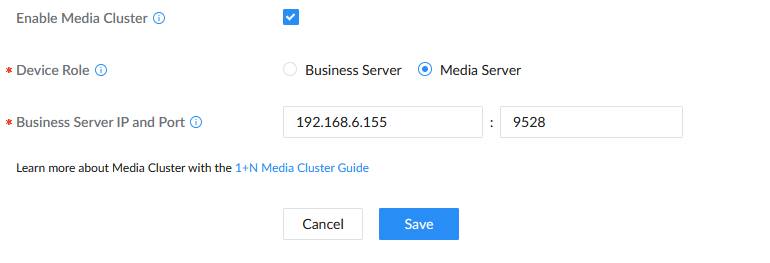
Enable Media Cluster | Enable Media Cluster feature. |
Device Role | Configure the device role. |
Business Server IP and Port | Enter the IP address of the business server with the listening port. If the business server is using HA Local Hot Standby, the Hot Standby Cluster IP address must be used. If the business server is using HA Remote Disaster Recovery, the primary SoftwareUCM and secondary SoftwareUCM must have their own respective cluster environments. |
- Then click “Save” to save the configuration.
CONSIDERATIONS
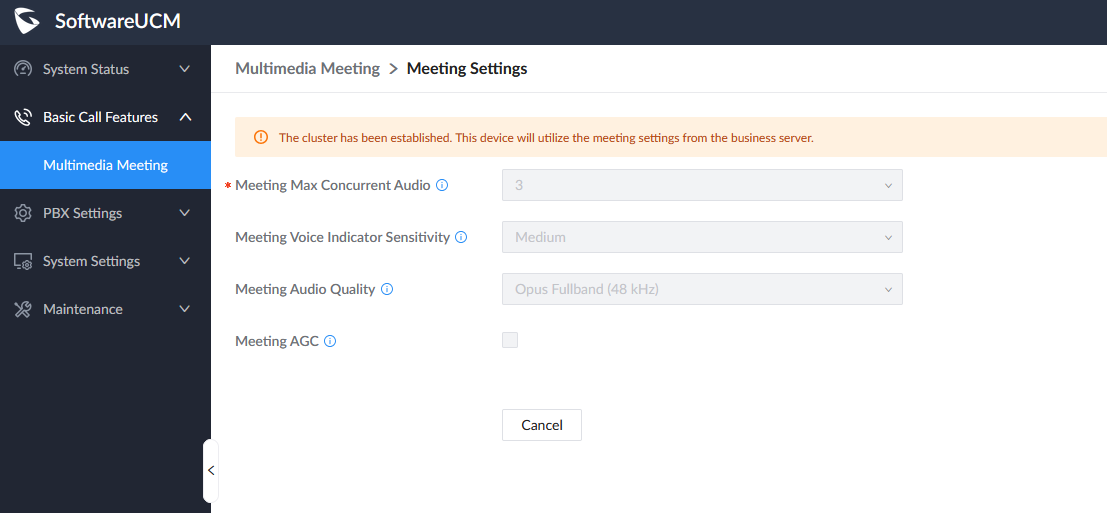
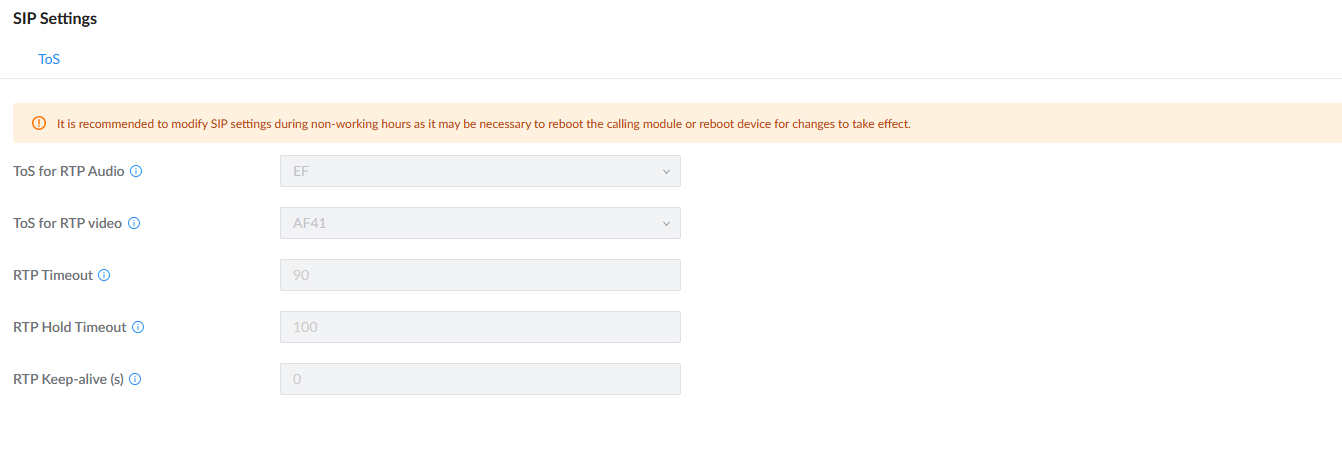
Some of the settings that are important for the normal operation of the cluster are synchronized automatically; meeting settings and RTP ToS settings are synchronized automatically. Meanwhile, the NAT traversal settings such as TURN server address, STUN server address, etc., are only synchronized if the “Sync Media NAT Traversal Settings” option is enabled, please see [Business Server] section.
Meeting Settings
For media servers, all the configuration options on this page are greyed out to display the information configured on the business server.
SIP Settings
Please ensure that the following ToS SIP settings are identical across all the devices that are involved in the cluster. To access the configuration page, please navigate to PBX Settings → SIP Settings → ToS
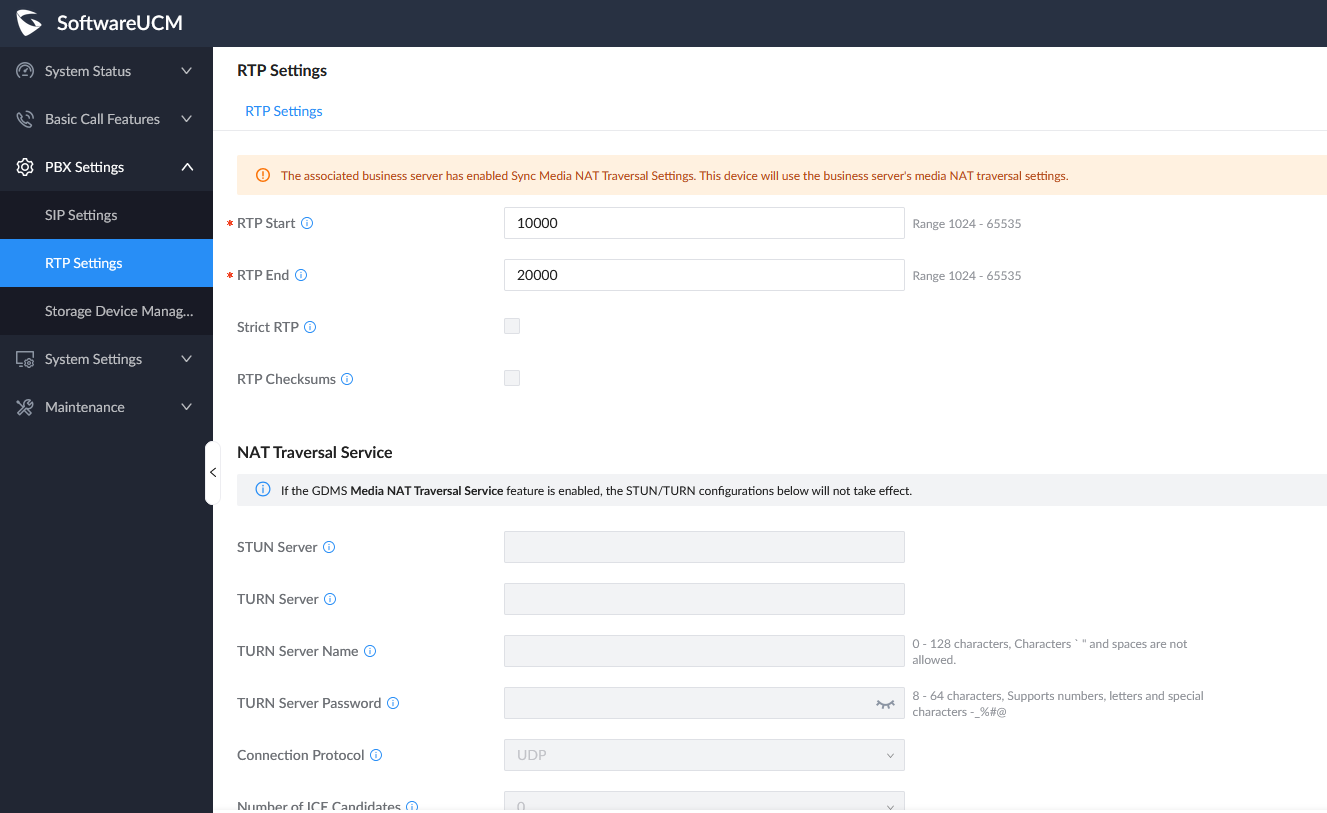
RTP Settings
If the Business Server is behind a NAT router and does not have a RemoteConnect plan, port forwarding must be configured on the router. Each media server should use a unique port range for RTP and BFCP. For example:
- SoftwareUCM 1: 10000–20000
- SoftwareUCM 2: 20001–30000
- SoftwareUCM 3: 30001–40000
The same logic applies to BFCP. Port forwarding rules should map each range to the corresponding server’s IP address. If a TURN server is used, it can serve all media servers.
To access the configuration page of RTP Settings, please navigate to PBX Settings → RTP Settings
The following media NAT Traversal parameters will only be visible on the business server:

The remaining settings will be greyed out on the media server’s side. Only the configuration on the business server will be taken into consideration.
CLUSTER CAPABILITIES
The following table mentions the number of calls each business server is capable of processing and the additional calls that each media server will process once the SoftwareUCM instances are configured: both the business server and media server(s).
Business Server | |
Max Concurrent Calls | Follows the maximum concurrency specification of the business server license. (Note: The update supports media cluster mode with max calls increased to 3000+ ). |
Max Meeting Participants | The maximum number of conference participants is determined by the maxcalls value of the business server:
|
Media Server | |
Media Server Additional Concurrent Calls |
0 (SoftwareUCM directly follows the maximum concurrency specification of the business server license. The media server device should be considered merely as an add-on to enhance capabilities ). |
Media Server Additional Meeting Participants | 0 (The calculation method for the number of meeting members strictly follows the maximum concurrency specification of the business server license ). |
The calculation logic of maximum concurrent calls (maxcalls) and maximum meeting participants works as follows:
- Max Concurrent Calls (maxcalls): In a Software UCM deployment, maxcalls is strictly determined by the licensed capacity of the Business Server. This value represents the total number of concurrent calls allowed by the system license and remains independent of any Media Server contributions. Media servers provide media processing resources but do not extend or modify the licensed maxcalls limit of the Business Server.
- Maximum Meeting Participants: The maximum number of meeting participants follows the maximum concurrency specification defined by the Business Server license.
Additionally, the Software UCM introduces a dedicated Media Server Mode, which changes how Media Servers are deployed and licensed:
- Media Server Licensing Model: Software UCM Media Servers operating in Media Server Mode do not require any license. This allows flexible and cost-efficient scaling of media processing capacity. However, in this mode, the node is strictly limited to media handling functions and cannot operate as a Business Server or provide call control features.
Let’s consider the following example: One Software UCM instance is deployed as the Business Server, and two additional Software UCM instances are deployed in Media Server Mode:
Max Concurrent Calls (maxcalls)
The Max Concurrent Calls (maxcalls) value is determined exclusively by the Business Server license.
For example, if the Business Server license allows 300 concurrent calls, then:
→ Maxcalls = 300 calls
(Media Servers do not increase this limit.)
Meeting Participants
The maximum number of conference participants is determined by the maxcalls value of the Business Server:
- If maxcalls ≤ 300, then:→ Maximum conference participants = maxcalls
- If maxcalls > 300, then:→ Maximum conference participants = 300
Examples:
- Business Server with 200 maxcalls:→ Maximum conference participants = 200
- Business Server with 500 maxcalls:→ Maximum conference participants = 300
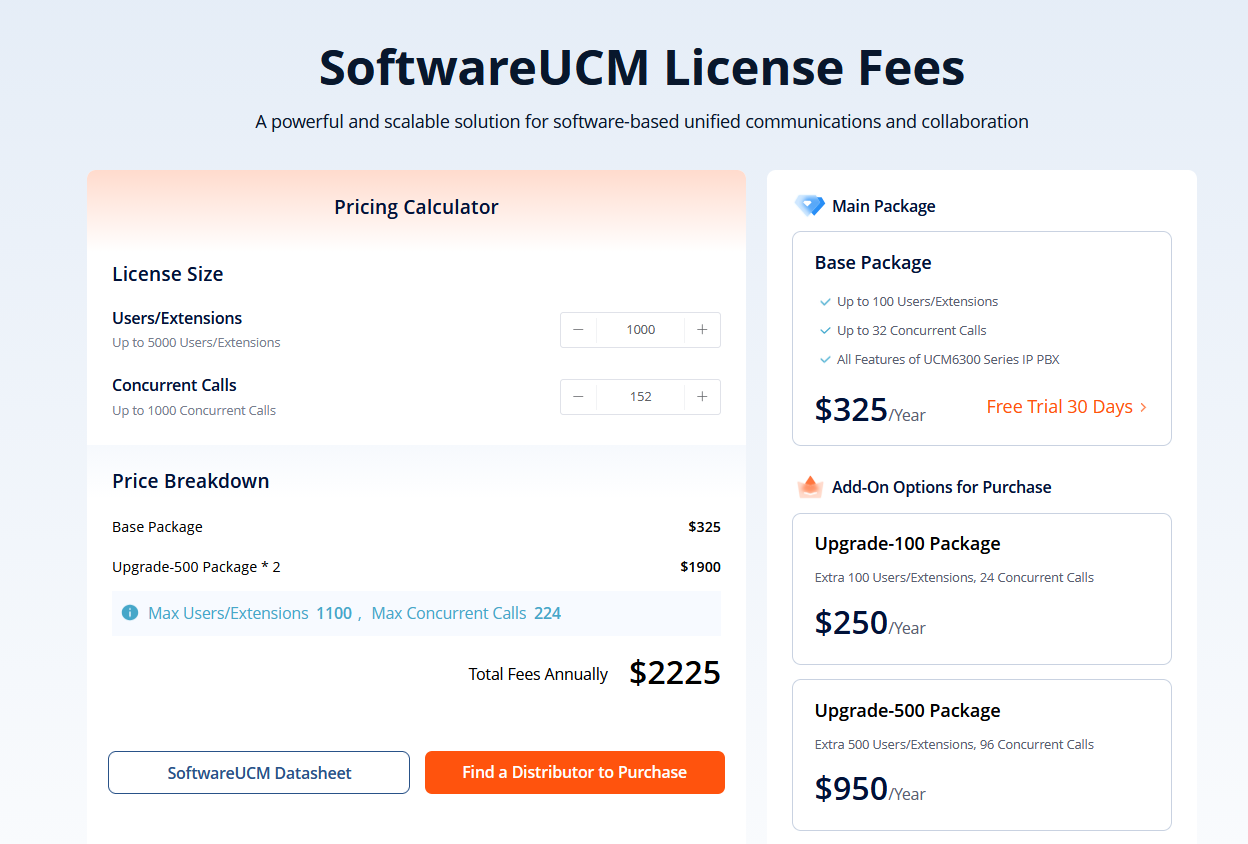
For more information on the pricing for the suitable license for your use case, please visit the link:
https://cloud.grandstream.com/softucm/plans, license size can be customized to meet your needs in terms of number of Users/ Extensions, as well as the number of concurrent calls.
HIGH AVAILABILITY WITH THE CLUSTER
Local Hot-standby:
If the business server is configured with HA Local Hot-standby, then the media server must configure the Business Server IP field with the HA cluster IP address. In case of HA failover, the secondary unit will also be able to take advantage of the existing media cluster.
Remote Disaster Recovery:
Cluster configuration is not synced in Remote Disaster Recovery environments. Users can choose to expand the capacity of only one of the UCMs or both units. In the case of the latter, the primary and secondary units must configure their own separate cluster environments.
SUPPORTED DEVICES
Model | Firmware Version |
SoftwareUCM | 1.0.33.7+ |