Wave web is a client application for the UCM63xx/Audio series IP PBX users to use a web browser to participate in web video/audio meetings and make calls via WebRTC. With Wave web client, users can easily create, schedule, manage, and join video meeting calls, share presentations, chat during meeting calls, register for UCM extension, and make point-to-point calls. Wave Web helps enterprise users to join meetings and communicate efficiently. It is an ideal product for enterprises looking for tools for users to communicate and work productively.
Feature Highlights
Supports Google Chrome v75+ and Mozilla Firefox v70+.
Native integration with UCM including contacts and the ability to display SIP users’ online status.
Supports LDAP to access contacts in the UCM LDAP server.
Supports call display, voicemail, and call encryption.
Support synchronized multi-terminal call records.
Supports call history.
High-quality point-to-point audio and video calling.
Full integration with Grandstream IP PBX, including the creation of a QR code for automatic login, call transfer, call recording from the server, etc.
Supports Multi-factor authentication for login when integrated with UCM6300/A IP PBX.
Supports Microsoft login when integrated with Microsoft Entra ID (Azure AD).
Supports Opus and G.722 for HD audio. Jitter resilience up to 50% audio packet loss and 20% video packet loss.
Supports H.264.
Supports joining meetings via link without logging in.
Supports scheduling meetings and “Meet Now” anywhere anytime.
Built-in NAT traversal including automatic NAT discovery and TURN/ICE.
Integrated UCM user portal entry to access personal data, follow me settings, SCA, wakeup calls, etc.
Specifications
Protocols/Standards
SIP RFC3261, TCP/IP/UDP, RTP/RTCP, HTTP/HTTPS, DNS (A record, SRV, NAPTR), STUN/TURN/ICE, SIMPLE, LDAP, TLS, SRTP, IPv6
Voice Codecs and Capabilities
Opus, G.711 A-law/U-law, G722, NetEQ
DTMF
In-audio, RFC2833, SIP INFO
Video Codecs and Capabilities
H.264 1080P HD video supports displaying multiple videos, screen sharing, camera block, GS-FEC
Telephony Features
Call hold/unhold, mute/unmute, call transfer, audio meeting room, call history, scheduling meeting, voicemail, call recording, etc. User portal entries allow access to personal data, wakeup call settings, SCA, follow me settings, call queue, CDR, CRM user settings, etc.
UCM Applications
Supports UCM feature codes (transfer, call park, recording, meeting control options, etc.)
Grandstream Wave feature requires UCM WebRTC function which is build-in. To check and ensure that the UCM has WebRTC turned on, please make sure of the following:
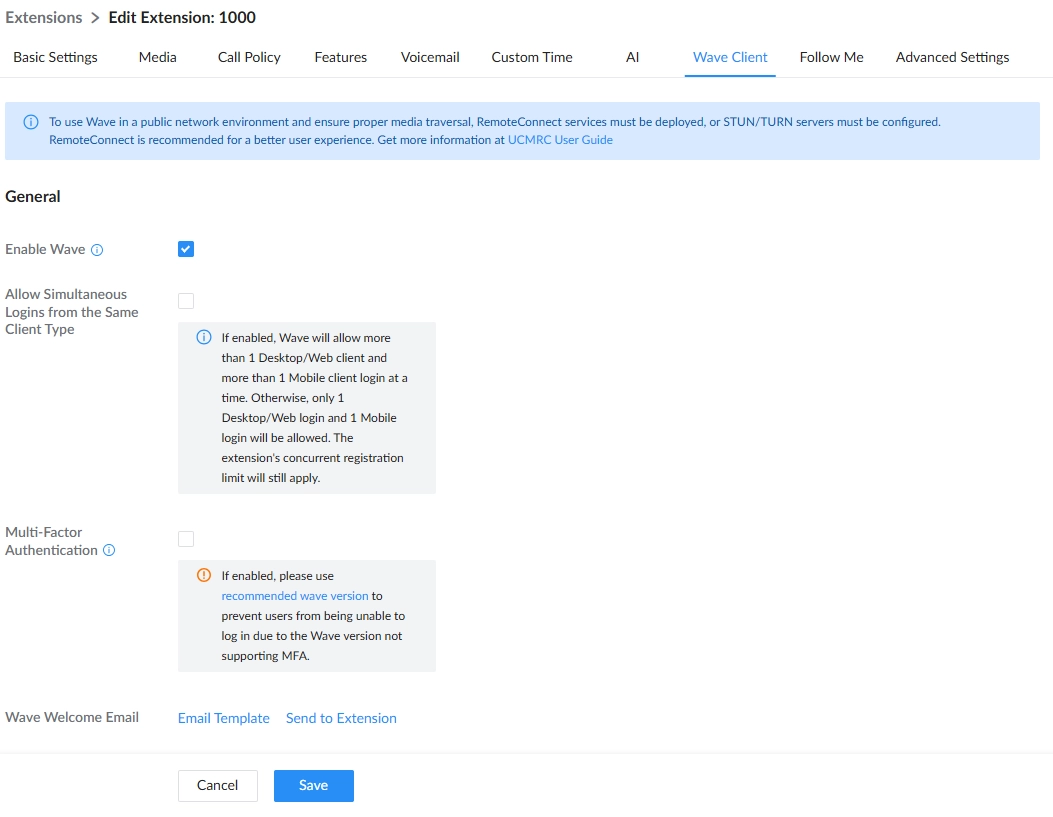
Select the extensions that would use Wave Web and enable Wave on them under the Basic Settings section.
Wave Web Support for Extension
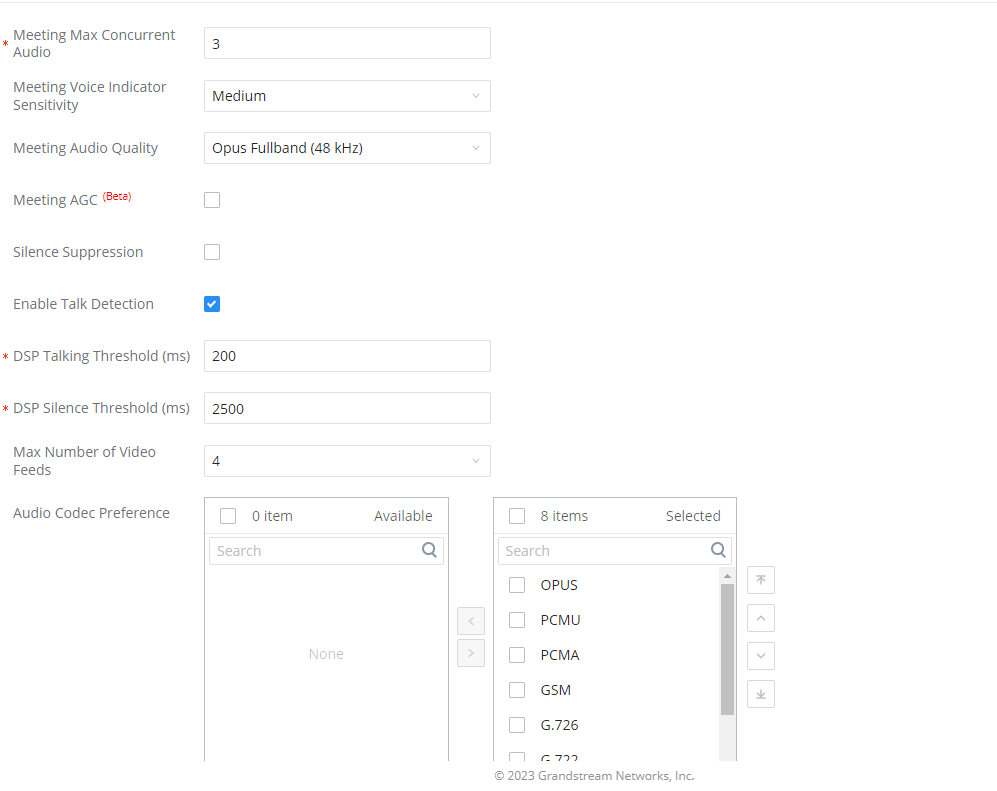
2. Also, the administrator can configure some global meeting options like the maximum Concurrent Audio and Voice quality a meeting can have by navigating to the UCM web UI admin page > Basic Call Features > Multimedia Meeting, then click on “Meeting Settings”.
Meeting Settings
Meeting Max Concurrent Audio
Maximum number of partipants that can be heard simultaneously in multimedia meetings. If the number of participants talking at any given point exceeds this value, the audio of the excess participants will not be heard.
Meeting Voice Indicator Sensitivity
Configures the sensitivity of the talking indicator in multimedia meetings. Setting this higher will make the talking indicator appear more easily for lower volumes of audio.
Note: This does not adjust audio input sensitivity itself. Lower volumes of sounds may still be heard even if the talking indicator does not show the source.
Meeting Audio Quality
Configures the voice quality of audio meetings, two options are available:
OPUS Full band (48KHZ)
OPUS Narrowband (8KHZ)
Note: The default setting is OPUS Full band (48KHZ).
Meeting Recording Prompt
If enabled, system will notify the user that the meeting will be recorded before starting recording.
Allow New Participants to View Chat History
Configure whether new attendees joining in the middle of a Wave meeting can view the chat content already in the meeting.
Meeting AGC
Enabling this option will toggle on Automatic Gain Control for meeting audio. AGC is a system that dynamically reduces the variability of sound levels by adjusting high and low volumes based on the average or peak sound level. High volume sounds will be lowered, and low volume sounds will be boosted.
Auto End Meeting
If enabled, the meeting will automatically end if there are no participants left in the meeting besides monitoring devices (e.g., GDS, IP cameras, etc.).
Silence Suppression
Silence suppression for temporary accounts (e.g., meeting participants that joined the meeting via link). If enabled, the UCM will send CN packets for silence suppression after a successful CN negotiation in the SIP SDP. If the client endpoint’s OPUS codec supports the reception of DTX packets, the UCM will send DTX packets instead.
Add Contact Number to Email
Configure whether to add the enterprise contact number to meeting notification emails. Participants will be able to join meetings by dialing this number and then entering the room number when prompted. For security purposes, this information will only be added to the notification emails for meetings that do not use public meeting rooms.
Contact Number
When the option “Add Contact Number to Email” option is enabled, the user can select which Enterprise Contact Number to be displayed in the meeting invitation email sent to the users.
Enable Talk Detection
If enabled, the AMI will send the corresponding event when a user starts or stops talking.
DSP Talking Threshold (ms)
The amount of time(ms) that sound exceeds what the DSP has established as the baseline for silence before a user is considered to be talking. This value affects several operations and should not be changed unless the impact on call quality is fully understood.
DSP Silence Threshold (ms)
The amount of time(ms) that sound falls within what the DSP has established as the baseline for silence before a user is considered be silent. This value affects several operations and should not be changed unless the impact on call quality is fully understood.
Max Number of Video Feeds
Set the maximum number of video feeds supported per meeting room. Note:
Audio Codec Preference
Configures the preferred codecs for temporary accounts such as meeting participants who joined via link.
Packet Loss Retransmission
Packet Loss Retransmission configuration for temporary accounts (meeting participants without registered extensions who entered the meeting via link)
Jitter Buffer
Select jitter buffer method for temporary accounts such as meeting participants who joined via link.
Disable: Jitter buffer will not be used.
Fixed: Jitter buffer with a fixed size (equal to the value of “Jitter Buffer Size”)
Adaptive: Jitter buffer with a adaptive size that will not exceed the value of “Max Jitter Buffer”).
NetEQ: Dynamic jitter buffer via NetEQ.
Note: The default option is NetEQ
Meeting Settings
WAVE SETTINGS
To access Wave Settings, on the UCM configuration page, navigate to System Settings
In Wave Settings, the user can configure the following options:
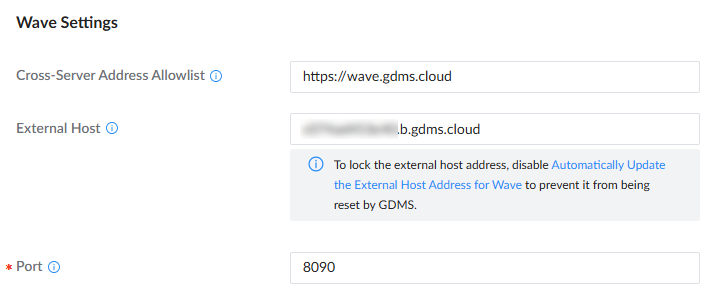
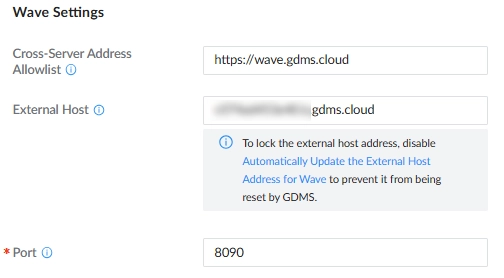
Cross-Server Address Allowlist: The UCM will accept cross-server requests from addresses in the allowlist, which should be formatted as https://domain, https://ip:port or *. Entering * will allow cross-server requests from all addresses.
External Host: Configure a URL and port (optional) used to access the UCM web portal or a public link to the video meeting room if the UCM is behind NAT.
Port: The port to access Wave Web and Wave Mobile. If behind NAT, please make sure to map the external port to this port.
Wave Settings
CONTACT MANAGEMENT
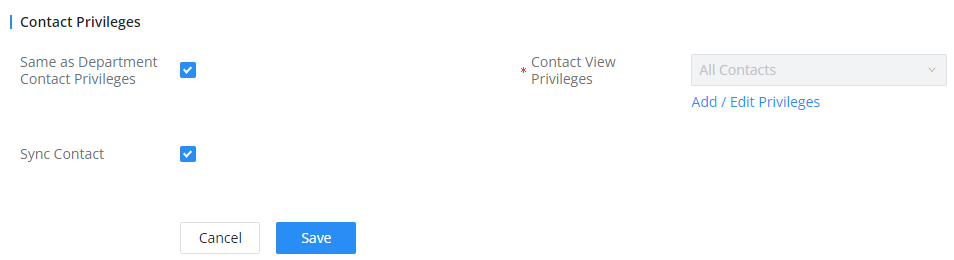
When the “Sync Contact” is enabled, this extension will be displayed in the UCM and Wave contact list. If disabled, it will not be shown in the contact list, but Wave users will still be able to manually dial the extension number. This option is enabled by default and can be accessed through the UCM63XX web UI by navigating to Extension/Trunk → Extensions then edit an extension, the option is located under the Contact Privileges category under Basic Settings.
Extension Basic Settings
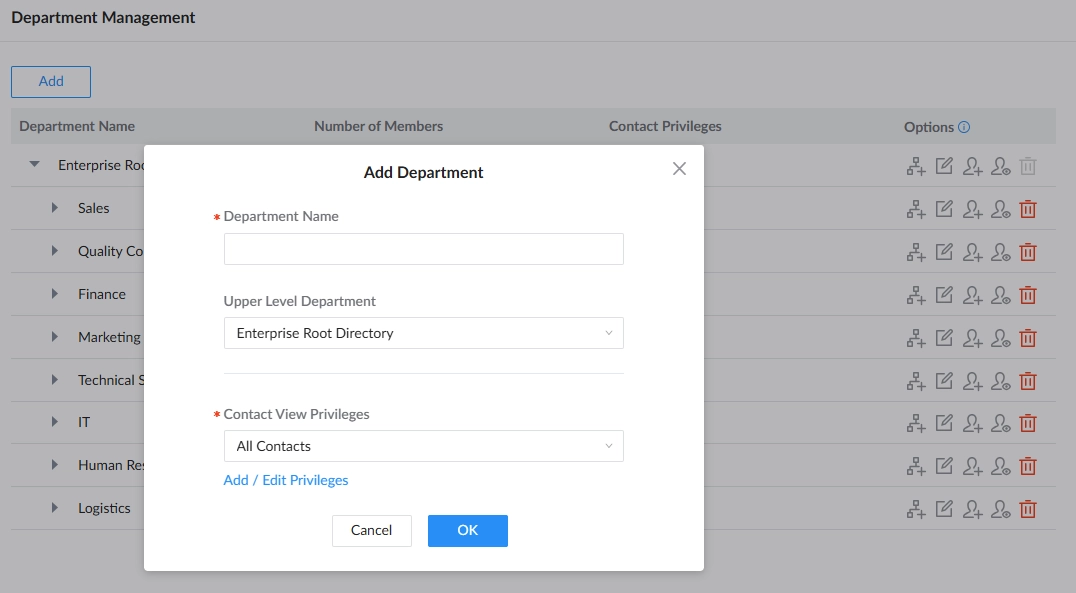
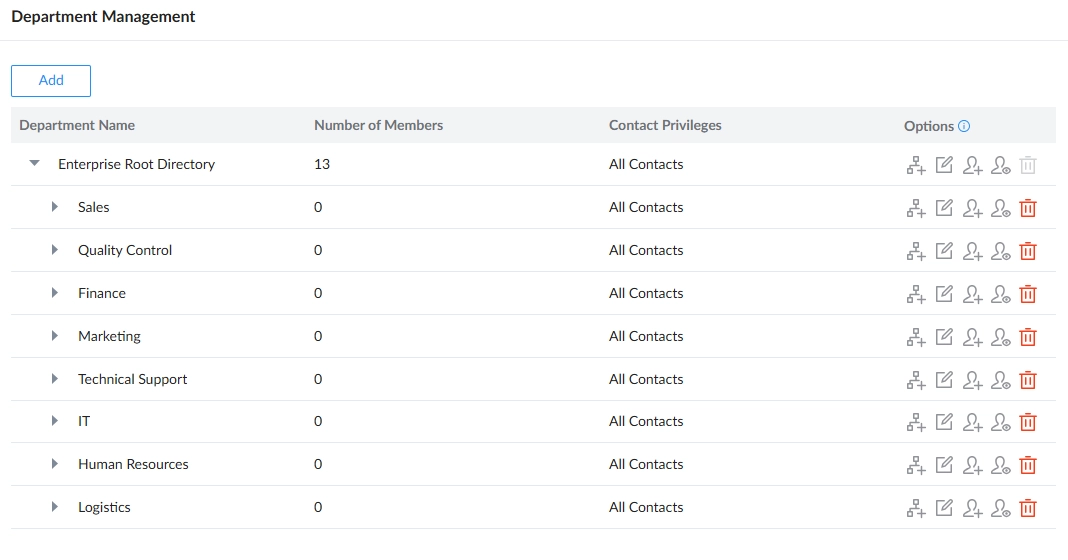
Currently, it is possible to manage which group of extensions, otherwise known as Department, can see which group from the Wave web. By default, you can either set it to “see all” or “see department”.
The former allows all contacts to see all the other departments, while the latter allows contacts to see only the other contacts within the same groups. You can also set a custom privilege in case you want contacts in two or more departments to be able to see each other. E.g., the Marketing department would have to be able to see the Sales department.
AddingEditing Departments
Department Management
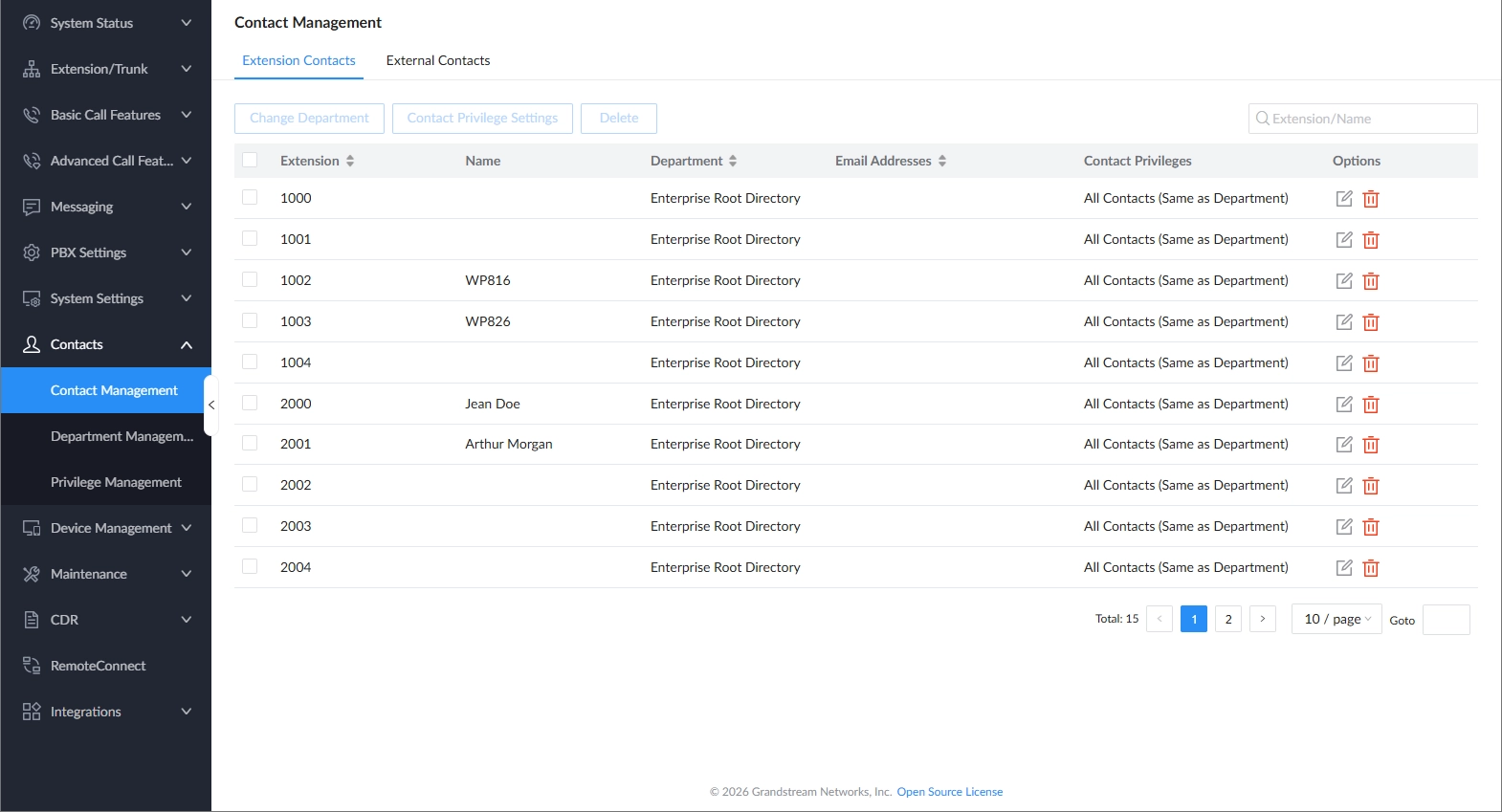
The Contact Management section will show each extension and the department it belongs to.
Contact Management Interface
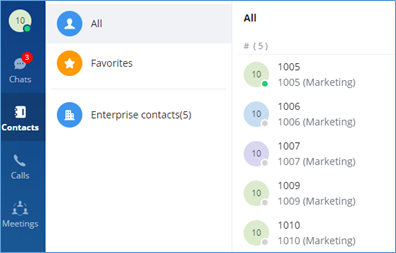
On the Wave web interface, the contacts within the authority will be displayed in the Contacts section, as shown in the illustration below. Users can select All to display all available contacts, or Favorites to display favorites contacts only.
Note
The contacts displayed in the Grandstream Wave web portal contain UCM extensions (based on contact privilege settings), meeting room extensions, and LDAP contacts (based on the UCM’s LDAP phonebook settings). (Refer to the UCM630x/A User Manual for more details)
Contacts Display on Wave Web
For more information regarding contact management for Wave, please refer to the UCM6300 User Manual, CONTACTS section.
PORTAL/WAVE PRIVILEGES
By default, the users are allowed to change settings that are related to their extension when they are logged into their user portal or Wave. In certain cases, it might require that certain settings should not be modified by the extension users. Therefore, we have created a permission management page in the UCM to allow the administrator to create custom privileges and assign them to the correspondent extension numbers.
To access the Portal/Wave Privileges configuration page, please access the web GUI of the UCM, then navigate to Maintenance → User Management → User Portal/Wave Privileges
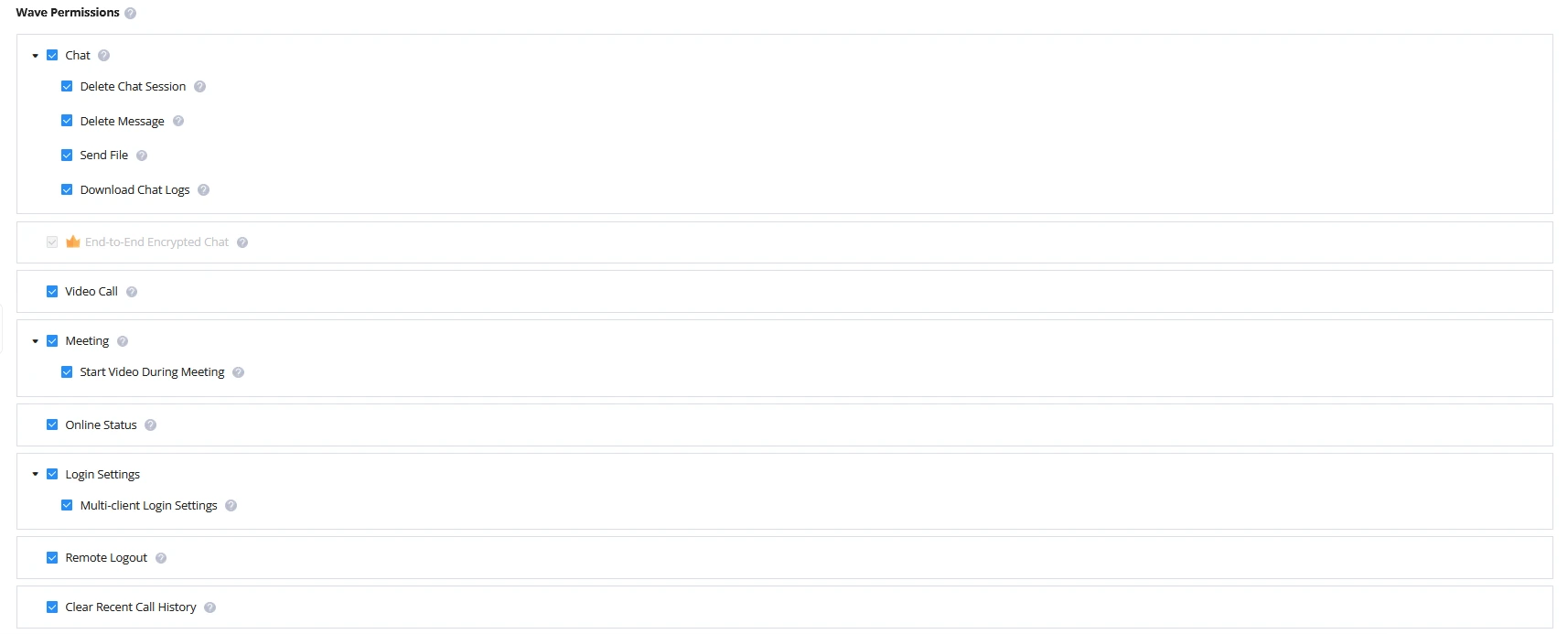
Wave Premissions
User Portal Wave Privileges
Enter the name of the privilege, then select the privileges to limit for the user.
Click “Save” once the privileges have been selected.
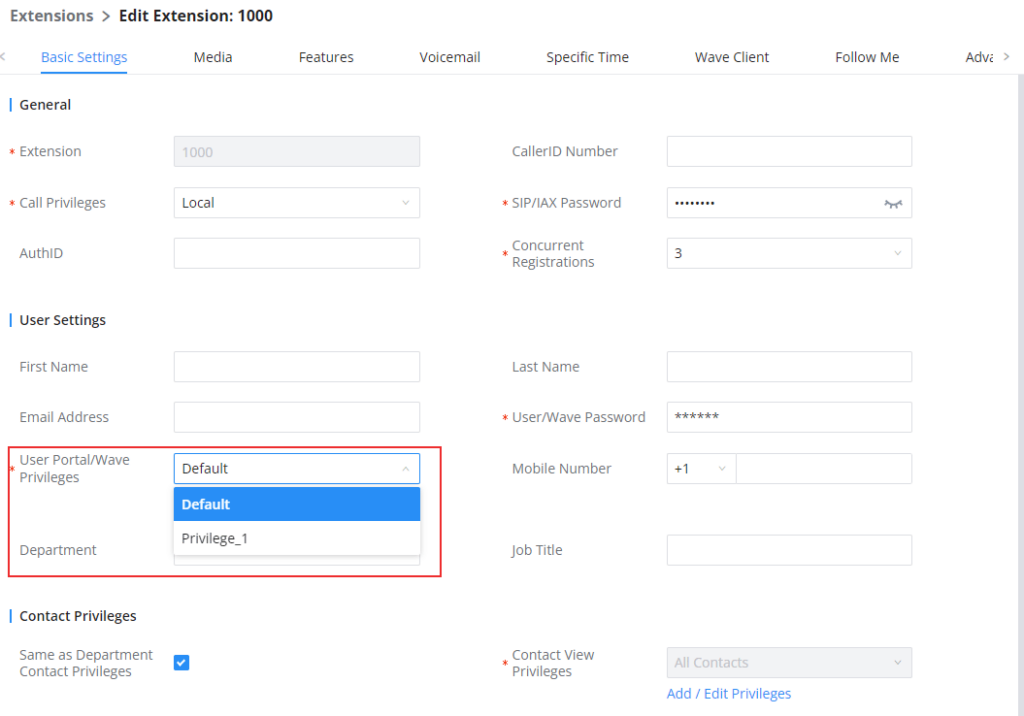
Then navigate to Extension/Trunk → Extensions, and edit the extension on which you want to apply the new privileges.
On the User Portal/Wave Privileges setting, please select the privilege that had been created. Please see the screenshot below.
Wave Permissions
Chat: Toggles ability to use the Wave Chat feature.
Delete Chat Session: Enables users to delete chat sessions from the Wave interface. This action only removes the chat history locally on the user’s device and does not affect other participants.
Delete Message: Controls whether users can delete sent messages in Wave. Once deleted, the message will no longer be visible to any participants.
Send File: Controls whether sending files/images in Wave chat is supported. When disabled, it does not affect the normal downloading, viewing, and forwarding of historical chat files.
Download Chat Logs: If enabled, users can download chat logs from the Wave client, including logs from Wave, WhatsApp, Telegram, and LiveChat sessions.
End-to-End Encrypted Chat*: Toggles ability to use the Wave End-to-End Encrypted Chat feature.
Wave App Screenshot and Screen Recording: Control whether screenshot and screen recording are supported in the Wave Mobile application.
Video Call: Toggles ability to use the Wave Video Call feature.
Meeting: Toggles ability to use the Wave Meeting feature.
Start Video During Meeting: Toggles ability to use the Wave Start During Meeting feature.
Online Status: Toggles ability to set Wave online status such as “Busy”, “Appear Away”, “Do Not Disturb”, “Appear Offline”, etc. If unchecked, the status will be displayed as only either “Online” or “Idle”.
Login Settings
Multi-client Login Settings: Controls whether Wave users can configure the “Allow Simultaneous Logins from the Same Client Type” setting. To enable multi-device login, ensure the extension’s ‘Concurrent Registrations’ value is set to greater than 1.
Remote Logout: If enabled, Wave users will be able to log out of their accounts from other logged-in devices.
Recording Status: Controls whether the recording status is displayed in all calls/conferences with this Wave extension.
Clear Recent Call History: Toggles ability to delete recent call history entries and entire recent call history on Wave.
Application: Toggles ability to access the “Applications” page under Wave Desktop and Wave Web.
Smart Devices: Toggling off privileges will hide the corresponding pages and options in Wave.
Door System
Monitor
Call Device (CTI)
3rd Party Applications
App Store: Toggles ability to access the Wave App Store. If unchecked, the App Store will be hidden, but installed apps can still be used.
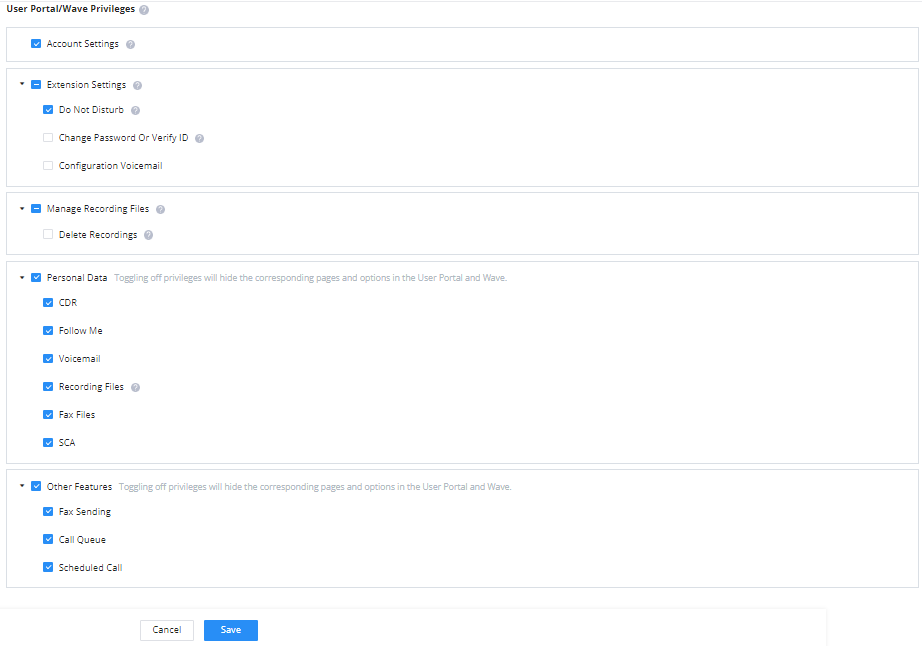
User Portal/Wave Privileges
Account Settings: If unchecked, the User Portal -> Basic Information -> Account Settings page and the Wave -> Sidebar -> User -> Account Settings option will be hidden.
Extension Settings: If unchecked, the extension’s User Portal->Basic Information->Extensions page and the Wave->Sidebar->User->Call Settings option will be hidden.
Do Not Disturb: Toggles ability to set DND through the User Portal.
SIP/IAX Password & AuthID: Toggles ability to access the Password and AuthID settings under the User Portal > Basic Information > Extensions > Basic Settings page.
Configuration Voicemail
Manage Recordings: Toggles the ability to view recordings through the User Portal and Wave, including the recordings in call logs, meeting details, and Wave Application tab.
Delete Recordings: Toggles ability to delete recordings through the User Portal and Wave. For Wave, this includes the ability to delete call logs, meeting details, and recordings.
Personal Data: Toggling off privileges will hide the corresponding pages and options in the User Portal and Wave.
CDR
Follow Me
Voicemail
Recording files: Toggles ability to access the Personal Data pages in the User Portal and Wave.
Fax Files
SCA
Other Features: Toggling off privileges will hide the corresponding pages and options in the User Portal and Wave.
*: Features which are marked by an asterisk are a part of RemoteConnect plans.
Extension Basic Settings
Once this has been set, the user privileges should be limited according to the new privilege settings.
Multi-Factor Authentication (MFA)
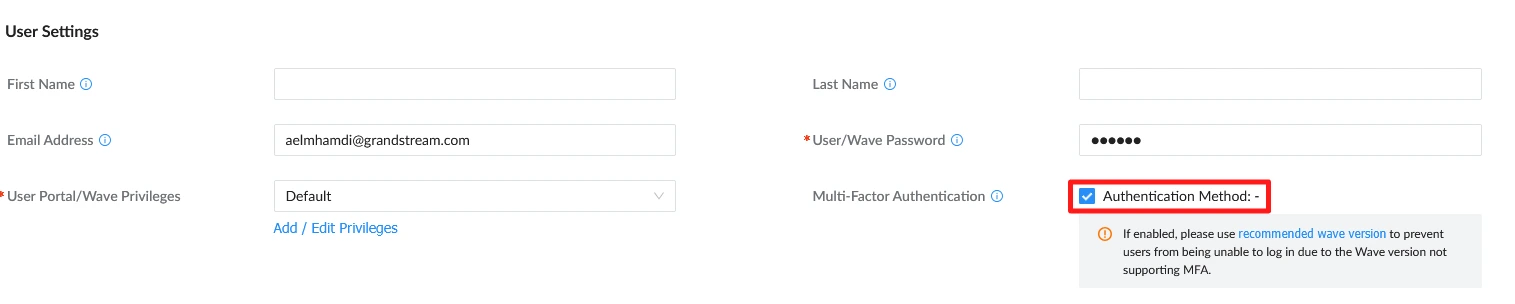
Multi-Factor Authentication (MFA) enhances the security of Wave extension accounts. When enabled, the extension user’s User Portal and Wave Web accounts are required to complete the MFA binding process after login.
After MFA is bound to the account, the user must enter the MFA verification code during subsequent logins to the User Portal and Wave Web.
To enable MFA:
Navigate to Extension/Trunk → Extensions.
Select the required extension.
Open Extension Basic Settings.
Enable MFA.
Save the configuration.
Multi Factor Authentication MFA
Note
The MFA setting applies to both the extension user’s User Portal and Wave Web accounts.
VIRTUAL MEETING
The UCM630X supports virtual meeting rooms allowing multiple rooms used at the same time.
The meeting room configurations can be accessed under Web GUI🡪Basic Call Features🡪 Multimedia Meeting for the UCM6300 series, and for the UCM6300 Audio series, you can access it under Basic Call Features → Meeting. On this page, users can create, edit, view, invite, manage the participants, and delete meeting rooms. The meeting room status and meeting call recordings (if recording is enabled) will be displayed on this web page as well.
For video meetings (video meetings are not supported on the UCM630x Audio series), which is based on WebRTC, participants can join the meeting from a PC without installing extra plug-ins or software.
The UCM admin can create multiple meeting rooms for users to dial in.
UCM630x series
Number of public meeting rooms
Participant limit
UCM6301
4
75
UCM6302
8
150
UCM6304
15
200
UCM6308
25
300
UCM Meeting Specifications
Meeting room specifications affect user participation to a certain extent. The UCM supports the forecasting of meeting resources. There will be corresponding judgments and adjustments in the following scenarios:
When the meeting resources are full, members of the scheduled meeting room cannot join the meeting in advance.
When meeting resources are full, joining a meeting is prohibited when a point-to-point call is transferred to a meeting.
When the meeting resources are full and the IM group chat initiates a meeting, it is forbidden to join the meeting.
When the meeting resources are full, when an instant meeting is initiated, joining the meeting is prohibited.
Close other instant meetings or scheduled meetings that have timed out to ensure that all invited members of the scheduled meeting can enter the meeting.
If the number of invited members in the ongoing meeting exceeds the maximum number of resources in the meeting, the invitation of members is not allowed to join the meeting.
Turn on the flow control of video and presentation in the meeting room.
Log in to the UCM Web GUI and open the Basic Call Features > Multimedia Meeting on the UCM6300 series, and on the UCM6300 Audio series, open Basic Call Features > Meeting to manage the meeting room. Users can create, edit, view, invite, manage meeting members, and delete meeting rooms. The meeting room status and meeting call recording (if the recording function is enabled) will be displayed on the page. The meeting rooms in the list include public meeting rooms and temporary meeting rooms. For temporary meeting room administrators, only the “batch kicking people” function is supported. The temporary meeting room has no meeting password or host code. The member who initiates the group meeting is the host, and ordinary members have the right to invite.
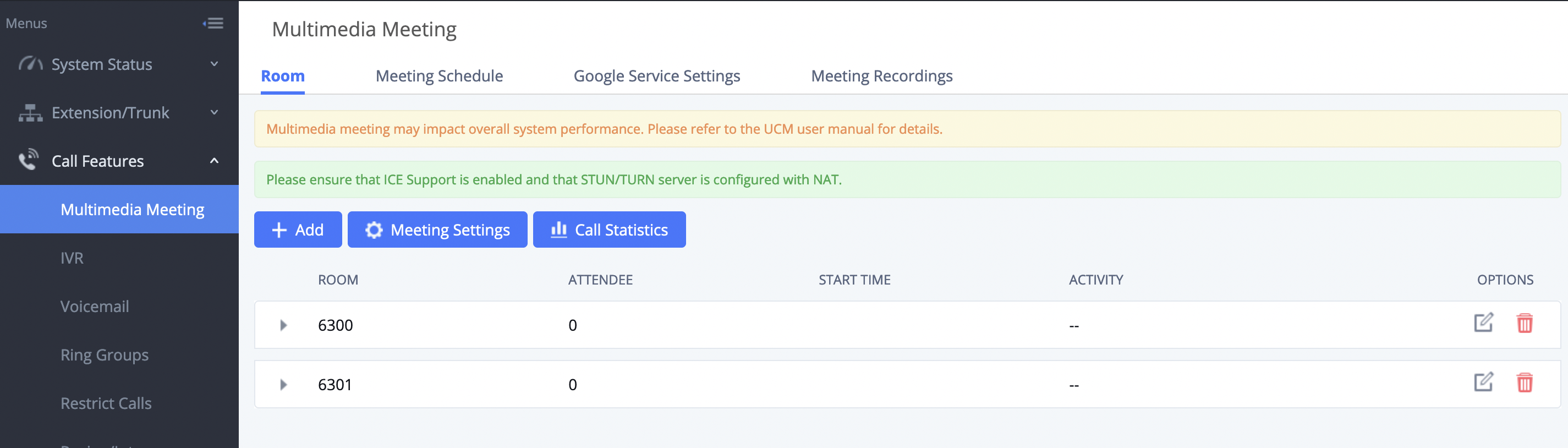
Multimedia Meeting
Click on “Add” to create a new meeting room.
Click on to edit the meeting room.
Click on to delete the meeting room.
Creating a Meeting Room
Click on “Add” to create a new meeting room. Users will be prompted to configure the following options for the meeting room:
Meeting Room Parameters
Extension
The number to dial to reach the meeting room.
Meeting Name
Meeting Name
Privilege
Please select the permission for outgoing calls.
Allow User Invite
If enabled, participants will be able to invite other to the meeting by pressing 1 on their keypad or by clicking the Participants -> Invite option on the Wave bottom bar.
Allowed to Override Most Mute
Allowed to Override Host Mute
Auto Record
Meeting audio and video can be automatically recorded. These recordings can be found under the Meeting Recording or Meeting Video Recordings Page.
Record Audio: Record only the meeting Audio.
Record video: Record the meeting audio and all video feeds. When there is a shared source (shared screen/shared whiteboard/shared document) or focus, only the shared or focus screen is recorded, and when both are present, the shared screen will b recorded.
Record video (Focus Mode): Record the focus screen and all audio of the meeting. When a shared source is present in the meeting, only the shared screen is recorded.
Room Password
If meeting room password is configured, meeting participants will need to enter a password to enter the room. Scheduling meetings will not be supported for this room.
UCM Meeting Room Parameters
Meeting Settings
Click on on the audio meeting room page to access and configure global settings for all audio meeting rooms. The configuration settings page contains the following options:
Meeting Settings
Meeting Max Concurrent Audio
Maximum number of partipants that can be heard simultaenously in multimedia meetings. If the number of participants talking at any given point exceeds this value, the audio of the excess participants will not be heard.
Meeting Voice Indicator Sensitivity
Configures the sensitivity of the talking indicator in multimedia meetings. Setting this higher will make the talking indicator appear more easily for lower volumes of audio. Note: This does not adjust audio input sensitivity itself. Lower volumes of sounds may still be heard even if the talking indicator does not show the source.
Meeting Audio Quality
Audio quality of multimedia meetings
Meeting Record Prompt
If enabled, system will prompt the user before the start of meeting recording that your meeting will be recorded.
Allow New Participants To View Chat History
Configure whether new attendees joining in the middle of a Wave meeting can view the chat content already in the meeting.
Meeting AGC (beta)
Enabling this option will toggle on Automatic Gain Control for meeting audio. AGC is a system that dynamically reduces the variability of sound levels by adjusting high and low volumes based on the average or peak sound level. High volume sounds will be lowered, and low volume sounds will be boosted.
Auto End Meeting
If enabled, the meeting will automatically end if there are no participants left in the meeting besides monitoring devices (e.g., GDS, IP cameras, etc.).
Silence Suppression
Silence suppression for temporary accounts (e.g., meeting participants that joined the meeting via link). If enabled, the UCM will send CN packets for silence suppression after a successful CN negotiation in the SIP SDP. If the client endpoint's OPUS codec supports the reception of DTX packets, the UCM will send DTX packets instead.
Add Contact Number to Email
Configure whether to add the enterprise contact number to meeting notification emails. Participants will be able to join meetings by dialing this number and then entering the room number when prompted. For security purposes, this information will only be added to the notification emails for meetings that do not use public meeting rooms.
Contact Number
If enabled, the AMI will send the corresponding event when a user starts or stops talking.
Enable Talk Detection
If enabled, the AMI will send the corresponding event when a user starts or stops talking.
DSP Talking Threshold (ms)
The amount of time(ms) that sound exceeds what the DSP has established as the baseline for silence before a user is considered to be talking. This value affects several operations and should not be changed unless the impact on call quality is fully understood.
DSP Silence Threshold (ms)
The amount of time(ms) that sound falls within what the DSP has established as the baseline for silence before a user is considered be silent. This value affects several operations and should not be changed unless the impact on call quality is fully understood.
Max Number of Video Feeds
Set the maximum number of video feeds supported per meeting room.
Audio Codec Preference
Configures the preferred codecs for temporary accounts such as meeting participants who joined via link.
Packet Loss Retransmission
Packet Loss Retransmission configuration for temporary accounts (meeting participants without registered extensions who entered the meeting via link).
Jitter Buffer
Select the jitter buffer method for temporary accounts such as meeting participants who joined via link.
Disabled: Jitter buffer will not be used.
Fixed: Jitter buffer with a fixed size (equal to the value of "Jitter Buffer Size")
Adaptive: Jitter buffer with an adaptive size that will not exceed the value of "Max Jitter Buffer").
NetEQ: Dynamic jitter buffer via NetEQ.
Meeting Settings
Managing Virtual Meeting
During the meeting call, users can manage the meeting from Web GUI after logging in as admin.
Click on on the left of each meeting room to expand the real-time participant list for the admin to view.
Click on to remove selected participants from the meeting.
Click on to mute selected participants.
Click on to unmute selected participants.
Click on to invite contact group or remote meeting room so multiple meeting rooms can be bridged.
Click on to invite other users into the meeting room.
: This indicates the meeting room is unlocked. Click on to lock meeting. If the meeting is locked, no new party can be invited or can join the meeting.
: This indicates the meeting room is locked. Click on to unlock this meeting room.
An Ongoing Meeting with Participants
Schedule a Meeting
UCM admin can log in to UCM web UI to schedule a meeting. On the UCM630x series, log in to the UCM Web GUI, and open the Basic Call Features → Multimedia Meeting → Meeting Schedule page. On the UCM630x Audio series, open Basic Call Features → Meeting → Meeting Schedule Users can create, edit, view, and delete a Meeting Schedule.
The following is a set meeting room reservation, which shows the ongoing and pending reservations. Once the meeting room is reserved, all users will be removed from the meeting room at the start time, and extensions will no longer be allowed to enter the meeting room. At the scheduled meeting time, UCM will send invitations to the extensions that have been selected to participate in the meeting. At the same time, it supports users to enter the meeting 10 minutes in advance. If the current meeting is occupied, enter the waiting room and wait (members joining the meeting in advance occupy global member resources, but it will be released after the scheduled meeting starts); otherwise, you can join the meeting directly and the meeting will be held in advance. After the meeting ends, the reservation record is transferred to the meeting history list. Meeting History displays the information of the ended and expired meetings.
Click on “Schedule Meeting” to add a new scheduled meeting.
Click on to edit a scheduled meeting.
Click on to view meeting schedule details.
Click on to delete the meeting schedule. Click the button, you can choose to delete the most recent meeting of the meeting room or delete the entire recurring meeting to delete the meeting room reservation.
Schedule Meeting Interface
Section
Option
Description
General
Meeting Subject
Enter the subject of the meeting. The subject supports 1–120 characters.
Public Meeting Room
Enable this option to use a public meeting room for the meeting.
Time
Specify the meeting date and time.
Time Zone
Select the time zone to be used for the scheduled meeting.
Repeat
Specify whether the meeting should repeat. Select No Repeat for a one-time meeting or configure a recurring meeting.
Password
Set a password for the meeting. The password must contain 4–10 digits.
Meeting Agenda
Enter the meeting agenda. The field supports up to 500 characters.
Attendee
Host
Select the extension that will host the meeting and, if required, enter the host’s email address.
Host Password
Enter the password required for the meeting host. The password must contain 4–10 digits.
Invitees
Add participants to the meeting. Participants can be entered manually, and Batch Add can be used to add multiple participants.
Allow User Invite
Allow meeting participants to invite additional users to the meeting.
Advanced
Email Reminder (m)
Enable email reminders and specify how many minutes before the meeting the reminder should be sent. The supported range is 5–120 minutes.
Call Participants
Automatically call participants when the meeting starts.
Allowed to Override Host Mute
Allow participants to override the host’s mute setting.
Play Joining/Leaving Meeting Announcement
Play an announcement when participants join or leave the meeting.
Auto Record
Configure automatic recording for the meeting. None can be selected when automatic recording is not required.
Sync to Google Calendar
Enable synchronization of the scheduled meeting with Google Calendar. Google Services must be configured to use this option.
Support AI Transcription
Enable AI transcription for the meeting.
Language
Select the language used for AI transcription. Automatic Recognition is recommended when multiple languages are used. If a single language is primarily used, select the corresponding specific language.
Automatic AI Transcription
Once enabled, meeting audio will be automatically transcribed in real time, and a meeting summary will be generated after the meeting.
Allow Participants to View Summary
After the meeting, participants will be able to view the meeting summary in the meeting details. Note: All participants will still be able to view the real-time AI transcription during the meeting.
Scheduled Meeting parameters
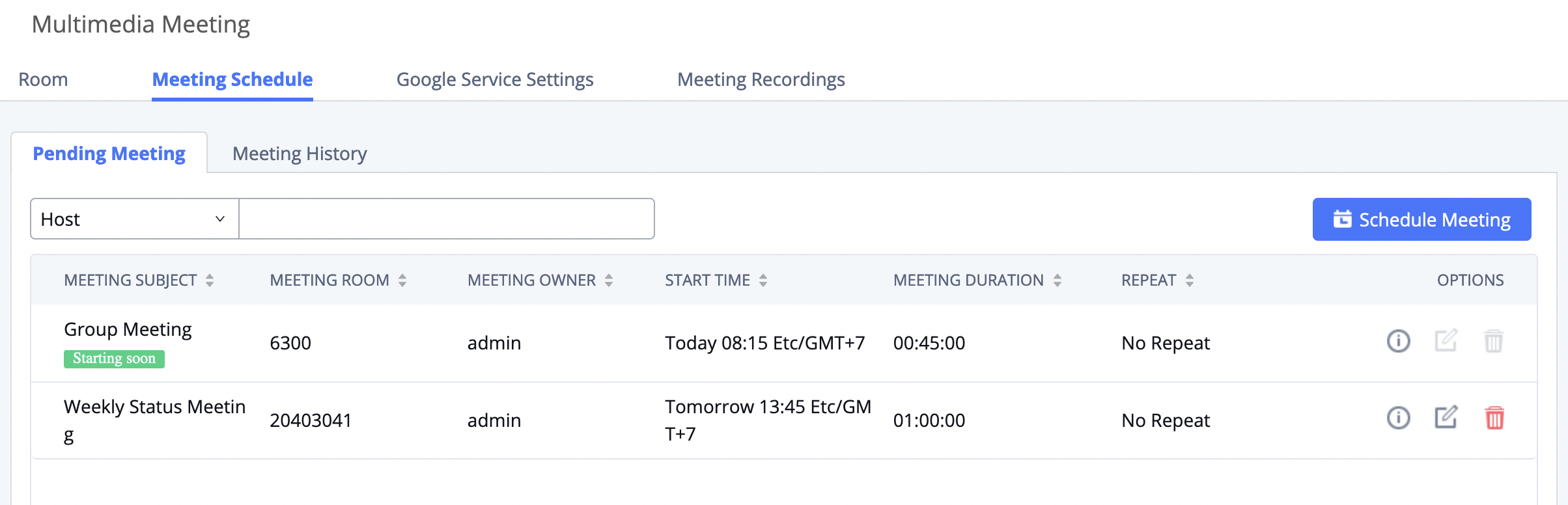
Once created, the Web GUI will display scheduled meetings under Pending Meeting,
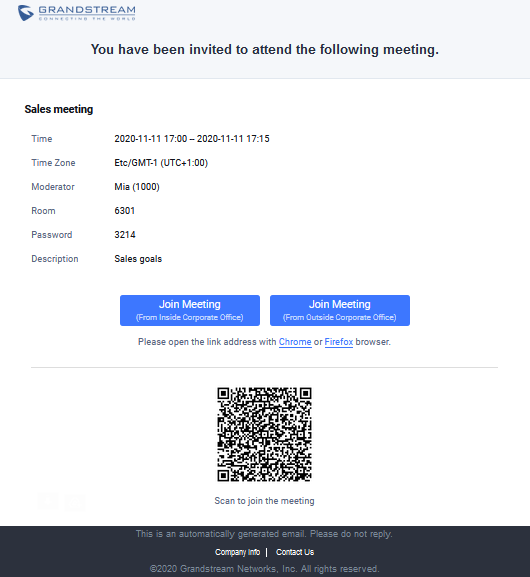
After scheduling the meeting, an email reminder will be sent to the participants at the configured email reminder time. The email reminder will include the meeting details and a link to the meeting. Upon clicking the link, participants will be prompted to enter their Grandstream Wave portal passwords to log in and join the meeting.
Note
When there is a participant in the meeting, the meeting room configuration cannot be modified.
Email Reminder for the Scheduled Meeting
If meeting schedule information has been modified, participants will receive an email update immediately.
To join a meeting, the Wave user can click on the link in the email notification to join the meeting directly, or the Wave mobile app user can scan the QR code in the email notification to join the meeting as well.
Once the Meeting Schedule is configured, the scheduled meeting will be displayed as the below figure.
Meetings Schedule
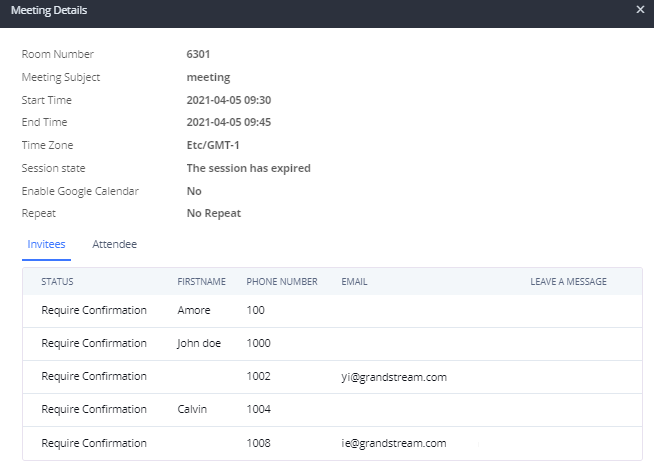
Click the button to view the meeting details in the Meeting room. The meeting details of Meeting History include actual participant information.
Meeting details
Click on to edit the Meeting Schedule.
Click on to delete the Meeting Schedule.
At the scheduled meeting time, UCM630X will send INVITE to the extensions that have been selected for the meeting.
Once the meeting starts, it will be displayed under Pending Meeting with an “Ongoing” status, as displayed below:
Meeting Scheduled Ongoing
Once the meeting is finished, the meeting will be displayed under Meeting History as below:
Meeting Schedule Completed
Click the button to download the Meeting Report of the meeting.
Click the button to reschedule the Meeting.
In addition, once the meeting ends, the system will send a meeting report email to the host including a PDF file where he/she can view the meeting, participant information, device type, and trend graph of participant levels.
Note
Please make sure that the outbound route is properly configured for remote extensions to join the meeting.
The user can clear the meeting history in the UCM either manually or using the automatic cleaner.
To clean the history of the meetings automatically, please access the web UI of the UCM63XX, then navigate to Basic Call Features → Multimedia Meeting → Meeting → Meeting History, for the UCM630x Audio series, please navigate to Basic Call Features → Meeting → Meeting → Meeting History, then click on “Clear” as shown in the figure below.
Clear Scheduled Meeting History
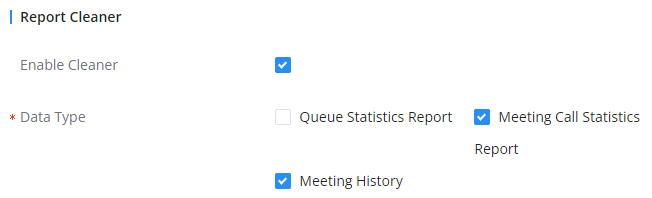
To clean the history of the meetings automatically, please navigate to the UCM6300’s web UI, navigate to Maintenance → System Cleanup/Reset,choose Cleaner then click on AutomaticCleaner
Automatic Report Cleaner
ONSITE MEETING
The UCM630x Onsite Meeting feature allows the user to manage the meetings that take place in the office. This feature will make managing onsite meetings easier by leveraging the rich and elaborate communication system that our UC portfolio provides to relay the information regarding on-site meetings to the intended invitees. This feature can be configured on the UCM and the users will be invited through Wave. Also, our GSC3570 device can be set as a door panel of the meeting rooms to manage scheduled on-site meetings.
UCM supports the addition and configuration of the call console, which can realize one or more extensions as administrators to manage PBX activities, such as extension status, call queue status, call transfer, call monitoring, call hangup, etc. Grandstream Wave displays the status information of the extension, ring group, voice mailbox, call queue, and parking space managed by the current extension. This chapter mainly introduces the configuration method of the Operator Panel.
Configure Operator Panel
The call console can be set through Basic Call Features → Operator Panel.
Operator Panel Interface
The steps to configure the call console are as follows:
Click the “Add” button to add the call console.
Click the button to edit the call console.
Click the button to delete the call console.
Please refer to the following for the description of the specific configuration items of the Operator Panel:
Name
The Operator panel name.
Administrator
The operator of the call console can select extensions, extension groups, and departments. For the selected extension groups and departments, subsequent extensions will automatically become administrators.
Management Module
Extension
The selected extensions will be supervised by the administrator, and you can choose extensions, extension groups, and departments. For the selected extension groups and departments, subsequent extensions will be automatically supervised by the administrator.
Ring Groups
The checked Ring Groups will be supervised by the administrator. Select “All”, all Ring Groups and subsequent updates will be automatically supervised by the administrator.
Voicemail Groups
The checked Call Queue will be supervised by the administrator. Select “All”, all Call Queue and subsequent updates will be automatically supervised by the administrator.
Call Queue
The checked Call Queue will be supervised by the administrator. Select “All”, all Call Queue and subsequent updates will be automatically supervised by the administrator.
Parking Lot
The checked Parking Lot will be supervised by the administrator. Select “All”, all Parking Lot and subsequent updates will be automatically supervised by the administrator.
Attendance console configuration parameters
MONITOR
This feature allows the integration with Grandstream Video Surveillance Cameras and Door Systems to retrieve audio and video feeds when dialed.
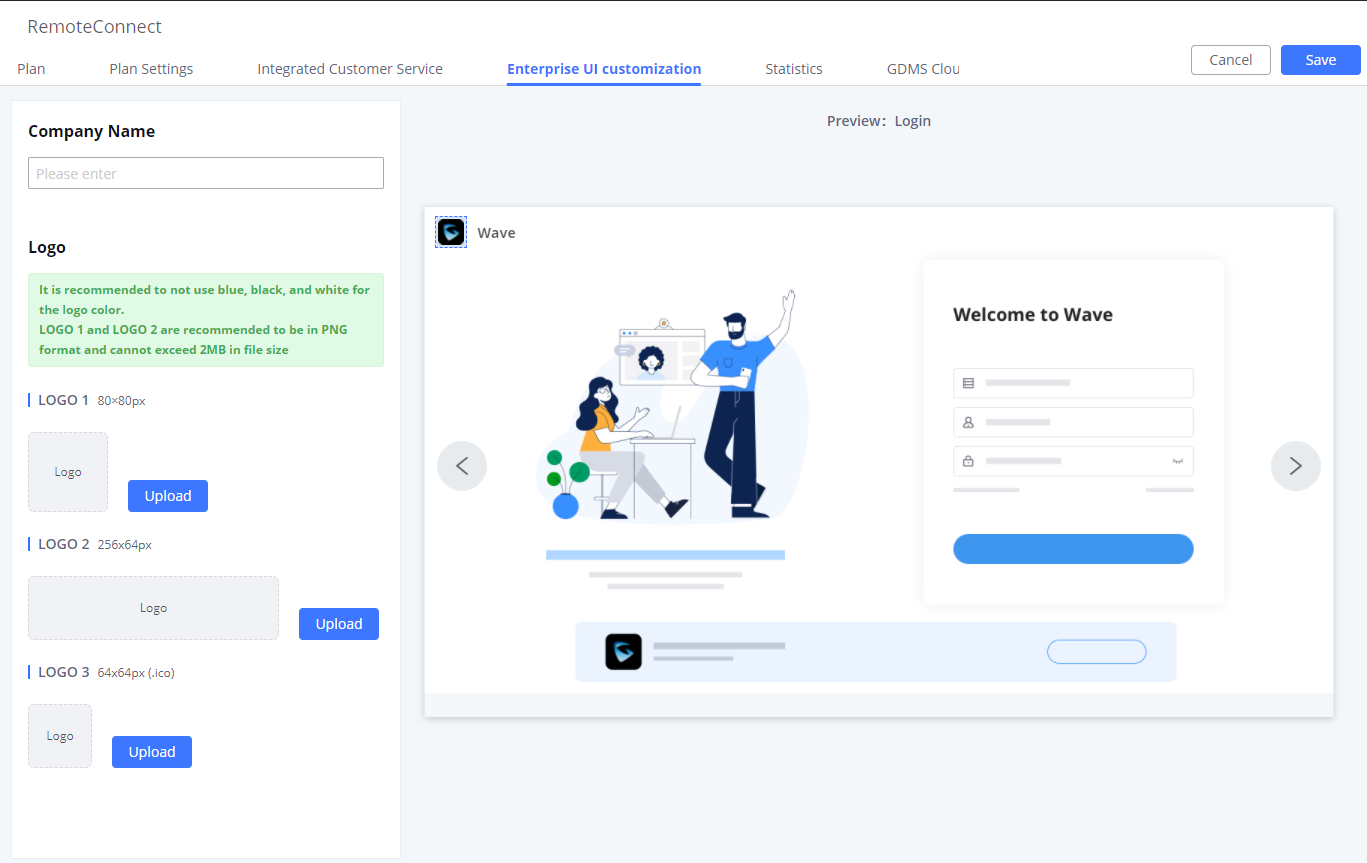
On the UCM Web UI→ UCM RemoteConnect → Enterprise UI Customization page, users can edit the company name and select a local image file as the new logo. The company name acts on the text part with the company’s logo, and the pictures are in different formats and sizes according to the logo position, which are LOGO1 80*80px, LOGO2 256*256px, LOGO3 64*64px (only “ico” format is supported), these logos will be displayed on the “UCM management platform/login”, “Reset Password”, “Email Template”, “Wave_PC”, “Wave Login”, “Browser Label”, “Guide Page” interface preview.
Once done, the administrator can log in to the UCM management platform and customize the Wave LOGO, please refer to the UCM RemoteConnect user guide for details:
After customizing the logo, all Logos on the Wave page are displayed as customized Logos.
Company Brand Customization Interface
Important
This feature is a part of the RemoteConnect service, please refer to the following website to view the plans offered in the service: https://ucmrc.gdms.cloud/plans
IM SETTINGS
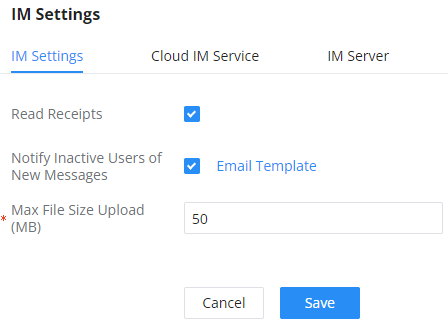
Under System Settings →IM Settings, the user can enable or disable whether to show a read receipt to the message sender when the recipient reads the message.
Note
Please note that disabling read receipt will also disable the indication if a message has been delivered.
EnableDisable Read Receipt
Parameter
Description
Read Receipts
Toggle on/off r the read receipts in the instant messages exchanged in Wave. When read receipts are enabled, Wave will show when a message is delivered and read by the recipient.
Notify Inactive Users of New Messages
If an extension under this server has not logged into Wave for more than 7 days, and a new message is received, an email notification will be sent to the extension notifying them of the amount of direct messages and @mentions received in the last 24 hours. Applies to both local IM and Cloud IM.
Max File Size Upload (MB)
Configures the maximum size of individual files users can upload to Wave chat. Only applicable when using local IM.
If using Cloud IM or a custom IM server, the maximum file size upload must be configured on GDMS or the IM server instead. On GDMS, this can be found by navigating to the top right of the page -> Plans & Services -> My Plans -> Options column -> Edit Cloud IM page.
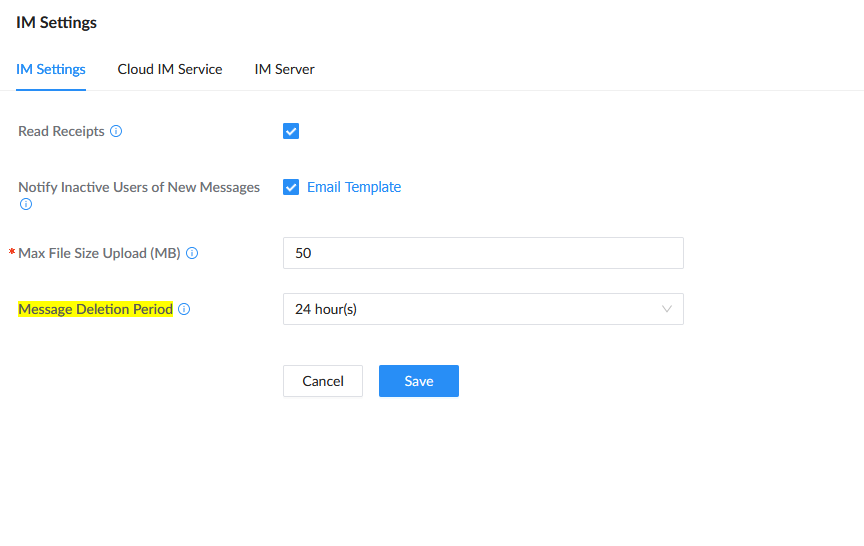
Message Deletion Period
Wave follows the Message Deletion Period configured on the UCM. This setting determines how long users can edit or delete messages after they are sent. Once the configured time period expires, the Edit and Delete options are no longer available for the message.
The setting can be configured on the UCM, and Wave applies the configured period to messages sent through the application.
Note
Cached chat images and files older than 30 days are automatically cleared to reduce mobile storage usage.
IM DATA CLEANING
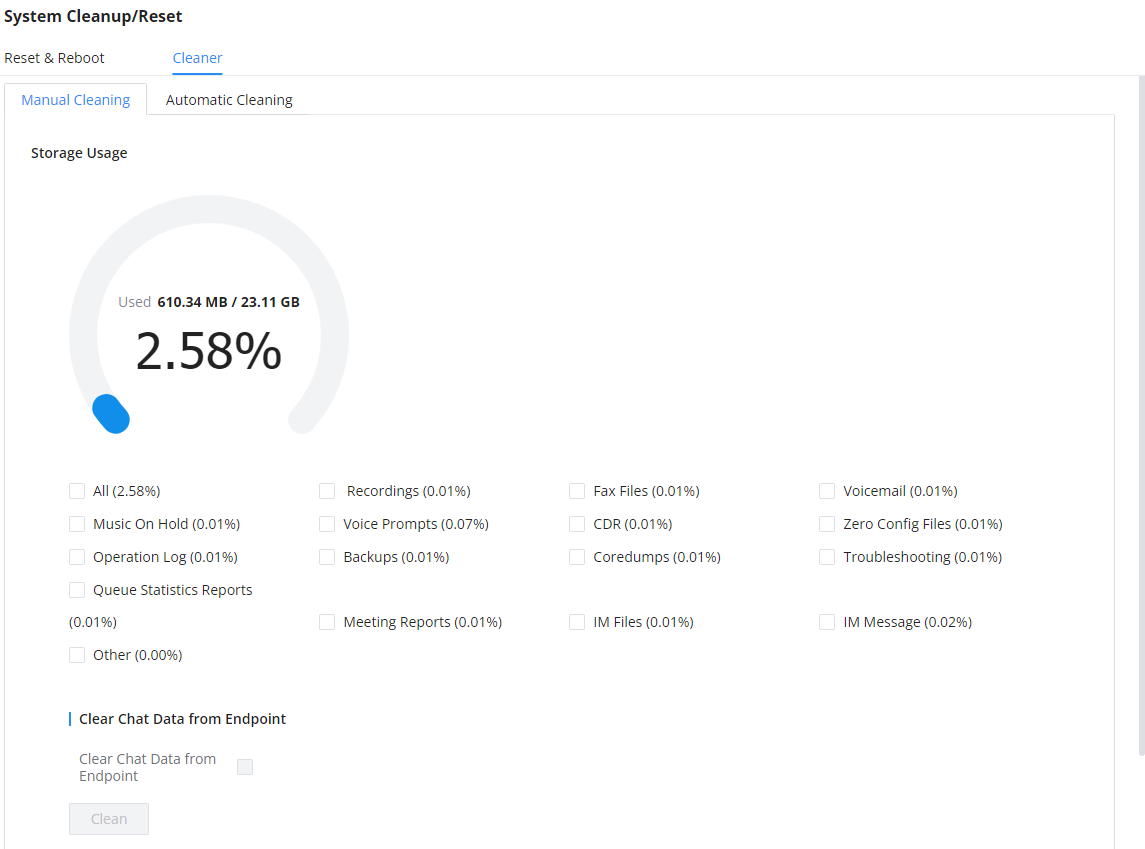
Administrators can clean the Instance message data generated during chat discussions using Wave web and to do that, please navigate the UCM630x web interface and go under Maintenance 🡪 System Cleanup/Reset 🡪 Cleaner.
It can either be done manually as shown in the figure below:
Manual IM Data cleaning
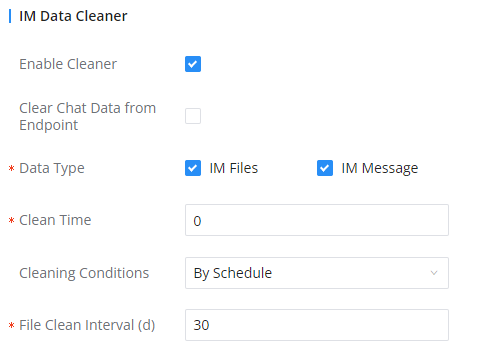
Alternatively, it can be done automatically by configuring IM Data Cleaner as shown below:
Automatic IM Data Cleaner
Enable Cleaner
Enable the IM Data Cleaner function.
Cleanup Type
Choose the cleanup type; either IM message or IM shared files or both.
Clean Time
Enter the hour of the day to start the cleaning. The valid range is 0-23.
Cleaning Conditions
By Schedule: If the clean interval is 3, cleaning will be performed every 3 days to delete all files.
By Threshold: Check at the configured cleaning time every day to see if the storage threshold has been exceeded and perform cleaning of all files if it has.
Keep Last X Days: Delete all files older than X days.
File Clean Interval
Enter 1-30 to specify the day of the month to clean up the files.
Automatic IM Data Cleaner
CLOUD IM
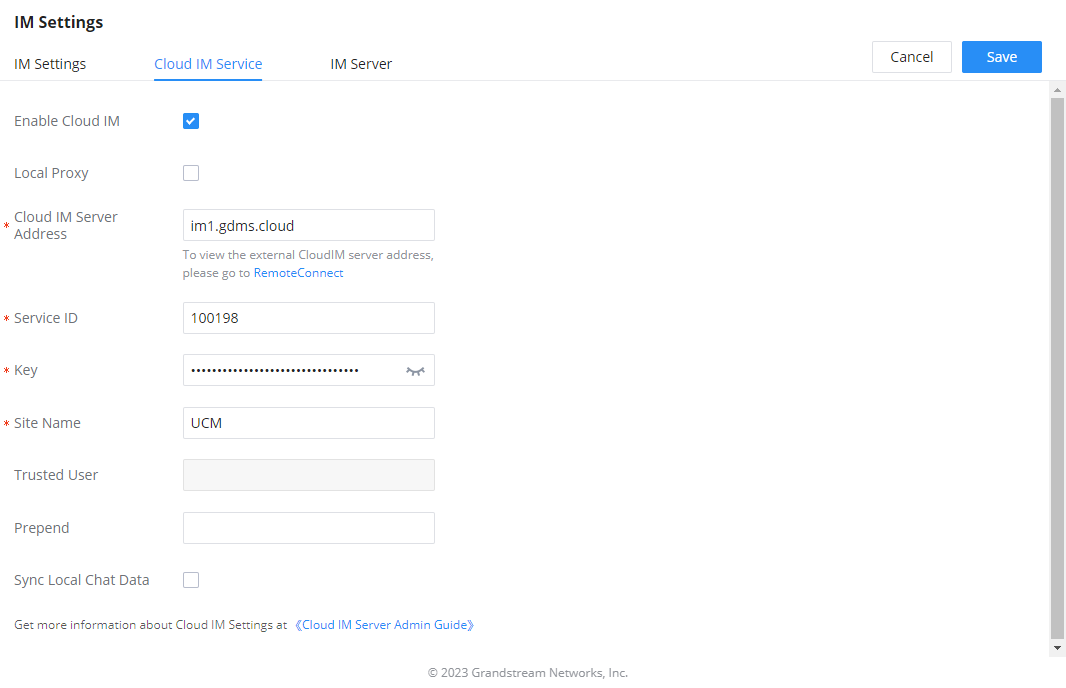
When enabling the Cloud IM, all IM data in Grandstream Wave is stored in the external server Cloud IM, it is no longer stored in the UCM. The GDMS can configure CloudIM service for UCM devices. At this time, the UCM device synchronizes the configuration item information.
Cloud IM
Cloud IM Service
Enable Cloud IM
If you have purchased the Cloud IM package or purchased the Grandstream IM server, you can configure it. If you have not purchased it, the configuration will not take effect, but PBX local IM service is allowed. Please note that after enabling this feature, local chat data will not be visible.
Local Proxy
If enabled, the local proxy will be used to forward files and text messages if the IM server cannot be connected to upon Wave login due to certificate issues.
Cloud IM Server Address
The address of the server that provides IM service, you can fill in the address of the Cloud IM server provided by the RemoteConnect package or the IM server address of the GDMS.
Service ID
The service ID of the Cloud IM server.
Key
The Key to the Cloud IM server.
Site Name
Enter the name of the site.
Trusted User
The trusted user of the cloud IM. Only letters, numbers, and special characters are allowed.
Prefix
As the extension prefix, it is added before the extension number.
Sync Local Chat Data
Syncing existing local chat data to Cloud IM server. The Wave chat feature will not be available during the syncing process. It is recommended to avoid syncing during active working hours.
– Time Range
All
Last 12 Months
Last 6 Months
Last 3 Months
Last Month
– Data Type
IM Data
Images
Files
Cloud IM parameters
Note
Only account details and department information will be synced on local IM and cloud IM. Other configurations such as profile picture, work status, and favorite contacts will not be synced and these are stored in local IM or cloud IM respectively. Therefore, please be aware that when switching between local IM and cloud IM, part of the data cannot be synced and the previously stored data on local IM or cloud IM (depending on which one is switched to) will be retrieved.
AI FEATURES
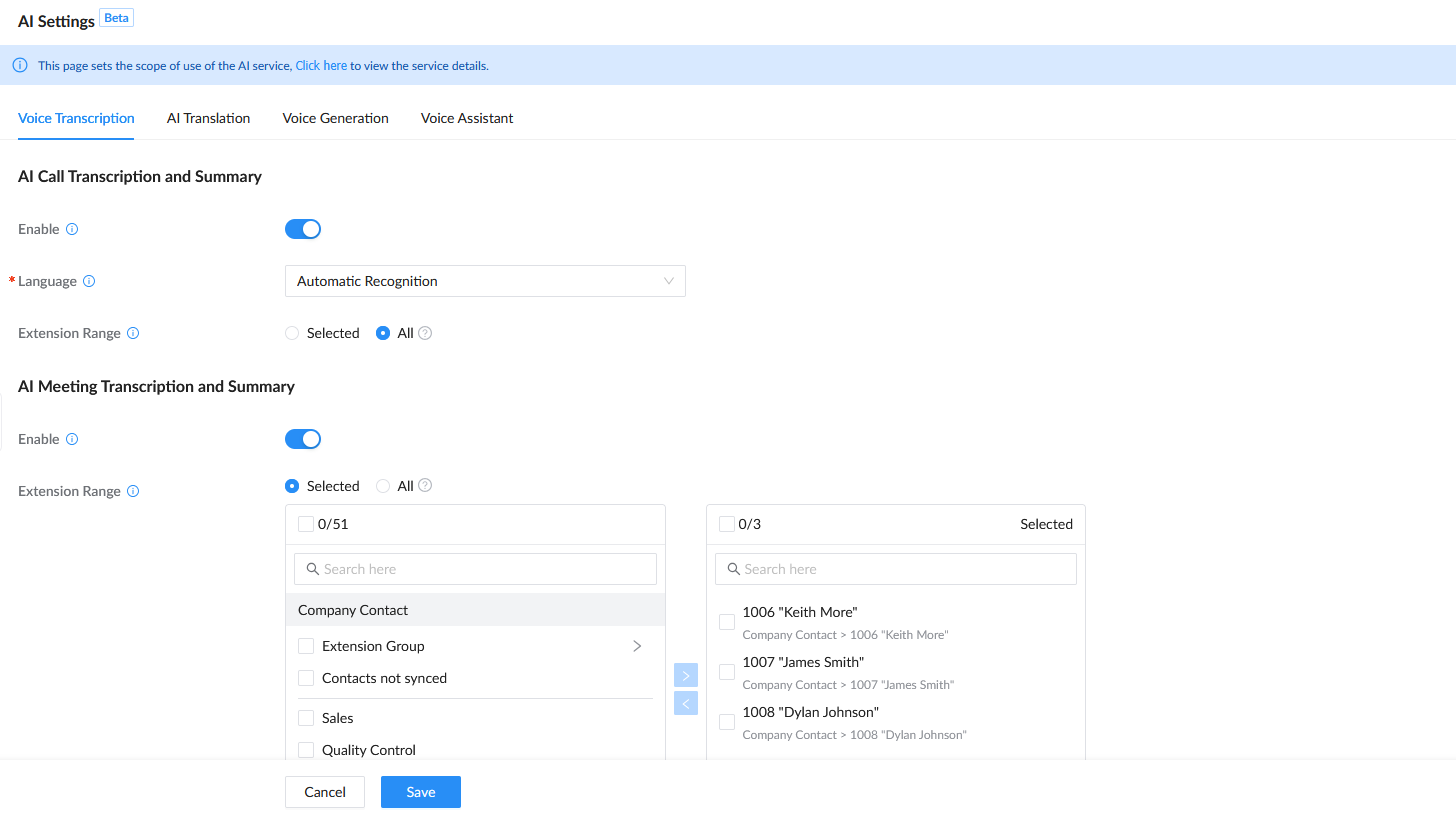
The UCM provides centralized AI feature settings that determine which AI services can be used by Wave extensions. Administrators can enable the required AI services and assign access to all extensions or to specific extensions. Once configured, authorized extensions can use the corresponding AI features through the Wave web platform.
Voice Transcription
The Voice Transcription tab controls AI-powered transcription and summary features available to Wave extensions.
AI Call Transcription and Summary: Enables AI transcription and summary for calls. Administrators can select the preferred transcription language and specify the extensions that can use the feature.
AI Meeting Transcription and Summary: Enables AI transcription and summary for meetings. Access can be provided to all extensions or restricted to selected extensions.
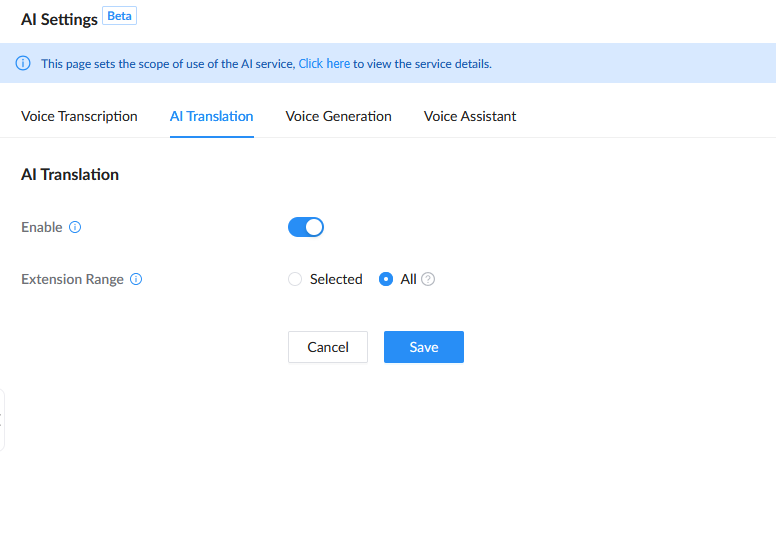
AI Translation
The AI Translation tab enables AI translation for authorized Wave extensions. Administrators can enable the service and specify which extensions can use translation features during calls and meetings.
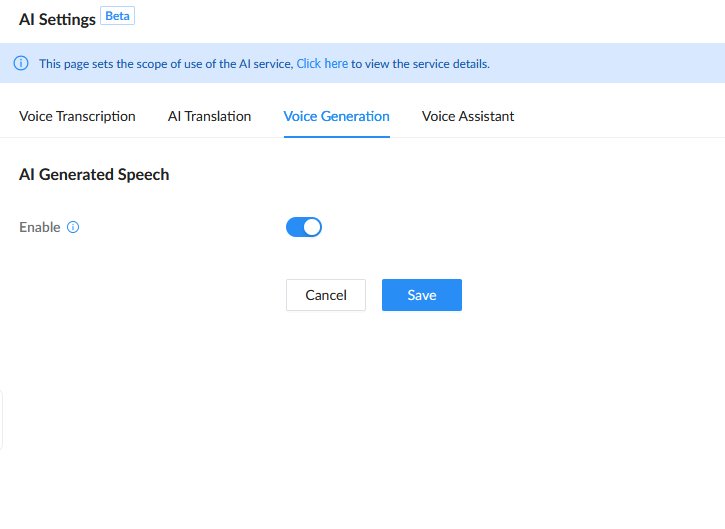
Voice Generation
The Voice Generation tab enables AI-generated speech functionality for Wave extensions. Once enabled, authorized users can benefit from the available AI voice generation features through Wave.
Voice Generation
REMOTECONNECT
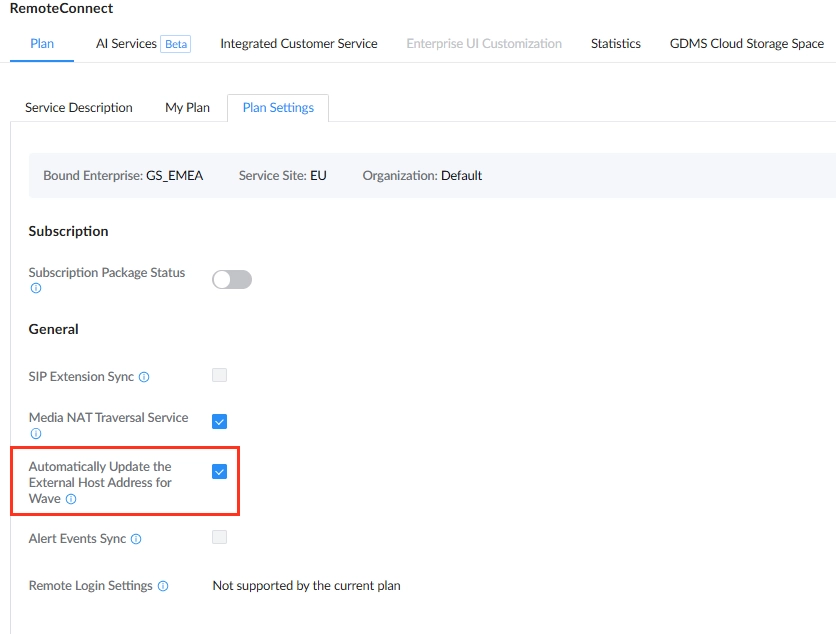
When Wave users are connecting from a remote network to the UCM through RemoteConnect, the administrator sometimes might update the domain name of the UCM on the GDMS. To stop the synchronization of the new domain name, the user must disable “Automatically Update the External Host Address for Wave” under UCM configuration page on RemoteConnect > Plan > Plan Settings.
Plan Settings
When this option is disabled, the UCM will not overwrite the domain name configured in Wave Settings under System Settings > HTTP Server.
Wave Settings
CHANGE LOG
Version 1.0.35.7
Added AI Feature Configuration for Wave Extensions. [AI Features]
New Wave permissions added: Send Attachment and View Recording File. [Portal/Wave Privileges]
Version 1.0.23.15
No major changes.
Version 1.0.21.9
Added support for enabling and disabling read receipt for Wave instant messaging. [IM Settings]
Version 1.0.19.9
Added support for scheduling Onsite Meetings. [Onsite Meeting]
Version 1.0.17.7
Added the Allowed to override Host Mute option to the Edit Meeting / Schedule Meeting pages → Advanced Settings page. If enabled, participants muted by the meeting host will be able to unmute themselves. [Schedule a Meeting]
Version 1.0.15.7
No major change was added.
Version 1.0.13.6
Made several UI improvements.
Added Portuguese and Vietnamese language support. [Specifications]
Added support to set permissions in the UCM admin to allow Wave users to view the specific contacts. [CONTACT MANAGEMENT]


 to edit the meeting room.
 to delete the meeting room.
 to edit the meeting room.
 to delete the meeting room.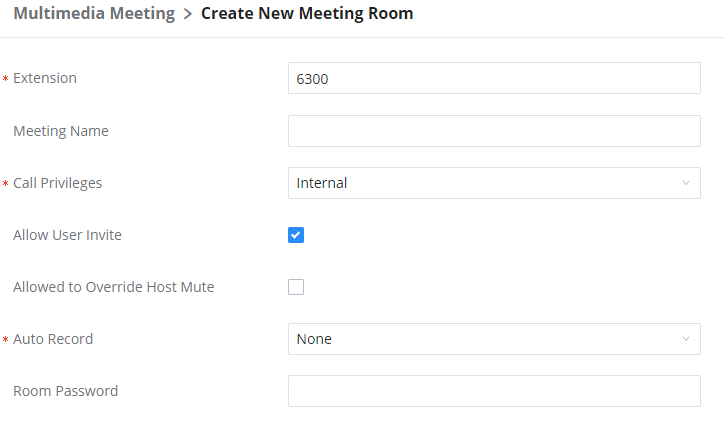
 on the audio meeting room page to access and configure global settings for all audio meeting rooms. The configuration settings page contains the following options: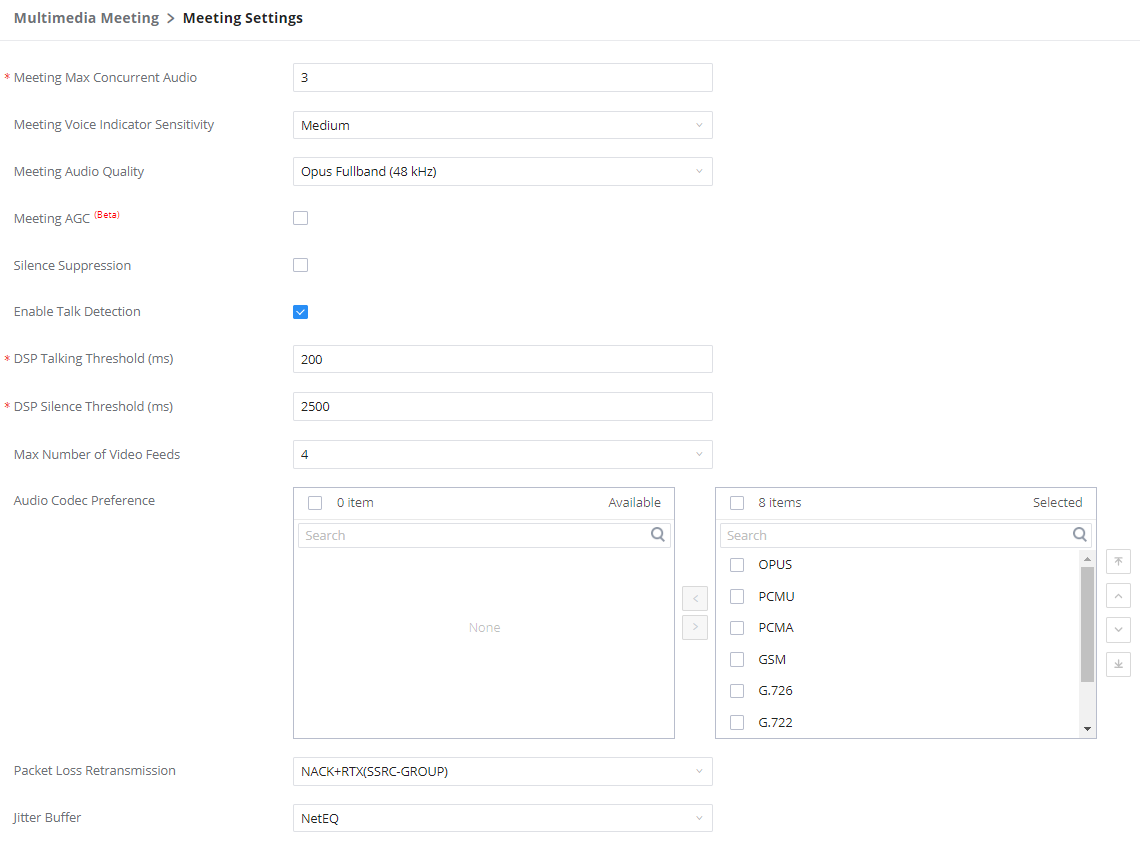
 on the left of each meeting room to expand the real-time participant list for the admin to view.
 to remove selected participants from the meeting.
 to mute selected participants.
 to unmute selected participants.
 to invite contact group or remote meeting room so multiple meeting rooms can be bridged.
 to invite other users into the meeting room.
 : This indicates the meeting room is unlocked. Click on
  : This indicates the meeting room is locked. Click on
  on the left of each meeting room to expand the real-time participant list for the admin to view.
 to remove selected participants from the meeting.
 to mute selected participants.
 to unmute selected participants.
 to invite contact group or remote meeting room so multiple meeting rooms can be bridged.
 to invite other users into the meeting room.
 : This indicates the meeting room is unlocked. Click on
  to lock meeting. If the meeting is locked, no new party can be invited or can join the meeting.
 : This indicates the meeting room is locked. Click on
  to unlock this meeting room.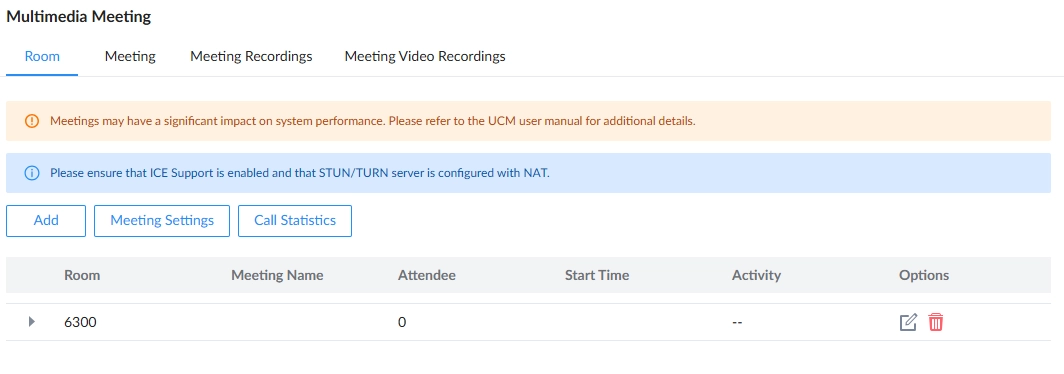
 to edit a scheduled meeting.
 to view meeting schedule details.
 to delete the meeting schedule. Click the button, you can choose to delete the most recent meeting of the meeting room or delete the entire recurring meeting to delete the meeting room reservation.
 to edit a scheduled meeting.
 to view meeting schedule details.
 to delete the meeting schedule. Click the button, you can choose to delete the most recent meeting of the meeting room or delete the entire recurring meeting to delete the meeting room reservation.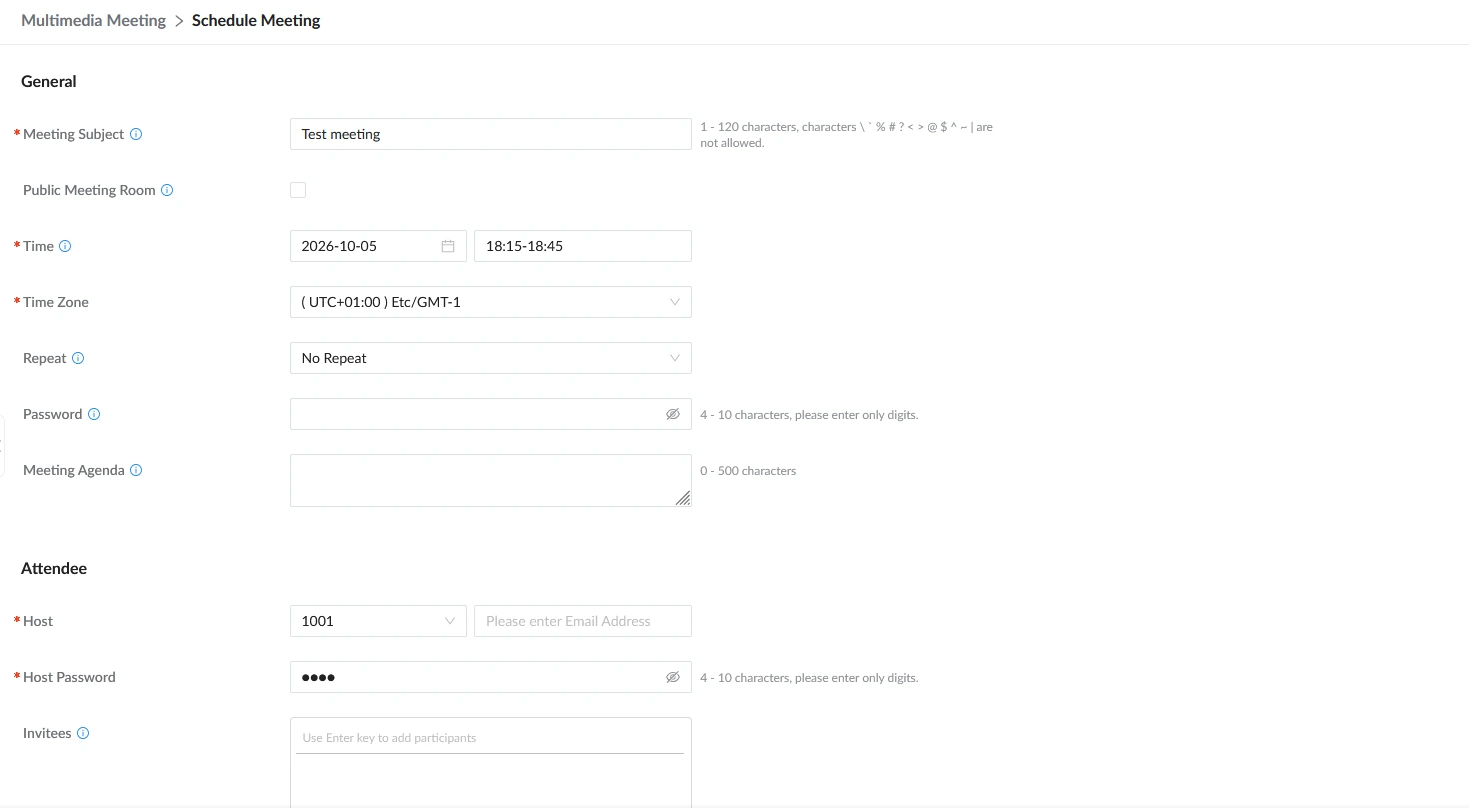

 to edit the Meeting Schedule.
 to delete the Meeting Schedule.
 to edit the Meeting Schedule.
 to delete the Meeting Schedule.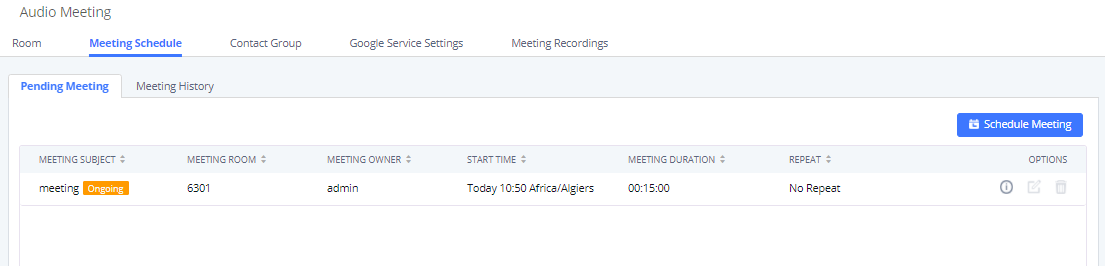

 to download the Meeting Report of the meeting.
 to reschedule the Meeting.
 to download the Meeting Report of the meeting.
 to reschedule the Meeting.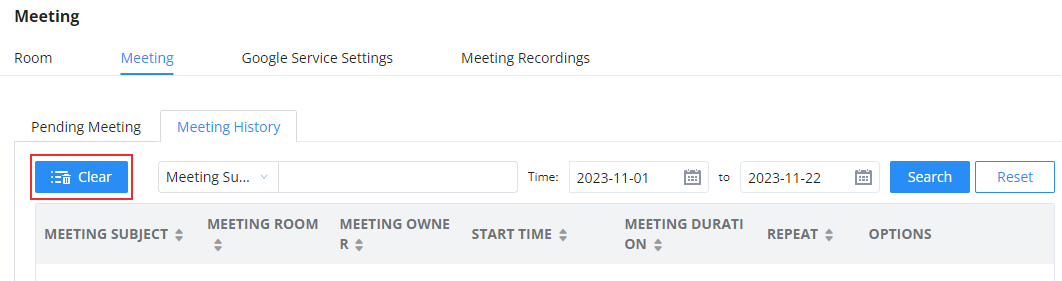

 to edit the call console.
 to delete the call console.